Forms 3.0
Introduction to Forms 3.0
Forms are used for creating runtime user interfaces. Forms are mapped to activities in the workflow for capturing runtime details and dynamic decision-making based on the data input. You can create forms specific to the flows.
Types of Forms
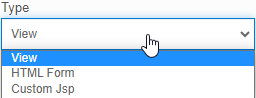
There are three different types of forms in Forms3.0: Views, HTML forms and Custom JSP forms.
Views: You can create and design Views that can be used for website types of user interfaces. Views can executed as part of process flows or they can be part of any Web App or Mobile App. You can design a Home page or any other internal website pages using the Views. Views have components and features that allow you to design the web page.
HTML: You can design and configure an HTML form by dragging the form controls to the Form designer and configuring them. HTML forms provide a user-friendly interface for designing the forms as per the requirement.
Custom JSP: You can use your custom code in JSP (.JSP file) that can be uploaded as the form. A JSP script is a regular HTML page containing Java programs.
Viewing Forms
-
Click the Burger menu on the left of the logo and navigate to App Studio.
-
Click Applications and double-click the application name to open that application.
-
Click Process Flow and then double-click a flow name to open the flow.
-
Click Forms on the left side panel to view the forms for the process flow module.
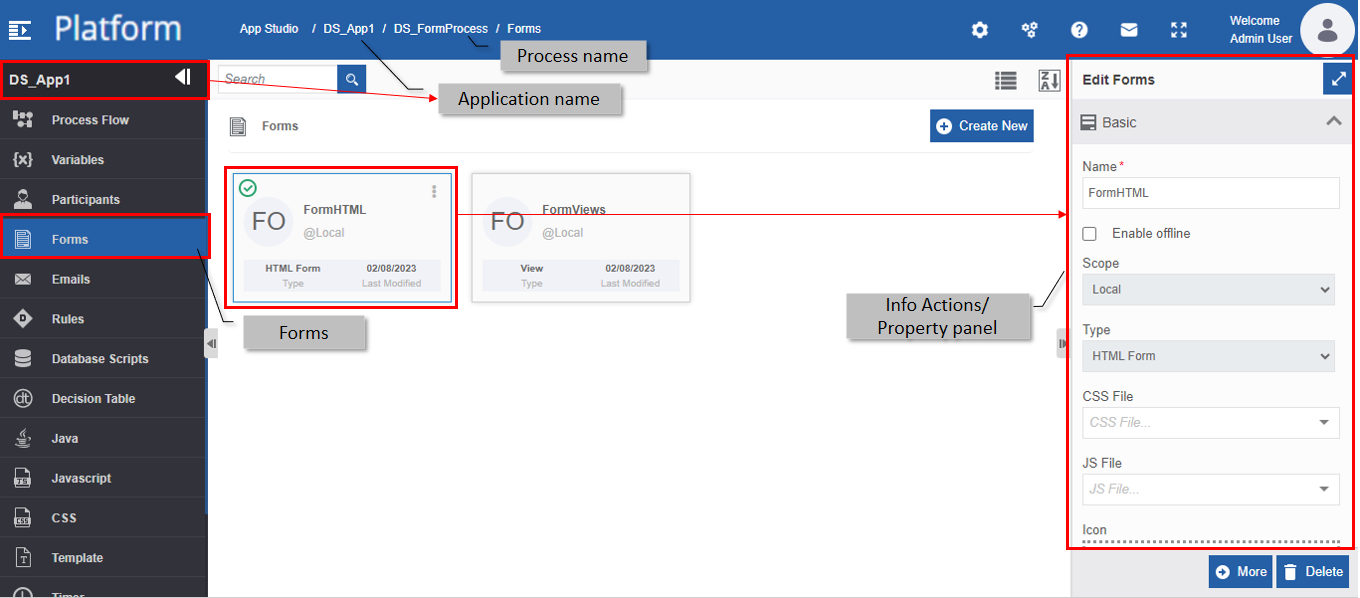
Figure 1: The form list page
Creating New Form
- Click the Burger menu on the left of the logo and navigate to App Studio.
-
Click Applications and double-click the application name to open that application.
-
Click Process Flow and then double-click a flow name to open the flow. Forms apply only to the process flow.
-
Click Form. The form list appears.
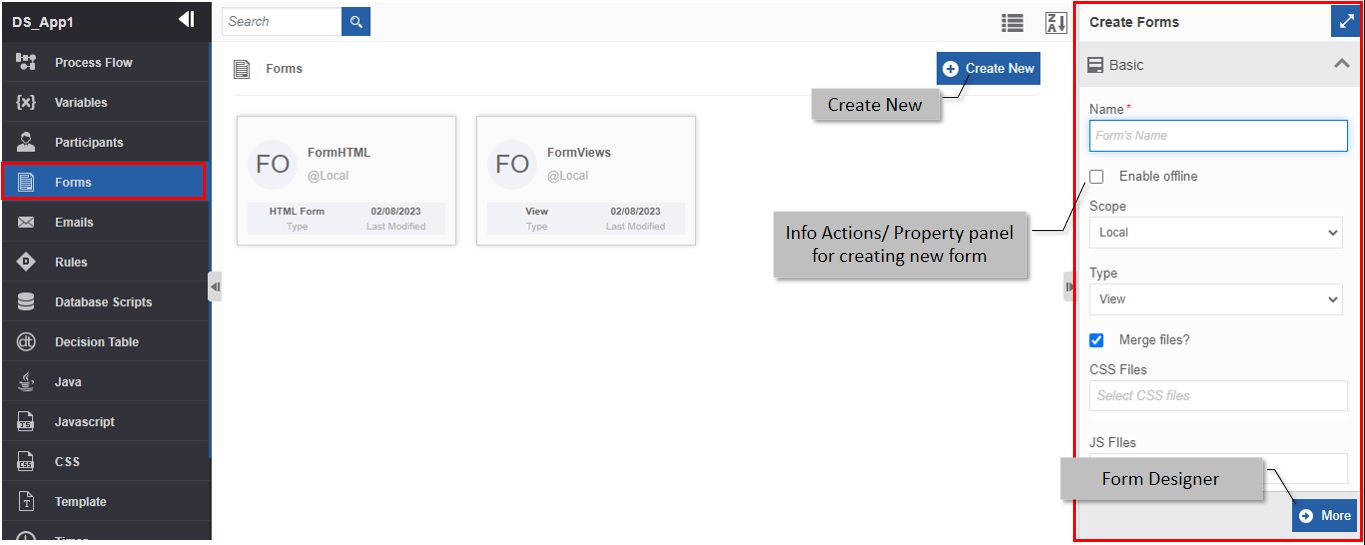
Figure 2: Creating a new form -
Click Create New.
-
Enter the Basic details in the Create Form panel as explained below.
Field Description Name* Enter the name of the form.
Character limit: 50.
Data type: Alphanumeric and symbols. Whitespace is not allowed.Enable Offline Select the checkbox for enabling offline mode Scope The scope of an entity is always local as the entities are created at the flow level. Type Select the type of the form.
Merge Files Select Merge Files if you want to merge the selected files.
All the CSS files will be merged into single and all the JS files will be merged into single file.
This is reduce the effort of loading files one after the another and hence single file loading increases performance.CSS File Select the required CSS file. JS File Select the required JS file. Scope Identifier* Enter the scope identified. Generally, Form name is considered as the scope identifier with which you can identify a particular form. This is used when you have to call this form as an instance form during the runtime in another form. Icon - Click inside the dotted area below the icon. The Explorer window opens. Select the required icon file from any folder.
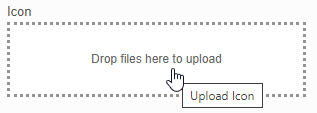
- Or
- Drag an icon - from any location/folder - into the marked area.
- Image file formats supported are PNG, JPEG, and JPG.
After uploading the icon, Download and Remove are displayed along with the icon file name (file name of the uploaded image).
- Click Download to download the icon.
- Click Remove to remove the icon
To update a new icon, remove the icon and repeat the steps mentioned above.Description Enter a description for the form. -
Click More. The Form configuration details are displayed.
If you have selected the form tye as View, a Form designer appears for designing the View. The view is the web view form design.
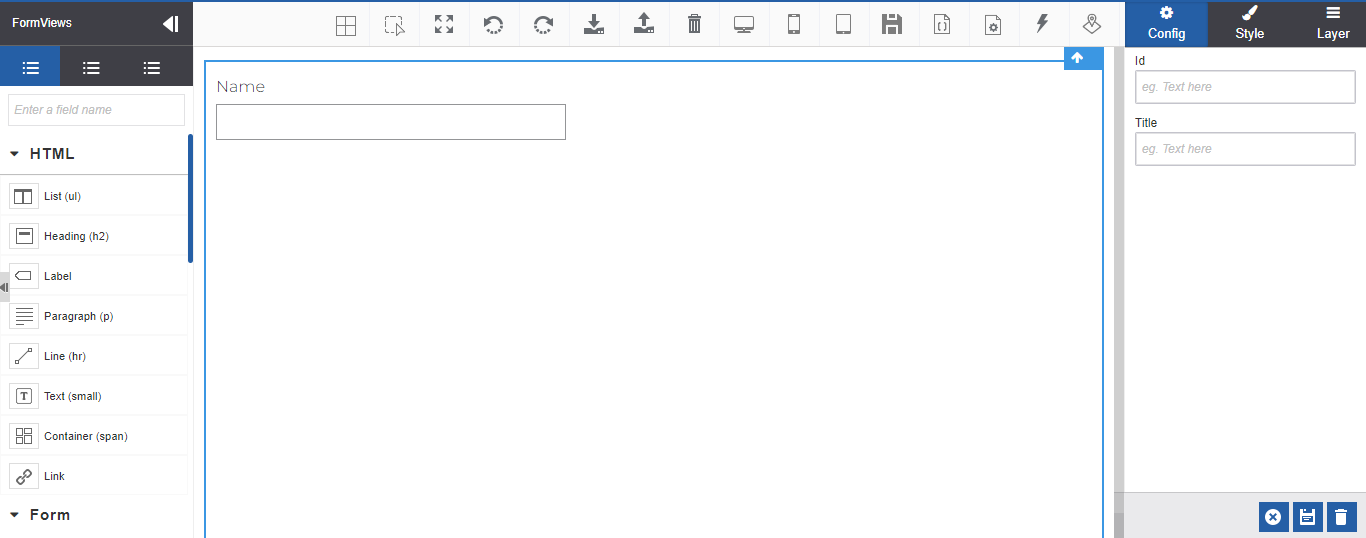
Figure 3: View designer- Design the View using the components as needed.
If you have selected the form type as HTML, a Form designer appears to design the form as required.
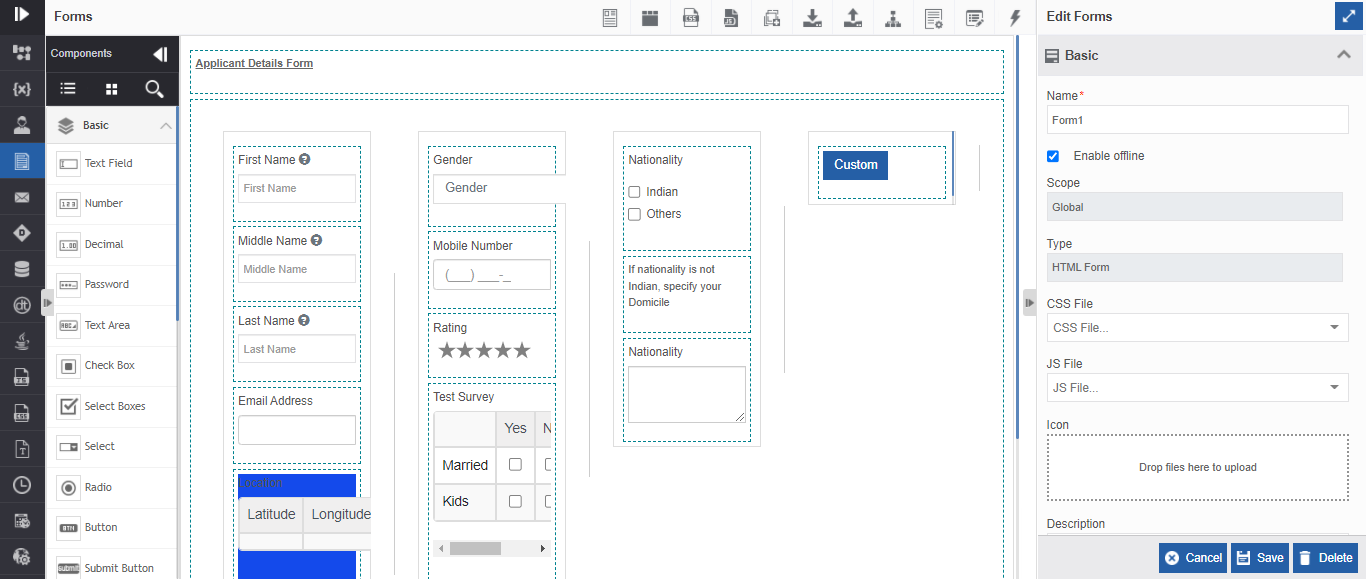
Figure 4: HTML form designer- Design the HTML form as per your requirements.
If you have selected the form type as Custom JSP, the JSP File upload screen appears for uploading the JSP file.
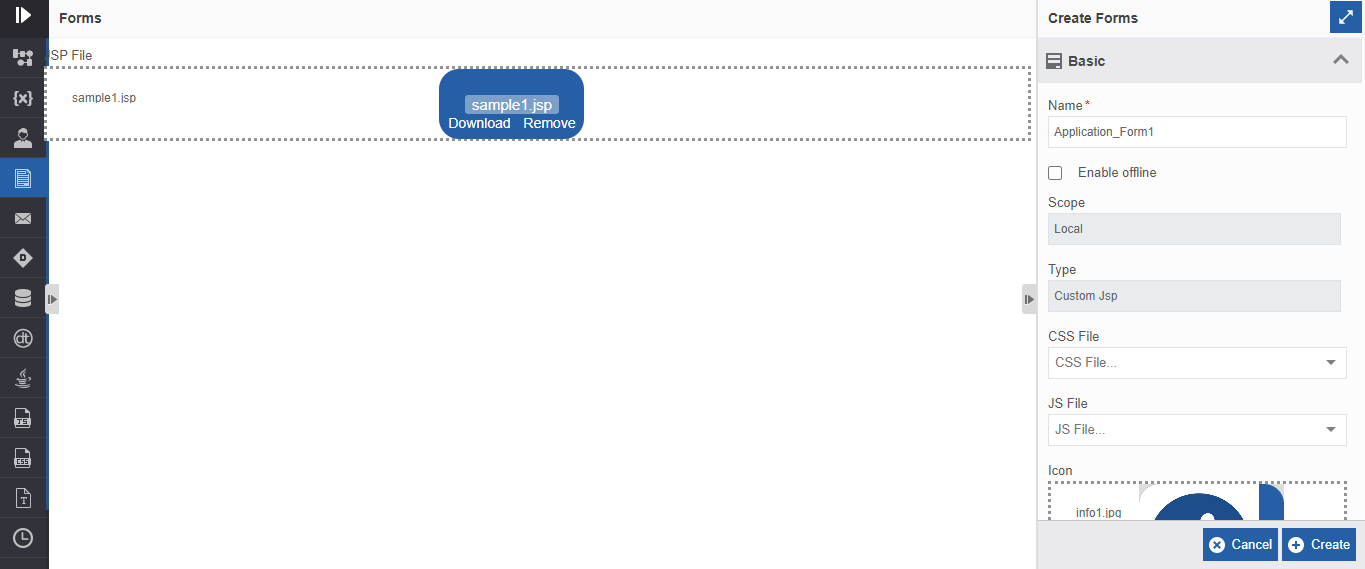
Figure 5: Custom JSP file upload- Click the dotted box (Drop files to upload) to select the JSP file or you can drag a JSP file from any location/folder - into the marked area. Refer to Custom JSP Forms for more details.
-
Click Create. The form with the details provided is created.
Viewing and Editing Forms
If the form is created by another user, make sure to unlock the application before trying to edit it.
- Click the Burger menu on the left of the logo and navigate to App Studio.
-
Click Applications and double-click the application name to open that application.
-
Click Process Flow and then double-click a flow name to open the flow. Forms apply only to the process flow.
-
Click Form. The form list appears.
-
Click the Form card to view the details of the selected form. The details of the token appear in the Info Actions panel (Edit Forms).
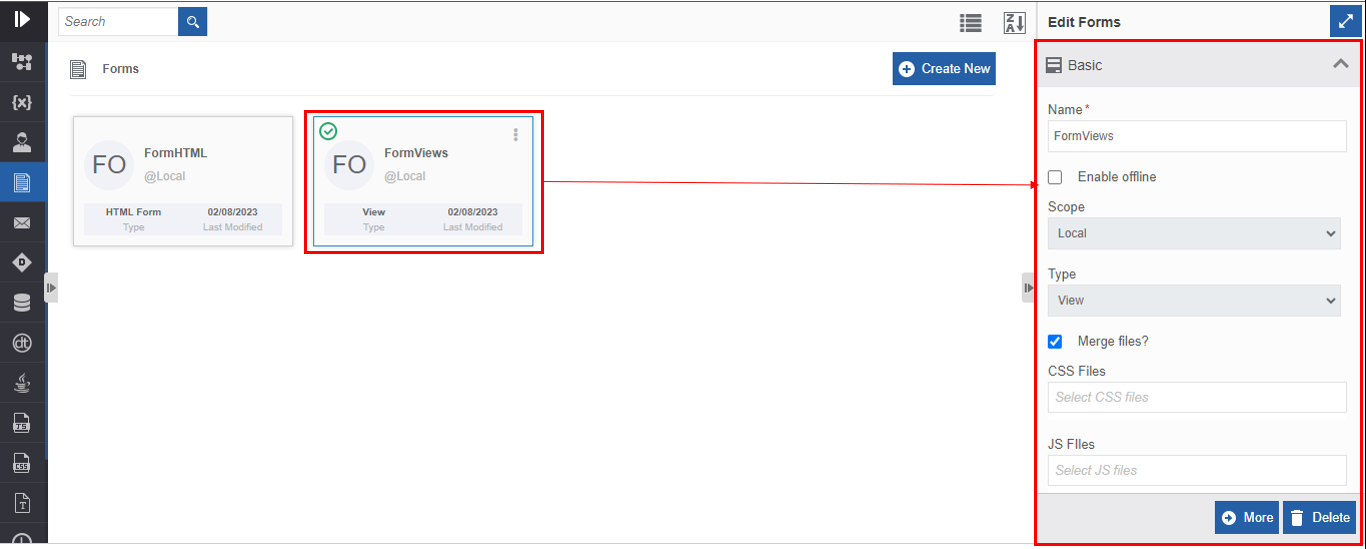
Figure 6: Editing Form details -
Edit the form details as needed.
-
Click More for editing the contents of the form.
- If the Form is of type HTML or View, a form designer appears where you can edit the form control settings and configurations. If the Form is of the type, Custom JSP, you need to upload a new JSP file that contains the required modifications.
-
Click Save.
Or
Click Cancel to navigate to just the previous page (Form listing page).
Searching for a Form
-
Click the Burger menu on the left of the logo and navigate to App Studio.
-
Click Applications and double-click the application name to open that application.
-
Click Process Flow and then double-click a flow name to open the flow. Forms apply only to the process flow.
-
Click Forms on the left side panel to view the forms for the flow module.
-
Type the name (or first few letters) of the form name in the search box on the upper-left of the page. The filtered results are displayed.
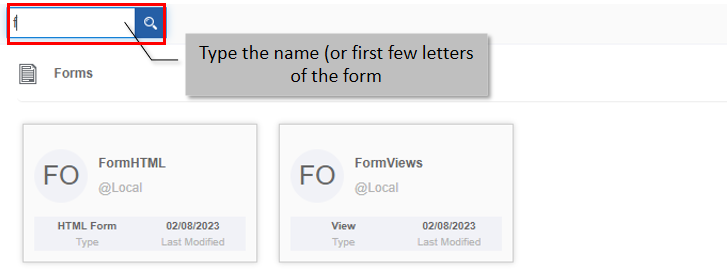
Figure 7: Searching for a form
Sorting Forms
- Click the Burger menu on the left of the logo and navigate to App Studio.
-
Click Applications and double-click the application name to open that application.
-
Click Process Flow and then double-click a flow name to open the flow. Forms apply only to the process flow.
-
Click Forms on the left side panel to view the forms for the flow module.
-
Form name cards are displayed in ascending order by default and the sort icon is descending (ZA).
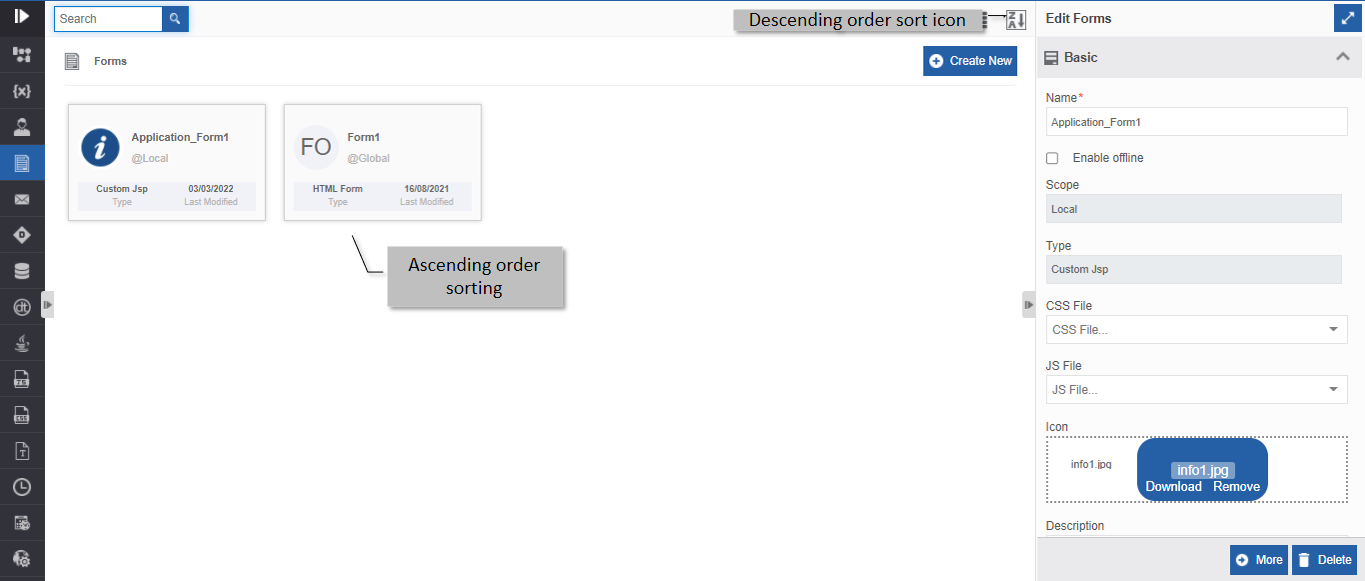
Figure 8: Ascending order display with descending order sort icon -
Click the Descending order sort icon (ZA). The form cards get sorted in descending order (AZ) of the names. The Sort icon is now changed to ascending order (AZ).
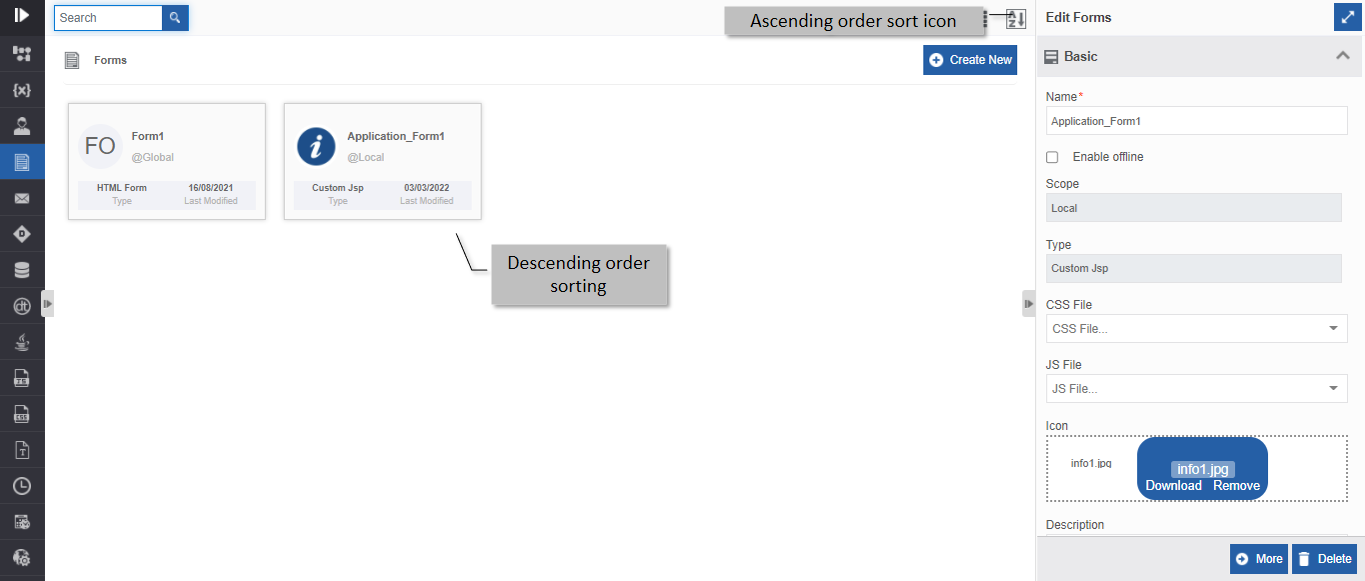
Figure 9: Descending order display with ascending order sort icon -
Click the Ascending order sort icon (AZ) for sorting in the ascending order (AZ). The sort icon changes to descending order (ZA).
Duplicating Form
If the form is created by another user, make sure to unlock the application before trying to edit it.
The associations of the form are not duplicated.
- Click the Burger menu on the left of the logo and navigate to App Studio.
-
Click Applications and double-click the application name to open that application.
-
Click Process Flow and then double-click a flow name to open the flow. Forms apply only to the process flow.
-
Click Form. The form list appears.
-
Hover over any Form card. Three dots appear on the upper right side of the card.
-
Click the three dots. More Actions appear.
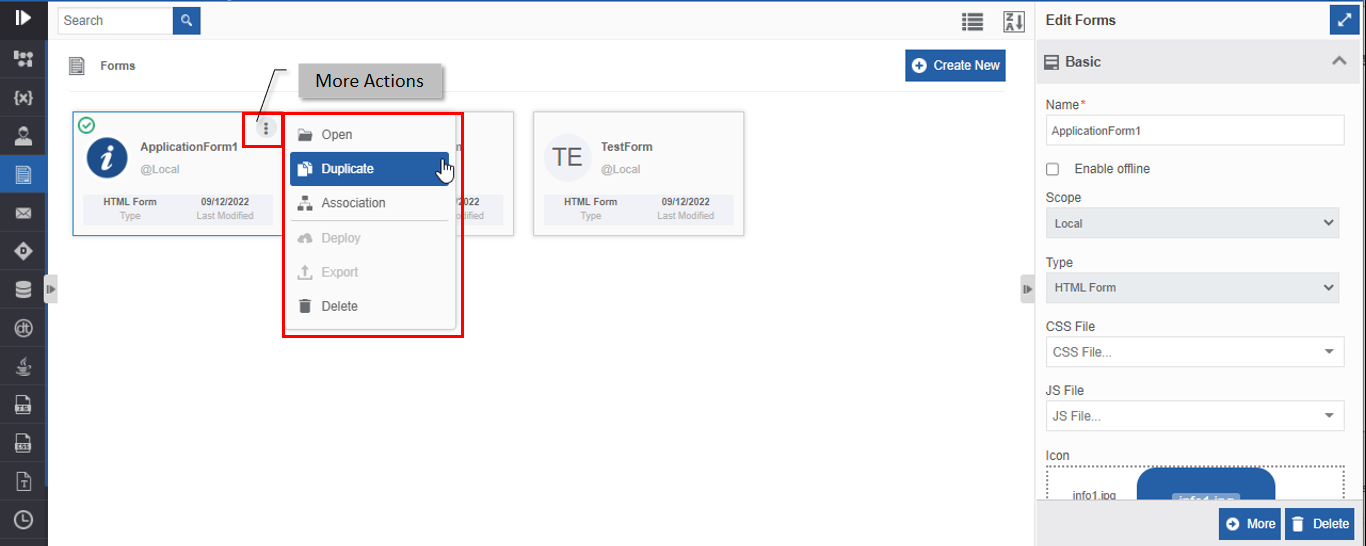
Figure 10: Duplicating Form -
Click Duplicate. A confirmation pop-up appears.
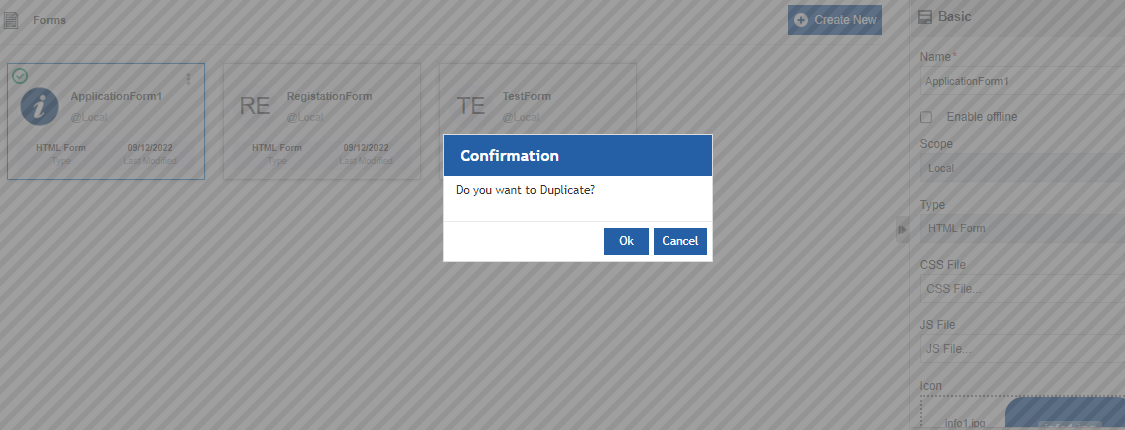
Figure 11: Duplicate confirmation -
Click Ok for duplicating the form (or you can click Cancel to cancel the duplicate action). A Success message appears on the successful duplication of the form.
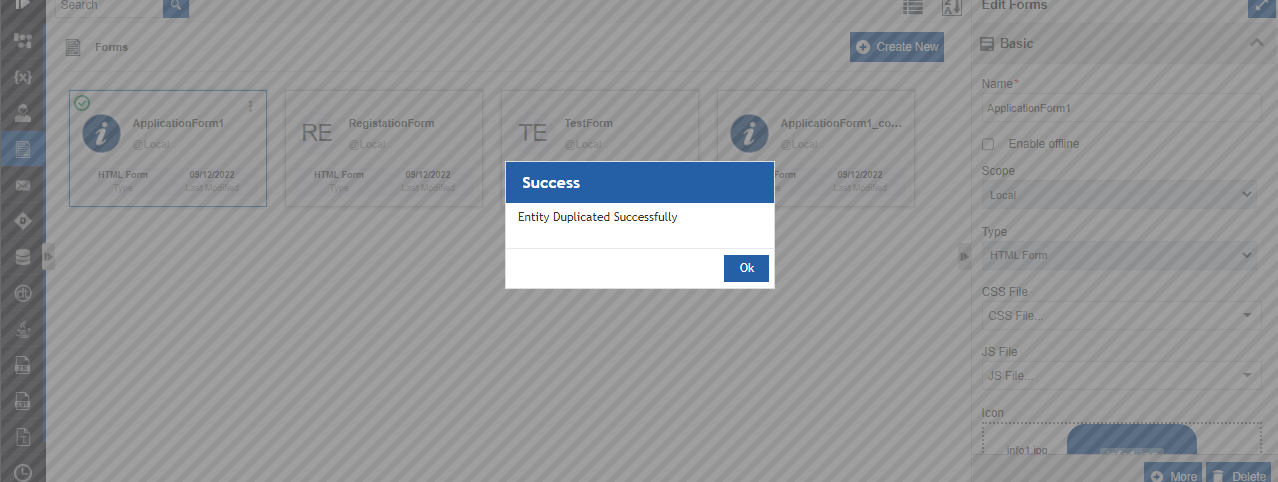
Figure 12: Duplicate success message -
Click Ok. A duplicate copy of the form appears on the Forms page with the same token name suffixed with “_copied”.
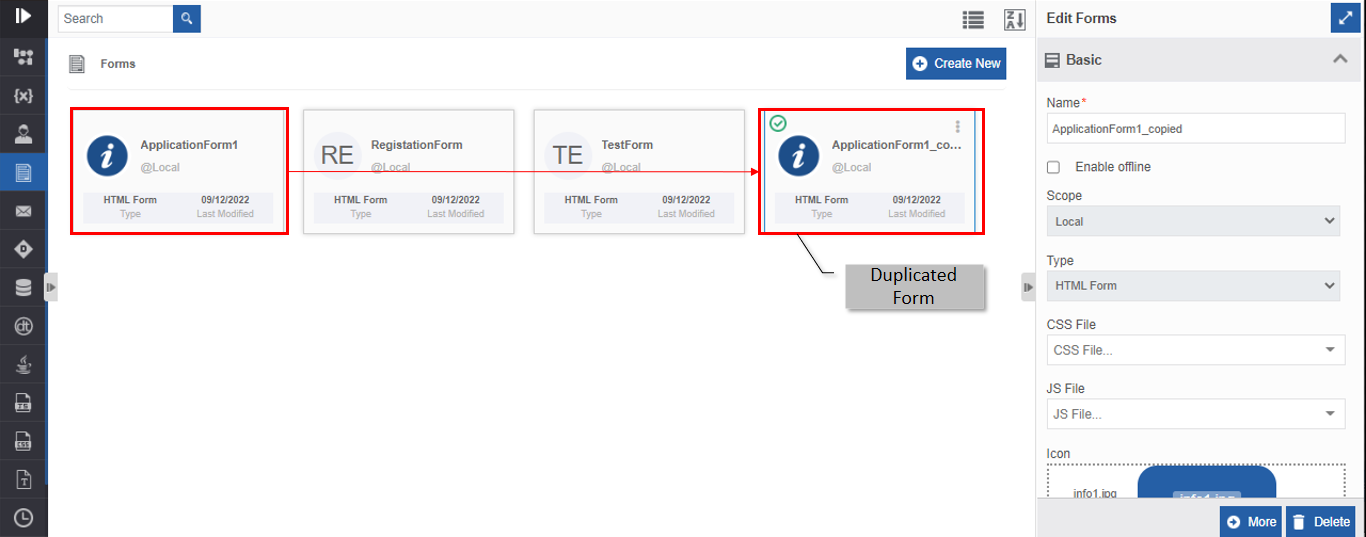
Figure 13: The duplicated Form
Viewing Form Associations
- Click the Burger menu on the left of the logo and navigate to App Studio.
-
Click Applications and double-click the application name to open that application.
-
Click Process Flow and then double-click a flow name to open the flow. Forms apply only to the process flow.
-
Click Form. The form list appears.
-
Hover over any Form card. Three dots appear on the upper right side of the card.
-
Click the three dots. More Actions appear.
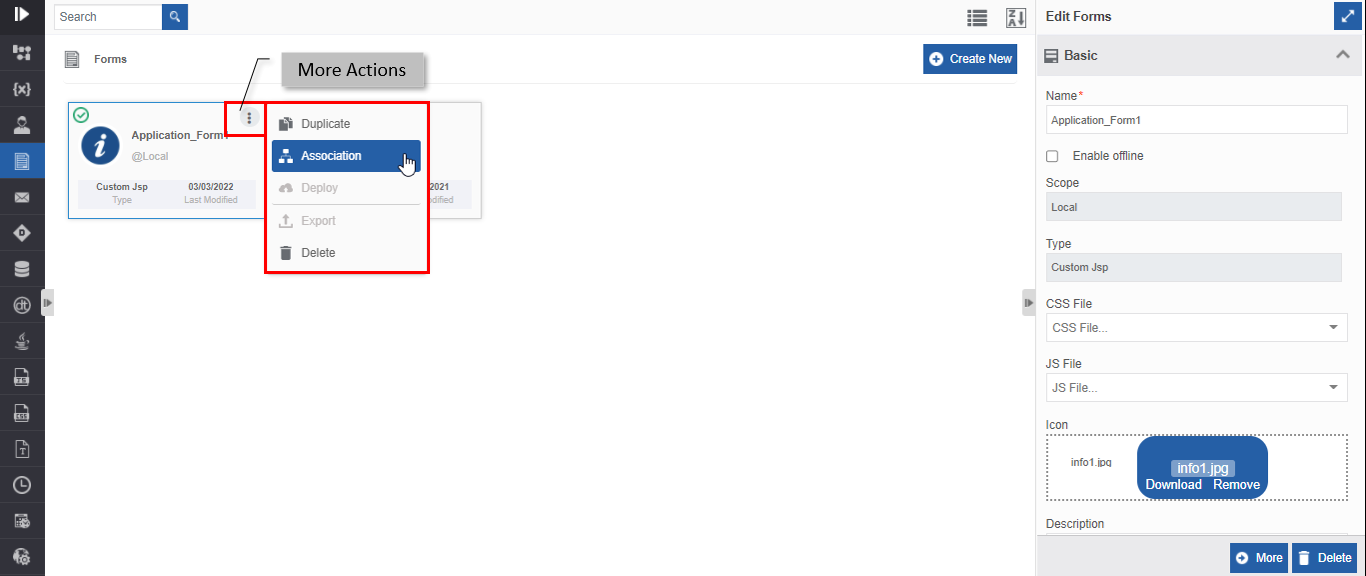
Figure 14: Viewing associations -
Click Associations. The association of the form with the application, flow modules, and activities is displayed in a pop-up.
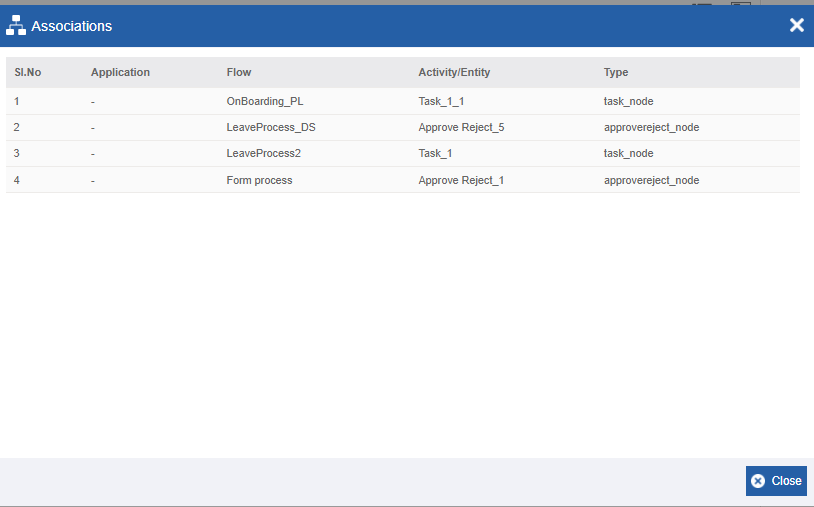
Figure 15: Form Associations-
Application – The application in which the form is utilized.
-
Flow - The flow in which the form is utilized.
-
Activity/Entity - The entity or activity name in which the form is utilized.
-
Type - The type of entity or activity.
-
Toggling Form Views
-
Click the Burger menu on the left of the logo and navigate to App Studio.
-
Click Applications and double-click the application name to open that application.
-
Click Process Flow and then double-click a flow name to open the flow. Forms apply only to the process flow.
-
Click Forms on the left side panel to view the forms for the flow module. The Form page displays the entities in card view (default view). The toolbar displays the Show list view icon.
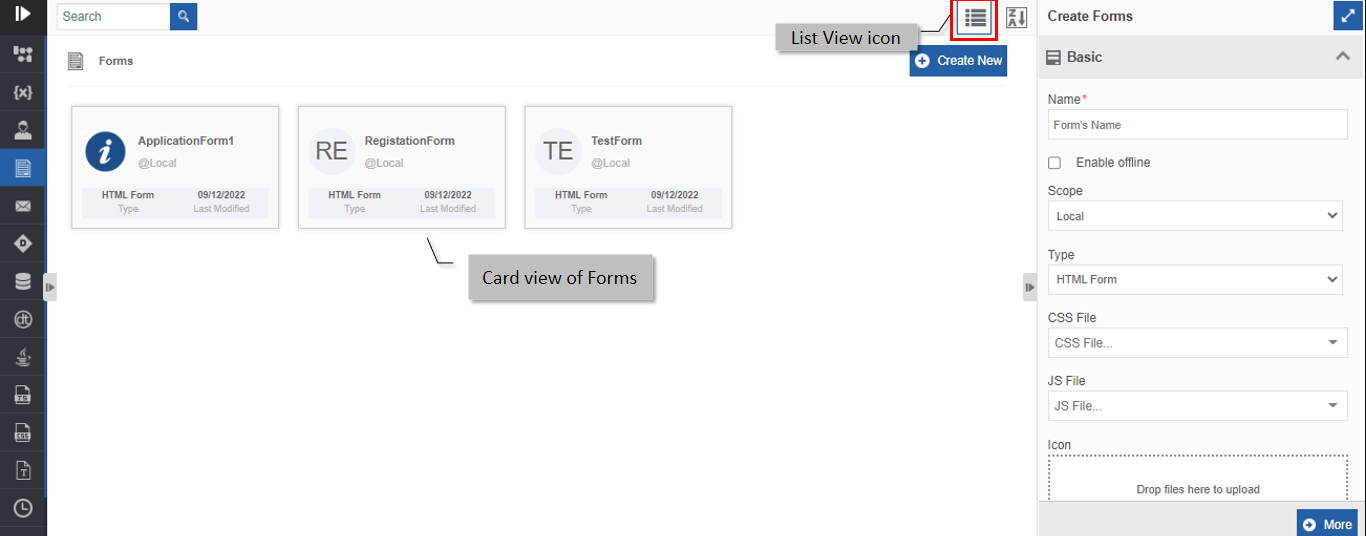
Figure 16: Card view with list view icon on toolbar -
Click the Show list view icon. The view is changed to a list view.
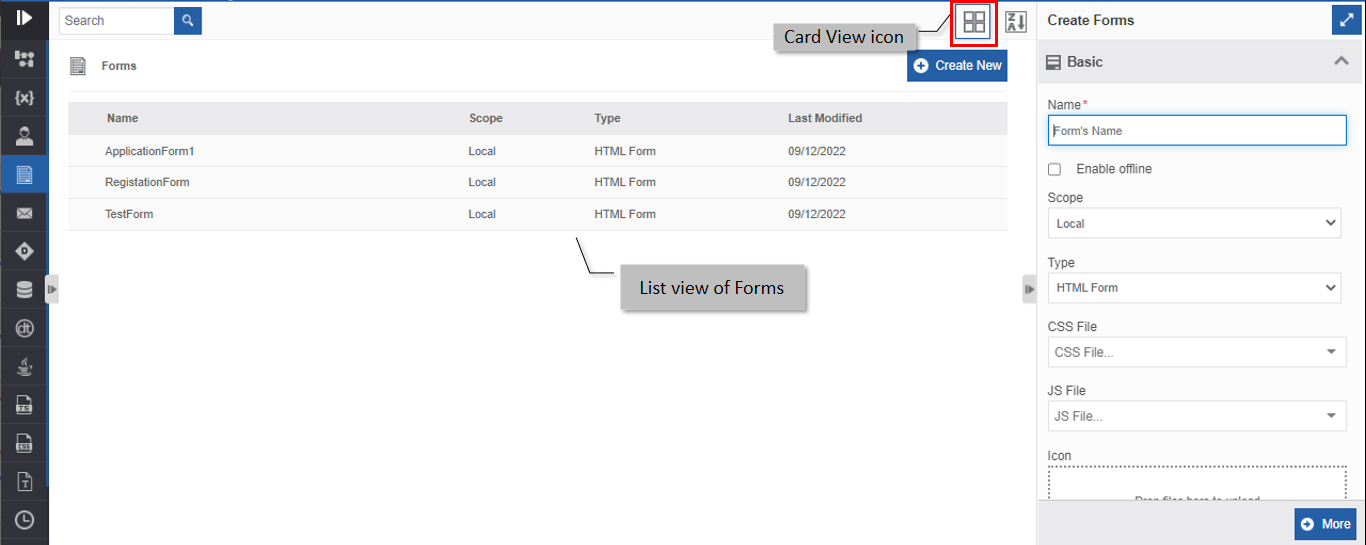
Figure 17: List view with card view icon on the toolbar
Exporting From
You can export only HTML forms.
-
Click the Burger menu on the left of the logo and navigate to Apptudio.
-
Click Applications and double-click the application name to open that application.
-
Click Process Flow and then double-click a flow name to open the flow. Forms apply only to the process flow.
-
Click Form. The form list appears.
-
Click a form and click Open (or you can double-click the form card). The HTML form opens with the form designer.
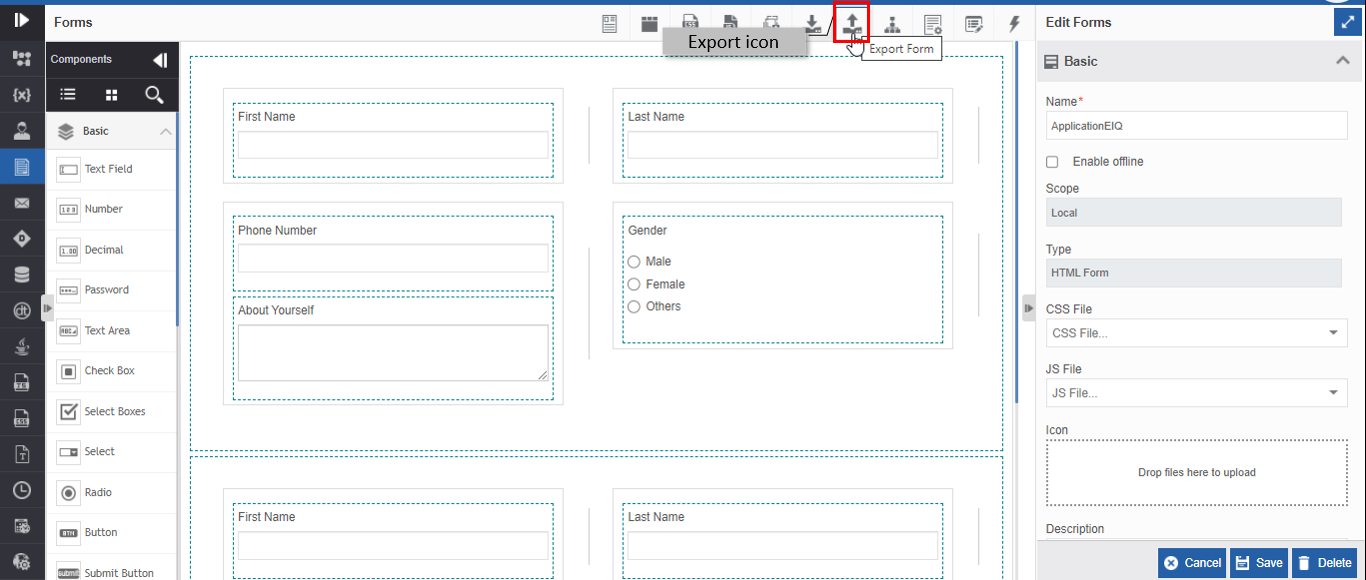
Figure 18: Exporting Form -
On the top-right of the page, click the Export icon. Export Json pop-up appears with Json format of the form.
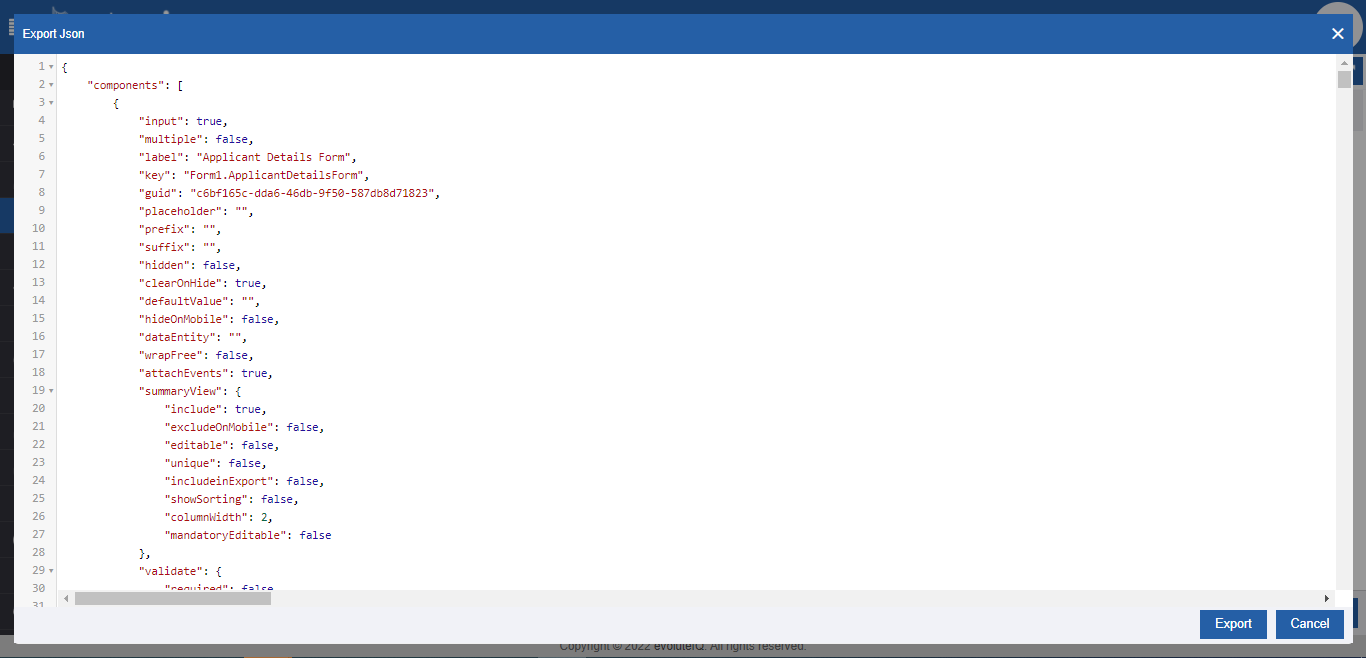
Figure 19: JSON format of the Form -
Click Export (or click Cancel to cancel the export action). The form exports (downloads) to the local system in the JSON format (file with “.json” extension).
Importing Form
You can import JSON HTML forms from your local system. The file should be with the extension “.Json”.
-
Click the Burger menu on the left of the logo and navigate to App Studio.
-
Click Applications and double-click the application name to open that application.
-
Click Process Flow and then double-click a flow name to open the flow. Forms apply only to the process flow.
-
Click Form. The form list appears.
-
Click Create New, provide details with form type as HTML, and click More. The HTML form designer appears.
If you edit a form and import a new JSON form file, the old HTML file gets overwritten with the imported file.
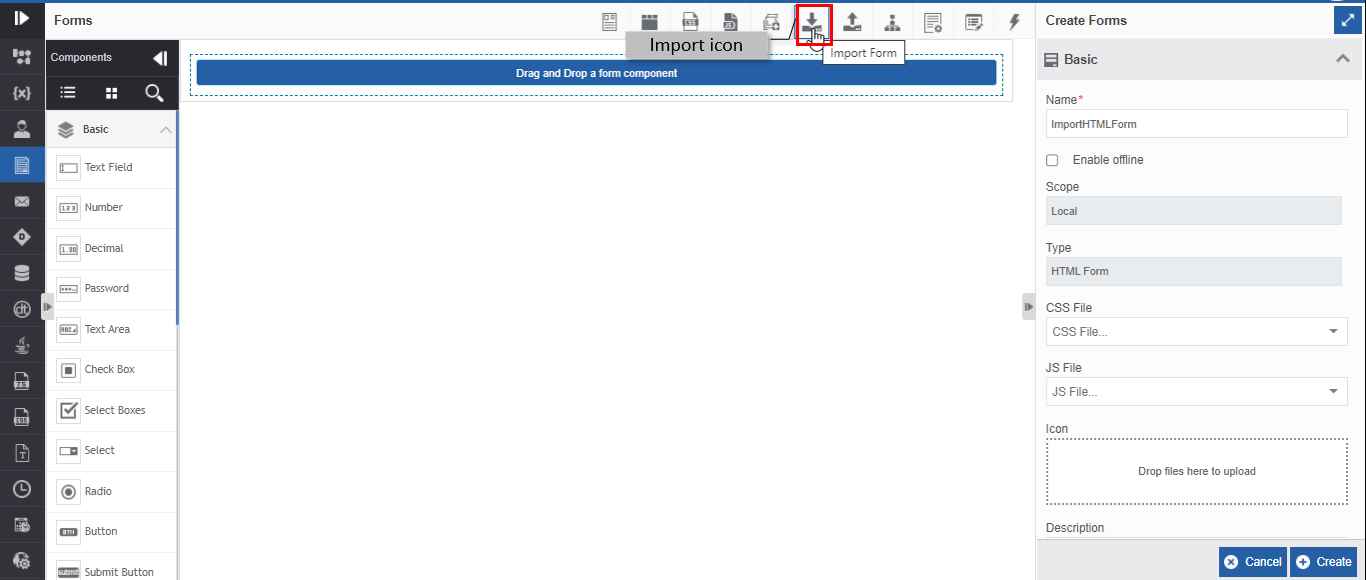
Figure 20: Importing form -
Click Import Form icon. The Import Json pop-up appears.
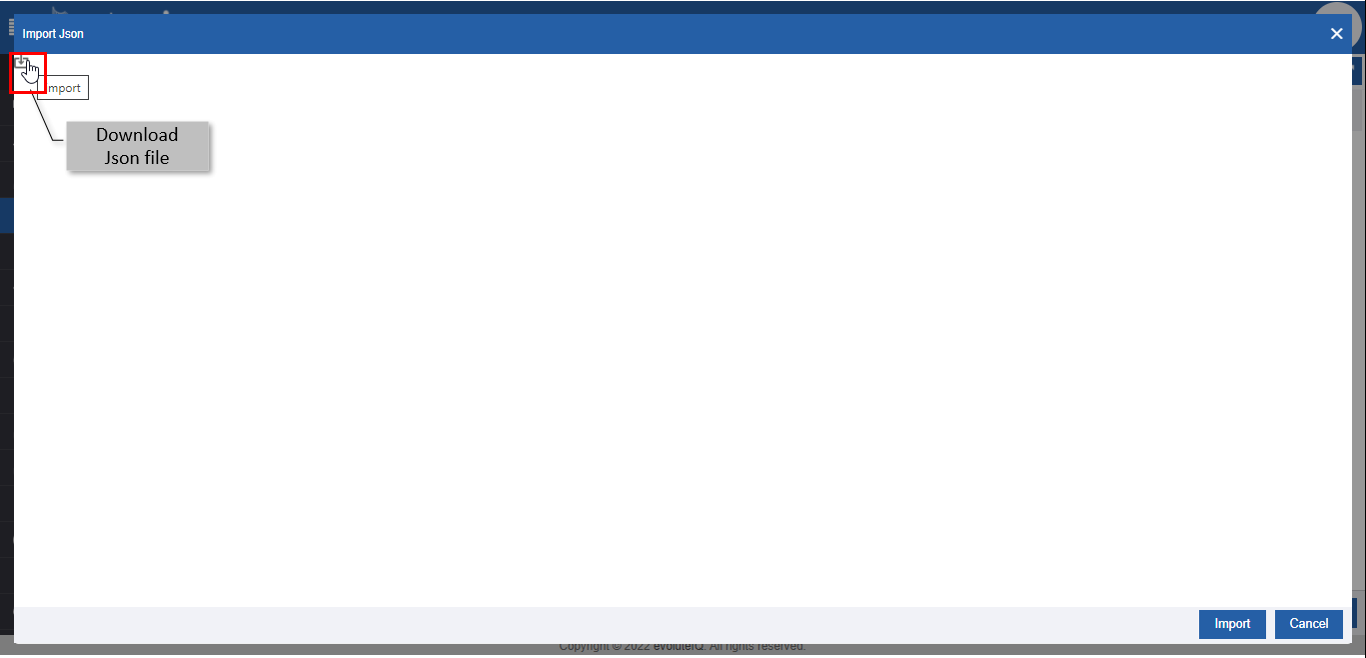
Figure 21: Import JSON pop-up -
Click the download JSON file icon in the pop-up and open the .JSON file from the explorer window. The JSON is copied to the Import Form pop-up.
Or you can copy-paste the JSON script directly to the Import Form pop-up.
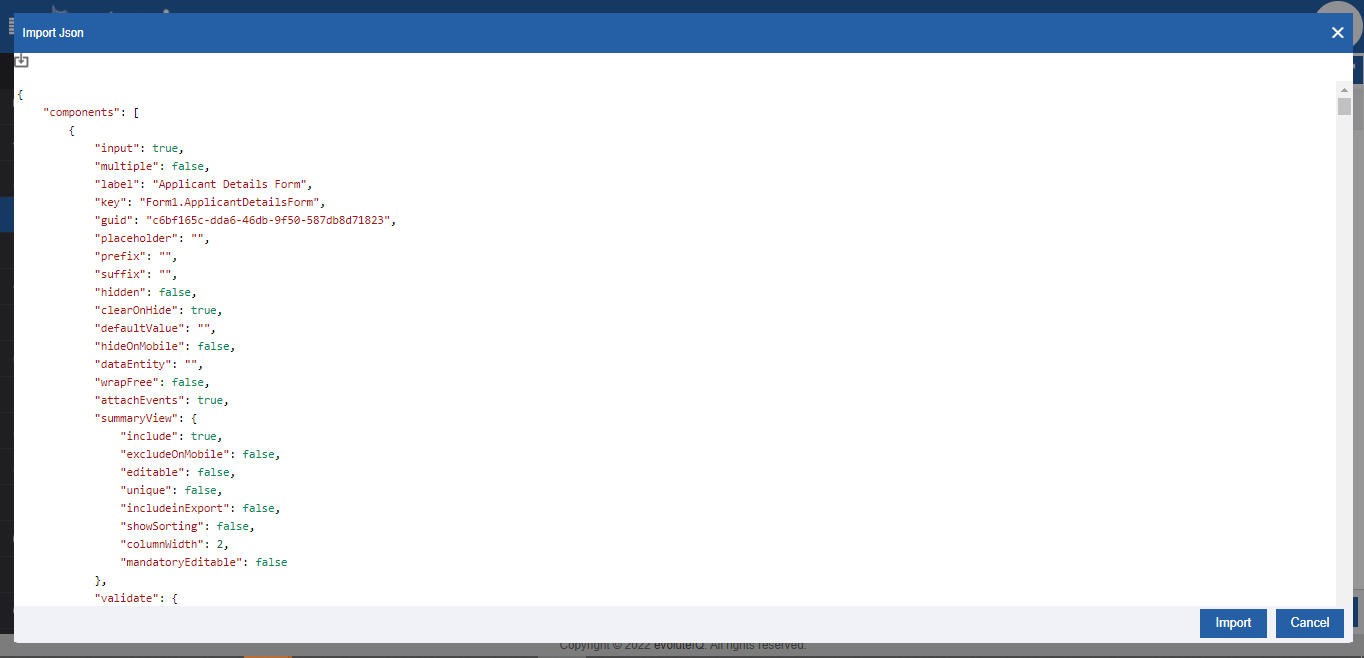
Figure 22: Downloaded JSON file -
Click Import (or else click Cancel to cancel the import action).
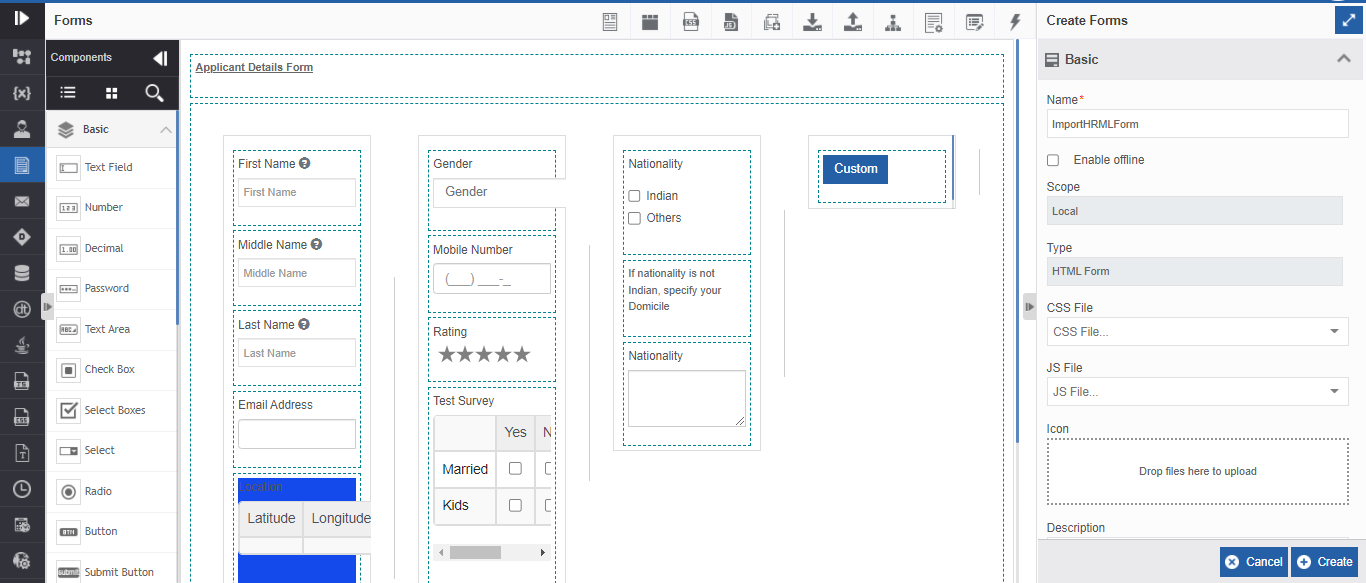
Figure 23: Imported JSON file in the Form designer -
Click Create for creating the form.
Deleting Form
-
Click the Burger menu on the left of the logo and navigate to App Studio.
-
Click Applications and double-click the application name to open that application.
-
Click Process Flow and then double-click a flow name to open the flow. Forms apply only to the process flow.
-
Click Form. The form list appears.
-
Click the Form you want to delete.
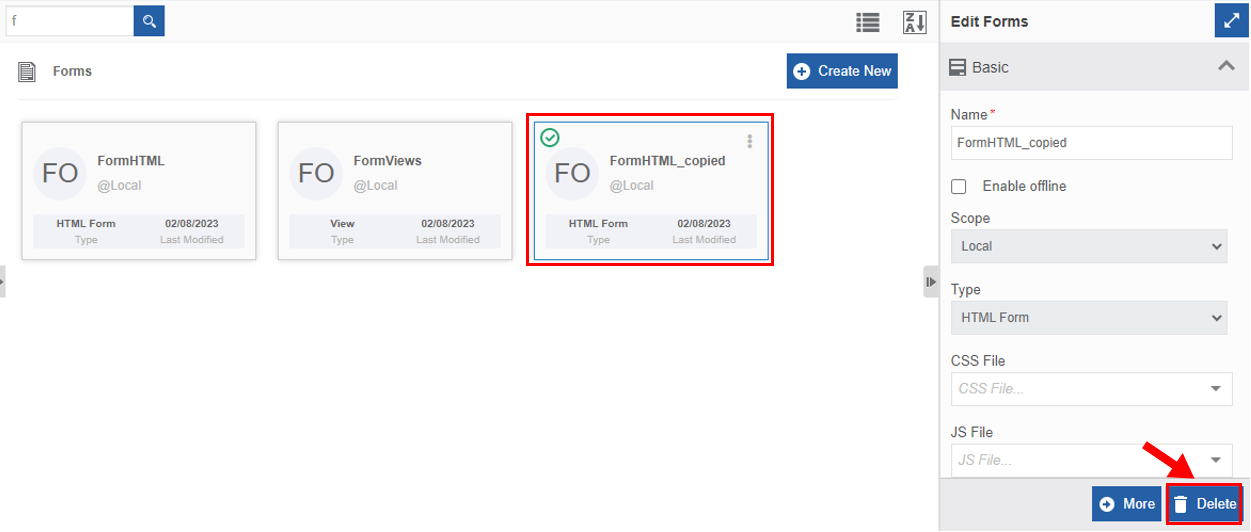
Figure 24: Deleting Form -
Click Delete. A Confirmation pop-up for delete appears.
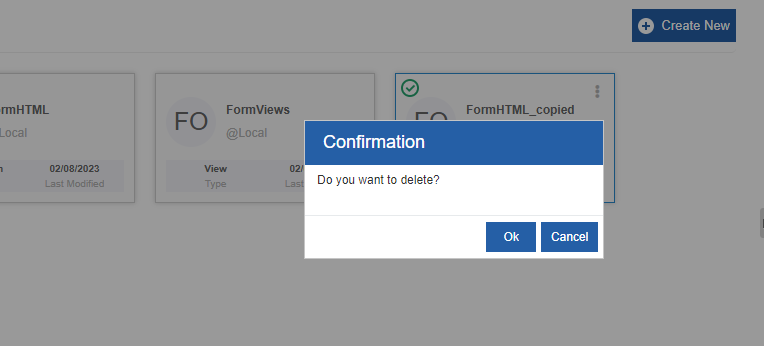
Figure 25: Form Delete confirmation -
Click Ok to delete the form.
Or
Click Cancel to cancel the action.
Alternatively, you can follow the below steps to delete the form:
-
Click the Burger menu and navigate to App Studio > Application > {Flow module} > Forms.
-
Hover over the form card. Three dots appear on the upper right side of the card.
-
Click the three dots. More Actions appear.
-
Click Delete and follow Steps 7 onwards in the above procedure.
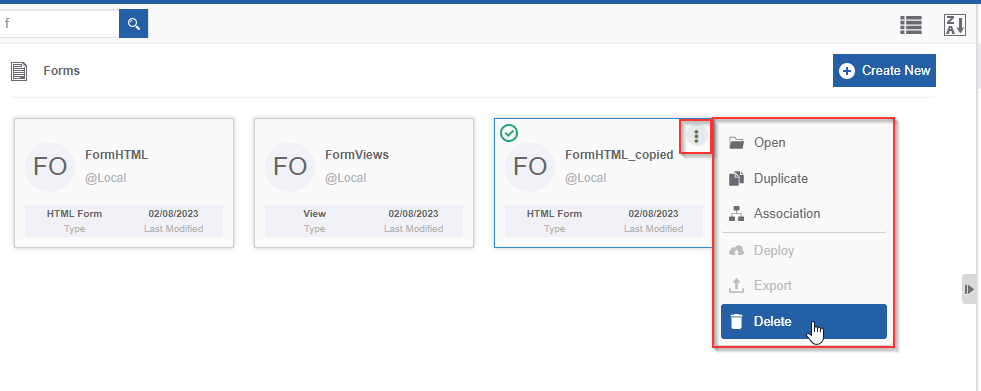
Figure 26: Delete action in More Actions
Custom JSP Forms
Custom JSP is used when you already have a JSP Form for a particular process and you need to use the same format. In such cases, you need not recreate the same type of form in HTML format or Views. You can just upload the JSP file (file with .jsp extension) and use the form. For uploading a custom JSP file, you need to create a Form of type, Custom JSP.
Uploading Custom JSP Form
-
Navigate to Forms.
-
Create a form by selecting Type as Custom JSP.
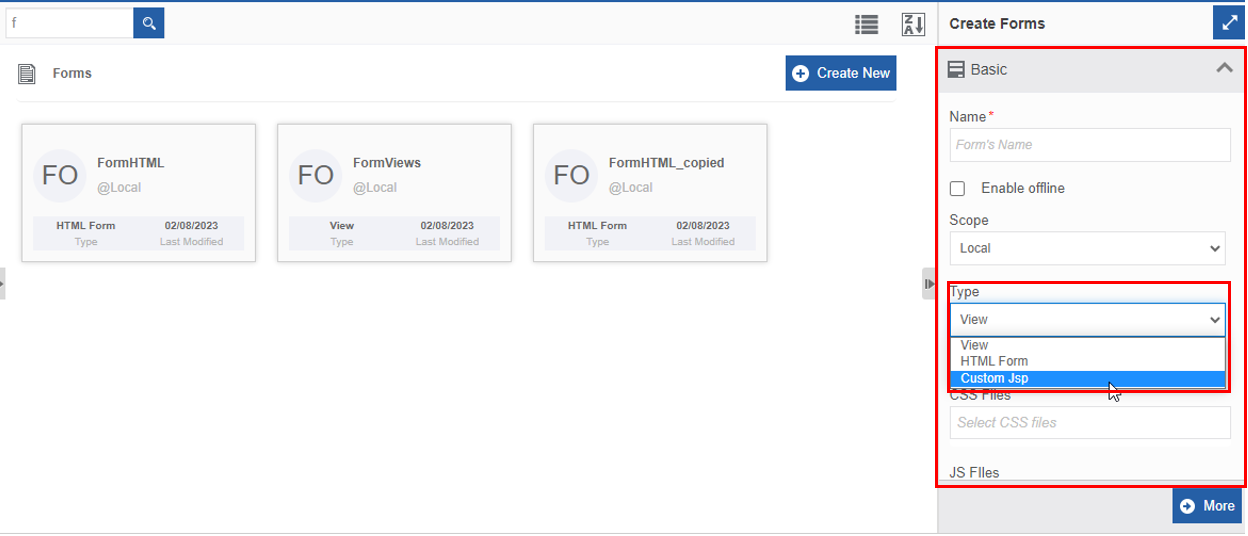
Figure 27: Selecting Custom JSP form type -
Click More.
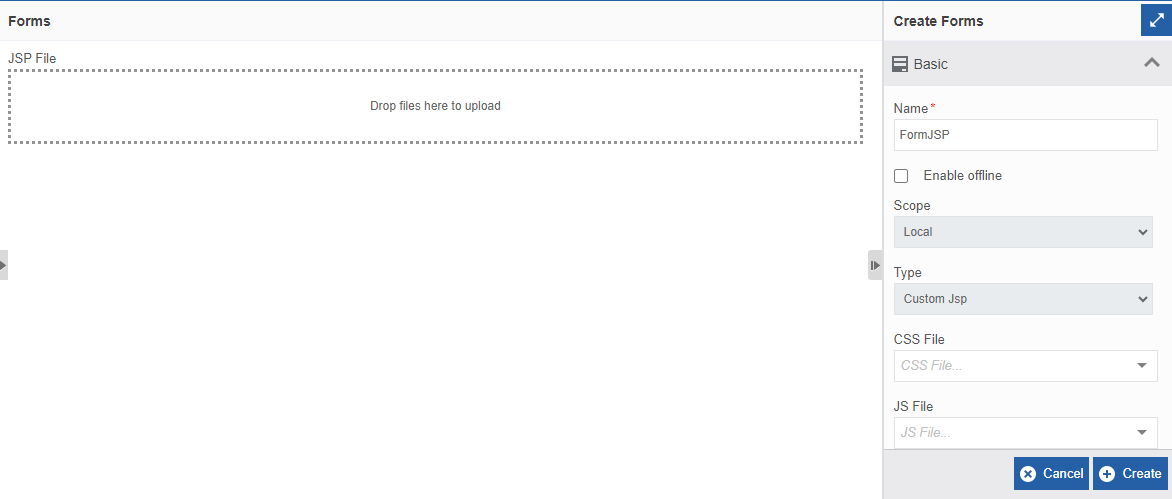
Figure 28: Uploading Custom JSP file -
Click the dotted box (Drop files to upload) to select the JSP file or you can drag a JSP file from any location/folder - into the marked area
-
Click Download, for downloading the JSP file into your local system.
-
Click Remove to remove the JSP file.
Example of Custom JSP file:
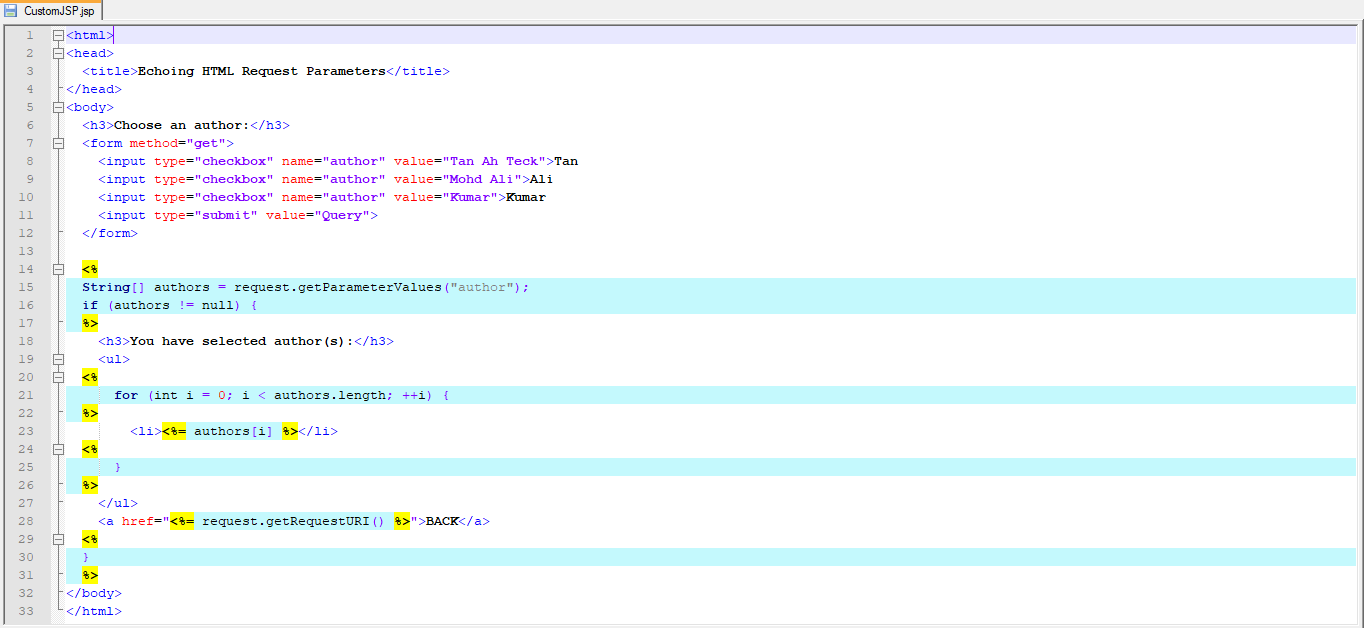
-
Utilizing Forms in Flows
Mapping Form to Activity
Forms can be mapped to Task and Approve Reject activities in the Process flow. In the process flow, the Info Actions displays the properties of the activities. The activities - Task and Approve Reject - have “Form” property section in the Info Actions where you can map the HTML Type Forms.
-
In the Process flow Task activity, you can configure a Default From and multiple Conditional Forms based on rules.
-
In the process flow Accept Reject activity, you can configure Default From and multiple Conditional Forms.
The Form configuration in the Info Action section for the Task activity is explained below.
- In a process flow, create a flow with a Task activity. (Or Approve Reject activity.).
-
Click the activity (e. g., Task activity in the process flow). The Info Action section displays the configuration details of the selected activity.
-
In the Info Actions, click the Form accordion.
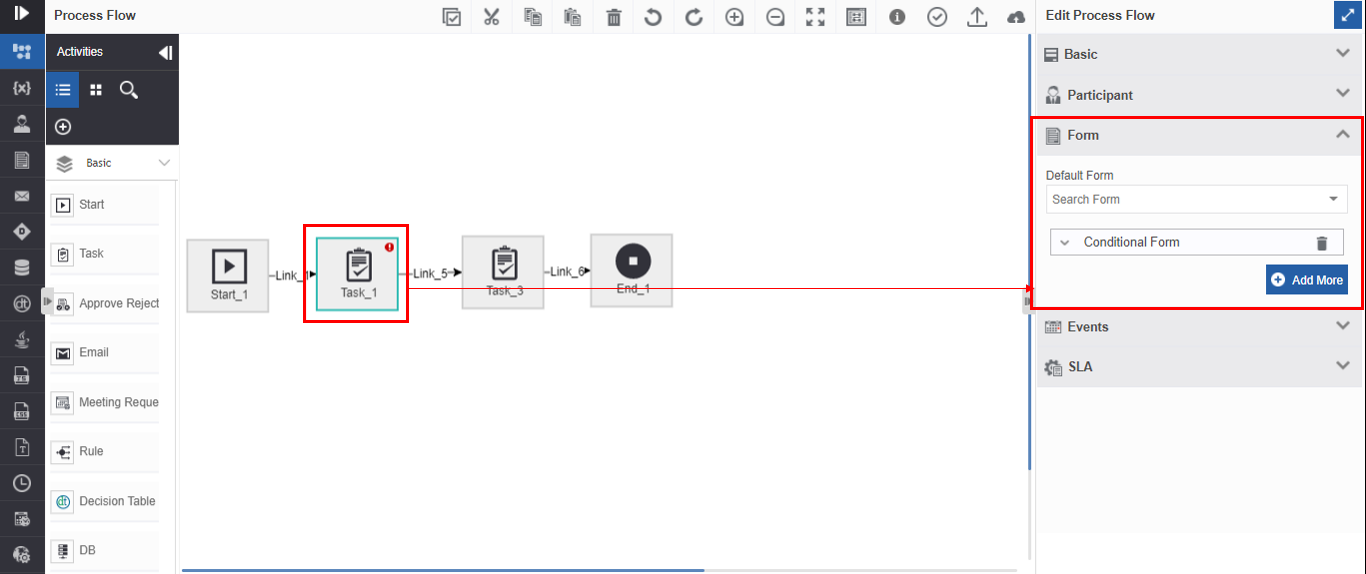
Figure 29: Adding default form -
Below the Default form, select a default Form from the drop-down. The drop-down lists all the forms that are created within the process flow. Only one form can be added as a default form.
-
Click Add More. Conditional Form sub-section appears for mapping conditional forms based on the business rules.
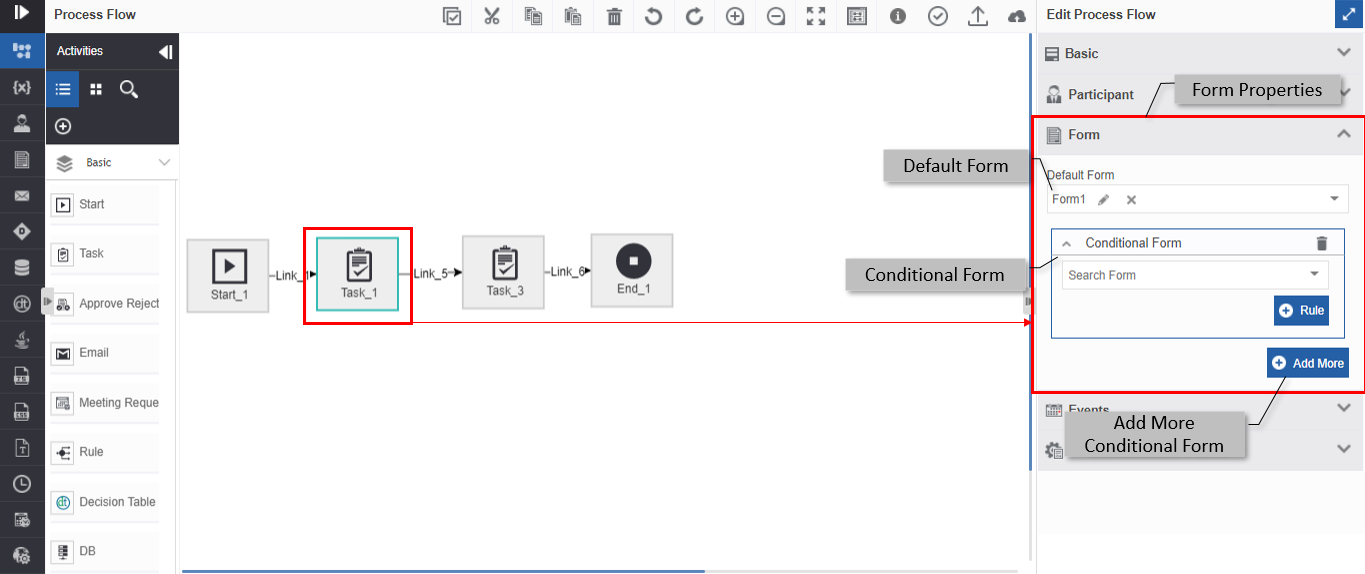
Figure 30: Adding conditional forms based on rules -
Under Conditional Form, Select a form.
-
Click Rule and select a rule for the selected conditional form (you need to create and configure the entity “Rules” to map rules for the conditional forms).
-
Click Add More to add more conditional forms. You can add multiple conditional forms based on different rules.
During runtime, if a specific rule is satisfied (based on the order of the rules configured), the Form mapped for that rule appears for the user in the interface. If none of the rules are satisfied, the default Form appears as an interface.
Creating Page and Adding Runtime Form Widget
To display a Form on a page that appears on the main menu of the organization, you need to add the Runtime Form widget (or custom portlet) on the page.
-
Create and design a Form as per your requirements.
-
Associate the form with the corresponding process and deploy the process.
-
Log in to the Platform. The title bar displays the Administration icon.
-
On the title bar, click the Administration icon and then click the
 (Menu) symbol. The menu
appears on the left side.
(Menu) symbol. The menu
appears on the left side. -
Click Page Tree and then click “+” symbol adjacent to Public pages.
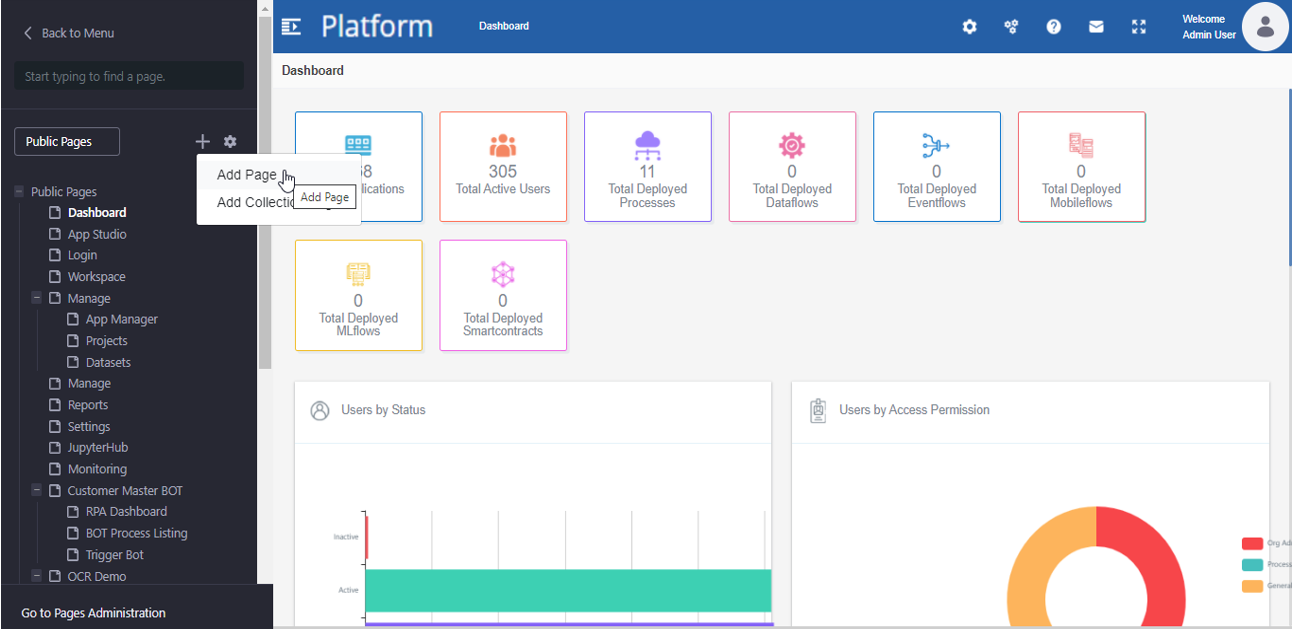
Figure 31: Navigation for adding public page -
Click Add Page. Basic Templates are displayed.
Refer to the Page Configuration document for details on adding and configuring pages.
-
In the BASIC TEMPLATES, click Widget Page. Add Page pop-up appears.
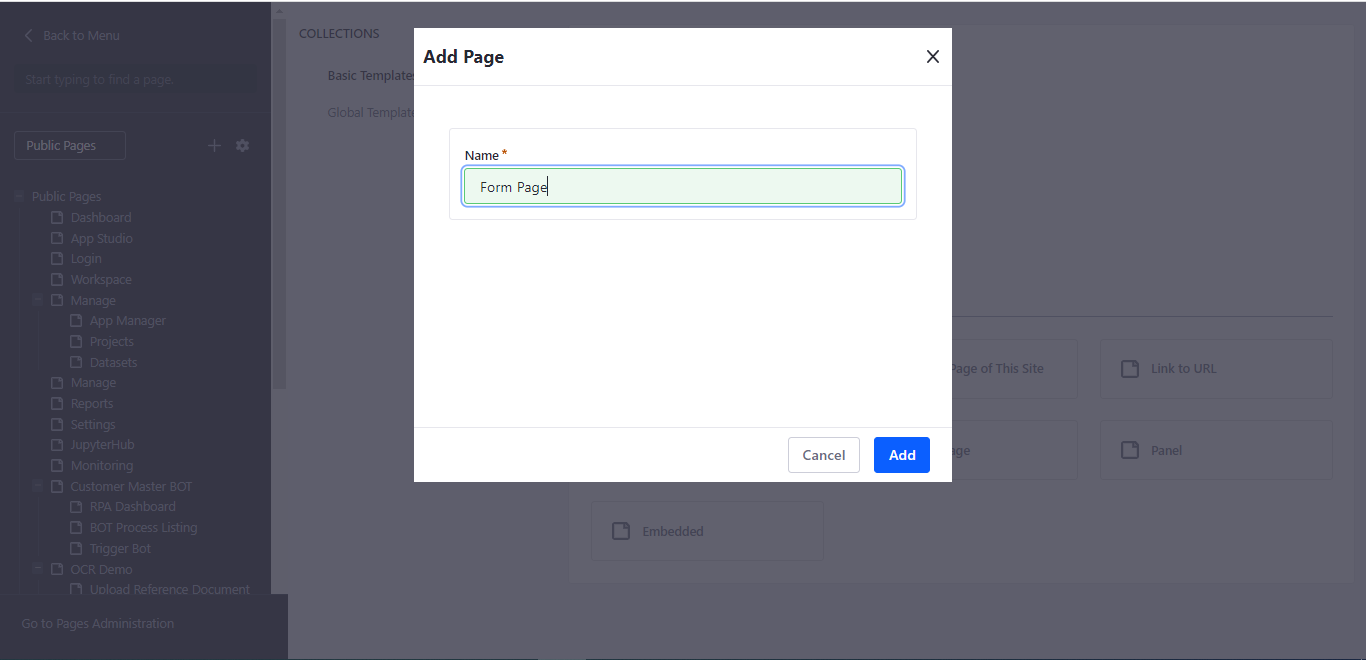
Figure 32: Adding page -
Enter a name for the page.
-
Click Add. A new page is added under the page tree. You can view the page name in burger menu items on the Platform.
-
Navigate to the burger menu and click the new page created. A blank page appears (as we have not yet added any widgets to it).
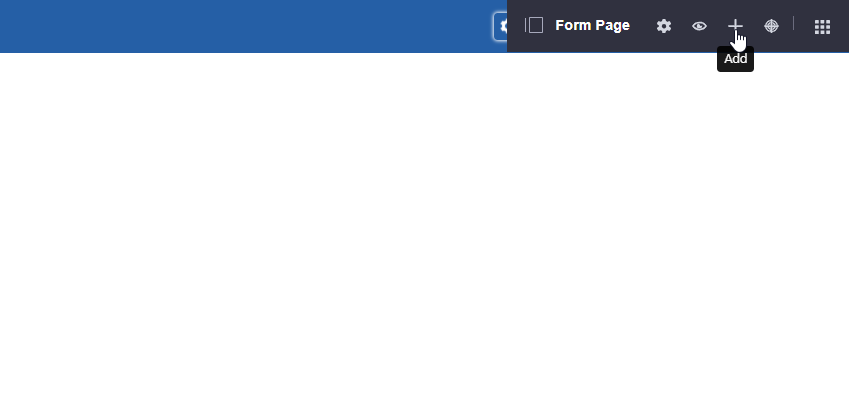
Figure 33: The new blank page -
On the title bar, click the Administration icon and then click the “+” (Add) symbol. The list of available Widgets and Contents is displayed.
-
In the Widget list, click PLATFORM. The widgets available in the Platform are listed.
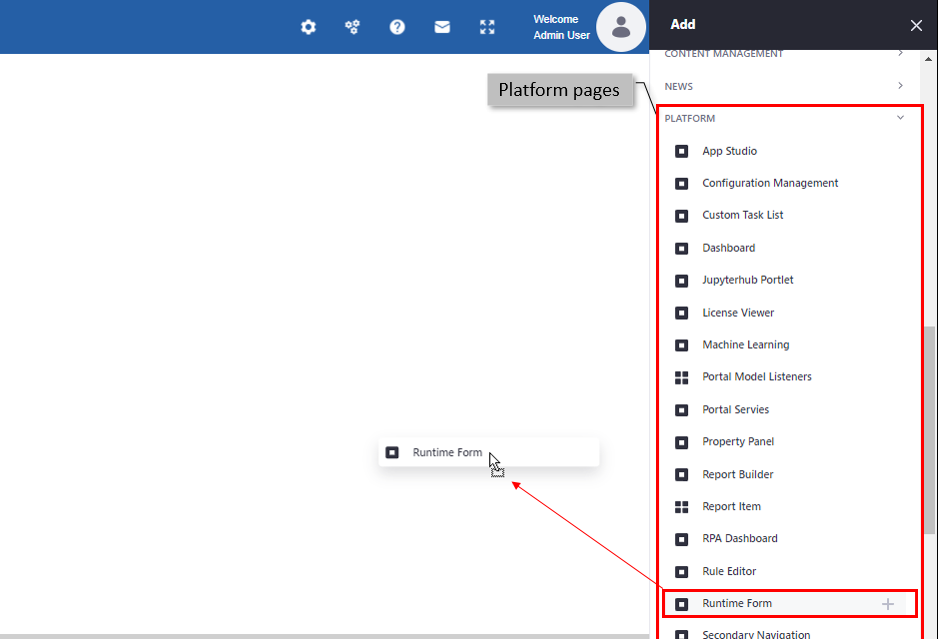
Figure 34: List of contents under Add and adding Runtime Form -
Select the Runtime Form available in the list of widgets displayed and drag it to the required page layout section or click the “+” on the right side of the form name to automatically add the widget to the page. The runtime widget appears on the page.
There are three types of runtime form. The Runtime form display is based on which runtime form you are dragging.
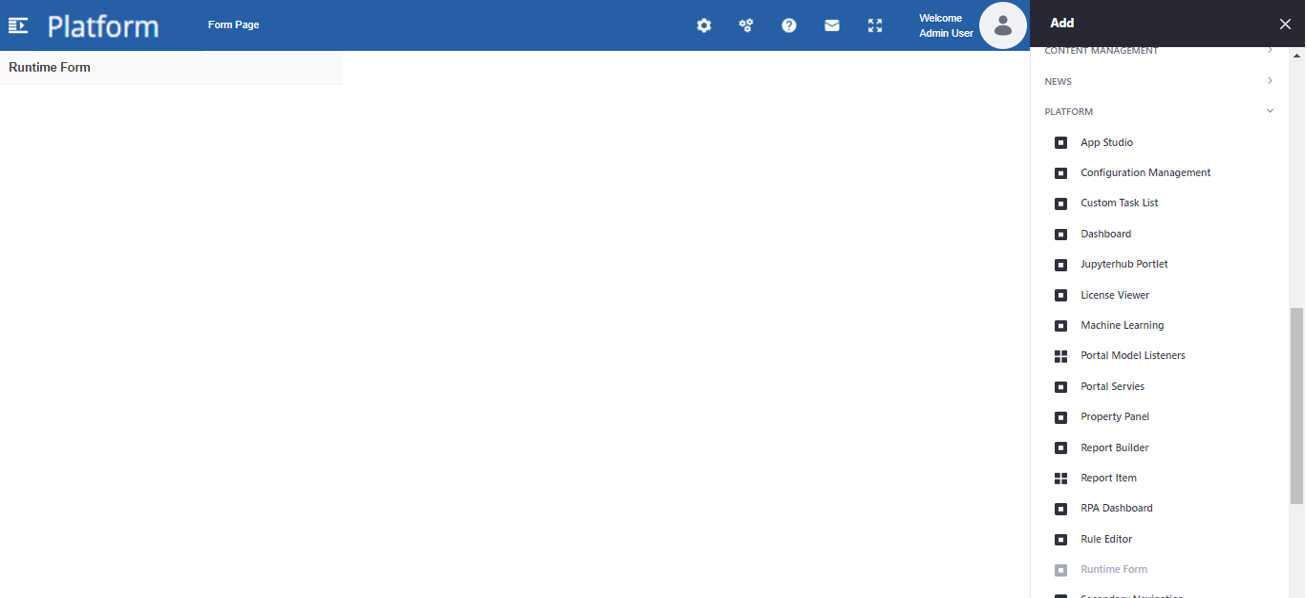
Figure 35: Runtime Form widgetAfter creating a page and adding a Runtime Form widget, you can configure the Runtime widget and add a particular Form.
Accessing Form as Guest Users
If a runtime form is configured for direct access with guest user permissions, you can directly access the Form without logging in through the Platform as a guest user.
-
In the browser, type the URL provided (Runtime form direct access URL for accessing the required form). The runtime form automatically loads with the necessary Platform elements.
-
If a user has logged in using his credentials and if he is a participant in the task associated with the form, the user can act on the form – Submit or Cancel.
-
If the user is a guest user, the user can view the form details but cannot Submit or Cancel the form.
For configuration of Guest user form, refer to Configuring Runtime From for Guest User.
Viewing and Accessing Form at Runtime
The runtime form pages can be viewed based on the configuration. You can choose the runtime from the widget view as per your requirement.
You can access the form
-
By navigating through Workspace> My Process or Workspace > My Task.
-
By Logging into the Platform and viewing the form by navigating through the Main menu > {Form_Page_Name}.
-
Without logging into the Platform – as a guest user.
For accessing the Form, the logged-in user should be a participant in the task associated with the form.
If a guest user is configured as a participant, a guest user can access (view and submit) the form.
When you add a page and configure the Runtime form widget into that page, you can directly navigate to the corresponding page through the Main menu for viewing the form.
Configuring Runtime Form Widget
-
Add a Runtime Form widget to the Platform. Refer to Creating Page and Adding Runtime Form Widget.
-
Navigate through the Burger menu and click the Menu page to which Runtime Form is to be added. Consider no form is added to the widget. The widget appears blank.
-
On the title bar, click the control panel icon and then hover over the widget on the page. Three dots appear.
-
Click the three dots. Options are listed as shown below.
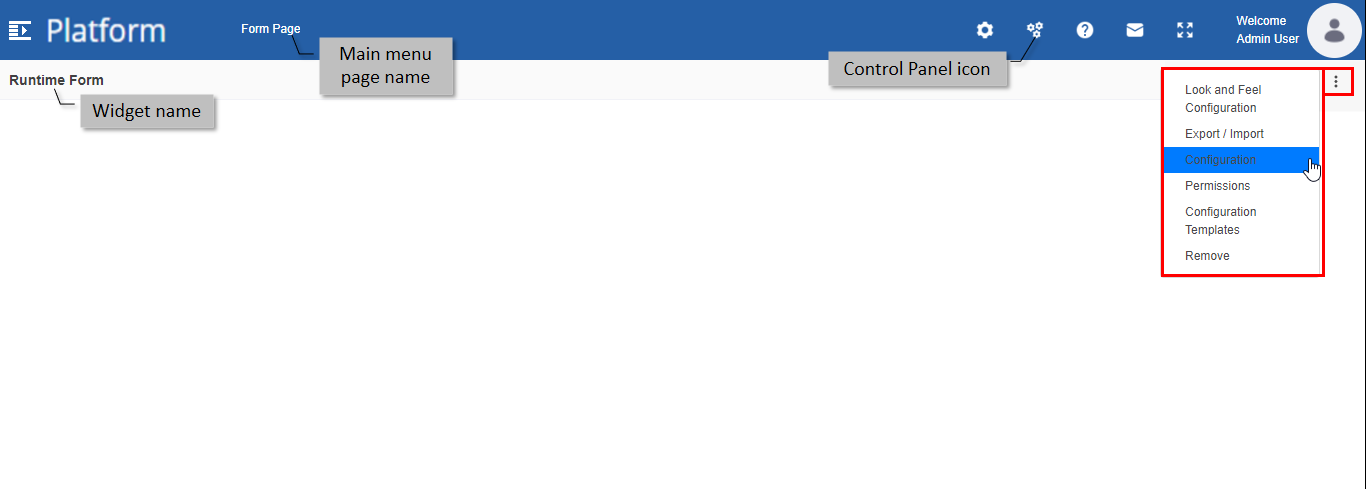
Figure 36: Configuring Runtime Form -
Click Configuration. The Runtime Form - Configuration pop-up displays the options for setting the process flow that you want to display on the widget page.
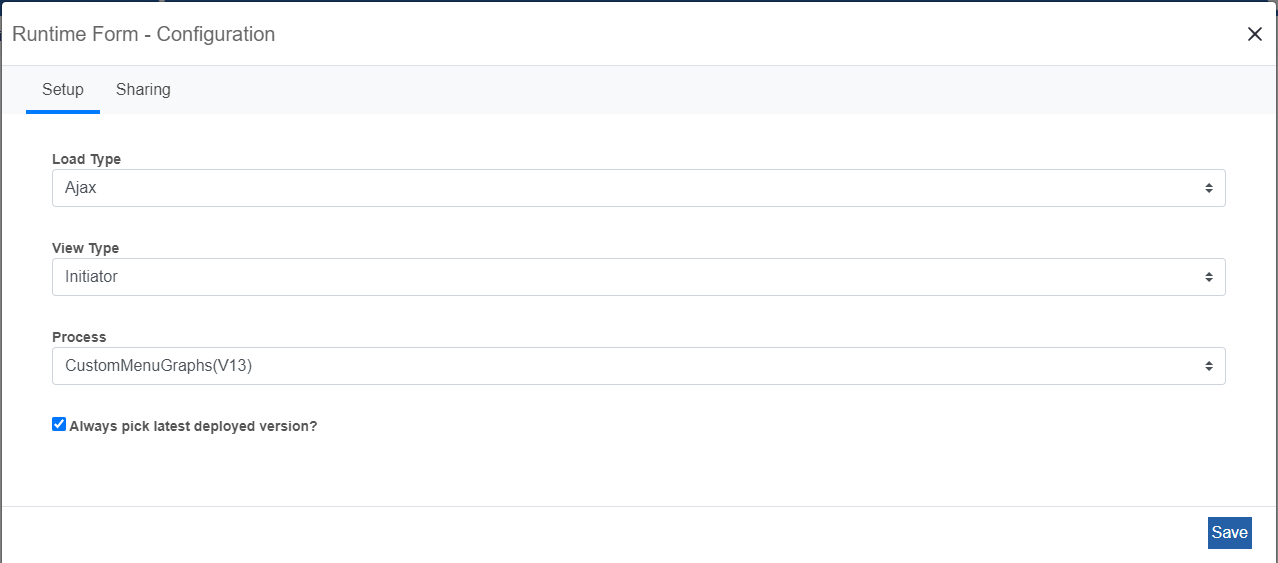
Figure 37: Runtime Form Configuration -
Provide details in the Setup tab as explained below.
Field Description Load Type Select Ajax from the list. View Type Select Initiator from the list Process All the processes with details are listed. The processes are listed in the order of the recently deployed process.
Select the process version as per requirement from the list.
Always pick the latest version? If the checkbox is selected, the latest version of the process selected is chosen every time you deploy a new version.
Else if the checkbox is deselected, the version you have selected is displayed always.
-
Click Save. A success notification appears.
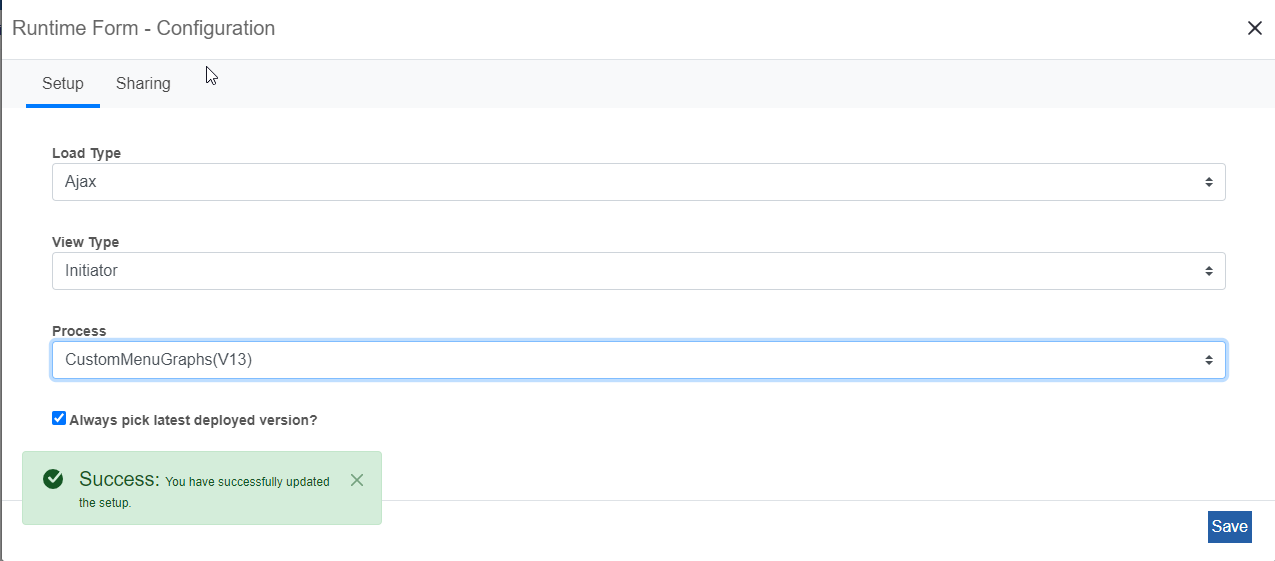
Figure 38: Runtime Form -Configuration – success message -
Click the cross mark and close the Runtime Form -Configuration pop-up.
-
Reload the Runtime Form page. Based on the selected process and version, the form associated with the first task activity of the process appears on the page.
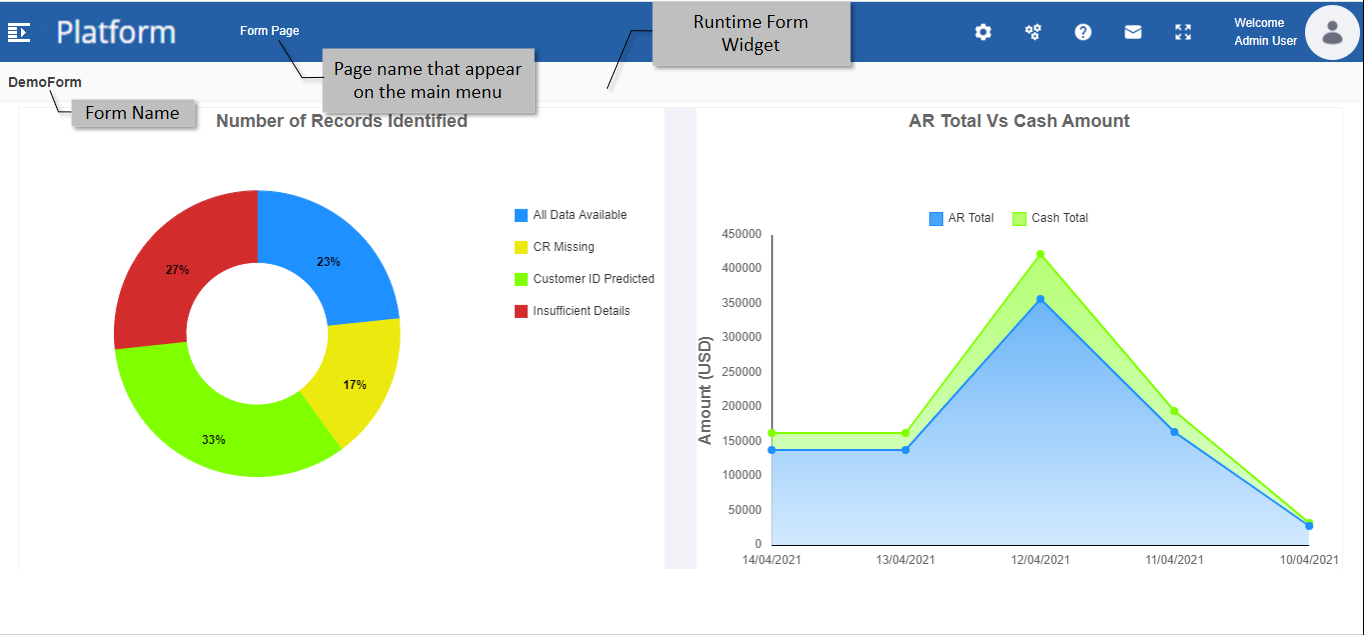
Figure 39: Runtime Form widget loaded in the Runtime form
Types of Runtime Forms
There are three types of runtime forms currently available in the Add Portlets.
Custom Runtime Form: A New widget (portlet) added to the platform to contain a form and the form will have the in-build CSS that is applied at the widget level. So any form portlet dropped in this widget will have the same CSS.
Runtime Form - Deprecated: Form added for configuring the initiator task or first task. This portlet is retained to facilitate the smooth running of forms that are already running in this portlet from the previous versions.
Runtime Form: This is an updated 5.1 version of the Runtime form portlet configured for the initiator task or the first task. In the backend, the calling of the service is different, so the performance is improved.
Runtime Form (New)
-
Log in to the Platform with your credentials.
-
Click the Burger menu on the left of the logo and navigate to the Form page where the Runtime Form is configured.
-
Drag the Runtime Form widget to the page.
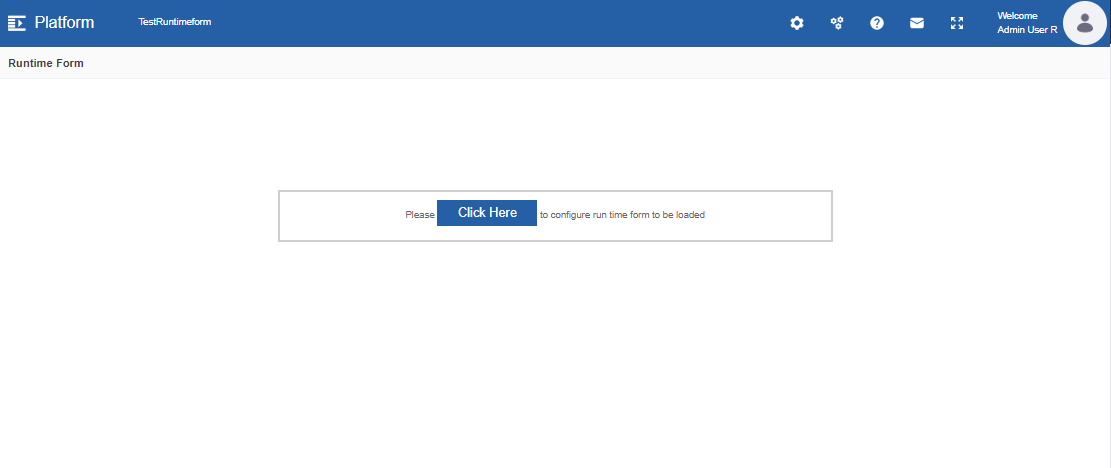
Figure 40: Runtime Form page -
Click the Click Here button. This allows you to configure the required form.
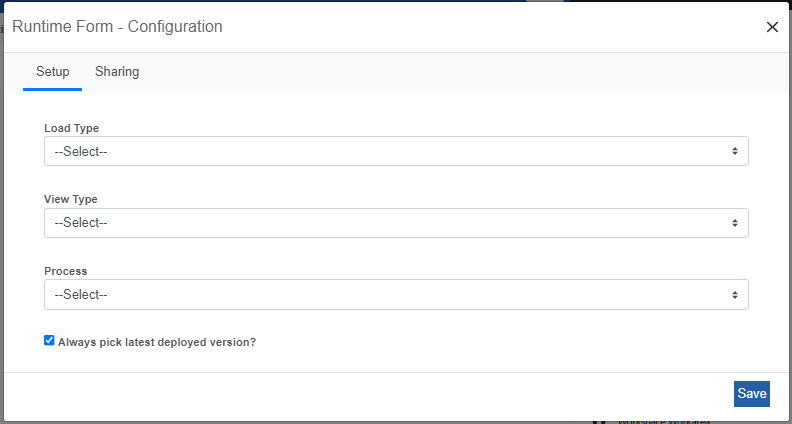
Figure 41: Runtime Form configuration -
In the Setup tab, click Load Type.
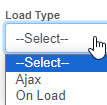
Background API Service call is different for Ajax and On Load.
Ajax: Ajax call will call all the background services so the page will load a little slow.
On Load: On Load will call only the mandatory default services and hence the performance is better (the page will load quickly).
-
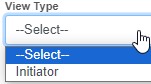
Click View Type. This form is only for the initiator task. Select Initiator.
-
In the Process, select the process name that is associated with the form. The application name is appended along with the Process flow name.
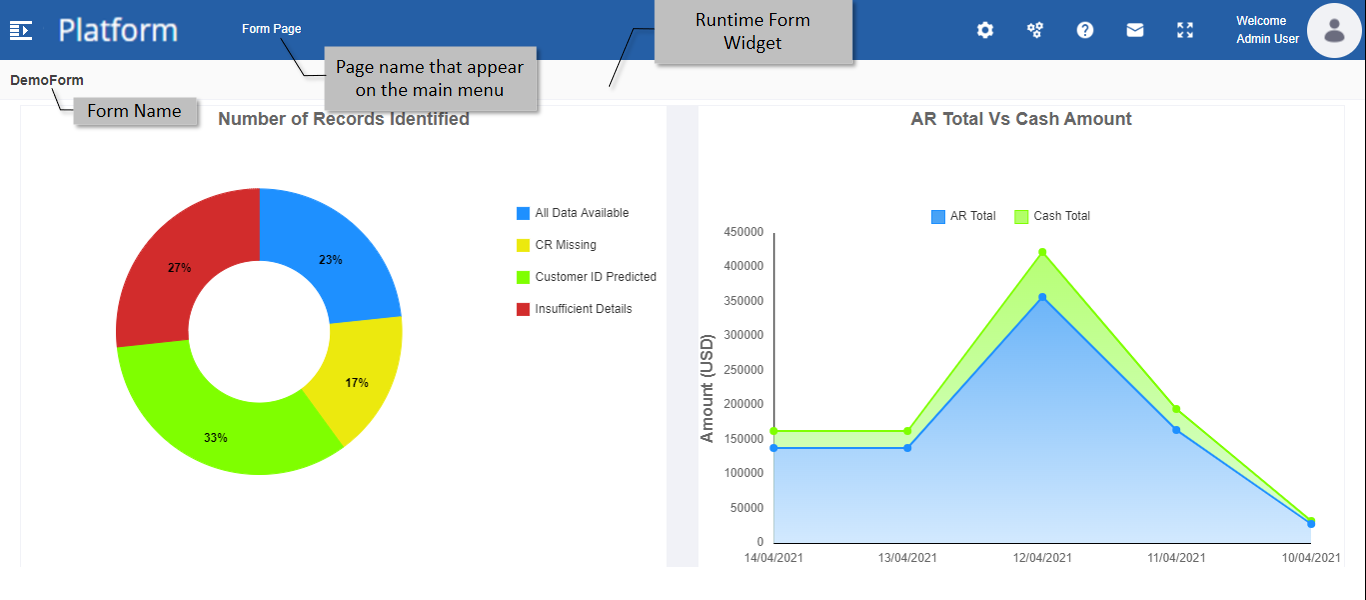
Figure 42: Runtime Form -
View or submit the form as per the form configuration. Only the participant associated with the corresponding task can submit the form.
Runtime Form – Deprecated
This form will be deprecated in the later versions of the platform.
-
Log in to the Platform with your credentials.
-
Click the Burger menu on the left of the logo and navigate to the Form page where the Runtime Form is configured. The Form appears as per the configuration.
Figure 43: Runtime Form -
View or submit the form as per the form configuration. Only the participant associated with the corresponding task can submit the form.
This page widget is kept just for the users who are already working on this form type.
Custom Runtime Form
The Custom Runtime Form will have an in-build CSS that is applied at the widget level. So any form portlet mapped to this widget will have the predefined CSS.
Configuring Runtime Form for Guest User
Guest users are non-platform users. Guest users can navigate to one of the platform pages to work on it, even if they are not the logged-in users. These platform pages are public and have guest user permission to view and access them. On these pages, we can configure a Runtime Form.
-
Add a Runtime Form widget and configure the form widget.
Refer to Creating Page and Adding Runtime Form Widget.
Refer to Configuring Runtime Form Widget.
-
On the title bar, click the Administration icon and then click the menu icon.
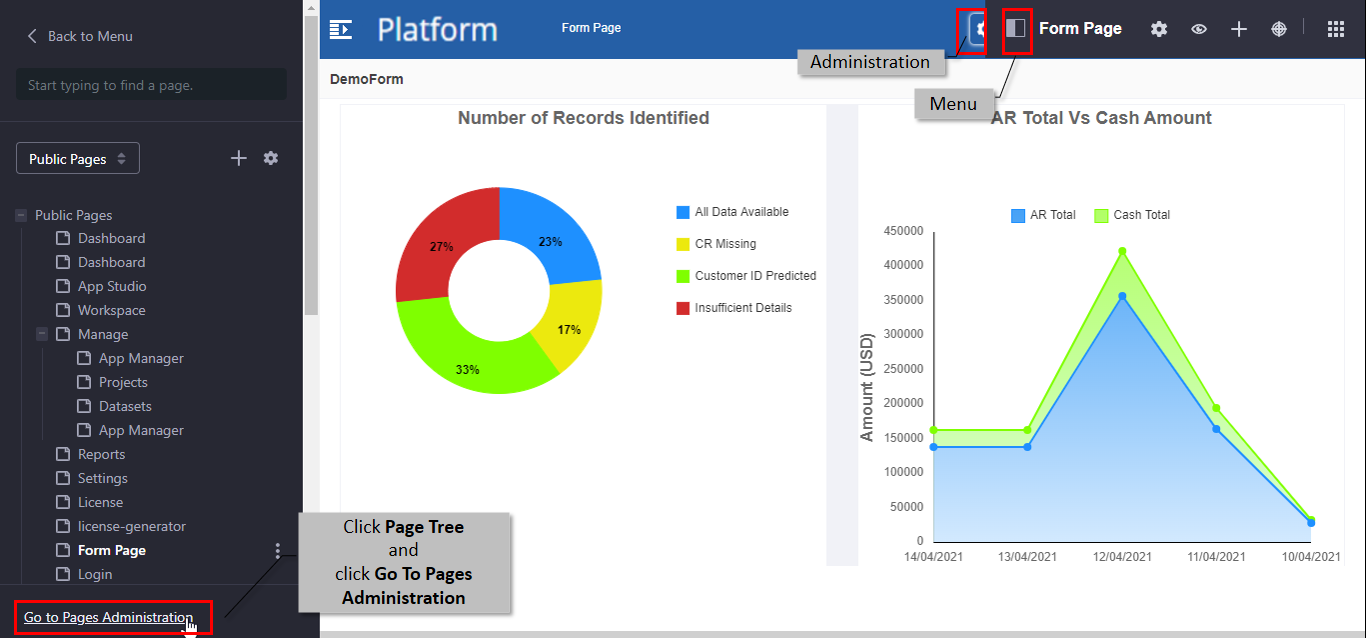
Figure 44: Navigating to Page administration -
Click Page Tree and then click Go to Administration. The administration page appears.
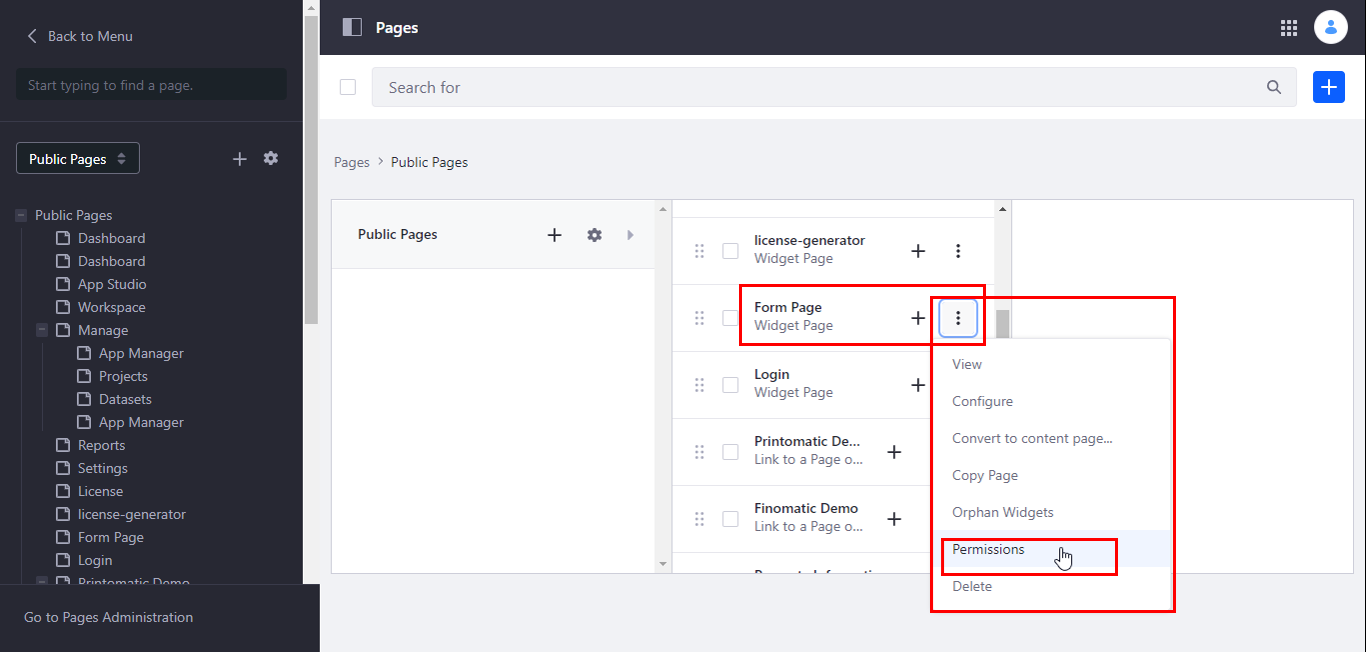
Figure 45: Permission option -
Click three dots adjacent to the page that you want to configure.
-
Click Permissions. Permission pop-up appears.
-
On the Permission pop-up search for guest. Guest Permission details appear.
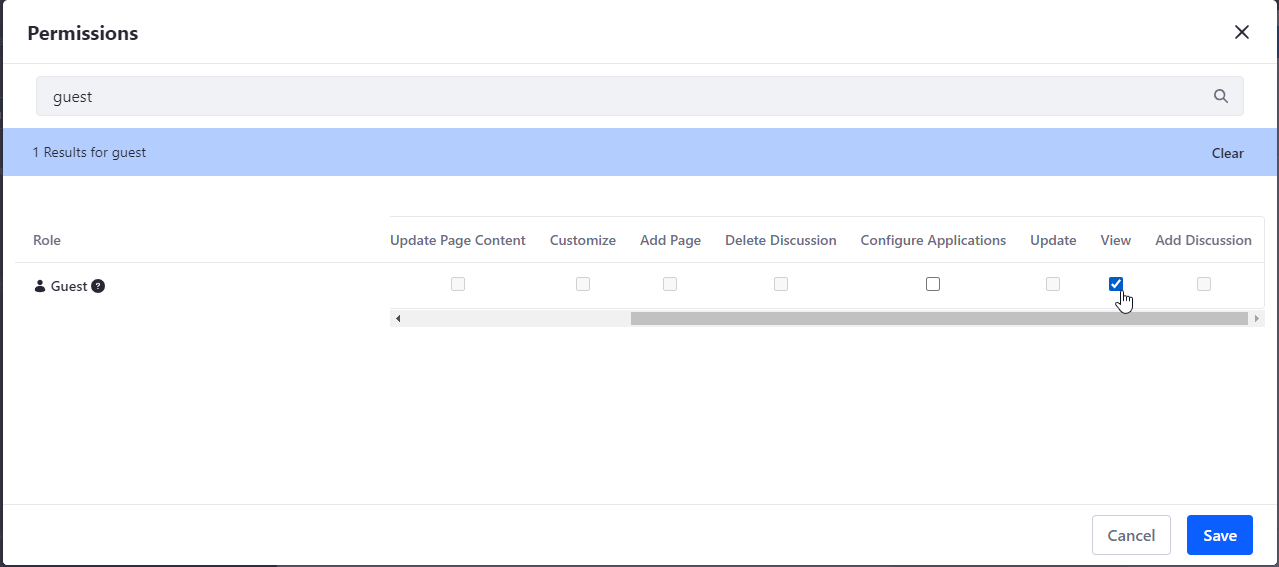
Figure 46: Setting Permission level -
Select the View checkbox. Now the guest user can view the page.
-
Click Save in the pop-up. A success message appears on the successful update of the configuration details.
-
Close the Permissions pop-up.
-
Navigate through the burger menu to the page where you added the runtime form.
You can navigate through the public pages and click the required page. The page appears. To close the public pages Menu click the Administration icon > Menu icon again.
-
Copy the URL. This URL should be provided to any user who wants to navigate and work on the Platform without using the credential to view the page.
Accessing Runtime Forms in Workspace
The runtime forms can be accessed by the users who are assigned as a participant for the task associated with the form. To access the runtime forms in the workspace, you need to create and deploy a process flow with a task activity that is mapped to the form. Only the users who are participants in the associated task can view the respective form in their login.
-
Navigate to Workspace > My Tasks section. When the user (who is a participant in the task associated with the form) logs into the organization, the task appears in the My Tasks list.
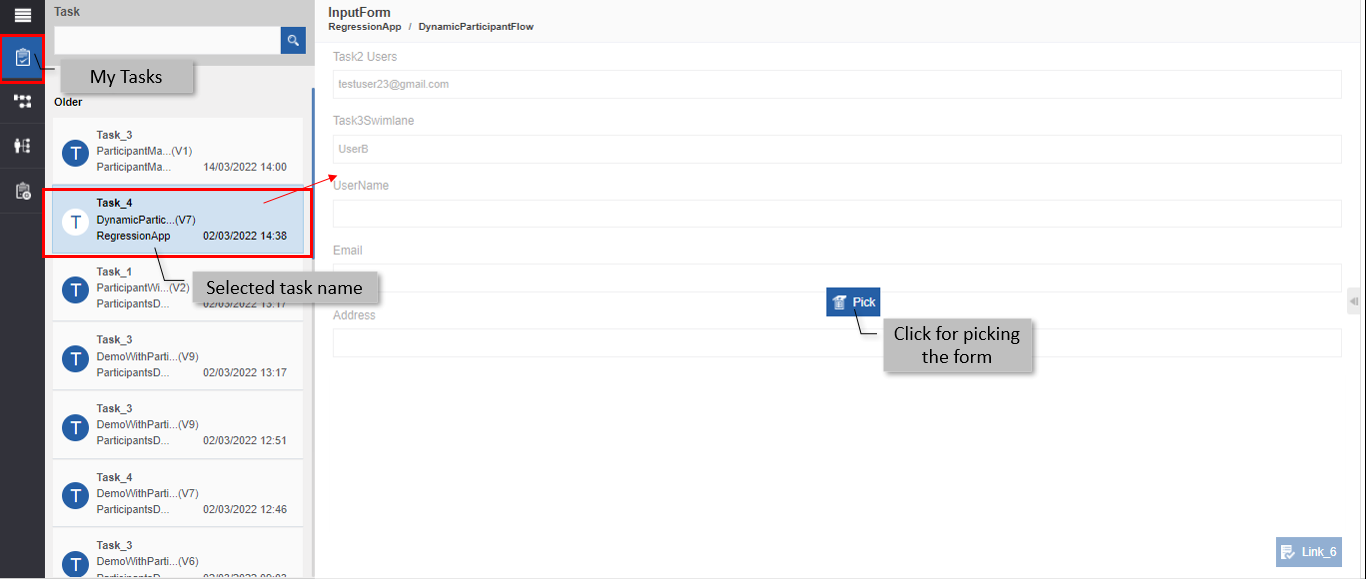
Figure 47: Picking the form -
Click the Task name in the workspace work area.
-
Click Pick to view the form. Pick appears when there are multiple users associated with the task.
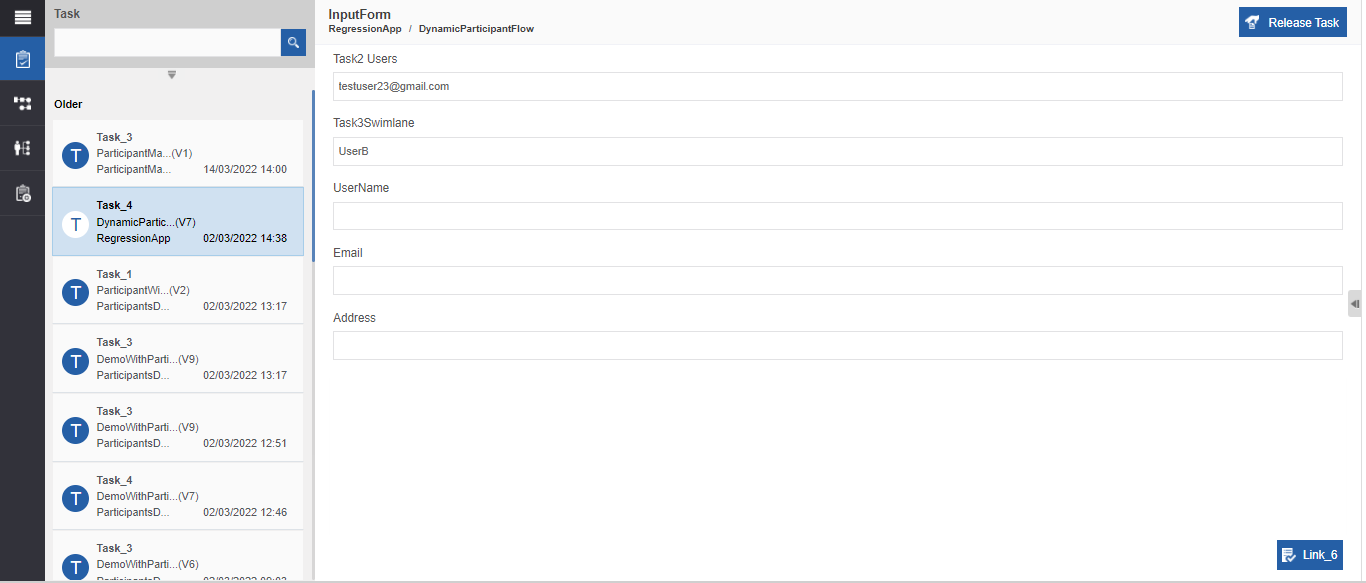
Figure 48: Runtime form -
Enter the details and submit the form.
You can initiate the process by navigating to Workspace > My Process and submitting the form. The initiator task will not have the Pick feature. The form can be initiated through My Process by any user who is a participant in the associated task.
Refer to the Workspace user manual for more details.
Removing the Runtime Form Widget
You can remove the Form page without deleting the Platform page that is holding the form widget. In such a case, the page is not removed (however, the widget can be removed) and the page will be still listed in the main menu.
-
Navigate to the runtime page.
-
On the title bar, click the Control Panel icon and then hover over the widget on the page below. The current page name and three dots appear.
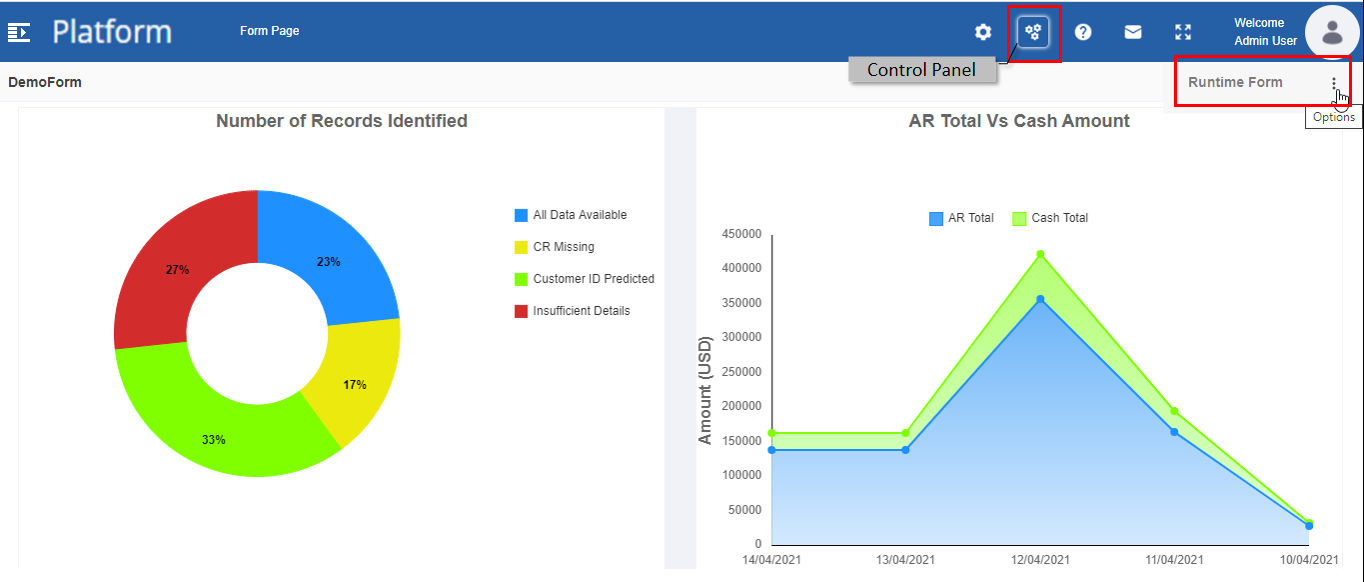
Figure 49: Runtime form options -
Click three dots.
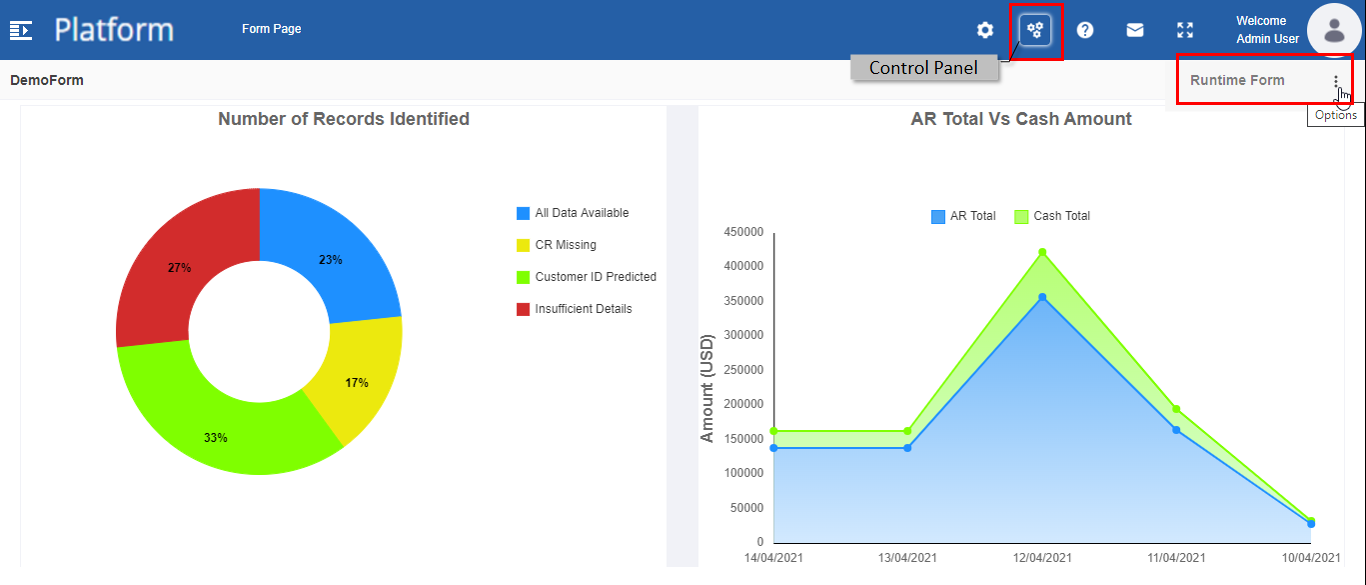
Figure 50: Removing the runtime form -
Click Remove. A confirmation pop-up appears.
-
Click OK. The runtime form widget within the page gets removed and a blank platform page is displayed.
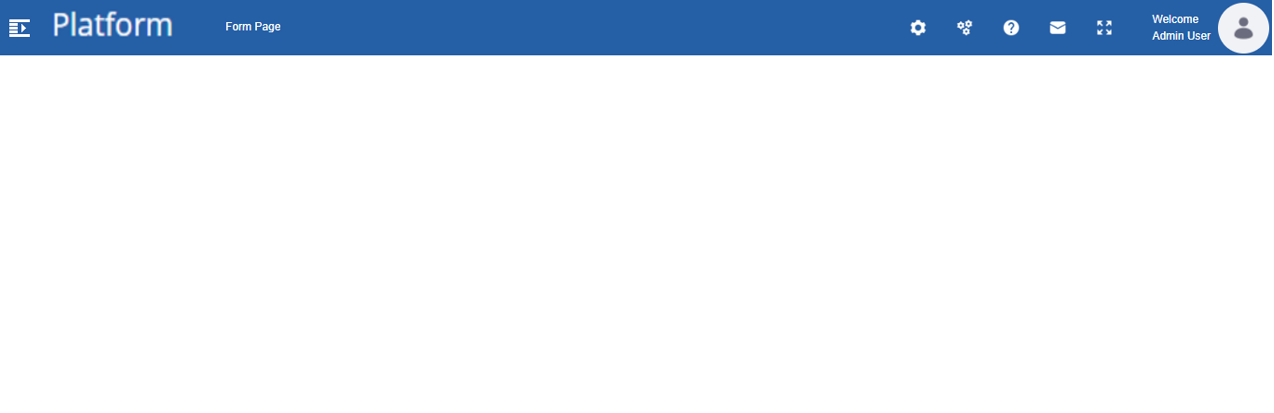
Figure 51: Blank screen after the removal of runtime form widget
Alternatively, you can delete the page from the Main menu list by following the below steps.
- Navigate through Title bar > Administration icon > Menu icon > Public Tree (left side) > Go to Page Administration > click three dots beside the page to be deleted > Click Delete. The page will be removed from the burger main menu.
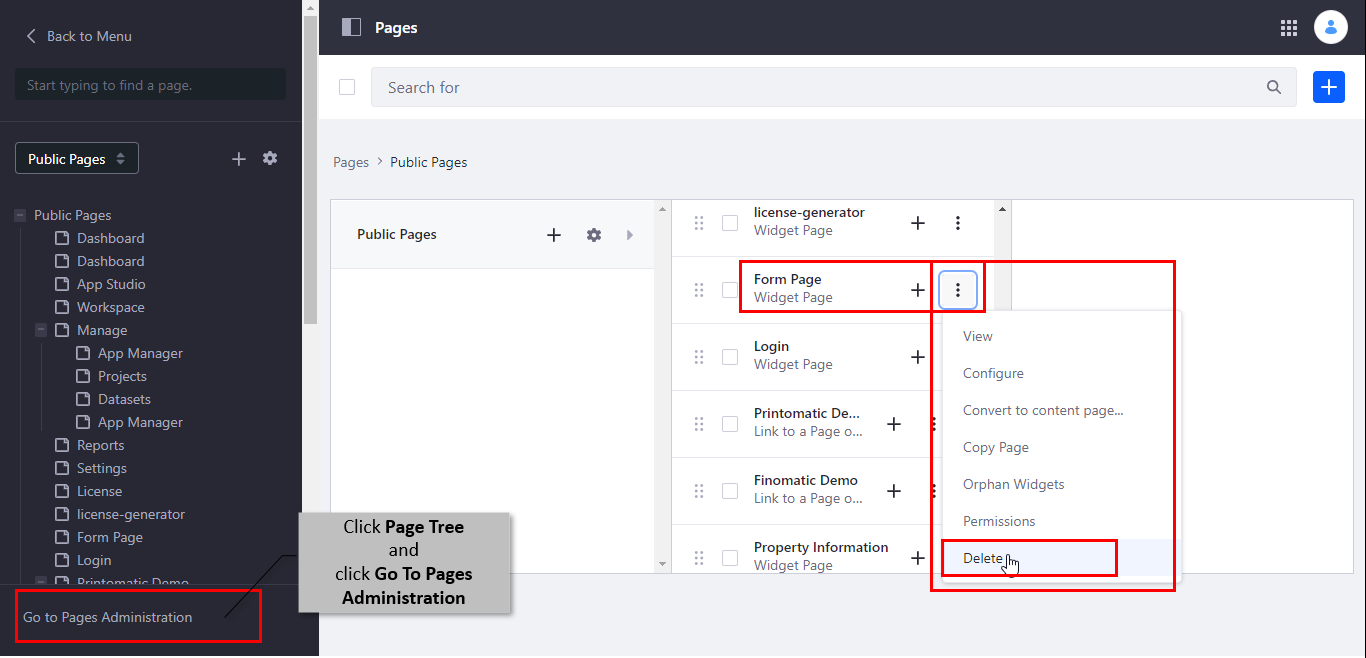
Figure 52: Deleting page from the main menu