Log Viewer
Introduction to Log Viewer in the Platform
Log Viewer section is for viewing the server logs. Log files generated during the server operartions can be viewed within the platform itself. Once you configure the server details for the platform log viewer, you can view the servers and the the logs in the Log Viewer. You can configure the server details through any database client interface.
You can add multiple servers to the Log Viewer. At a time you can view two logs and compare them.
Viewing Log Viewer
- In the Patform main menu, click Log Viewer. Log Stream page appears. Logs are generated in this page within the terminal.
The screen with “Add Server to view logs” message indicates that no servers are added yet and you need to add server to view the corresponding logs.
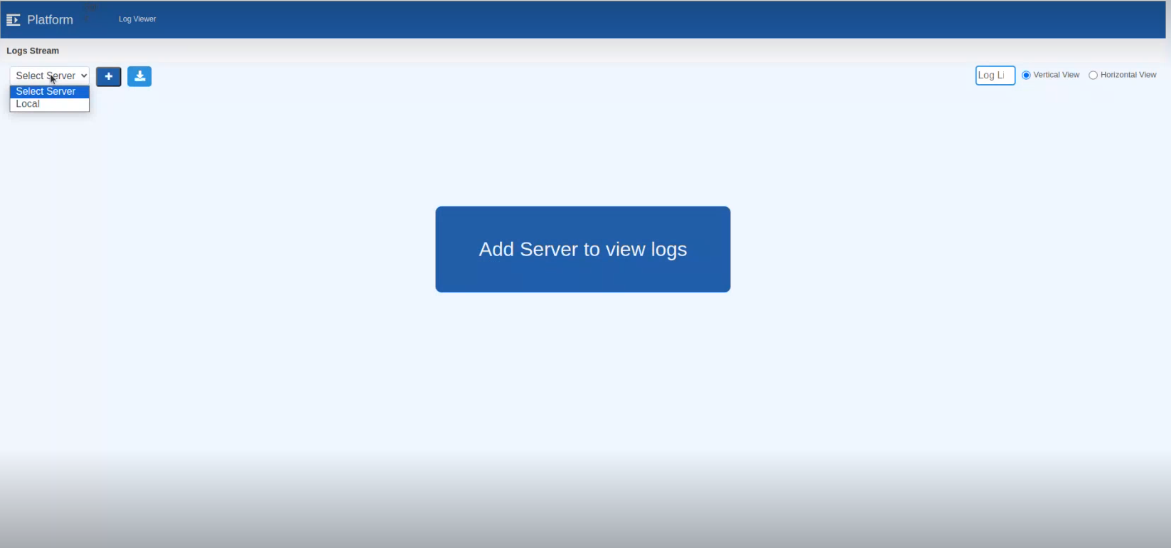
Figure 1: Log Viewer page with no server added to the page
Adding Server to the Log Viewer
-
In the Patform main menu, click Log Viewer. Log Stream page appears
-
On the top-left of the page, click the Select Server drop-down arrow. It lists all the servers that are configured to the platform. If no servers are configured, it will not list anything. By providing username, password, the log file name, path of the log file, IP of the server etc., you can connect the server to the platform (this one time configuration is done in the backend).
-
Select the Server and click “+” (Add Server) symbol to add that server to the page. The log terminal of that server appears. You can configure and add local server also.
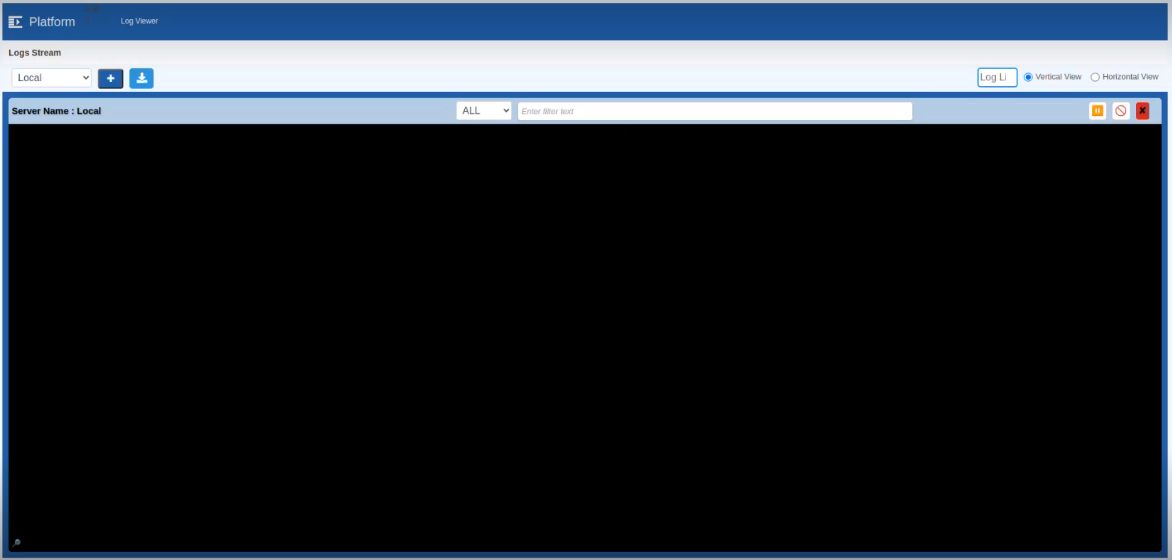
Figure 2: Log terminalOn adding the server, blank terminal appears if there is no operations or executions running currently. Once any action happen on the server, the log terminal will start displaying the corresponding details in realtime. The execution logs of actions that happened after adding the terminal only appears on the terminal.
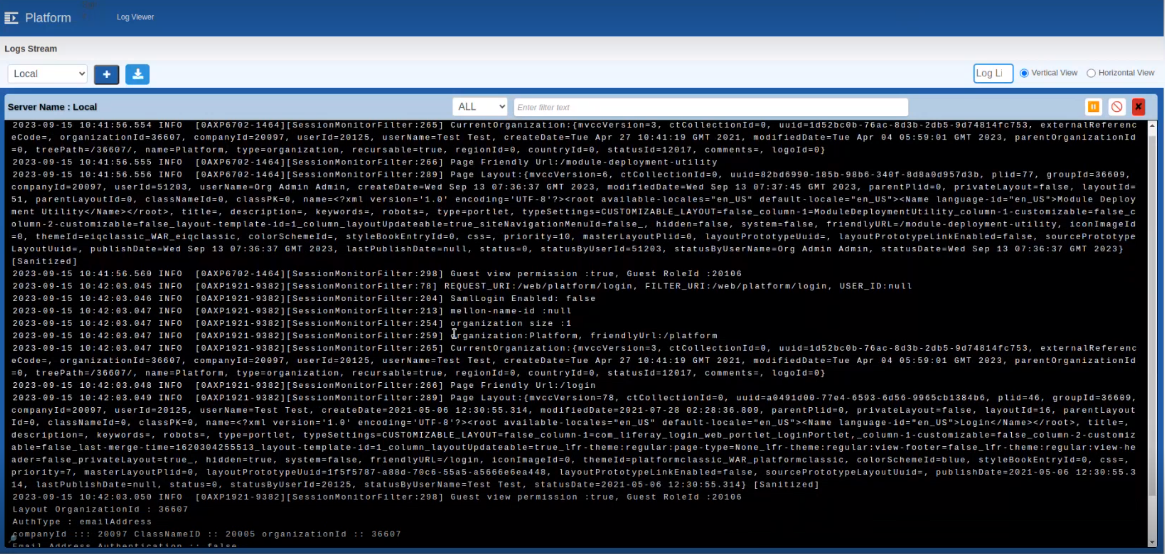
Figure 3: Terminal showing the log details -
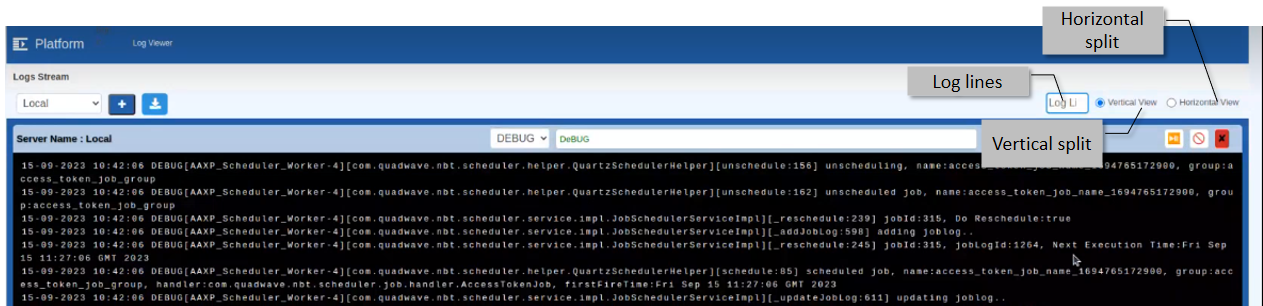
On the top-right of the screen, click the Log Lines drop-down to select the number of log lines (or you can directly enter the number) to be displayed in a page.
-
Click download icon on the top-left of the Log Stream screen to download the selected log file with filename as the name of the server.
Features on the Logs Terminal
-
In the logs terminal click the drop-down and select a log type for filtering the different types of logs.
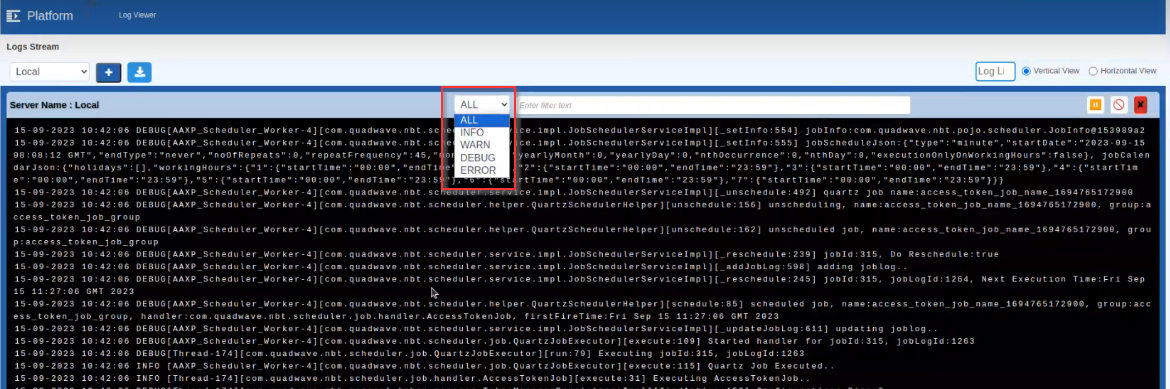
-
In the log terminal the textbox and enter the search text for searching a particular text.
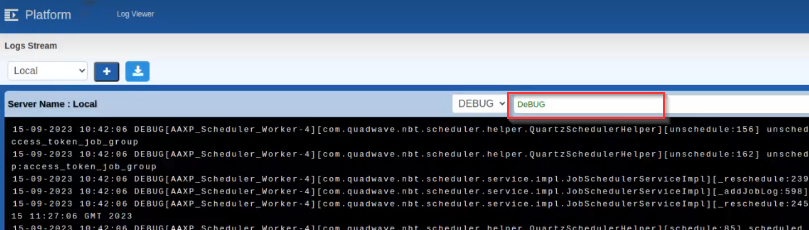
Figure 4: Searching for a particular text -
In the log terminal, on the top-right click pause icon for pausing the display of logs.
-
In the log terminal, on the top-right click remove icon for clearing the display of logs.
-
In the log terminal, on the top-right click close icon for closing the terminal.
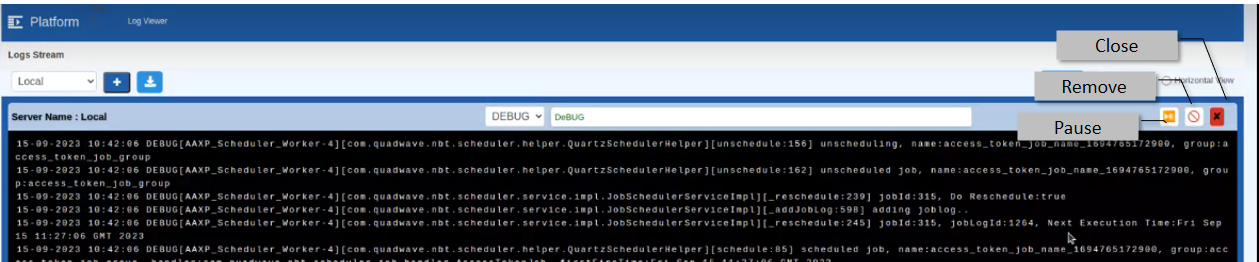
Figure 5: Terminal actions
Downloading Logs
Download feature allows you to download the logs from a server based on the selected criteria. If you do not select any filter criteria, it downloads the entire log file without filter. To download logs:
- Select the required server from which you need to download the server and click “+” to add that server.
-
Click Download icon. The Select Download Option pop-up appers.
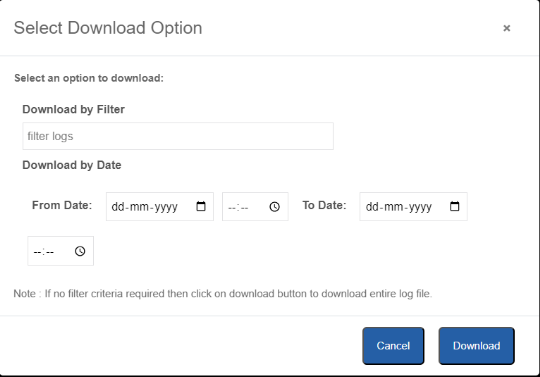
Figure 6: Download - Filter options -
Select an option to download. (This is optional. You can download the entire log without providing any filter.)
- Download By Filter: Enter a search keyword. It filters the logs that contain the entered keyword. On click of download the filtered results are downloaded.
- Download By Date: In From Date select Date and time. In To Date select Date and time. It filters the logs that are generated in the specified date/time range.
-
Click Download. The terminal displays the downloaded logs.
Comparing Two Logs in the Log Viewer
You can add two servers to the Log Viewer page at a time.
-
Click Select Server drop-down arrow on the top-left, select the server name.
-
Click “+” (Add Server). A log terminal is added in the page.
-
Again, click the Select Server drop-down arrow on the top-left, select the server name and then click “+” symbol to add the selected server to the page. Now both the server log terminals appears on the screen.
-
On the top-right of the screen, click Vertical View to view the log file terminals vertically or click Horizontal View to view the log terminals horizontally.