Application Map
An application map is a pictorial representation of the various components and entities associated with the selected application. In the application map, the application is displayed in the center connecting with all the workflow modules (solid lines). Business entities are mapped with dotted lines.
Viewing Application Map
- Navigate to App Studio > Applications - Open application > Application Map from in the left side panel (Application map is active by default). The application map is displayed.
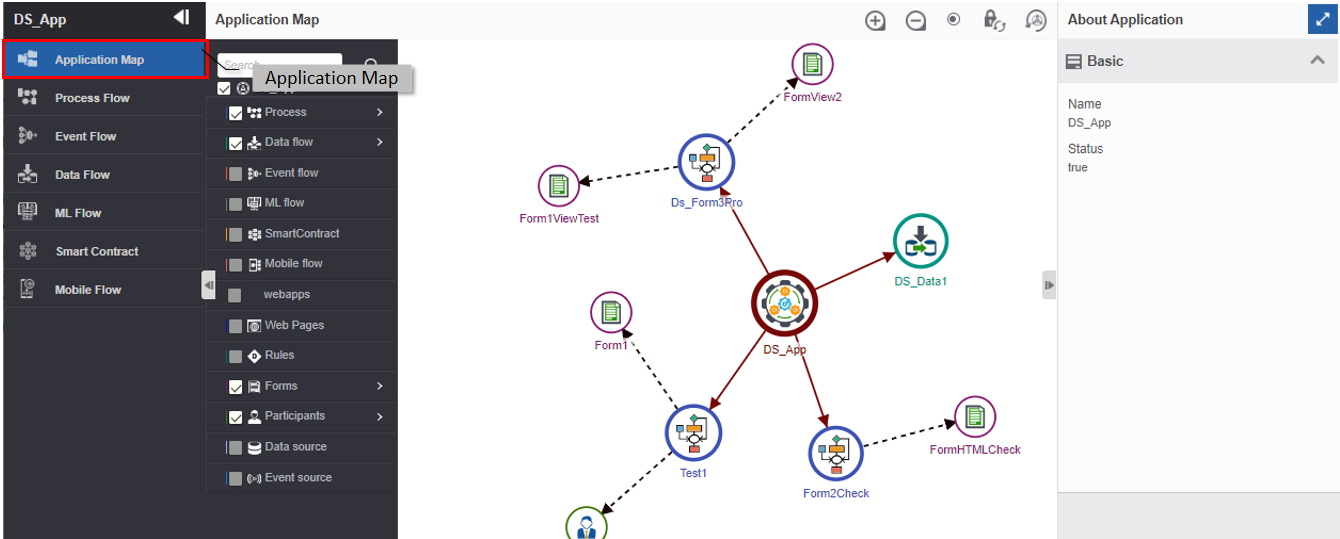
Understanding Application Map
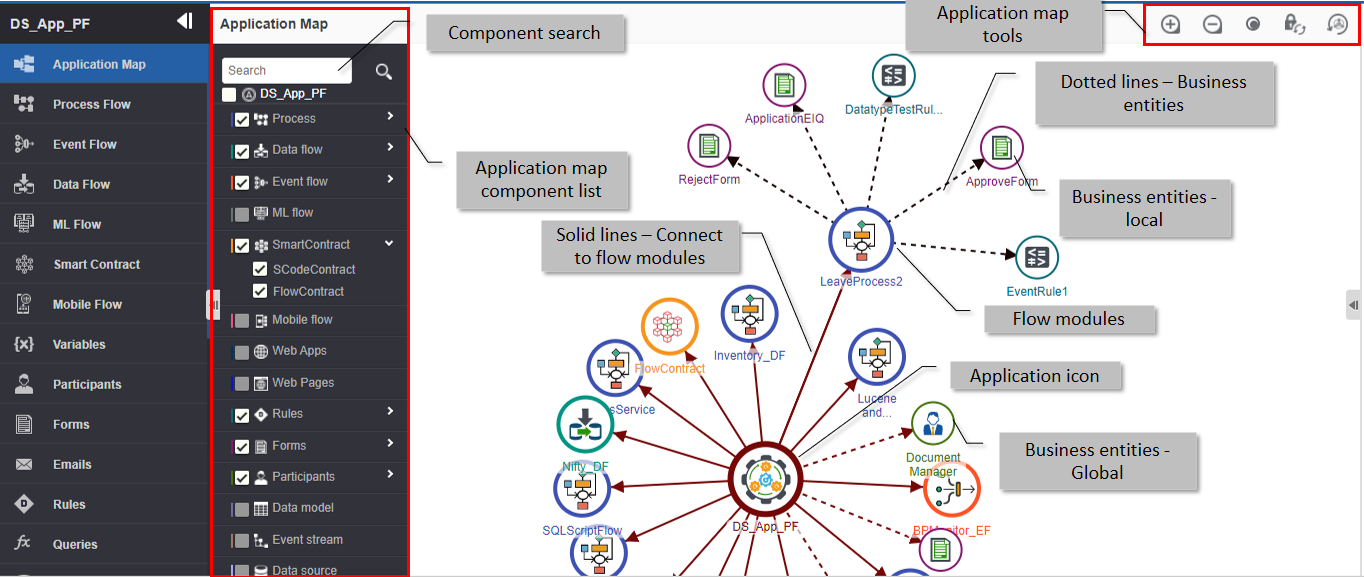
| Feature | Description |
|---|---|
| Component Search | To search for a specific component in the application map. - Type the name of the component in the search box and click the search icon. The application map displayed the filtered components associated with the application in the map. |
| Application icon | The application icon is displayed in the center of the application map. - Click the application icon for viewing About Application details. |
| Application map component List | The list of all components in the application map. |
| Application map tools | The icons on the application map toolbar perform specific actions. - Zoom in : Click the zoom in symbol to zoom in. - Zoom out : Click the zoom out symbol to zoom out. - Show/Hide labels : Click the show/hide label to switch labeled view and the unlabeled view. - Unlock position : Click unlock position icon to revert to the original view. (You can drag and change the view of the application map as per your need and then click the unlock position to display the original view.) - Reset View : Click the reset view icon to clear the root set for the application map. |
| Solid lines | Solid lines with arrows in the application map indicate connection or mapping to a flow module. |
| Dotted lines | Dotted lines with arrows in the application map indicate connection or mapping to a business entity. |
| Flow Modules | Each type of flow module is indicated in a differently colored icon and is always mapped directly to the application icon with a solid line with an arrow. - Click the flow icon for viewing About Flow details |
| Business Entities | Each business entity type has a different color and is connected to a flow module or application icon using dotted lines. - Click the entity icon for viewing About details |
Application Map Features
- Scroll the mouse to Zoom in and zoom out.
- Click an icon (application, flow, or business entity) for viewing the details of that entity.
- Drag an entity or flow to arrange it as per your view preference.
- Double-click a flow module icon or a business entity icon for navigating to that module/section.
- Click a flow module drop-down in the application map component list for listing all the flows of that type in the application.
- Click a business entity drop-down in the application component list for listing all the entities of that type in the application.
- The color beside the checkbox indicates the icon color (circle color of the icon) of a particular component in the application map.
- The disabled components indicate that there are no components of that type associated with the selected application.
- Check/uncheck the checkbox (flow or business entity) for a component in the application map component list to control the visibility of the component in the application map.
Setting Root in Application Map
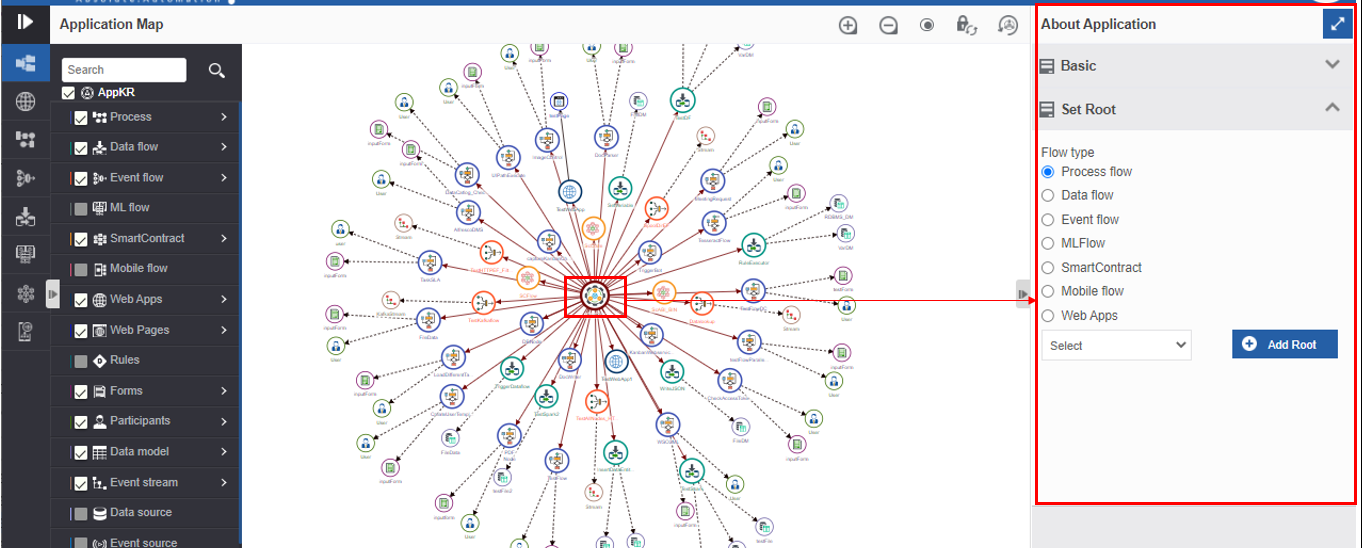
In the Application Map, the application icon appears in the center. The Info Actions section on the right side displays the About Application details.
For setting the root for an application follow the below steps.
- Navigate to App Studio > Applications > Application Map.
-
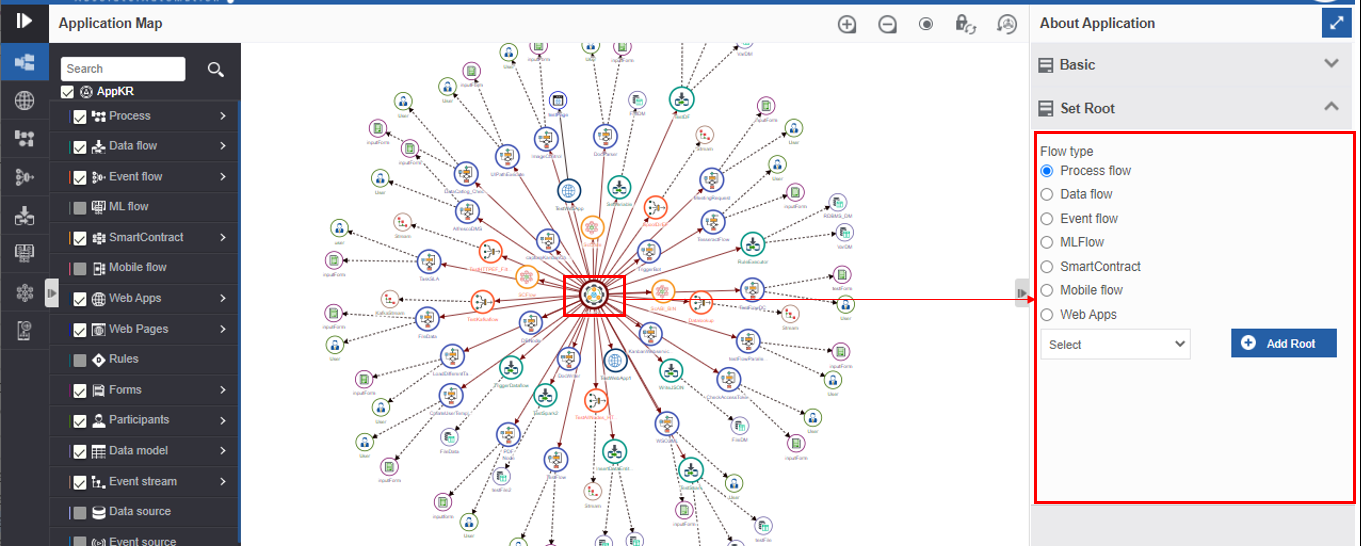
Click the application icon displayed in the center of the application map. About Application appears.
-
Click the Set Root drop-down in the About Application.
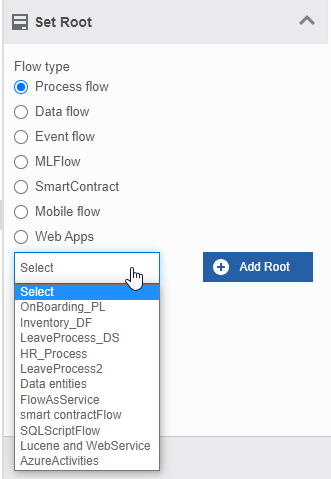
- Select the Flow type from the options displayed below Flow Type. The Select drop-down below displays the flows of that type in the selected application. That is, if you select the option “Process flows”, the drop-down will list all the process flows in the application. If you select the option “Data flow”, the drop-down will list all the data flows in the application and so on.
-
Click the Select drop-down and select the flow name that you want to set as the root of the application map.
-
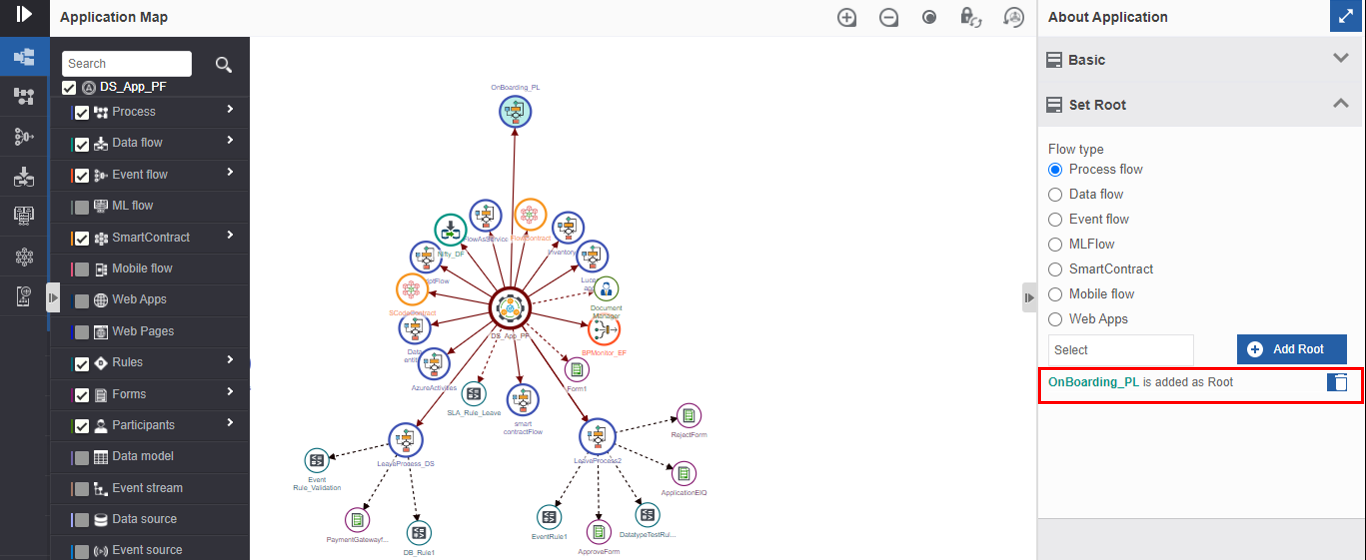
Click +Add Root. The application map view changes with the flow selected as root on the top of the application map. The flow added as root is indicated in the About Application.
-
Click the delete icon next to {flow_name} is added as Root for removing the root.
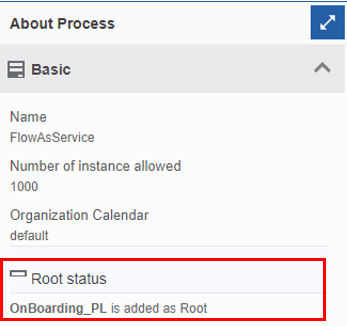
- The root flow is indicated in the About section for all the flows and business entities as Root Status.