SQL Workbench Integration in Platform
About SQL Work Bench Integration
For accessing the database server you can use the SQL Workbench integrated into the platform.
You need to configure the database or servers so that it is accessible through the platform.
Configuring the Database/Server Details
Initially, the server details should be configured.
-
In the SQL Work Bench configuration files, navigate to the docker-compose.yml file.
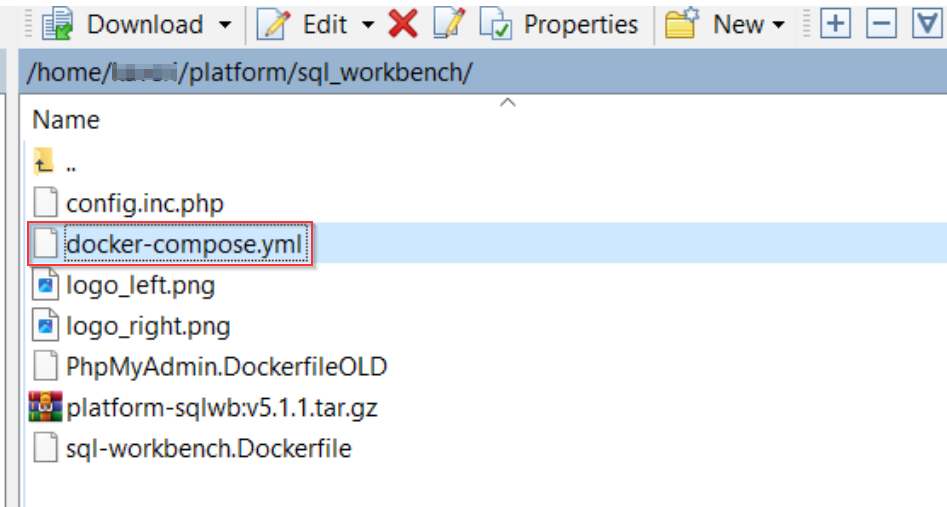
Figure 1: SQL Work Bench configuration files -
Open the docker-compose.yml file.
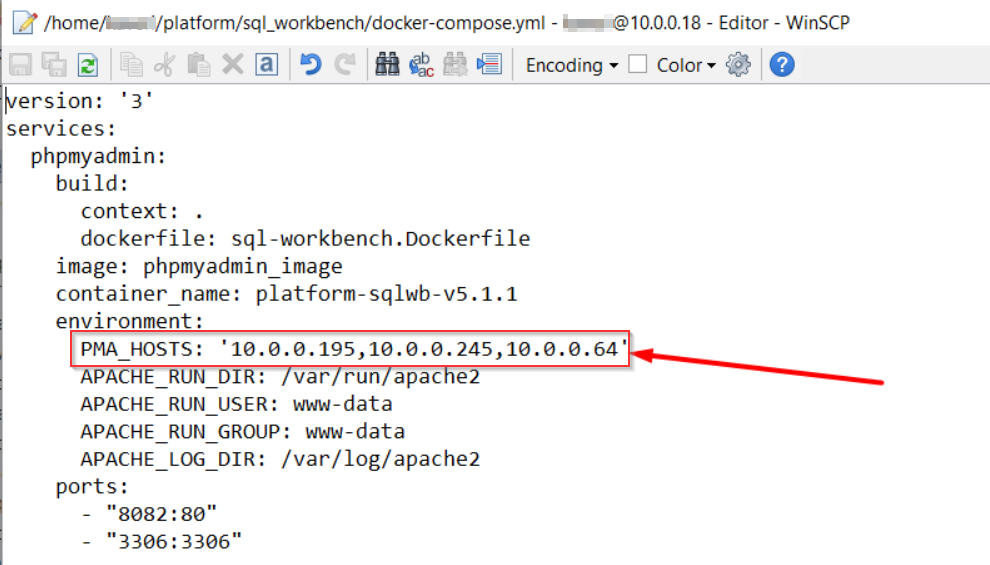
Figure 2: docker-compose.yml file -
In the PMA_HOSTS, enter the server IP address where your databases are running. You can provide multiple server IPs separated by commas.
-
Save the file.
-
Restart the docker for the SQL Work Bench.
Once you restart the docker, the servers that are provided in the PMA_HOST configuration will appear on the SQL Work Bench Integrated in the Platform.
Adding SQL Work Bench Portlet in the Platform
- Create a page in the Platform (Title bar - Administration icon > Menu icon > Page Tree > Public Pages > Add Page).
-
In the Platform, click the Administration icon > “+” > PLATFORM
-
Drag the SQL Work Bench widget
If the SQL Work Bench is already available in the menu, in the Platform main menu click SQL Work Bench.
Logging to SQL Workbench in Platform
-
In the Platform main menu. Click SQL Work Bench.
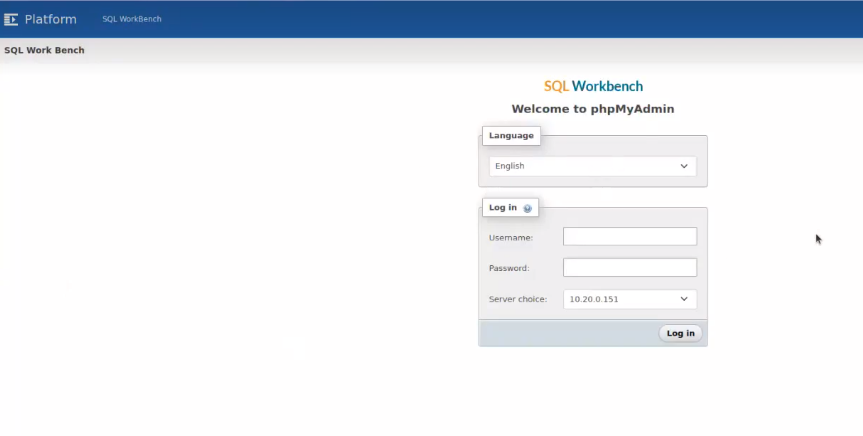
Figure 3: SQL Work Bench login in the Platform -
Select the Language (preferably English).
-
Enter the Username and Password in the boxes.
-
In the Server choice, select the server to which you want to login. The Server choice lists only those server IPs that are configured in the docker-compose.yml file.
-
Click Log In.
SQL Workbench opens and you can work on it.
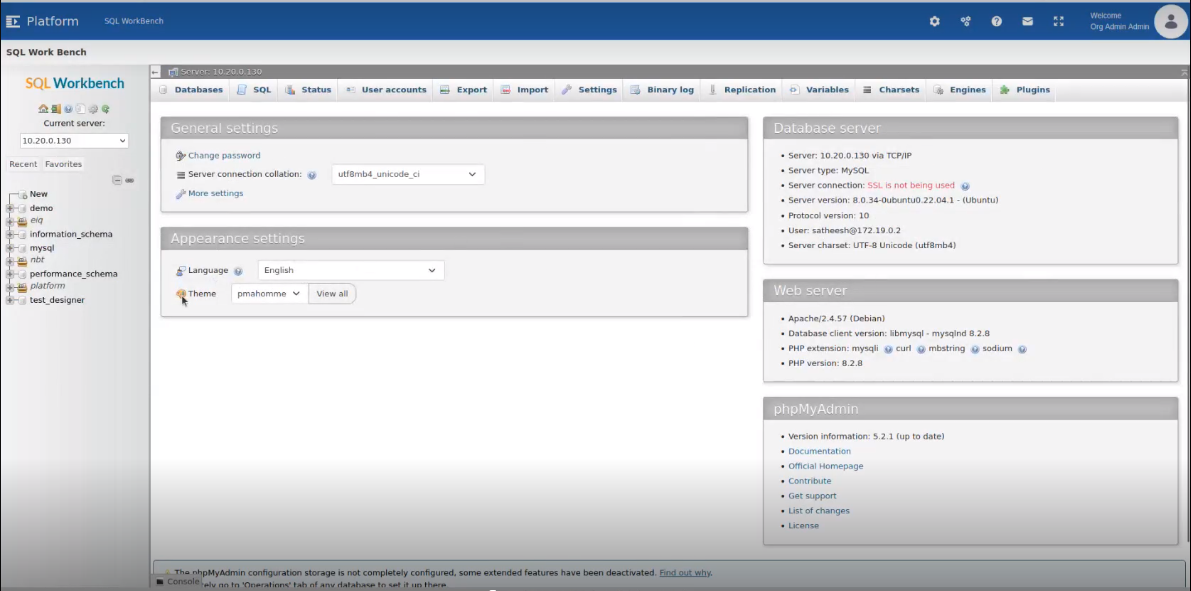
Figure 4: SQL Work Bench view in the platform