RPA Workflow Designer
Understanding Designer Panel
The designer or the workspace is the main area where you create and define your workflows. The designer helps the user organizes all the activities pertaining to the task which will be fulfilled by the workflow. Drag and drop activities and add or nest sequences to the designer to fulfill your implementation choices, and set the properties and variables pertaining to your workflow business process. Designer area comprises of five elements: Activities & Snippets sidebar, Designer area, Properties box, Output bar, and Connection bar.
In the workflow designer, you can set all variables, arguments, and import namespaces for further use.
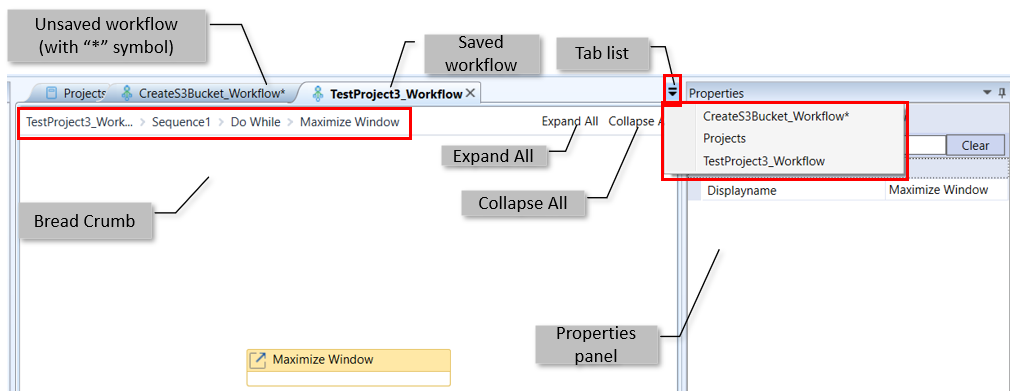
Workflow designer area UI elements in the designer area
-
Breadcrumb – Displays the breadcrumb ({workflow name} > {sequence name} > {activity name} > {child activity name} > …)
-
Expand All – Expands all the activities in the workflow. When you click Expand All, Restore appears. Click Restore to restore to the original view.
-
Collapse All – Collapses all the activities in the workflow. When you click Collapse All, Restore appears. Click Restore to restore to the original view.
-
Properties – The property panel on the right side displays the properties of the selected activity.
-
Tab List – Click the drop list on the right side of the workspace. The Projects tab and all the opened workflow list appear. Click Projects or any of the workflow to open that tab in the workspace.
Activities and Snippets
Activities and Snippets panel on the left side lists all the activities for workflow design and sample snippets that teach the user how to use the activity for various purposes.
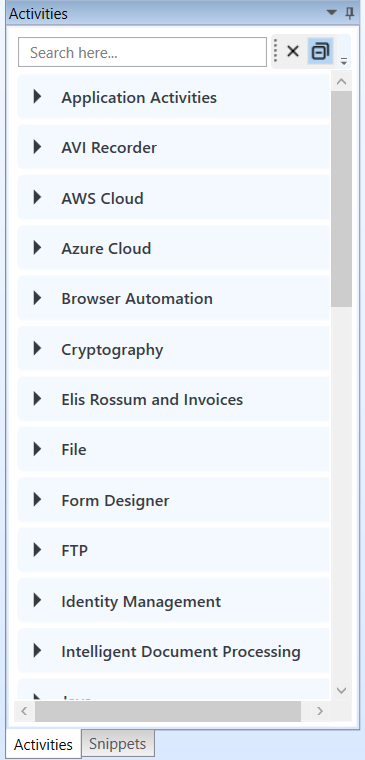
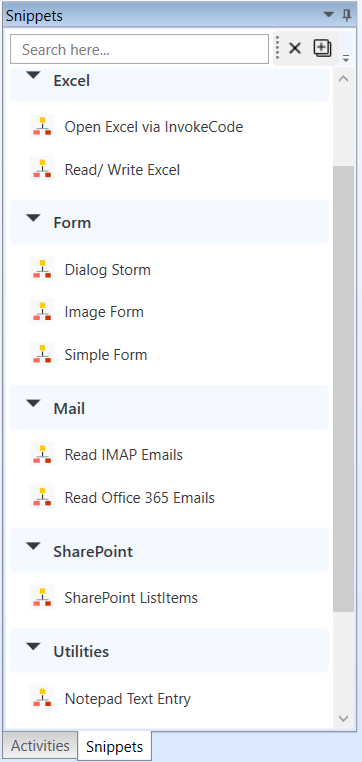
Activities and Snippets
For more information on activities, refer to the Managing Activities.
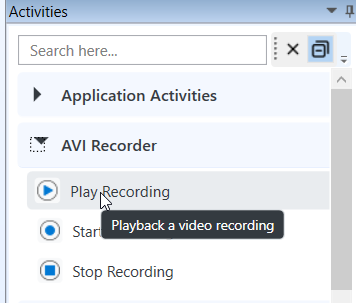
- Hover over the activities to view the too tip for that activity.
Properties Panel
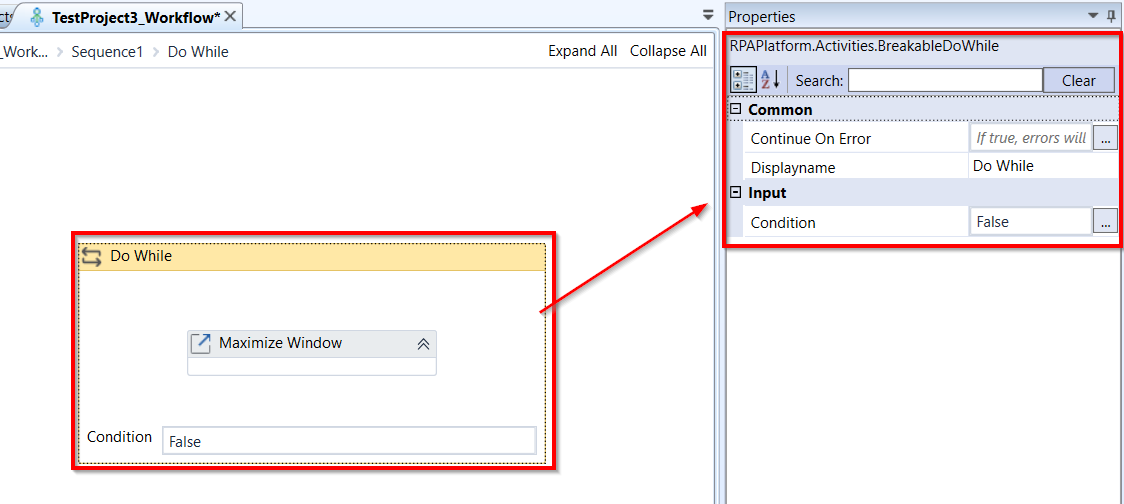
Every activity in RPA Bot Studio has its own set of properties, containing parameters passed that change the workings of the given activity. Inside the property box, there are also sections that are pretty much self-explanatory; refer to the given parameters (they cause changes upon) such as Input, Output, or Misc.
The only property common to all activities is the Display name, which changes the name of the activity inside the workspace.
Properties panel view
Refer to Properties Panel and Features.
Platform Bot
You can use the RPA Bot Studio platform bot to generate workflows based on your prompts.
Bot configuration allows you to create bot configuration using various Gen AI service providers.
- Refer to Platform Bot documentation.
Output Bar
The Output section is displayed at the bottom of the RPA Studio application at it contains outputs generated by any workflows that are executed.
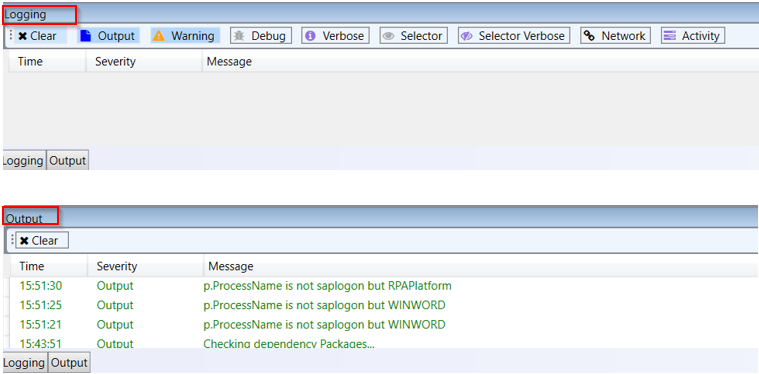
The output bar contains two sections: Logging and Output.
Logging and Output in Output Bar
-
Logging: The Logging section shows the output of the Workflows as well as any instance of any error or exception which occurred inside RPA Bot Studio. Refer to Logging Tab.
-
Output: The Output section contains only outputs generated by any workflows that were executed. Refer to Output Tab .
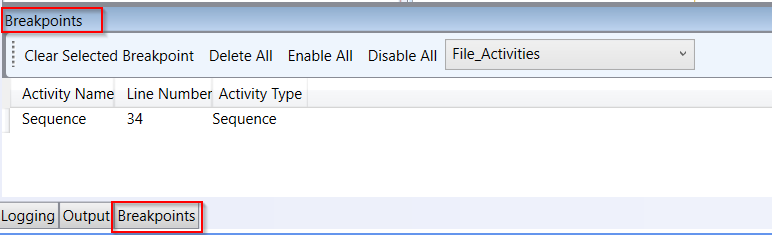
The Output bar also has a tab named “Breakpoints” that display only when enabled on General tab > Breakpoints > Show breakpoints.
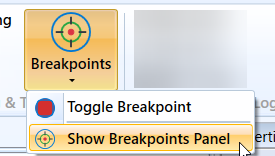
- Breakpoint: Creates a breakpoint for the selected activity. When you play the workflow, the activity is highlighted when there are debug errors. Refer to Breakpoint Tab.
Output Tab
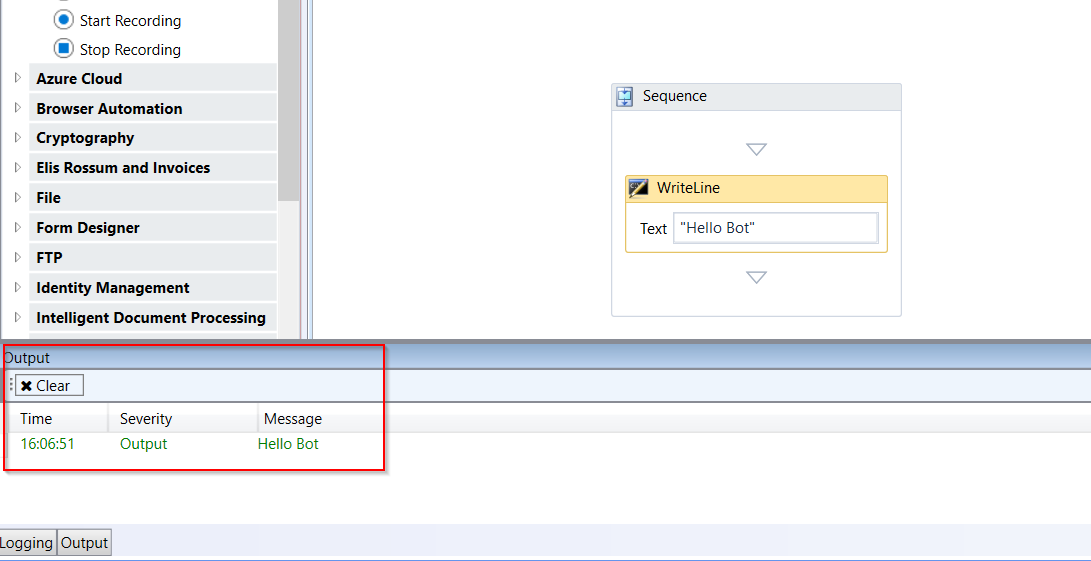
The Output section inside the Output bar is used to output every information pertaining to the execution of workflows inside RPA Bot Studio. This information includes debugging output, i.e., error messages, output from the WriteLine activity, and messages indicating that the workflow has been executed successfully.
The Output section in the Output bar
-
Time: The time displays the Timestamp of the debug error message or the output message. It denotes the exact time when it occurred. Format: [hh
 ss]
ss] -
Severity: The severity denotes the type of message - in the above screen, it is an output message for the Write Line activity.
-
Message: Message displays the debug error message or the output message. For the error message, it contains the name of the workflow that failed, followed by its relative execution time – i.e., the time that has elapsed from its start to the failure - and the error that occurred.
-
Click Clear to clear the output console.
Logging Tab
Click the Logging tab in the Output bar to view the Logs.

Click Clear to clear the log entries.
Click the other options on top of logging interface to enable each of the option. These options are same as displayed in the settings tab. Enable these properties in logging section or in the settings tab or in the app configuration file.
-
Output: By default, the output log is printed. Output will be displayed in green.
-
Warning: By default, it adds warning messages to the log file, that is, issues that affected the platform or RPA workflow but did not prevent it from playing.
-
Debug: Click Debug to enable debug logs. Debug details are displayed in the logging section, if there are any errors. The activity that encountered an error gets highlighted in the workflow as applicable. The error messages are very similar to any C# trace output. Debug and information are displayed in grey. Errors are displayed in red.
-
Verbose: Click Verbose to enable Verbose logs. This parameter habilitates the verbose mode, that is, more words are added to the log file to make it more readable to humans. Verbose are displayed in purple.
-
Selector: Click Selector to enable Selector logs. Selector-related logging details if any are displayed in the Logging section. Whie doing the browser automation it prints the selector content.
-
Selector Verbose: Click Selector Verbose to enable Selector Verbose logs. This parameter facilitates verbose mode for selector logs.
-
Network: Click Network to enable Network logs. Network related details are displayed in the Logging section, if there are any network errors or messages.
-
Activity: Click Activity to enable Activity logs. When you run the bot after enabling the activity, it captures the log details for each activity trace. The trace of each activity like it started, executing, closed, deleted are captured along with the exact time of trace. The trace details of all the components inside each activity also get printed in the logging.
Breakpoint Tab
Breakpoint is a marker you place on a sequence or specific activity within your workflow. When the workflow execution reaches an activity with a breakpoint, it will pause automatically at that point. Instead of stepping through the entire workflow, you can set a breakpoint near where you suspect an issue, run the workflow, and it will stop exactly there.
When you place a breakpoint on a sequence, it gets applied to each activity within that sequence.
Apply break points at multiple activities to view and debug easily.
Once a breakpoint is hit while playing the workflow, you can then use "Step Over" (F10) or "Step Into" (F11) to resume execution of one activity at a time from that specific point. Press F5 to navigate only through the breakpoint activities.
Applying Breakpoint
-
Open your workflow in the designer.
-
Click the activity where you need to apply the breakpoint.
-
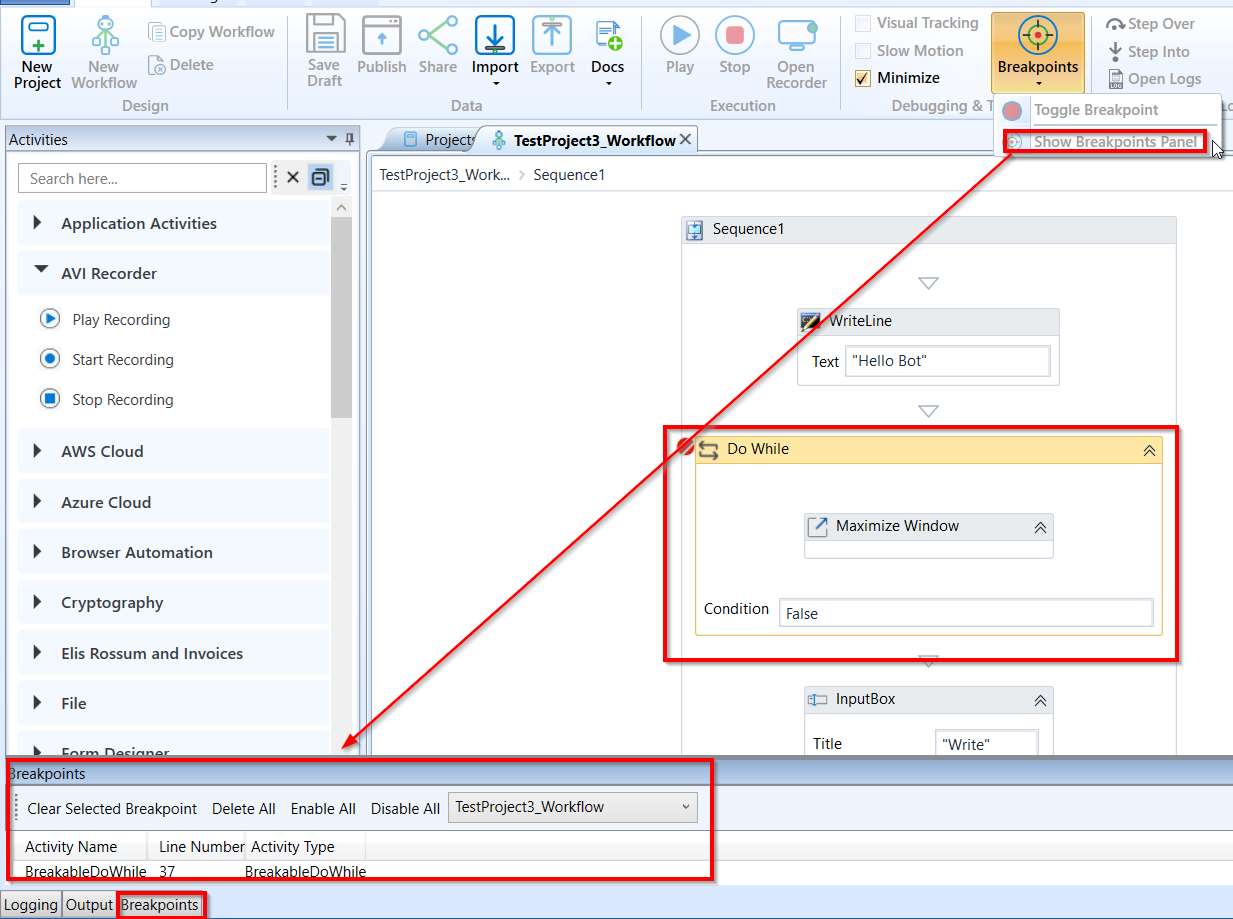
Click General tab > Breakpoints > Toggle Breakpoint.
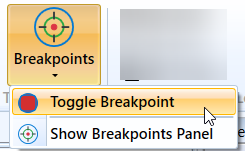
The breakpoint is applied for the selected activity.
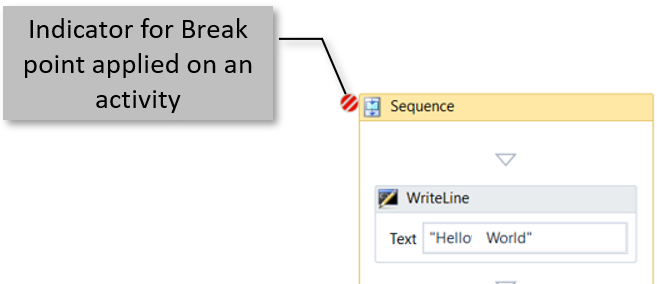
- Click another activity and add breakpoint. You can add Breakpoint to multiple activities.
Viewing Breakpoints
When you apply breakpoint to an activity, the Breakpoint tab is added to the Output bar.
-
On the Output bar, click the Breakpoint tab to view the details of the added breakpoints.
-
If you do not see the Breakpoint panel on Output bar, click General tab > Breakpoints > Show Breakpoint panel.
Breakpoint Actions
Open the Breakpoint panel to view the break points applied for the workflow.
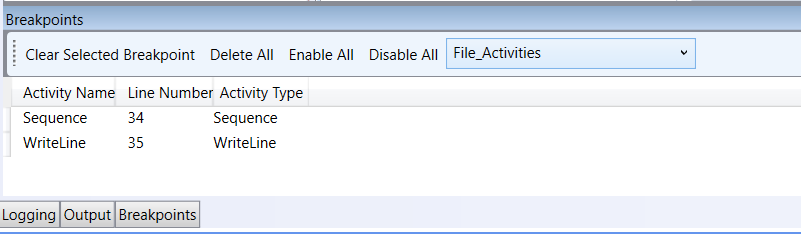
The list of all breakpoints added to the workflow is listed with activity name, line number and activity type name.
-
Clear Selected Breakpoint: Clears the breakpoint added. To clear a break point for an activity, click the activity and then click Clear Selected Breakpoint.
-
Delete All: Click to delete all the breakpoints in the workflow.
-
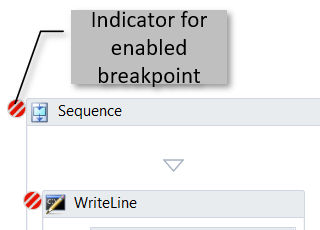
Enable All: Click to enable all the breakpoints.
-
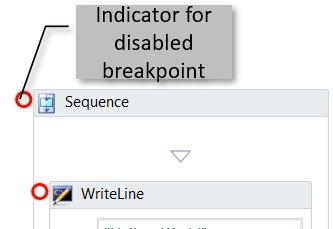
Disable All: Click to disable all the breakpoints.
-
Drop-down list: Displays workflows. Select a workflow name to view its breakpoints.
Playing Workflow with Breakpoints
When you play a workflow with breakpoints, it pauses the execution at the first breakpoint encountered. If the breakpoint applied activity has any variables associated with it, Locals tab appears beside the Properties tab on the right side.
-
Create and save a workflow by adding breakpoints to multiple activities.
-
Click Play to execute the workflow and view the breakpoints in action.
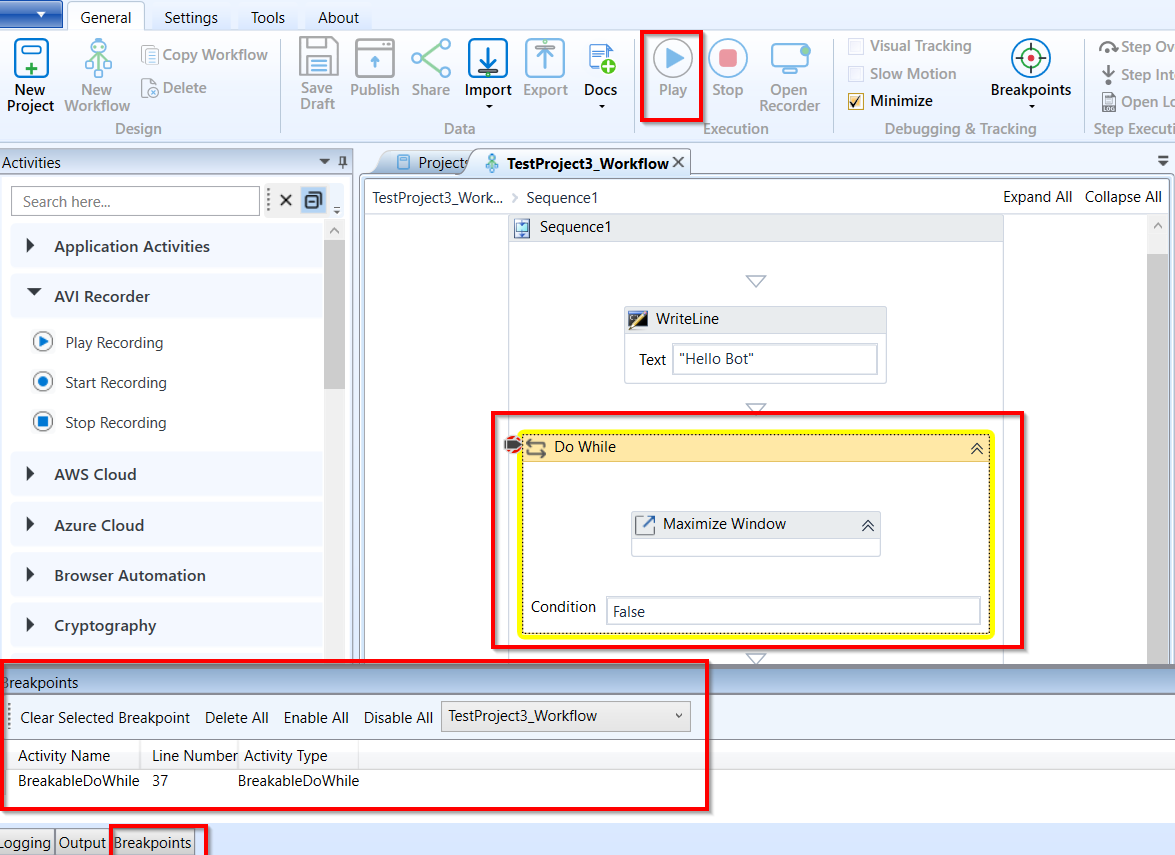
The encountered breakpoint activity appears highlighted in yellow with an arrow on the breakpoint indicator. This indicates that the execution has stopped at that activity. The Logging panel on the output bar will display the log errors.
- Press F10 to jump into another breakpoint. If the activity with breakpoint has variables associated with it, Locals tab appear next to Properties and Platform Bot tab on the right-side and it displays the variables in that activity.
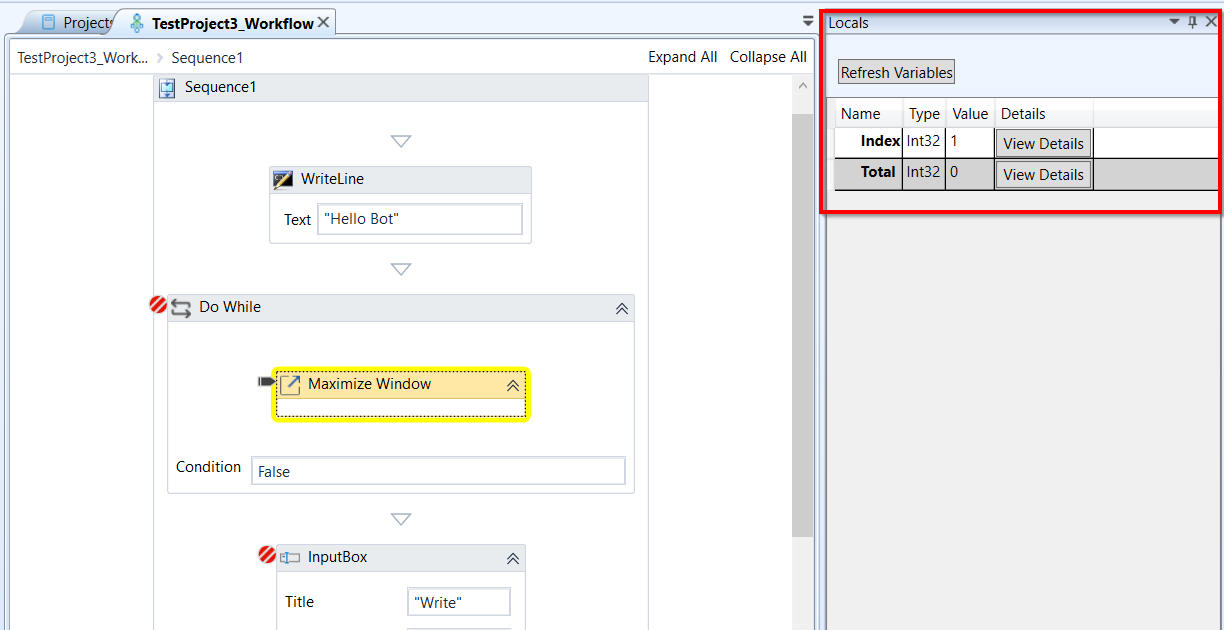
- Click View Details to view the Variable details.
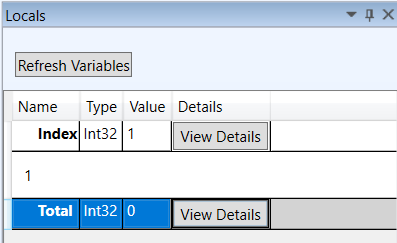
As you step over to each activity with breakpoint, the variables associated with the activities keep adding on to the variable list in the Locals.
- Click Refresh Variables to refresh the variables.
Writing Output to the Console with Write Line
You can also write expressions to the Output console by using the WriteLine activity. Any object of the type String can be used inside an expression that is going to be outputted to the console. Everything else will need to be cast into the type String. Expressions need to be within double quotes to indicate they are strings.
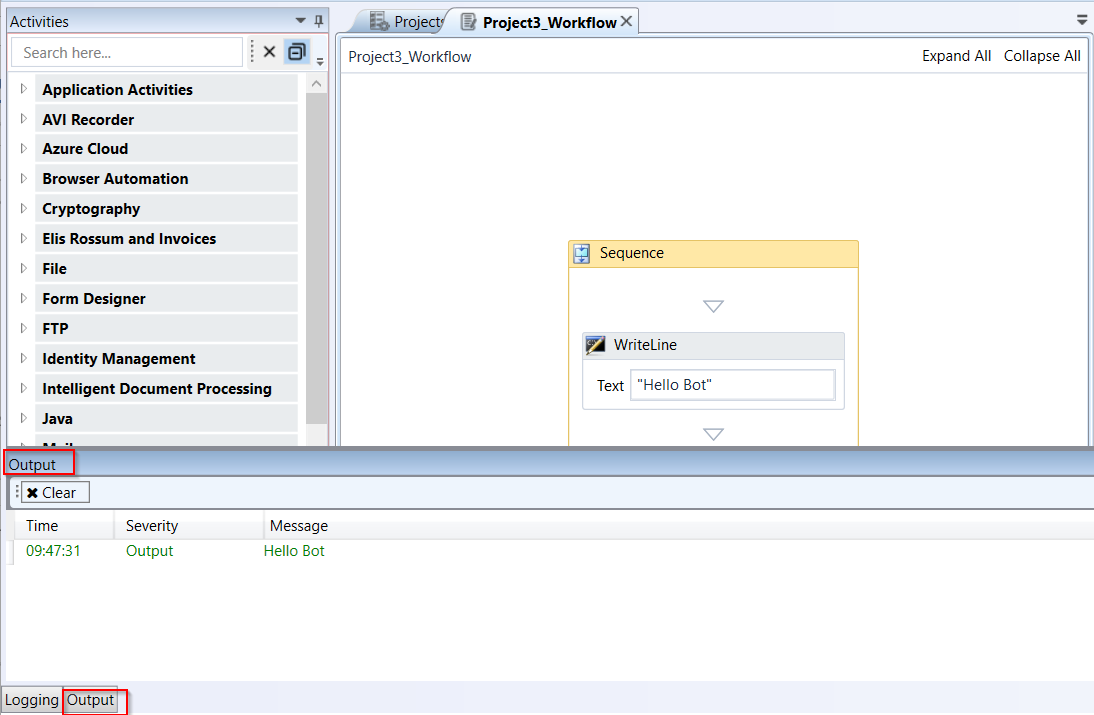
The output for Write Line activity
You can write any expressions involving variables in the Write Line activity; remember to concatenate them using the + operator.
Connection Bar
The connection bar contains information related to the connection status of the RPA Bot Studio web service set in the Configuring RPA Bot Studio section as well as the status of both NM and SAP plugins.

Connection bar with connection details
Shell Bar – Variables, Arguments, and Imports
Open a workflow for viewing the Shell bar at the bottom of the workspace area.
The shell bar consists of Variables, Arguments, and Import sections on the left side.
The right side of the shell bar has zoom options: Pan, Zoom in/out, Reset zoom, Fit to screen, and Overview.
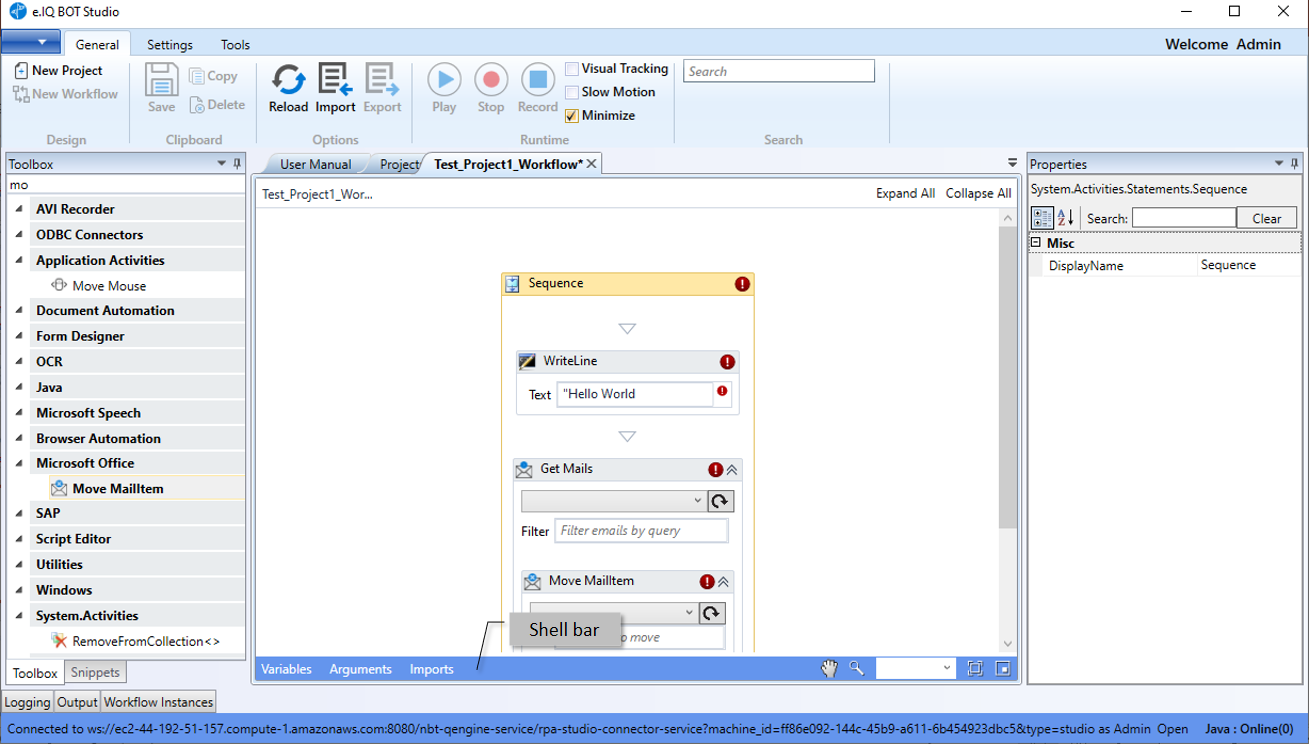
Shell bar
Variables
Variables are changeable values assigned to aliases inside the execution of a sequence. These aliases can be used in mathematical or computational expressions. For example, if you want to save a variable named “price” to assign the price of a product along a sequence. You can use the assign activity and an expression to assign its value. A variable must always have a specific type.
Upon inserting an activity with an input box, if you mention a non-existent variable and want to easily create it you can press CTRL+k and a dropdown will appear with many types of variables to be selected.
Variables in RPA Bot Studio are statically typed and its type can be selected from the variable type field inside the argument box.
Creating Variable
To create a variable via input field:
-
Create a workflow
-
Drag an activity to the workspace area.
-
In the activity input field, enter a non-existent variable and press CTRL+k (you must have the text caret inside an input field). The variable gets added to the variable section.
-
After creating that variable, assign a value (this is a must) to its alias through the Variables section.
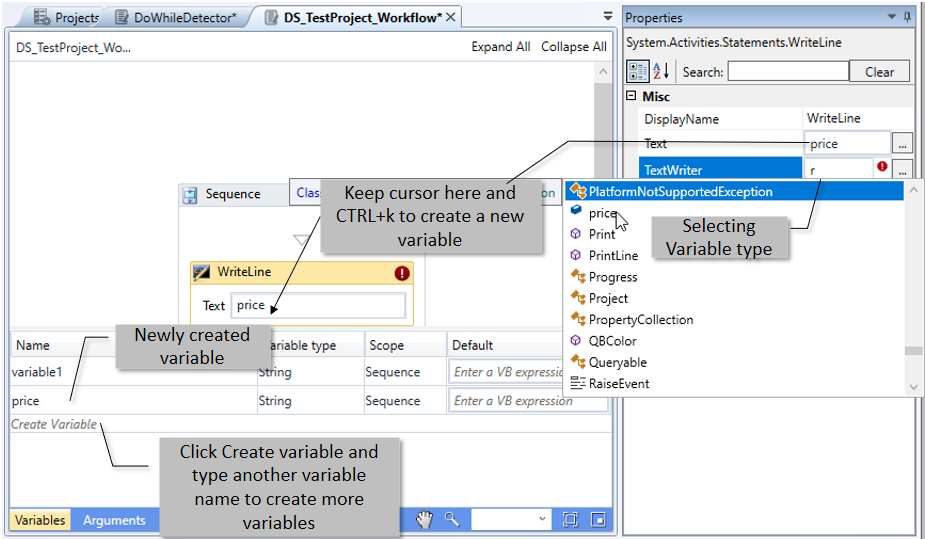
Creating automatic variables through an input field
To create a variable via variable section:
- Click the field containing the Create Variable placeholder inside the Variables section in the Variables, Arguments & Imports box. A variable gets created that appears as a row.

-
Type the variable’s name.
-
Assign a Variable type to it (if needed) - or just leave it as String.

- Click the activity drop-down and select as required.

- Enter the default value of the variable in the right most column.

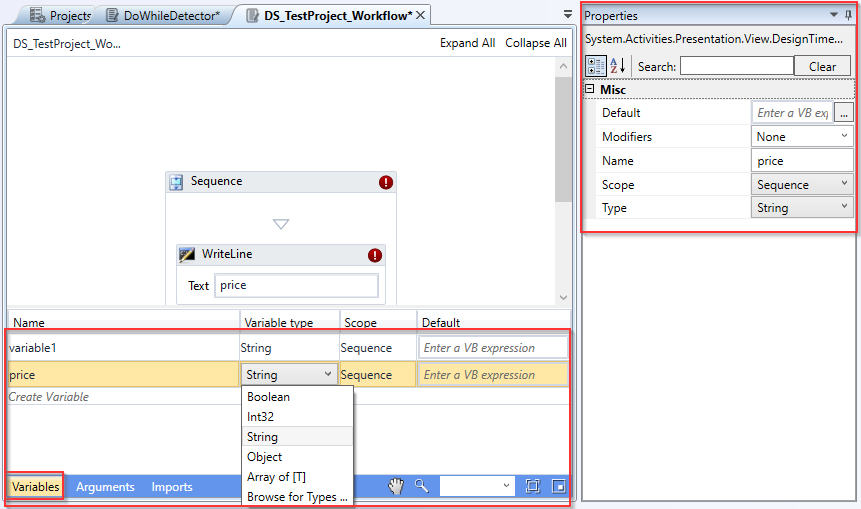
Creating variables manually
Deleting Variable
To delete a variable:
Click in the row inside the Variables section of the Variables, Arguments & Imports box and press DELETE. (Or right-click the variable row and then click delete.)
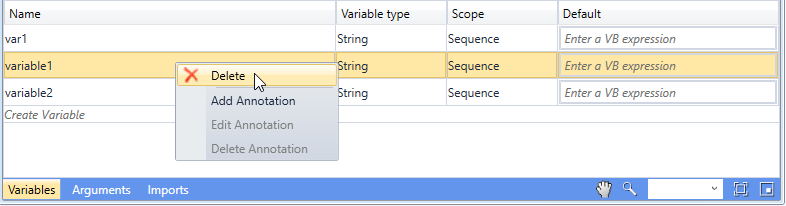
Deleting Variable
Variable use case: Saving the result of a computation
A use case of a variable is demonstrated next. In this example, we will save the result of a computation into a variable.
-
Drag an Assign activity to the main sequence.
-
Type a name for the variable and press CTRL+k to create it automatically. In this case, the chosen name is resultOfComputation.
-
Assign the result of the computation (2*6)[right-hand side] to the variable [left-hand side].
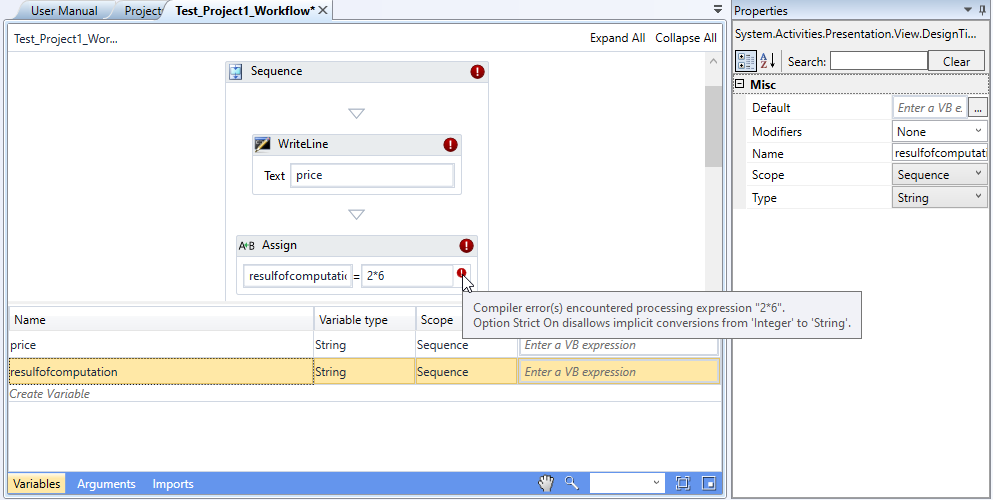
Hover over the warning message to view the error details
The user now may notice that a warning now appears on the right-hand side of the activity. That is because the expression is an Int32 type, the variable resultOfComputation is a string, and Microsoft Workflow Foundation is strongly typed.
- Select the type of the variable as Int32 in the Variable type parameter inside the Variables, Arguments & Imports box, as seen in the picture below.
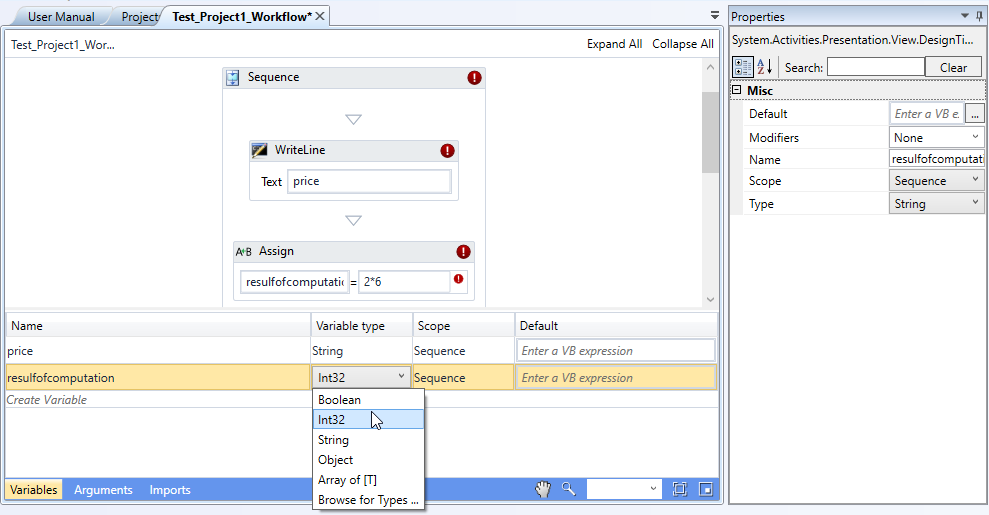
Selecting the correct variable type
Arguments
Arguments are like global variables that can be passed to other sequences, external services, or workflows and have a global scope. They act exactly like variables, except for that single characteristic. If you pass an argument to a sequence created within another sequence, the argument is still valid within the outer sequence. If you pass a variable, that does not happen.
It is important to notice that both variables and arguments can have a default value, which is assigned to both if a value isn’t necessarily assigned during the execution of the sequence. It is also required for arguments with the IsRequired property checked to have an ‘In’ value, i.e., already passed or having a default value.
Similar to Variables, Arguments in RPA Bot Studio is statically typed and its type can be selected from the variable type field inside the argument box.
Creating an Argument
The process for creating an argument is similar to that of creating a variable. You must always create an argument inside the Arguments section in the Variables, Arguments & Imports box and set its Direction.
- Click the field containing the Create Argument placeholder inside the Variables section in the Variables, Arguments & Imports box. A variable gets created that appears as a row.
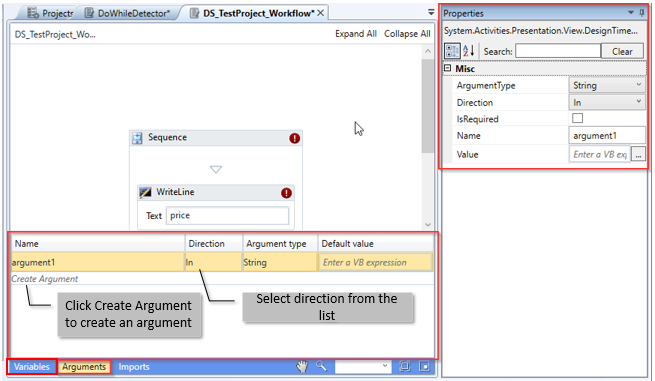
Creating Argument
- Select the argument Direction.

Direction: Direction refers to the way a variable or argument is handled during run-time. They are classified below.
-
In: In this case, the argument is received from an external service and is only given an input value that can’t be returned after the execution of the workflow.
-
In/Out: In this case, the argument can both be given an input value or be changed and outputted after the execution of the workflow.
-
Out: In this case, the argument returns a value to an external service, and it can’t be changed after the execution of the workflow.
-
Properties: This turns the argument into a Property, which means it has the same features as an In/Out argument but can also have a default value.
-
Select and assign an Argument Type to it (if needed) - or just leave it as a String.
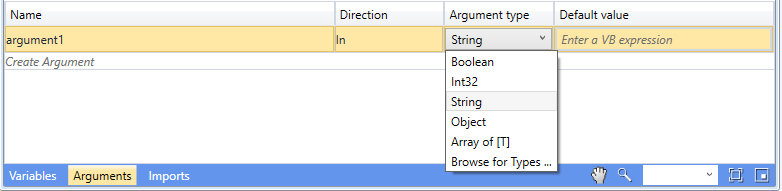
- Enter the default value of the variable in the right-most Default Value column.

Deleting an Argument
To delete an argument, click in the row inside the Argument section of the Variables, Arguments & Imports box and press DELETE.
Or right-click the argument row and then click Delete.
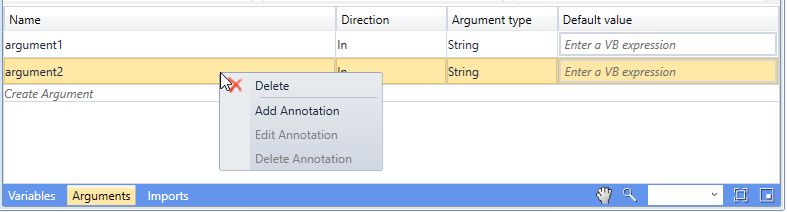
Deleting Argument
Imports
The imports tab displays all the modules used and referenced in the selected sequence.
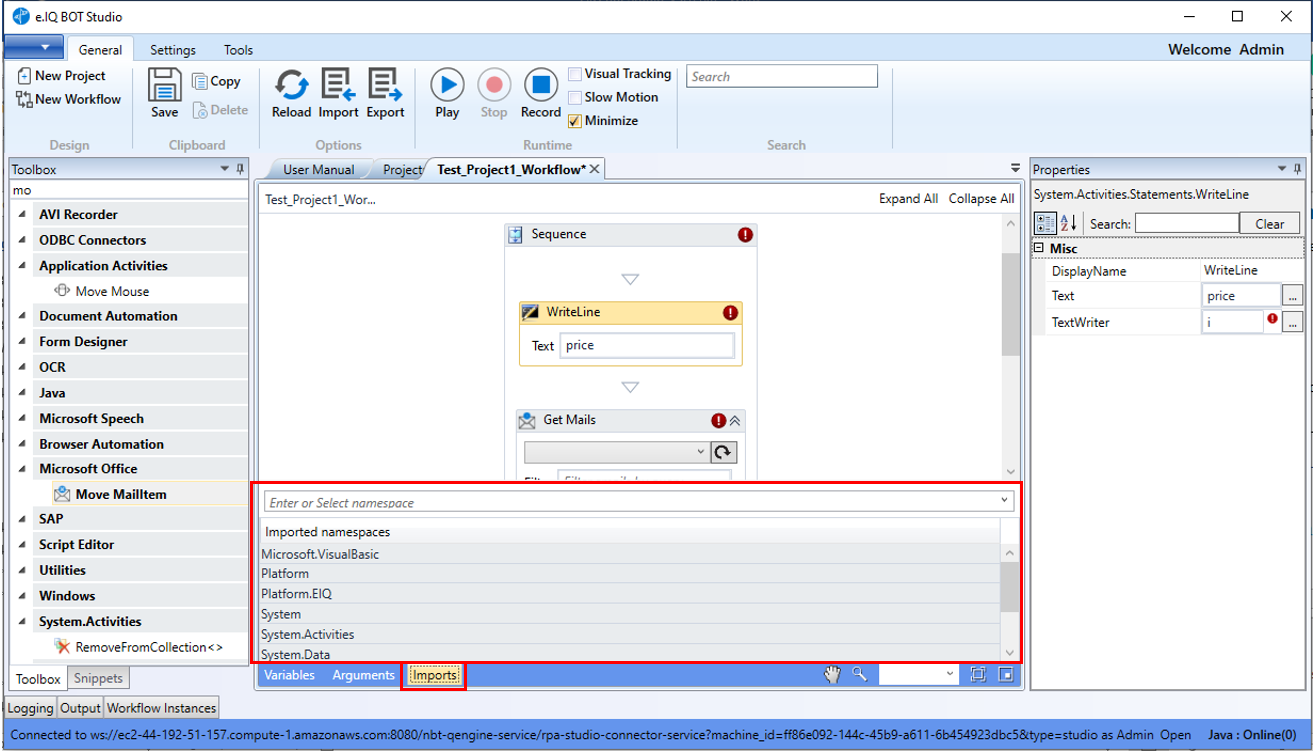
Import section
Importing Namespaces
- To import a name space, type the namespace in the import box. All the matching items are listed.
Or just click the drop-down arrow to list all the available import items.
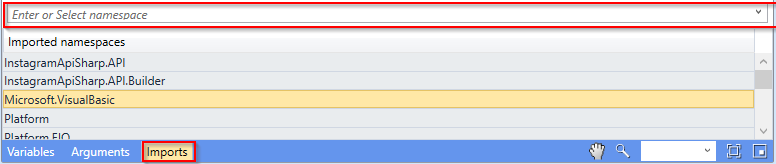
- Select the required item. The selected item gets imported or added to the imports list.
Serializable Vs. Non-Serializable Arguments
Variables/arguments are diversificated into two different categories: Serializable and Non-Serializable. For the great majority of workflows there is no need to understand the differences, as they will not affect anything, but there are cases that, knowing the technical limitations of non-serializable objects might explain why your workflow or process is not working exactly as you may expect.
In short: non-serializable objects, as the name suggests, cannot be serialized. This term, in this context, can be simplified to: these objects cannot be saved / cannot be transmitted over a network. That consequently implies that a workflow state cannot be saved if the workflow contains any variable/argument that is non-serializable, and also, invoking workflows with non-serializable arguments is not supported. The most common non-serializable variable/arguments types are DataTables and DataSets, but other types (from the infinitely many existing types from all the namespaces) also fall into this category.
There are some limitations that users may face when dealing with workflows containing non-serializable variables/arguments which is discussed below with a suggested workaround.
Workspace Views
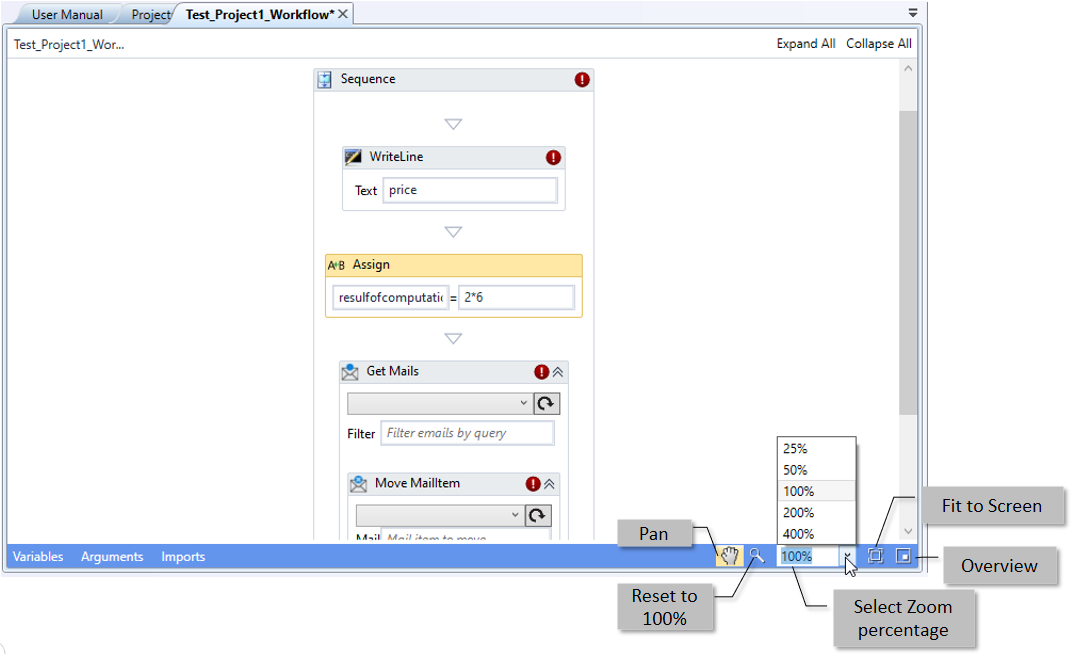
-
Pan: Click the hand icon on the bottom-right of the workspace area to pan the workflow.
-
Reset Zoom to 100%: Click the magnifier icon to make the workflow 100%.
-
Zoom Percentage: Select the zoom percentage. Use CTRL+scroll to zoom in and zoom out as needed.
-
Fit to screen: Fits the whole workflow into the screen.
-
Overview: Click on overview provides an overview of the workflow with the displayed area as highlighted. Click the overview icon to remove the overview.
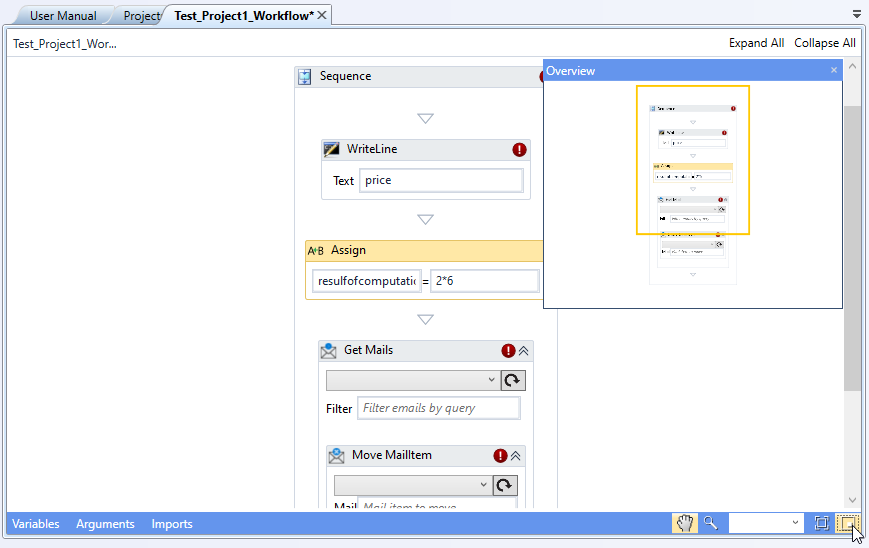
Overview of workflow
Workflow Actions
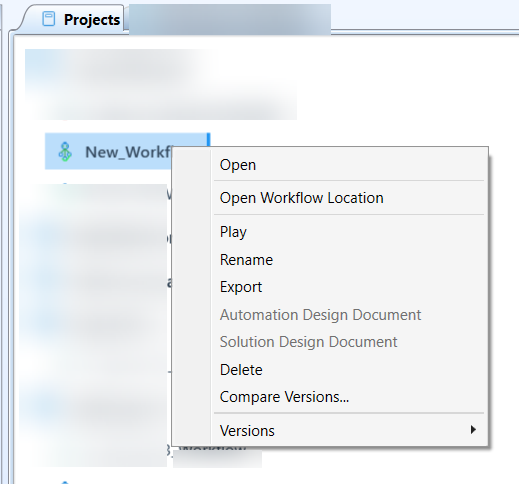
- In the Projects, right-click the workflow name to view the list of actions that are related to that workflow.
-
Open Workflow Location: Opens the workflow package file location in the system.
-
Play: Plays the workflow. Refer to Playing Workflow.
-
Rename: Renames the workflow. Refer to Renaming Workflow.
-
Export: Exports the workflow. Refer to Exporting Workflow.
-
Copy ID: Copies the workflow ID. When you create a workflow, a workflow ID gets assigned to it.
-
Copy Relative Filename: Copies the relative filename.
-
Delete: Deletes the workflow. Refer to Deleting Workflow.
-
Compare Versions: Allows you to compare two different versions of workflow. Refer to Comparing Versions.
-
Versions: Displays the versions available for the workflow.
Positioning Designer Panels
The RPA Bot Studio contains several panels that help you to achieve specific requirements. However, these panels have common specific behaviors that are explained below.
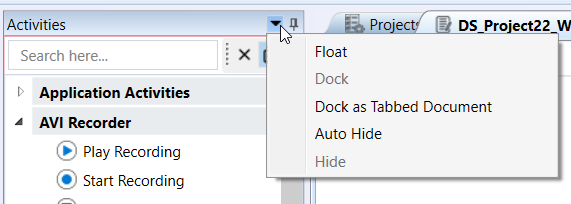
- Right-click the panel title bar or click the small down arrow on the right of the title bar.
-
Float: Click Float to undock the panel from the page and float it on the page so that you can conveniently place it anywhere as you work.
-
Dock: The dock becomes active when you Float the panel. Click the Dock option for docking the panel.
-
Dock as Tabbed document: Click Dock as a tabbed document to view the panel as a tab in the workspace area (like the workflow view)
-
Hide: Hides the panel.
-
Auto Hide: This hides the panel to a side bar.
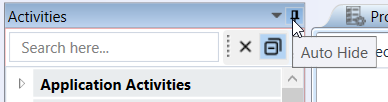
Auto-hide can also be achieved and reverted as explained below.
1) Click the icon (
) on the extreme right to hide the panel. The panel appears on the left side in a minimized format.
2) Click Activities to view the activity list.
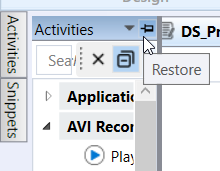
1) Click the icon, 
on the right of the activity list to revert to the original view.
Workflow Panel Options
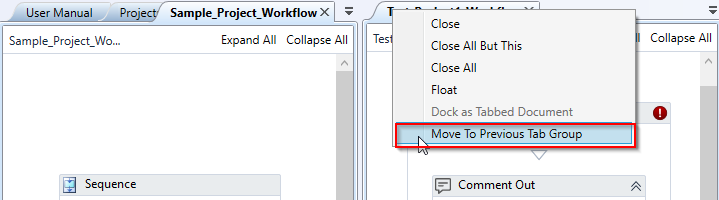
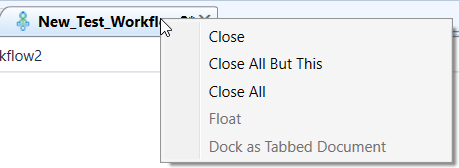
- Right-click any workflow tab.
-
Close: Click Close to close the tab.
-
Close All but this: Click this to close all the other tabs except the selected tab.
-
Float: Click to float the selected tab.
-
Dock as Tabbed Document: This becomes active when the tab is floating. It allows you to doc the floating panel to dock as a tab in the workspace area.
-
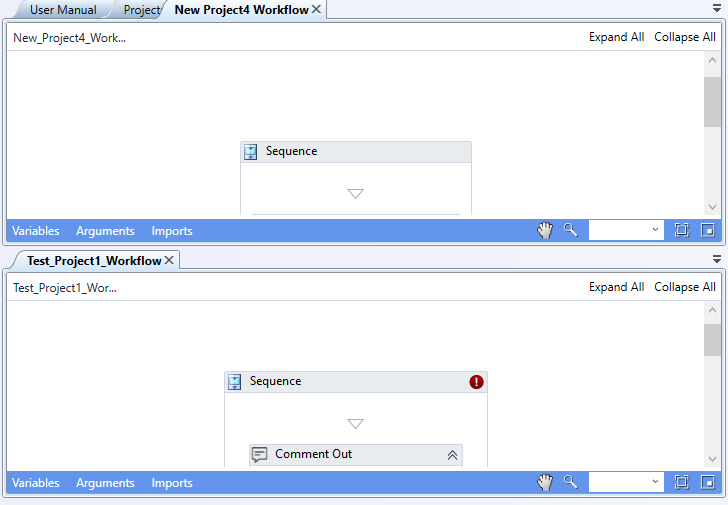
New Horizontal Tab Group: The selected tab becomes a separate horizontal tab. Once you create a horizontal tab group, you cannot create a vertical tab group. However, multiple horizontal tab groups can be created.
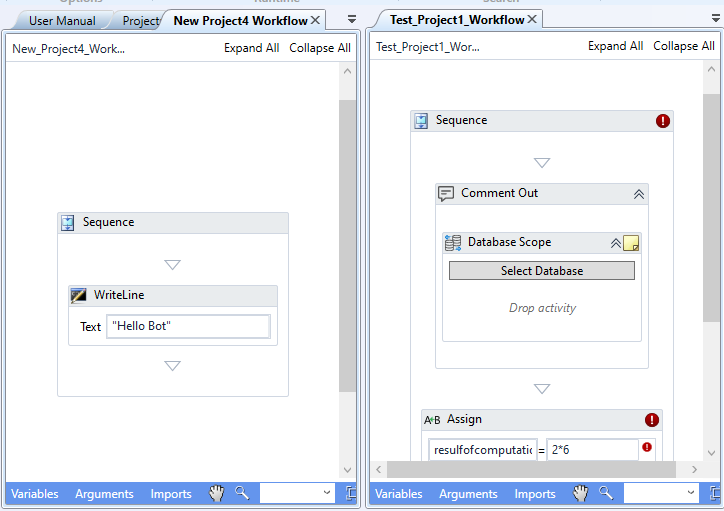
- New Vertical Tab Group: The selected tab becomes a separate vertical tab. Once you create a vertical tab group, you cannot create a horizontal tab group. However, multiple vertical tab groups can be created.
- Move to Next tab Group: The selected tab will move to the next tab group. When you create a new vertical or horizontal tab, “Move To Next Tab Group” appears in the right-click options of the original tab group.
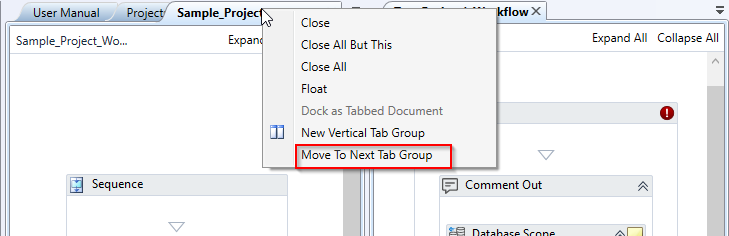
- Move To Previous Tab Group: The selected tab will move to previous tab group. When you create a new vertical or horizontal tab, “Move to Previous Tab Group” appears in the right-click options of the original tab group.