Process Flows
What is a Process Flow?
A process flow in the platform is a collection of activities arranged and configured sequentially from start to end to achieve a particular business requirement In a Process flow information related to a process is collected through a sequence of activities.
A process flow can be associated with single or multiple sub-process flows. A process itself can be a subprocess for another process. An application consists of a single or multiple process flows.
For example, HR is an Application with Process flows like Payroll management, On-Boarding (Recruitment Process), Leave management, etc.
Prerequisites for Creating Process Flow
The prerequisites for creating a process flow are:
- Application (mandatory). Process flows are created within an application.
- Dependent business entities as per your process requirement.
- Dependent configuration entities as per your process requirement.
- Other configurations: The platform has many features and configurations that can be utilized to enhance your process performance elevate your possibilities in achieving your business requirement.
- User understanding: Users must be aware of how to create and manage the application and application-related entities/components before creating process flows.
Creating Process Flows
-
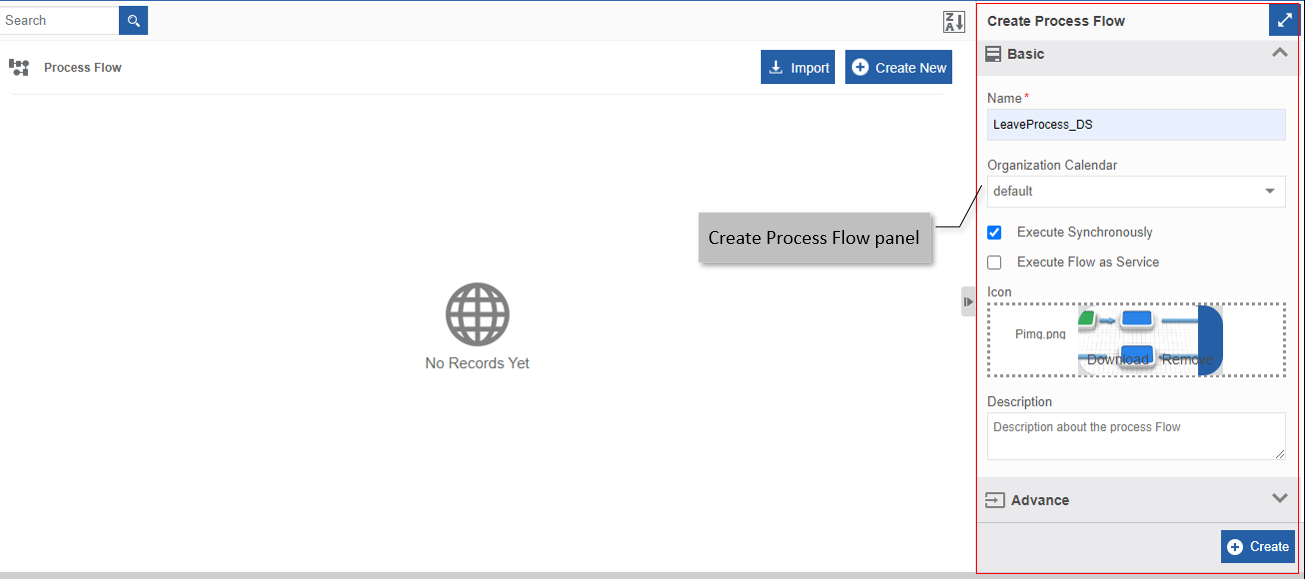
Navigate to App Studio > Applications > Process Flow > Create New. Create Process Flow panel appears on the right side.
-
Enter the Basic and advanced details in the Create Process Flow panel as explained below:
Field Description Basic Name* Type the name of the Process flow.
Data type: Alphanumeric (including space)
Character limit: 5 to 50 charactersOrganization Calendar Select the required calendar from the drop-down.
You can map different calendars for different Process flows based on the requirement.
Configured organization calendars are used when working with Service Level Agreements (SLAs).
The organization calendar is created and managed in Management 🡪 Organization Management module.Execute Synchronously If you want the process flow to execute synchronously, check the checkbox.
- What is Synchronous/ Asynchronous execution at the Process Level?
Asynchronous - After the initiation of the process, a response message (say, the process initiated successfully) is displayed without waiting for the flow to be completed. That is, a response message is displayed soon after the process initiator task is executed.
Synchronous - After the initiation of the process, a response message (say, the process initiated successfully) is displayed only after the complete execution of the flow till it encounters a UI activity (Task or Accept/Reject) or an End activity.Execute Flow as Service Check the Execute Flow as a Service if you want the process created to be consumed as REST API endpoint. If the process flow is configured to execute the flow as a service, make sure that it does not contain the activities such as Task, Approve Reject or Pause. That is, any activity that needs user intervention or waiting should not be included in the flow.
- To use this API, you require authentication methods (API credentials).
- Refer to the API documentation for more details.
Once you select this, Participant mapping appears. Other corresponding details are dynamically displayed in the Advance section.
If you do not find any specific configuration details dynamic to Execute Flow as Service in the Advance and Return Data section,first create the process flow and navigate within the process flow. The Edit process Flow will display these details.Participant Participant field appears when you select Execute Flow as Service.
If you want to restrict the process flow execution to be handled to a particular user or role, then create a participant entity to map it to flow.
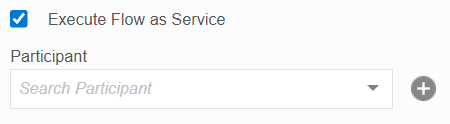
Click Participant drop-down to select an already created participant name.
Or click the “+” adjacent to the Participant box to create a navigate to participant entity creation page.Icon - Click inside the dotted area below the icon . The Explorer window opens. Select the required icon file from any folder. 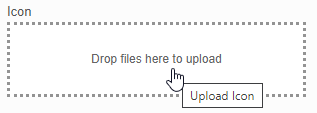
Or
- Drag an icon - from any location/folder - into the marked area.
- Image file formats supported are PNG, JPEG, and JPG.
After uploading the icon, Download and Remove are displayed along with the icon file name (file name of the uploaded image).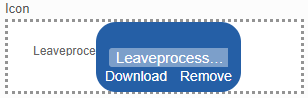
- Click Download to download the icon.
- Click Remove to remove the icon
To update a new icon, remove the icon and repeat the steps mentioned above.Description Describe the process.
Data type: Alphanumeric, symbols, and special characters
Character limit: 1000 characters (space included) -
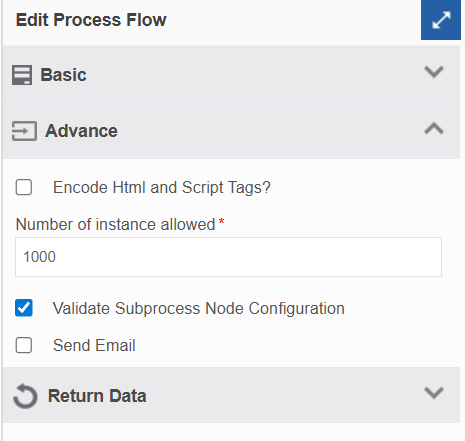
Click Advance section.
Tip
If you do not find any specific configuration details in the UI, first create the process flow and navigate within the process flow. The details will appear on the Edit Process flow panel in specific sections.
Field Description Encode Html and Script Tags? This checkbox becomes visible in Advance section only if you check Execute Flow as Service in Basic section.
Select: To encode the HTML and Script tags that are included in the process flow configuration. Encoded content will not be in executable format. The HTML tags or Scripts are ignored by the browser and are not executed.
Deselect: The HTML or script tags are not encoded. This means that if there are executable tags or scripts in the process flow, it will get executed via the browser.Number of Instances Allowed Type the maximum number of instances the users can initiate or trigger the deployed version of the process.
Minimum value for instance = 1.
Maximum value for instances = 9999999999Validate Subprocess node configuration Select: To validate a subprocess activity that you have added in your process flow.
Validations includes if the process flow mapped in subprocess exists and the flow is deployed.
Deselect: No validation is performed on the subprocess activity even if you have added subprocess activity in the flow. This is used if there a looping involved in the flows.Send Email If you want to send an email during each process flow initiation, check the Send Email.
You must create and configure an Email business entity to utilize this property.
When you check Send Email, the Select Email Template drop-down appears. Select an email template that is to be used for sending the email.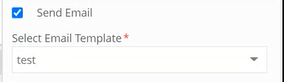
If you do not need the email to be sent, uncheck the Send Email check box. -
Click Return Data accordion. The return data section is applicable only when you execute the flow as a service. The execute flow as service checkbox should be checked.
Note
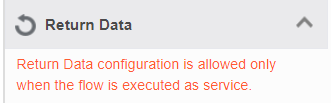
To execute flow as a service, check the Execute Flow as a Service checkbox.
Then in the Return Data section, you can specify or configure the details of what data output you exactly the system to return need based on the business requirement. If you do not specify anything in Return Data, the complete data output is returned. Return Data is configured when you need to extract data output (during the execution of the flow) and use it in the flow. -
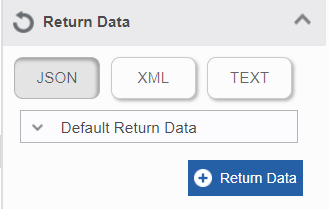
Click and select a return data format. Return data can be configured in JSON, XML or TEXT format.
-
Click the Default Return Data drop-down.
-
Enter the Return data in the textbox below.
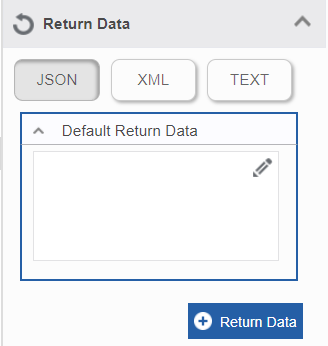
Or
Click the edit icon on the right side of the textbox to open the selected editor. Enter the data in the editor and click Save. For the selected editor (JSON/XML/TEXT), the data in the editor should be in the format applicable to that editor.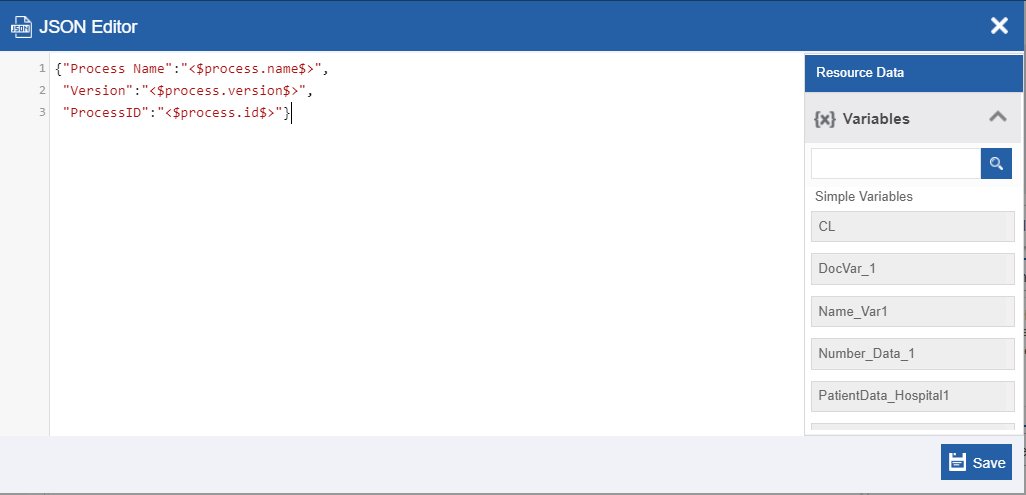
-
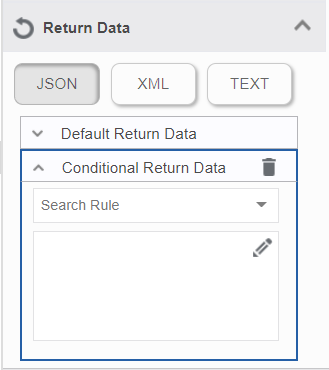
If you want to add conditional Return data, click Return Data and follow the below steps.
Else go to step 9.- Click the Search Rule drop-down and select a rule. You can add multiple Return data based on different rules.
- Below the Conditional Return Data, enter the return data for the selected rule. You can click the edit symbol and write the return data in the editor.
-
In the Create Process Flow panel, click Create after entering the details. A process flow is created.
You can check the Return Data output details by triggering the workflow.
Refer to Triggering Process Flow.