User Settings
General User Settings
User settings are configured after logging into the Platform. The general settings include Profile, Change Password, and Access Token. The settings page is common to all users.
Passwords and secret keys are encrypted at UI and database levels. Hence, it does not pose any security issues.
Profile
User profile details for the logged-in user are displayed. Users can edit and save the details.
-
In the Main menu (burger menu on the left of the logo), click Settings.
-
Click Profile.
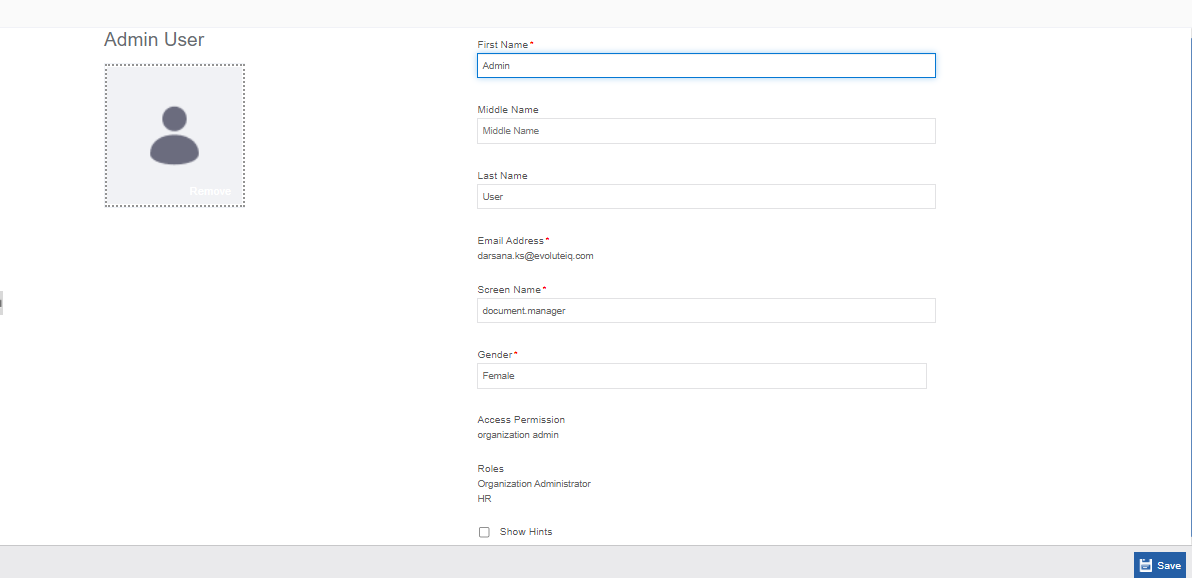
Figure 1: The Profile page -
Enter the profile details as explained below.
| Field | Description |
|---|---|
| First Name* | The first name of the user is populated. You can modify the name details. |
| Middle Name | Enter the middle name of the user. |
| Last Name | Enter the last name of the user. |
| Email Address* | The email address is displayed as provided by the administrator. The user cannot edit it. |
| Screen Name* | Enter the screen name. You can login using the screen name if you have defined to use the
username for |
| Gender* | Enter the gender of the user. |
| Access Permission | Access permission is displayed as set by the administrator. Users cannot edit it. |
| Roles | Roles are displayed as set by the administrator. Users cannot edit it. |
| Show Hints | Click the checkbox to show hints. |
Changing Password
When you login to the platform for the first time, Change password page appears after successful login. Later also you can change the password by following the steps below.
-
Login to the Platform.
-
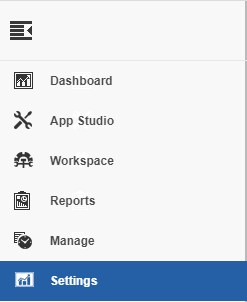
Navigate through the Burger menu (Main menu) > Settings.
-
Click Change Password.
Or
On the top-right of the Platform, click the User icon > Click Change Password.
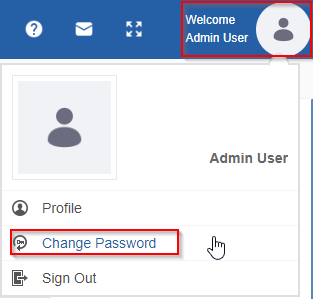
The Change Password screen appears.
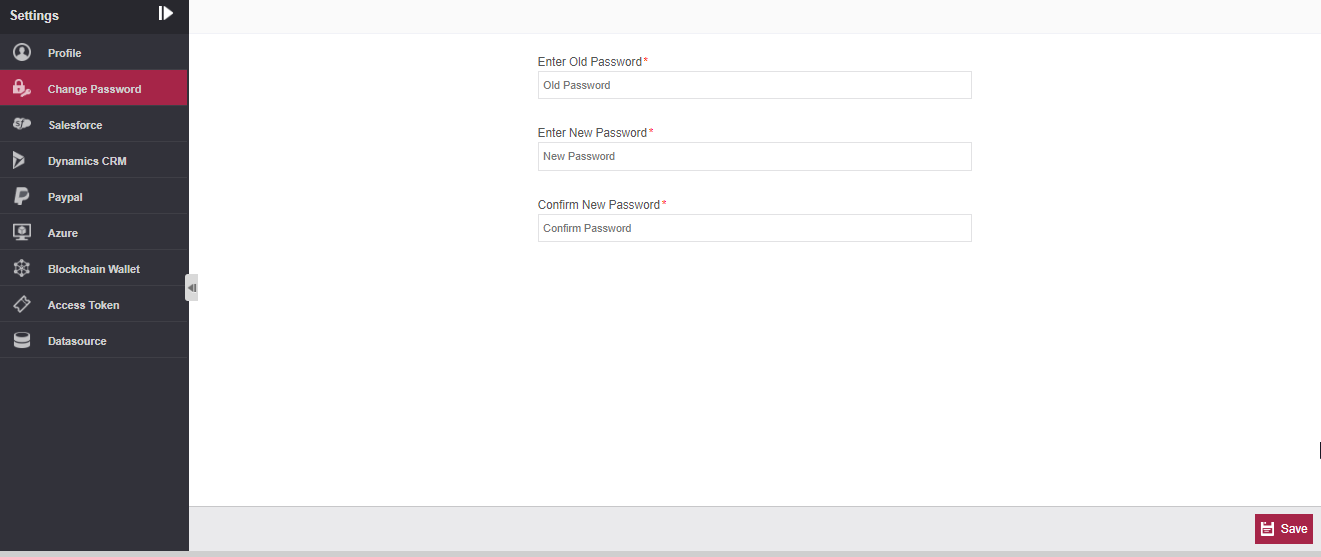
Figure 2: Change Password page
-
Enter Old Password.
-
Enter New Password and Confirm New Password by re-entering the new password.
-
Click Save. The new password is saved. Now you can login with the registered email address and new password.
Access Token
An access token is used to generate Access Token for accessing APIs of any third-party application. The access token created here gets listed in the Manage > Configuration Management > Access Token section.
- In the Main menu (burger menu on the left of the logo), click Settings.
-
Click Access Token.
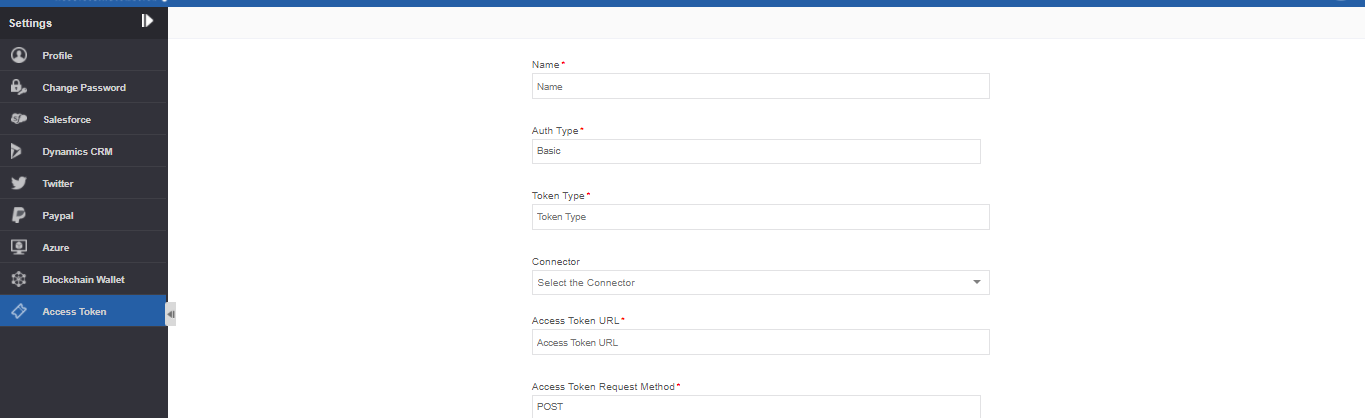
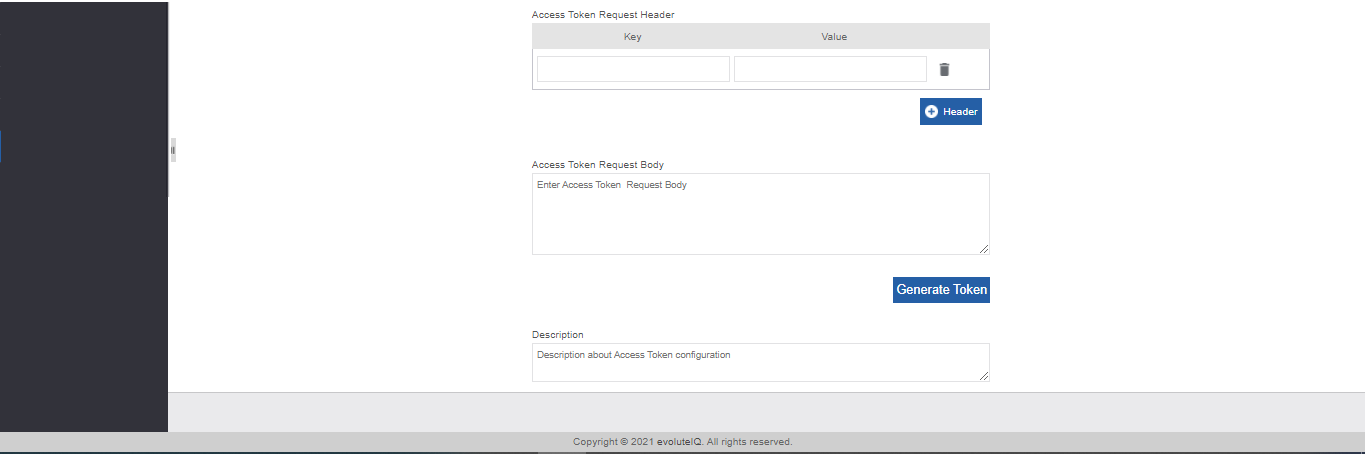
Figure 3: Access Token details
-
Enter the details as explained below.
Field Description Name* Enter the name for the access token. This is the reference name
that gets listed in the web service entity.Auth Type* Select the Auth type.
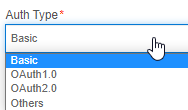
Token Type* Enter the Token type. Connector Select the Connector required.
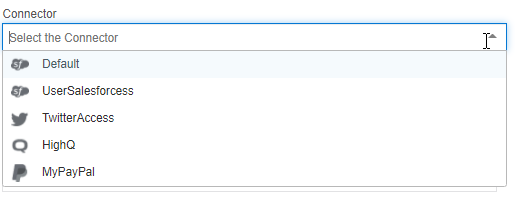
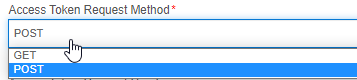
Access Token URL* Enter the Access Token URL. Access Token Request Method* Select the access token request method (GET/POST).
Access Token Request Header Enter the Key and Value in the respective fields.
Click +Header for adding Key and Value fields.
Click the delete icon to remove any added header.Access Token Request Body Enter the access token request body. Click Generate Token. Description Provide a description of the access token configuration.
Datasource Settings (User Specific)
The Platform offers external connector-based user settings apart from general settings; a bunch of configurations that are applicable/relevant to various connectors utilized in the Platform. The Datasource section in the Settings allow you create personalized user account configuration for the external connectors opted by the user during the purchase of the product. The “Type” drop-down in the datasource configuration will display only the external connectors.
The datasource configurations that are defined in the user settings for a user will be applicable or accessible for that user only.
All the configurations done in the Settings for the logged in user are applicable when a user is mapped to relevant activity within the flow.
Configuring Datasource (User Specific)
-
In the Main menu (burger menu on the left of the logo), click Settings
-
Click Datasource. List of the existing datasources appear.
-
Click Create New. Basic details of the datasource configuration appears
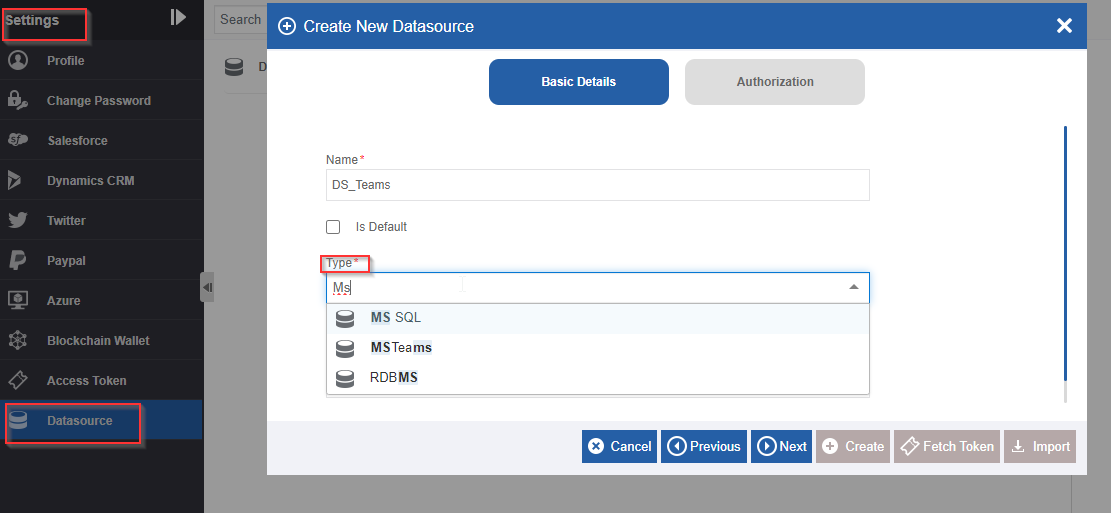
Figure 9: Selecting the Datasource type
-
Enter name of the datasource.
-
In the Type drop-down, select the datasource type. The “Type” drop-down displays the list of connectors.
-
Click Next. The Authorization details of the selected connector appears.
-
Enter the authorization details for the selected connector. Refer Specific Connector Configuration document for details of configuration.
-
Click Create. The account is connected to the selected datasource. The datasource that you create here will be accessible only to the particular user who has configured this.