Monitoring
Monitoring Interface Details
The RPA Monitoring section in the RPA Management provides a real-time view of the RPA environment's health, usage, and performance.
The RPA Monitoring Dashboard is categorized into the following tabs:
-
Dashboard
-
Machine Information
-
Active Bots
Dashboard
The RPA monitoring Dashboard provides an overview of the entire RPA system in one glance. Dashboard summarizes key RPA metrics, bot lifecycle statistics, graphs, detailed tables about the RPA system, and workflow execution statuses.
Viewing Dashboard
- Navigate to Main Menu > Manage > RPA Management > Monitoring > Dashboard tab. Dashboard tab displays key performance indicators, graphs, and detailed tables about the RPA system.
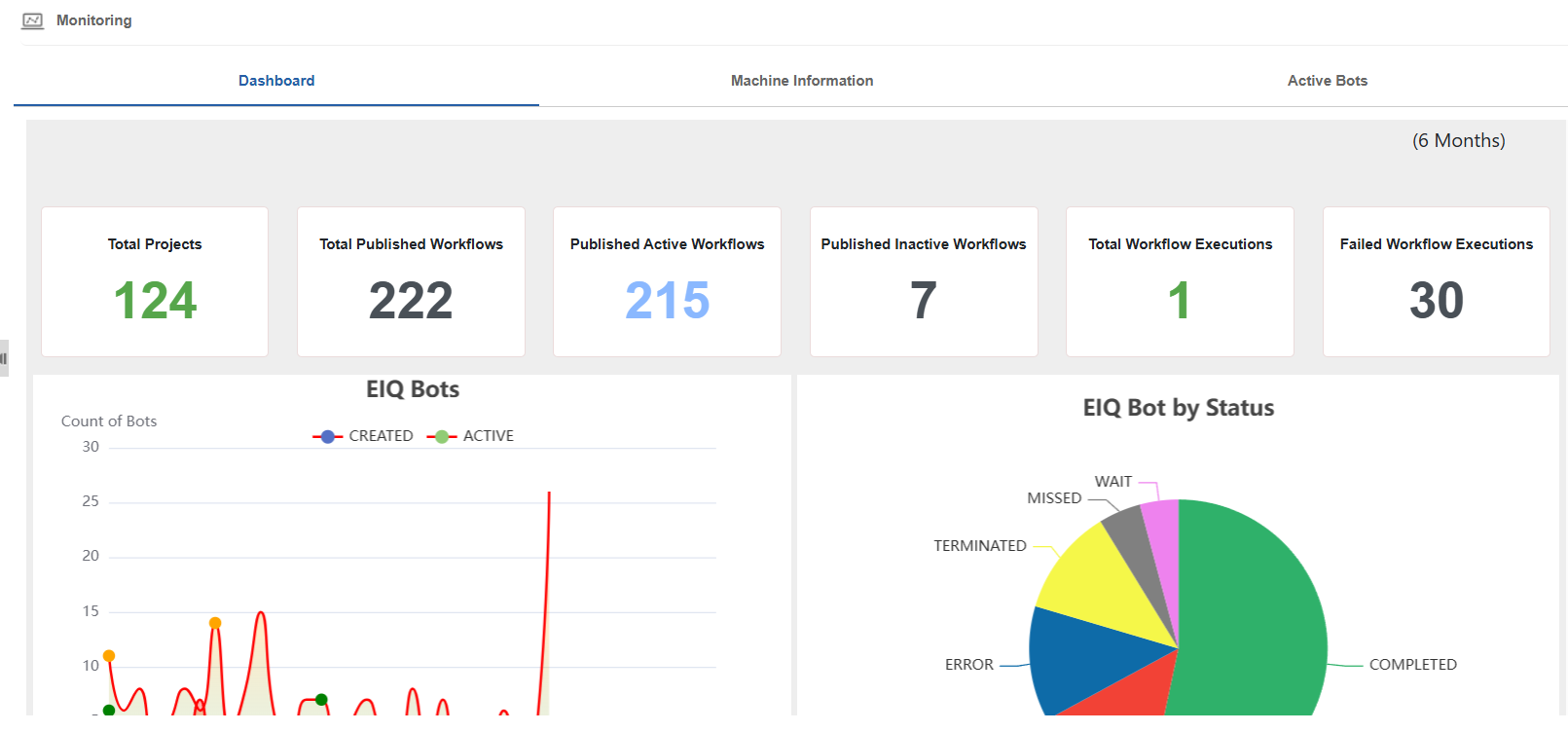
Summary Metrics

Total Projects: Total number of projected created in the RPA Bot Studio.
Total Published Workflows: Total number of workflows published from all the projects (active and inactive).
Published Active Workflows: Total number of published and currently active workflows from all the projects that are available for execution.
Published Inactive Workflows: Total number of published and currently deactivated workflows from all the projects. These projects are not executable.
Total Workflow Executions: Total number of workflows that are executed and completed.
Failed Workflow Executions: Total number of workflows that failed during execution.
EIQ Bots
The EIQ Bots chart displays the bot creation and activation trends over time. This helps to track bot lifecycle activity and bot resource utilization trends over time.
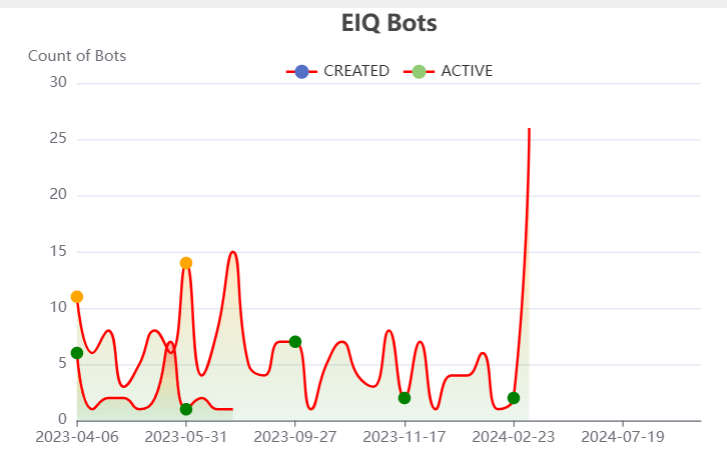
This is an interactive chart display. Hover over the chart and it dynamically displays the values.
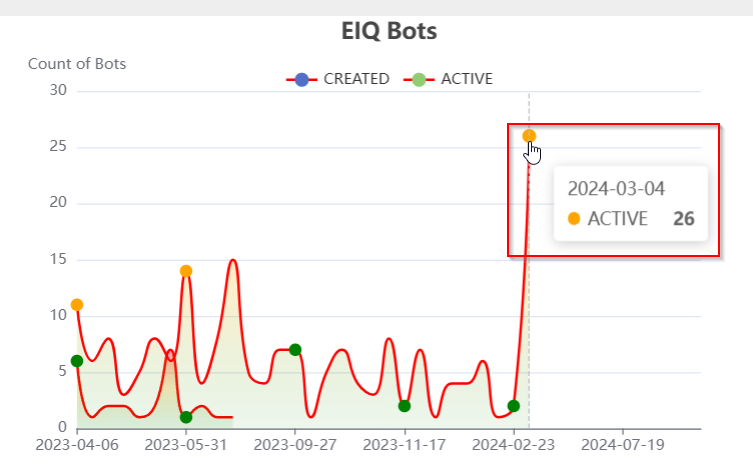
Y-axis: Count of Bots: Number of bots created on the platform.
X-axis: Date of creation or modification.
Active: Number of bots that were active (picked and running workflows) during the same time period.
Click CREATED to view the graph for created bots.
Click ACTIVE to view the graph for active bots.
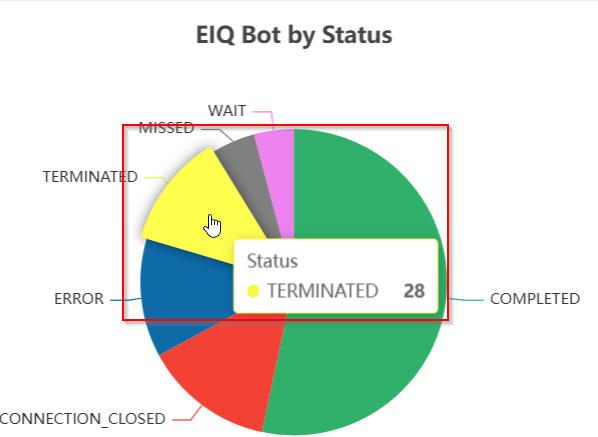
EIQ Bot by Status
Bot by Status pie chart displays the total number of bot executions with status. Each section of the chart represents the number of bots in a specific execution status.
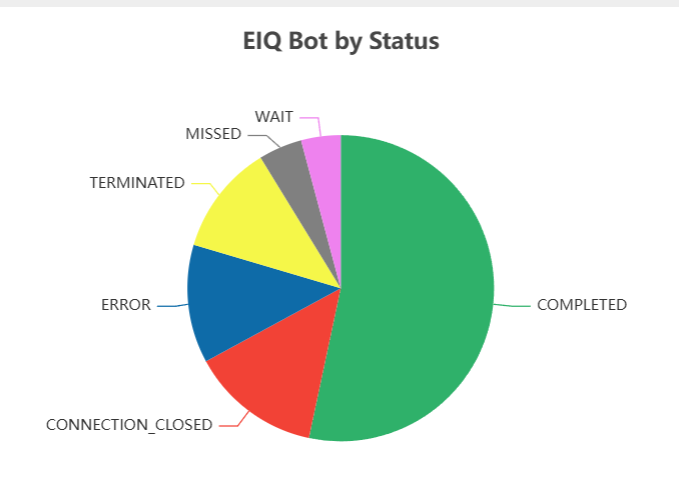
This is an interactive pie chart display. Hover over the pie chart and it dynamically displays the values.
-
COMPLETED: Bots that finished execution successfully.
-
ERROR: Bots that encountered an error.
-
CONNECTION_CLOSED: Bots whose connection to the server was unexpectedly closed during execution.
-
TERMINATED: Bots that were manually or automatically terminated during execution.
-
WAIT: Bots waiting for an agent to pick them.
-
MISSED: Scheduled bot executions that did not occur.
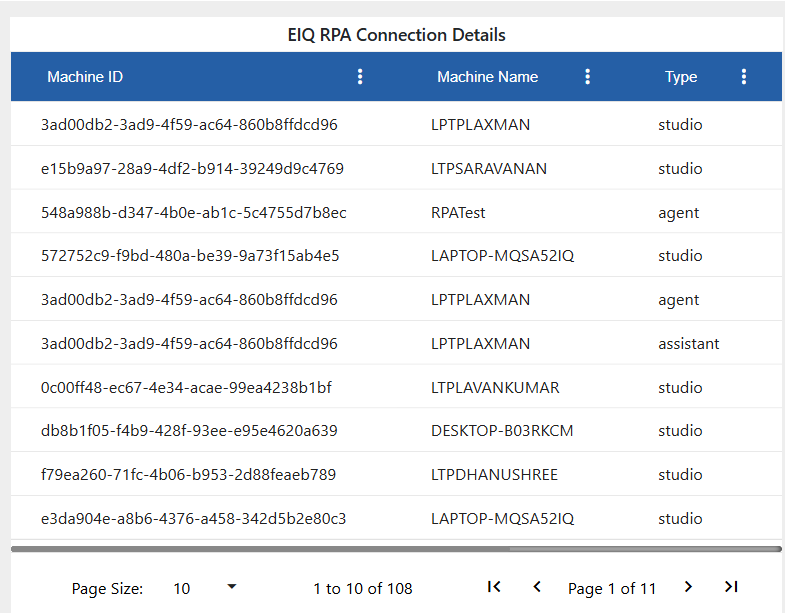
EIQ RPA Connection Details
RPA Connection Details display the information of which machines were connected to which RPA application. It lists active and disconnected agent, assistant, and studio machines.
-
Machine ID: The unique Id of the machine.
-
Machine Name: The name of the machine in which the Agent, Studio or the Assistant runs.
-
Type: Name of the RPA application that connected to the machine.
-
Status: The current connection status.
-
Connected On: The date and time stamp when the machine was connected to the platform.
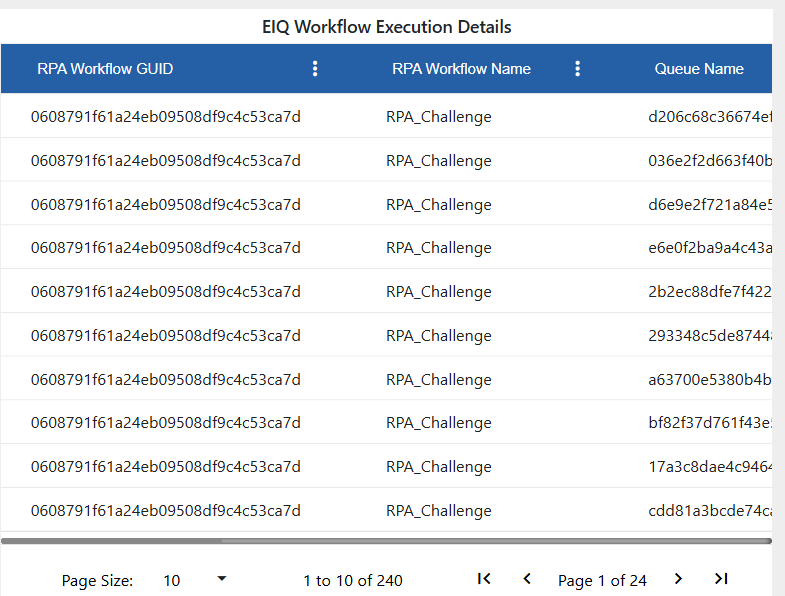
EIQ Workflow Execution Details
Workflow Execution Details display the information of workflow executions history across agents. This allows administrators to monitor which machines are available for executing workflows and which are offline.
This provides end-to-end traceability for workflow executions and troubleshooting.
-
RPA Workflow GUID: Unique identifier of the published workflow.
-
RPA Workflow Name: The name of the published workflow.
-
Queue Name: The queue through which the agent was assigned the execution request.
-
Execution Status: Final execution result (COMPLETED, ERROR, WAIT, etc.).
-
Agent Name: The name of the machine or agent that executed the workflow.
-
Agent Address: The IP address of the machine running the agent.
-
Triggered On: The timestamp when the workflow execution was triggered.
-
RPA Workflow Version: The version of the workflow that was executed.
-
Manual Termination: Indicates if the workflow was manually stopped. Displays “True” if manually terminated else displays “False”).
-
Terminated On: The timestamp when the workflow was manually or automatically terminated (if applicable).
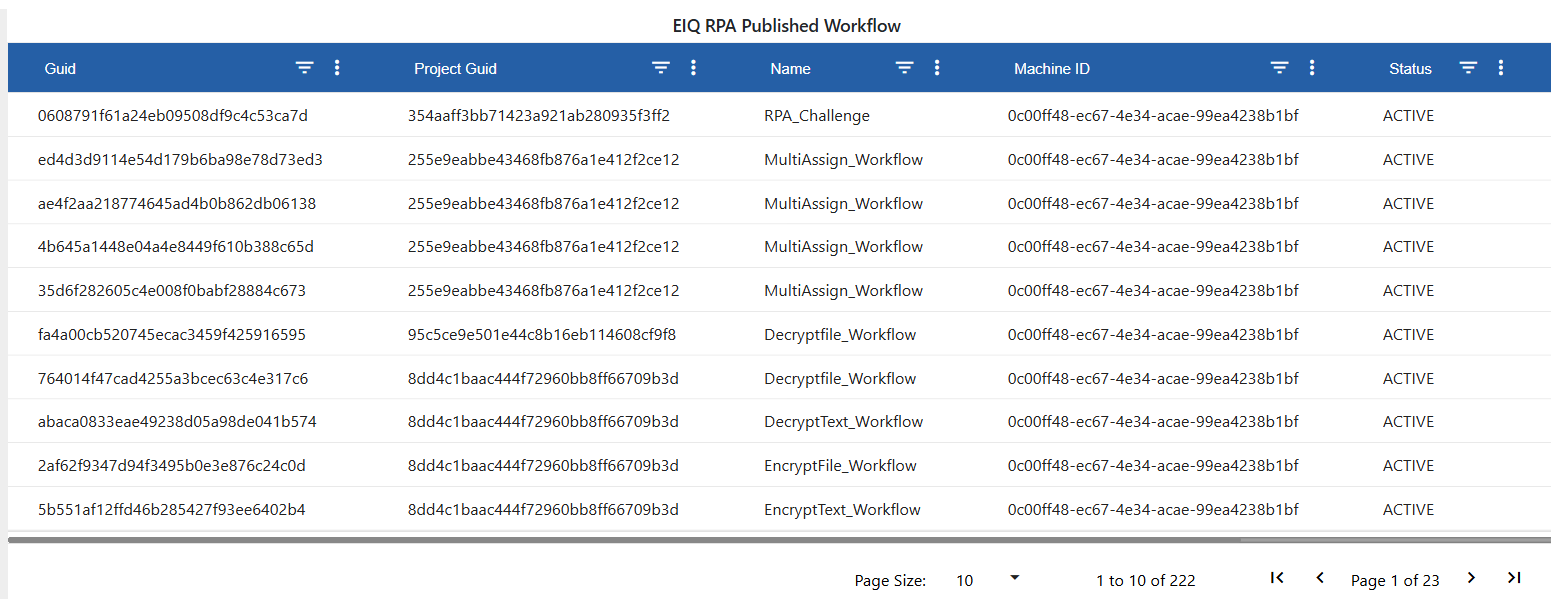
EIQ RPA Published Workflow
RPA Published Workflow grid displays the list of all workflows that are currently published.
-
Guid: Unique identifier of the published workflow.
-
Project Guid: Unique identifier of the project under which the workflow is published.
-
Name: Name of the published workflow.
-
Machine ID: The machine where the workflow was last published.
-
Status: Workflow status (ACTIVE or INACTIVE).
-
Version: The version of the published workflow.
-
Published On: The date and time when the workflow are published.
Dashboard Features
-
Filters in the grid allow you to filter the desired data.
-
Pagination controls for the grid allow to navigate through the results.
-
Sort feature in the grid column allows you to sort the data.
-
Time range selection (e.g., Last 6 months) allows focusing on recent bot activity and execution trends.
-
Allows you to quickly identify stale bots, failed executions, or inactive workflows needing attention.
Machine Information
Introduction to RPA Client Machines
The Machines listed in the RPA Management section are RPA Client machines or automation components that have logged into the RPA Bot Studio, RPA Bot Agent or the RPA Bot Assistant application and runs the automation. Machine information displays the connection history and details of all the machines that are connected to or disconnected from the Studio, Agent, and Assistant.
Machines in the Platform are the systems where automation runs. They connect robots to the environments, allowing them to do their tasks. These machines are essential and responsible for running attended, unattended, testing, and development robots. These machines connect to the platform to run workflows in development, testing, or production environments.
This section helps monitor which machines are connected or disconnected and manage their sessions efficiently.
Viewing Machines and Details
The Machine Information section in the RPA Management lists all the machines that have logged in to the RPA Bot Studio, RPA Bot Agent or RPA Bot Assistant.
A machine can have all the three applications installed in it.
- Navigate to Main Menu > Manage > RPA Management > Monitoring > Machine Information tab. The grid displays the machine information.
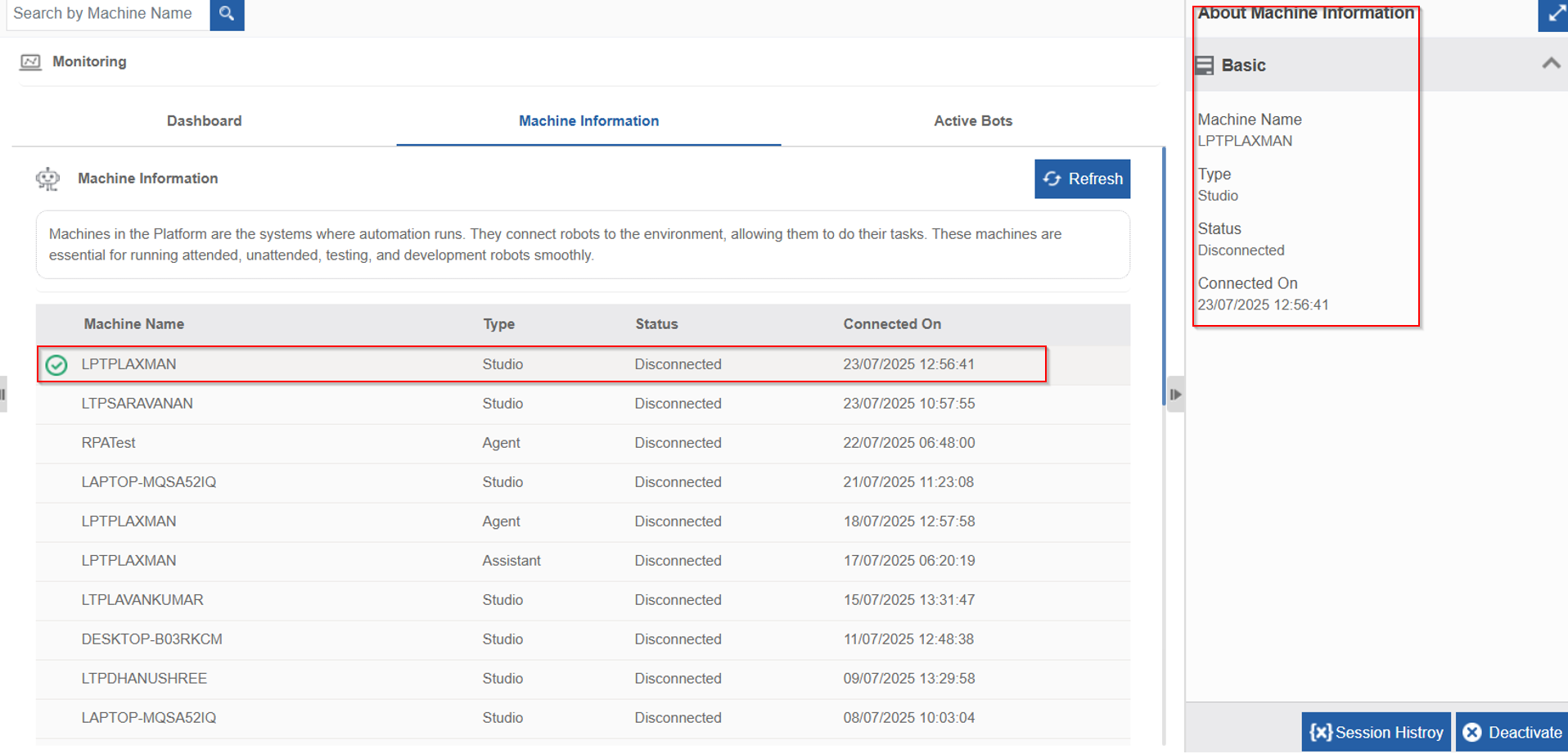
Machine Information with connection history
-
Click an item in the machine list and the details are also displayed on the About Machine Information on the right-side Info Actions panel.
-
Machine Name: Name of the machine in which the automation runs.
-
Type: Type of the application in which the automation runs. Studio, Agent or Assistant are the types available.
-
Status: Current status of the machine connection with the RPA application mentioned under “Type”.
-
Connected: Machine is connected to the RPA application (Studio, Agent, or Assistant).
-
Disconnected: Machine is disconnected from the RPA application (Studio, Agent, or Assistant).
-
Busy: Machine is busy in executing the automation workflow in Agent.
-
Available: Machine is available for execution of workflow in Agent.
-
Connected On: The date and time on which the machine was associated with the client application.
Refreshing Machine Information
When you refresh the machine list, the current status of the machines gets updated in the list.
- Navigate to Main Menu > Manage > RPA Management > Monitoring > Machine Information tab.
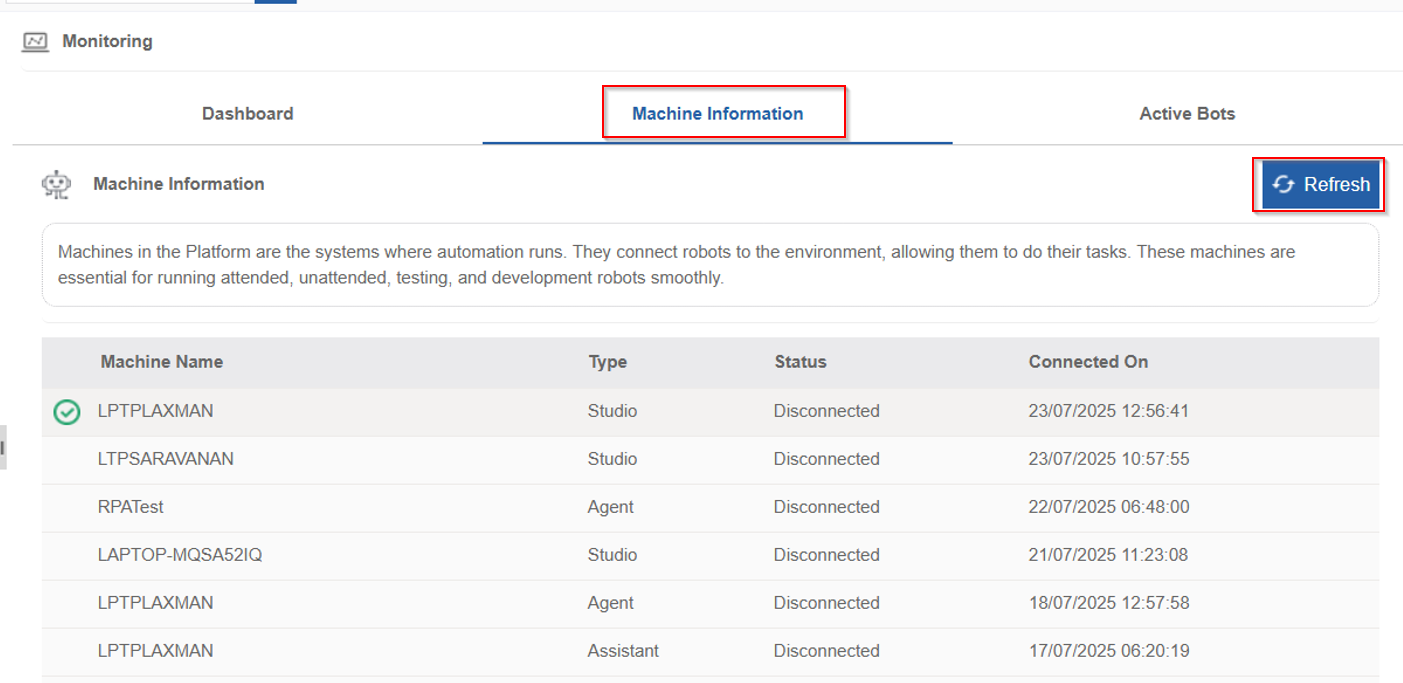
Refreshing the Machine list
- Click Refresh on the top-right. The list of machine list gets refreshed.
Viewing Machine Session History
- Navigate to Main Menu > Manage > RPA Management > Monitoring > Machine Information tab.
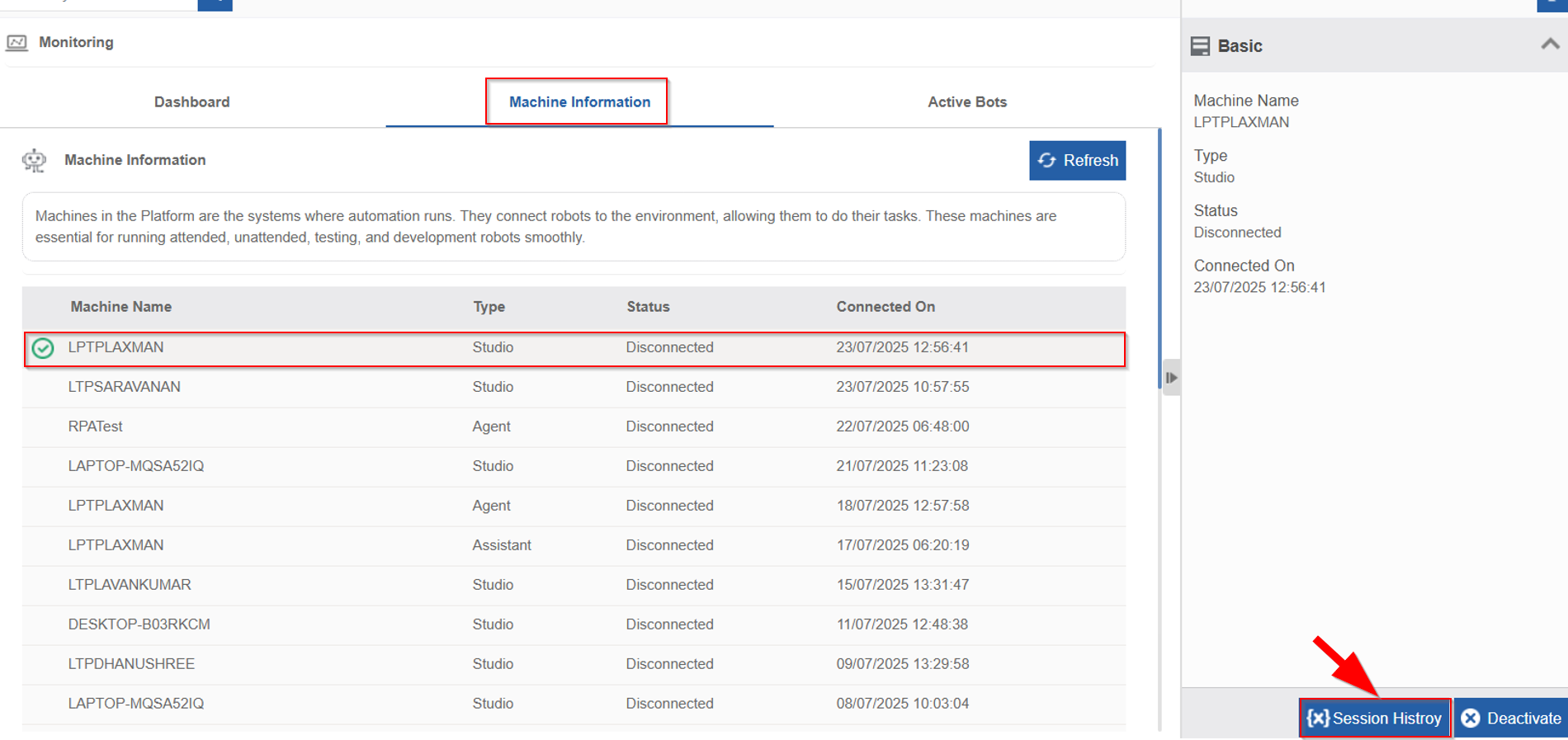
- Click {x} Session History.
Alternatively, hover over a machine name and click the three dots > Session History.
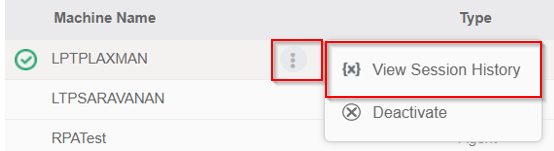
Session History details appear.
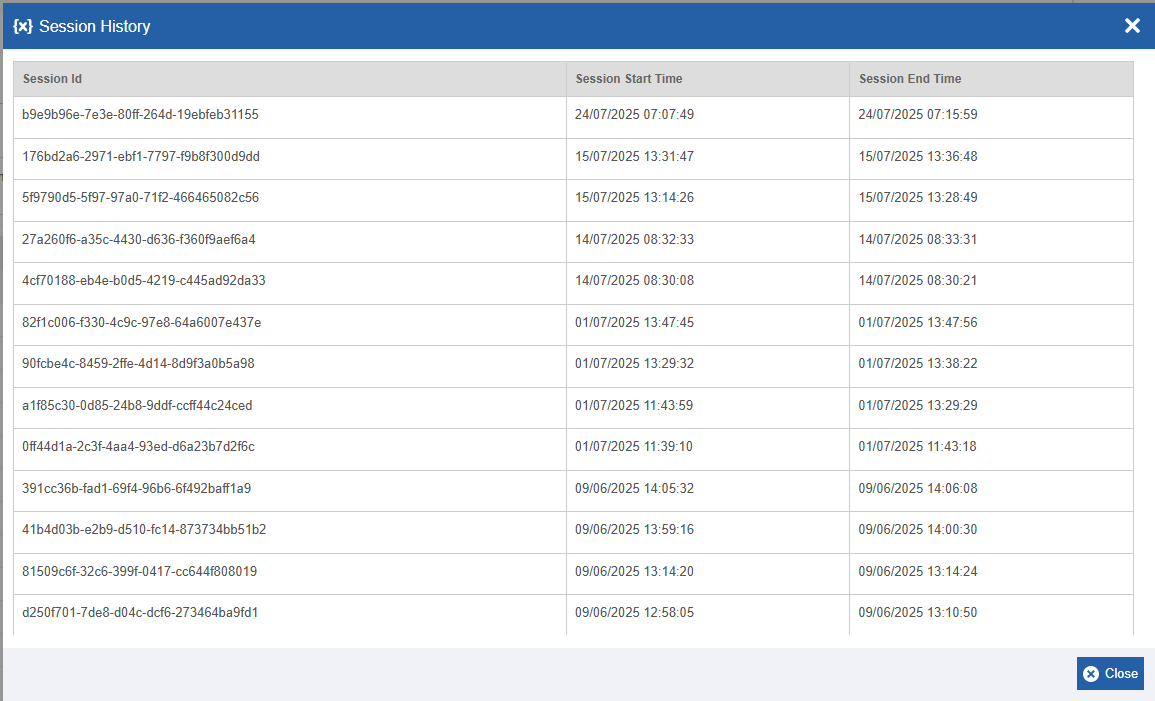
Session History
-
Session Id: Reference Id of the session.
-
Session Start Time: Starting date and time of the session. That is, the date and time on which the session connection is established.
-
Session End Time: The date and time on which the session got disconnected or ended. If the session is connected, the end time will not be displayed as the session has not ended yet.
-
Click Close to close the session pop-up.
Deactivating Machine
- Navigate to Main Menu > Manage > RPA Management > Monitoring > Machine Information tab.
`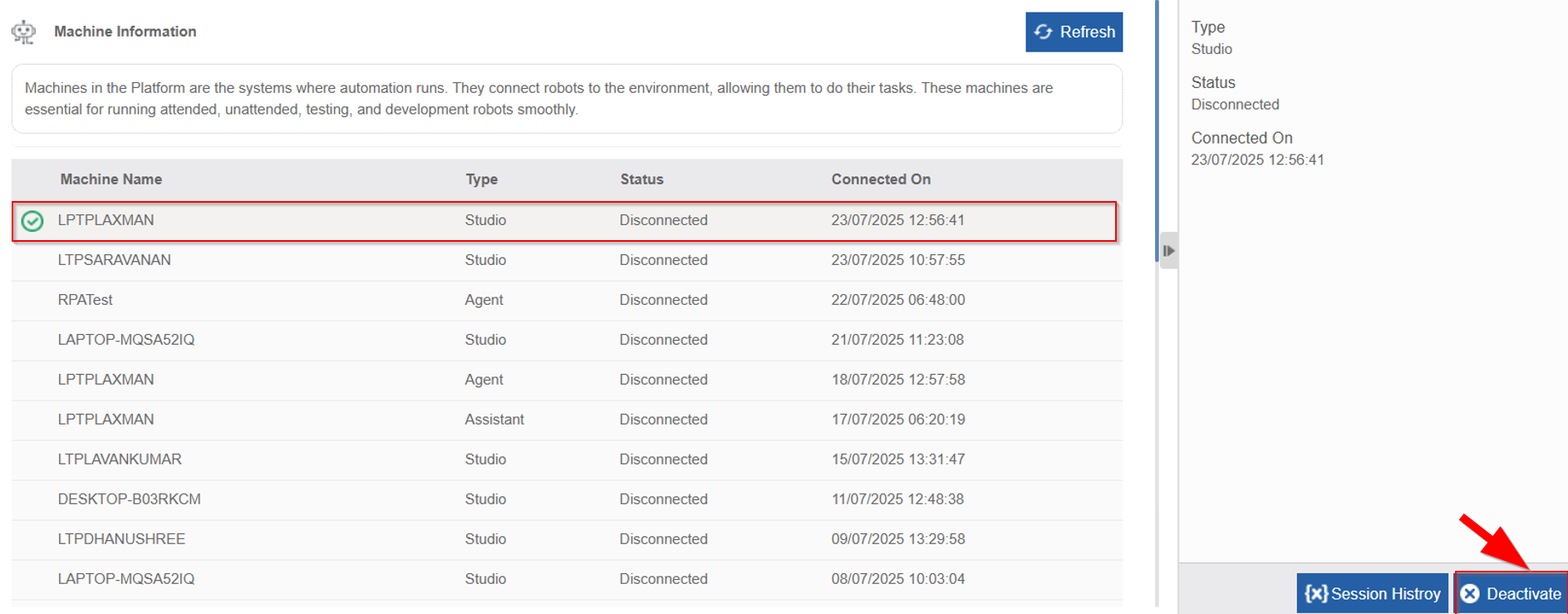
Deactivating a Machine
-
Click Deactivate.
Alternatively, hover over a machine name and click the three dots > Deactivate,
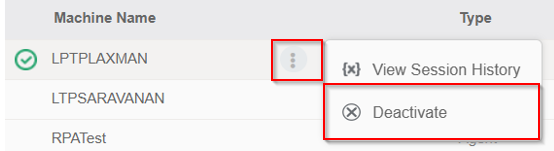
Confirmation message appears.
Click Ok to deactivate or Cancel to discard the action. Success message appears on successful deactivation. -
Click Ok.
The selected Machine becomes deactivated. -
Activating a Machine
Activating the Machine
If you want to use a machine that is deactivated, you need to activate it.
-
Navigate to Main Menu > Manage > RPA Management > Monitoring > Machine Information tab.
-
Click and select a machine name from the table. When you select a deactivated machine, “Activate” button appears on the bottom right.
-
Click Activate at the bottom right.
Alternatively, hover over the machine name in the grid > click three dots > Activate.
Confirmation message appears. -
Click Ok to activate or Cancel to discard the action. Success message appears on successful activation.
-
Click Ok.
The selected machine becomes Active.
Active Bots
About the Bots
Bots are nothing but the Robots that execute the bot workflows. Bot workflows are executed in the RPA Bot Agent application module.
When you trigger a bot workflow from the process flow, the bot executes the bot workflow in the RPA Bot Agent application as per the availability and the scope of the user who created the bot workflow.
The Active Bots section shows the real-time execution of bots (Agents) currently running published workflows. These bots are unattended and execute tasks without human intervention.
This section helps monitor:
-
Which bots are actively running.
-
Which workflows are being executed.
-
The start time and termination status of bot runs.
Viewing Active Bots and Details
When a bot starts the execution of the bot workflow in an Agent machine, the respective details are captured and displayed in the Active Bots section
- Navigate to Main Menu > Manage > RPA Management > Monitoring > Machine Information tab. The grid displays the Active bot information.
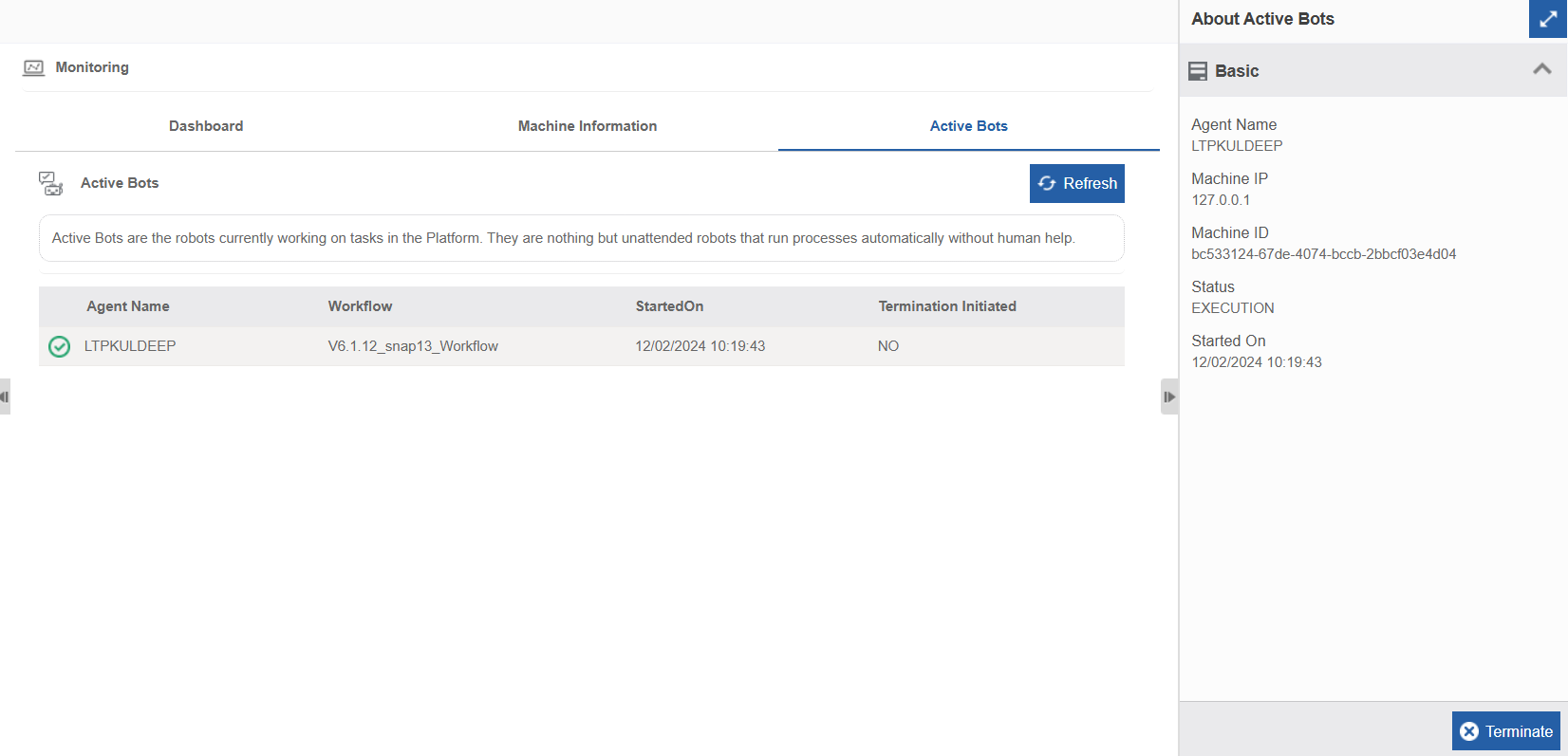
Active Bots page with the list of all active bots
-
Agent Name: The machine name on which the bot is currently running.
-
RPA Bot Workflow Name: The name of the bot workflow.
-
Started On: The date and time on which the bot execution started.
-
Termination Initiated: Indicates if manual termination has initiated or not.
-
No: Bot execution is not terminated.
-
Yes: Bot execution is terminated.
-
Click a record in the grid and the Properties panel on the right display additional details About the selected Active Bot.
-
Machine IP: The IP of the machine on which the bot is currently running.
-
Machine ID: The unique ID of the machine on which the bot is currently running.
-
Status: Current status of the bot.
Refreshing the Active Bots
To refresh the Active Bots page and view the most recent details of the Active Bots.
- Navigate to Main Menu > Manage > RPA Management > Monitoring > Machine Information tab.
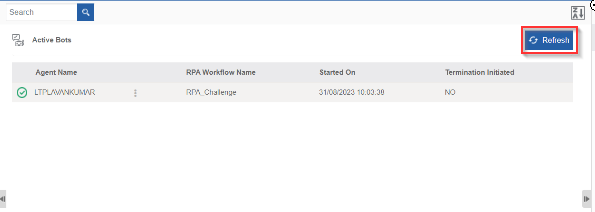
Refresh option for the active bots
- Click Refresh on the top-right of the active bots list. The Active Bots page is refreshed with current details.
Terminating an Active Bot
-
Navigate to Main Menu > Manage > RPA Management > Monitoring > Machine Information tab.
-
Click an active bot that you want to terminate. You can terminate a bot that has status as “EXECUTION”.
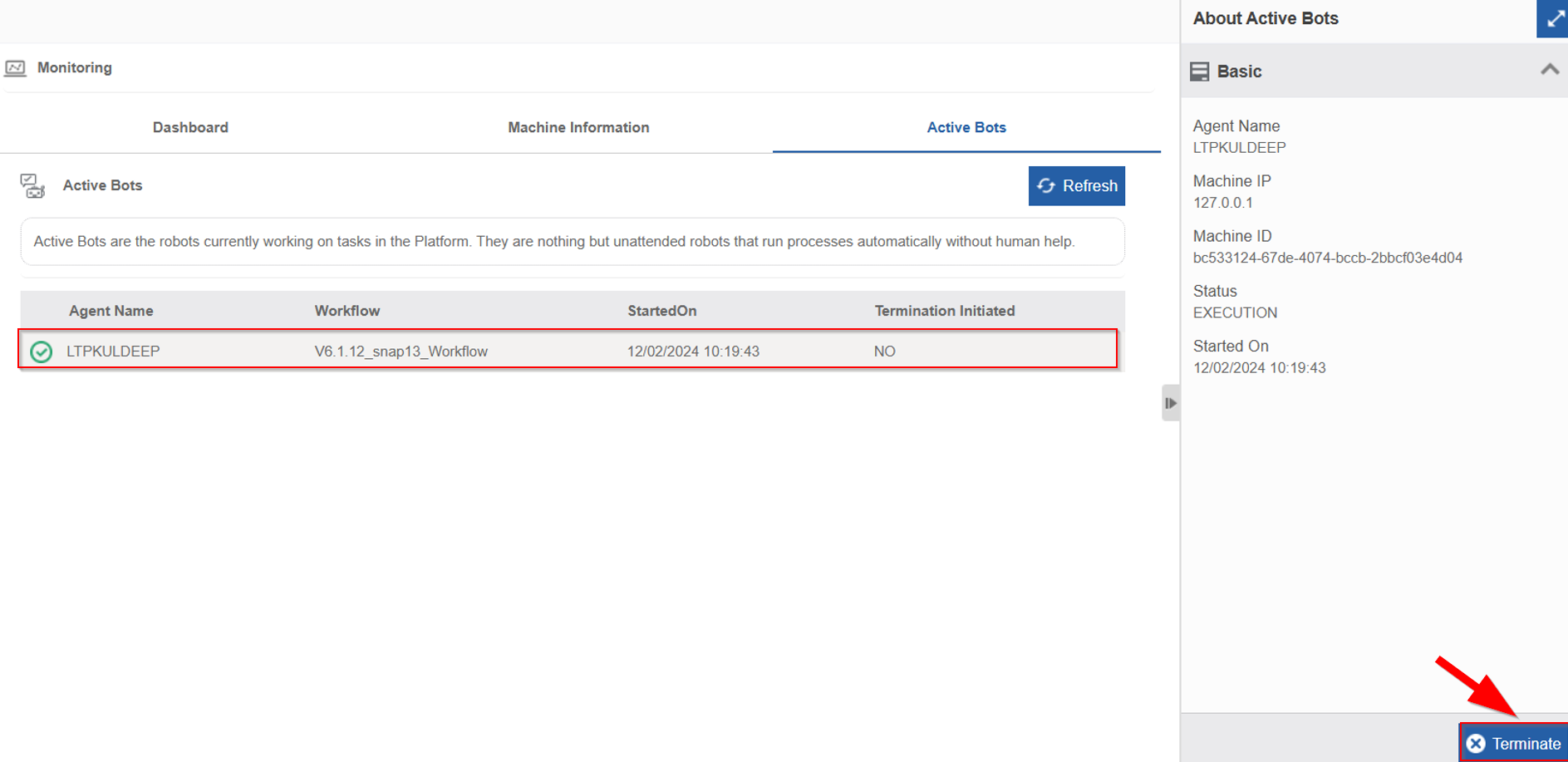
Terminating an active bot
-
Click Terminate on the bottom right.
Alternatively, hover over a bot name and click the three dots > Terminate,
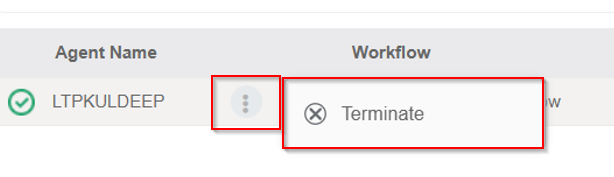
Confirmation message appears. -
Click Ok to terminate or Cancel to discard the action. Success message appears on successful termination of the bot.
-
Click Ok.
The selected bot becomes terminated. -
Note that you cannot restart the execution of the terminated bot.