Meeting Request
Meeting Request entity is used for schedule a meeting for a set of participants based on a meeting request. You can define the meeting request template using the entity, Meeting Request.
Note
Meeting Request template is dependent on the SMTP configuration and the business entity Timer.
You need to create the required Timer entity of type “Meeting Request” before creating the Meeting Request template.
Viewing Meeting Request
The Meeting Request entity associated with each flow will appear within that flow.
- Navigate to App Studio > Applications - open application name > Process Flow - process flow name > Open.
-
Click Meeting Request on the left side panel for viewing the Meeting Request for the process flow module.
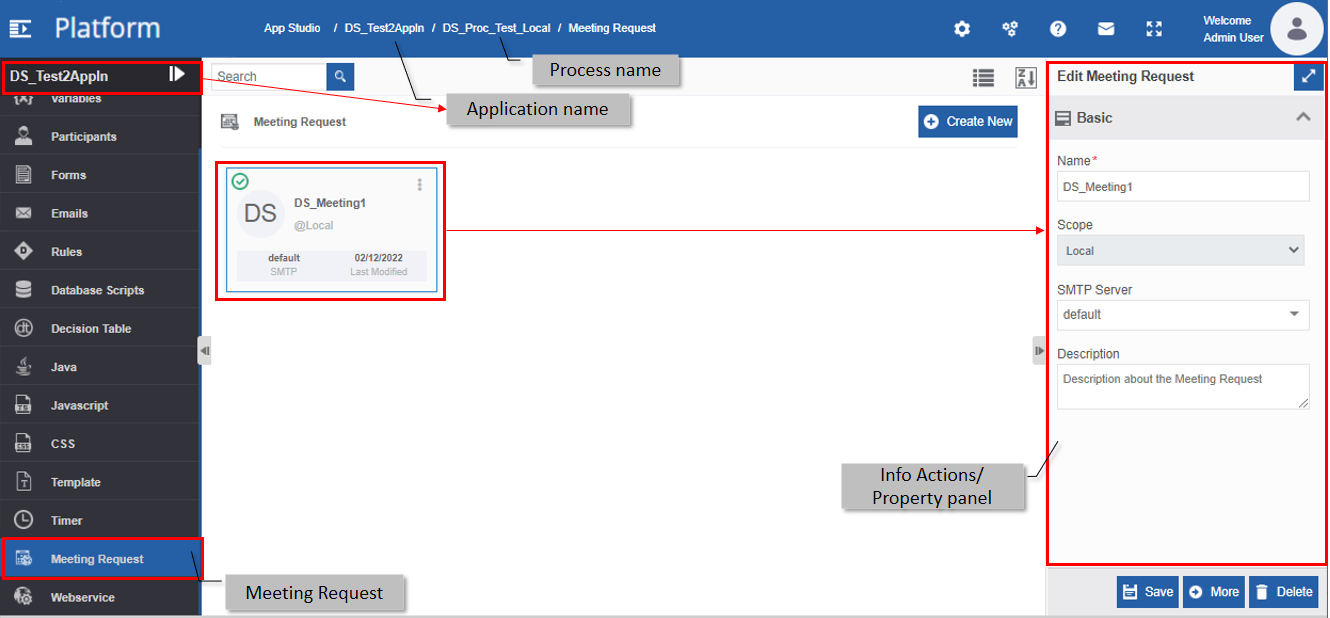
Creating a New Meeting Request
You can create a meeting request with a specified timer as per the requirement.
Note
Before creating a meeting request, you need to create the business entity, a Timer of type “Meeting Request” and a configuration entity, SMTP.
- Navigate to App Studio > Applications - open application name > Process Flow - process flow name > Open.
-
Click Meeting Request. The list of Meeting Requests appears.
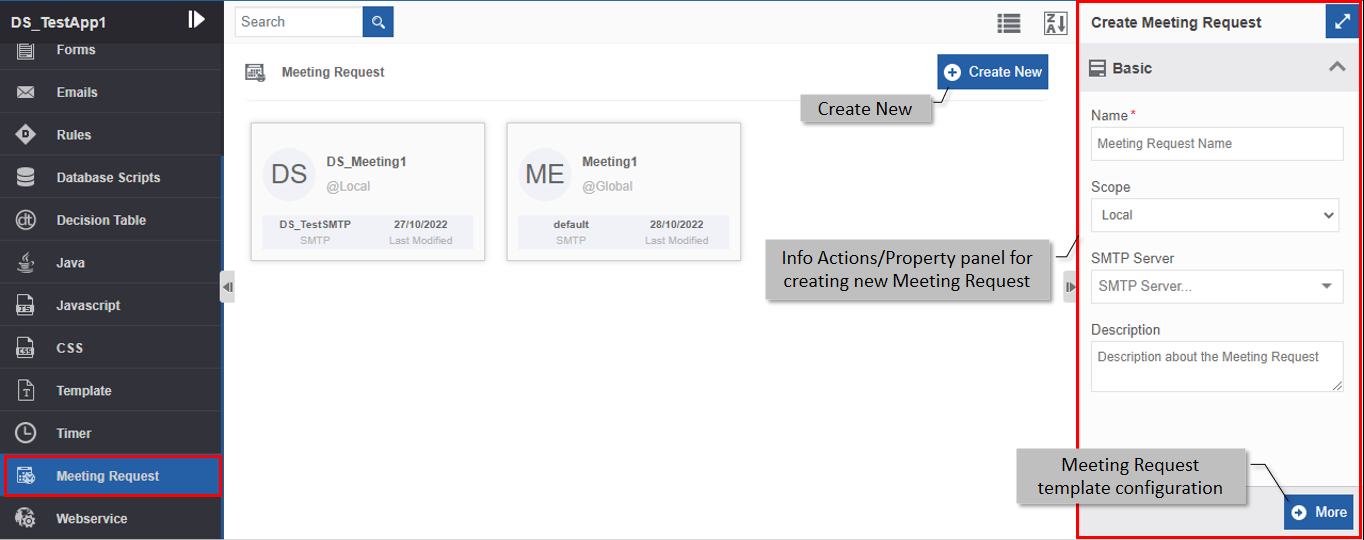
-
Click +Create New. The Info Actions panel appears as Create Meeting Request.
-
Enter the Basic details in the Create Meeting request panel as explained below.
Field Description Name* Enter the name for the meeting request.
Character limit: 50.
Data type: Alphanumeric and underscore. Whitespace is not allowed.Scope* The scope of an entity is always local as the entities are created at the flow level. SMTP Server* Select the SMTP server name that you have configured for the meeting request. SMTP is configured in the Management > Configuration Management module. Description Enter a description for the Meeting Request. -
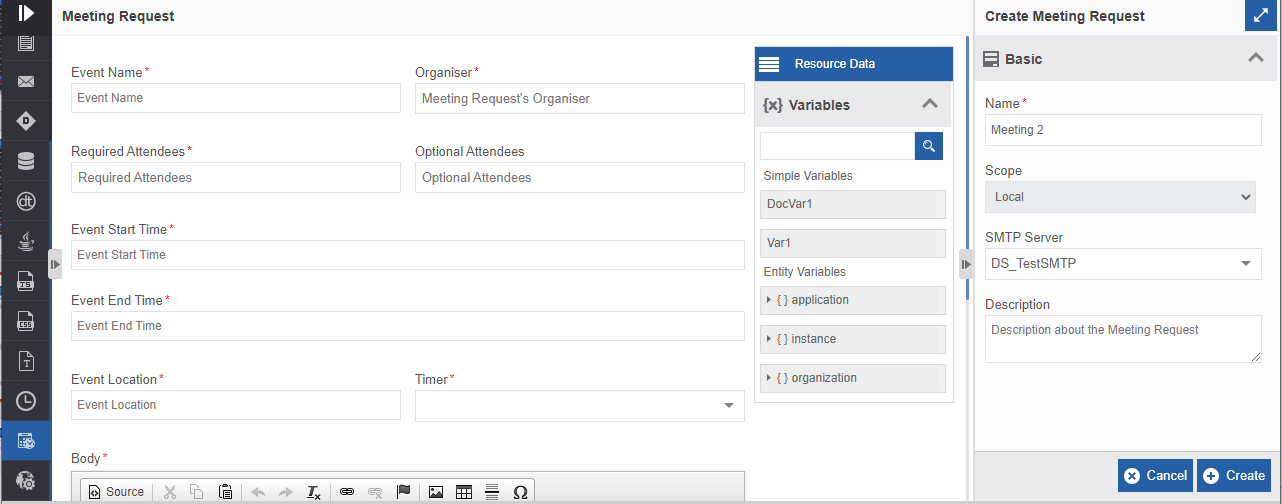
Click More. Meeting request template configuration appears.
-
Configure the meeting request template as explained below.
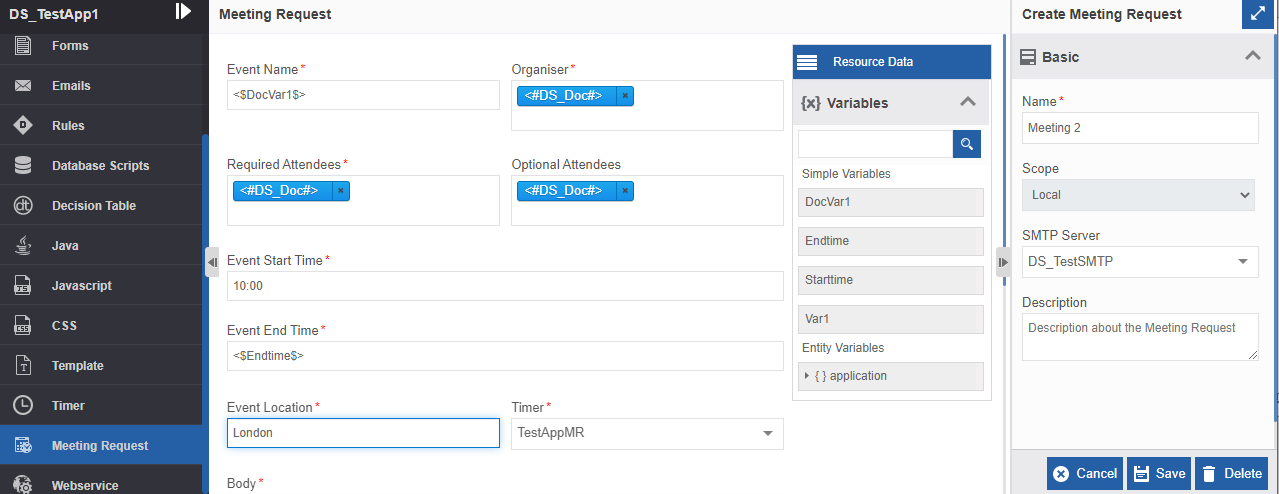
Field Description Event Name* Enter the name of the event or the meeting. Organizer* Enter the email id of the event organizer. Required Attendees* Enter the email id of the mandatory attendees. Optional Attendees Enter the email id of the optional attendees. Event Start Time* Enter the event start time in 24-hour format (HH:MM). UTC is followed. Also, you can map an alphanumeric type variable in this field with the input in the format HH:MM. Event End Time* Enter the event end time in 24-hour format (HH:MM). UTC is followed. Also, you can map an alphanumeric type variable in this field with the input in the format HH:MM. Event Location* Enter the event Location. Timer* Select a timer from the drop-down to specify a time pattern for the meeting request. Body* Enter the body of the email template in the editor box. You can use the features available for the editor to design your email template. Attachments Type and select a document type variable in the attachment field. If the document type variable is of collection type, you can add multiple attachments. Multiple variables are accepted in this field. Note
You can drag a participant from the Resource Data > Participants to any of the email id fields and you can drag a variable from the Resource Data > Variables in any of the other text data fields for dynamic input of data.
Viewing and Editing Meeting Request
Make sure to unlock the application before editing if you want to edit the details of the meeting request object that is not created by you.
- Navigate to App Studio > Applications - open application name > Process Flow - process flow name > Open.
- Click Meeting Request. The meeting request list appears.
-
Click the Meeting request card for viewing the details of the selected meeting request. The details of the meeting request appear in the Info Actions panel (Edit Meeting Request).
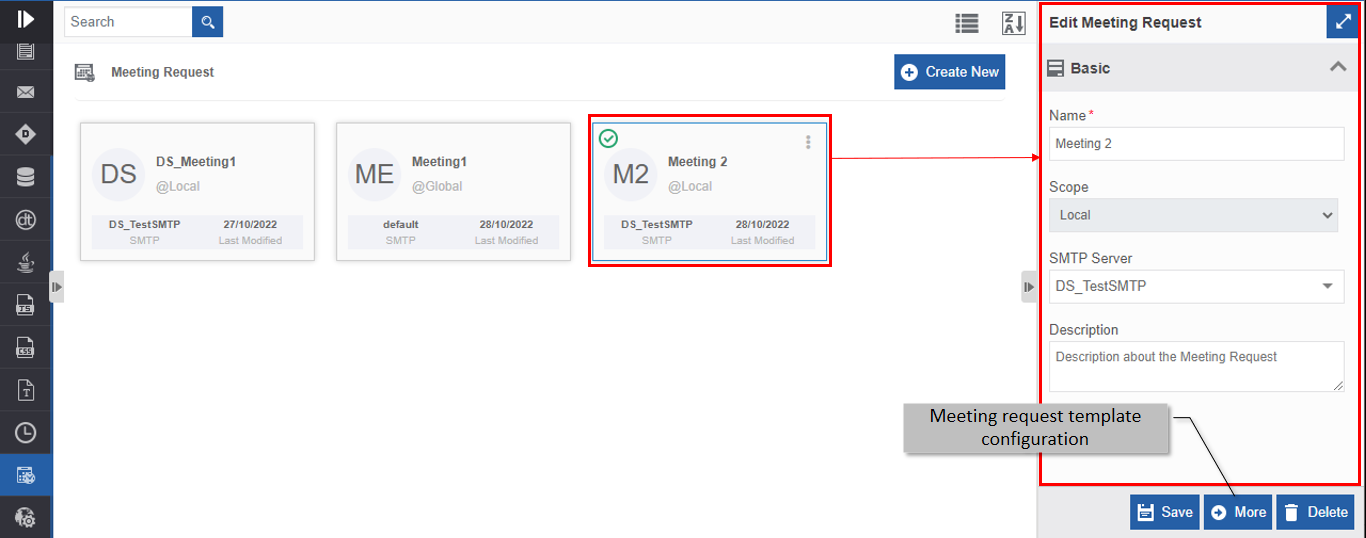
-
Click More for viewing the meeting request template and configuration details.
-
Edit the meeting request details as needed.
- Click Save.
Viewing Meeting Request Associations
- Navigate to App Studio > Applications - open application name > Process Flow - process flow name > Open.
- Click Meeting Request. The meeting request list appears.
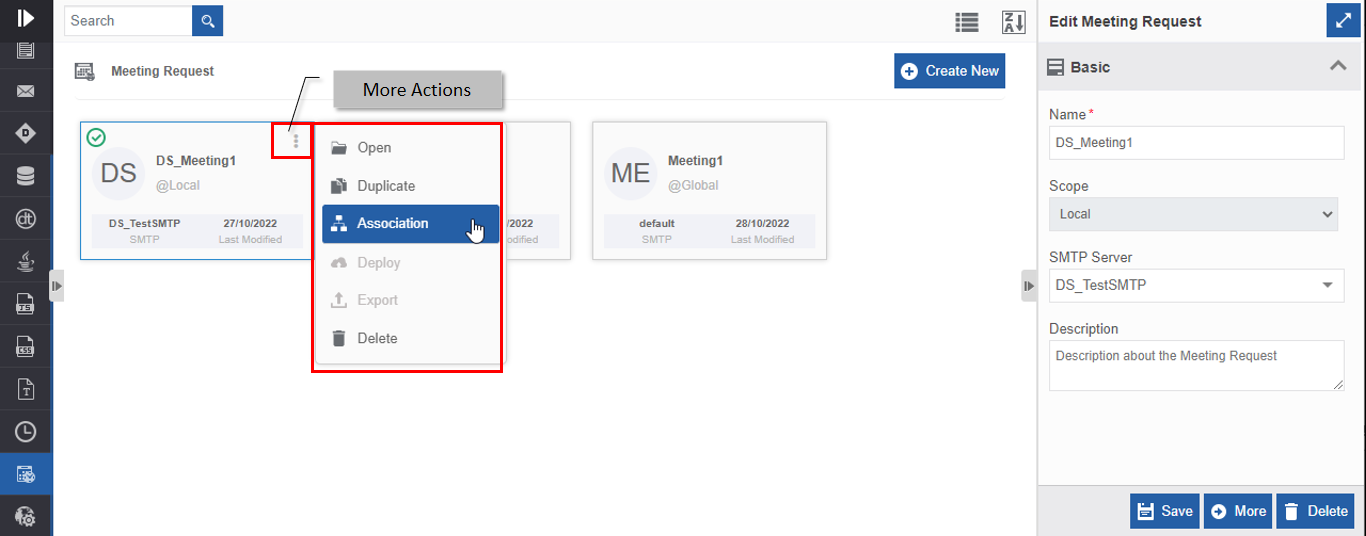
- Hover over any meeting request card. Three dots appear on the upper right side of the card.
-
Click the three dots. More Actions appear.
-
Click Associations. The association of the meeting request is displayed in a pop-up.
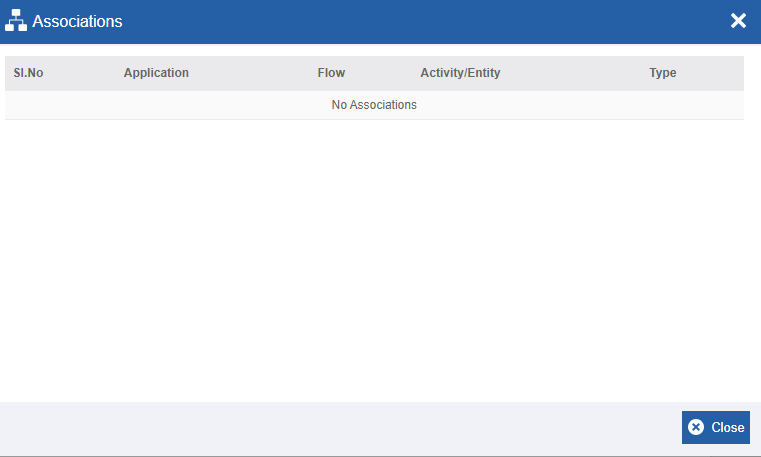
- Application - The application in which the meeting request is utilized.
- Flow - The flow in which the meeting request is utilized.
- Activity/Entity - The activity name in which the meeting request is utilized.
- Type - The type of entity or activity.
Duplicating Meeting Request
Make sure to unlock the application before duplicating an entity that is not created by you. When you duplicate a meeting request, the associations are not duplicated.
- Navigate to App Studio > Applications - open application name > Process Flow - process flow name > Open.
- Click Meeting Request. The meeting request list appears.
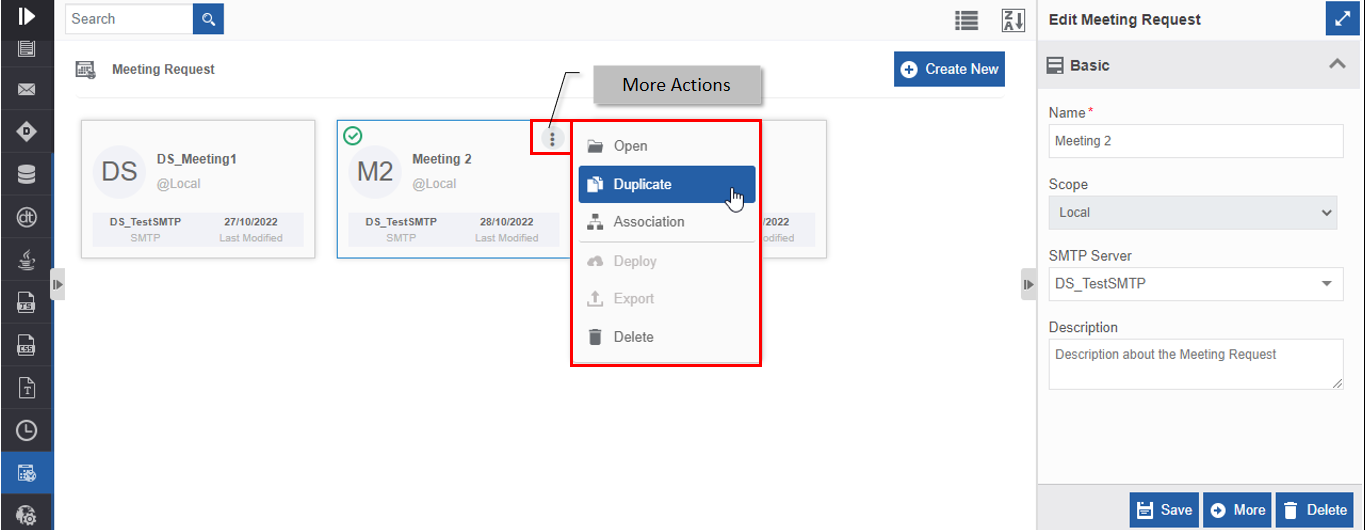
- Hover over the meeting request card that you want to duplicate. Three dots appear on the upper right side of the card.
-
Click the three dots. More Actions appear.
-
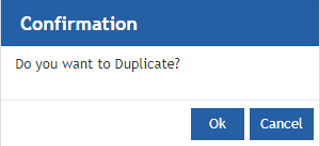
Click Duplicate. A confirmation pop-up appears.
-
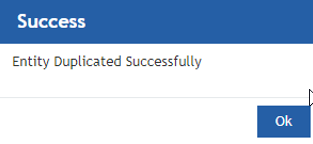
Click Ok for duplicating the meeting request (or you can click Cancel to cancel the duplicate action). A Success message appears on the successful duplication of the meeting request.
-
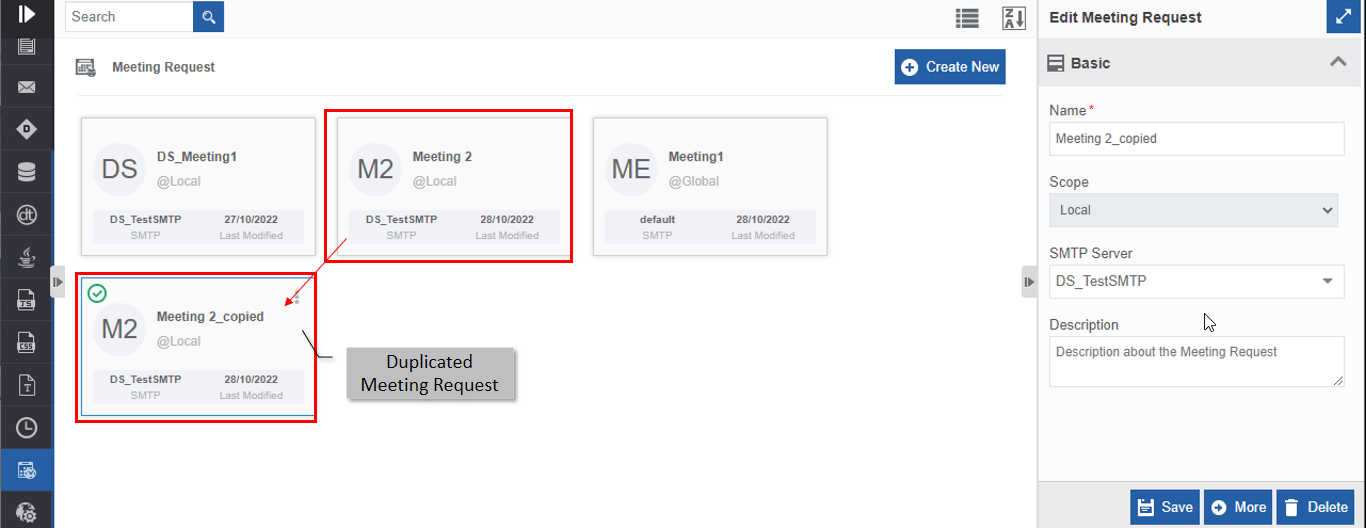
Click Ok. A duplicate copy of the meeting request appears on the Meeting Request page with the same name suffixed with “_copied”.
Deleting Meeting Request
Make sure to unlock the application before deleting an entity that is not created by you. Also, you cannot delete the entity if it is associated with any activity.
- Navigate to App Studio > Applications - open application name > Process Flow - process flow name > Open.
- Click Meeting Request. The meeting request list appears.
-
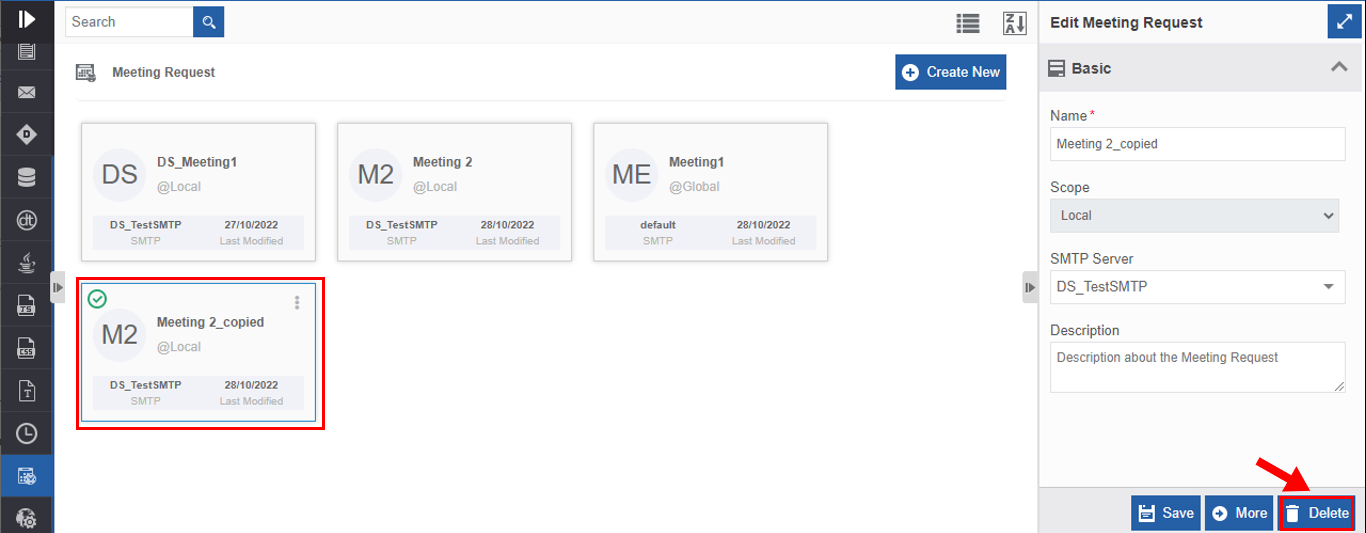
Click the meeting request name card that is to be deleted. The lower-right of the page displays Delete.
-
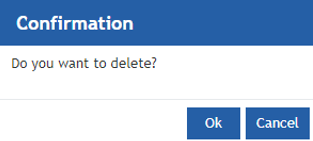
Click Delete. A Confirmation pop-up for delete appears.
-
Click Ok for deleting the meeting request. Or
Click Cancel to cancel the action.
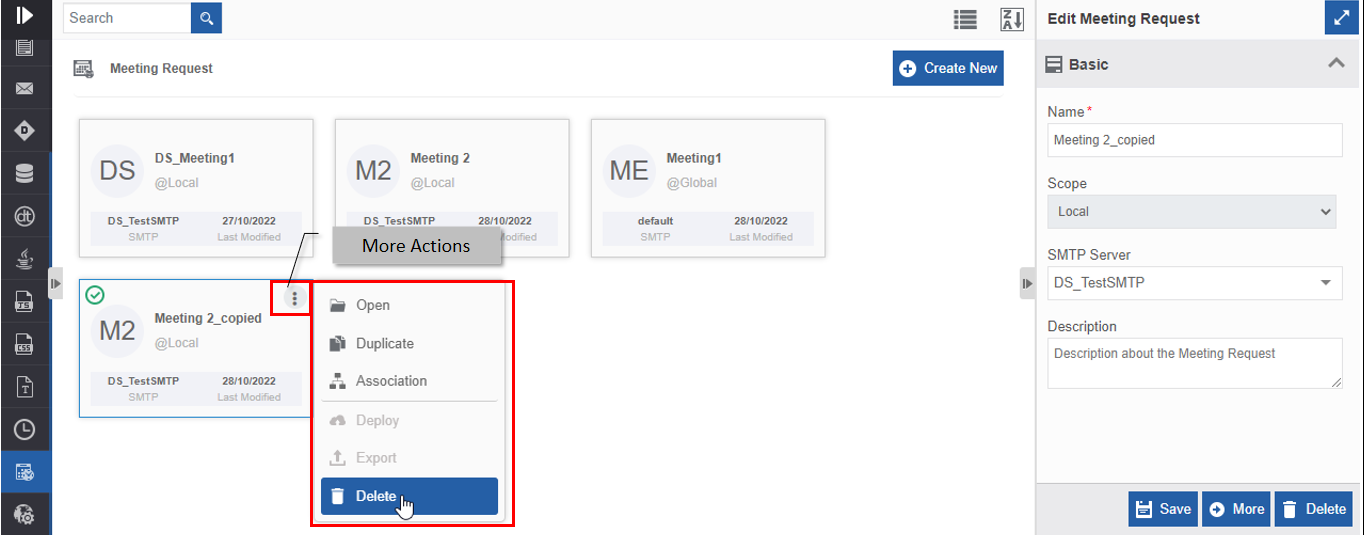
Alternatively, you can follow the below steps to delete the meeting request:
- Click the Burger menu and navigate to App Studio > Application > Process flow > Meeting Request.
- Hover over the meeting request card. Three dots appear on the upper right side of the card.
- Click the three dots. More Actions appear.
-
Click Delete and follow step 6 in the above procedure.
Utilizing Meeting Request
Accessing Meeting Request Through Activity
You can map Meeting Request to the activity Meeting Request in the process flows.
-
Navigate to App Studio > Applications - open application name > Process Flow - process flow name > Open.
Info
Open or create a process flow with the Meeting Request activity in the process flow.
-
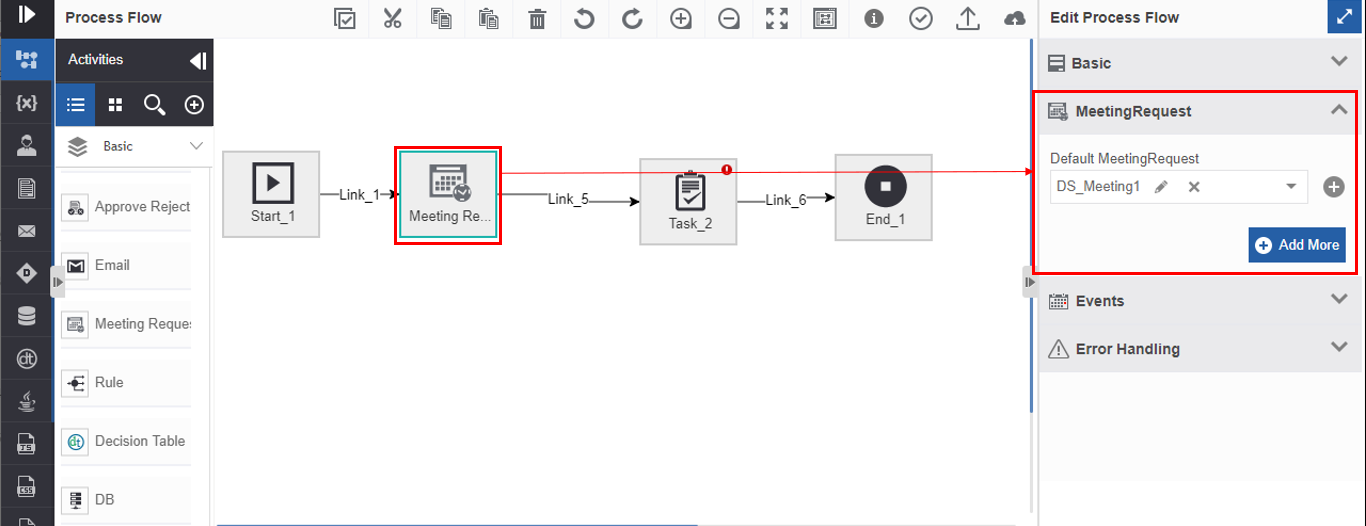
Click the Meeting Request activity and the Info Actions panel displays the configuration and properties.
-
Click the Meeting Request accordion. Meeting request mapping details appear.
-
Below the Default Meeting Request, select a default meeting request from the drop-down. The drop-down lists all the meeting request templates. Only one meeting request can be added as a default meeting request.
-
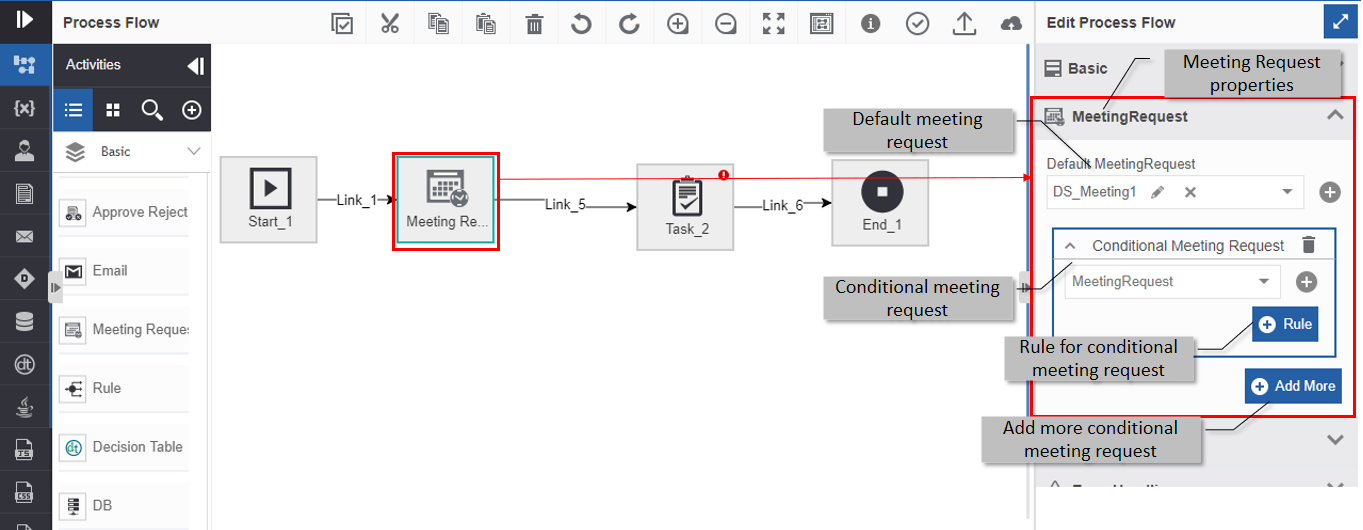
Click Add More. Conditional Meeting Request details appear for adding conditional meeting requests based on the rules.
-
Under Conditional Meeting Request, Select a meeting request.
- Click Rule and select a rule for the selected conditional meeting request.
-
Click Add More again for adding more conditional meeting request(s). You can add multiple conditional meeting requests based on different rules.
Note
During runtime, if a rule is satisfied, the Meeting Request mapped for that rule executes. If none of the rules are satisfied, the default Meeting Request executes.
-
Click Save.
Tip
When the Meeting Request is executed, an email is sent to the intended recipients and the organization calendar of the user is blocked for the Meeting as per the time and date mentioned in the meeting request.