RPA Project
About RPA Projects
To create an RPA bot workflow, you must create an RPA project and then create a bot workflow within that project. You can create multiple workflows within a project. However, each workflow will be independent of each other. The bot workflows within the project are also referred to as RPA automations.
RPA projects have many features that are in project level and applies to all the workflows within that project.
Loading RPA Projects
On successful login to the RPA Bot Studio, the Load Projects screen appears. You can select the required projects to load it in the RPA Studio.
- If you want to load projects after opening the RPA Studio application, click Quick menu > Open Project.
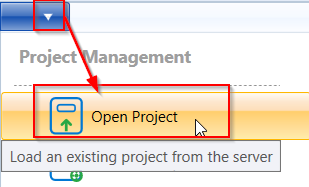
Load Project pop-up appears. Load Projects screen allows you to load existing projects, create new projects, or import a project. You can also Export the projects.
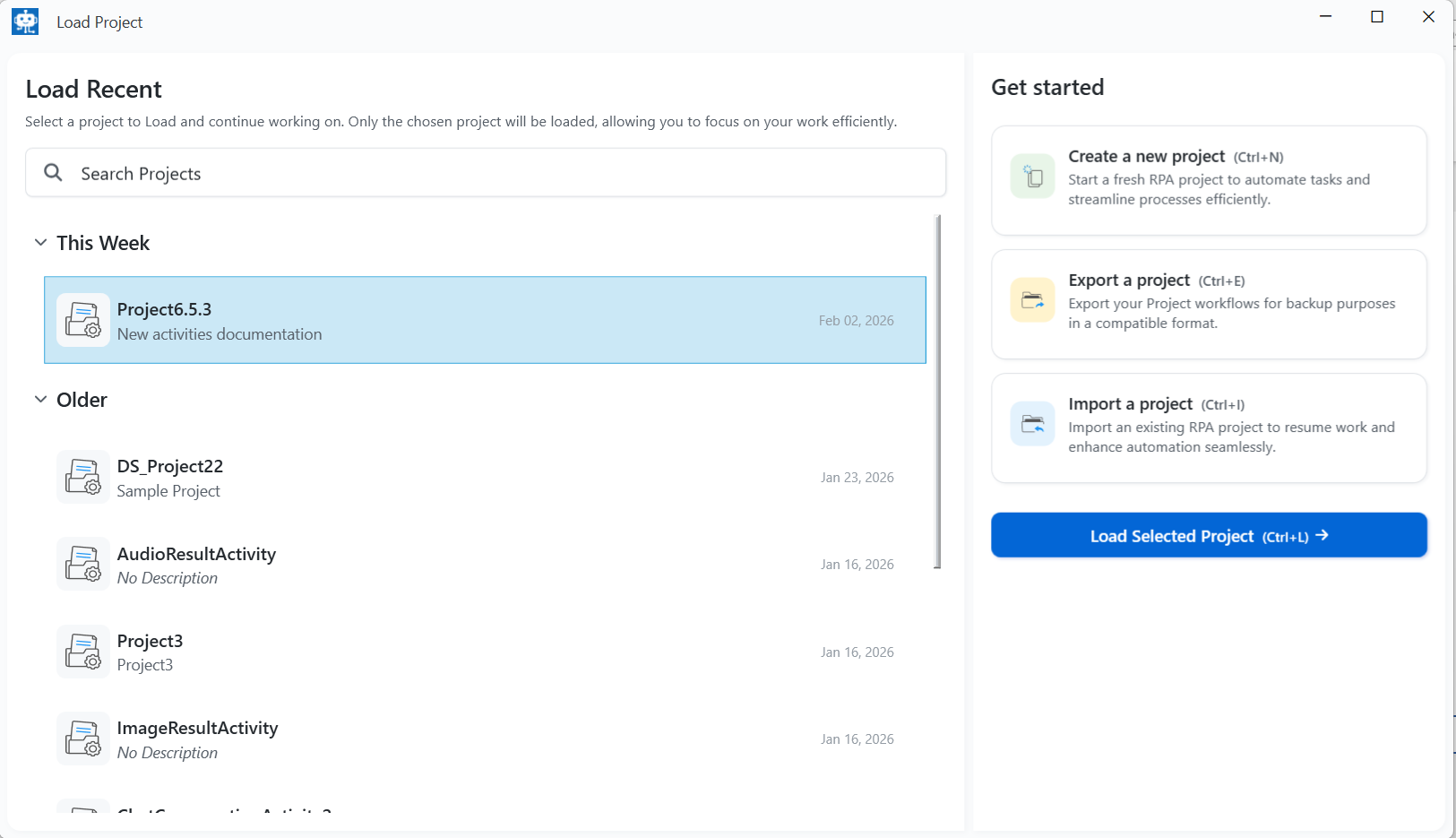
The load projects page displays:
-
the projects already created by the logged in user.
-
the projects that are shared or allocated to the logged in user.
You can select and load the shared projects. The permission level of shared projects depends on the permission configured while sharing the project.
-
To search and select existing project, click Load Recent textbox, enter the project name and select the project required.
-
To select multiple projects, hold CTRL and click multiple projects.
-
To load selected projects of your choice, Load Selected Project. Refer to Loading Selected Projects.
Other quick actions in Load Project > Get Started section (right-side panel)
-
To create a new project, click Create a new project. Refer to Creating and Loading a New Project.
-
To export a project, click Export a project. Refer to Exporting a Project.
-
To import a project, click Import a project. Refer to Importing a Project.
Loading Selected Projects
Recent or the shared projects are listed on the left side.
- On the Load Project screen, from the list of projects displayed, click and select the recent project that you have worked. CTRL+click to select multiple projects.
If you do not find your project name in the list, type the project name in Load Recent search box and the matching projects are listed.
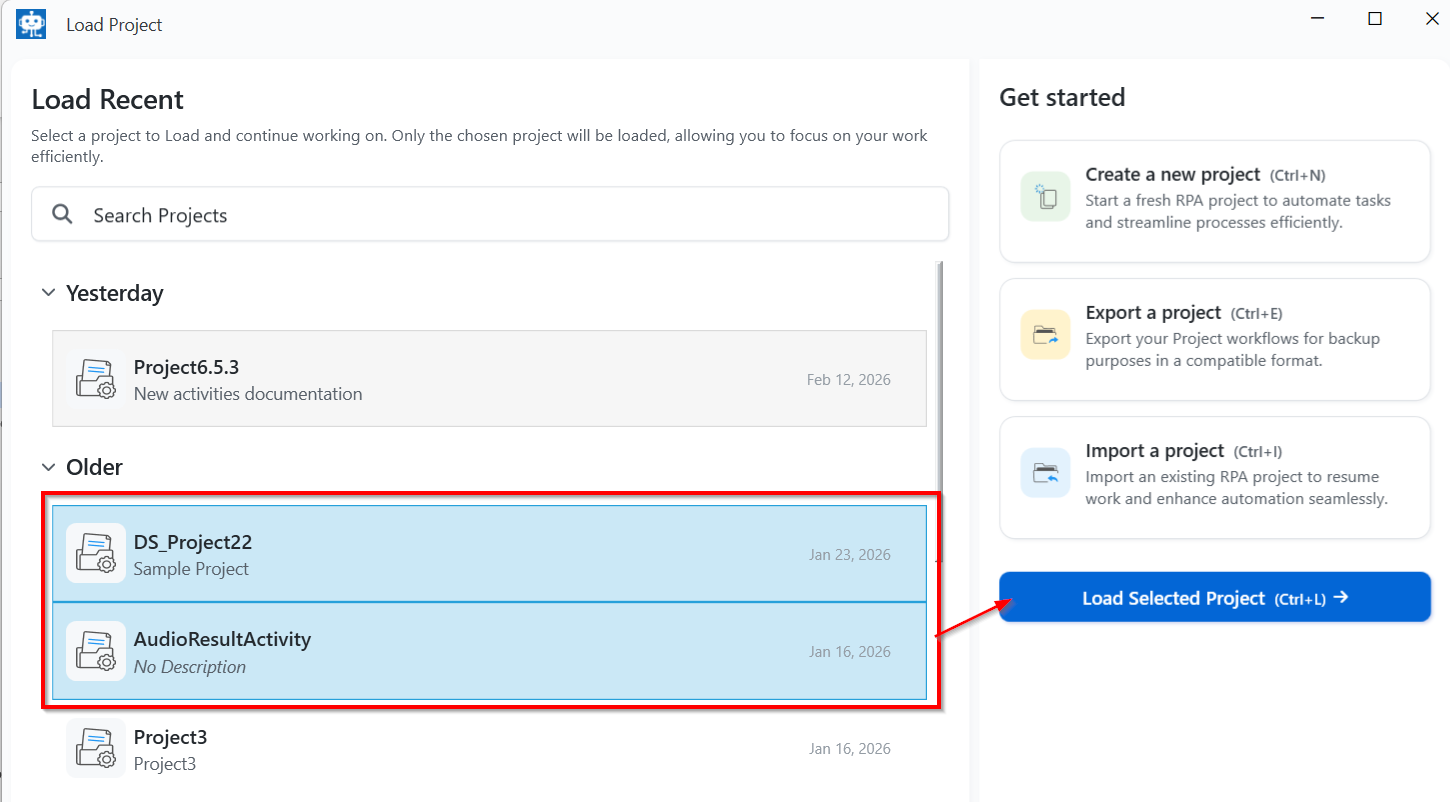
- Click Load Selected Projects. The Studio opens with the selected projects.
Creating and Loading New Project
Create a new project from the load project screen by selecting or not selecting the process template. When the Studio appears, it opens with your newly created project. From the Studio, you can create further projects.
- On the Load Project screen, click Create new Project.
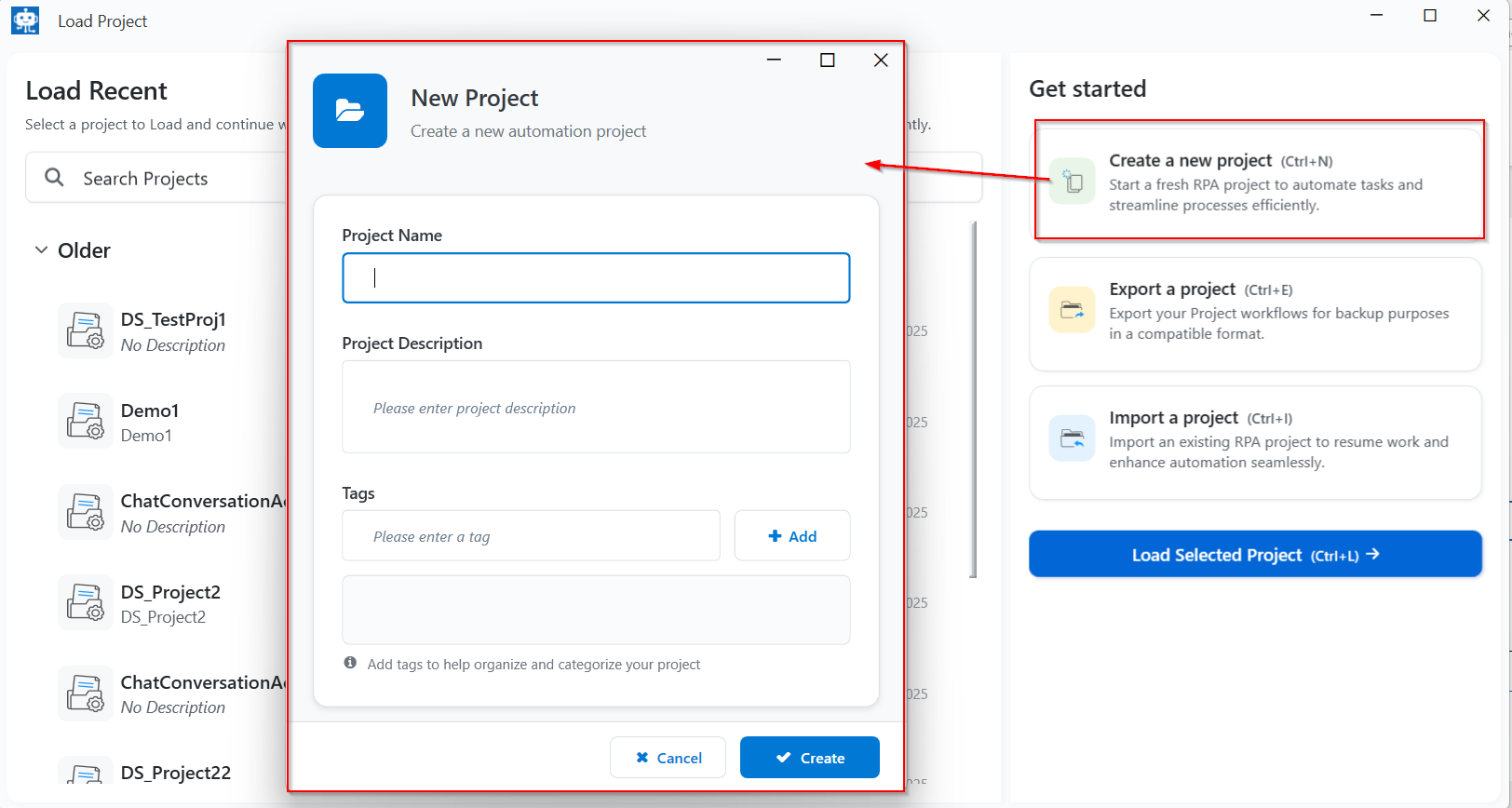
New Project pop-up appears.
- Provide the Project details.
| Field | Description |
|---|---|
| Project Name | Enter name for your project. |
| Project Description | Enter description for your project. |
| Tags | Enter Tag and click +Add to add the tag name to your project. Add multiple tags to organize and categorize your project. |
-
Click Create.
-
RPA Studio Workflow designer page appears. A new project with the specified {Project_name}, and a workflow within that project with name as {ProjectName}_Workflow is created and opened for you to design.
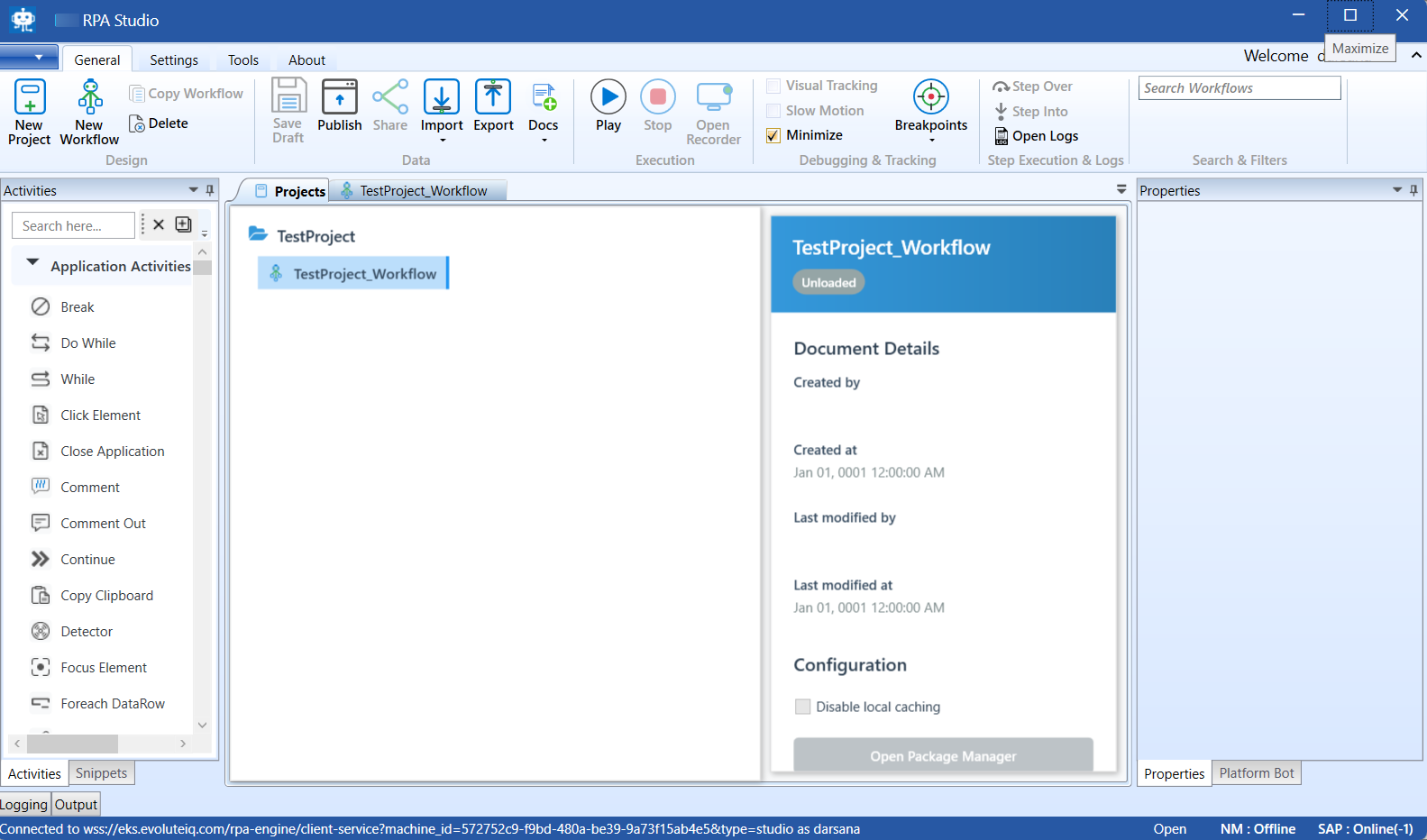
Opening page of RPA Bot Studio
The Project is created and a new workflow designer with name as {Project_name}_workflow appears on the RPA Studio.
Workflow Recovery
The workflow recovery feature helps you to recover any accidently closed workflows (without saving).
When the RPA application closes accidently, the workflow that you are working on is temporary saved for recovery if needed.
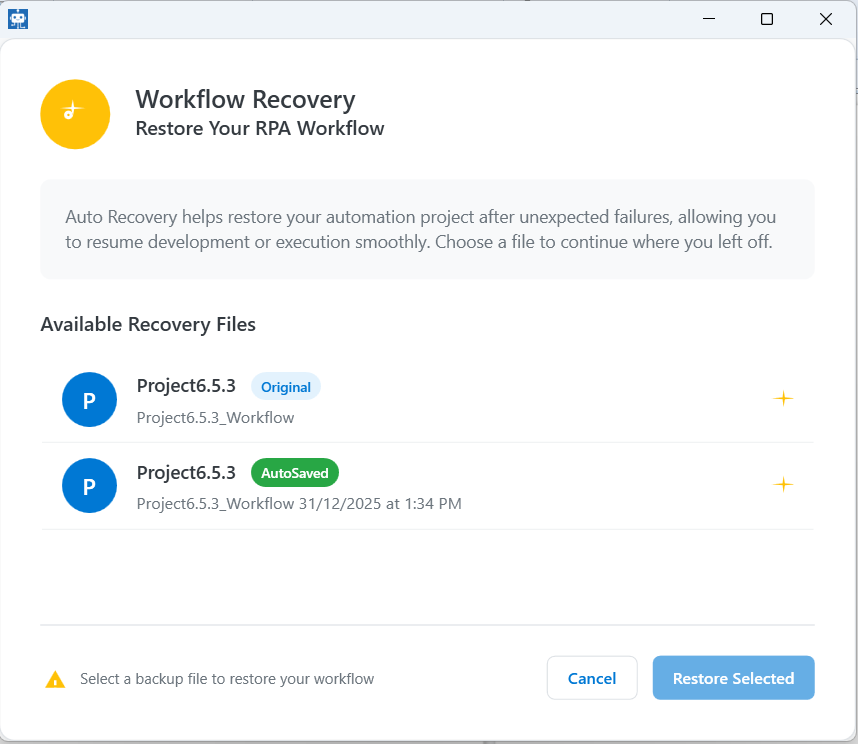
- After accidental closing of the application, open the RPA application again to recover the workflow. The RPA loads with a Workflow Recovery pop-up.
-
Click the file that you wish to recover. You can either choose the original or autosaved workflow.
-
Click Restore Selected to restore the selected workflow.
Importing a Project
Import feature allows you to import an existing project from your local system to the RPA Studio.
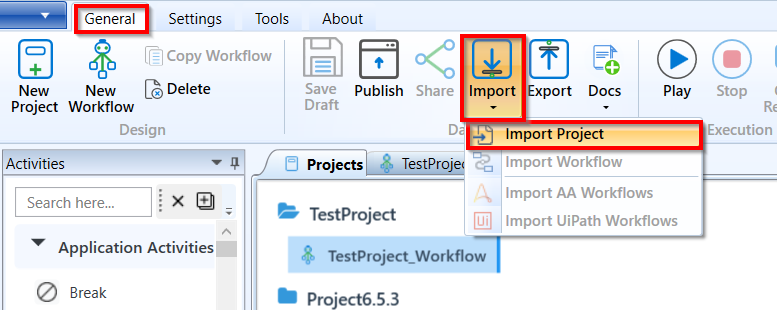
Import a project through the Load Project screen or from the RPA Studio ribbon > import feature.
- On the RPA Bot Studio click General tab > Import
Alternatively, while loading RPA Studio, on the Load Project Screen (or click Quick menu > open project), click Import a Project.
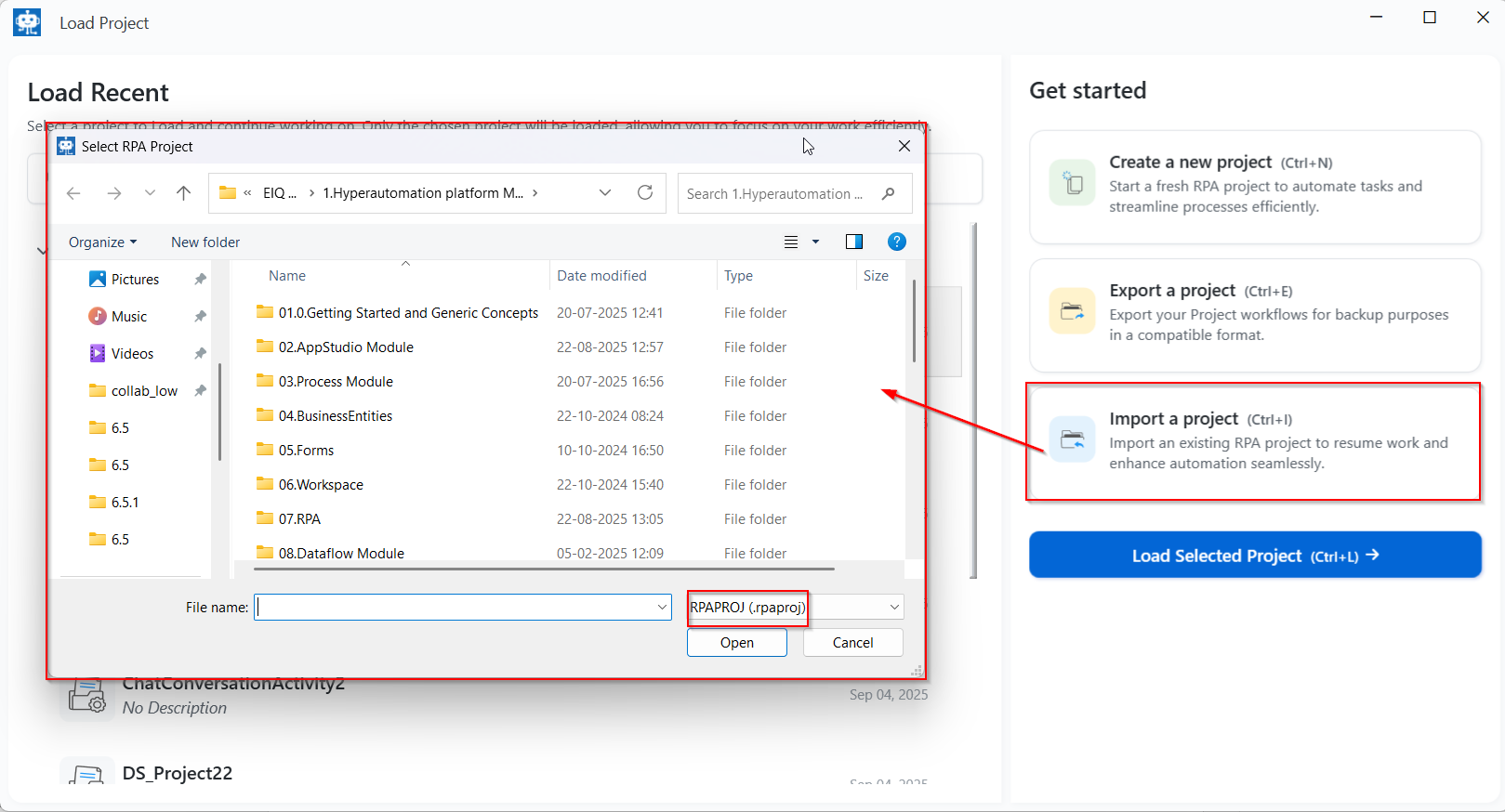
- In the Browse for folders window, select your project. You must select a project file with .RPROJ extension.
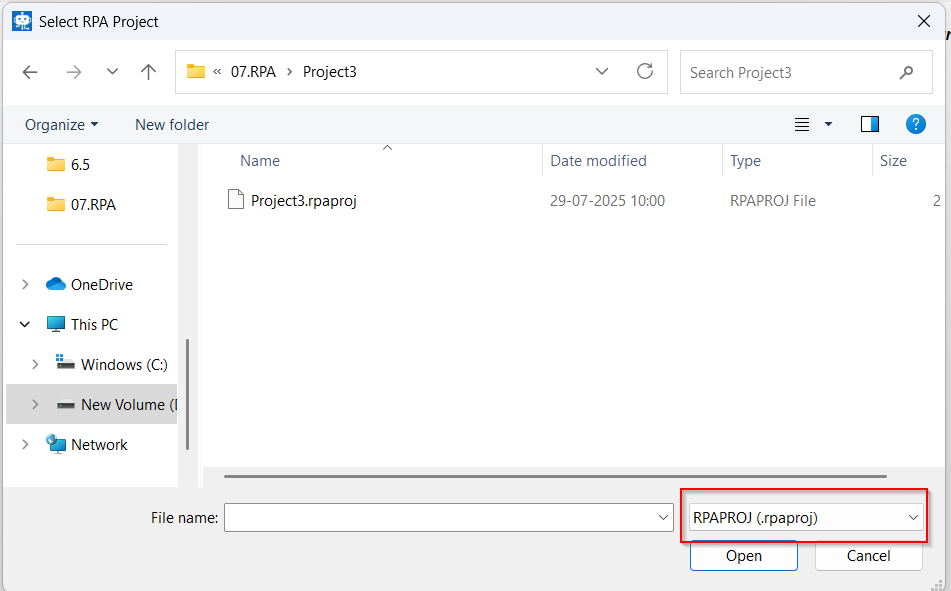
- Select the project file and click Open.
The package file gets imported to the studio. The loaded project will be visible in the projects tab.
Exporting a Project
Export feature allows you to export a project from the RPA Studio to your system as a .RPROJ file.
Export a project from the Load Project screen or from the RPA Studio ribbon.
-
On the RPA Bot Studio > Project tab, select the project to be exported
-
Click General tab > Export
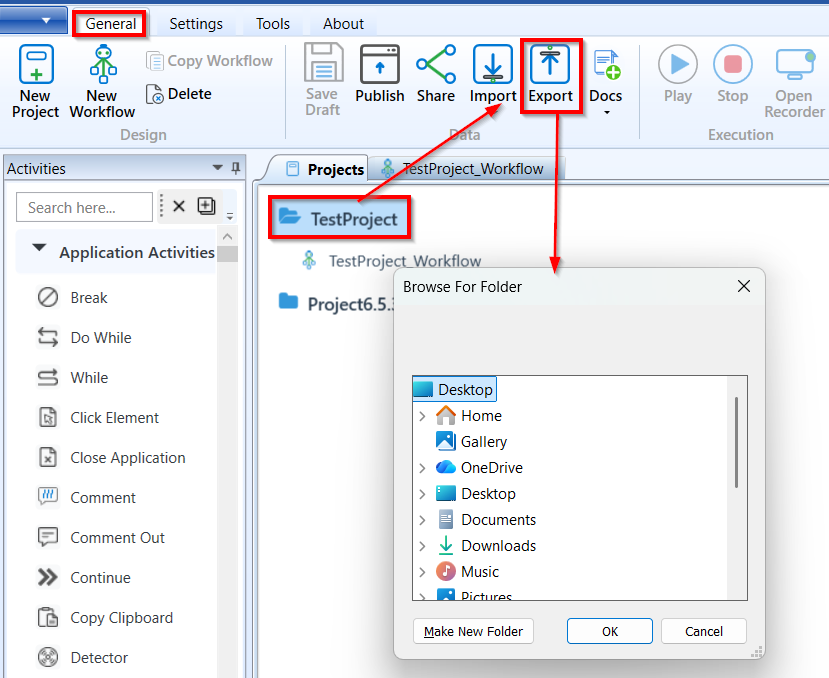
Alternatively, while loading RPA Studio, on the Load Project Screen (or click Quick menu > open project), click the project name to be exported and click Export a Project.
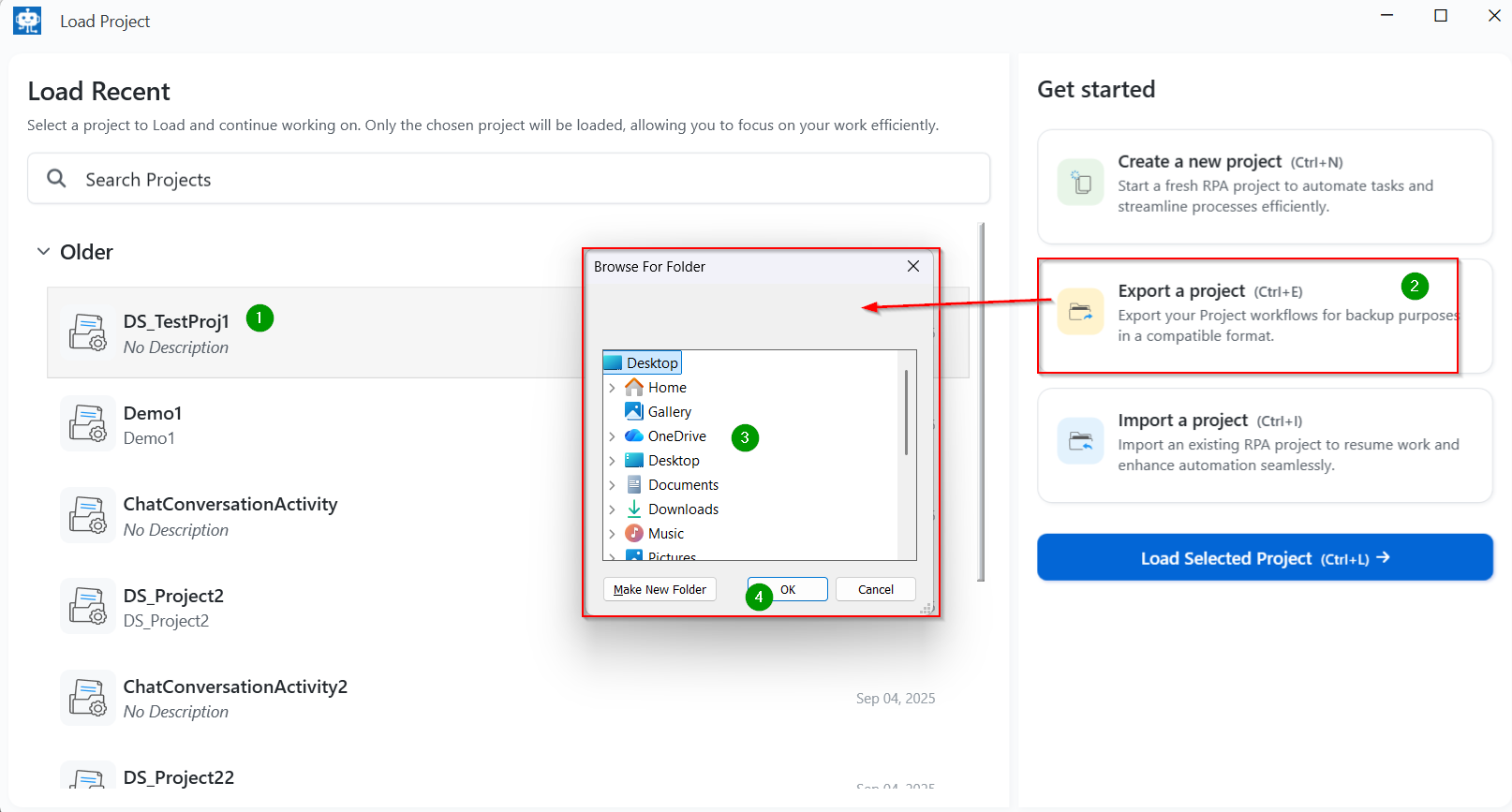
- On the “Browse for folder” select the Folder name to which you need to export the project.
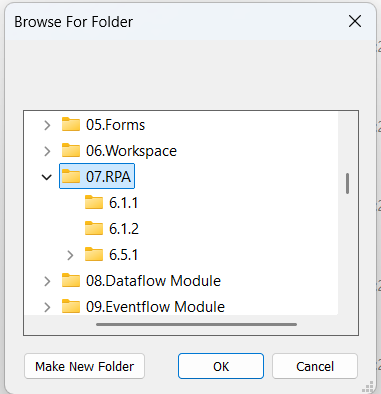
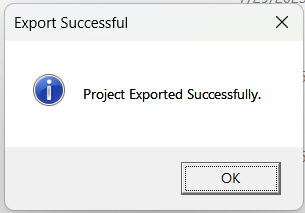
- Click OK. Success message appears on successful export of the project.
- The project files (.RPROJ file) exports to the selected folder.
Selecting Process Template
The process template allows you to load a predefined template for a workflow. This allows you to get a preliminary structure or rough sketch for your workflow which you can modify as per your requirements.
The structure of the Process template is dependent on the template that you select.
- If you have already opened the RPA Bot Studio, in the click Quick menu > Process Templates.
or
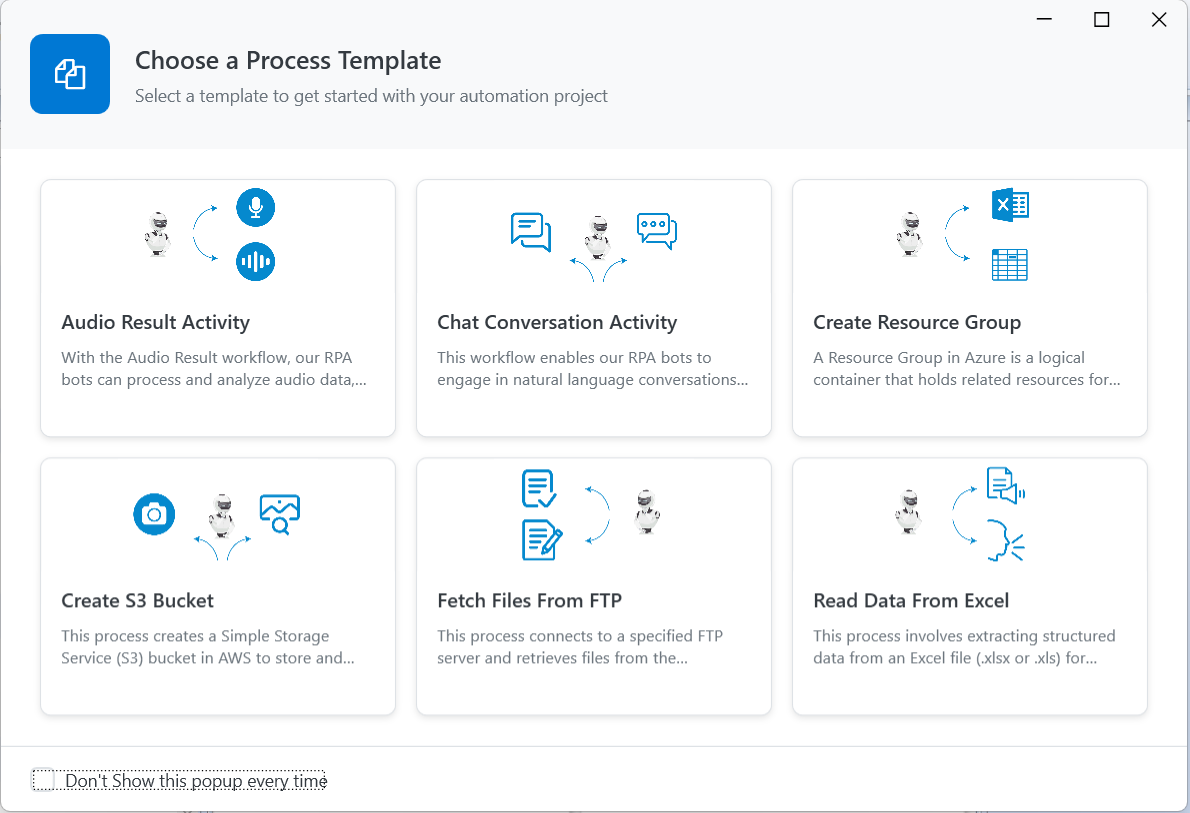
While opening the RPA Studio application click Create a New project in the Load Project pop up and give project details >click ok. The process template pop-up loads with multiple templates.
-
If you don’t want to display Choose a Process Template screen each time when you load a project, then click the Don’t Show this popup everytime.
-
Click your required template. The Workflow designer displays the structure of the workflow based on thee selected template.
Sample templates are available for the following processes:
Audio Result Activity: The Audio Result Activity workflow enables the RPA bots to process and analyze audio data, extract valuable insights, or perform predefined actions based on the audio.
Chat Conversation Activity: The Chat Conversation Activity workflow enables the RPA bots to engage in natural language conversation with users leveraging OpenAI’s conversational AI models.
Create Resource Group: A Resource Group in Azure is a logical container that holds related resources for an application or workload. The Create Resource Group workflow enables the RPA bots to manage and organize such as virtual machines, storage accounts, virtual networks, and databases as a single unit.
Create S3 Bucket: The Create S3 Bucket workflow enables the RPA bots to create a Simple Storage Service (S3) bucket in AWS to store and mange objects such as files, logs, backups, or application data. The S3 bucket serves as a scalable and secure storage resource accessible via the AWS Management Console, CLI, SDKs, or APIs.
Fetch Files from FTP: The Fetch Files From FTP workflow enables the RPA bots to connect to a specified FTP server and retrieve files from the designated directory. It supports both direct file downloads and recursive retrieval from subdirectories if needed. The system established an FTP connection using valid credentials (host, username, and password), navigates to the target folder, downloads available files to the local destination path.
Read Data From Excel: The Read Data From Excel workflow enables the RPA bots to extract structured data from an Excel file (.xlsx or .xls) for further processing or analysis. The workflow opens the specified Excel Workbook, reads data from one or more worksheets, and loads the values into memory; typically as a Datatable, list, or object collection.
For example, select Image Result activity. The following structure appears.
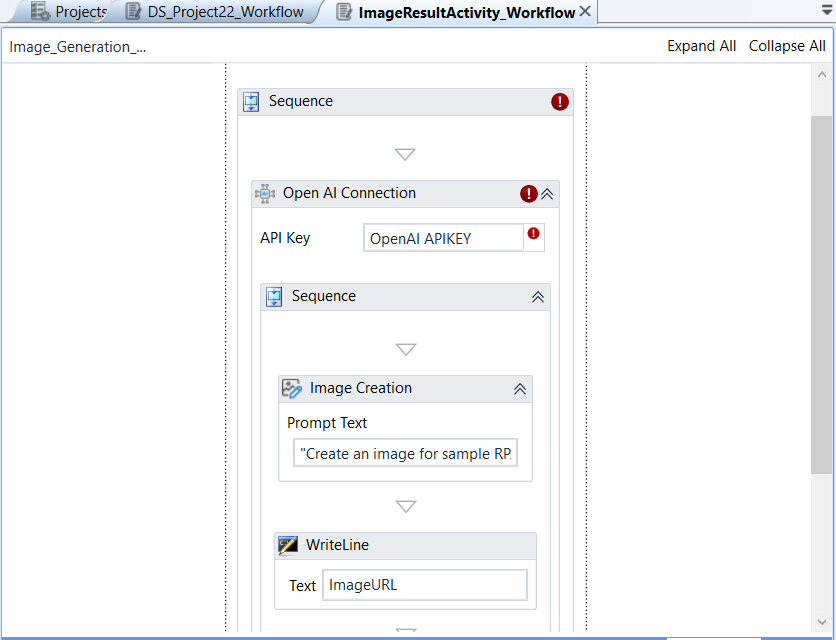
- Edit and configure the details as per your requirements.
Creating a New Project
- Open RPA Bot Studio.
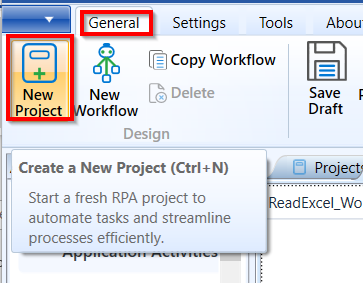
- On the ribbon click General tab > New Project. Name Project pop-up appears.
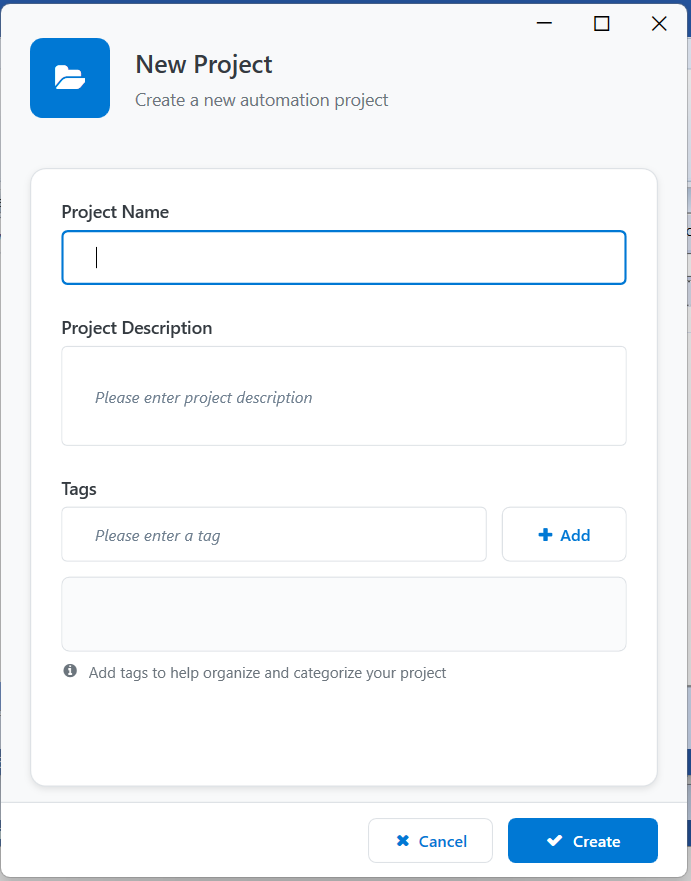
- Enter the Project details.
| Field | Description |
|---|---|
| Project Name | Enter name for your project. Note that you cannot edit the project name and hence enter a relevant project name. Special characters are not allowed in the name. |
| Project Description | Enter description for your project. |
| Tags | Enter Tag name and click +Add to add the tag name to your project. Add multiple tags to organize and categorize your project. |
- Click Create.
A project is created with the given name and a workflow screen opens up with the workflow name “{project_name}_Workflow”. A new empty workflow appears on the screen with a single sequence containing the caption Drop activity here.
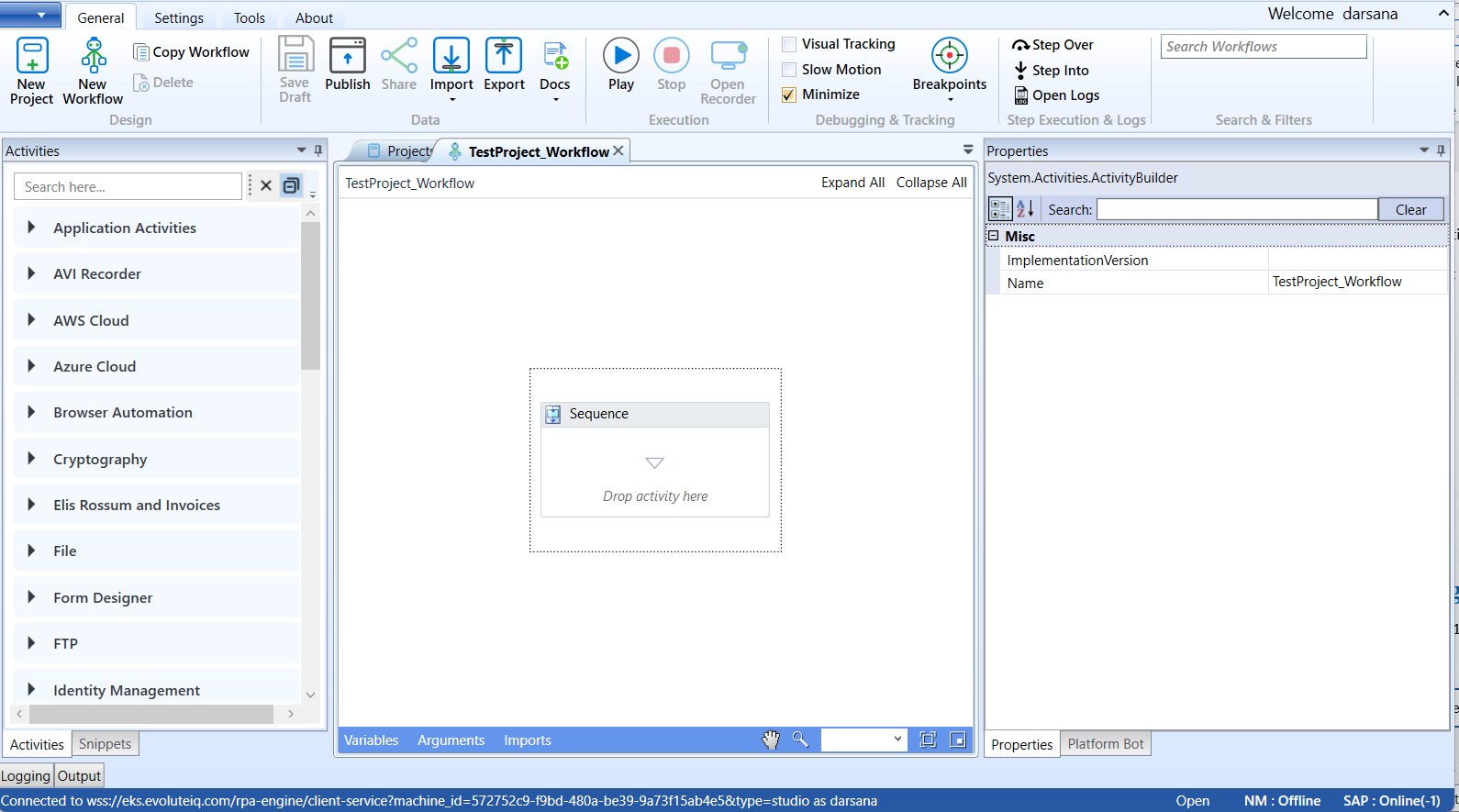
New Project created with a new workflow
- After creating the workflow model, on the ribbon > General tab > click Save Draft to save the workflow in draft mode.
Viewing Project Details
You can view the details of the project in the Projects tab. The tree structure of the project and workflow are displayed in the Projects tab.
- On the Project tab, click a project name for viewing the details of that project.
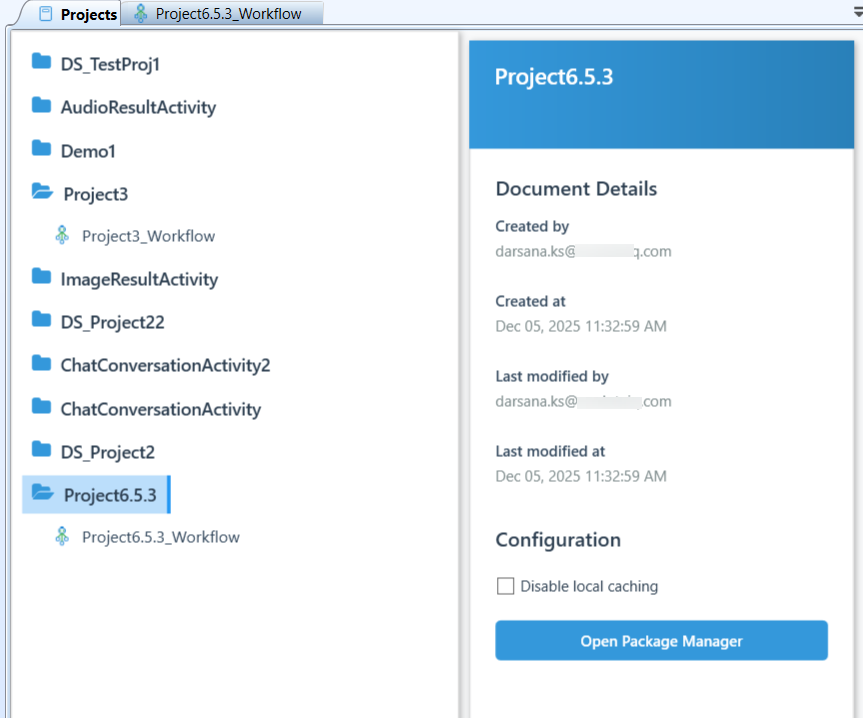
Project details
- You cannot edit the project name. However, you can edit the details within the project. That is, you can edit the workflows, activities, and properties.
Document Details:
-
Created by: Email of the user who created the project.
-
Created at: Date and time of project creation.
-
Last modified by: Email id of the user who recently modified the project details and saved it.
-
Last modified at: Last modified date and time.
Configuration:
-
Disable local catching: In the project details select the Disable local catching to disable the local catching. On enabling the checkbox, the updated workflow content will not be available in the local workflow file.
-
Open Packet Manager allows you to add certain NuGet packages to the selected project. Refer to NuGet Packet Management documentation.
Editing Project Details
You are allowed only to edit the Description or tag for a project using the Project edit feature.
However, you can open the workflows and edit the workflow details.
-
You cannot rename a project name once it is created. The project name is unique for an organization.
-
On the project tree, right click the project name.
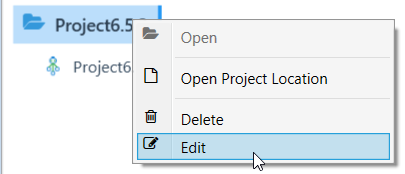
- Click Edit. The project details appear. Edit the Description or tag details and click Create.
Viewing Project Location
- On the project tree, right click the project name.
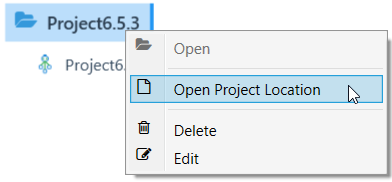
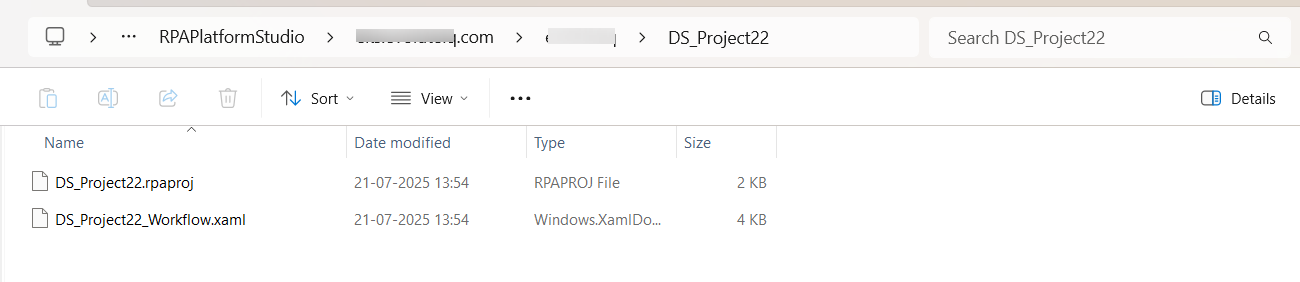
- Click Open Project Location. The project location opens in the explorer.
Viewing the Project Structure
All the projects created in the platform appear in the Projects tab with the structure.
- On the Project tab, click a project name to view the contents of that project in a tree structure.
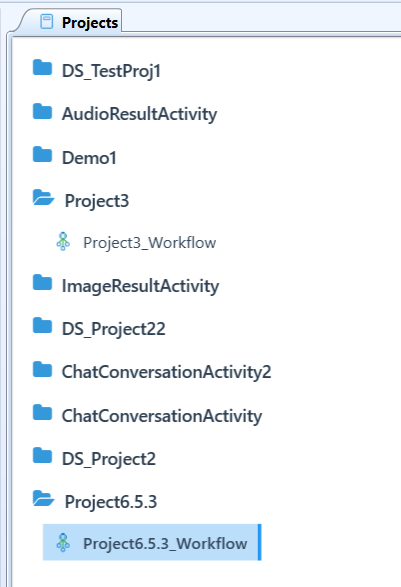
Project tree structure in the Projects tab
Sharing a Project
Share feature allows you to share a project to a user and grand project ownership access or limited access them. Share feature is in the project level.
Note that you can share the projects that you have created. Those projects which are shared to you by some other users cannot be reshared to another user.
When you share a project, all the workflows within that project are shared with the same level permission to the shared user.
You can share a published or unpublished project to another.
When you share a published project, the user will be able to access to the project in RPA Studio, RPA Agent and RPA Assistant.
When you share an un published project, the user will be able to access the project in RPA Studio.
If you have shared write permission to the user, all the updates made by you and the other user reflects in the Project.
The main purpose of share feature is to give the automation execution access to another user.
-
Open RPA Bot Studio.
-
In the Projects tab, click the project name that you want to share.
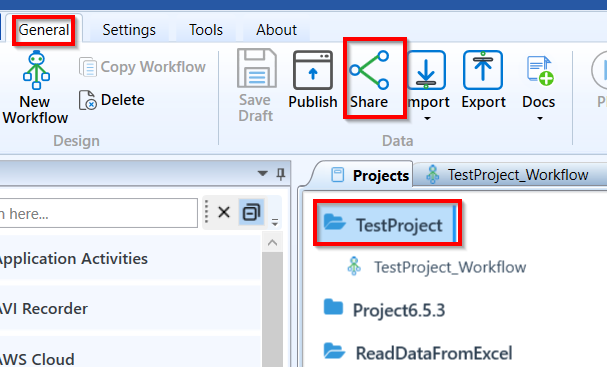
- Click General tab > Share. Share configuration details appear.
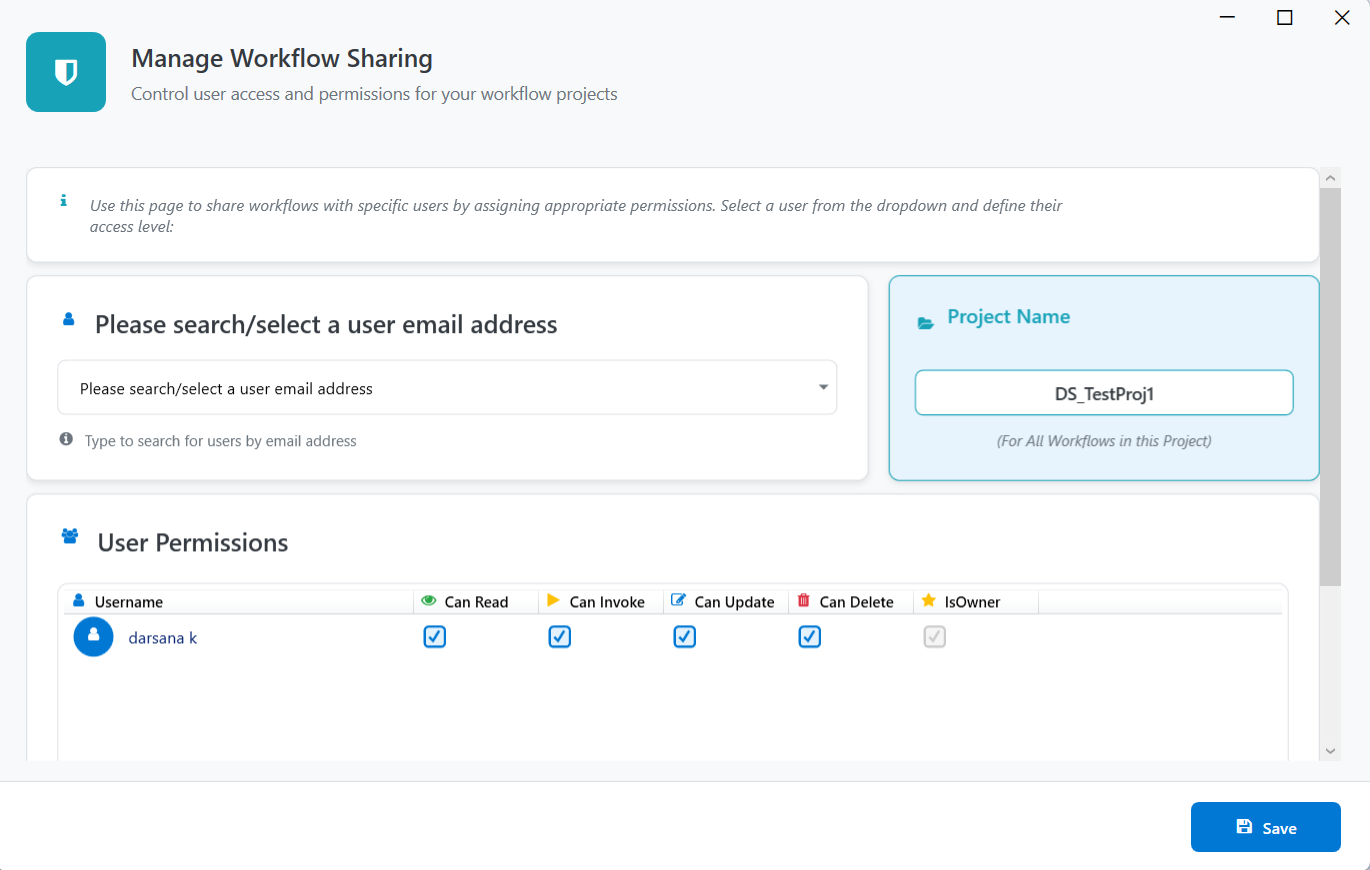
- In the search box enter the email id of the user to whom you want to share your project.
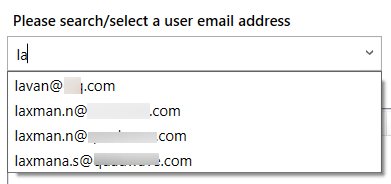
- Select the name of the user. The name gets listed in the User Permission below with permissions.
When you assign or share a project to a new user, the read and invoke permissions are granted by default. However, you can click and select or deselect the permission as per your required access for the selected user.
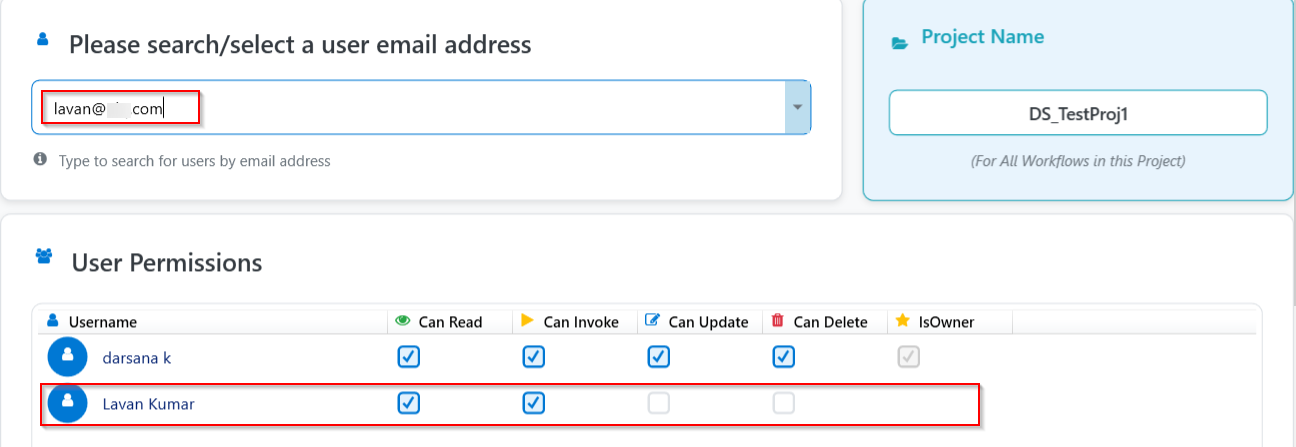
The permissions apply for all the workflows within the selected project.
- Click Save. Confirmation pop-up appears.
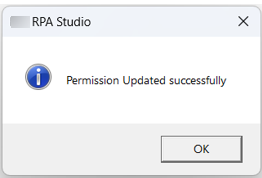
- Click OK.
Once the project is saved, the user to whom it is shared can access the project in their Load Projects screen.
Publishing a Project
- You must publish a project or a workflow to execute it.
When you successfully publish a project, all the workflows within that project gets published. The published workflows will be available in the RPA Bot Agent and RPA Bot Assistant applications for execution. It will be also available on RPA Management > RPA Automations > Bot Flows section for execution.
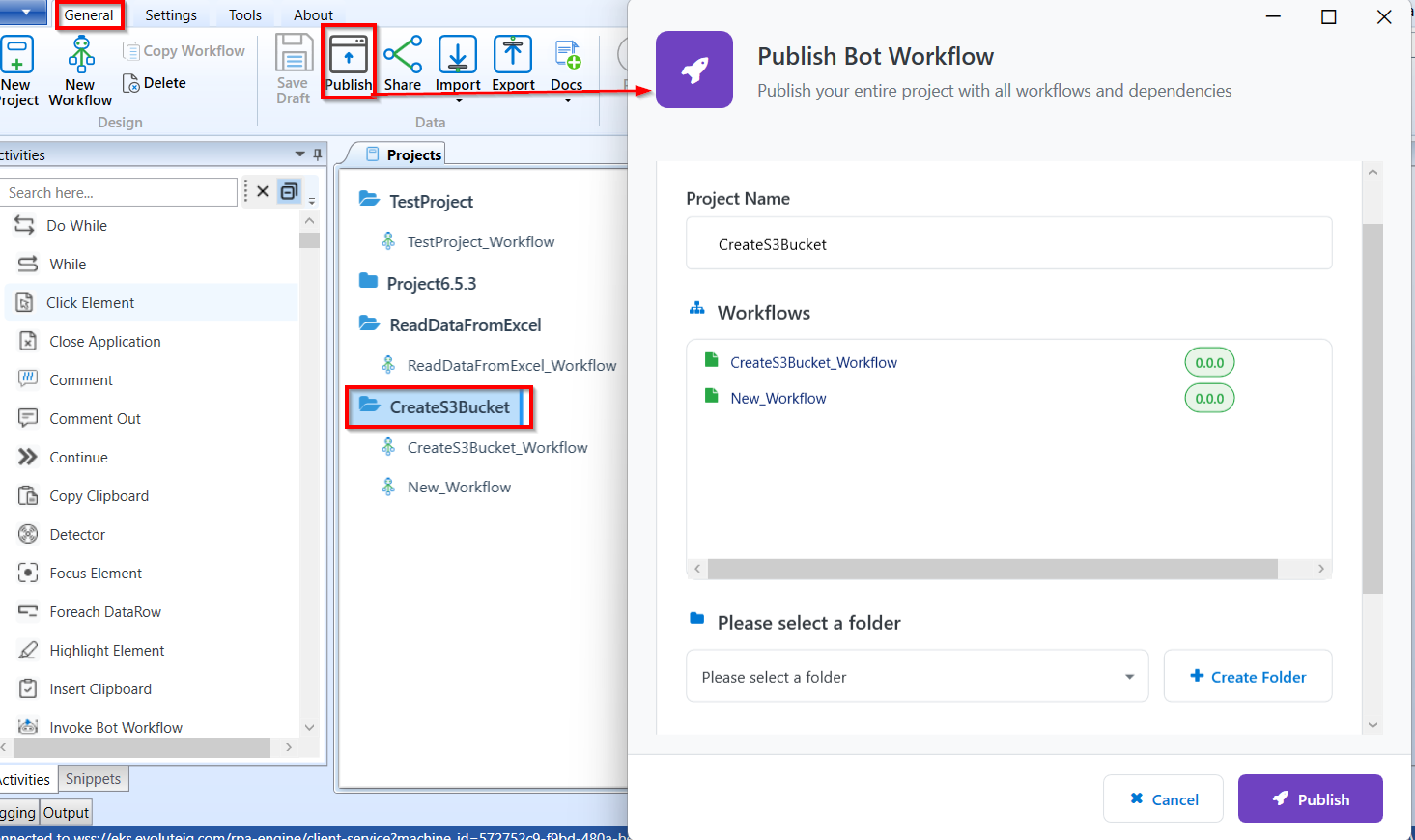
- On the Project tree tab, select a project > click General tab > Publish. Project Bot Workflow popup appears.
All the workflows within the project is listed under “Workflows” with its corresponding current version.
-
Click and select the required workflows that are to be published. To select multiple workflows, hold CTRL and select workflows.
-
To select an existing folder for publishing the workflows, click “Please select a folder” drop-down and select the folder.
The folders displayed in this list are the folders existing in the Platform RPA Management. These folders are either created through RPA Management or RPA Studio >Publish screen. Note that the published workflows are saved in a separate folder that you select.
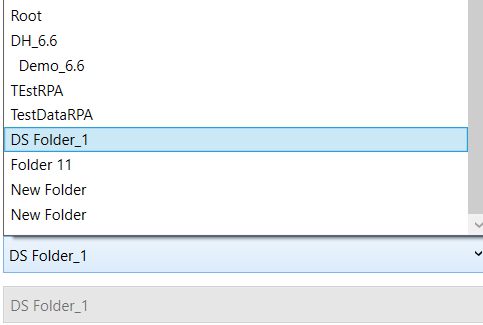
To create a new folder, click Create Folder and create a new folder.
Refer to Create New Folder for Publishing Project.
After creating new folder, select that folder to publish your workflows. -
Click Publish.
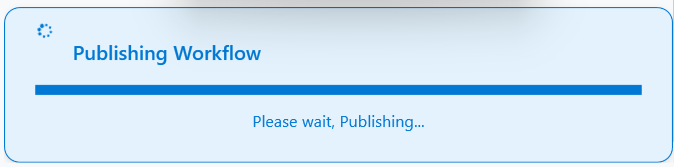
Success message appears on successful publishing of the project.
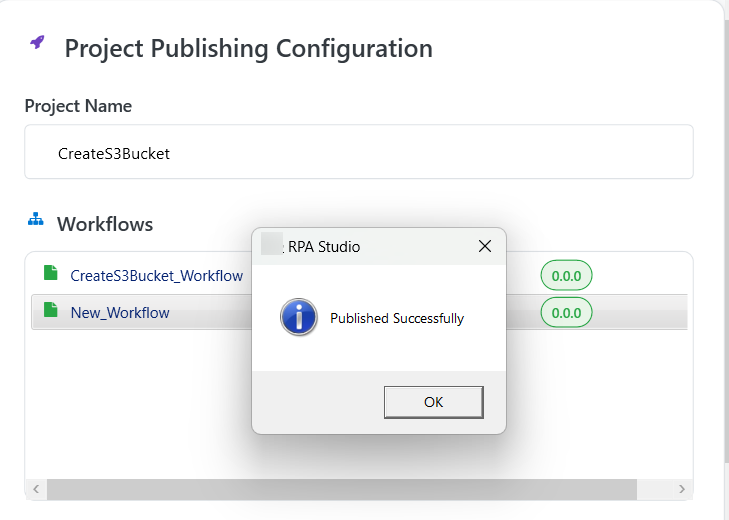
- Click OK to complete the action.
Project Versioning
When you select a project for publishing, the current version of each of the workflows appears along with the workflow name.
If you are publishing a workflow for the first time, the current version appears as “0.0.0”.
The new version will take the version number as 1.0.0
When you publish the project again, all the workflows within that project will get published with an increment of version as mentioned above.
Versioning is at the workflow level. Refer to Workflow Versioning.
Creating New Folder for Publishing Project
For publishing a project, you can either select an existing folder or create a new folder.
All the projects are published within a selected folder.
- Note that you cannot edit or delete a folder in RPA Studio. However, Platform RPA Management section allows you to edit the folder name.
To create a new folder:
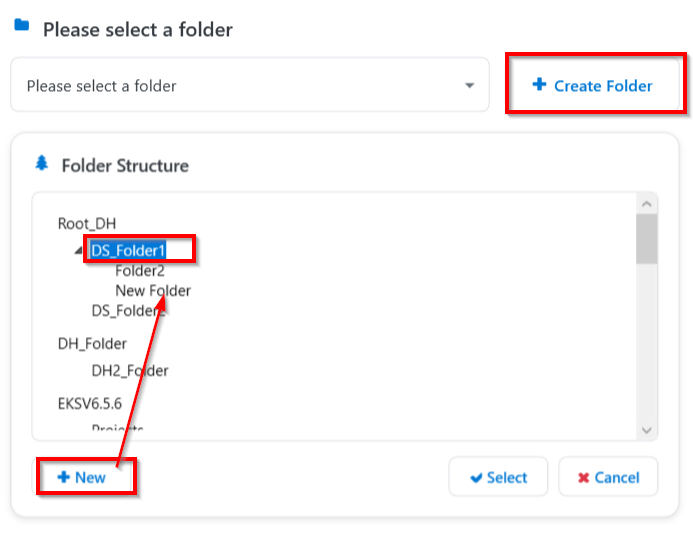
- Select a project to publish, click General tab > Publish > Create Folder. Folder Structure appears with the existing folder structure.
-
Click a folder name within which you have to create a new folder. If you do not select a folder, it will create your folder in the root.
-
Click New.
-
Enter the Folder name displayed in the edit mode and hit enter.
Note that you cannot edit or delete the folder name created. -
Click the folder created and click Select. Project. The folder is selected and displayed below “Please Select a Folder”
Or click Cancel to close the new folder creation box and to go back and select an already existing Folder.
Viewing Docs
Click General > Docs
Deleting a Project
When you delete a project all the workflows and the associated items get deleted. Delete feature allows you to delete a selected project.
-
Open RPA Bot Studio.
-
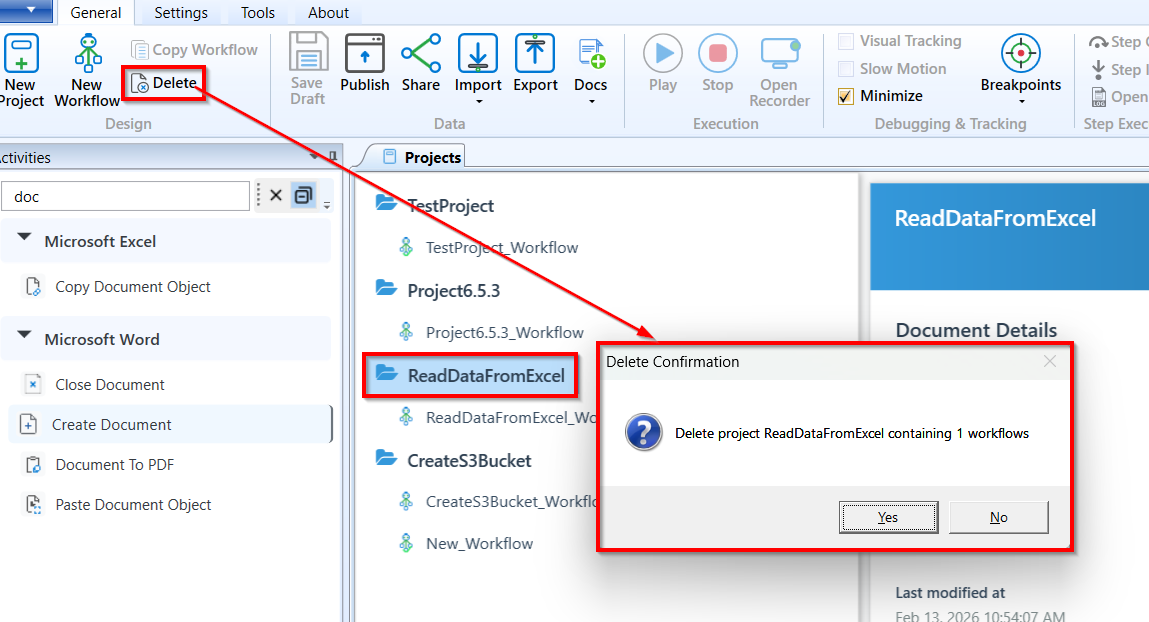
In the Projects tab, click the project name that you want to delete.
-
On the ribbon > General Tab, click Delete. A delete confirmation pop-up appears.
Deleting a project
- Click Yes to delete the project (or click No to cancel the action).
Alternatively, you can right-click the project name and then click Delete for deleting the project.
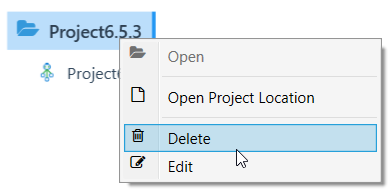
Also, you can select the desired project and press DEL on the keyboard for deleting the project.