External Connectors
About External Connectors
The external connectors are used to utilize external data source connectors through the Platform.
You can configure a specific external connector thereby by achieving integration of the connector to the platform for accessing its features.
External connector details are uploaded to the Platform in a YAML file.
The external connectors in the platform are enabled based on the business requirements.
External connectors connect to 250 + systems as data sources and directly interact with the system as standard data pipes in the backend.
Overview of External Connector Configuration
Follow the Steps below to establish a connection with a specific external connector in the platform.
-
Step 1: Create an YAML file: Create an YAML file (you can create .YAML file in any text editor) for the required connector with appropriate details. Each connector need a separate YAML file.
Refer to YAML File Configuration Details. -
Step 2: Create an External Connector: Navigate to Manage > Configuration Management > External Connector and create the external connector by uploading the YAML file.
Refer to Creating New External Connector Configuration. -
Step 3: Create a Datasource: Navigate to Manage > Configuration Management > Datasource and create a Datasource for the required connector by providing the authentication details.
Refer to Creating Datasource. -
Step 4: Import Objects form Datasource: Navigate to Manage > Configuratin Management > Datasource and import the objects (tables) from the required datasource.
Refer to Importing Objects form the Datasource.
When you import objects from data source, the platform automatically creates data entity tables from the objects in the Manage > Data Catalog > Data Entities section.
Now you have established a connection to the external connector and the relevant activities are displayed in the process flow for utilization.
YAML File Configuration Details
For configuring an external connector, you need to upload a YAML file with the necessary details as per the specified format. Each External Connector needs a separate YAML file. You can create only one connector for a particular account.
In the YAML file, for a connector account, add, update, delete, and filter record activity details are mandatory.
In the YAML file, include the attributes mentioned below to establish integration with the specified External Connector.
-
provider: Provide the External Connector Name. This is usually the external connector account name. For example, Salesforce, MS Teams, Confluence.
-
dataSource: Define the Datasource attributes. These attributes appear as configuration properties for Datasource in the Manage > Configuration Management> Create Datasource - select Type and Settings > Create Datasource – select Type section.
-
authTypes: Auth type is a datasource attribute. Enter the authTypes and define authType attributes. Multiple authTypes can be defined for a connector. Number of authTypes depends on the connector that you are configuring. The auth type attributes defined within the authType get listed in the Auth Type drop-down list in the Main Menu > Settings > Create Datasource – Auth Type configuration UI and Main Menu > Manage > Configuration Management> Create Datasource > Auth Type for the selected connector type. Basic and OAuth are the common auth types used.
-
dataEntities: You can define the Data entities or table schema (objects) that are required in the YAML file. Data entities are captured as part of the Manage > Data Catalog > Data entities.
-
functions: Functions or stored procedures are defined in the functions section. It is mandatyory to define the Functions. Functions defined are displayed as Activities in the Activities panel (App Studio > Application > Process Flow - Activities) that can achieve the specific functionality.
-
If the property for auto-fetch of data is mentioned as false in the YAML file, only the Data Entities that are defined in the YAML file are taken for processing (importing).
If the property for auto-fetching of the data is mentioned as true in the YAML file, then the system fetches the Data Entities from the JDBC driver that is mentioned. -
If the property required is mentioned as true for a particular function, the property associated with that function will appear as a mandatory configuration when you select the datasource else if the property required is mentioned as false, the property associated with that will be displayed in the Optional Details category of the activity.
Viewing External Connectors List
-
Click the Burger menu and navigate to Manage > Configuration Management.
-
Click External Connector in the configuration entity panel. The list of all external connector configurations in the organization is displayed.
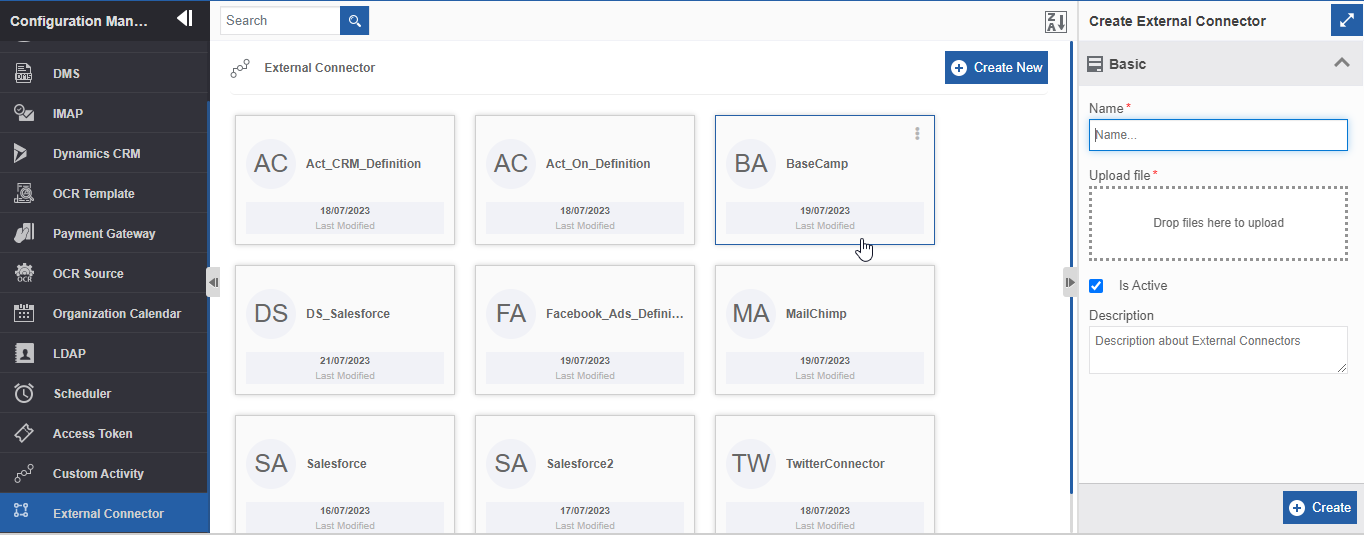
Figure 1: External Connector Configuration entity list
Creating New External Connector Configuration
Follow the below steps for creating a new external connector entity configuration.
-
Click the Burger menu and navigate to Manage > Configuration Management.
-
Click External Connector. The external configuration appears.
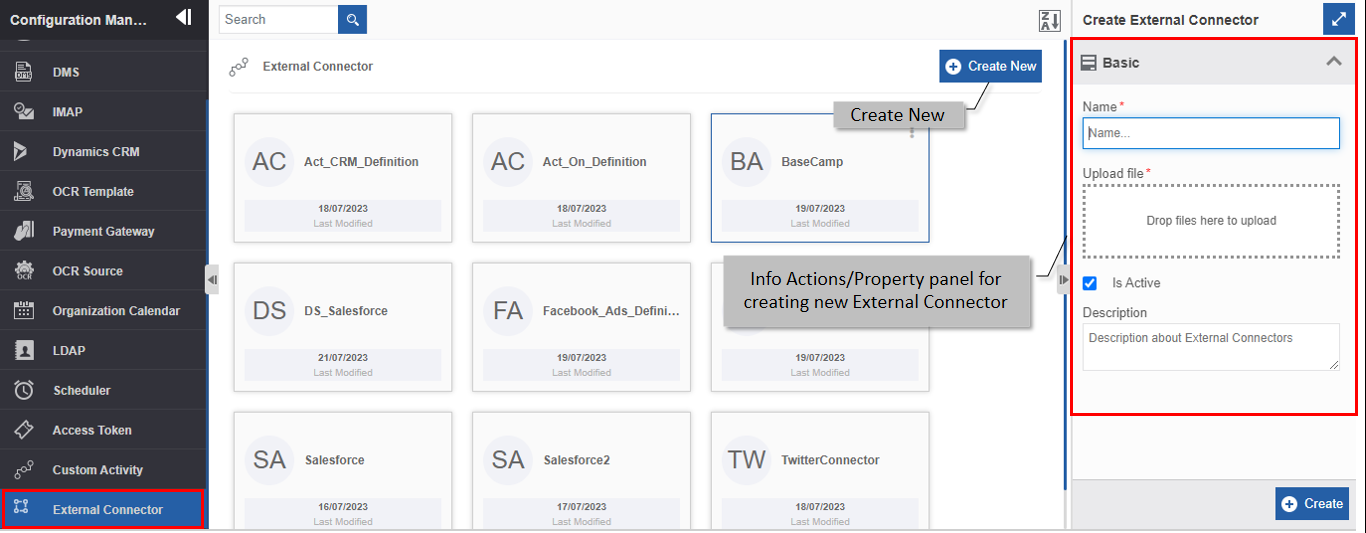
Figure 2: Creating new external connector entity -
Click +Create New.
-
Enter the configuration details in the Create External Connector panel as explained below.
Field Description Name* Enter the name of the external connector configuration.
Character limit: 50.
Data type: Alphanumeric and underscore.
Upload file Upload the YML file with the required configuration details.
Refer to YAML File Configuration Details for more details.
Is Active Select “Is Active” to activate the connector.
If not selected, the connector will be deactivated and will not be
available for utilization.Description Enter the description of the external connector. -
Click Create on the bottom right of the page and the external connector configuration gets created with the details entered.
Viewing and Editing External Connector Configuration
-
Click the Burger menu and navigate to Manage > Configuration Management > External Connector.
-
Click the Connector configuration card to view the details of the selected connector. The details of the Connector appear in the Info Actions panel (Edit External Connector).
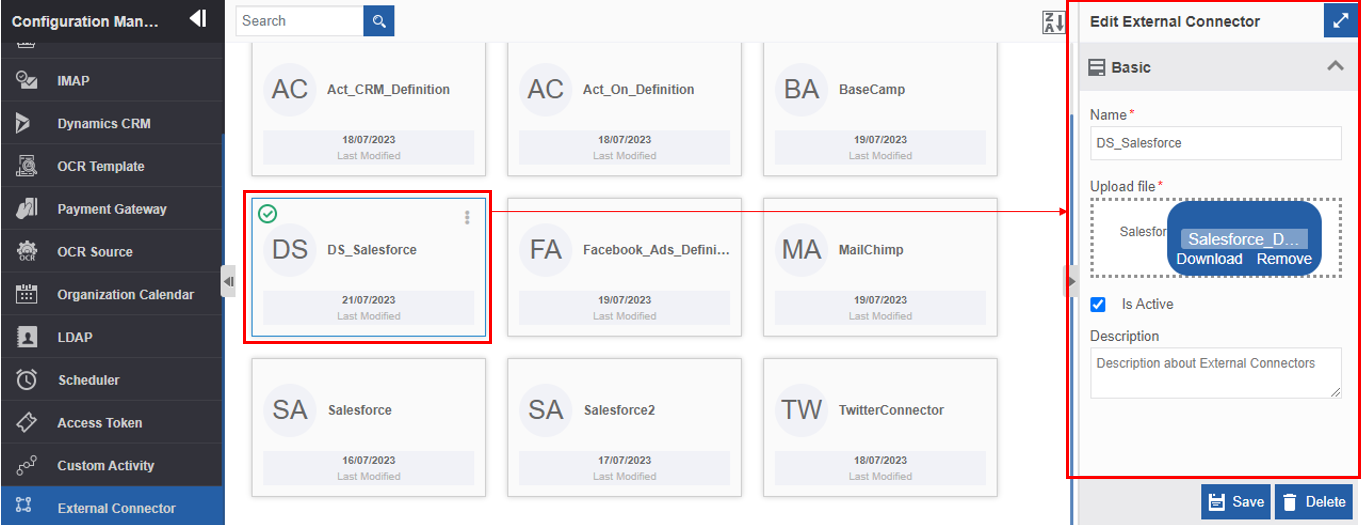
Figure 3: Editing External Connector details -
Edit the connector details as needed.
-
Click Save.
Duplicating External Connector Configuration
Follow the below steps for duplicating an existing connector Configuration.
- Click the Burger menu and navigate to Manage > Configuration Management.
-
Click External Connector. The list of all connector Configurations is displayed.
-
Hover over any connector card. Three dots appear on the upper right side of the card.
-
Click the three dots. More Actions appear.
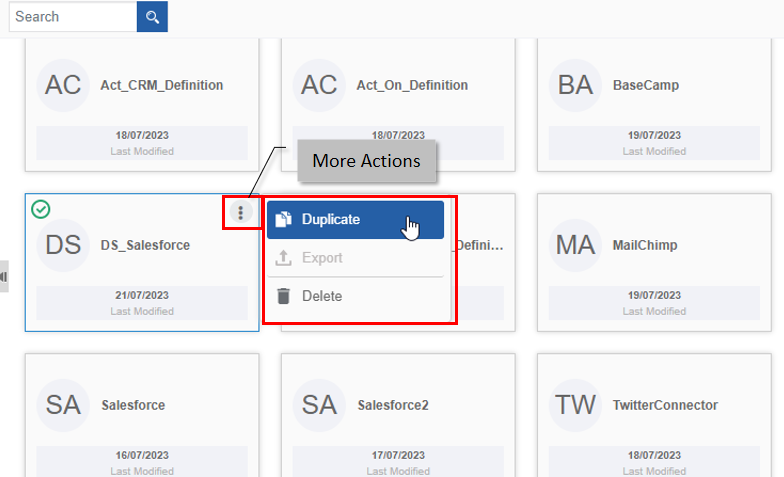
Figure 4: Duplicating the Connector configuration -
Click Duplicate. A confirmation pop-up appears.
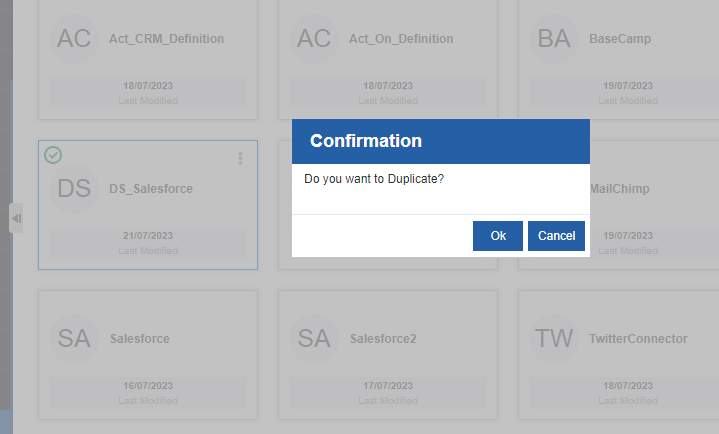
Figure 5: Duplicate confirmation -
Click Ok for duplicating the connector configuration (or you can click Cancel to cancel the duplicate action). A Success message appears on the successful duplication of the Connector.
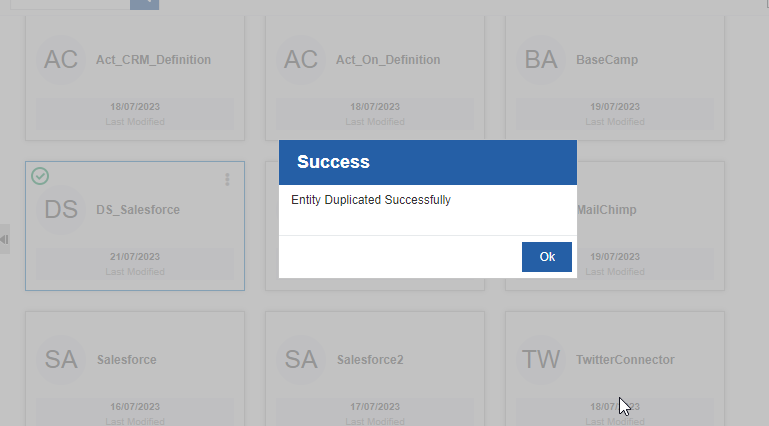
Figure 6: Duplicate success message -
Click Ok. A duplicate copy of the Connector appears on the custom activity page with the same Connector name suffixed with “_copied”.
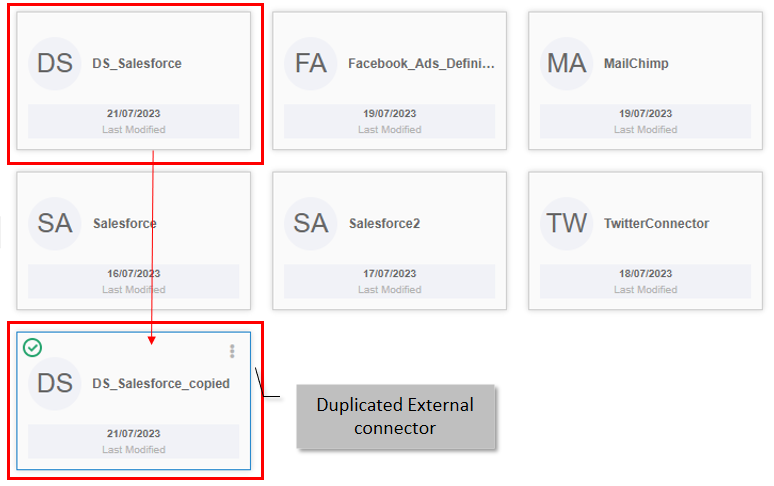
Figure 7: Duplicated Connector configuration
Deleting External Connector Configuration
- Click the Burger menu and navigate to Manage > Configuration Management.
-
Click Connector. The list of all Connector configurations is displayed.
-
Click the Connector name card that is to be deleted. The lower-right of the page displays the Delete button.
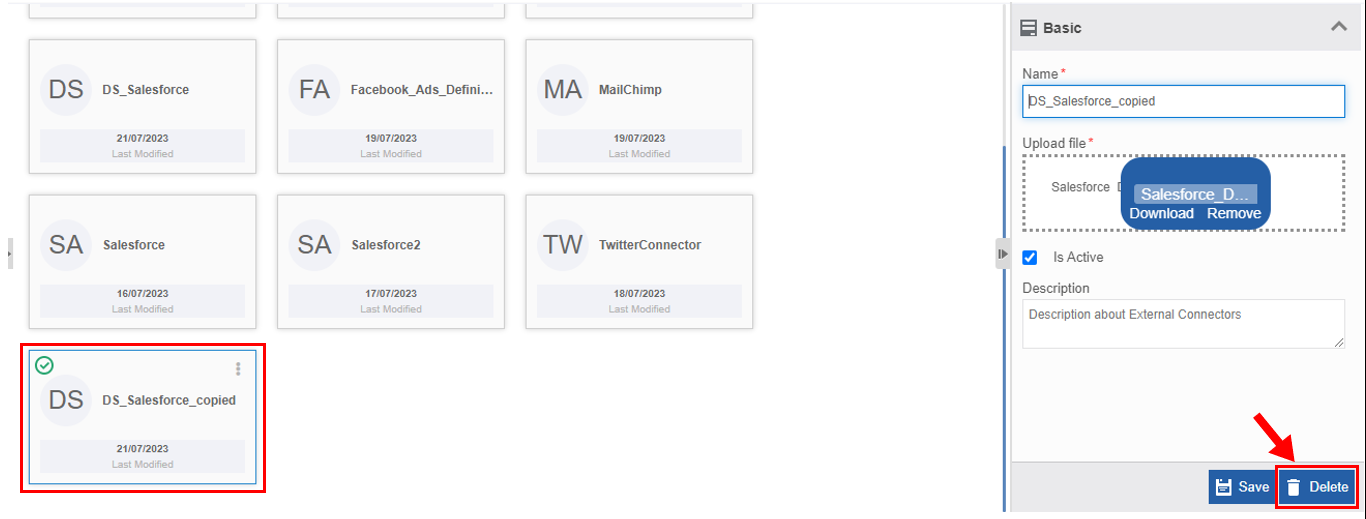
Figure 8: Deleting Connector configuration -
Click Delete. A Confirmation pop-up for delete appears.
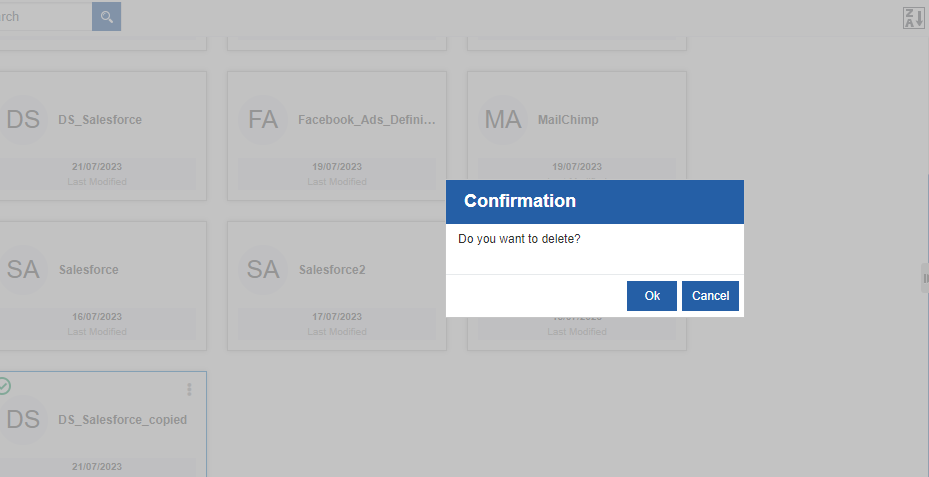
Figure 9: Connector Delete confirmation -
Click Ok for deleting the Connector.
Or
Click Cancel to cancel the action.
Alternatively, you can follow the below steps to delete the Connector configuration:
- Click the Burger menu and navigate to Manage > Configuration Management > External Connector.
-
Hover over the Connector card. Three dots appear on the upper right side of the card.
-
Click the three dots. More Actions appear.
-
Click Delete and follow step 5 in the above procedure.
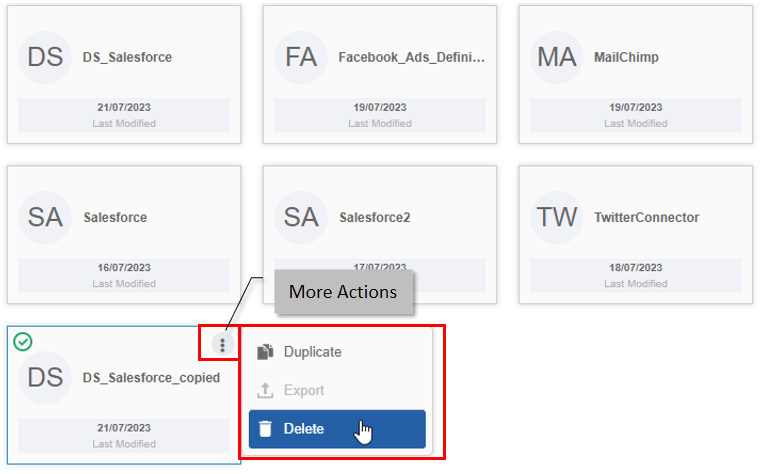
Figure 10: Delete action in More Actions
Utilizing External Connectors
Enterprise Application Activities in Process Flow
Enterprise Application Activities
To use the enterprise application activities, you need to add the specified enterprise application category to the activities list. Then you can create the required process flow by using the activity. Each of the enterprise application categories will have a different set of activities and attributes based on the activity. Refer to specific enterprise application activities documentation for more details on the activities and configurations.
Adding and Viewing Enterprise Application Activities
All the connectors that have specific activities appear in the Process flow activity list. The activity category will show the name of the connector category that you provided in the Management > Configuration Management > External Connector configuration.
- Navigate through App Studio > Process Flows.
- In the Process Design canvas > Activities panel click “+” to view the advanced connector activities.
- Click {ExternalConnector_name}. All the {Connector_name} category activities get added to the Activities panel under the { ExternalConnector _name} category accordion.
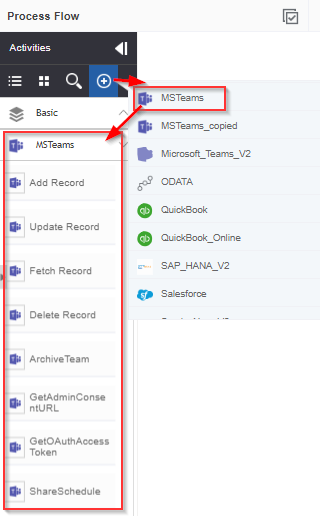
Figure 11: MS Teams connector category with corresponding activities
Configuring Datasource for the Activity
In the Datasource Mapping section, you can chose the datasource name to which you want to connect.
- Drag the required connector activity to the process flow design canvas.
-
Click Datasource Mapping accordion.
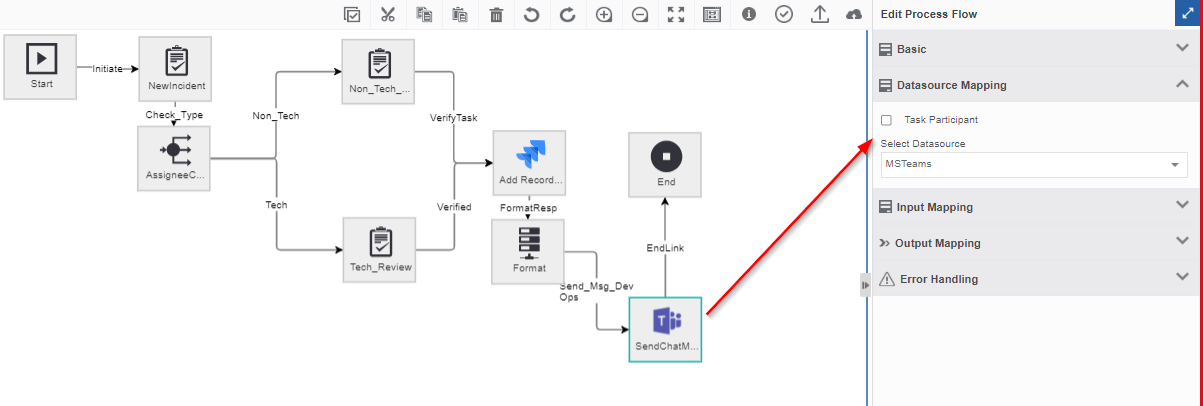
Figure 12: Datasource Mapping details -
Select the Task Participant if you want to assign the activity to the user or participant of the previous Task activity. If your participant is the system, deselect Task Participant.
- Click Select Datasource and select the required datasource name. The datasources available in the platform appears in the drop-down list.
Utilizing Objects in Process Flows
You can write SQL queries for Objects, Tables, or Views imported as data entities. Views are read-only. You can manipulate the tables using the SQL queries in the entity, Database Scripts. When you create a database script entity, you can map the required datasource in the configuration.
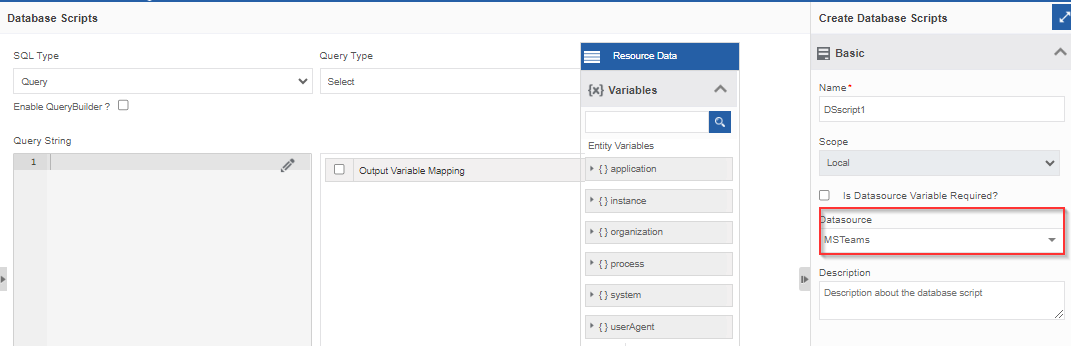
Figure 13: Selecting enterprise application external connector as datasource for creating database script entity
These database scripts are mapped to the DB activity in the process flow for achieving any specific business requirements.
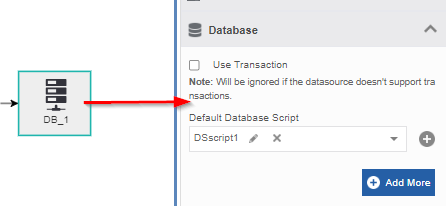
Figure 14: Mapping database script in the DB activity in the process flow
External Connectors in Settings
You can set personalized account settings and configurations for connecting to the specific enterprise application. The creation and configuration of the datasource are the same as in the Management > Configuration Management > Datasource. The datasources created in the Settings section are user-specific and are not accessible to any other user.
-
Navigate through the Burger menu > Settings > Datasource.
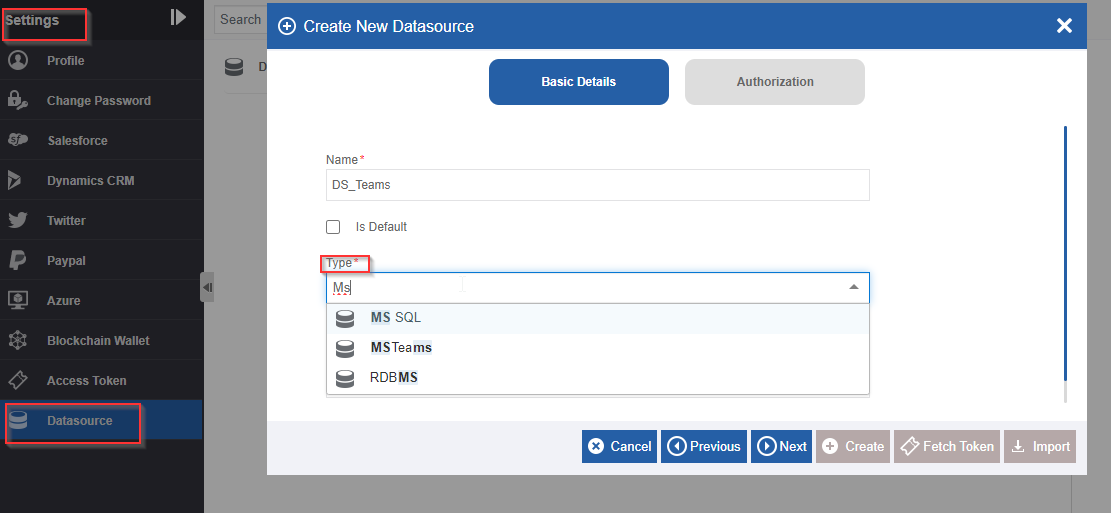
Figure 15: Personalised datasource creation in the Settings section -
In the Type drop-down enter the type of datasource for which you need personalized configuration. All the external connectors that are configured under Management > Configuration Management > External Connectors are accessible in this drop-down list. Once you start typing the name of the external connector, the matching 3 items appears.
-
Select Type and then click Next. Authorization details section appears.
- Configure the details of the datasource. Now this datasource is accessible only to the particular user who has configured this.