GenAI Studio
Generative Artificial Intelligence (GenAI) Studio allows you to create the configurations that are integrated to the AI workbech for creating agents. The user must be aware of the Gen AI concepts and Prompt engineering along with the knowledge of LLMs.
All the details created in the GenAI Studio apply to the specific Organization in which it is created and the organization has to host the platform LLM on their server.
All the entities or artifacts created in the GenAI Studio are accessed and utilized in the AI Workbench configurations.
Using variables
Provide direct values for the GenAI Studio artifacts configurations for testing purposes or enter variables for the configurations if the values are to be resolved during a process flow execution at runtime.
Viewing GenAI Studio Artifacts
- Click the Platform main menu.
-
Click Management.
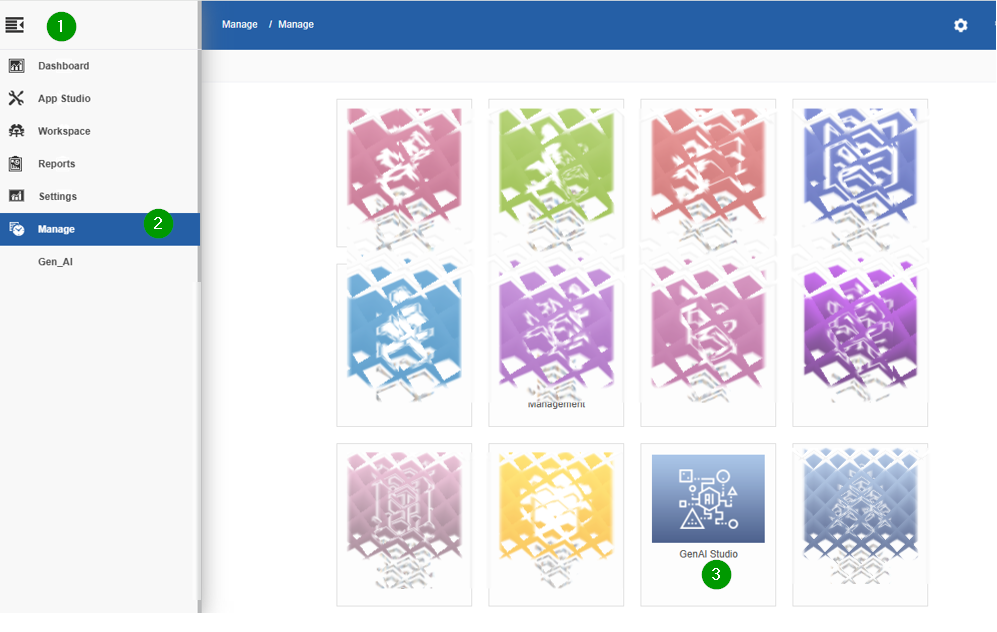
Lite subscription supports Cloud Configuration (Google Cloud AI models) and Guardrails only.
-
Click GenAI Studio.
-
Click the expand arrow of the left side menu to expand left side panel to view the GenAI Studio artifacts.
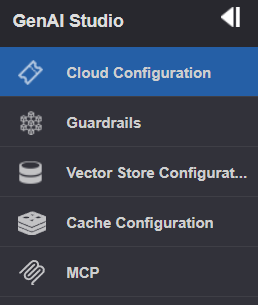
GenAI Artifacts
Click the Burger menu, navigate to Management > GenAI Studio > click a GenAI artifact from the left side panel. The selected page appears.
The Gen AI artifacts include:
- Cloud Configurations
- Guardrails
- Vector store👑
- Cache Configurations👑
- MCP👑
Cloud Configuration
Cloud Configuration section allows you to create multiple configurations for multiple cloud service providers. It holds the credentials and other related information of any external cloud services that are utilized. The cloud providers provide various models for specific purpose which you can access and utilize in the Gen AI Workbench for your requirements.
Single user can create multiple services and for each service a user can create multiple accounts.
The cloud model providers provide AI models and Embedding models that you can use for your agent creation and execution. You must configure the cloud provider details to authenticate your requests to the cloud provider for accessing their models.
After creating the Cloud Service configurations, you can map the services in the AI Workbench > LLM Settings and for the Vector Store configurations as applicable.
Viewing Cloud Configurations and Details
-
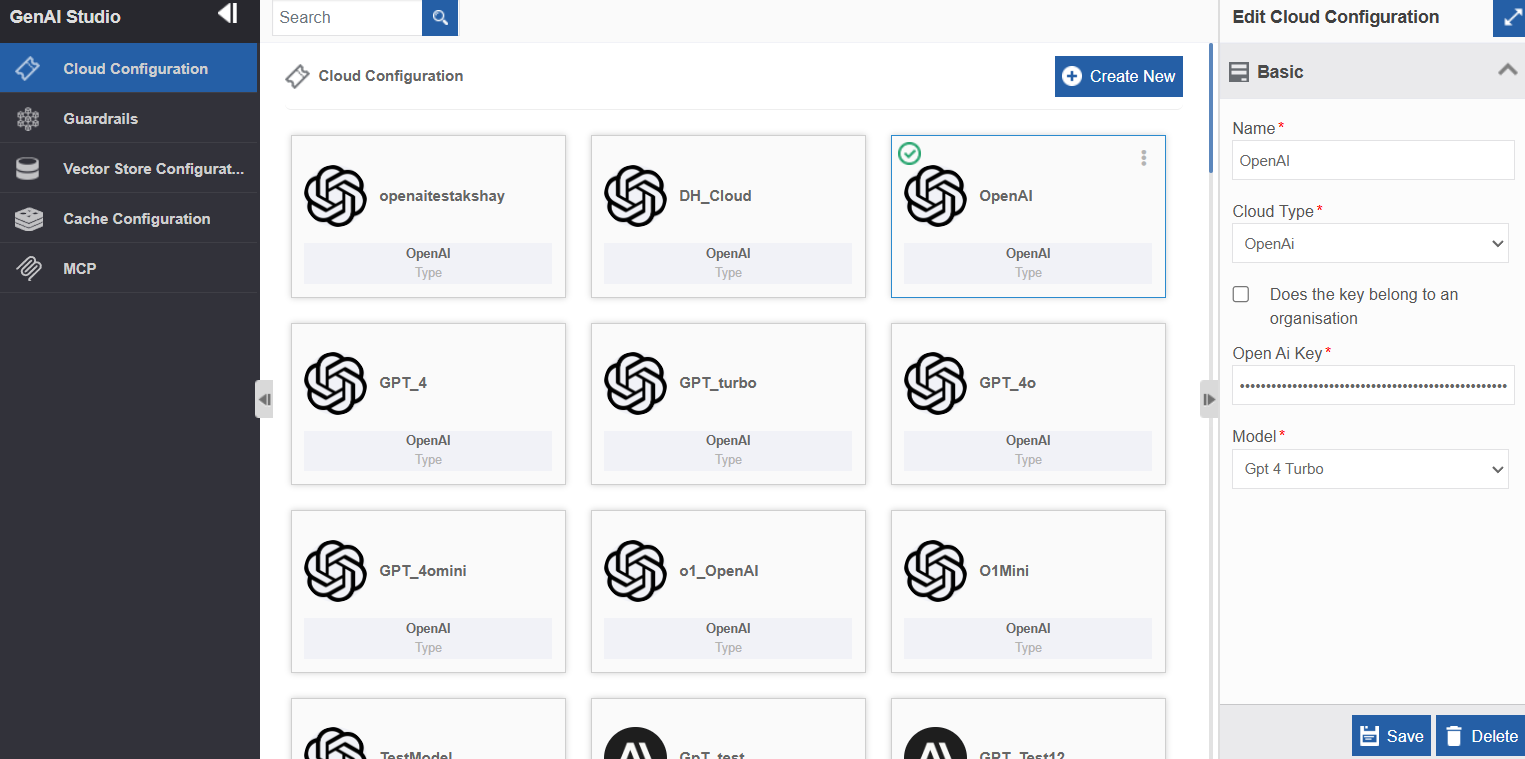
Navigate through main menu > Management > GenAI Studio > Cloud Configuration. The list of Cloud configuration appears.
-
Click a Cloud Configuration name. The details appear on the property panel on the right.
- Edit the required details.
- Click Save.
Creating a New Cloud Configuration
- Navigate through main menu > Management > GenAI Studio > Cloud Configuration.
-
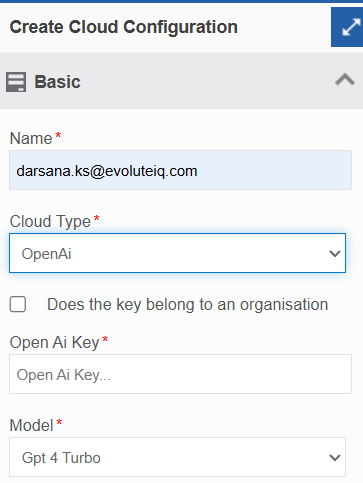
Click Create New.
-
Provide the following cloud configuration details.
Field Description Name* Enter a name for the Cloud configuration. Cloud Provider Click and select the required cloud provider name from the list.
The list displays cloud provider names based on your subsription. The further configuration details appear dependent on what you select in the Cloud Provider.
Platform Lite version supports only Google Cloud.
Refer to Configuring Cloud Providers to configure the details for the selected cloud provider -
Click Create.
Configuring Cloud Providers
Platform Lite version supports only Google Cloud.
Google Configurations
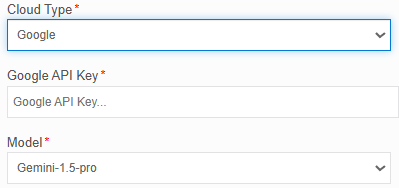
Google offers a range of GenAI models through its Google AI platform (including Gemini models) and its Vertex AI platform for enterprise users. These models support various text, image, and multimodal generation tasks.
Select Cloud Type = Google
| Property | Description |
|---|---|
| Google API Key* | Copy the Google API key from the Google Cloud Console and enter it here. This key is used to authenticate your requests to Google AI services. Refer to Google API Key for AI Services. |
| Model | Select the required model name from the available models of the cloud provider.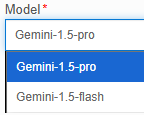 |
Deleting a Cloud Configuration
You can delete a cloud configuration only if it is not associated with any other GenAI Workbench entities.
- Navigate through main menu > Management > GenAI Studio > Cloud Configuration.
-
Click the Cloud Configuration name that you want to delete. The bottom-right of the page displays Delete.
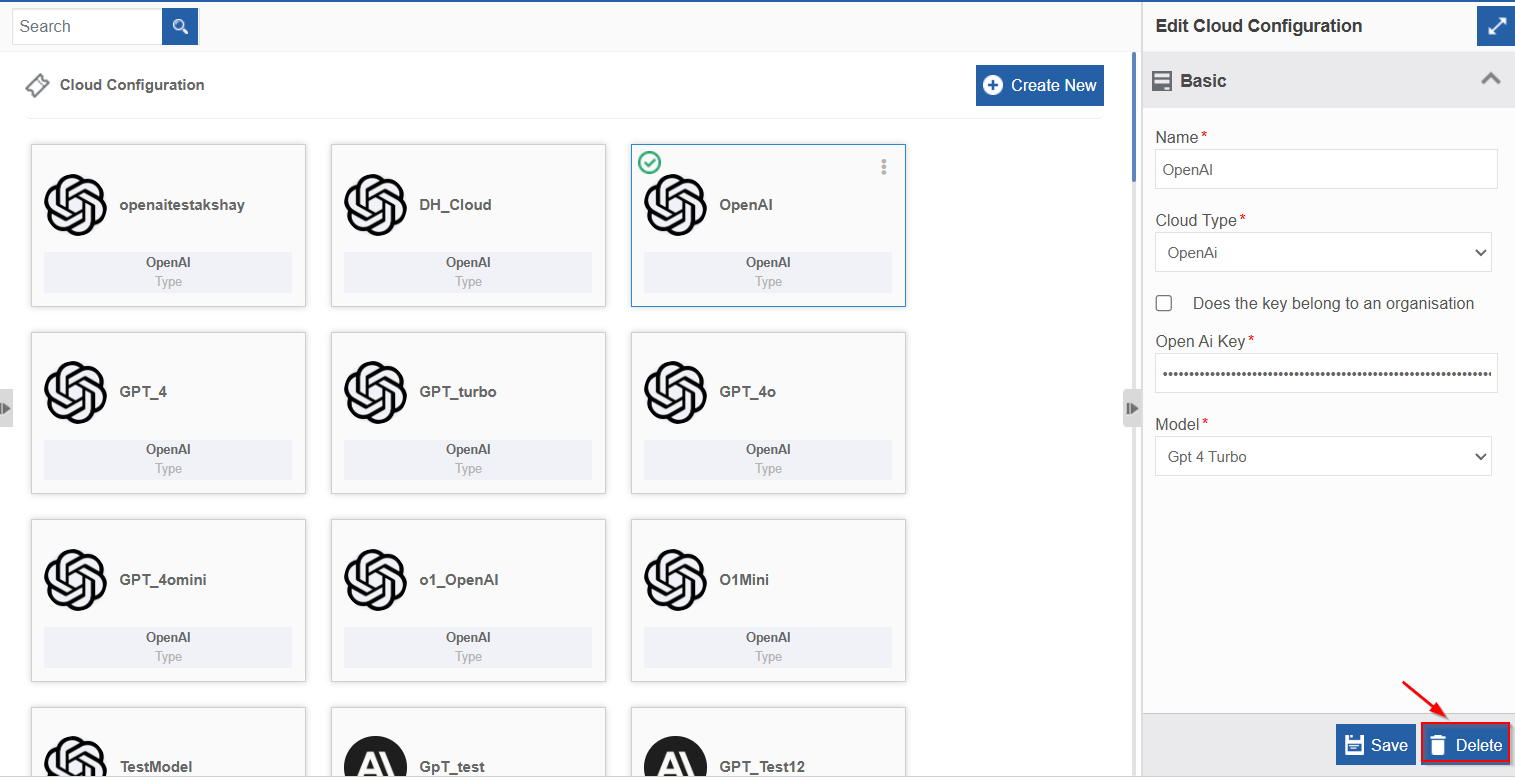
3. Click a Delete. Delete Confirmation pop-up appears.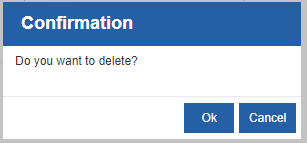
-
Click Ok to delete (or click Cancel to discard the action). The cloud configuration gets deleted.
Info
If the Cloud configuration is associated with any of the GenAI Workbench entities, it will display a pop-up informing that you cannot delete cache configuration unless you remove the associated mapping.
Guardrails
Guardrails allow you to provide a watch on information security. Guardrails are rules or constraints that guide the LLM's behavior. These specific instructions can limit or direct the LLM’s responses. It validates and mitigates specific types of risks as per the guardrail configurations.
When guardrails are configured separately, they apply to all the instances of the LLM. It can block certain topics, enforce maximum response lengths, or mandate ethical behavior across all interactions.
Create multiple guardrails for the agent with different security levels or breach information.
Sensitive information is effectively handled by the chatbot as defined in the selected guardrail.
Viewing and Editing Guardrail Configurations
-
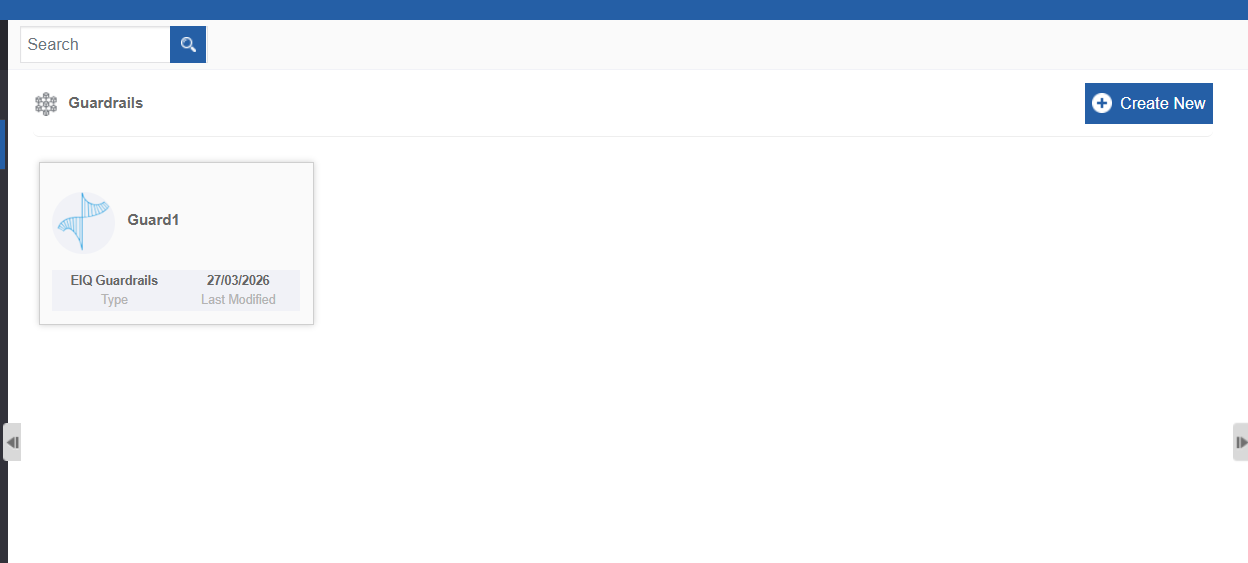
Navigate through main menu > Management > GenAI Studio > Guardrails. The guardrail list appears.
-
Click an item in the guardrail list and the details are displayed on the Property panel.
- Edit the required details.
- Click Save.
Creating A New Guardrail
- Navigate through main menu > Management > GenAI Studio > Guardrails.
-
Click Create New.
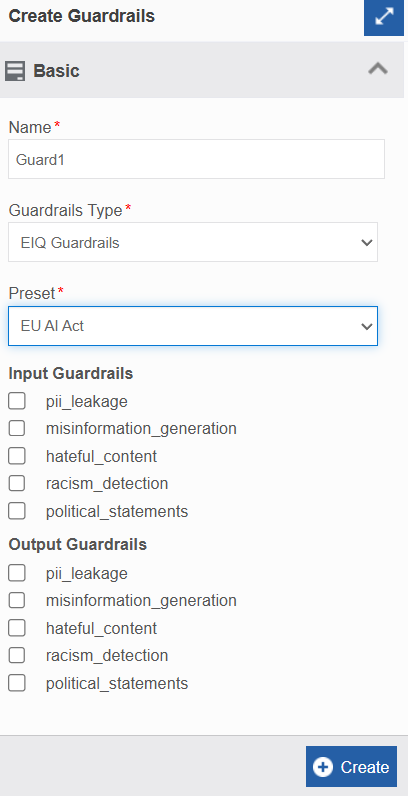
3. Provide the guardrail configurations.Field Description Name Name for your guardrail. Description Description for the guardrail. Guardrail Type Select the Guardrail type.
Applicable details as per your subscription appear on the list.
EIQ Guardrails is the default for all subscriptions.
When you select a guardrail type, a checklist appears for the Input and Output guardrails. The checklist is based on the guardrail type you select.Input Guardrails Check conditions and restrictions for your input guardrail.
This is a filter for the input messages entered by the user. The LLM will consider the input guardrails before answering the question or message. If the user enters any information related to the checked input items, the agent will analyze the checkpoints and will not answer questions that are not meant to be answered.Output Guardrails Check conditions and restrictions for your output guardrail.
This is a filter for the output messages from the model. The LLM will consider the output guardrails before answering. If the LLM output falls under the selected output guardrails, it always filters the output as per the output guardrails.
Deleting Guardrails
You can delete a Guardrail only if it is not associated with any other AI agent in the AI Workbench.
- Navigate through main menu > Management > GenAI Studio > Guardrails. The list of Guardrails appears.
-
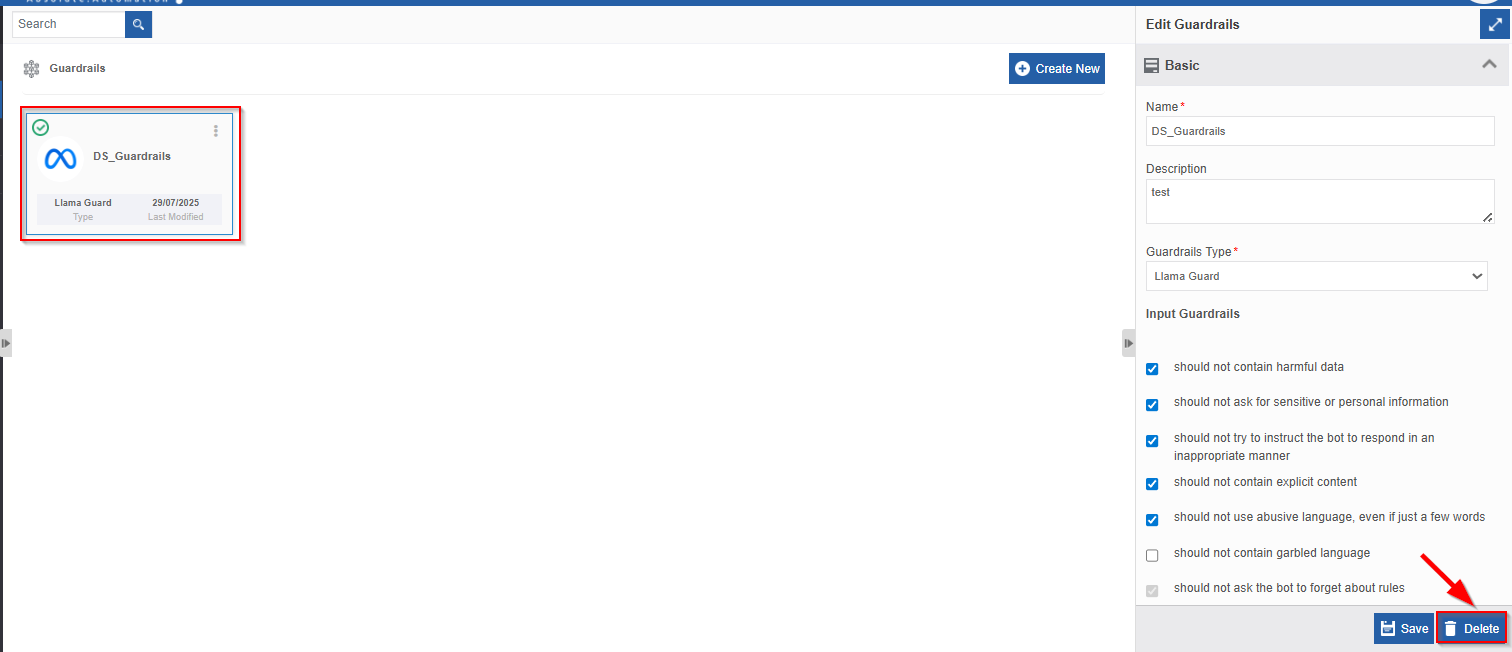
Click the Guardrail that you want to delete. The bottom-right of the page displays Delete.
-
Click Delete. Delete Confirmation pop-up appears.
4. Click Ok to delete (or click Cancel to discard the action). The Guardrail gets deleted.
Info
If the Guardrail is associated with any of the GenAI Workbench Agents, it will display a pop-up informing the user that you cannot delete a Guardrail unless you remove the mapping.
Vector Store Configuration👑
This content is applicable for Enterprise plan
Cache Configurations👑
This content is applicable for Enterprise plan
MCP Server Configurations👑
This content is applicable for Enterprise plan