Basic Process Flow Activities
Approve Reject
The activity Approve Reject is user-based activity. Approve Reject is always mapped to Form through which the user can respond in run-time. The user responses are captured in the Form UI designed with submit buttons (e.g., Approve and Reject).
Tip
If the process flow type is selected as Execute as a service, the activity list will not display Approve Reject activity as it is not applicable for service-based flows.
Approve Reject activity have only two out-going links, one for approve condition and another for the reject condition. Usually, the Form mapped to Approve Reject activity has two buttons for the two outgoing transitions. Based on the user decision (Approve or Reject) the workflow will take different paths.
If the user does not create two submit buttons in the form mapped to Approve Reject activity, it automatically creates two submit buttons based on outgoing transitions. The submit buttons take the name of each of the two-outgoing links.
Prerequisites:
Participant - Process Flow > Participant
* Form - Process Flow > Forms*
Properties: Basic, Participants, Form, Events, SLA
Dependent entities: Participant*, Forms*, Rules, Timer, Email
Dependent configuration(s): Calendar
Basic
-
Click Basic accordion.
-
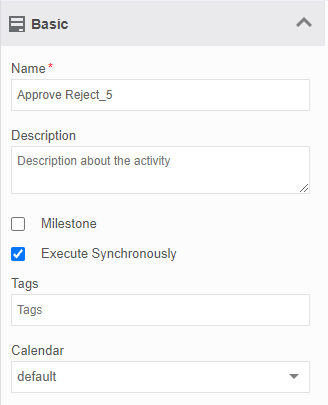
Enter the details as explained below.
Field Description Name* Enter the name of the activity.
Character limit:50
Data Type: Alphanumeric and underscoreDescription Describe the activity.
Character limit: 1000
Data Type: Alphanumeric and symbolsMilestone This configuration is not used. Execute Synchronously Check Execute Synchronously
If checked, Approve Reject executes synchronously with the server responses. That is, after executing the activity, it waits for the responses from the server. The transition to the next activity happens only after the response is received.
Uncheck Execute Synchronously
If unchecked, Approve Reject executes asynchronously and hence does not wait for the server responses. That is, after executing the activity, the next activity transition happens irrespective of the server responses.
- If Execute Synchronously is checked in the Process flow properties, the check box Execute Synchronously for all the Approve Reject activity in the workflow will be checked by default.Tags This configuration is not used. Calendar Select a calendar from the drop-down. The task gets executed based on the selected calendar.
Participant
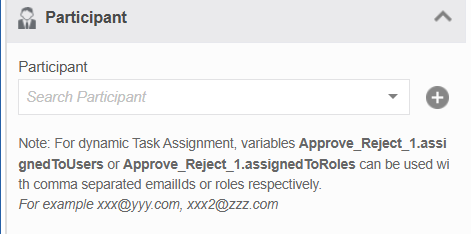
Participants are the users who act on the UI. Participants can be mapped to an activity while configuring (static configuration) the activity or during run time (dynamic configuration).
The participant gets the assigned activity for initiation.
Mapping Static Participant
Participant section allows you to map a participant entity or map a user (user email id) or map a role to the Approve Reject activity.
- When you map a business entity Participant, all the users and roles associated with the participant will be able to act on the Approve Reject activity. You can add multiple participants also.
- When you map a user (user email id) as a participant, only that user will be able to act on the Approve Reject. You can add multiple user ids.
- When you map a role as a participant, all the users associated with that role will be able to act on the Approve Reject. You can add multiple roles.
To map a participant
- Click Task activity > Participant accordion.
- Click the Select Participant drop-down. All the user selection options are displayed.
-
In Participant, select participant(s). (Optional if User or Roles are selected.)
-
In Users, select user(s). (Optional if Participant or Roles are selected.)
- In Roles, select role(s). (Optional if Participant or Users are selected.)
Note
You must select at least one participant or one user or one role for a task activity.
Configuring Dynamic Participant
You can provide a variable in the fields, Participant, Users and Roles and resolve these variables during the runtime so that the participant is assigned dynamically during the runtime.
Note
For dynamic Task Assignment, variables Task_1.assignedToUsers or Task_1.assignedToRoles can be used with comma-separated email Ids or roles respectively; where Task_1 is the activity name.
For example xxx@yyy.com, xxx2@zzz.com
Events
Refer to Configuring Events.
SLA
Refer to Configuring Service Level Agreement.
Form
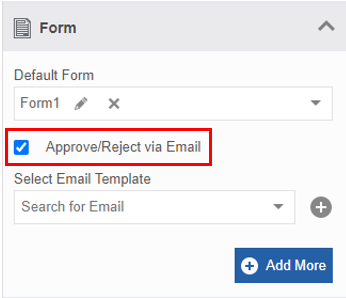
The Form selection allows mapping Default Form and Conditional Forms. Create the required forms before configuring this section. For the Accept Reject activity, in the Forms section, there is a facility to mark the email option for Approve or Reject.
- Click Form accordion.
-
Refer to Mapping Forms and map the default form and conditional forms (click Add More for adding conditional forms).
-
If you want to enable Approve and Reject buttons in the notification email, check the checkbox, Approve/Reject via Email. The Select Email Template drop-down is displayed.
-
Select the notification email template. Approve and Reject buttons appear in the email during runtime. The user can click the Approve or Reject button in the email and the responses are captured as part of the workflow.
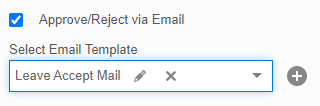
Else if you don’t want buttons in the email, uncheck the checkbox. Then the user needs to mark the responses in the form UI that is part of the workflow.
Data Reader
The activity Data Reader is used to read data from a file by checking the specified path in the source file. The different input file format it can read is CSV, Excel, or JSON.
When the flow is executed, it reads the file from the source file path and the data in the file. It converts the data from the file into an array of JSON. Each record is an array element in JSON format.
Prerequisites:
-
Source file (CSV, Excel, or JSON) - The data reader reads data from source file.
This must be uploaded to the server and you must provide this path in the data reader configuration. -
JSON array variable - Create in Process Flow > Variables
The JSON array is mapped to the Data Reader output variable. This variable is further used in process flows via the activities which accept JSON array (alphanumeric collection variable).

Properties: Basic, Data Reader, Output Mapping, Error Handling
Dependent entities: Source file, Data variable, Variable
Dependent configuration(s): NA
Basic
-
Click an activity in the canvas and then the Basic accordion in the Property panel to enter the basic details.
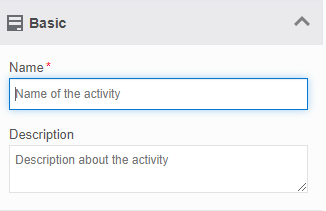
Field Description Name* Enter the name of the activity.
Character limit:50
Data Type: Alphanumeric and underscore.Description Describe the activity.
Character limit: 1000
Data Type: Alphanumeric and symbols.
Data Reader
-
Click Data Reader accordion.
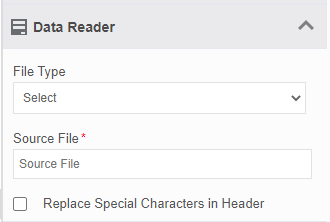
-
Enter the details as explained below.
Field Description File Type Select the file type. The file formats accepted are CSV, Excel, JSON. 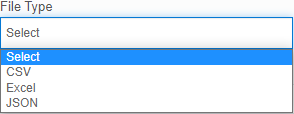
Source File* Copy and paste the local path of the file (the path in which the server is running). The file format should be as selected in the File Type . Replace Special Characters in Header Select the checkbox if you need to replace the special characters in the headers of the input file to underscore character. If unchecked, the headers will be displayed as in the input. The JSON array is the output of the Data Reader and it is stored in the output variable that is defined in the Output Mapping section.
Output Mapping
Output mapping section is used to store the response or output in a variable. The data type of the variable selected in the output mapping is always alphanumeric.
In Data Reader, the output is a JSON array.
-
Click Output Mapping accordion.
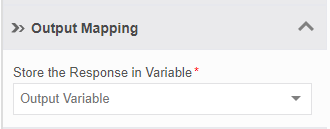
-
Select the Output Variable from the drop-down. This is the JSON array variable that you created in variables section. It is mandatory to map the output variable for Store the Response in Variable.
Configuring Error Handling
When an error occurs in an activity, the system either proceeds with the error or will hang up the process based on the configuration. The error variable captures the error. Error variable is always of data type, alphanumeric. The error Handling section allows configuring the error handling.
-
Click Error Handling accordion.
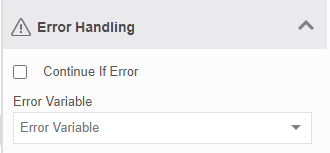
-
Check the Continue If Error check box if you want to continue the workflow even if the error occurs.
Else uncheck the checkbox to break or stop the workflow execution when an error occurs.
-
Select a variable from the Error Variable drop-down. The variable should be of data type, alphanumeric. Error variable stores the first line of the error.
View Error variable details
- Navigate to Workspace > My Instances.
- Select the workflow. The activity where the error occurred displays a red cross mark on the top-right of the activity node.
- Click the Status link (Failed) in the property panel to view error details.
DB
The activity Database (DB) is used to execute DML (Data Manipulation Language) statements. DMLs are elements in the SQL language used for data retrieval and manipulation. Using DML statements, you can perform operations such as adding new rows, updating and deleting existing rows, merging tables, and so on. You can map multiple scripts in the DB. It executes the database scrips mapped at runtime.
Prerequisites:
- DatabaseScript - Process Flow > DatabaseScripts
- Datasource - Management > Configuration Mangement > Datasource
Properties: Basic, Database, Events, Error Handling
Dependent entities: Database script, Rule, Email, Data Variable
Dependent configuration(s): Datasource
Basic
-
Click an activity in the canvas and then the Basic accordion in the Property panel to enter the basic details.
Field Description Name* Enter the name of the activity.
Character limit:50
Data Type: Alphanumeric and underscore.Description Describe the activity.
Character limit: 1000
Data Type: Alphanumeric and symbols.
Events
Refer to Configuring Events.
Database
The database section is used to map database scripts created in the entity to the database activity. You can map a default database script or/and map conditional database scripts based on the rules.
Database executes the SQL scripts residing in the script.
Mapping Default Database Script
-
Click Database accordion.
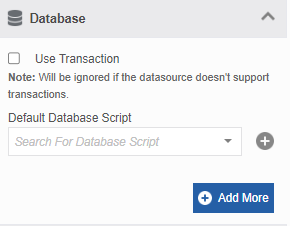
-
Click Use Transaction checkbox if you want to roll back the actions (scripts executed) in case there is an error in any of the multiple scripts mapped to the DB. This feature is ignored if the datasource does not support transactions. Else uncheck Use Transaction.
-
Click the Search For Database Script drop-down and select the required default DB script. The selected script is displayed with the Edit and Remove icons.
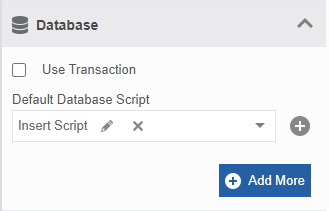
Mapping Conditional Database Scripts
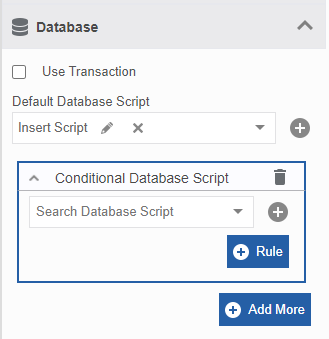
The Add More button allows the user to map conditional DB scripts based on a rule. Multiple conditional DB scripts can be mapped to the database.
- Click Database accordion.
- Check or Uncheck Use Transaction checkbox and map a default DB script as explained in the above procedure.
-
Click +Add More.
-
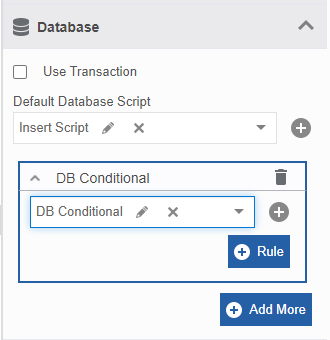
Click Search Database Script and select a Conditional DB script. The delete icon on the right side allows you to remove the selected conditional DB script.
-
Click +Rule and select a rule from the drop-down for the conditional DB script. The delete rule button appears.
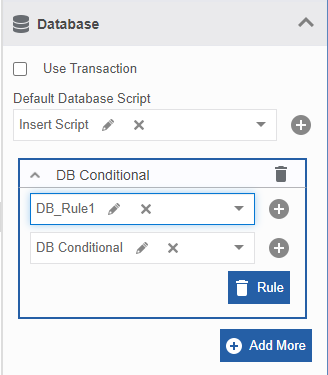
- Click the delete Rule to remove a rule for the conditional DB script.
- Click +Add More again for creating more conditional DB scripts.
-
Click Save.
Configuring Error Handling
When an error occurs in an activity, the system either proceeds with the error or will hang up the process based on the configuration. The error variable captures the error. Error variable is always of data type, alphanumeric. The error Handling section allows configuring the error handling.
-
Click Error Handling accordion.
-
Check the Continue If Error check box if you want to continue the workflow even if the error occurs.
Else uncheck the checkbox to break or stop the workflow execution when an error occurs.
-
Select a variable from the Error Variable drop-down. The variable should be of data type, alphanumeric. Error variable stores the first line of the error.
View Error variable details
- Navigate to Workspace > My Instances.
- Select the workflow. The activity where the error occurred displays a red cross mark on the top-right of the activity node.
- Click the Status link (Failed) in the property panel to view error details.
Decision Table
A decision table is used when you need to do some calculations based on conditions or rules and display the result. You can define multiple conditions and calculations in the decision table. Inputs from the process flow variables through user-interactive forms or database tables are taken as inputs by the decision table attributes as per the configurations.
Decision Model and Notation (DMN) standard provides the industry with a modeling notation for decisions that will support decision management and business rules. The decision table uses DMN. Configurations in DMN are done using Friendly Enough Expression Language (FEEL). It is mandatory to understand DMN and FEEL before configuring the decision table.
Prerequisites:
- Decision table - Process Flow > Decision table
- Variable - Process Flow > Variable
Properties: Basic, Decision Table, Events, Error Handling
Dependent entities: Decision Table, Participant, Rule, Email, Data Variable
Dependent configuration(s): NA
Basic
-
Click an activity in the canvas and then the Basic accordion in the Property panel to enter the basic details.
Field Description Name* Enter the name of the activity.
Character limit:50
Data Type: Alphanumeric and underscore.Description Describe the activity.
Character limit: 1000
Data Type: Alphanumeric and symbols.
Events
Refer to Configuring Events.
Decision Table
Configure a decision table in the business entity before configuring the activity, Decision Table.
-
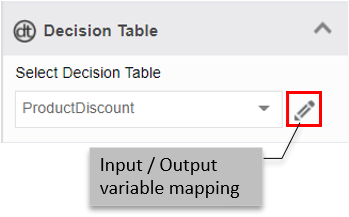
Click Decision Table accordion.
-
Select a Decision Table from the drop-down. An option for Input /output variable mapping is displayed. This configuration is for input/output decision table attributes and process variable mapping.
-
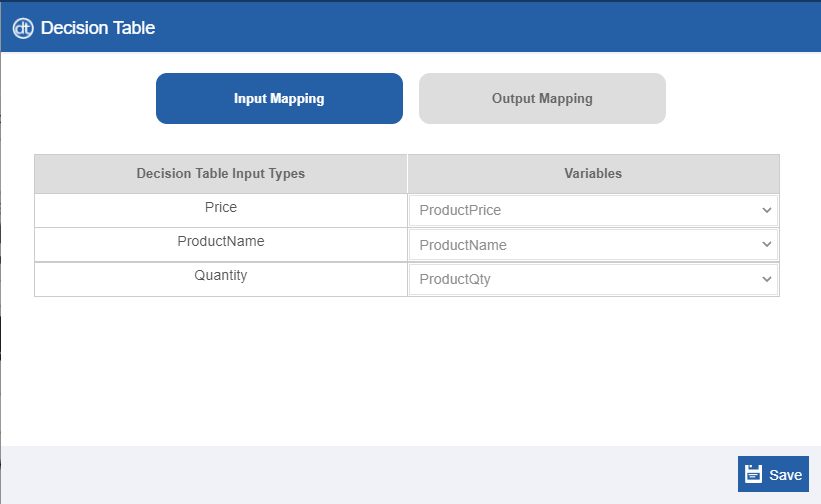
Click the Input / Output variable mapping icon. The details displayed are as per the decision table designed. The input Mapping button is active by default. Input Mapping details with an option to choose process variables are displayed. This is a mandatory configuration for the decision table.
-
Select the Variables from the drop-down for each of the Decision Table Input Types. Process variables of relevant data type that match with the input types are displayed. Input data from the user are mapped to these process variables.
-
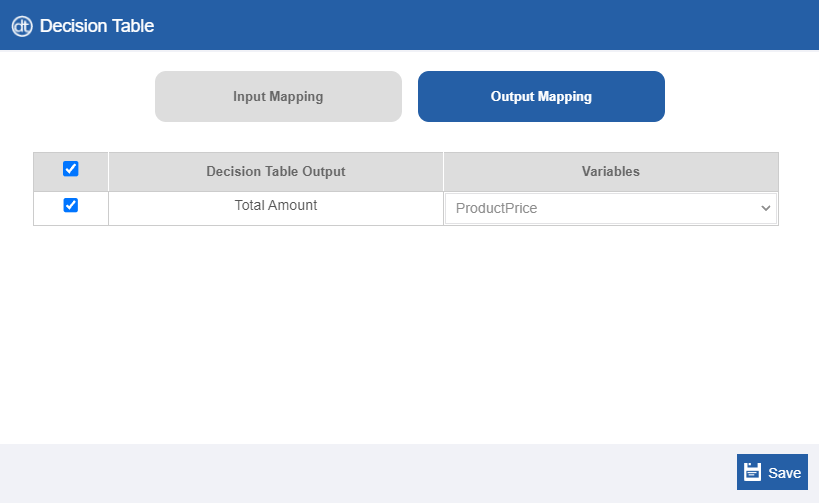
Click Output Mapping. Output Mapping details with an option to choose process variables are displayed.
-
Select the Variables from the drop-down for each of the Decision Table output. Process variables of relevant data types that match with the output are only displayed. Output data is stored in these process variables.
- Click the checkbox on the left side to select and map only those output variables that are needed. At least one output configuration is mandatory for the decision table.
- Click Save.
Configuring Error Handling
When an error occurs in an activity, the system either proceeds with the error or will hang up the process based on the configuration. The error variable captures the error. Error variable is always of data type, alphanumeric. The error Handling section allows configuring the error handling.
-
Click Error Handling accordion.
-
Check the Continue If Error check box if you want to continue the workflow even if the error occurs.
Else uncheck the checkbox to break or stop the workflow execution when an error occurs.
-
Select a variable from the Error Variable drop-down. The variable should be of data type, alphanumeric. Error variable stores the first line of the error.
View Error variable details
- Navigate to Workspace > My Instances.
- Select the workflow. The activity where the error occurred displays a red cross mark on the top-right of the activity node.
- Click the Status link (Failed) in the property panel to view error details.
Document Parser
Document Parser takes a .xls or .xlsx format of the file as an input and passes/stores the data to the Data Catalog data table. The column names or the header rows of the excel file should match exactly (case to case, data type, etc) with the Data Catalog table attributes (headers).
Prerequisites:
- Variable - Process Flow > Variable
- Data Entity - Management > Data Catalog > Data Entity
Properties: Basic, Document Parser, Error Handling
Dependent entities: Document variable, Data Variable
Dependent configuration(s): Data Entity (Data Catalog)
Basic
-
Click an activity in the canvas and then the Basic accordion in the Property panel to enter the basic details.
Field Description Name* Enter the name of the activity.
Character limit:50
Data Type: Alphanumeric and underscore.Description Describe the activity.
Character limit: 1000
Data Type: Alphanumeric and symbols.
Document Parser
-
Click Document Parser accordion.
-
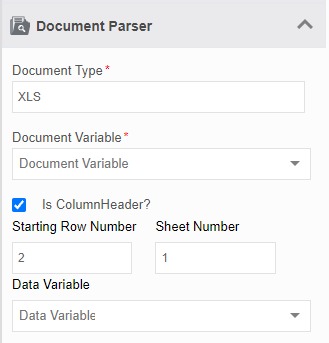
Enter the details as explained below.
Field Description Document Type* Select a Document Type. Document type is the input file format accepted. Document parser accepts .xls or .xlsx formats only. 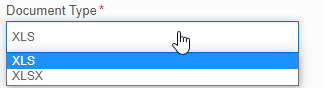
Document Variable* Select a document variable from the drop-down list.
- Create a variable of document type and map the document variable. The file input comes from the Form UI (associated with Task activity) to the document variable.Is Column Header? Check: If the excel file has a column header.
Uncheck: If the excel file does not have a column header.Starting Row Number Mention the row number from where it should capture.
The row number starts from “0”.Sheet Number Mention the sheet number from where it should capture.
The row number starts from “0”.Data Variable Select the Data Variable from the drop-down. For example, select a Data entity variable. Data entities are created in Management > Data Catalog > Data Entities.
Data Variable drop-down lists Data entity variables and variables with an array of data.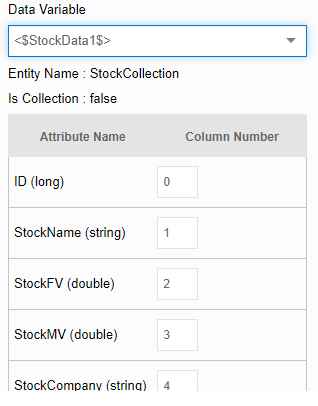
The attributes of the selected variable are listed.
Enter the applicable column number in the excel corresponding to each attribute. The column number starts from “0”.
The attribute names should match exactly with the row headers in excel.
If there are extra columns in the excel sheet which is not in the Data Catalog attribute, it just ignores the extra column in excel, however, will execute with all the other available columns in Data Catalog that are mapped.
Configuring Error Handling
When an error occurs in an activity, the system either proceeds with the error or will hang up the process based on the configuration. The error variable captures the error. Error variable is always of data type, alphanumeric. The error Handling section allows configuring the error handling.
-
Click Error Handling accordion.
-
Check the Continue If Error check box if you want to continue the workflow even if the error occurs.
Else uncheck the checkbox to break or stop the workflow execution when an error occurs.
-
Select a variable from the Error Variable drop-down. The variable should be of data type, alphanumeric. Error variable stores the first line of the error.
View Error variable details
- Navigate to Workspace > My Instances.
- Select the workflow. The activity where the error occurred displays a red cross mark on the top-right of the activity node.
- Click the Status link (Failed) in the property panel to view error details.
Document Writer
Document Writer accepts the data entity variable as the input. It converts and downloads the Data Catalog table details into an excel file.
Data can be directly fetched from the data entity table and converted to a document or data entity details can be viewed, converted, and downloaded through a File control component in a Form.
The output file format is .xlsx. The filename of the downloaded excel file is the Data Catalog name which is the data type mapped to the document variable.
Based on the business requirement admin can design the workflow using Forms to get the required output.
Prerequisites:
- Variable - Process Flow > Variable
- Data Entity - Management > Data Catalog > Data Entity
Setting up prerequisites:
- Data Catalog data entity mapped to a table.
- Create a data entity (say, DEntity 1) in the Data Catalog section and the entity is listed in Manage > Data Catalog > Data Entities section.
- Data Catalog data entity variable.
- Create a Variable (say, EntityVar 1) with Datatype as the data entity name (e.g., DEntity 1) and mark Is Collection = True. The variable created with type as data entity is listed under the Data Entity dropdown. This variable can be used in process flows.
- Document type variable to store output file.
- Create a Variable with data type – document (say, DocVar 1).
- Form (mapped to Task) to view the data entity data and downloaded file in UI (if needed).
- Create a Form.
- Add data entity variable (DEntity 1) from the form component.
- In settings, map a subform or a summary control and configure the Data Catalog data entity variable. This is to be configured as per the need.
- Add a File control component to the form and map a document variable (eg., DocVar 1) to it. In the settings of the File Control component of the Form, give all the Permissions – Upload Files, View all files, and download all files.
Properties: Basic, Document Writer, Error Handling
Dependent entities: Data entity variable*, Document Variable*
Dependent configuration(s): Data Entity (Data Catalog)
Basic
-
Click an activity in the canvas and then the Basic accordion in the Property panel to enter the basic details.
Field Description Name* Enter the name of the activity.
Character limit:50
Data Type: Alphanumeric and underscore.Description Describe the activity.
Character limit: 1000
Data Type: Alphanumeric and symbols.
Document Writer
The document writer maps the data entity variable and the output document variable.
-
Click Document Writer accordion.
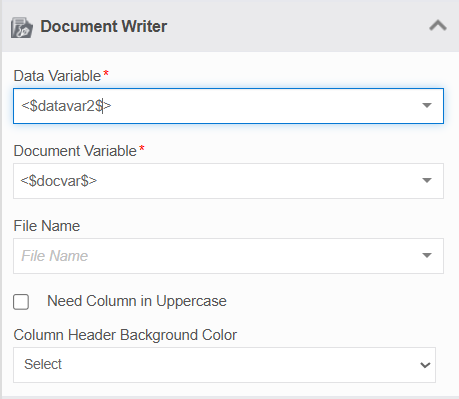
Field Description Data Variable* Select the data entity variable. This is the input file to the document writer. After getting data from the data variable, it converts the file to a document and stores it in the variable mapped to Document Variable. Document Variable* Select a document variable. Document variable is the output variable where the output file is stored. File Name Select a variable for capturing the file name. You must create an alphanumeric variable in the Variables section to map it here.
If you do not provide a file name, it will take the data entity name as the file name.Need Column in Uppercase Select the check box if you want to make the column headers in upper case.
If not selected, it will display how it actually was in the input file or in the database.Column Header Background Color Select the background color for the column headers. 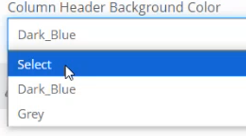
If you do not select any color, it will be black text with white background.
Configuring Error Handling
When an error occurs in an activity, the system either proceeds with the error or will hang up the process based on the configuration. The error variable captures the error. Error variable is always of data type, alphanumeric. The error Handling section allows configuring the error handling.
-
Click Error Handling accordion.
-
Check the Continue If Error check box if you want to continue the workflow even if the error occurs.
Else uncheck the checkbox to break or stop the workflow execution when an error occurs.
-
Select a variable from the Error Variable drop-down. The variable should be of data type, alphanumeric. Error variable stores the first line of the error.
View Error variable details
- Navigate to Workspace > My Instances.
- Select the workflow. The activity where the error occurred displays a red cross mark on the top-right of the activity node.
- Click the Status link (Failed) in the property panel to view error details.
Email
Email activity is used when you need the system to send an email or notification email. It can be a rule-based email trigger also.
Prerequisites:
- Email - Process Flow > Email
Properties: Basic, Events, Error Handling, Email
Dependent entities: Email Template, Rule
Dependent configuration(s): NA
Basic
-
Click an activity in the canvas and then the Basic accordion in the Property panel to enter the basic details.
Field Description Name* Enter the name of the activity.
Character limit:50
Data Type: Alphanumeric and underscore.Description Describe the activity.
Character limit: 1000
Data Type: Alphanumeric and symbols.
Events
Refer to Configuring Events.
Email template is mapped to Email activity when you need to trigger an email notification as part of the process flow. You can map a default email template and map conditional email templates based on rules.
Mapping Default Email Template
-
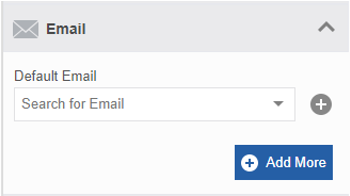
Click Email accordion.
-
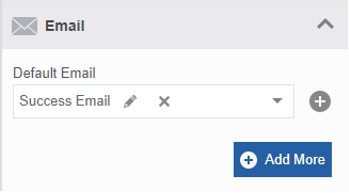
Click the Search for Email drop-down and select the required email template. The selected email template is displayed with the Edit and Remove icons.
Mapping Conditional Emails
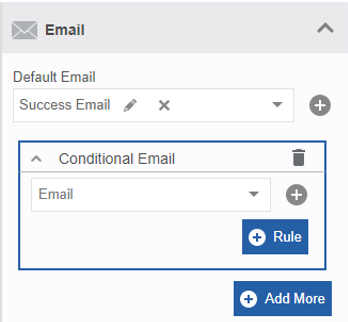
The Add More button in the Email configuration allows the user to configure a conditional email template based on a rule. Multiple conditional email templates can be mapped to Email.
- Click Email accordion.
- Map a default email as explained above.
-
Click +Add More.
-
Click Email and select a Conditional Email template. The Delete icon on the right side allows you to remove the selected conditional email template.
-
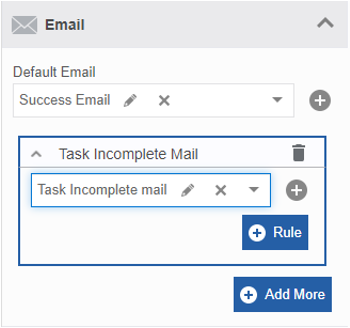
Click +Rule to add a rule for the conditional email template. The Add Rule button changes to Delete Rule.
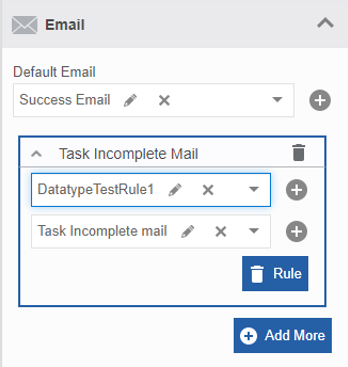
-
Click the Delete Rule icon to remove a rule for the conditional email template.
- Click +Add More again for creating more conditional email templates.
Configuring Error Handling
When an error occurs in an activity, the system either proceeds with the error or will hang up the process based on the configuration. The error variable captures the error. Error variable is always of data type, alphanumeric. The error Handling section allows configuring the error handling.
-
Click Error Handling accordion.
-
Check the Continue If Error check box if you want to continue the workflow even if the error occurs.
Else uncheck the checkbox to break or stop the workflow execution when an error occurs.
-
Select a variable from the Error Variable drop-down. The variable should be of data type, alphanumeric. Error variable stores the first line of the error.
View Error variable details
- Navigate to Workspace > My Instances.
- Select the workflow. The activity where the error occurred displays a red cross mark on the top-right of the activity node.
- Click the Status link (Failed) in the property panel to view error details.
End
End activity represents the end of a workflow. There is no outgoing transition from the End. Multiple End activities can be included in a workflow based on the business requirement.
Properties: Basic, Events
Dependent entities: Participant, Rule, Email
Dependent configuration(s): NA
Basic
-
Click an activity in the canvas and then the Basic accordion in the Property panel to enter the basic details.
Field Description Name* Enter the name of the activity.
Character limit:50
Data Type: Alphanumeric and underscore.Description Describe the activity.
Character limit: 1000
Data Type: Alphanumeric and symbols.
Events
Refer to Configuring Events.
Execute Dataflow👑
This content is applicable for Enterprise plan
Fork
The activity Fork is used to split a transition into several sub-transitions. These sub-transitions follow a parallel, but, a different course of action. The sub-transitions are eventually joined together using the activity, Join at some point in the workflow. You can use multiple Fork and Join activities; however, to be noted that a process should have an equal number of Fork and Join activities.
Properties: Basic
Dependent entities: NA
Dependent configuration(s): NA
Basic
-
Click an activity in the canvas and then the Basic accordion in the Property panel to enter the basic details.
Field Description Name* Enter the name of the activity.
Character limit:50
Data Type: Alphanumeric and underscore.Description Describe the activity.
Character limit: 1000
Data Type: Alphanumeric and symbols.
Groovy Executor
Groovy is a scripting language with Java-like syntax for the Java platform. Groovy Executor activity is an independent activity that is used to execute the Groovy script.

Properties: Basic, Groovy, Error Handling
Dependent entities: Variable
Dependent configuration(s): NA
Basic
-
Click an activity in the canvas and then the Basic accordion in the Property panel to enter the basic details.
Field Description Name* Enter the name of the activity.
Character limit:50
Data Type: Alphanumeric and underscore.Description Describe the activity.
Character limit: 1000
Data Type: Alphanumeric and symbols.
Groovy
-
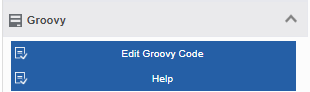
Click Groovy accordion.
-
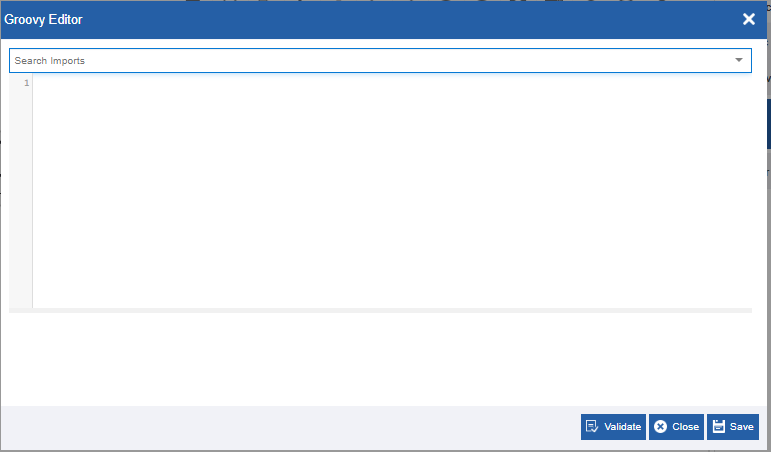
Click Edit Groovy Code. Groovy Editor appears.
-
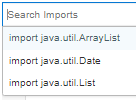
Click the Search Imports drop-down for selecting the imports. You can type and search for your requirements.
-
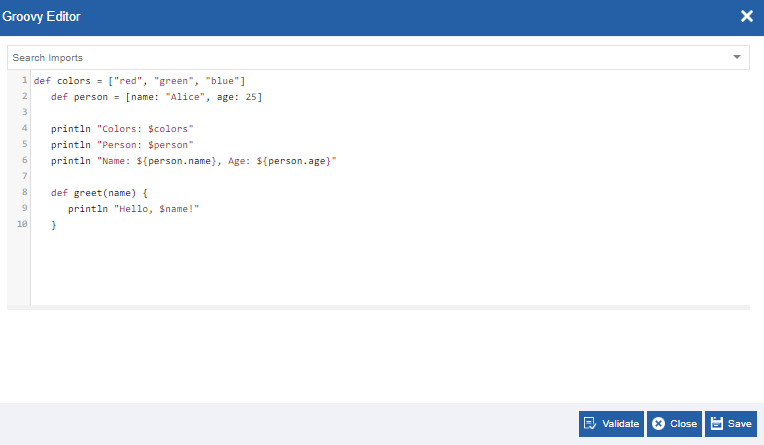
Enter Groovy Code in the Groovy Editor.
-
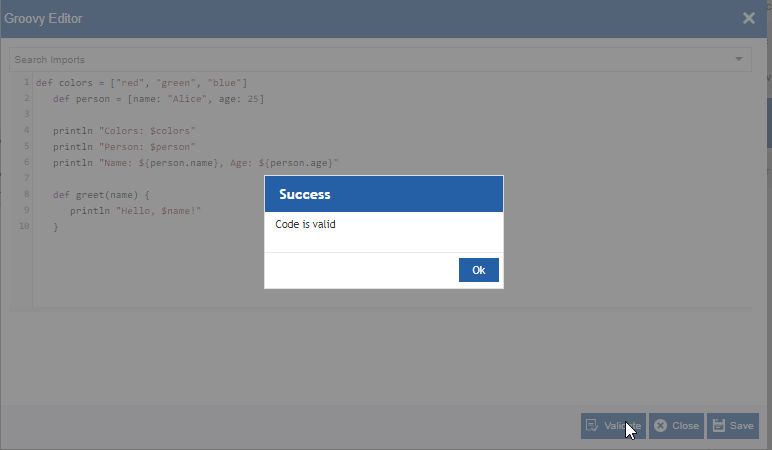
Click Validate to validate the Groovy code that you entered in the editor. A success message appears on successful validation of the code.
-
Click Ok.
- Click Save to save the details entered in the Groovy Editor.
-
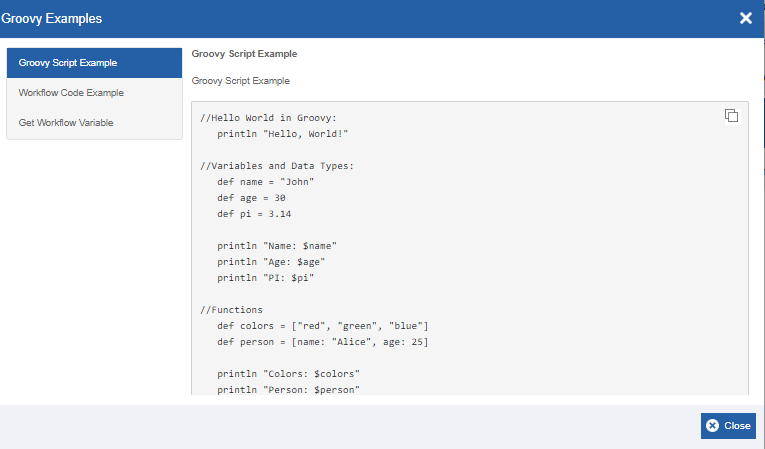
Click Help. The Groovy Examples appear.
-
Click Groovy Script Examples to view sample code.
- Click Workflow Code Example to view the workflow code. This gives you all the mandatory import details. Workflow details are based on the Application Id.
- Click Get Workflow Variable to get the sample of getting the workflow variable.
Configuring Error Handling
When an error occurs in an activity, the system either proceeds with the error or will hang up the process based on the configuration. The error variable captures the error. Error variable is always of data type, alphanumeric. The error Handling section allows configuring the error handling.
-
Click Error Handling accordion.
-
Check the Continue If Error check box if you want to continue the workflow even if the error occurs.
Else uncheck the checkbox to break or stop the workflow execution when an error occurs.
-
Select a variable from the Error Variable drop-down. The variable should be of data type, alphanumeric. Error variable stores the first line of the error.
View Error variable details
- Navigate to Workspace > My Instances.
- Select the workflow. The activity where the error occurred displays a red cross mark on the top-right of the activity node.
- Click the Status link (Failed) in the property panel to view error details.
Hash Data👑
This content is applicable for Enterprise plan
HTML Extractor
HTML extractor activity is used to get the detail of an element based on absolute XPath. You can add multiple paths and extract data accordingly.

Properties: Basic, HTML Extractor, Error Handling
Dependent entities: Variable
Dependent configuration(s): NA
Basic
-
Click an activity in the canvas and then the Basic accordion in the Property panel to enter the basic details.
Field Description Name* Enter the name of the activity.
Character limit:50
Data Type: Alphanumeric and underscore.Description Describe the activity.
Character limit: 1000
Data Type: Alphanumeric and symbols.
HTML Extractor
-
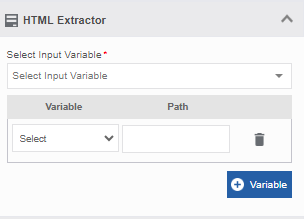
Click HTML Extractor accordion.
-
Enter the details as explained below.
Field Description Select Input Variable* Select the input variable from the drop-down.
The variable should be of type alpha-numeric.
This variable holds the HTML content.Variable Click the Variable button. Variable and Path boxes appear.
In the Variable drop-down select the variable to hold the content in the selected path.
In the Path , enter the XPath.
Click the Variable button for adding multiple paths.
Configuring Error Handling
When an error occurs in an activity, the system either proceeds with the error or will hang up the process based on the configuration. The error variable captures the error. Error variable is always of data type, alphanumeric. The error Handling section allows configuring the error handling.
-
Click Error Handling accordion.
-
Check the Continue If Error check box if you want to continue the workflow even if the error occurs.
Else uncheck the checkbox to break or stop the workflow execution when an error occurs.
-
Select a variable from the Error Variable drop-down. The variable should be of data type, alphanumeric. Error variable stores the first line of the error.
View Error variable details
- Navigate to Workspace > My Instances.
- Select the workflow. The activity where the error occurred displays a red cross mark on the top-right of the activity node.
- Click the Status link (Failed) in the property panel to view error details.
Import SQL Script👑
This content is applicable for Enterprise plan
Invoke SmartContract👑
This content is applicable for Enterprise plan
Insert/Update/Delete Data Entity
The Activities, Insert Data Entity, Update Data Entity, and Delete Data Entity are used to handle data entity actions.
A data entity is a custom-defined data type. The data type of the entity is created and managed in the Manage > Data Catalog section.
Prerequisites:
- Data Entities - Management > Data Catalog > Data Entities.
To configure Insert/Update/Delete Data Entities:
- Create a data entity in the Data Catalog section and the entity is listed in Management > Data Entities.
- Create a Variable in Process flows with Datatype as the data entity name and Is Collection = True. The variables created with type as data entity are listed under the Data Entity dropdown. This variable can be used in process flows.
-
To view or update or delete the details in the Data Catalog table through UI, the Data Catalog data variable should be mapped to Form. Through the Form UI, you can perform Insert, Update, and Delete actions using the respective activities.
- Create a Form.
- Search for the data entity created in the Form components list. Data entities are listed under the Variables.
- Drag the variable to the form and assign a control - Subform or summary. The data entities are accepted by Summary or Subform control in the Form.
Insert Data Entity
Insert data entity is used to insert records into the data entity table through the Form UI or as per the business requirement. Insert data entity allows you to insert data into the Data Catalog table through the data entity variable mapped to it.
Properties: Basic, Insert Data Entity, Advance, Output Mapping, Error Handling
Dependent Entities: Data entity variable, Variables
Dependent Configuration(s): Data Entity
Basic
-
Click an activity in the canvas and then the Basic accordion in the Property panel to enter the basic details.
Field Description Name* Enter the name of the activity.
Character limit:50
Data Type: Alphanumeric and underscore.Description Describe the activity.
Character limit: 1000
Data Type: Alphanumeric and symbols.
Insert Data Entity
- Click Insert Data Entity accordion.
- Click the Data Variable drop-down and select the required variable. The datatype (entity name) and collection type of the selected variable is displayed.
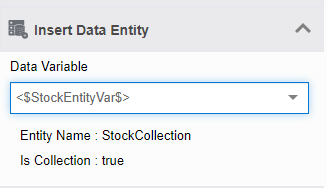
The output response of the Insert Data Entity is stored in the output variable that is defined in the Output Mapping section.
Advance
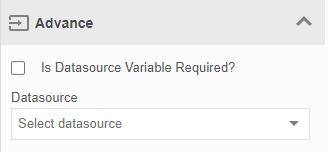
The advance property allows you to map a datasource for the activity as required. This is done based on the configuration and entity structure of the Data Variable mapped.
-
Click Advance accordion.
-
If you need a datasource variable in the flow, check the Is Data Source Variable Required?. After selecting a datasource variable, you need to map the Datasource for that variable.
Else uncheck the checkbox. Go to step 3. -
Select a Datasource from the drop-down list.
Output Mapping
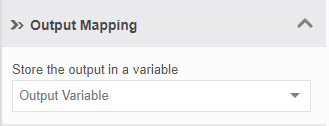
The output mapping section is used to store the response or output in a variable. The data type of the variable selected in the output mapping is always alphanumeric.
Note
For Data Entity based activities, the output variable stores the result of the insert (update/delete). That is, if data is inserted (updated/deleted) in the table, the output variable takes the value “True”. If there is an error in execution, and the action fails, it is handled by the Error Handling Section.
To map an output variable,
-
Click Output Mapping accordion.
-
Select the Output Variable from the drop-down list.
Configuring Error Handling
When an error occurs in an activity, the system either proceeds with the error or will hang up the process based on the configuration. The error variable captures the error. Error variable is always of data type, alphanumeric. The error Handling section allows configuring the error handling.
-
Click Error Handling accordion.
-
Check the Continue If Error check box if you want to continue the workflow even if the error occurs.
Else uncheck the checkbox to break or stop the workflow execution when an error occurs.
-
Select a variable from the Error Variable drop-down. The variable should be of data type, alphanumeric. Error variable stores the first line of the error.
View Error variable details
- Navigate to Workspace > My Instances.
- Select the workflow. The activity where the error occurred displays a red cross mark on the top-right of the activity node.
- Click the Status link (Failed) in the property panel to view error details.
Update Data Entity
Update Data Entity is used to modify and update records in the data entity table. It also allows updating of new data entered.
Properties: Basic, Insert Data Entity, Advance, Output Mapping, Error Handling
Dependent Entities: Data entity variable, Variables
Dependent Configuration(s): Data Entity
Basic
-
Click an activity in the canvas and then the Basic accordion in the Property panel to enter the basic details.
Field Description Name* Enter the name of the activity.
Character limit:50
Data Type: Alphanumeric and underscore.Description Describe the activity.
Character limit: 1000
Data Type: Alphanumeric and symbols.
Update Data Entity
The Update Data Entity section allows you to update the existing records or enter new records into the Data Catalog table through the data entity variable mapped to it.
- Click Update Data Entity accordion.
-
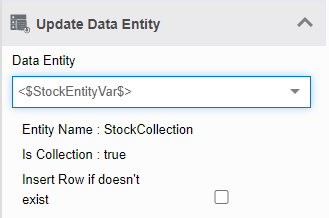
Click the Data Entity drop-down and select the required entity. The datatype (entity name) and collection type of the variable is displayed as applicable.
-
Check the Insert Row if doesn’t exist if you want the system to add a new record into the database Data Catalog table if the updated row detail does not exist in the table.
Else uncheck the checkbox.
The output response of the Update Data Entity is stored in the output variable that is defined in the Output Mapping section.
Advance
The advance property allows you to map a datasource for the activity as required. This is done based on the configuration and entity structure of the Data Variable mapped.
-
Click Advance accordion.
-
If you need a datasource variable in the flow, check the Is Data Source Variable Required?. After selecting a datasource variable, you need to map the Datasource for that variable.
Else uncheck the checkbox. Go to step 3. -
Select a Datasource from the drop-down list.
Output Mapping
The output mapping section is used to store the response or output in a variable. The data type of the variable selected in the output mapping is always alphanumeric.
Note
For Data Entity based activities, the output variable stores the result of the insert (update/delete). That is, if data is inserted (updated/deleted) in the table, the output variable takes the value “True”. If there is an error in execution, and the action fails, it is handled by the Error Handling Section.
To map an output variable,
-
Click Output Mapping accordion.
-
Select the Output Variable from the drop-down list.
Delete Data Entity
Delete data entity is used to delete selected records from the Data Catalog data entity table.
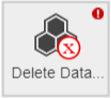
Properties: Basic, Insert Data Entity, Advance, Output Mapping, Error Handling
Dependent Entities: Data entity variable, Variables
Dependent Configuration(s): Data Entity
Basic
-
Click an activity in the canvas and then the Basic accordion in the Property panel to enter the basic details.
Field Description Name* Enter the name of the activity.
Character limit:50
Data Type: Alphanumeric and underscore.Description Describe the activity.
Character limit: 1000
Data Type: Alphanumeric and symbols.
Delete Data Entity
Delete Data Entity allows you to delete a record from the Data Catalog table through the data entity variable mapped to it.
- Click Delete Data Entity accordion.
-
Click the Data Entity drop-down and select the required variable. The data type (entity name) and collection type of the selected variable are displayed.
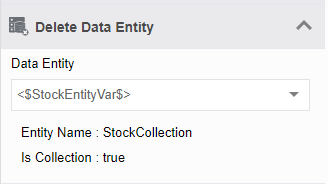
The output response of the Insert Data Entity is stored in the output variable that is defined in the Output Mapping section.
Advance
The advance property allows you to map a datasource for the activity as required. This is done based on the configuration and entity structure of the Data Variable mapped.
-
Click Advance accordion.
-
If you need a datasource variable in the flow, check the Is Data Source Variable Required?. After selecting a datasource variable, you need to map the Datasource for that variable.
Else uncheck the checkbox. Go to step 3. -
Select a Datasource from the drop-down list.
Output Mapping
The output mapping section is used to store the response or output in a variable. The data type of the variable selected in the output mapping is always alphanumeric.
Note
For Data Entity based activities, the output variable stores the result of the insert (update/delete). That is, if data is inserted (updated/deleted) in the table, the output variable takes the value “True”. If there is an error in execution, and the action fails, it is handled by the Error Handling Section.
To map an output variable,
-
Click Output Mapping accordion.
-
Select the Output Variable from the drop-down list.
Configuring Error Handling
When an error occurs in an activity, the system either proceeds with the error or will hang up the process based on the configuration. The error variable captures the error. Error variable is always of data type, alphanumeric. The error Handling section allows configuring the error handling.
-
Click Error Handling accordion.
-
Check the Continue If Error check box if you want to continue the workflow even if the error occurs.
Else uncheck the checkbox to break or stop the workflow execution when an error occurs.
-
Select a variable from the Error Variable drop-down. The variable should be of data type, alphanumeric. Error variable stores the first line of the error.
View Error variable details
- Navigate to Workspace > My Instances.
- Select the workflow. The activity where the error occurred displays a red cross mark on the top-right of the activity node.
- Click the Status link (Failed) in the property panel to view error details.
JSON Extraction
The JSON Extraction activity is used to extract details from the input JSON string as per the requirement.
The output variable of the JSON Transformation activity can be provided as the input variable for the JSON Extraction activity.

Properties: Basic, JSON Extraction, Output Mapping, Error Handling
Dependent entities: Variable
Dependent configuration(s): NA
Basic
-
Click an activity in the canvas and then the Basic accordion in the Property panel to enter the basic details.
Field Description Name* Enter the name of the activity.
Character limit:50
Data Type: Alphanumeric and underscore.Description Describe the activity.
Character limit: 1000
Data Type: Alphanumeric and symbols.
JSON Extraction
-
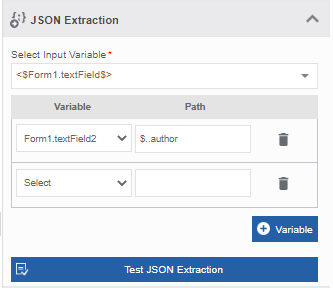
Click JSON Extraction accordion.
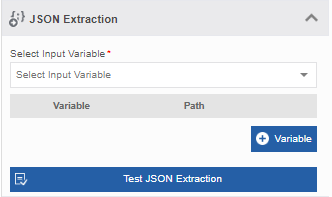
2. Click Select Input Variable*. The variable should be of the type, alphanumeric or a data entity field of type, alphanumeric. This variable is to hold the input JSON string during the runtime. -
Click +Variable.
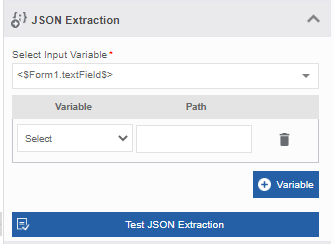
-
Select the variable required from the drop-down list.
-
Enter the valid JSON Path in the text box below the Path corresponding to the variable. If the entered JSON path is not valid, NULL is allocated as the variable path.
Note
JSON Path always refers to a JSON structure in the same way as XPath expressions are used in combination with an XML document. The "root member object" in JsonPath is always referred to as \$ regardless if it is an object or array (that is, JSON path should start with a symbol \$ which represents the root JSON object).
JSONPath expressions can use the dot–notation - e.g., \$.store.book[0].title
or the bracket–notation - e.g., \$['store']['book'][0]['title'] -
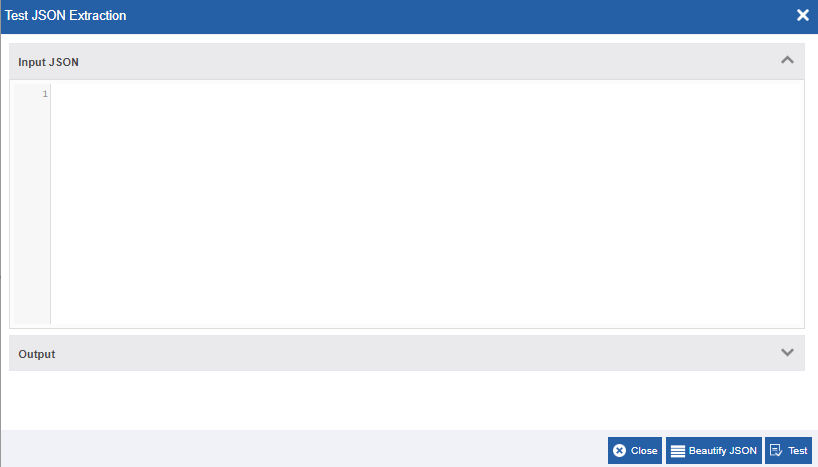
Below JSON Extraction accordion, click Test JSON Extraction to test the JSON structure (this is not a mandatory step). Test JSON Extraction pop-up appears. The Test JSON Extraction allows you to test the JSON structure during the design time. The behavior of the Test is as same as the runtime.
-
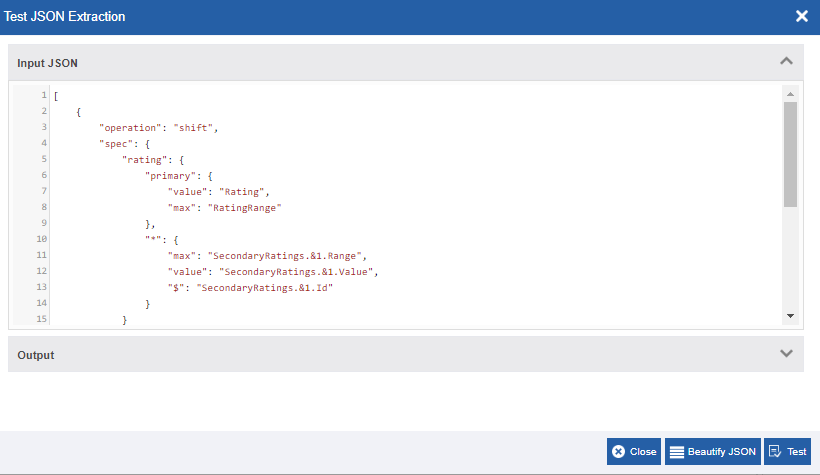
Click Input JSON accordion (open by default) and enter a valid JSON string to be tested.
-
Click Beautify JSON for adjusting the look as per standards by adjusting space and line breaks (optional step).
Info
The JSON Editor indicates the syntax errors if any. If there are errors in the input, Beautify JSON feature will not beautify your JSON.
-
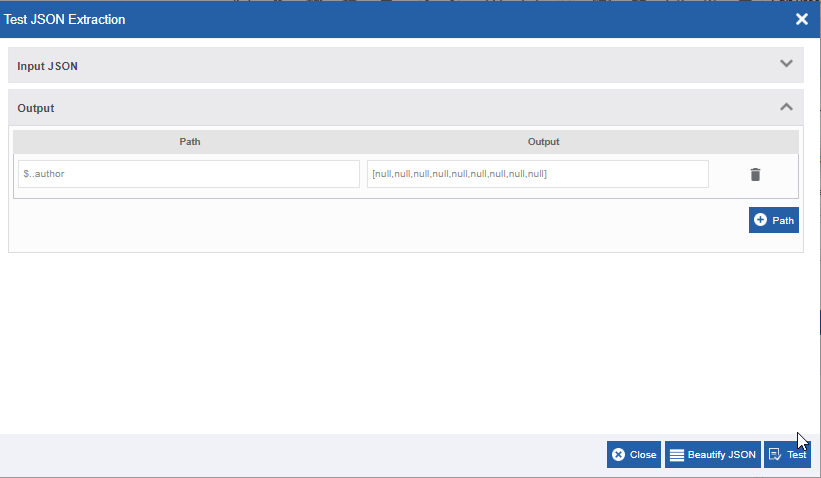
After entering the Input JSON, click Test for testing if the required output is achieved. The Output section displays the output of the JSON Transformation.
Info
Test JSON Extraction option is to test the JSON extraction at design time itself. It requires exactly the same parameters used at runtime.
-
Click Path to add the output path. JSON path appears below the Path and the value below the Output should be left blank as it is auto-populated when you click Test.
Note
If the entered JSON path is not valid, NULL is allocated as the variable value.
The delete icon adjacent to each output entry allows you to delete that entry.
-
Click Close to close the Test JSON Extraction pop-up.
Output Mapping
Output mapping section is used to store the response or output in a variable. The data type of the variable selected in the output mapping is always alphanumeric.
In JSON Extraction activity, the output is a JSON array.
-
Click Output Mapping accordion.
-
Select the Output Variable from the drop-down. It is mandatory to map the output variable for Store the Response in Variable.
Configuring Error Handling
When an error occurs in an activity, the system either proceeds with the error or will hang up the process based on the configuration. The error variable captures the error. Error variable is always of data type, alphanumeric. The error Handling section allows configuring the error handling.
-
Click Error Handling accordion.
-
Check the Continue If Error check box if you want to continue the workflow even if the error occurs.
Else uncheck the checkbox to break or stop the workflow execution when an error occurs.
-
Select a variable from the Error Variable drop-down. The variable should be of data type, alphanumeric. Error variable stores the first line of the error.
View Error variable details
- Navigate to Workspace > My Instances.
- Select the workflow. The activity where the error occurred displays a red cross mark on the top-right of the activity node.
- Click the Status link (Failed) in the property panel to view error details.
In case if the input JSON variable is improper, then the flow will discontinue despite of “Continue If Error” is checked.
JSON Transformation
JSON Transformation activity is used to transform any JSON data into another JSON structure or format as per your need. The output is also a JSON structure based on your specification provided.
The JSON array is the output of the JSON Transformation and it is stored in the output variable that is defined in the Output Mapping section.

Properties: Basic, JSON Transformation*, Output Mapping, Error Handling
Dependent entities: Variables
Dependent configuration(s): NA
Basic
-
Click an activity in the canvas and then the Basic accordion in the Property panel to enter the basic details.
Field Description Name* Enter the name of the activity.
Character limit:50
Data Type: Alphanumeric and underscore.Description Describe the activity.
Character limit: 1000
Data Type: Alphanumeric and symbols.
JSON Transformation
-
Click JSON Transformation accordion.
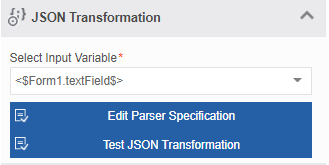
-
Click Select Input Variable*. The variable should be of the type, alphanumeric or a data entity field of type, alphanumeric. This variable is to hold the input JSON string during the runtime.
-
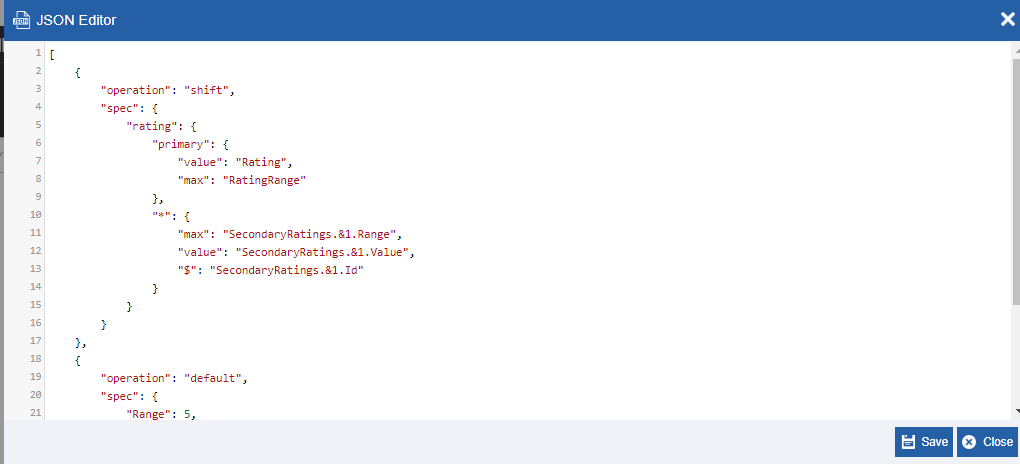
Click Edit Parser Specification. JSON Editor appears.
Info
The Platform supports JOLT specification for JSON transformations. Information on JOLT specifications is provided in the reference section.
-
Enter the JSON structure specification of how the output should look like. The input JSON gets converted as per the format of the JSON specification provide here.
Or
Enter a variable name (of type alphanumeric). -
Click Save to save the details provided in the JSON Editor.
-
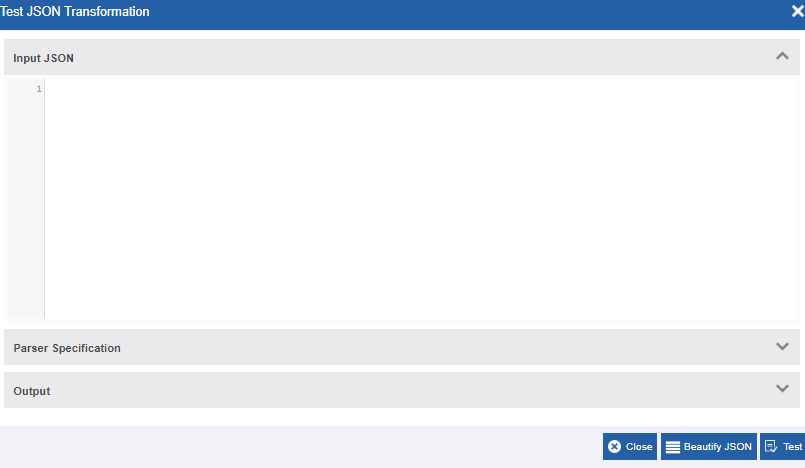
Below the JSON Transformation accordion, click Test JSON Transformation to test the JSON structure (this is not a mandatory step). Test JSON Transformation pop-up appears. The Test JSON Transformation allows you to test the JSON structure during the design time.
-
Click Input JSON accordion (open by default) and enter the JSON string to be tested.
- Click Parser Specification and enter the output JSON specification of how the output JSON should look like.
-
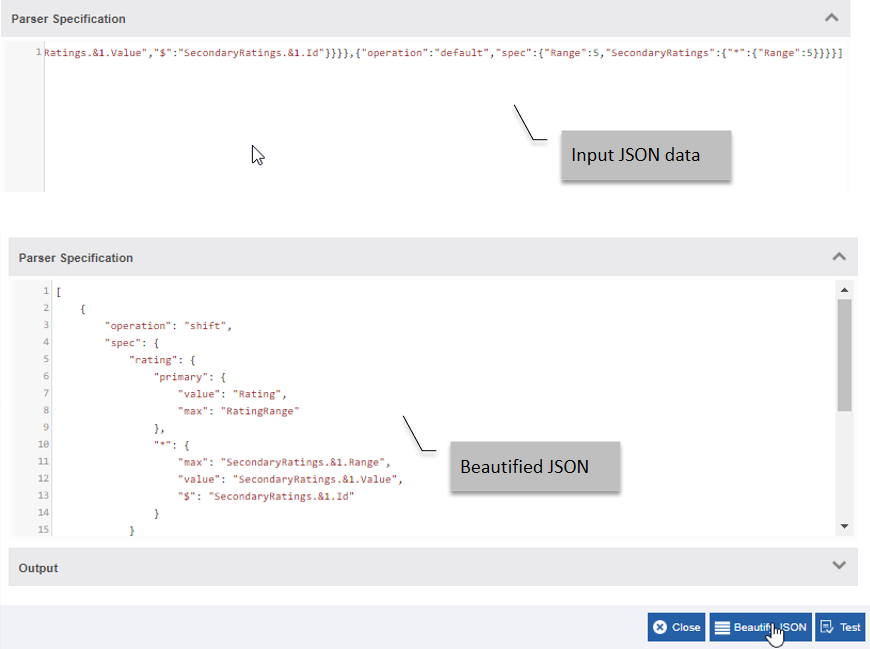
Select a section (e.g., Input JSON or Parser Specification) and click Beautify JSON (this is an optional step). Beautify JSON is for adjusting the look as per standards by adjusting space and line breaks.
Info
The JSON Editor will show the syntax errors if any. If there are errors in the input, Beautify JSON feature will not beautify your JSON. Firstly, you need to correct the errors and then click Beautify JSON.
-
After entering the Input JSON and Parser Specification, click Test for testing if the required output is achieved. The Output section displays the output of the JSON Transformation.
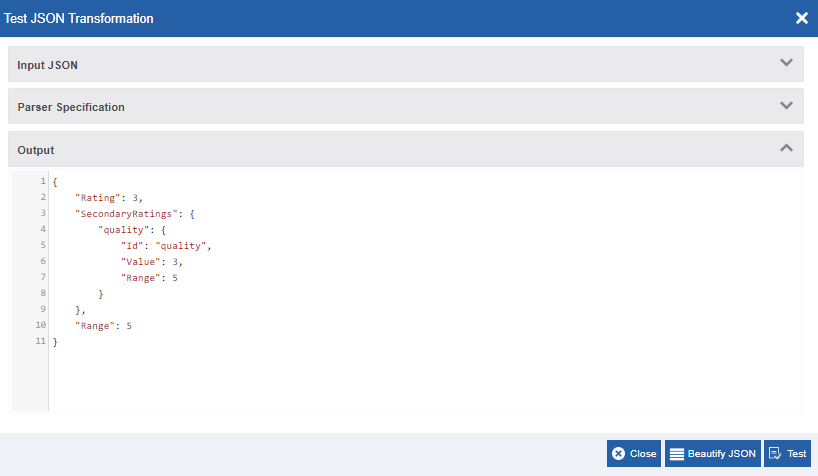
-
Click Close to close the Test JSON Transformation pop-up.
Output Mapping
Output mapping section is used to store the response or output in a variable. The data type of the variable selected in the output mapping is always alphanumeric.
In JSON Transformation, the output is a JSON array.
-
Click Output Mapping accordion.
-
Select the Output Variable from the drop-down. It is mandatory to map the output variable for Store the Response in Variable.
Configuring Error Handling
When an error occurs in an activity, the system either proceeds with the error or will hang up the process based on the configuration. The error variable captures the error. Error variable is always of data type, alphanumeric. The error Handling section allows configuring the error handling.
-
Click Error Handling accordion.
-
Check the Continue If Error check box if you want to continue the workflow even if the error occurs.
Else uncheck the checkbox to break or stop the workflow execution when an error occurs.
-
Select a variable from the Error Variable drop-down. The variable should be of data type, alphanumeric. Error variable stores the first line of the error.
View Error variable details
- Navigate to Workspace > My Instances.
- Select the workflow. The activity where the error occurred displays a red cross mark on the top-right of the activity node.
- Click the Status link (Failed) in the property panel to view error details.
Warning
In case if the input JSON variable is improper, then the flow will discontinue despite of “Continue If Error” is checked.
Java
Java activity is used to add any particular custom action in the process flow based on the business requirement. The java activity reads the .jar file mapped to it and it executes the code in the classpath.
Prerequisites:
Java - Process Flow > Java
Properties: Basic, Java*, Events, Error Handling
Dependent Entities: Java, Participant, Rule, Email
Dependent Configuration(s): NA
Basic
-
Click an activity in the canvas and then the Basic accordion in the Property panel to enter the basic details.
Field Description Name* Enter the name of the activity.
Character limit:50
Data Type: Alphanumeric and underscore.Description Describe the activity.
Character limit: 1000
Data Type: Alphanumeric and symbols.
Events
Refer to Configuring Events.
Java
- Click Java accordion.
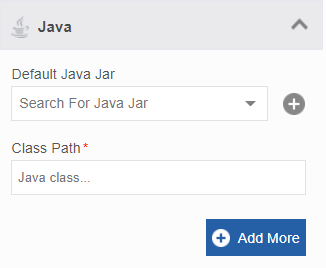
- Select the Default Java Jar file from the drop-down.
-
In the Class Path, enter the class path of the selected Jar file.
Imp
The logic in the jar file should be in the execute ( ) method.
-
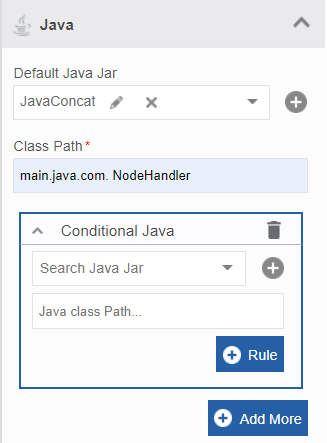
Click Add More to add conditional Java Jar files based on rules.
-
Select a Conditional Java Jar file and provide the class path of the file.
-
Click +Rule and select the rule for the conditional Java.
-
Click the Delete Rule to remove a rule for the conditional Java.
- Click +Add More again for creating more conditional Java.
Configuring Error Handling
When an error occurs in an activity, the system either proceeds with the error or will hang up the process based on the configuration. The error variable captures the error. Error variable is always of data type, alphanumeric. The error Handling section allows configuring the error handling.
-
Click Error Handling accordion.
-
Check the Continue If Error check box if you want to continue the workflow even if the error occurs.
Else uncheck the checkbox to break or stop the workflow execution when an error occurs.
-
Select a variable from the Error Variable drop-down. The variable should be of data type, alphanumeric. Error variable stores the first line of the error.
View Error variable details
- Navigate to Workspace > My Instances.
- Select the workflow. The activity where the error occurred displays a red cross mark on the top-right of the activity node.
- Click the Status link (Failed) in the property panel to view error details.
Join
The activity Join is used to join the parallel transitions which are split by the Fork activity. The number of Joins in a workflow is equal to the number of Forks.
Properties: Basic
Dependent entities: NA
Dependent configuration(s): NA
Basic
-
Click an activity in the canvas and then the Basic accordion in the Property panel to enter the basic details.
Field Description Name* Enter the name of the activity.
Character limit:50
Data Type: Alphanumeric and underscore.Description Describe the activity.
Character limit: 1000
Data Type: Alphanumeric and symbols.
Lucene Index👑
This content is applicable for Enterprise plan
Meeting Request
The meeting Request is to set up and schedule a meeting. The assigned participants get the meeting request with the relevant details. To set up a meeting request, you need to create a Timer for time scheduling with Timer Type as Meeting Request.
When the process is initiated, from that time onwards the system will consider the meeting request and therefore schedule the meeting request based on the timer as per the configuration.
Properties: Basic, Meeting Request, Events, Error Handling
Dependent entities: Timer*, Participant, Rule, Email
Dependent configuration(s): NA
Basic
-
Click an activity in the canvas and then the Basic accordion in the Property panel to enter the basic details.
Field Description Name* Enter the name of the activity.
Character limit:50
Data Type: Alphanumeric and underscore.Description Describe the activity.
Character limit: 1000
Data Type: Alphanumeric and symbols.
Events
Refer to Configuring Events.
Meeting Request
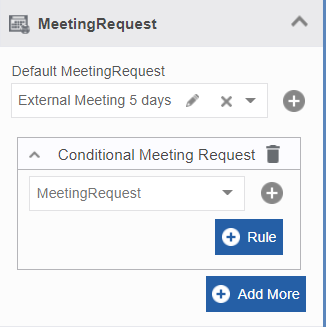
- Click Meeting Request accordion.
-
Select a Default Meeting Request from the drop-down.
-
Click +Add More to add conditional meeting requests.
-
Click +Rule to map a rule for the conditional meeting request.
- Click to + navigate to the entity page and create a new meeting request.
- Click the delete icon to delete a conditional meeting request.
Once the Meeting Request is scheduled, based on the timer, an email is sent to the email ids mapped to it with the meeting details.
Configuring Error Handling
When an error occurs in an activity, the system either proceeds with the error or will hang up the process based on the configuration. The error variable captures the error. Error variable is always of data type, alphanumeric. The error Handling section allows configuring the error handling.
-
Click Error Handling accordion.
-
Check the Continue If Error check box if you want to continue the workflow even if the error occurs.
Else uncheck the checkbox to break or stop the workflow execution when an error occurs.
-
Select a variable from the Error Variable drop-down. The variable should be of data type, alphanumeric. Error variable stores the first line of the error.
View Error variable details
- Navigate to Workspace > My Instances.
- Select the workflow. The activity where the error occurred displays a red cross mark on the top-right of the activity node.
- Click the Status link (Failed) in the property panel to view error details.
ML Predictor👑
This content is applicable for Enterprise plan
Pause
The activity Pause is used to pause the execution for a certain period at the point where a pause is encountered.
Properties: Basic, Pause Duration, Error Handling
Dependent entities: Variable
Dependent configuration(s): NA
Basic
-
Click an activity in the canvas and then the Basic accordion in the Property panel to enter the basic details.
Field Description Name* Enter the name of the activity.
Character limit:50
Data Type: Alphanumeric and underscore.Description Describe the activity.
Character limit: 1000
Data Type: Alphanumeric and symbols.
Pause Duration
-
Click Pause Duration accordion and provide the details as explained in the table below.
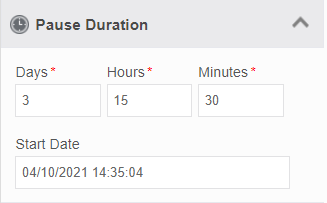
Field Description Days* Enter the number of days the execution should be paused Hours/Minutes Enter the Hours and minutes the execution should be paused.
After the specified number of days, the execution is paused for a specified number of hours and minutes.Start Date Specify the date on which the pause timer should start. That is, after the specified start date, the number of days, hours, and minutes are counted and paused after that.
Configuring Error Handling
When an error occurs in an activity, the system either proceeds with the error or will hang up the process based on the configuration. The error variable captures the error. Error variable is always of data type, alphanumeric. The error Handling section allows configuring the error handling.
-
Click Error Handling accordion.
-
Check the Continue If Error check box if you want to continue the workflow even if the error occurs.
Else uncheck the checkbox to break or stop the workflow execution when an error occurs.
-
Select a variable from the Error Variable drop-down. The variable should be of data type, alphanumeric. Error variable stores the first line of the error.
View Error variable details
- Navigate to Workspace > My Instances.
- Select the workflow. The activity where the error occurred displays a red cross mark on the top-right of the activity node.
- Click the Status link (Failed) in the property panel to view error details.
Paypal👑
This content is applicable for Enterprise plan
PDF Extractor
PDF Extractor extracts the PDF content. The input file is the PDF file and the content of the PDF file is extracted. The extracted content is in JSON format and is stored in a variable. The file is converted into JPEG and stored in a path.
You can map a data entity variable to the PDF Extractor with the key names.
Properties: Basic, PDF Extractor, Error Handling
Dependent entities: Variables
Dependent configuration(s): DMS
Basic
-
Click an activity in the canvas and then the Basic accordion in the Property panel to enter the basic details.
Field Description Name* Enter the name of the activity.
Character limit:50
Data Type: Alphanumeric and underscore.Description Describe the activity.
Character limit: 1000
Data Type: Alphanumeric and symbols.
PDF Extractor
-
Click the PDF Extractor accordion.
-
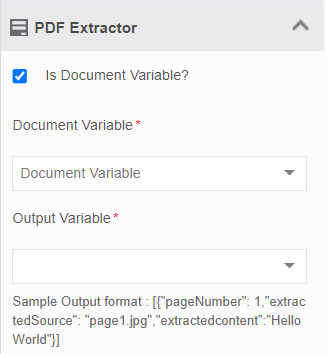
If you have a document variable for which values are passed dynamically through a Form UI, check Is Document Variable? and then select the Document Variable* from the drop-down. You can select a data entity variable (with is collection = True) as per the business need.
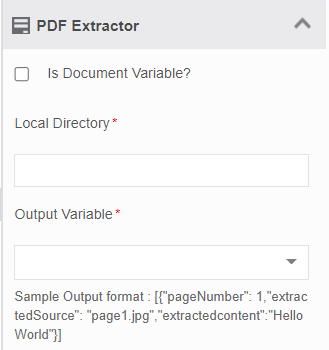
Else if your input file is already saved in the server, uncheck Is document Variable? and enter the Local Directory* path (local path/server path) in the text box. It will read the file from the specified path, extract the content and store it in the Output Variable.
-
Select the variable from the Output Variable* from the drop-down. The output variable is alphanumeric. In the PDF extractor the Output Variable stores the JSON.
Configuring Error Handling
When an error occurs in an activity, the system either proceeds with the error or will hang up the process based on the configuration. The error variable captures the error. Error variable is always of data type, alphanumeric. The error Handling section allows configuring the error handling.
-
Click Error Handling accordion.
-
Check the Continue If Error check box if you want to continue the workflow even if the error occurs.
Else uncheck the checkbox to break or stop the workflow execution when an error occurs.
-
Select a variable from the Error Variable drop-down. The variable should be of data type, alphanumeric. Error variable stores the first line of the error.
View Error variable details
- Navigate to Workspace > My Instances.
- Select the workflow. The activity where the error occurred displays a red cross mark on the top-right of the activity node.
- Click the Status link (Failed) in the property panel to view error details.
PDF Generator
PDF Generator is used to generate a PDF or XLSX output from a source file.
There are two types of functions supported by this activity, viz, Doc to PDF and XLSX to XLSX.
Platform Version supports the generation of resolved XLSM file from the source XLSM.
- Doc to PDF: Converts a word input (input from Form variables to word template) to PDF.
- XLSX to XLSX: Input from Form variables are transferred to XLSX template and then converted to XLSX. That is, converting the variable value in the file content is replaced in the XLSX format.
- XLSM to XLSM: XLSM is a Microsoft Excel Macro Enabled file. This file can contain data entity type collection variables that are to be resolved at the runtime. This is used to extract collection of data stored in the collection variable.
Properties: Basic, PDF Generator, Output Mapping, Error Handling
Dependent entities: Variables, Template
Dependent configuration(s): DMS
Basic
-
Click an activity in the canvas and then the Basic accordion in the Property panel to enter the basic details.
Field Description Name* Enter the name of the activity.
Character limit:50
Data Type: Alphanumeric and underscore.Description Describe the activity.
Character limit: 1000
Data Type: Alphanumeric and symbols.
PDF Generator
-
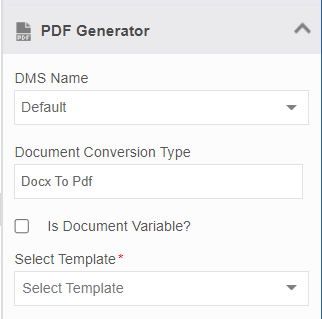
Click PDF Generator accordion.
-
Select the DMS name from the drop-down list. DMS is a mandatory configuration as it manages the document. The file system is the inbuild DMS in the Platform.
- Select the Document Conversion Type from the drop-down.
-
If your document that is to be converted is coming from the Form UI in the runtime, check Is Document Type and select a document variable from the drop-down list. (In this case, the document file [doc or xlsx] is dynamically coming from the Form UI.)
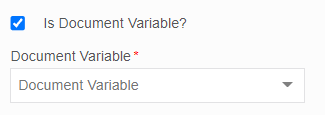
Else if your input file is coming from a predefined template that accepts variable input from the Form UI during runtime, uncheck Is Document Type and select a Template from the drop-down list.
(E.g., if you create a doc template in the business entity Template and map that template here, the selected doc template is the input. The variables defined in the template are resolved from the From UI during runtime.)
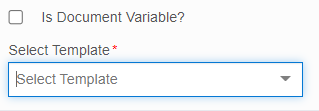
The output file of the PDF generator is stored in the document variable.
XLSX to XLSX and XLSM to XLSM Conversion Configuration
If you have selected Document Conversion type as “XLSM to XLSX” or “XLSM to XLSM” the details relevant to that configuration appears.
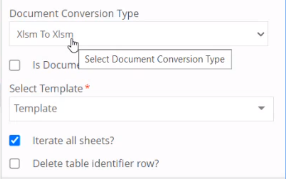
Iterate all Sheets?
If you want to iterate all the sheets in your workbook, select “Iterate all Sheets?”.
Else if you need to iterate only specific sheets, deselect “Iterate all Sheets?” and then provide the Sheet Numbers separated with coma.
Info
All the sheets including the hidden sheets in the workbook will be considered while considering the sheet numbers. Hence make sure to provide the sheet numbers considering all the hidden sheets.
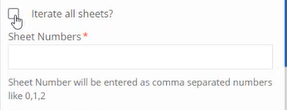
Delete table identifier row?: Select this if you do not want the table identifier row in the output file. The identifier or the collection variable name is provided on top which can be displayed or not displayed based on the deselection or selection of the “Delete table Identifier row?” Check box. This feature is applicable only to the XLSM files. For XLSX files, by default, identifier row is removed.
Info
Prior to creation of the XLSM file, you need to create a data entity with the required attributes and then create a variable of that data entity type with Is Collection =true. You need to provide this collection variable name on the top of the data table that you are trying to extract. This row in which this variable is placed is called the identifier row. So it is advisable to place this collection variable on the top and then the table header row. The table columns can contain the attributes of that collection variable.
Example scenario for XLSM/XLSX table content:
Create a form and then configure the component “Sub Form” that can accept multiple values in the run time. Create individual variables (e.g., file name text box, date component or any other) of the required data type as needed and provide these variable in the XLSM file as per your requirement. XLSM file can be provided through template or a document variable.
You can configure a File component in the form to download the XLSM file that you resolved. You can use the file component in the Forms to get this file in the output.
In the run time, enter values in the sub form component and in the required fields. The sub form component allows you to enter multiple records.
The file component allows you to download the file (file name can be passed during the runtime).
Output Mapping
The output mapping section is used to store the response or output in a variable. The data type of the variable selected in the output mapping is always alphanumeric.
In PDF Generator, the output variable is alphanumeric and the output captures the transaction ID.
- Click Output Mapping accordion.
-
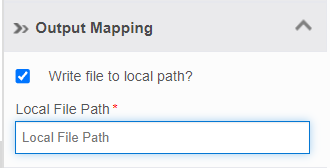
If you need to store the file in a specified location, check the Write File to Local Path and enter the server path along with the name of the file in the textbox. The input file takes the file name and stores the file in the specified path in the server.
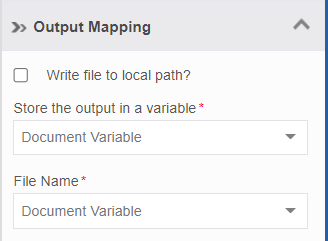
Else uncheck the Write File to Local Path and the details can be captured in the variables.
-
Select a Document variable from the drop-down below Store the output in a variable*. Input File is stored in this variable.
- Select the Document variable from the drop-down below the File Name*. This is the file name of the input file.
Configuring Error Handling
When an error occurs in an activity, the system either proceeds with the error or will hang up the process based on the configuration. The error variable captures the error. Error variable is always of data type, alphanumeric. The error Handling section allows configuring the error handling.
-
Click Error Handling accordion.
-
Check the Continue If Error check box if you want to continue the workflow even if the error occurs.
Else uncheck the checkbox to break or stop the workflow execution when an error occurs.
-
Select a variable from the Error Variable drop-down. The variable should be of data type, alphanumeric. Error variable stores the first line of the error.
View Error variable details
- Navigate to Workspace > My Instances.
- Select the workflow. The activity where the error occurred displays a red cross mark on the top-right of the activity node.
- Click the Status link (Failed) in the property panel to view error details.
If the filename is not mentioned it throws the error captured in the error variable.
If DMS is down or such kind of error occurs, all those errors are captured in the error variable.
Platform IDP👑
This content is applicable for Enterprise plan
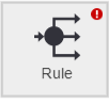
Rule
The activity, Rule is used for choosing particular output transition for the workflow, based on the rule defined. Rules are created and mapped to the transition links as applicable.
Prerequisites:
Rule: Applications > Process Flow > Rule
Properties: Basic, Rule, Events
Dependent entities: Rule, Email
Dependent configuration(s): NA
Basic
-
Click an activity in the canvas and then the Basic accordion in the Property panel to enter the basic details.
Field Description Name* Enter the name of the activity.
Character limit:50
Data Type: Alphanumeric and underscore.Description Describe the activity.
Character limit: 1000
Data Type: Alphanumeric and symbols.
Events
Refer to Configuring Events.
Rule
-
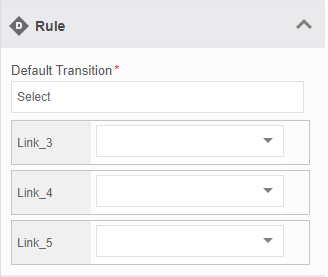
Click Rule accordion. All the outgoing transitions of the Rule activity are displayed.
-
From the Default Transition dropdown, select the default transition. That is, the transition it accepts if none of the rules are satisfied. No rule is applied for default transition. It is mandatory to map a default transition for the Rule.
Note
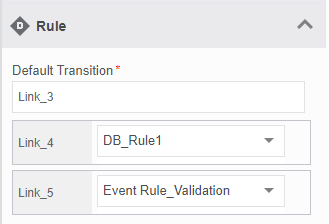
When a transition or link is selected as the default transition, it is not applicable for rule mapping. Hence, it is removed from the displayed list of transitions. For the remaining transitions, you need to map rules.
-
The select rule for each transition is displayed from the drop-down adjacent to the transition.
Start
Start activity is used to indicate the start of a workflow. Most of the workflows start with Start. There will be only one Start activity for a workflow.
Properties: Basic, Events, SLA, Email Trigger
Dependent entities: Rule, Email, Participant
Dependent configuration(s): IMAP
Basic
-
Click an activity in the canvas and then the Basic accordion in the Property panel to enter the basic details.
Field Description Name* Enter the name of the activity.
Character limit:50
Data Type: Alphanumeric and underscore.Description Describe the activity.
Character limit: 1000
Data Type: Alphanumeric and symbols.
Events
Refer to Configuring Events.
SLA
Refer to Configuring Service Level Agreement.
Email Trigger
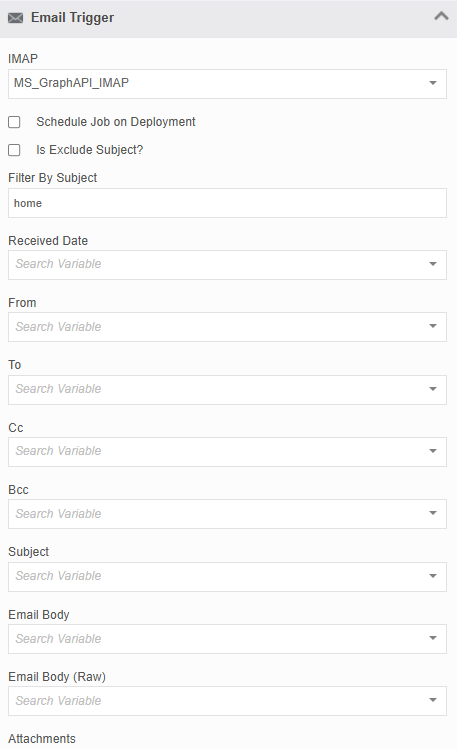
Email Trigger uses IMAP to sign in and access emails. Before configuring the email trigger, you should configure the required IMAP in the Manage section.
Prerequisites:
IMAP - Management > Configuration Management > IMAP
- Click Email Trigger accordion.
-
Select an IMAP from the drop-down list. IMAP-related properties are displayed.
-
Select Schedule Job on Deployment if you want to schedule a job in the background that listens to the configured IMAP.
!!! note When you deploy the flow after selecting the Schedule Job on Deployment, it creates an email trigger job in the background (an associated DB table) which remains active and start listening to the IMAP. This feature allows user to have a control over the email trigger (whether to listen to the IMAP or not).
If deselected it will not listen to the IMAP for any incoming emails. -
Select Exclude By Subject, if you need to filter by excluding a specific subject. That is to filter emails except for a specified subject text for triggering the start (trigger the process flow). When you select Is Exclude Subject – the Exclude By Subject field appears. Enter the subject text that is to be excluded.
Select Filter By Subject to filter by a specific subject. That is, to filter emails with a specified subject text for triggering the start (trigger the process flow). When you deselect Is Exclude Subject – the Filter By Subject field appears. Enter the subject text that is to be filtered.
After filtering or excluding the subject if an email satisfies the criteria, the process flow is triggered.
-
To capture and store the email details, create variables of the required data type and select/map relevant variables from the respective drop-downs. Email attributes are displayed when you select an IMAP. The details of the email that triggered the process flow are captured in the variables mapped.
Field Description Received Date Select a variable of datatype, Date. From Select a variable of datatype, alphanumeric.
From email ID is captured.To Select a variable of datatype, alphanumeric.
To email ID is captured.Cc Select a variable of datatype, alphanumeric.
CC field email ID is captured.Bcc Select a variable of datatype, alphanumeric.
Bcc field email ID is captured.Subject Select a variable of datatype, alphanumeric.
Subject line of the email is captured.Email Body Select a variable of datatype, alphanumeric.
Email content is captured.Email Body (Raw) Select a variable of datatype, alphanumeric.
Email content is captured in HTML format.Attachments Select a variable of datatype, Document (document variable with Is Collection = True).
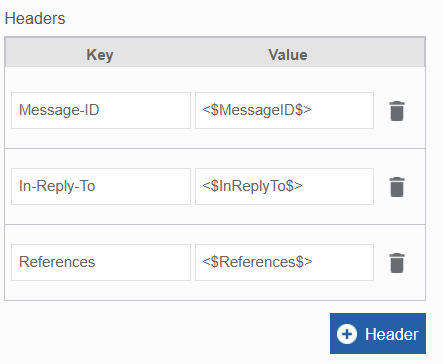
Attachments in the email are captured.Headers You must create three alpha numeric variables in the variables section before configuring the header section.
- Click Header to add a Header field.
Enter Key names. The three header key names that you should provide are Message-ID , In-Reply-To and References . These are the only possible headers for the headers section and it should be provided exactly the same as mentioned.
- Click Header button again to create multiple Key-value fields.
In the Value , enter the alphanumeric variable name created for each header in the format <$variableName$>
Message-ID : When an email is sent, that email will generate a unique message ID. This field variable is to capture that message ID. Message Id will be unique to each email send.
In-Reply-To : When you reply to a message, the message-ID of the original message is captured in the In-reply-to variable indicating that the current message is in reply to the captured message-ID. The same original Message-ID will be captured by the reference variable as well. When you compose a new email, in-reply-to will not have any value.
References : When you have created a thread of messages by sending and replying, Message-ID of each message send previously are captured in the References. When you compose a new email, References will not have any value.
Subprocess
Using Subprocess activity an entire process can be mapped to the main workflow. You can map the processes within the any application in the organization to the subprocess.
If the main flow is Synchronous, then the main-flow will trigger sub flow and wait for the completion of the sub flow to continue the main flow.
If the main flow is Asynchronous, then the main flow will not wait for the completion of sub flow. It will trigger the sub flow and then continue with the main flow.
Prerequisites:
Process flow: Applications > Process flow
Tip
If you want to pass data from child to parent flow, make the parent flow synchronous.
Properties: Basic, Configure Subprocess, Events, Error Handling
Dependent entities: Rule, Email, Variable
Dependent configurations: NA
Basic
-
Click an activity in the canvas and then the Basic accordion in the Property panel to enter the basic details.
Field Description Name* Enter the name of the activity.
Character limit:50
Data Type: Alphanumeric and underscore.Description Describe the activity.
Character limit: 1000
Data Type: Alphanumeric and symbols.
Configure Subprocess
- Click Configure Subprocess accordion.
-
Select the Application name to add process flows within that application.
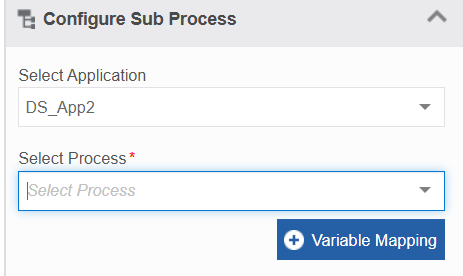
-
Select a process from the Process drop-down. Latest active version of the process will be executed asynchronously.
- Click +Variable Mapping.
-
In the From Parent To Child Process, click Variable and select Input Variable (parent process variable) and Output Variable (child process variable). This is done to pass the data from the parent process (current process flow) to the child process (selected subprocess flow).
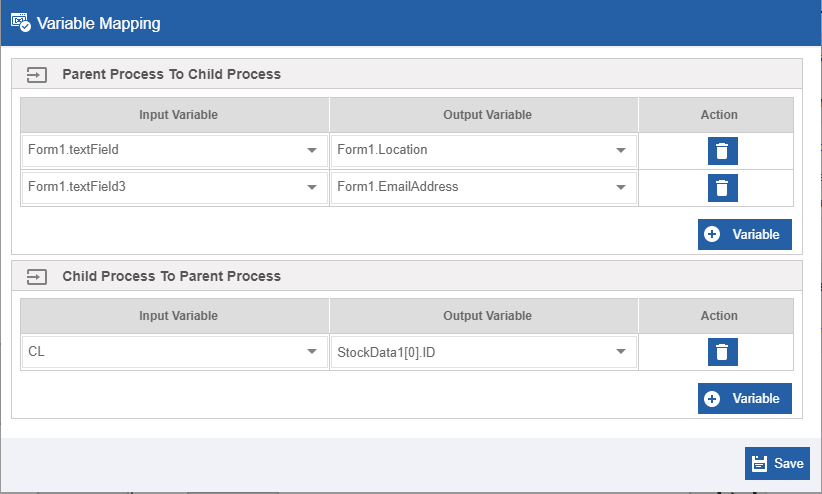
-
In the From Child To Parent Process, click Variable and select Input Variable (child process) and Output Variable (parent process). This is done to pass the data from the child process (selected sub process flow) to the parent process (current process flow).
Note
Variable mapping for child to parent allowed only for synchronous flows. Note that passing of values from child to parent is possible if the parent flow is synchronous and hence wait for the child process flow to get completed before proceeding with the further execution.
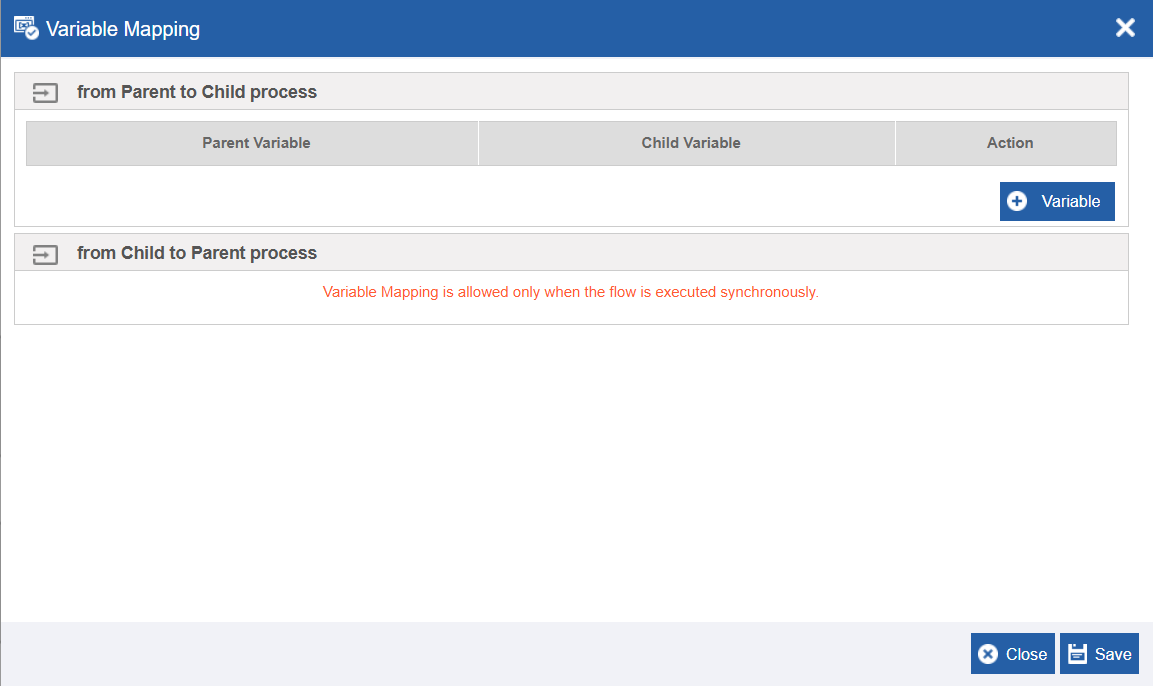
- Click +Variable, to add more variables in each section.
- Click the delete icon to remove an input or output variable mapping.
- Click Save.
Events
Refer to Configuring Events.
Configuring Error Handling
When an error occurs in an activity, the system either proceeds with the error or will hang up the process based on the configuration. The error variable captures the error. Error variable is always of data type, alphanumeric. The error Handling section allows configuring the error handling.
-
Click Error Handling accordion.
-
Check the Continue If Error check box if you want to continue the workflow even if the error occurs.
Else uncheck the checkbox to break or stop the workflow execution when an error occurs.
-
Select a variable from the Error Variable drop-down. The variable should be of data type, alphanumeric. Error variable stores the first line of the error.
View Error variable details
- Navigate to Workspace > My Instances.
- Select the workflow. The activity where the error occurred displays a red cross mark on the top-right of the activity node.
- Click the Status link (Failed) in the property panel to view error details.
Task
Task activity is a user-based activity. If you need an end-user intervention (e.g., collecting details) in a process, you need to add the activity task and map a form entity through which user (the participant mapped to the Task) responses are collected.
Note
If the process flow type is selected as Execute as a service, the activity list will not display Task activity as it is not applicable for service-based flows.
Prerequisites:
Participant - Process Flow > Participant Form – Process Flow > Forms
Properties: Basic, Participants*, Form*, Events, SLA
Dependent Entities: Participant, Form, Timer, Rule, Email
Dependent Configurations: Calendar
Basic
Click the Basic accordion and enter the details as explained below.
| Field | Description |
|---|---|
| Name* | Enter the name of the activity. Character limit:50 Data Type: Alphanumeric and underscore |
| Description | Describe the activity. Character limit: 1000 Data Type: Alphanumeric and symbols |
| Milestone | This configuration is not used. |
| Execute Synchronously | Check the Execute Synchronously checkbox if you need the task to execute synchronously. - What is Synchronous/ Asynchronous execution at Task Level? Asynchronous - When a Task is initiated, the response message (say, the task is completed successfully) is displayed soon after that UI activity (Task or Accept/Reject). That is, it does not wait for the subsequent activities for execution. It will display the response message when it completes that task. Synchronous - When a Task is initiated, the response message (say, the task is completed successfully) is displayed only after the complete execution of the activities till the next UI activity (Task or Accept/Reject) or End activity. That is, it will wait for the subsequent activities to be executed till it encounters the next UI activity or End activity. |
| Tags | This configuration is not used. |
| Calendar | Select a calendar from the drop-down. The task gets executed based on the selected calendar. |
Participant
Participants are the users who act on the UI. Participants can be mapped to an activity while configuring (static configuration) the activity or during run time (dynamic configuration).
The participant gets the assigned activity for initiation.
Mapping Static Participant
Participant section allows you to map a participant entity or map a user (user email id) or map a role to the Task activity.
- When you map a business entity Participant, all the users and roles associated with the participant will be able to act on the Task activity. You can add multiple participants also.
- When you map a user (user email id) as a participant, only that user will be able to act on the Task. You can add multiple user ids.
- When you map a role as a participant, all the users associated with that role will be able to act on the Task. You can add multiple roles.
To map a participant
- Click Task activity > Participant accordion.
- Click the Select Participant drop-down. All the user selection options are displayed.
-
In Participant, select participant(s).
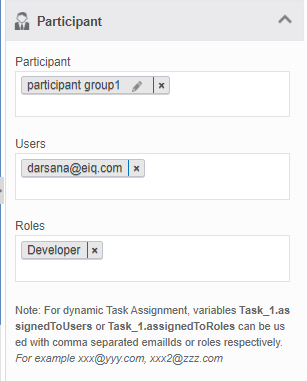
5. In Users, select user(s).
6. In Roles, select role(s).
Note
You must select at least one participant or one user or one role for a task activity.
Configuring Dynamic Participant
You can provide a variable in the fields, Participant, Users and Roles and resolve these variables during the runtime so that the participant is assigned dynamically during the runtime.
Note
For dynamic Task Assignment, variables Task_1.assignedToUsers or Task_1.assignedToRoles can be used with comma-separated email Ids or roles respectively; where Task_1 is the activity name.
For example xxx@yyy.com, xxx2@zzz.com
Form
Refer to Mapping Forms
Events
Refer to Configuring Events.
SLA
Refer to Configuring Service Level Agreement.
Webservice
The activity, Webservice is used to achieve web communication. Web service is an application component for communication that integrates and encodes the activities in the web applications. SOAP (Simple Object Access Protocol) and REST (REpresentational State Transfer) are the two components of Web services.
The activity, WebService is used to call any API services (external APIs or internal APIs within the Platform – e.g., Data Catalog APIs). You need to configure a Webservice entity for configuring the activity WebService.
Prerequisites:
Webservice - Process Flow > Webservice Variable - Process Flow > Variables
Properties: Basic, Webservice, Events
Dependent entities: Rule, Email, WebService
Dependent configurations: NA
Basic
-
Click an activity in the canvas and then the Basic accordion in the Property panel to enter the basic details.
Field Description Name* Enter the name of the activity.
Character limit:50
Data Type: Alphanumeric and underscore.Description Describe the activity.
Character limit: 1000
Data Type: Alphanumeric and symbols.
Events
Refer to Configuring Events.
Webservice
-
Click Webservice accordion.
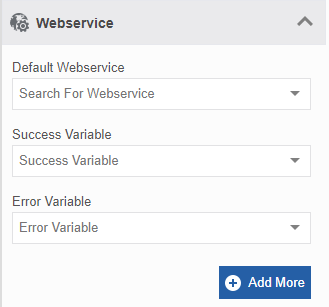
-
Enter details as explained below.
Field Description Default Webservice Select a webservice from the drop-down as a default webservice. Success Variable Select an alphanumeric variable in which success data is stored. If the service call is success, the success response (say success response = True) is stored in the success variable. Error Variable Select an alphanumeric variable in which success data is stored. If the service call is success, the response = {error details} is stored in the success variable.
Mapping Conditional WebServices
The Add More button allows the user to map conditional WebServices based on rules.
Note
Multiple conditional WebServices can be mapped to the Webservice activity with or without rules.
-
Click WebService accordion.
-
After configuring Default WebService details, click +Add More.
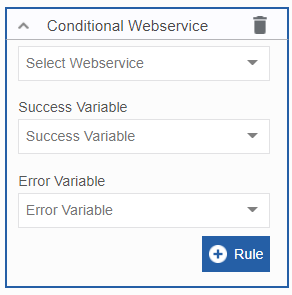
-
Select WebService, Success Variable, and Error Variable.
-
Click +Rule and select a rule from the drop-down. The delete rule button is displayed.
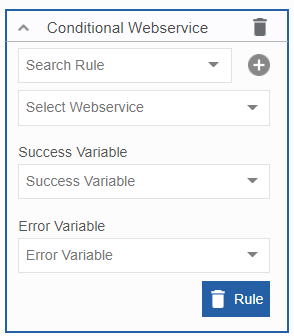
- Click the delete Rule to remove a rule for the conditional webservice.
- Click +Add More again for creating more conditional webservice.