RPA Browser Automation
Pre-requisite for Browser Automation Activities
To work on the Browser Automation activities, make sure that you have added the Chrome Plugin. (Settings tab > Chrome – Browser Add ons.
Close Tab
Close Tab activity allows the users to close the currently opened tab or all tabs inside the Chrome browsers
You need to set the Chrome browser inside the Browser parameter. This can be "chrome”.
If you desire to close all tabs they must set the CloseAll parameter to True, else the Activity will only close the currently opened tab.
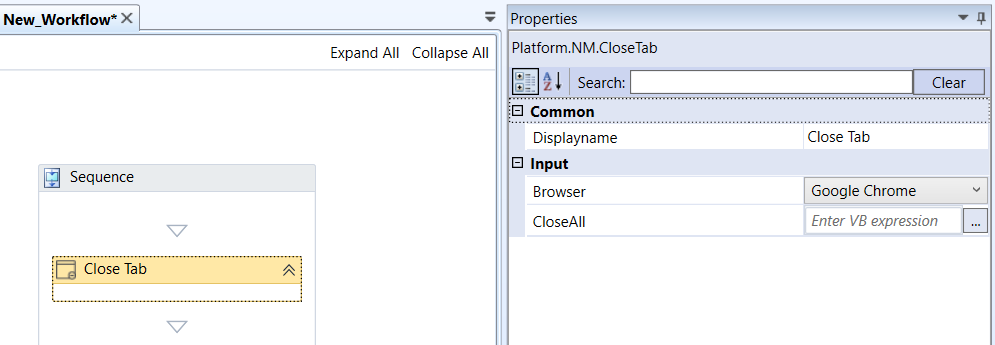
NM.Close Tab activity and properties
Properties of the Close Tab.
| Properties | Description |
|---|---|
| DisplayName | Title of the Activity inside the sequence. |
| Browser | The Chrome browser in which RPA Bot Studio will close the tab - or tabs. This parameter can be set to "chrome". |
| CloseAll | If set to True, RPA Bot Studio will close all tabs currently opened inside the browser. |
Execute Script
Execute Script activity allows you to execute JavaScript scripts inside the Chrome browser and returns the value of the last expression evaluated. It is useful to remind users that the browser must already be opened, else the activity will return a System.NullReferenceException.
The Browser parameter is set as "chrome" for the Google Chrome browser.
To return the value of the last expression evaluated as an Object, you must type the name of the variable inside the Result parameter and press Ctrl+K to create it.
You can also set the FrameId corresponding to the Frame in which the script will be injected.
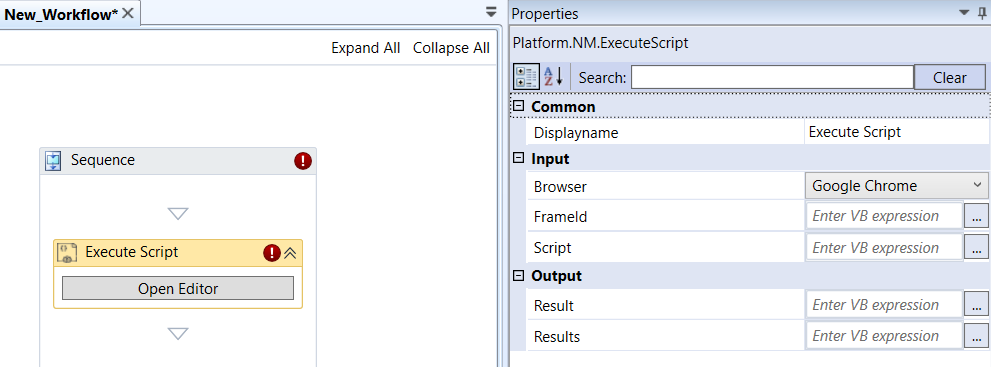
NM.Execute Script activity and properties
Properties of the Execute Script.
| Properties | Description |
|---|---|
| DisplayName | Title of the Activity inside the sequence. |
| Browser | Select the browser in which RPA Bot Studio must execute the script - or tabs.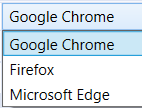 |
| FrameId | ID of the frame in which the script will be injected. Must be of type Int32. |
| Script | Enter the script that is to be executed. |
| Result | Enter an object variable to which the result of the last expression evaluated will be saved. |
| Results | Enter an object variable to which the results are saved. |
In the Browser Automation Execute Script activity, click the corresponding features in the activity for configuring the details.
-
Click Open Editor to open the Code editor. The script to be run can be inserted by clicking the Open Editor and pasting or typing the script inside the Code Editor.
-
Click the Loop Action for defining the loop action and the Drop activity appears where you can drop the activity as per requirement.
Get Element
The Browser NM.Get Element activity selects an element (or elements) filtered with the NM Selector.
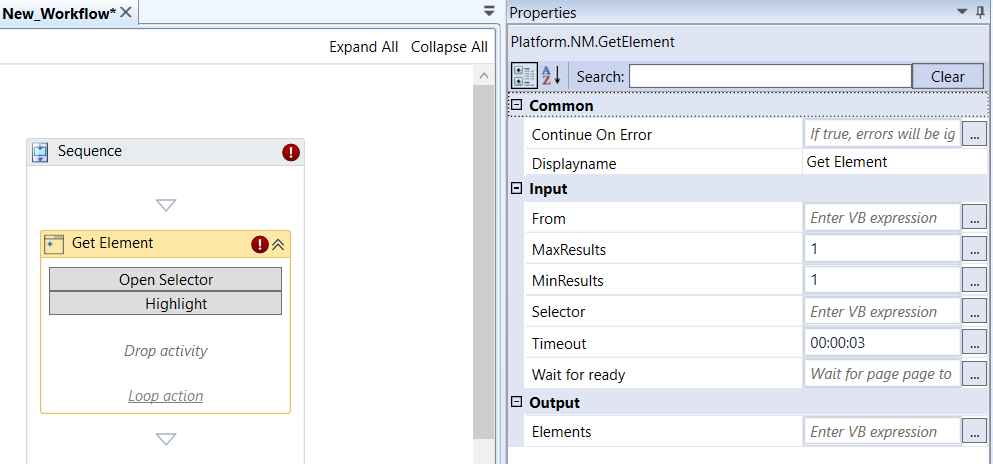
NM.Get Element activity and properties
Properties of the Browser NM.Get Element.
| Properties | Description |
|---|---|
| Continue On Error | Enter True if you need to ignore the errors and continue the workflow. Else enter False . This field accepts only Boolean values (True or False) |
| DisplayName | Title of the Activity inside the sequence. |
| From | Provide the NM element. It allows to search only within an Element found within any of the Browser Automation Get Element’s instances. |
| MaxResults | Maximum elements to be found. |
| MinResults | Number of minimum results. If this value is higher than 0 and this activity fails to find an element, it throws an exception (ElementNotFound). If you want to check whether an element exists or not, set this value to 0 and test for ‘item.Length() == 0’ inside the sequence. |
| Selector | Enter all the data to identify the Browser Automation application. |
| Timeout | Enter the time until the activity ceases if not successfully able to find an element. |
| Wait for ready | If set to “True”, it waits until the page is fully loaded else tries to execute it parallelly |
| Elements | Enter an NMElement variable to store the selected NM Elements. |
In the Browser Automation Get Element activity, click the corresponding features in the activity for configuring the details.
-
Click Open Selector to manipulate the HTML content of any of the window that is opened.
-
Click Highlight for highlighting. Clicking Highlight will red-highlight the first Element that matches the criteria on the selector. Useful for checking if the selector is properly set up.
-
Drag the activities to the Drop Activity area as per your need.
-
Click the Loop Action for defining the loop action and the Drop activity appears where you can drop the activity as per requirement.
-
The user can also use XPath Selector to select Elements inside the page. XPath Selectors use the following syntax:
Matches any element node
@* - Matches any attribute node
node() - Matches any node of any kind
So, for instance, if the user wanted to select all the child element nodes of a bookstore node, they’d use /bookstore/*. To select all elements in a document, they’d use //*. Now, if they’d like to select all title elements which have at least one attribute of any kind, they’d use //title[@*]. To concatenate XPath expressions, the user can use the | operator. So, if they’d like to select all title AND price elements of all book elements, they’d use the expression //book/title | //book/price. -
As well as the XPath Selector, the user can also use the CSS Selector. CSS Selectors use the following syntax:
.{CLASS} - Matches all elements with that class.
#{CLASS} - Matches all elements with that id.
** * ** - Matches all elements.
{ELEMENT} - Matches all \<p> elements.
The syntax is pretty similar to that of XPath Selectors. For more on CSS Selectors, refer to CSS Selectors (https://www.w3schools.com/cssref/css_Selectors.asp).
Get Tab
Get Tab activity is used to get the current tab in the selected browser. If no browser is opened in the system, Get Tab activity returns nothing. The activity gets all the information about of selected/current tab from the browser like, which browse, height and width of the tab etc.
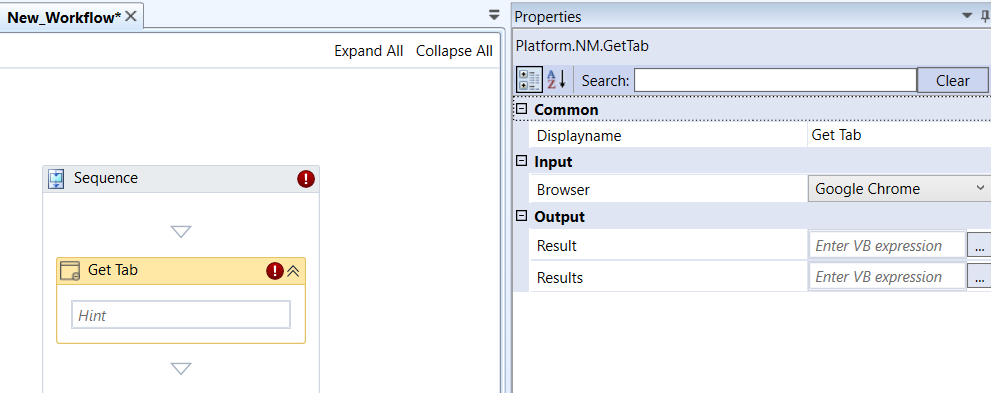
NM.Get Tab activity and properties
Properties of the Get Tab.
| Properties | Description |
|---|---|
| DisplayName | Title of the Activity inside the sequence. |
| Browser | Select the browser. The activity extracts details from the specified browser. Chrome is the default browser. |
| Result | Enter an NMMessageTab variable to store the details of single tab that is active. |
| Results | Result NMMessageTab[] variable to store an array of details of all open tabs of the active window. By default, the result is stored in Results. |
Get Table Data
Get Table Data activity is used to extract simple table data based on Xpaths. You can extract either the complete table or any range of cells within the table based on the xpath. In the Get Table Data configuration, variables are assigned to all the configuration properties. The variables are resolved when the activity runs.
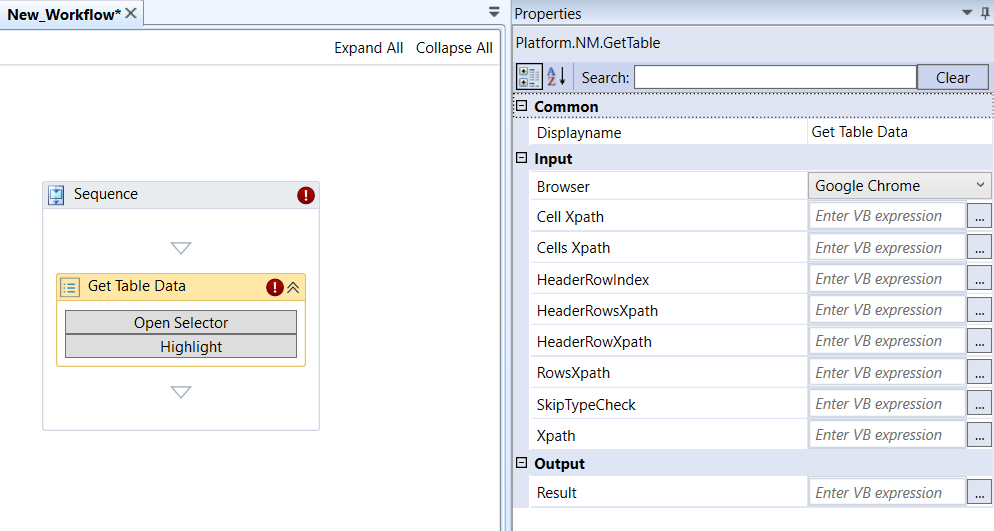
NM.Get Table Data activity and properties
Properties of the Get Table Data.
| Properties | Description |
|---|---|
| DisplayName | Title of the Activity inside the sequence. |
| Browser | Select the browser in which the activity must run. This property specifies the browser instance or window to be used for accessing the HTML table data. Chrome is the default browser. |
| Cells Xpath | Select a variable to store the xpath of the cells in the table. This property specifies the XPath expression for selecting multiple cells within the HTML table. |
| Cell Xpath | Select a variable to store the xpath of a cell. This property represents the XPath expression used to identify individual cells within the HTML table. |
| HeaderRowIndex | Select a variable to store the index of number of the header row. This property indicates the index of the row in the table that contains headers or column titles. Based on the index number, the complete row data is extracted. |
| HeaderRowsXpath | Select a variable to store the xpath of the header rows. This property defines the XPath expression for selecting multiple rows that contain headers or column titles. |
| HeaderRowXpath | Select a variable to store the xpath of a header row. This property specifies the XPath expression for selecting the single row that contains headers or column titles. |
| RowsXpath | Select a variable to store the xpath of the rows of the table. This property represents the XPath expression used to identify multiple rows within the HTML table. |
| SkipTypeCheck | Enter True if you want to skip the checking of type. Enter False if you want do the type check. This property determines whether to skip data type checking while processing the table data, which can enhance performance but may lead to potential data type-related issues. |
| XPath | Select a variable to store the xpath of the table. This property specifies the XPath expression used to locate the HTML table within the web page. It serves as the primary means of identifying the table element for data extraction. |
| Result | Enter a DataTable variable to store the details of extracted table details. This property stores the result of the "Get Table Data" activity, which typically includes the extracted table data in a structured format suitable for further processing. |
Open Selector
- Click Open Selector to manipulate the HTML content of any of the window that is opened.
Highlight
- Click Highlight for highlighting. Clicking Highlight will red-highlight the first Element that matches the criteria on the selector. Useful for checking if the selector is properly set up.
Open URL
Open URL activity opens an URL in Chrome. If no URL is set, it will automatically start a new browser instance.
The Browser parameter in which the URL will be opened is "chrome".
The users also need to set whether the tab must be opened inside a new tab or in the currently opened tab by setting the NewTab parameter to True or False.
Make sure to add the Chrome browser plugin for utilizing this activity.
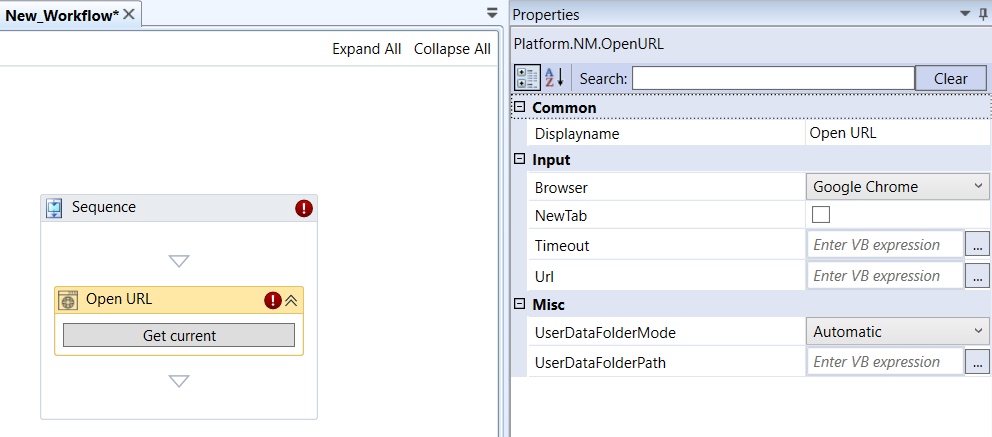
NM.Open URL activity and properties
Properties of the Open URL.
| Properties | Description |
|---|---|
| DisplayName | Title of the Activity inside the sequence. |
| Browser | Browser which RPA Bot Studio will execute the script - or tabs.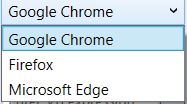 |
| New Tab | If selected, it opens the URL inside a new tab in the browser. Else, if set to False, opens the URL inside the currently opened tab. |
| Timeout | Enter the waiting time in hh:mm:ss.The activity will wait till the specified time for completion (that is to find or load the associated element). If the activity is not completed (not able to find or load the associate element) due to server delay until the given time, it throws an exception. |
| URL | URL that is opened inside the browser. |
| UserDataFolderMode | Select the folder mode.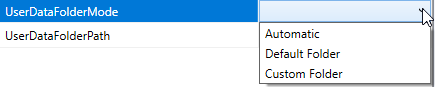 |
| UserDataFolderPath | The local system path. |
In the Browser Automation.Open URL activity, click the corresponding features in the activity for configuring the details.
- Click Get Current to select the currently active URL in the active tab. The active URL gets copied to the URL field.
Set File Path in File Dialog
Sets the file path for the upload file dialog box. When the upload file dialog opens, it displays the preset path for the upload of files.
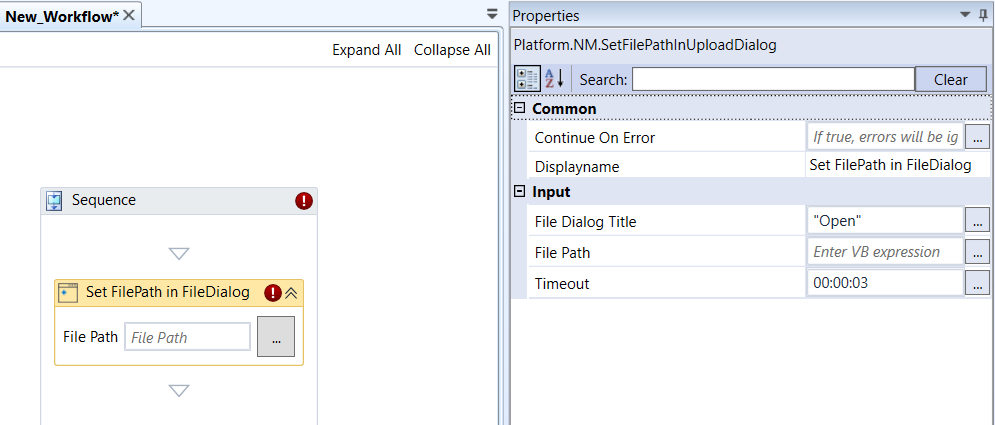
NM.Set File Path in File Dialog activity and properties
Properties of Set File Path in File Dialog.
| Properties | Description |
|---|---|
| Continue On Error | Enter True if you need to ignore the errors and continue the workflow. Else enter False . This field accepts only Boolean values (True or False) |
| DisplayName | Title of the Activity inside the sequence. |
| File Dialog Title | Enter title for the File dialog box. |
| File Path | Enter the file path. Or click the button on the designer to select the file path. |
| Timeout | Enter the waiting time in hh ss. ss.The activity will wait till the specified time for completion (that is to find or load the associated element). If the activity is not completed (not able to find or load the associate element) due to server delay until the given time, it throws an exception. |
Wait For Download
Wait For Download activity is used to configure how much time the bot should wait after the event mentioned, before the download action. It detects a file download initiated from any application and waits for the download to complete before any processing of the file is performed in the automation.
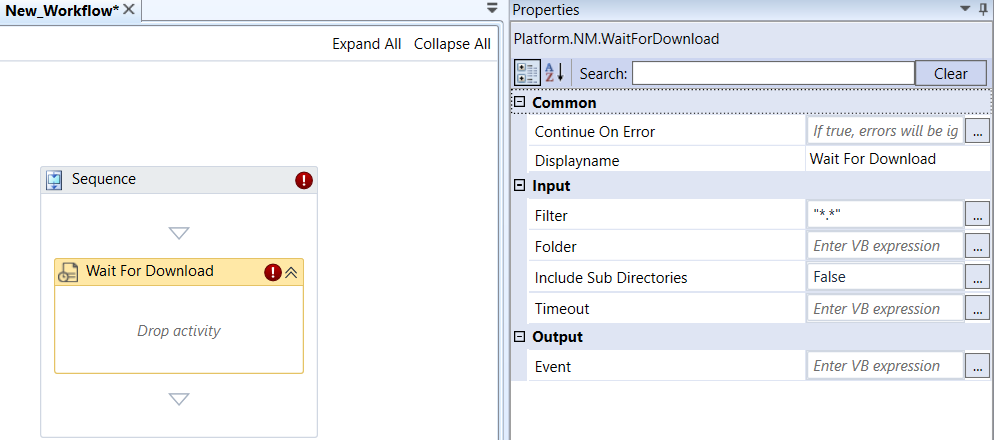
NM.Wait for Download activity and properties
Properties of Wait for Download.
| Properties | Description |
|---|---|
| Continue On Error | Enter True if you need to ignore the errors and continue the workflow. Else enter False . This field accepts only Boolean values (True or False) |
| DisplayName | Title of the Activity inside the sequence. |
| Filter | Enter filter for the file name in the file wild card pattern. Enter “.” for accepting all types of files. |
| Folder | The folder to watch for the downloaded file. |
| Include Sub Directories | Select True, to select all subdirectories within the specified folder. |
| Timeout | Enter the waiting time in hhss. The activity will wait till the specified time for completion (that is to find or load the associated element). If the activity is not completed (not able to find or load the associate element) due to server delay until the given time, it throws an exception. |
| Event | The event that is to be triggered for the download action to happen. |
- Drag the activities to the Drop Activity area as per your need.