Variables
The business entity, Variables are used to create variables for holding the data. Variables are used in the workflow and other entities for holding data of the specified data type.
Variables can be accessed almost in all fields where ever applicable in the Platform. Resource Data/Variables panel appears in sections where you can access variables.
Types of Variables
Technically, as per the usage, the variables are classified into two types.
User Defined Variables: The variables that you create manually in the Variables entity section are user-defined variables. User-defined variables can be standard variables or data entity variables.
System Variables: The variables that are generated automatically when you create an application, process, forms, etc., are System variables. When you design a form, for every control added a corresponding system variable associated with it is created.
Application-Level System Variables – When you create an application, the system variables named “application” and “organization” are created. These system variables apply to all the flows within that application.
Flow-Level System Variables – When you create a flow or create entities within that flow, corresponding system variables are created as applicable. These system variables are applicable only within the particular flow module.
Imp
You cannot edit or duplicate or delete system variables.
Viewing Variables
The variables associated with each flow will appear within that flow.
- Navigate to App Studio > Applications - open application name > Process Flow / Data Flow - flow name > Open.
-
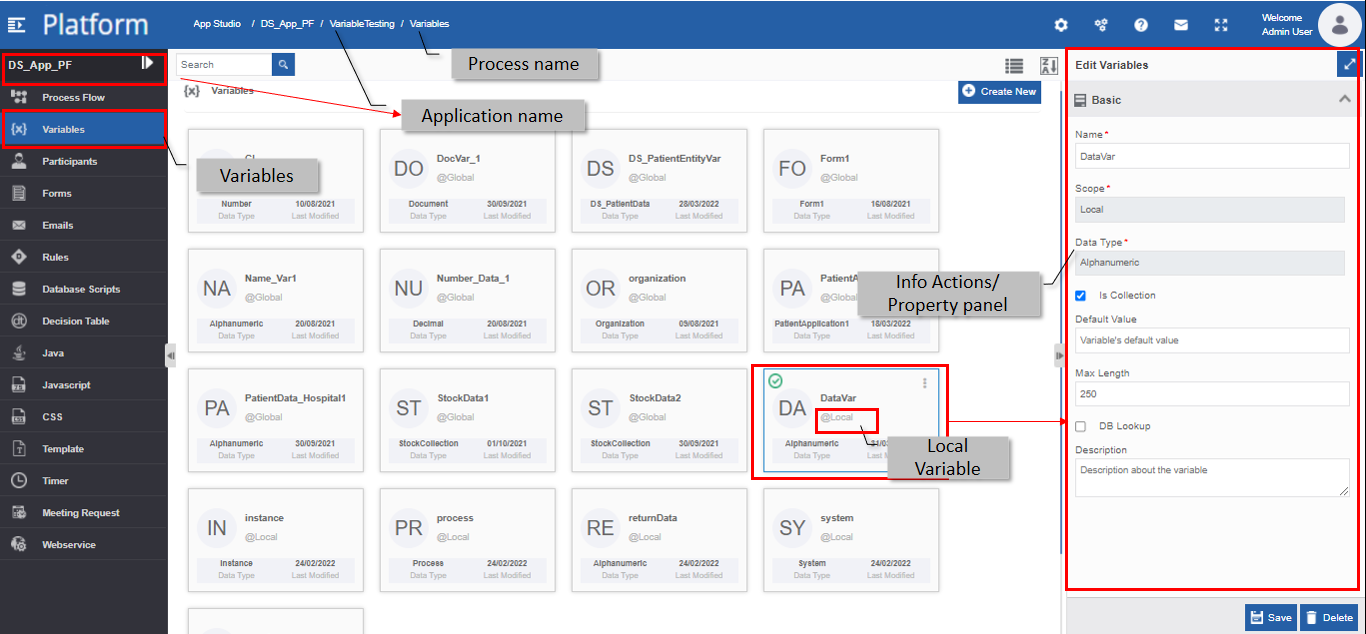
Click Variables on the left side panel for viewing the variables for the flow module.
Creating New Variable
You can create a variable of a specified data type as per the requirement.
- Navigate to App Studio > Applications - open application name > Process Flow / Data Flow - flow name > Open.
-
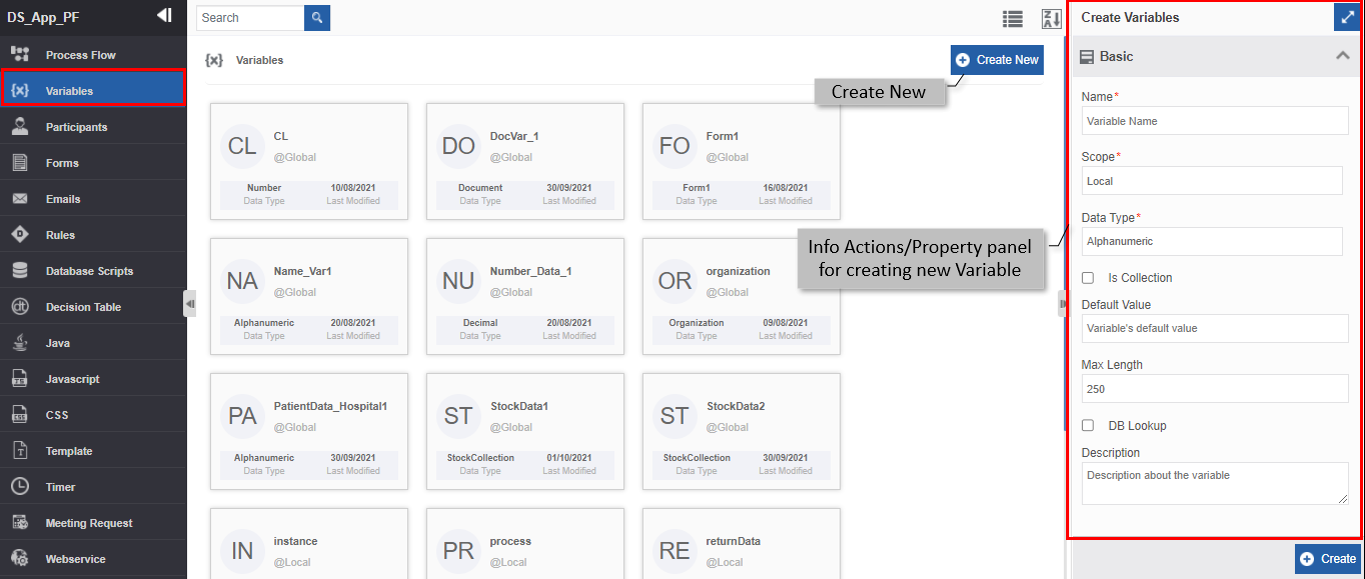
Click Variables. The variables list appears.
-
Click +Create New. The Info Actions panel appears as Create Variable.
-
Enter the Basic details in the Create Variable panel as explained below.
Field Description Name* Enter the name of the variable.
Character limit: 50.
Data type: Alphanumeric and underscore. Whitespace is not allowed.Scope* The scope of an entity is always local as the entities are created at the flow level. Data Type* Select the required data type from the drop-down.
The drop-down displays all the data types available on the Platform.
The data-type-related fields appear dynamically corresponding to the data selected.
Refer to Data Types for more details on each of the data types and the configuration details of specific data types.Is Collection Select the checkbox if you need the selected data type to be a collection variable.
Clear the checkbox if you don’t need the selected data type to be a collection type.Default Value Enter the default value for the variable as applicable. This is explained separately for each data type; refer to Data Types. DB Lookup Select the DB Lookup checkbox and select a database script if you want to define a database query for the variable. It is mandatory to create a database script if you select the DB Lookup checkbox.
- In the Database Query box, enter the name (or first few letters) of the required database script and select the name.
Else clear the DB Lookup checkbox if you do not require a database query (database script) for the variable.
- DB lookup is applicable for all the data types except for the “Document ” type.Description Enter a description for the variable. -
Click Create. The variable is created with the details configured. Now you can use this variable in the flow module within which it is created.
Data Types
The data type is the main property of the entity, variable.
Based on the data type selected, the configuration details appear for the variable in the Info Actions. You can create a variable with a Standard data type or entity data type. System data types are applicable for the system-generated variables. The different data types are categorized and explained in the below sections.
Standard Data Types
Alphanumeric
Alphanumeric is the selected as default data type during the creation of the variable.
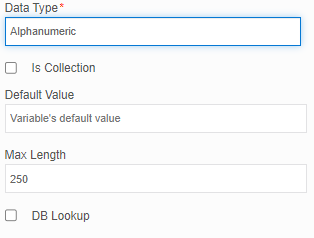
The data type, alphanumeric allows alphabetic and numeric values for the variable.
| Data Type-Specific Configurations | Description |
|---|---|
| Default Value | Enter a default value for the variable. The value should be of the type, alphanumeric. |
| Max Length | Enter the maximum length allowed for the variable. The default value is 250 |
Number
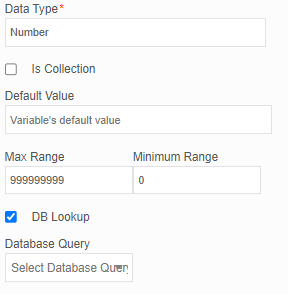
The data type, “number” allow numeric values for the variable.
| Data Type-Specific Configurations | Description |
|---|---|
| Default Value | Enter a default value for the variable. The value should be of the type, “number”. |
| Max Range | Enter the maximum range or upper limit value allowed for the variable. The default value is 999999999 |
| Minimum Range | Enter the minimum range or lower limit value allowed for the variable. The default value is 0 |
Decimal
The data type, “number” allow decimal values for the variable.
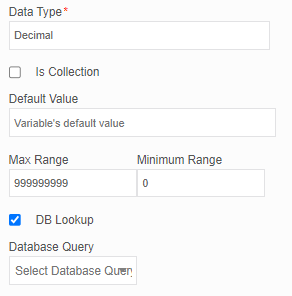
| Data Type-Specific Configurations | Description |
|---|---|
| Default Value | Enter a default value for the variable. The value should be of type “decimal”. |
| Max Range | Enter the maximum range or upper limit value allowed for the variable. The default value is 999999999. |
| Minimum Range | Enter the minimum range or lower limit value allowed for the variable. The default value is 0. |
Yes/No
The Yes/No is a Boolean variable. A checkbox appears in the form designer for this variable. The Yes/No variable accepts only the values “True” or “False”.
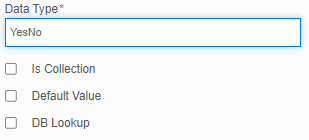
| Data Type-Specific Configurations | Description |
|---|---|
| Default Value | Select the Default value check box if you want to display the default value for the variable in the runtime. The default value for the data Yes/No is “False” (unchecked checkbox). Else clear the default value check box. |
Date
The data type is used to hold the date and time type of data. In runtime, a date and time picker appears for the user for selecting the “data/time”.
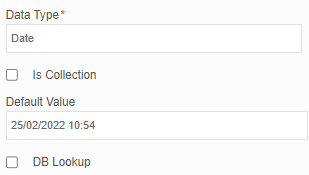
| Data Type-Specific Configurations | Description |
|---|---|
| Default Value | Date data type allows the variable to hold the date and time for the variable. - Select a default date and time for the variable from the date picker. 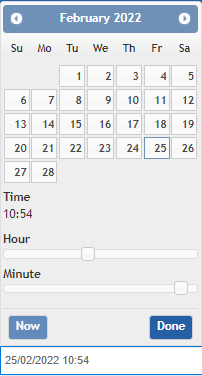 - Scroll through the months using the front and back arrows adjacent to the Month. - Select a date from the calendar. - Below Time , scroll the Hour scroll for selecting hours and Minute scroll for selecting minutes. - Click Now for selecting the current date and time. - Click Done for updating the provided date and time. |
Document
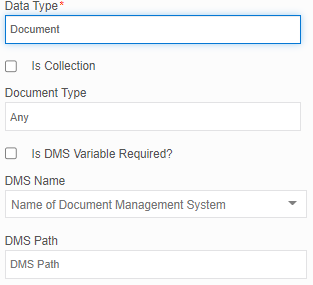
The data type, the document holds the metadata for the document.
A document type can be Image, Text, PowerPoint, MS Excel, MS Word, or PDF.
| Data Type-Specific Configurations | Description |
|---|---|
| Document Type | The variable accepts the selected type of document during the runtime. - Select the type of document for the variable. 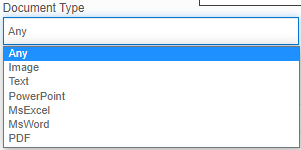 “Any ” automatically accepts any of the document types listed. |
| Is DMS Variable Required? | Select the “Is DMS Variable Required? ” checkbox if you want to provide the DMS name through a variable at runtime. Select DMS Variable appears.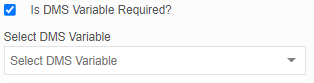 Type the first letter and then the subsequent letters of the variable and select the required variable. Else if do not require a variable for the document, clear the “Is DMS Variable Required? ” checkbox. |
| DMS Name | Type the first letter and then the subsequent letters of the DMS Name and select a DMS Name from the list. |
| DMS Path | Enter the server path in which the document should be saved. |
Form
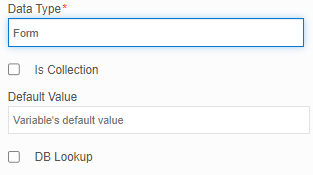
The data type, Form, represents a Form variable. When a new form is created, a Form variable is automatically generated with data type Form.
Data Entity Data Types
Data entities are created in the Manage > Data Catalog > Data Entities module.
All the data entity data types appear in the data type list just below the standard data types.
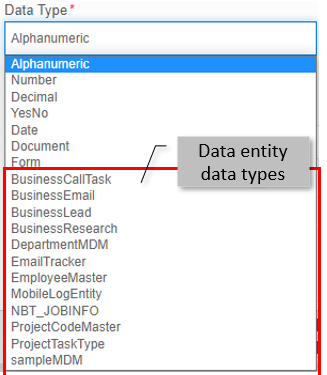
Creating Entity Type Data Variable
To utilize a data entity in the flow, you need to create a data entity variable. This variable accepts values with the attribute structure of the data entity created.
- Navigate to the business entity, Variables.
- Click Create New and provide the name for the variable.
-
Select an entity as the data type. The attribute details (Name and Data Type of each attribute of the selected data entity) appear.
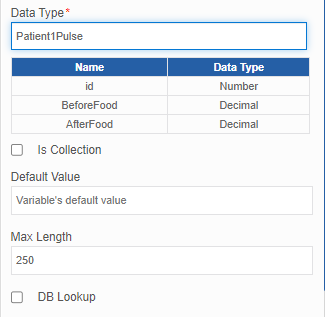
-
Enter the details relevant to the data entity variable as explained below.
Data Type-Specific Configurations Description Is Collection Select the checkbox if you need the selected data entity variable to be a collection variable.
Clear the checkbox if you don’t need the data entity variable to be a collection type.Default Value Enter a default value for the variable as a JSON object.
The default value is the array of the JSON object.
Example:
[{"Key1":"Value11","Key2":"Value21"},
{"Key1":"Value12","Key2":"Value22"}]Max Length Enter the maximum length allowed for the variable.
The default value is 250
Max length: 999999
- The length of the variable is the length of the JSON data.DB Lookup Select the DB Lookup checkbox and select a database script if you want to define a database query for the variable. It is mandatory to create a database script if you select the DB Lookup checkbox.
- In the Database Query box, enter the name (or first few letters) of the required database script and select the name.
Else clear the DB Lookup checkbox if you do not need a database query (database script) for the variable.
System Data Types
System data types will not appear in the data type list while creating a variable.
The system data types are automatically created for auto-generated system variables.
-
Click a system variable for viewing the corresponding system-generated data type in the Info Actions.
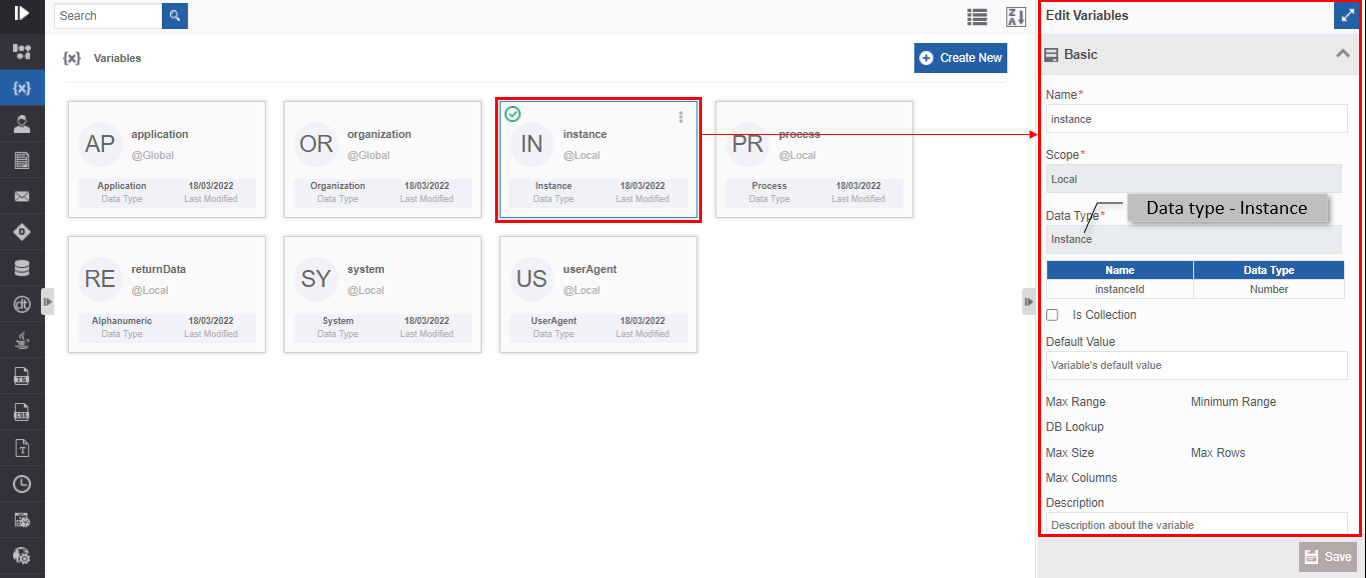
System variable (e. g., instance variable) with corresponding data type in Info Actions
System Specific Variables
System-specific variables are automatically generated when you create an application, define a process, design a flow, etc. You cannot edit a system variable. The value for the system-specific variables is set during the runtime.
Application Variables
The application variables – application and organization - are generated automatically when you create an application.
-
Create an application and navigate to the business entity, Variables.
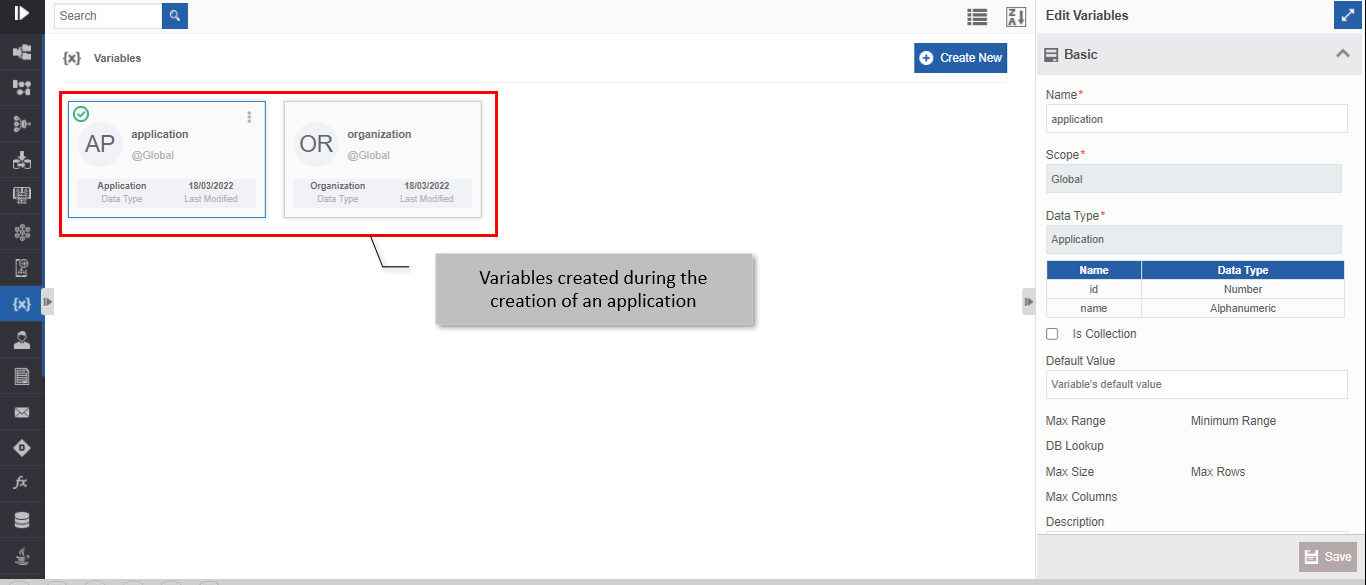
Application level Variables generated during the creation of the application
| Variable name | Data type | Description |
|---|---|---|
| application | Application | Application variable stores the Id and Name of the application.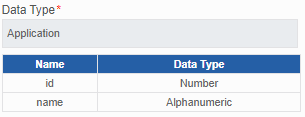 - Id : The id of the application to which the flow belongs. - Name : The name of the application to which the flow belongs to. |
| organization | Organization | Organization variable stores the Id and name of the current organization.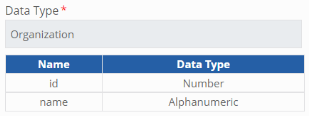 - Id : The id of the organization to which the application belongs. - Name : The id of the organization to which the application belongs. |
Flow Variables
Flow-specific variables – Instance, Process, returnData, System and UserAgent - are generated automatically when you create a flow. These variables are listed on the Variable listing page.
- Create a flow module and navigate to the entity, Variables.
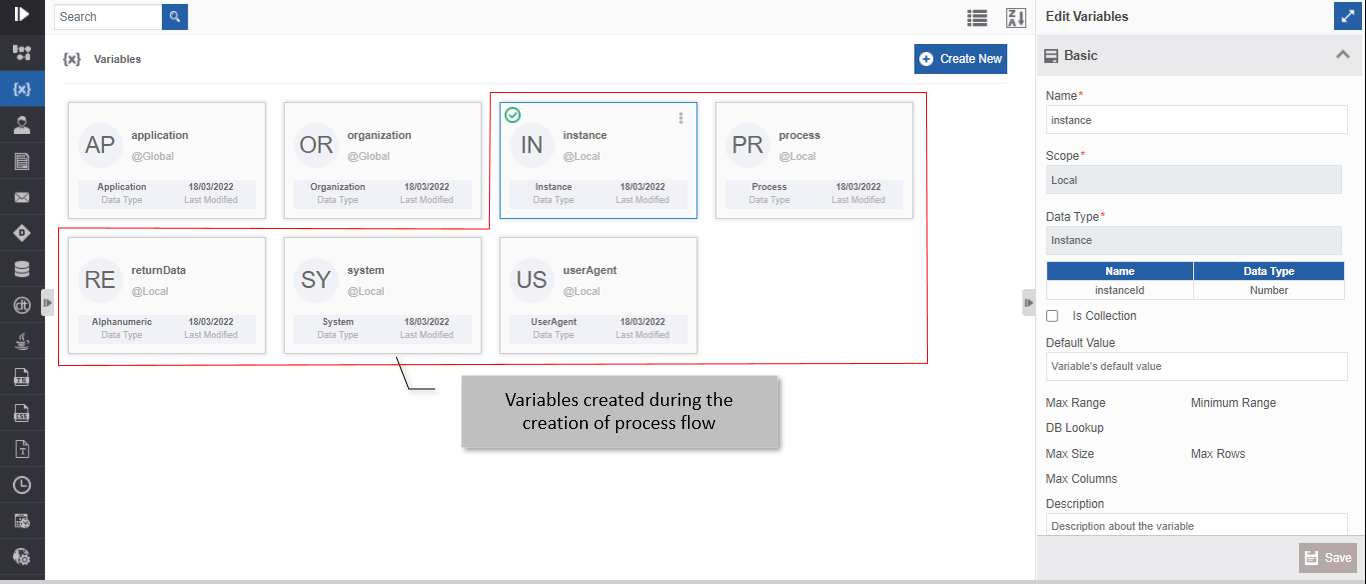
Variables generated during the creation of the flow (Process flow screen shown here)
| Variable Names | Data type | Description |
|---|---|---|
| Instance | Instance | Instance variable stores the instance details of the flow.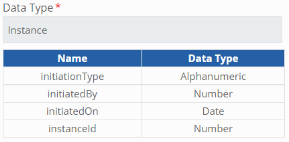 - InitiationType : Type of instance initiation. Manual and System are the two initiation types. - InitiatedBy: The Id of the user who initiated the instance. - InitiatedOn : Instance initiated time stamp. - InstanceId : Id of the instance that is running. |
| Process | Process | Process variable stores the Id, name, version, and comments of the flow.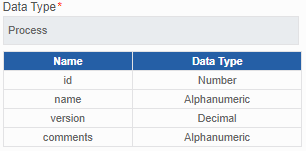 - Id : The id of the process for the instance that is running. - Name : The name of the process for the instance that is running. - Version : The version of the process for the instance that is running. - Comments : The comments provided in the “Description” (in Info Actions). |
| ReturnData | Alphanumeric | To store the return data value. |
| System | System | The system stores system-specific information of the logged-in user at runtime.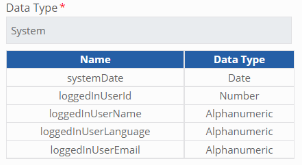 - systemDate : The current system time stamp information. - loggedInUserId : The logged-in user id. - loggedInUserName : The logged-in user name. - loggedInUserLanguage : The language used by the logged-in user. - loggedInUserEmail : The logged-in user email address for the instance during the runtime. |
| UserAgent | UserAgent | The user agent variable stores the Logged-in Device Identification.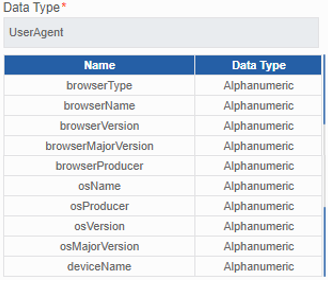 - browserType : The browser type of the logged-in user. - browserName : The browser name of the logged-in user. - browserVersion : The browser version of the logged-in user. - browserMajorVersion : The browser major version of the logged-in user. - browserProducer : The browser producer of the logged-in user. - osName : The operating system name of the logged-in user. - osVersion : The operating system name of the logged-in user. - osMajorVersion : The operating system's major release version of the logged-in user. - deviceName : The device name of the logged-in user. E.g., SmartPhone, Personal Computer. |
Process Flow Activity Variables
The activity variables are specific to Task and Approve Reject activities. Local variables for the activities are generated automatically when you add Task/ Approve Reject activity to the process flow canvas. The variables take the name that you provide for the activity. The scope of these variables is local and is created in the Variable list within the corresponding flow module.
Note
Add the activity Task or Approve_Reject in the process flow design canvas and navigate to the local business entity, Variables.
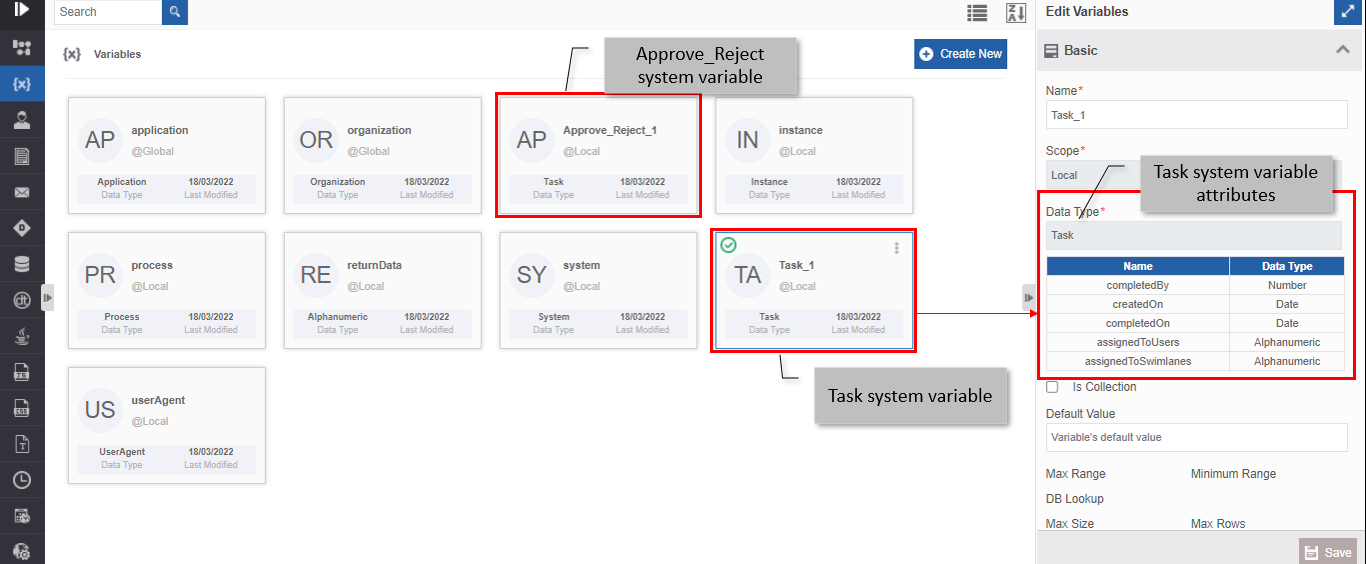
Variable created when you add Approve_Reject or Task activity to the flow
| Variable Names | Data type | Description |
|---|---|---|
| {TaskActivityName} | Task | When you add a task activity to the design canvas, a variable of data type task is created in the variable list. Activity name is taken as the variable name. |
| {Approve Reject ActivityName} | Task | When you add an Approve_Reject activity to the design canvas, a variable of data type task is created in the variable list. Activity name is taken as the variable name. |
The Task activity and the Approve reject activity stores the attribute details as shown below.
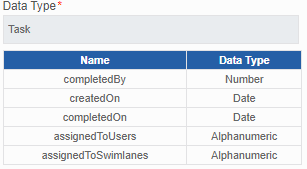
- completedBy: The Id of the logged-in user who has completed that task.
- createdOn: The date and time on which the task is encountered during runtime.
- completedOn: The date and time on which the task is completed.
- assignedToUsers: The variable default value is empty. While designing the flow, you can utilize the variable by providing the user email address to whom you want to assign the future task. You can configure a single email address or multiple email addresses separated with a comma for this variable. If you set a single email address, the future task is assigned to that single user at runtime. Else if you set multiple email addresses, the future task is assigned to the pool of users (email addresses) at runtime.
- assignedToSwimanes: The variable default value is empty. While designing the flow, you can utilize the variable by providing the participant name as input so that the future task is dynamically assigned to that participant rather than the default participant at runtime. In assignedToSwimlanes you map the participant name to whom you want to assign the future task.
Form Variable
A form variable is created when you create a form.
Create a Form, configure the components in the form, and save the form. An entity variable with the name, {form name} is generated automatically in the variables list.
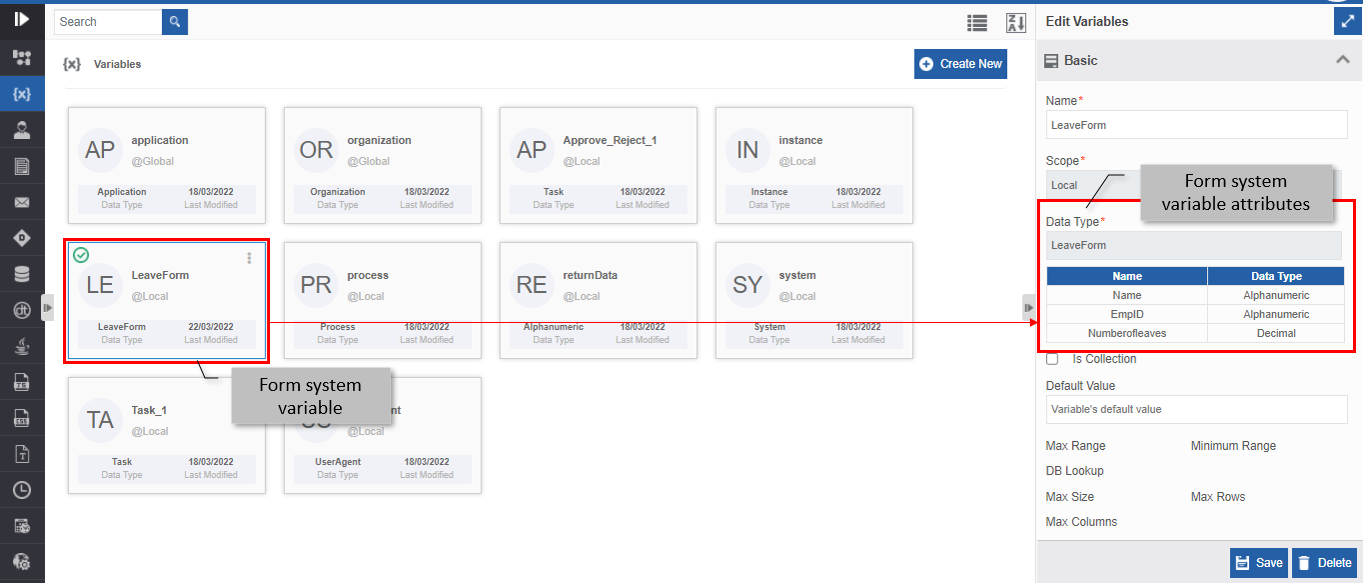
| Variable Names | Data type | Description |
|---|---|---|
| {FormName} | Task | The form variable is an entity-type variable and the variable name is taken as the form name. For each control added in the form, a corresponding attribute is created for the variable. |
Viewing and Editing Variable
Make sure to unlock the application before editing if you want to edit the details of an entity that is not created by you.
Imp
You will not be able to edit any system-generated variables. You can edit only the manually created variable details.
- Navigate to App Studio > Applications - open application name > Process Flow / Data Flow - flow name > Open.
- Click Variables. The variables list appears. The user-generated variables and system-generated variables are listed in the variable list.
-
Click the Variable card for viewing the details of the selected variable. The details of the variable appear in the Info Actions panel (Edit Variables).
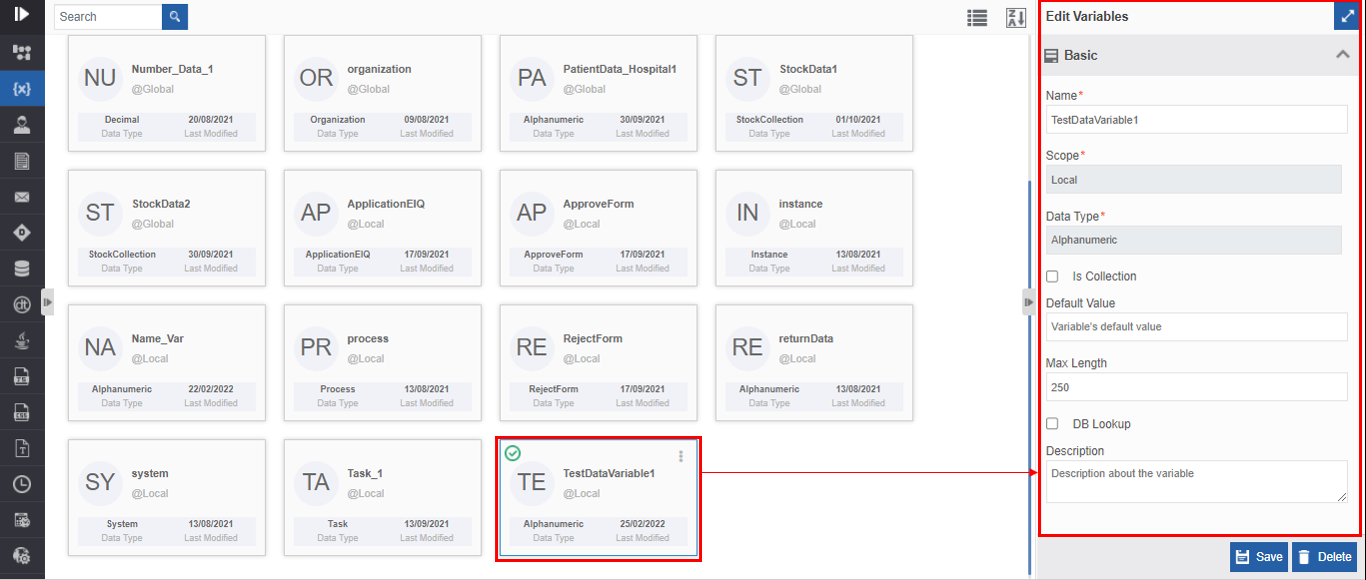
-
Edit the variable details as needed.
Note
You cannot edit the Data Type of the variable once it is created. However, you can edit the configuration and description.
-
Click Save.
Viewing Variable Associations
- Navigate to App Studio > Applications - open application name > Process Flow / Data Flow - flow name > Open.
- Click Variables. The variables list appears.
- Hover over any variable card. Three dots appear on the upper right side of the card.
-
Click the three dots. More Actions appear.
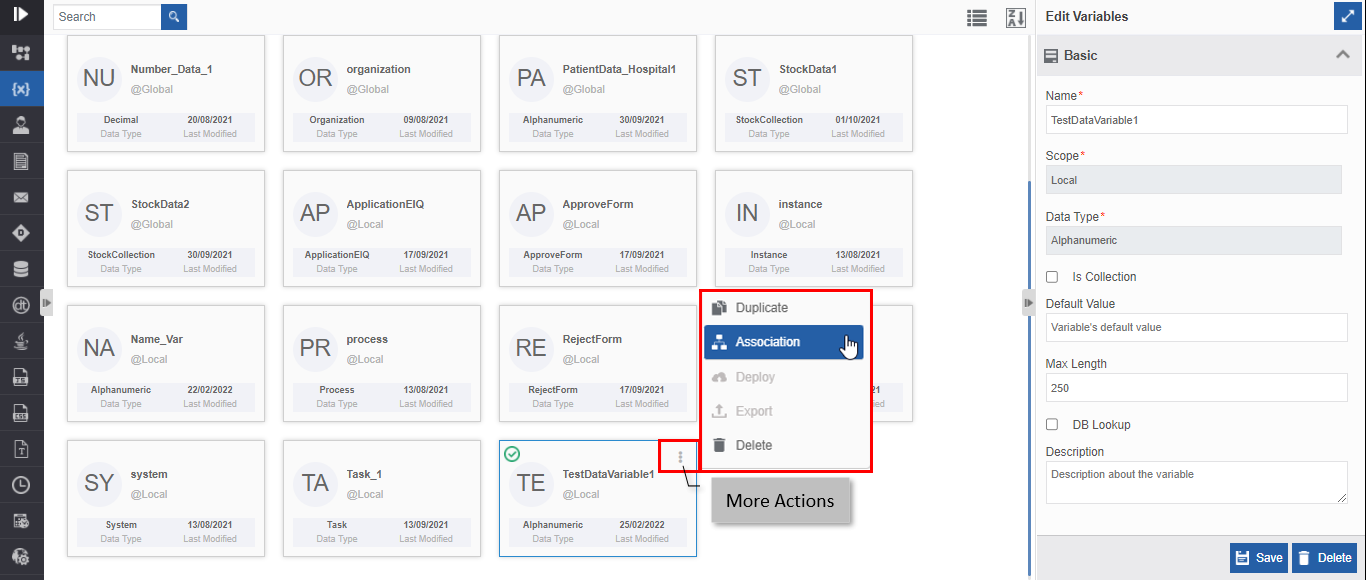
-
Click Associations. The association of the variable with the application, flow modules, and activities is displayed in a pop-up.
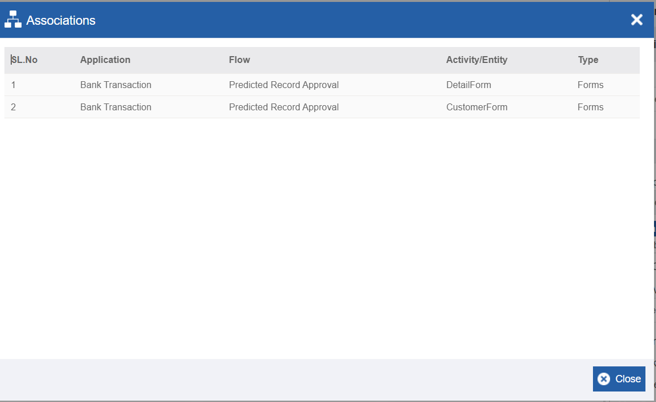
- Application – The application in which the variable is utilized.
- Flow - The flow in which the variable is utilized.
- Activity/Entity - The entity or activity name in which the variable is utilized.
- Type - The type of entity or activity.
Duplicating Variables
Make sure to unlock the application before duplicating an entity that is not created by you. When you duplicate a variable, the associations are not duplicated.
Note
You will not be able to duplicate any system-generated variables. You can duplicate only manually created variables. Hence duplicate action will be disabled for the system-generated variables.
- Navigate to App Studio > Applications - open application name > Process Flow / Data Flow - flow name > Open.
- Click Variables. The variables list appears.
- Hover over any variable card. Three dots appear on the upper right side of the card.
-
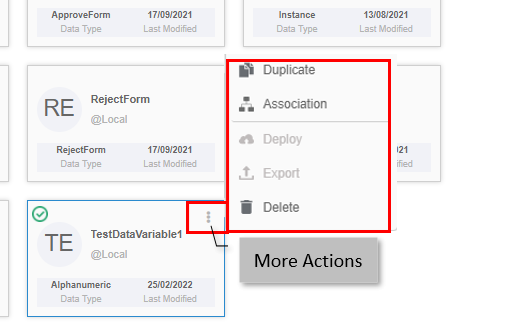
Click the three dots. More Actions appear.
-
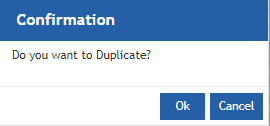
Click Duplicate. A confirmation pop-up appears.
-
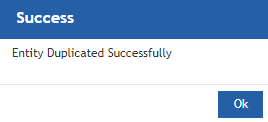
Click Ok for duplicating the variable (or you can click Cancel to cancel the duplicate action). A Success message appears on the successful duplication of the variable.
-
Click Ok. A duplicate copy of the variable appears on the Variables page with the same name suffixed with “_copied”.
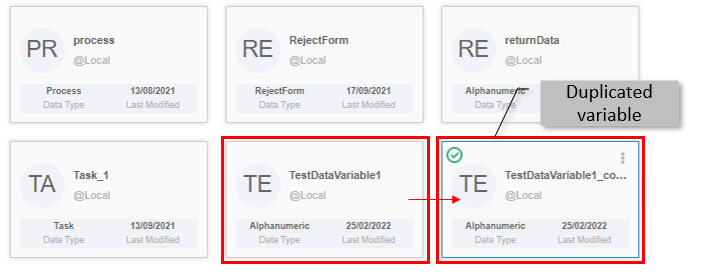
Deleting Variable
Make sure to unlock the application before deleting an entity that is not created by you. Also, you cannot delete the entity if it is associated with any activity.
Imp
You will not be able to delete any system-generated variables. You can delete manually created variables.
If you delete a flow, the corresponding system variables are removed.
If you delete an activity, the corresponding entity variable also gets deleted.
- Navigate to App Studio > Applications - open application name > Process Flow / Data Flow - flow name > Open.
- Click Variables. The variables list appears.
-
Click the variable name card that is to be deleted. The lower-right of the page displays Delete.
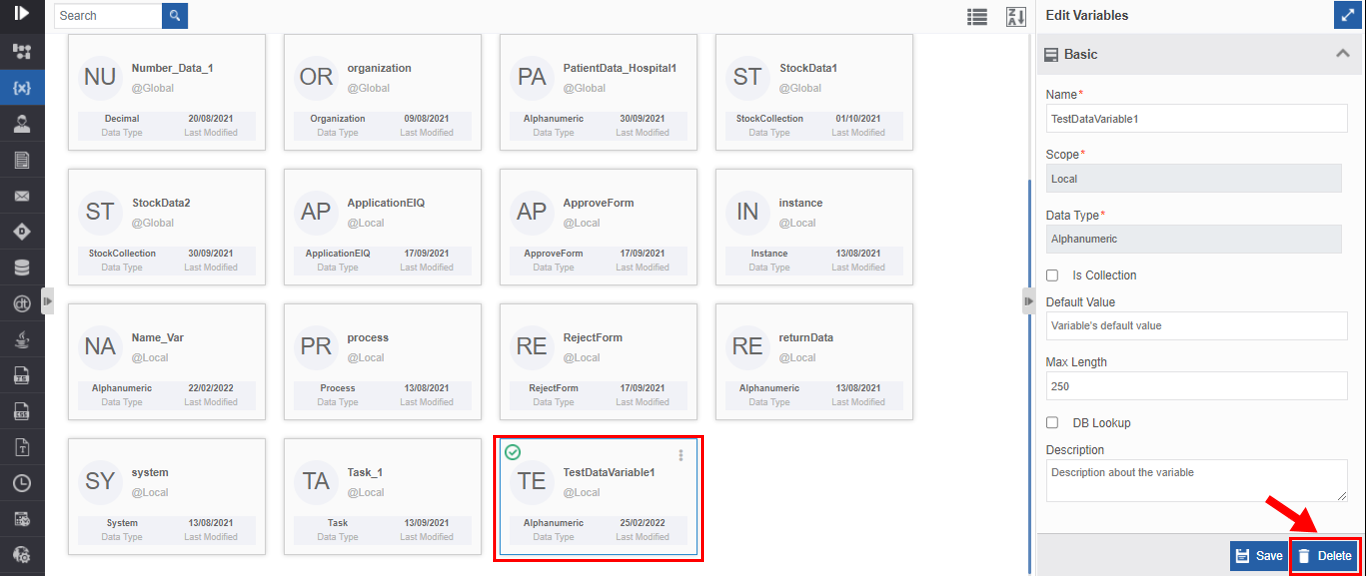
-
Click Delete. A Confirmation pop-up for delete appears.
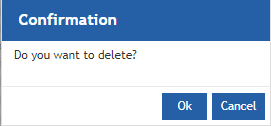
-
Click Ok for deleting the variable.
Or
Click Cancel to cancel the action.
Alternatively, you can follow the below steps to delete the variable:
- Click the Burger menu and navigate to App Studio > Application > {Flow module} > Variables.
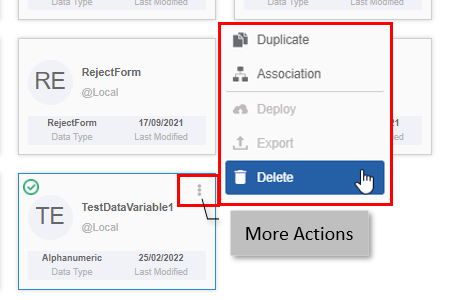
- Hover over the variable card. Three dots appear on the upper right side of the card.
- Click the three dots. More Actions appear.
-
Click Delete and follow step 6 in the above procedure.
Utilizing Variables
Viewing and Using Resource Data Variables
The resource data feature in the Platform allows you to view the variables.
-
Navigate to App Studio > Applications - open application name > Process Flow / Data Flow - flow name > Open.
The expanded view of Info Actions appears with the Resource Data list on the right side.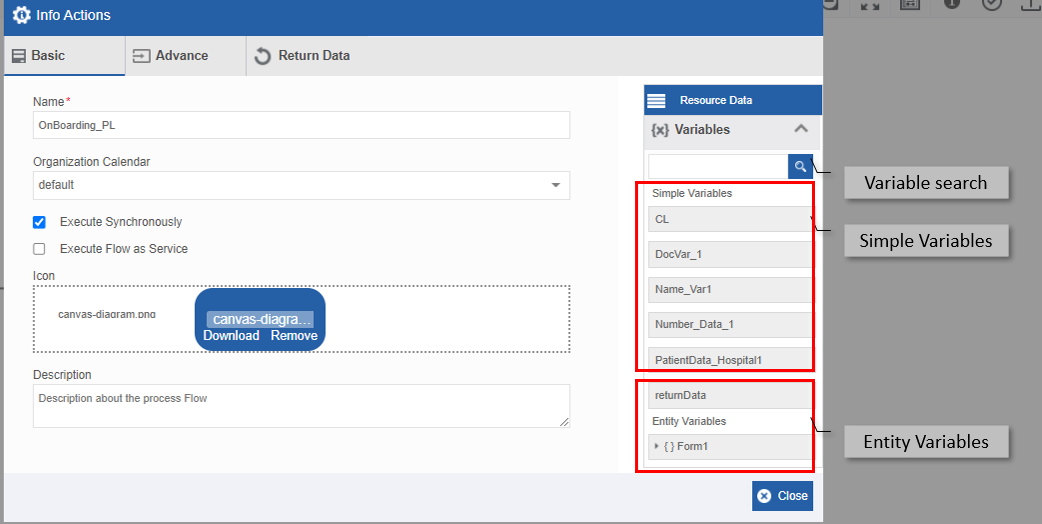
- Variable Search – Enter the name or first few letters of the variable. The filtered result appears.
- Simple Variables – Displays created variables that have standard data types.
- Entity Variables – Displays system-generated entity variables and data entity variables.
Note
In the process flow, you can utilize the variables in the Advance tab and Return data tab in the Info Actions pop-up.
-
Drag the variable into the required field in the work area for mapping the variable to that field.
Using Variables in Forms
When you configure a control in the form, a variable is automatically created for that control and each of these form components becomes an attribute of the form entity variable. The attribute corresponding to the control takes the name format {FormName.ControlName}.
- Navigate to App Studio > Applications - open application name > Process Flow / Data Flow - flow name > Open.
- Click and open the required Form.
-
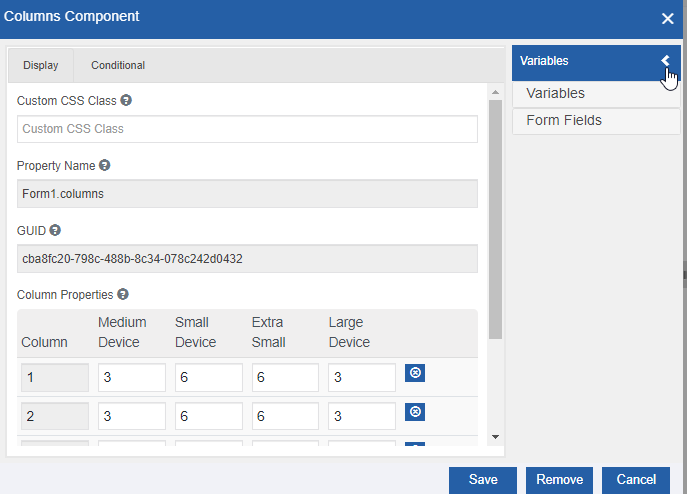
Click the configuration icon for any control. Control configuration pop-up appears. An arrow appears on the right side.
-
Click the arrow on the top-right side of the pop-up. The Variable list appears with subsections: Variables and Form Fields.
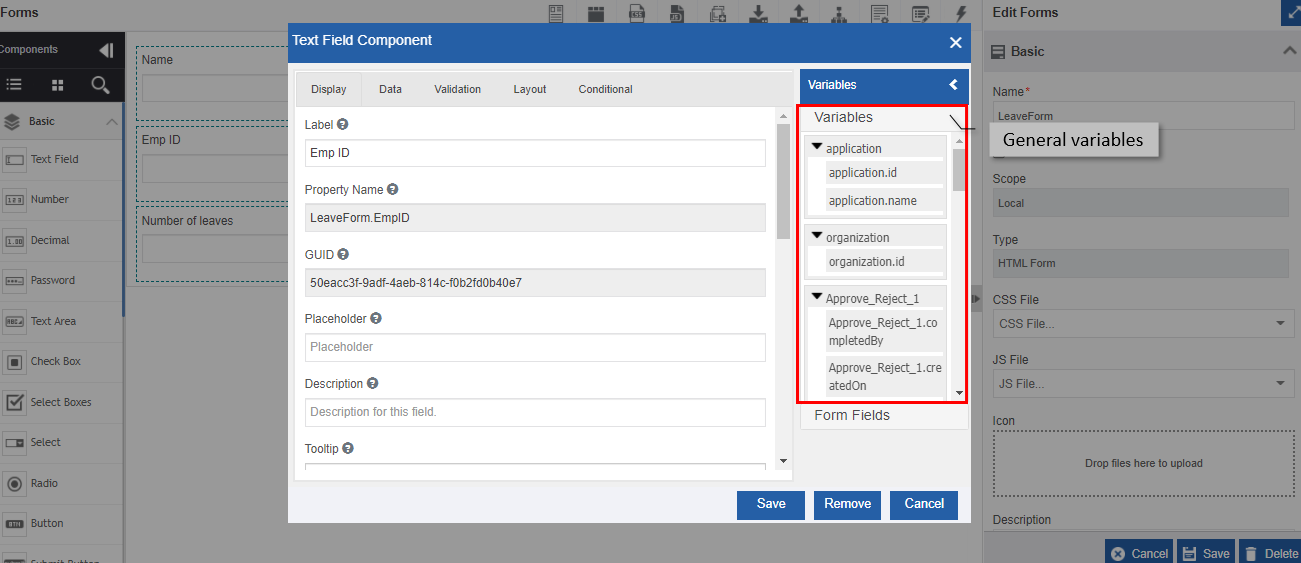
- Click Variables. The General variables and entity type variables (system generated and data entity variables) list appears.
- Click the subsection arrow adjacent to a variable for viewing the variables within the entity variable.
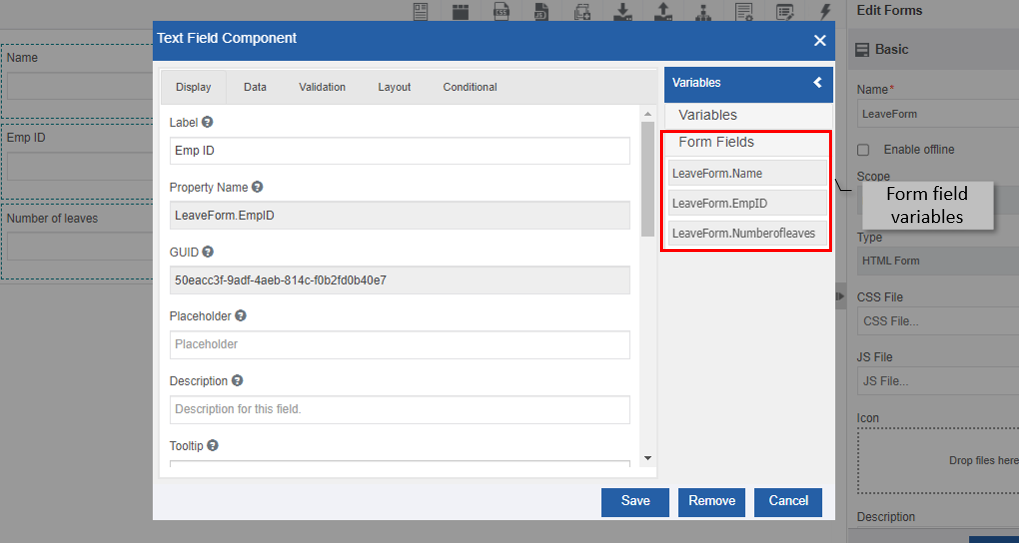
- Click Form Fields. The form control variables list appears.
-
Drag the required variables to the required fields in the form. You can drag any variable from the Variable list to the form.
Mapping Variables to Form Component
- Navigate to App Studio > Applications - open application name > Process Flow / Data Flow - flow name > Open.
- Click and open the required Form. The form designer appears with Form Components on the left side. Variables are a component category in the component list.
- Click Variables. The variables that can be used as form components appear (Collection variables, Data Entity variables, and System Variables appear in this sub-section). Click the arrow in the data entity for viewing the corresponding attribute variables within that variable.
-
Drag a variable, for example, data entity variable into the form designer. Map variables to controls pop-up appear.
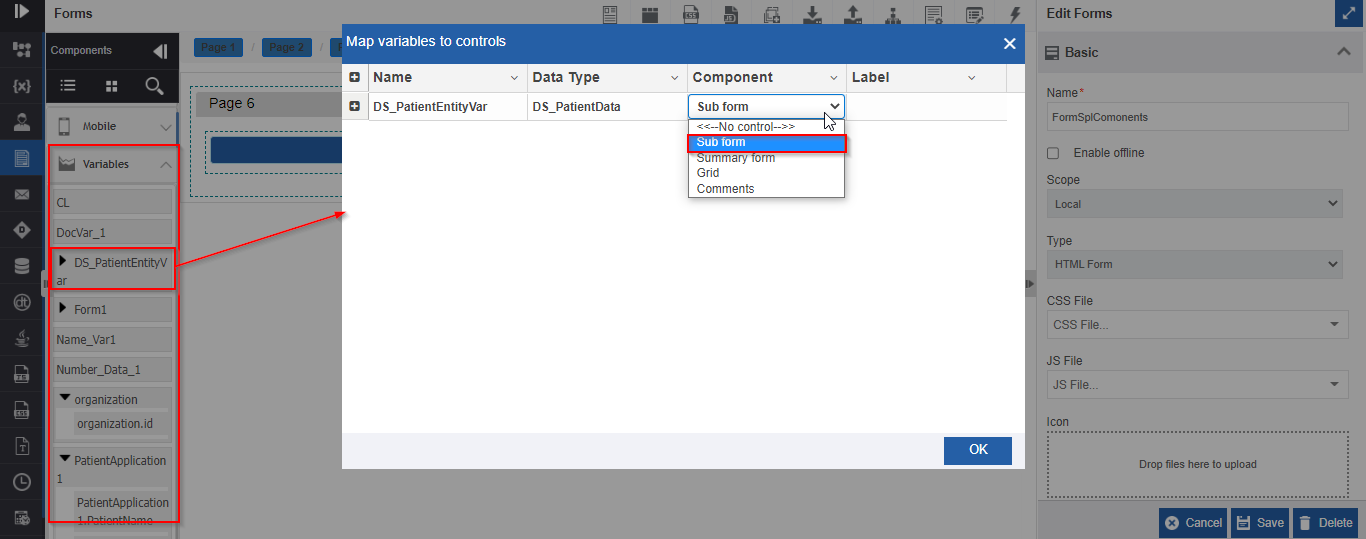
-
Provide the details for the variable as needed.
- Click the “+” icon on the left side to expand and view the list of attributes in the data entity.
- Select the Data Type for the required attributes (if needed to change).
- Provide a Label for the attribute as needed. This label is displayed.
- Click Ok. The subform component appears on the form.
- The component selected for the variable takes the variable as the property of that component. Refer to Forms user manuals for more details on the component configuration and behavior.
Utilizing the System Variables
System variables can be used when you need the metadata of the application, flows, activities, etc., for specified requirements.
Refer to System Specific Variables for the details regarding the explanation of system variables.
The following subsections discuss on utilization of specific system-generated variables.
Utilizing Task Variable
The assignedToUsers and assignedToSwimlanes attributes in the Task variable are used when you need to dynamically assign a task to specific users or participants based on the runtime activity or runtime progress of the flow.
Utilizing User Agent Variable
When a form is displayed at runtime, be it on a mobile or a web browser, internally a service reads the User-Agent information and converts it into the Platform -supported system variable and sets it back to the workflow instance.
You can utilize the user agent variable based on your requirement.
Sample Scenario:
Displaying different forms to a logged-in user based on the logged-in device.
- Create a process flow based on your requirement with the Task activity.
-
Create the required forms.
Example
Form for smartphone UI (say, MobileRegistrationForm) and another form for Personal computer UI, that is, for web layout UI (say, WebRegistrationForm).
-
Create a rule based on the values for attribute userAgent.deviceName.
Example
Create a rule (say, isMobileDevice) with condition userAgent.deviceName equals smartphone. In this rule, the system checks if the ‘userAgent.deviceName’ attribute is set to ‘Smartphone’ value. At run time, the variable ‘userAgent.deviceName’ is set based on the device used by the user to access the task/form.
-
In the process flow, click Task activity and add a default form (say the WebRegistrationForm).
- Click Add Form and add the conditional form (say, MobileRegistrationForm) and add rule (the rule, isMobileDevice) for the form.
- You can add more conditional forms if you want to add different UI for different devices.
- Initiate the process for accessing the Task/Form.
At run time, the variable ‘userAgent.deviceName’ is set based on the device used by the user to access the task/form. If the user logs in through the mobile device and tries to access the task, ‘MobileRegistrationForm’ appears and if he logs in through laptop or desktop, the ‘WebRegistrationForm’ appears (that is, the rule is invalid [failed] then the default form is displayed).