Participants
The business entity participant comprises of user(s) or role(s) or a combination of both. Participants are mapped in the workflow through activities (as applicable) for assigning specific tasks to a specific set of user(s)/role(s) as needed.
Info
Participants are also referred to as swimlanes.
Creating New Participant
- Navigate to App Studio > Applications - open application name > Process Flow - process flow name > Open.
-
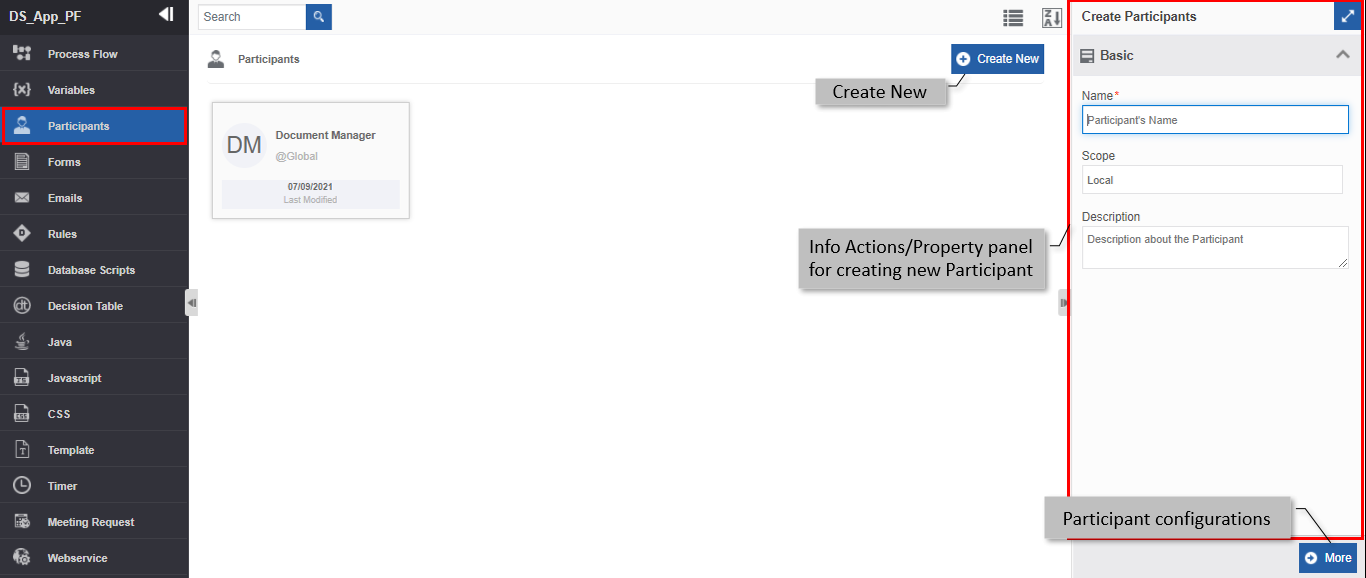
Click Participants. The participant list appears.
-
Click +Create New. The Info Actions panel appears as Create Participant.
-
Enter the Basic details in the Create Participant panel as explained below.
Field Description Name* Enter the name of the participant.
Character limit: 50.
Data type: Alphanumeric and underscore. Whitespace is not allowed.Scope* The scope of an entity is always local as the entities are created at the flow level. Description Enter a description for the participant. -
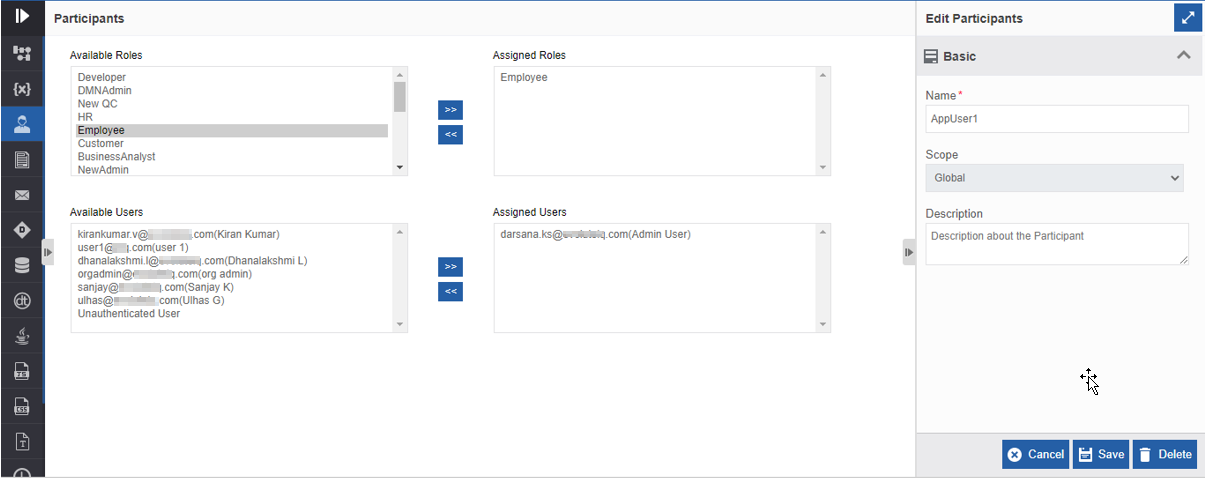
Click More. Configuration details of the participants appear. Available Roles and Available Users are displayed with selection arrows.
Roles and Users
You can define the role(s) or user(s) or a combination of both as a participant and utilize that in the flows.
Roles: Role is a group name for the user(s) with similar designation or users in the same department or users having the same access permissions.
Users: Users are individual email IDs created within the organization for the users for logging into the Platform. In the Participants, the Email address of the users is listed. -
For selecting a role, click a role from the Available Roles and click the right-side pointing double arrow beside the list. The role gets added to the Assigned Roles list on the right side. All the users in the selected role are now part of the participant.
-
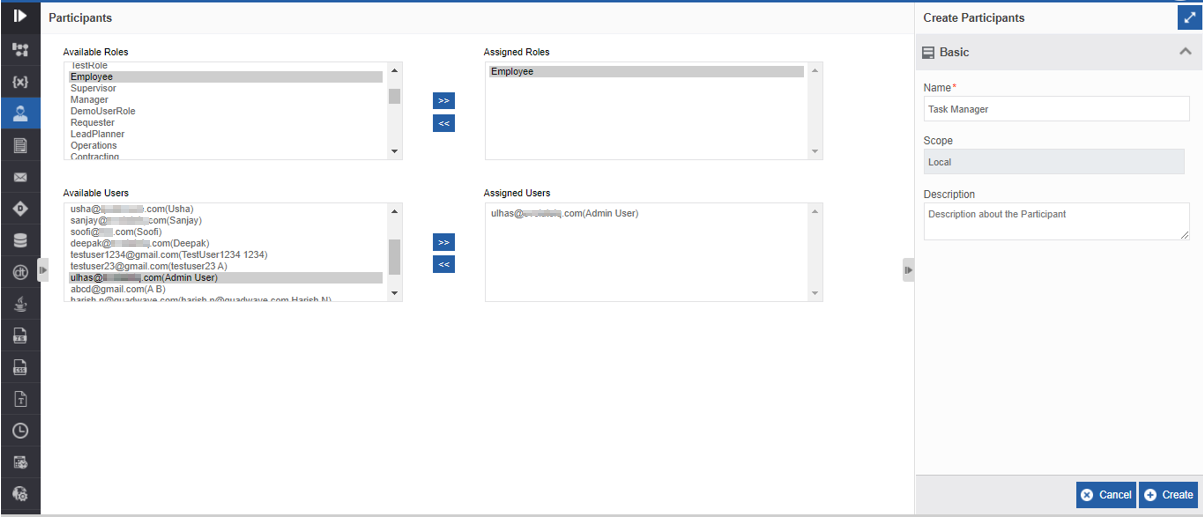
For selecting a particular user(s), click a role from the Available Roles. The user list for the role appears in the Available Users. Available Users list the email id of the users in the organization.
-
Select a user from the Available Users list and click the right-side pointing double arrow beside the list. The user gets added to the Assigned Users list on the right side.
Multiple Users and Roles
Multiple selections:
You can select multiple roles or users (CTRL+click) and then add those to the Assigned list.
Removing selections:
- Click the user(s) or role(s) from the Assigned Roles/User list and click the left-side pointing double arrow for removing the role(s)/user(s) from the Assigned list. -
Click Create. A participant with the provided role/user details is created.
Viewing and Editing Participant
Make sure to unlock the application before editing if you want to edit the details of an entity that is not created by you.
- Navigate to App Studio > Applications - open application name > Process Flow - process flow name > Open.
- Click Participants. The participant list appears.
-
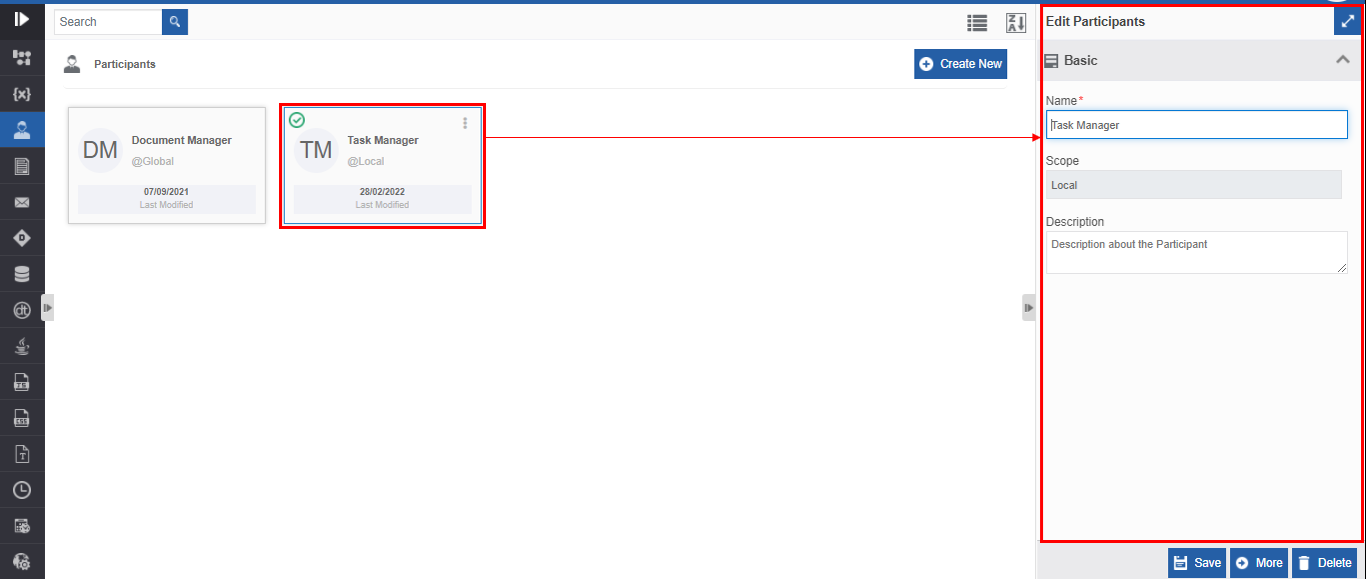
Click the Participant card for viewing the details of the selected participant. The details of the participant appear in the Info Actions panel (Edit Participants).
-
Click More for viewing the user/role details for the participant.
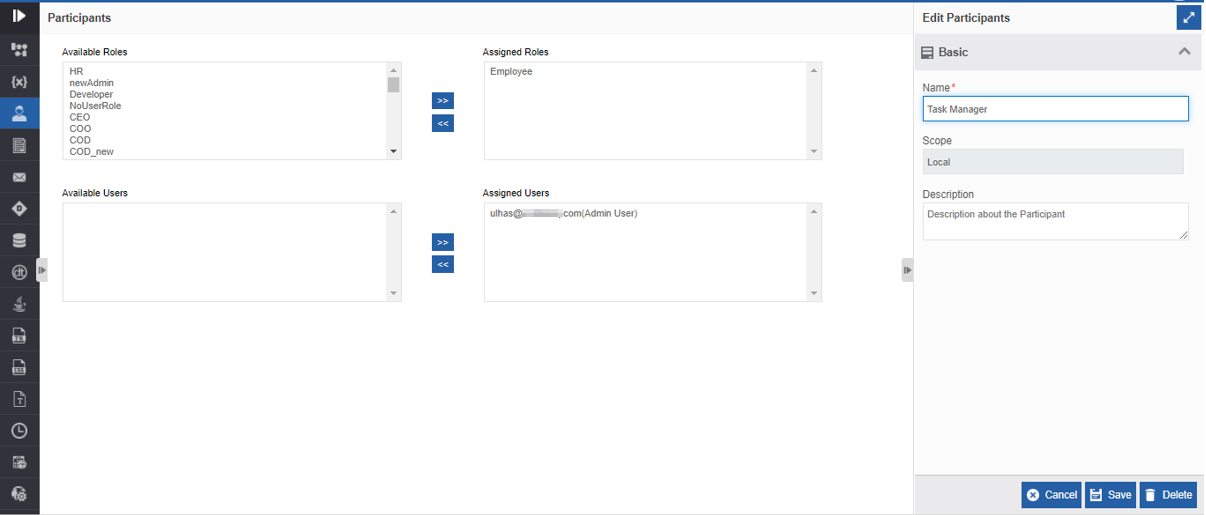
5. Edit the participant details as needed.
7. Click Save.
Viewing Participant Associations
- Navigate to App Studio > Applications - open application name > Process Flow - process flow name > Open.
- Click Participants. The participant list appears.
- Hover over any participant card. Three dots appear on the upper right side of the card.
-
Click the three dots. More Actions appear.
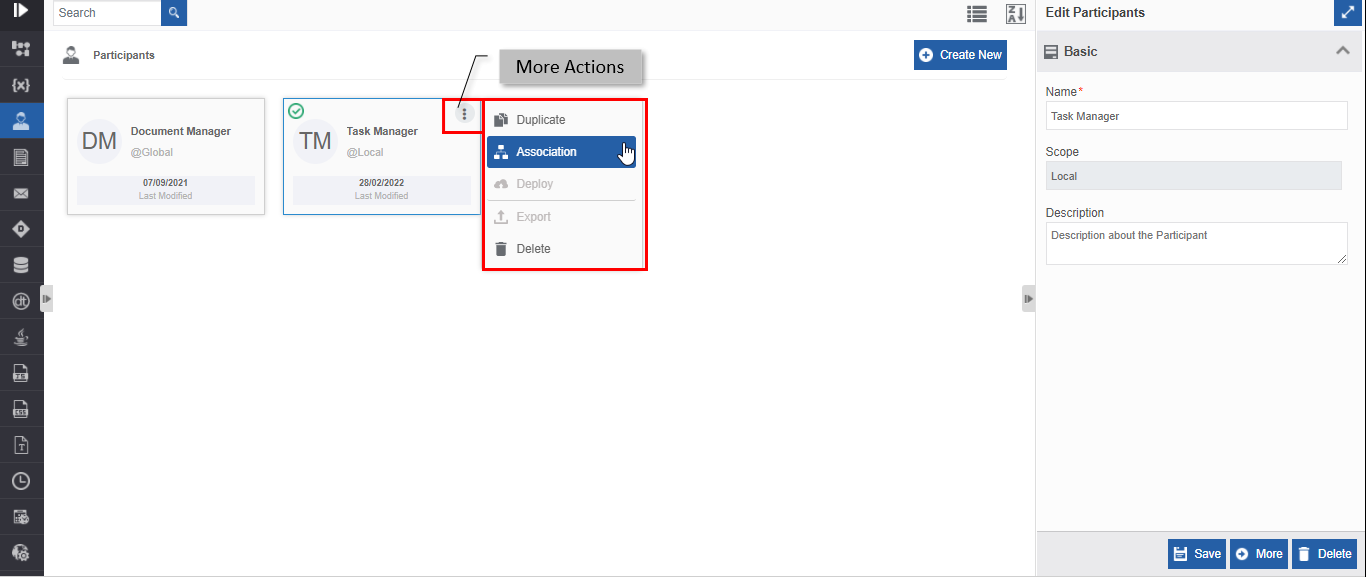
5. Click Associations. The association of the participant with the application, flow modules and activities are displayed in a pop-up.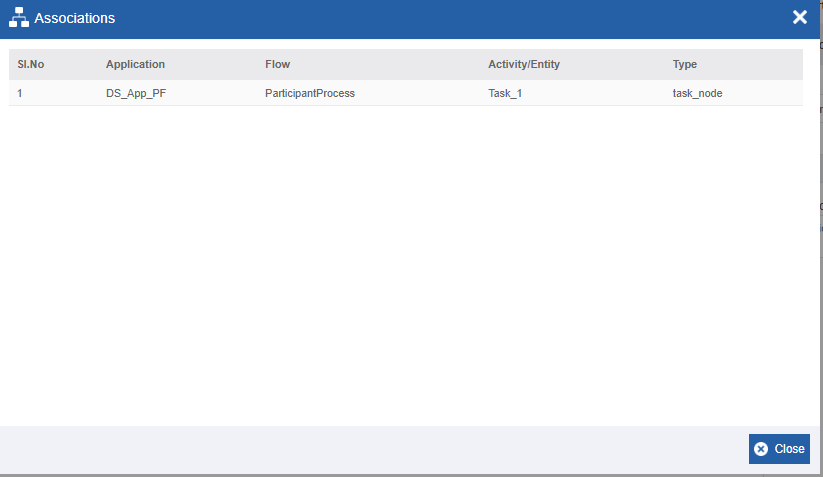
- Application – The application in which the participant is utilized.
- Flow - The flow in which the participant is utilized.
- Activity/Entity - The entity or activity in which the participant is utilized.
- Type - The type of entity or activity.
Duplicating Participant
Make sure to unlock the application before duplicating an entity that is not created by you. When you duplicate a participant, the associations are not duplicated.
- Navigate to App Studio > Applications - open application name > Process Flow - process flow name > Open.
- Click Participants.
- Click a Participant. The participant list appears.
- Hover over any participant card. Three dots appear on the upper right side of the card.
-
Click the three dots. More Actions appear.
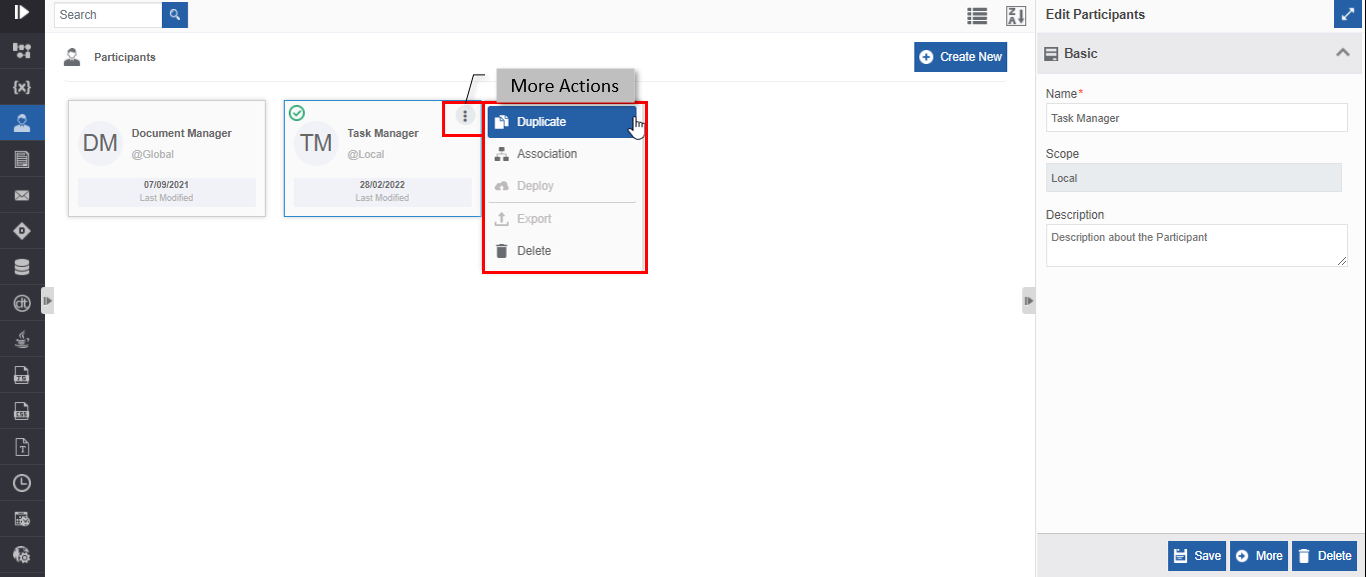
6. Click Duplicate. A confirmation pop-up appears.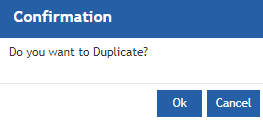
-
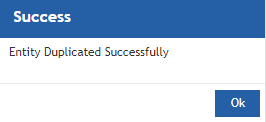
Click Ok for duplicating the participant (or you can click Cancel to cancel the duplicate action). A Success message appears on the successful duplication of the participant.
-
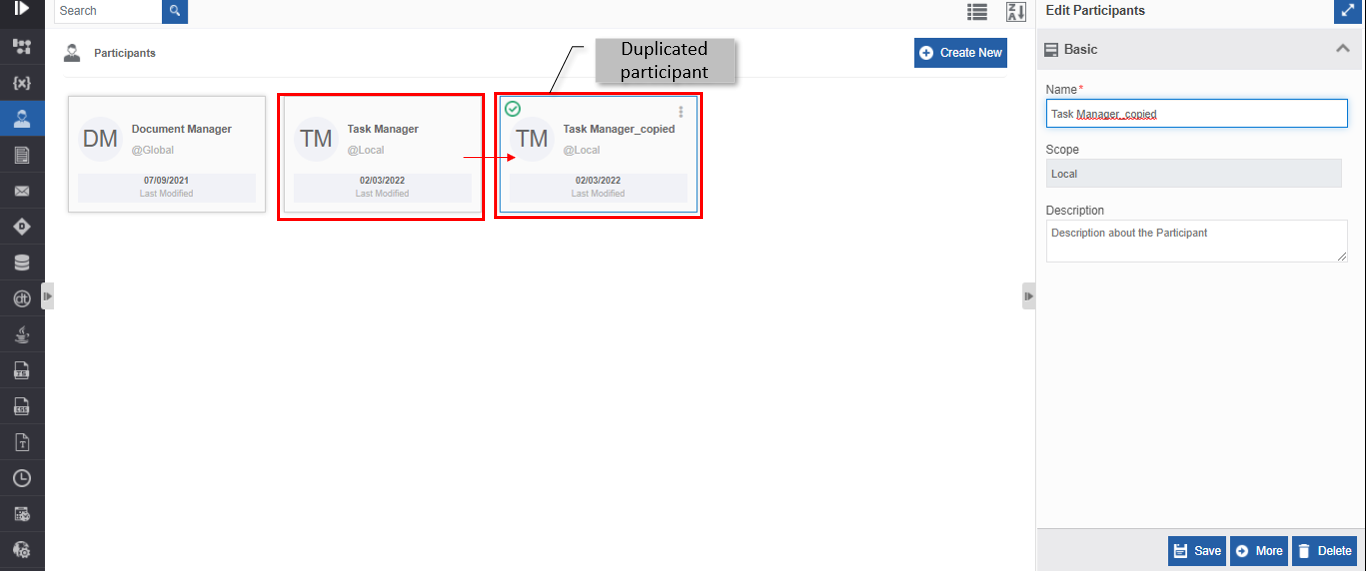
Click Ok. A duplicate copy of the participant appears on the Participants page with the same name suffixed with “_copied”.
Deleting Participant
Make sure to unlock the application before deleting an entity that is not created by you. Also, you cannot delete the entity if it is associated with any activity or entity.
- Navigate to App Studio > Applications - open application name > Process Flow - process flow name > Open.
- Click Participants. The participant list appears.
-
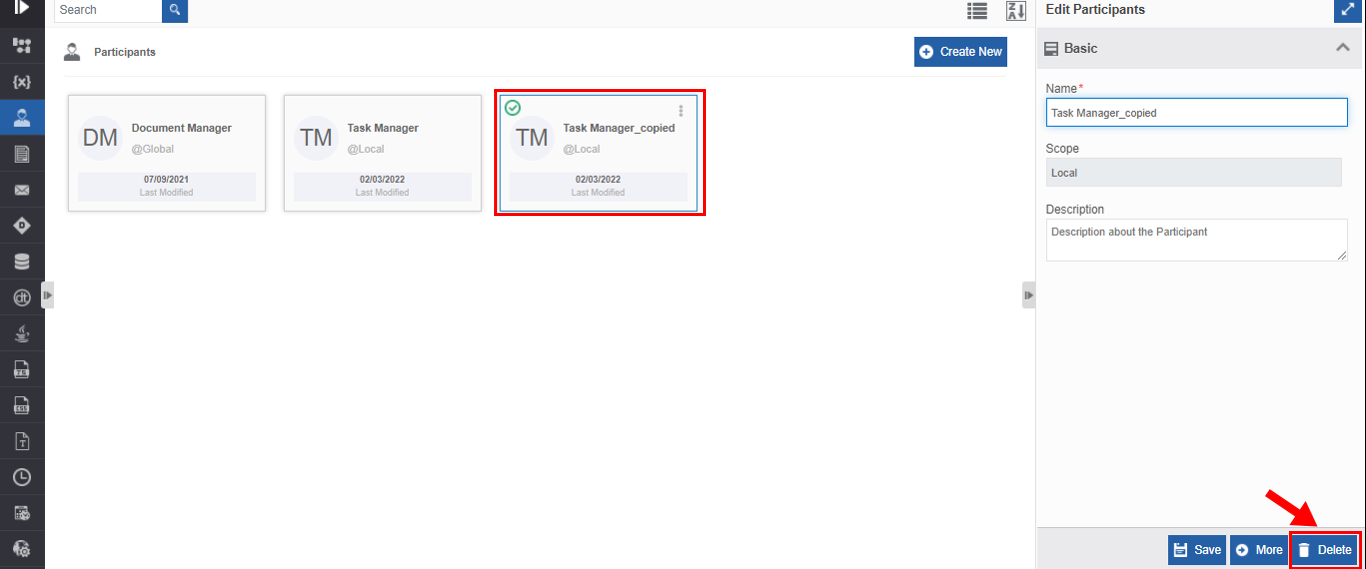
Click the participant name card that is to be deleted. The lower-right of the page displays Delete.
-
Click Delete. A Confirmation pop-up for delete appears.
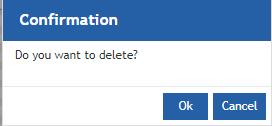
Participant Delete confirmation -
Click Ok for deleting the participant.
Or
Click Cancel to cancel the action.
Alternatively, you can follow the below steps to delete the participant:
- Click the Burger menu and navigate to App Studio > Application > {Flow module} > Participants.
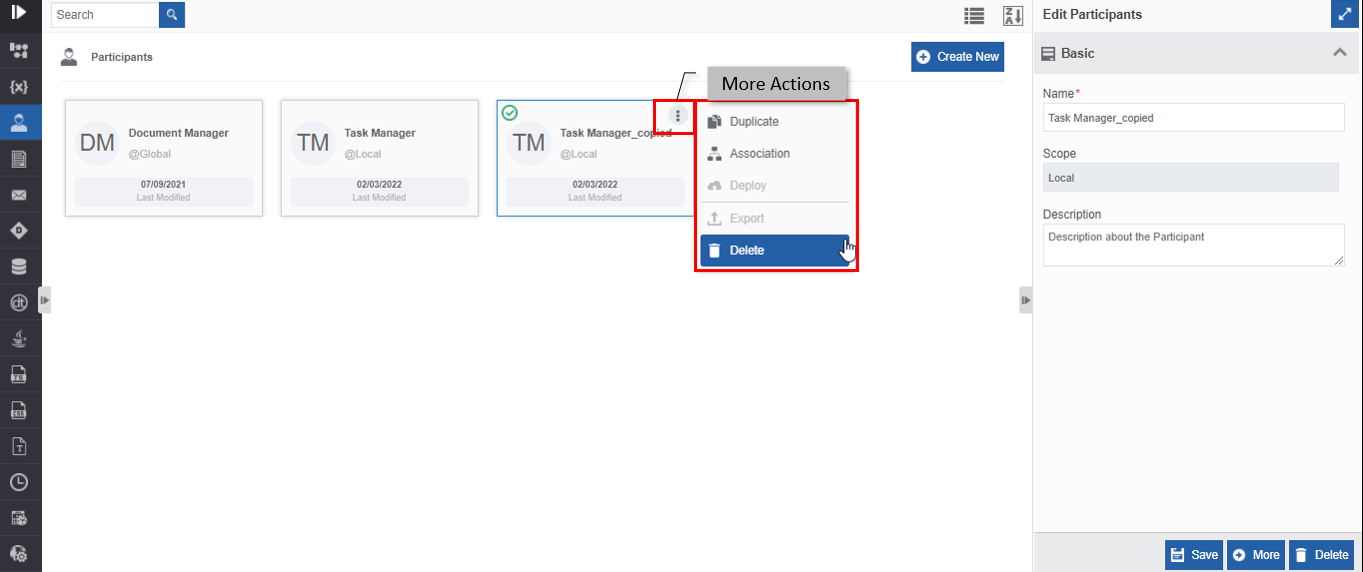
- Hover over the participant card. Three dots appear on the upper right side of the card.
- Click the three dots. More Actions appear.
-
Click Delete and follow step 6 in the above procedure.
Utilizing Participant Entity
Mapping of Participants to Activity
The configurations or properties that support to map a participant in the Info Actions are Participant, Events, and SLA.
Mapping Participant through Participant Configuration
You can map participants to the activity, Task, and Approve Reject in the process flows for assigning specific tasks or actions that are required for the progress of the workflow. In the Info Actions, you can map the participants in the property, Participant.
- Navigate to App Studio > Applications - open application name > Process Flow - process flow name > Open.
- Drag an activity (say Task) into the work area.
-
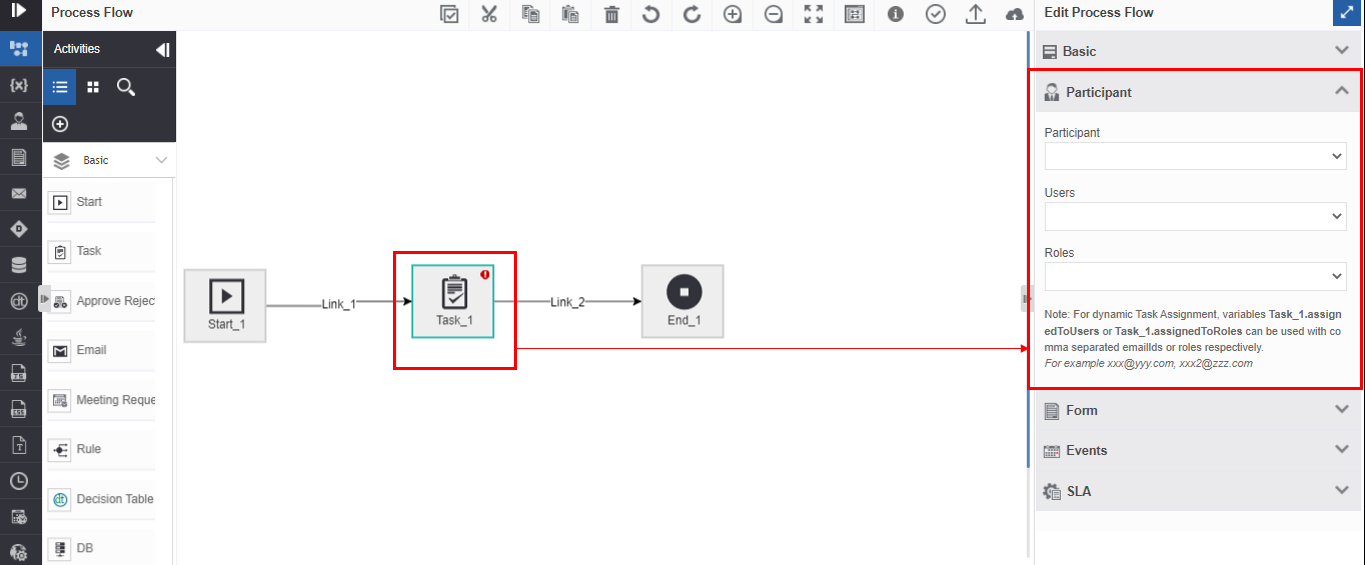
In the Edit panel, click the Participant accordion. Participant mapping details appear.
-
Click the Participant box for viewing the list of participants.
- Select a participant for mapping that participant for the task.
Note
When you map a participant in a flow and deploy the flow, all the participants associated with that flow will receive the flow details in the Workspace > My Process.
The Workspace > My Tasks displays the currently active task in the flow (if the logged-in user is a participant). The task appears for all the users associated with the mapped participant with a Pick feature that allows the user to pick and initiate the task.
Mapping Participant through Event Configuration
In the Info Actions, you can map the participant in the Event. In the event configuration, select On Node Start with conditional rule and then you can reassign the task to another participant.
- Navigate to App Studio > Applications - open application name > Process Flow - process flow name > Open.
- Drag an activity (Task or Approve Reject activity) into the work area.
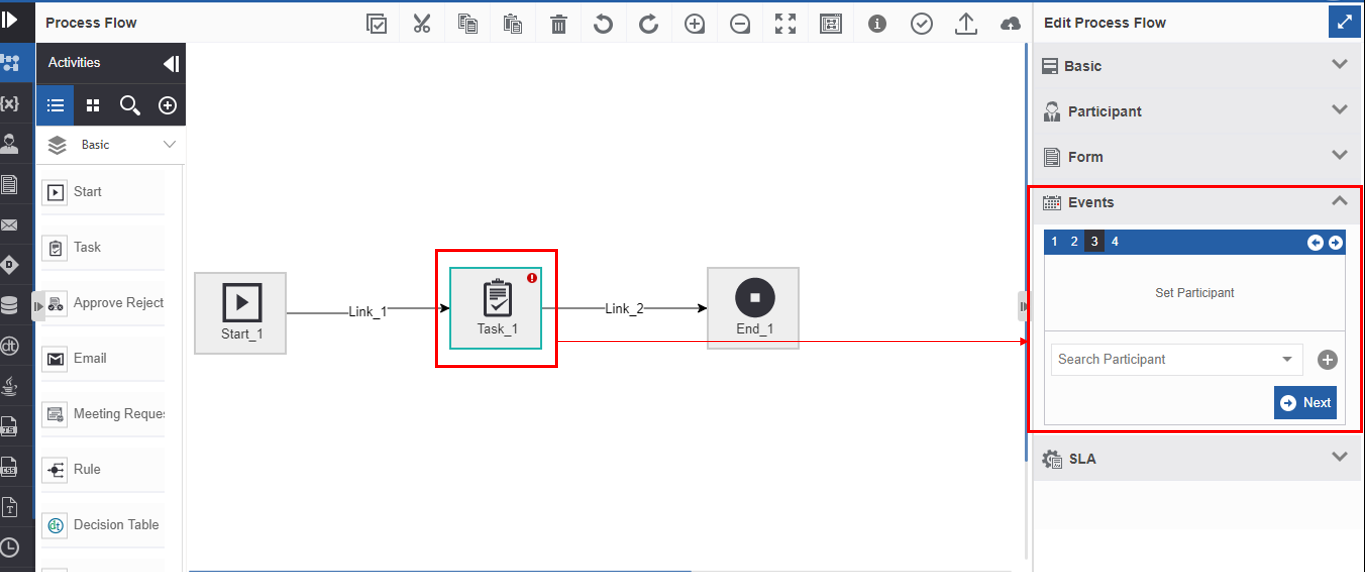
- In the Edit panel, click the Event accordion. Event mapping details appear.
-
Follow the configuration: On Node Start > Conditional Event = Yes > Select and map a Rule > Reassign. Step 3 in the Event configuration - Set Participant appears.
-
Select a participant from the drop-down for mapping the participant to the event.
Mapping Participant through SLA Configuration
In the Info Actions, you can map the participant in the SLA. In SLA configuration, set timer with conditional rule, and then you can reassign the task to another participant.
- Navigate to App Studio > Applications - open application name > Process Flow - process flow name > Open.
- Drag an activity (Task or Approve Reject activity) into the work area.
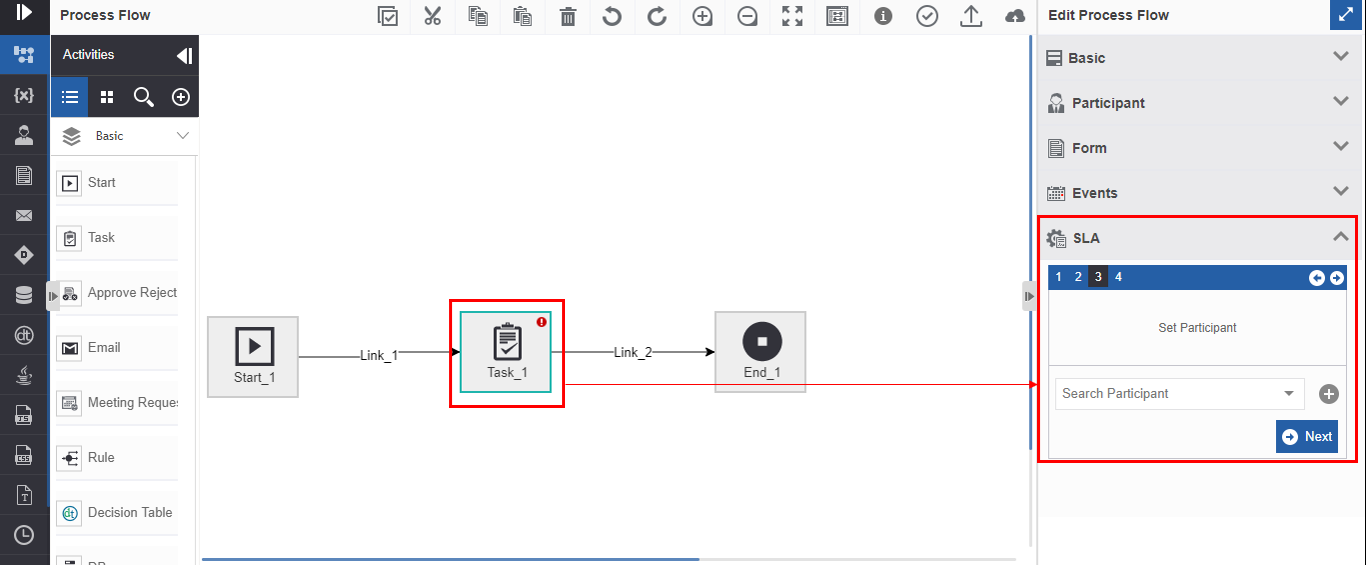
- In the Edit panel, click the SLA accordion. SLA mapping details appear.
-
Follow the configuration: Set Timer > Conditional SLA =Yes and select and map a Rule or Conditional Rule = No > Reassign. Step 3 in the SLA configuration - Set Participant appears.
-
Select a participant from the drop-down for mapping the participant to the SLA.
Using Participants in Business Entities
Mapping Participants as Variables
You can utilize the participant variable in all the places where a variable is applicable.
- Create an alphanumeric variable for the participant. You can enter the participant email id as the default value for the variable (optional).
-
Utilize the Participant Variable in the Platform (where ever Resource Data and Variable mapping are applicable) as per your flow requirements.
The variables in the Platform are available in:- Info Actions > Resource Data (for the applicable entities) and
- Form > Form Designer > Components > Variables.
Mapping Participant in Email Template
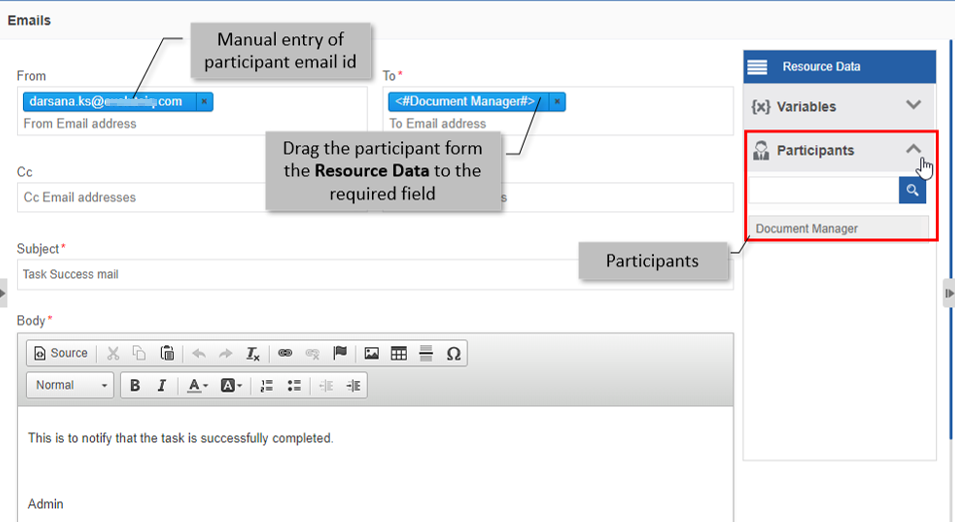
You can map a participant to the email template. The business entity, Email is used for creating an email template.
- Navigate to App Studio > Applications - open application name > Process Flow - process flow name > Open.
- On the business entity list on the left side, click Email. (You can also navigate to the entity, Email).
- Click any email template and click More. The template details appear with Participants listed in the Resource Data.
Note
For mapping a participant. you can either type the participant's email id or drag the participant from the Resource Data > Participants.
Dynamic Assignment of Participants
You can assign a participant dynamically to an activity based on validation of the previously entered data during the runtime. Dynamic task assignment is possible only before the execution of an activity. Task activity or Approve Reject activity can be utilized for dynamic assignment of participants.
Tip
You can assign a dynamic participant only to a future task.
Design the flows as per your requirement and apply rules for assigning the next task dynamically to a participant.
You can configure participants dynamically to a task activity either by using the task variable and defining your methods in Forms component configuration or by creating a variable for the participant.
Through Task/Approve Reject Variable in Forms
Task or Approve reject variable is automatically created when you add a task or approve reject activity in the process flow.
- Create a process flow as per your requirement with Task (or Approve Reject) as one of the activities. When task activity is included in the flow, a task variable is created as a variable for that process with the name of the activity.
- Navigate to the business entity, Variable for the process flow.
-
Click the Task variable for viewing the details in the Info Actions. The attributes “assignedToUsers” and “assignedToRoles” are the variables that are applicable to the entity participant.
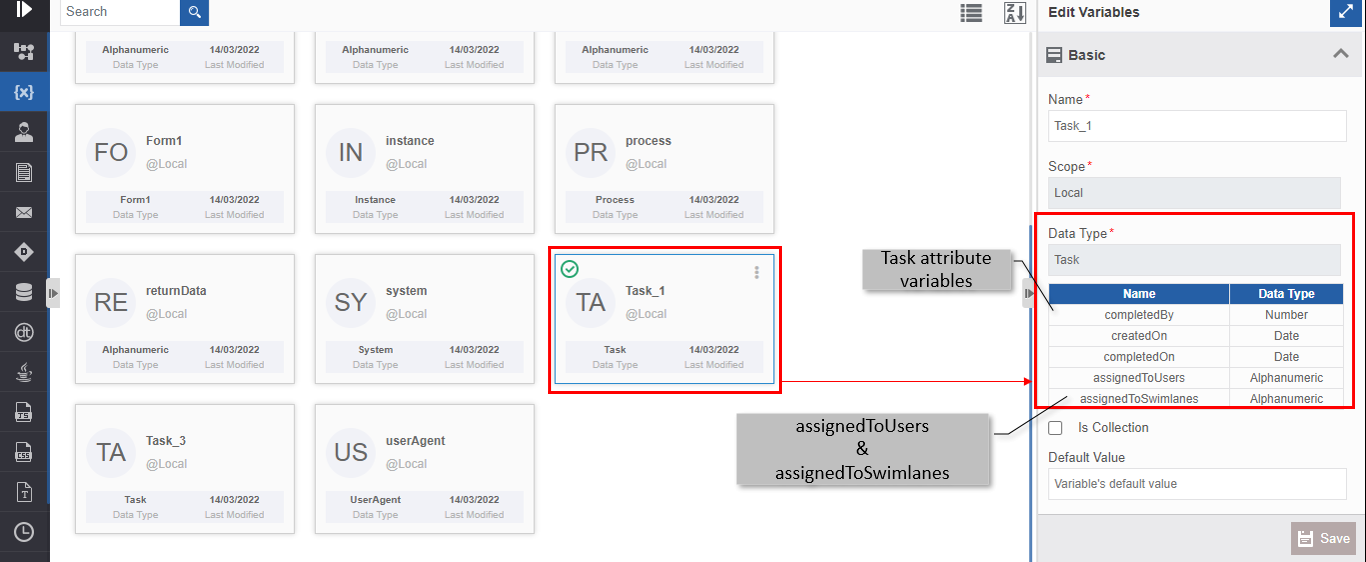
- assignedToUsers: The attribute default value is empty. While designing the flow, you can utilize the variable by providing the user email address to whom you want to assign the future task. You can configure a single email address or multiple email addresses separated with coma for this variable. If you set a single email address, the future task is assigned to that single user at runtime. Else if you set multiple email addresses, the future task is assigned to the pool of users (email addresses) at runtime.
- assignedToSwimlanes: The attribute default value is empty. While designing the flow, you can utilize the variable by providing the participant name as input so that the future task is dynamically assigned to that participant rather than the default participant at runtime. In assignedToSwimlanes you map the participant name to whom you want to assign the future task.
-
Navigate to business entity Form and design a form as per your needs.
-
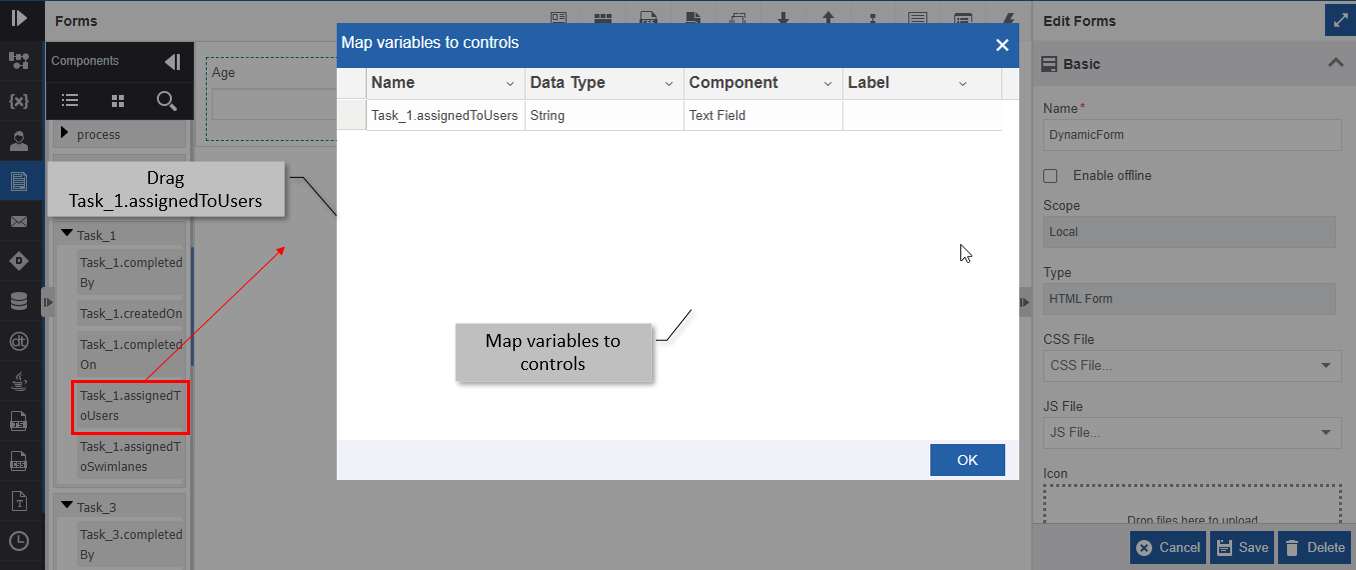
From Components, click Variables drop-down and then drag the task variable “assignedToUsers” or “assignedToSwimlanes”. Map Variables to controls pop-up appears.
-
Edit the component name (if needed), enter Label (optional), and click OK.
-
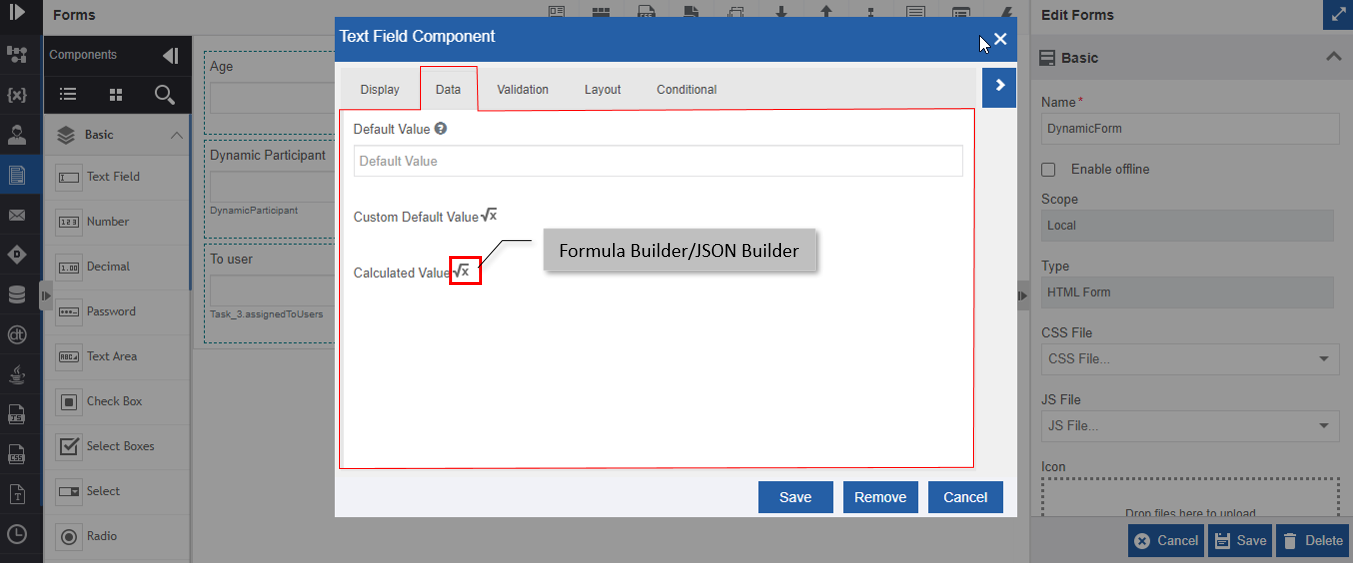
Click the configuration icon in the variable control that you created, and click the Data tab.
-
Click √x in Calculated value √x. Builder pop-up appears.
-
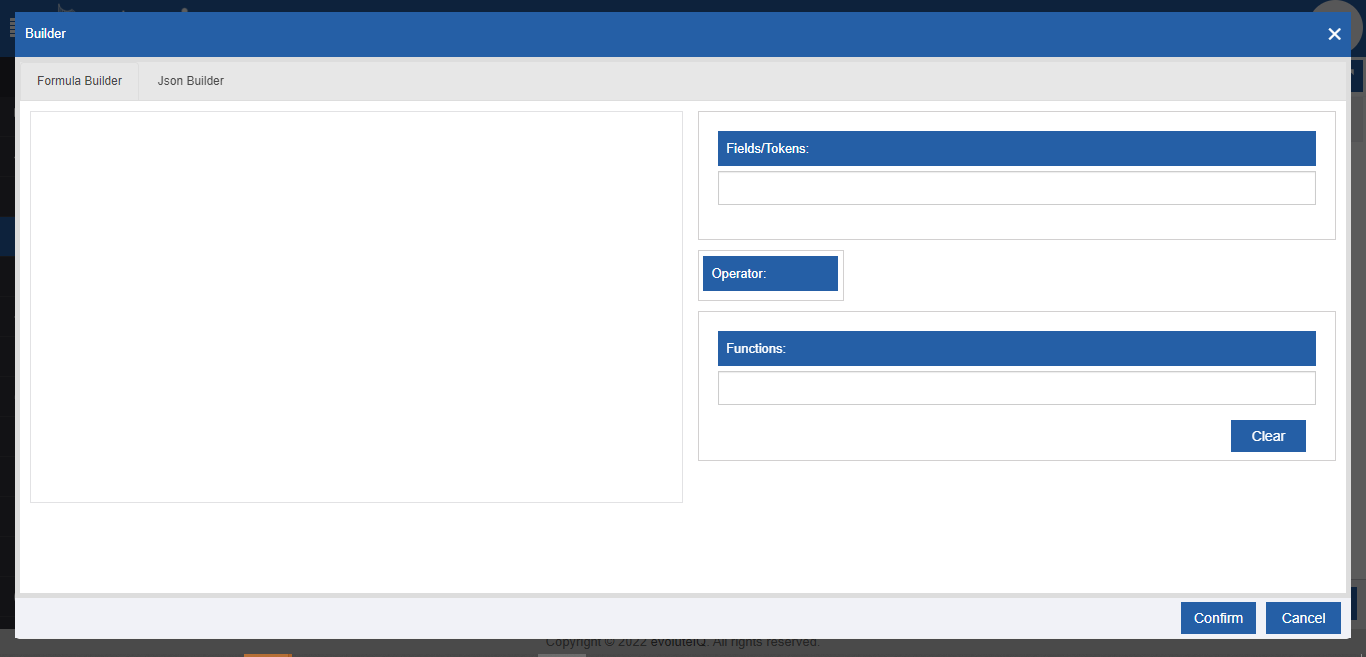
Click the Formula Builder tab. Form Builder tab is active by default.
-
Click the box below Functions and add the function required. (say e.g., IF). The formula editor – the left side of the Form builder - displays the structure of the selected function.
- In the Formula builder (formula editor), enter/define the function with your variables/values/participant name as needed.
-
In the function defined in step 11, enter the user email id in the function as we are discussing participant mapping here.
Or select the variable names from the Fields/Tokens on the right side. The variable name gets added to the formula editor.

Note
If you have not set a value for a dynamic participant variable, the dynamic task is assigned to the default participant who is mapped to the task.
-
Click Confirm after providing details.
Mapping Participants in Forms
The functions for the dynamic assignment of a participant are configured in the Form component configuration.
Follow the below steps for mapping participant variables in Forms.
- Create a process flow as per requirement.
- Create a variable with datatype = alphanumeric for holding the dynamic participant.
- Forms - Navigate to Forms and design form as per your needs (say e.g., you can create a text field in the form for capturing the dynamic participant name; this is specific to the solution to be implemented.).
- Click the configuration icon for the text field and click the Data tab. Go to Through Task/Approve Reject Variable in Forms and follow from step 8 onwards.