RPA Detectors
Introduction to Detectors
Detectors are a way to make the robot serve as a detection probe for the platform and/or as a way of activating Workflow locally on the robot machine. For instance, when implementing Assisted Robotics, where the robot will help a human at the PC, it would make a lot of sense to teach the users that pressing a certain key combination, say CTRL+m, will activate a robot sequence that does something, like copying the content of the select field, call a workflow in the platform and insert data in the form, based on the result.
There are 2 main uses for the detector. Listening for events from the platform to react to robot computer events, or inside running workflows. The detector is the main Event Listener inside RPA Bot Studio - refer to Event listener if you don’t know what that means. Simply put, it is an activity that waits for something to happen before the Workflow continues processing and executing its activities.
Viewing and Adding Detectors
To use a Detector, you should add a detector and then configure the required detector. There are different types of detectors available. You can add multiple detectors of the same type with different configurations as per your requirement.
-
Open RPA Bot Studio.
-
On the Ribbon, click the Settings tab.
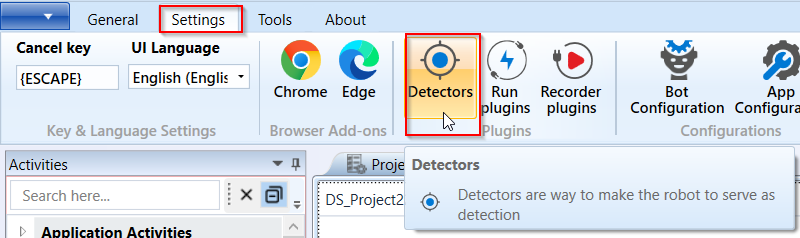
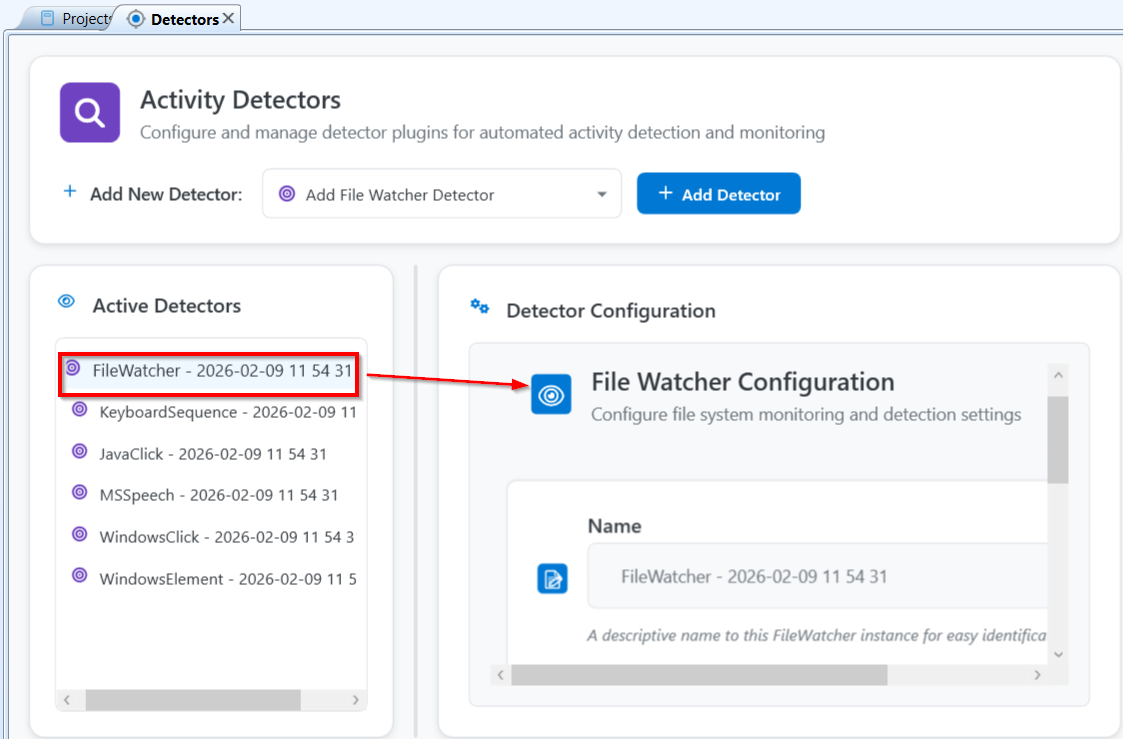
- Click the Detectors icon. The detector configuration page appears as a tab. There are six detectors on the left side.
-
Click a detector name for viewing the corresponding details.
-
To add a new detector click Add New Detector drop-down. It lists all the available types of detectors.

Adding Detector
-
Select a detector type that you want to add and click Add Detector button.
The selected type of detector gets added to the list of detectors.
The auto-created detector name will be suffixed with date and time differentiating between two detectors of the same type. You can edit the name of the detector when you configure the details. You can add multiple detectors for the same type and configure differently. -
After adding the detector, click the detector name to configure it. The details of the specified detector appear on the right side.
-
Configure the details of the detector.
Refer to Configuring Detectors for configuring different detectors.
Refer to Using Detectors on how to use detectors.
Using Detectors
There are many different ways of using Detectors provided in RPA Bot Studio.
Some samples to mention are:
-
You can set a workflow to wait with a Detector Activity inside a Do While Activity loop.
-
You can make use of a StateMachine Activity to create different State Activity instances that transition when they are triggered by Detectors.
Using Detectors Through a Do While Loop
In this section, you will learn how to use a Detector that will keep running indefinitely until RPA Bot Studio closes.
-
Open RPA Bot Studio and open a workflow.
-
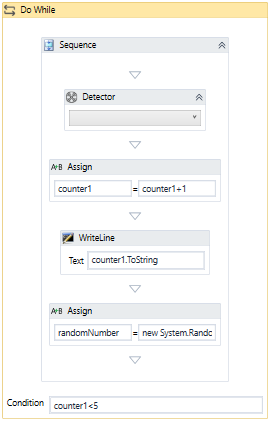
Drag a Do While Activity to the main sequence inside RPA Bot Studio. Set its Condition parameter to True.
-
Drag a Sequence Activity inside the Do While activity.
-
Add a Detector Activity to the sequence and select the Detector which will be fired. In our case, it is the Excel Detector.
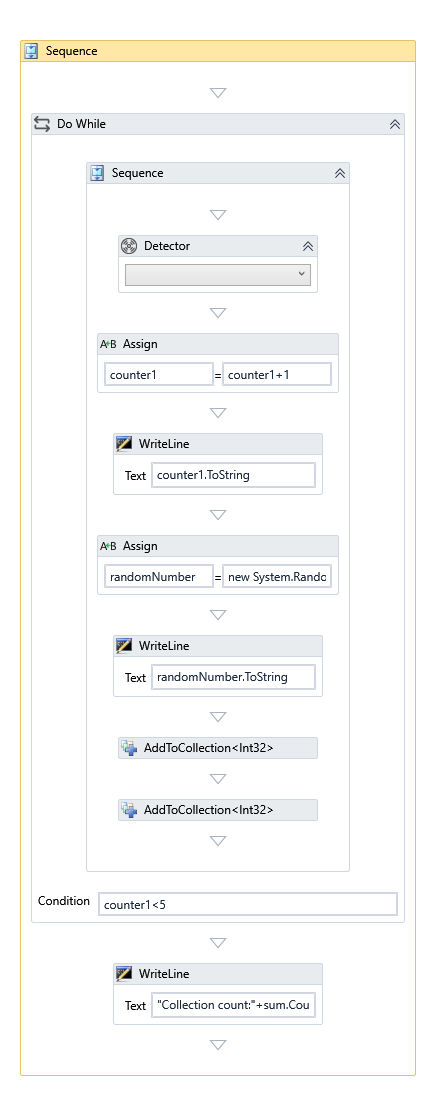
- Add any Activities or Sequences you wish for RPA Bot Studio to perform and they will execute upon the detector firing.
Configuring Detectors
FileWatcherDetector
FileWatcher detector is used to monitor the creation or editing of files in a specific folder. The FileWatcher detector listens to the files inside a given folder. The FileWatcher Detector plugin is triggered when any files are added inside a given Path. It also allows for checking only for specific file extensions by using the filter feature. For specific files, it allows RPA Bot Studio to check for file changes inside subdirectories if you select the Sub Directories checkbox in the configuration.
To improve performance and avoid querying the filesystem all the time, it uses file watches. You can limit the search by using a file name filter (? and * are supported).
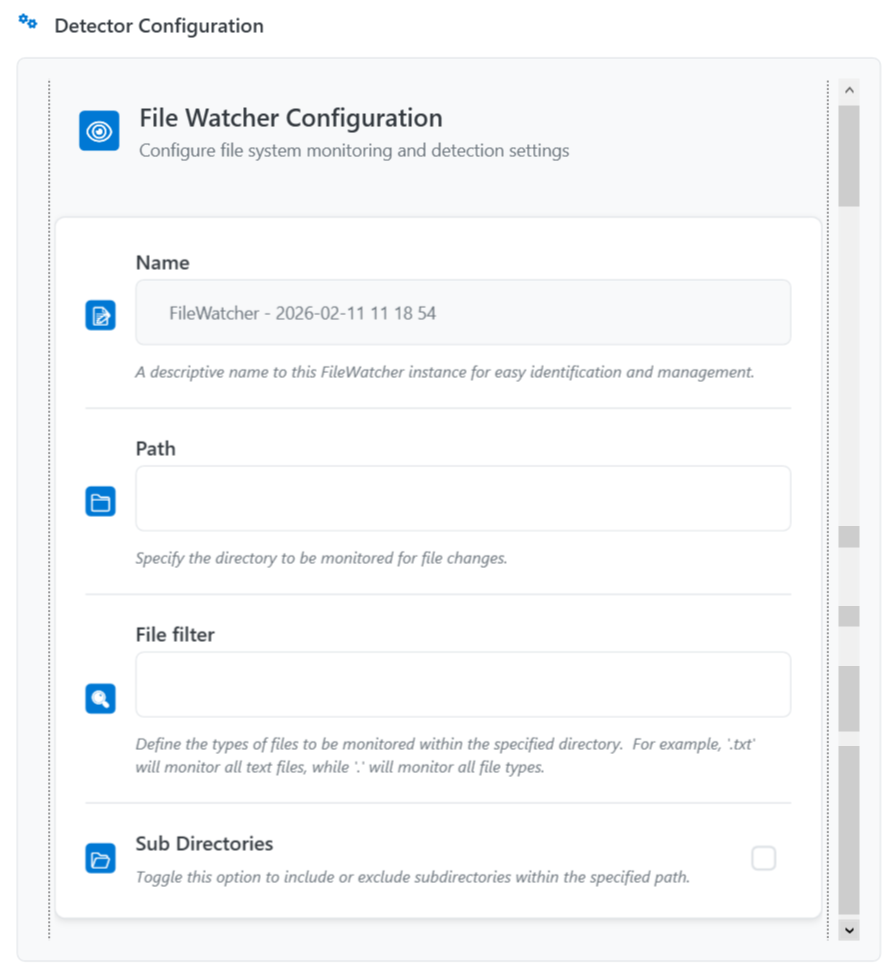
Add FileWatcherDetectorPlugin
FileWatcher Detector Parameters
| Parameter | Description |
|---|---|
| Name | Name for the file watcher detector instance. |
| Path | The absolute path of the folder in which the files are located. This is the Path to which the Detector will monitor and listen to for file changes. |
| File Filter | File filter is set to monitor and filter any files with a specific filename. This File filter allows for wildcards as well, so if the user wants to check or monitor only for files starting with “invoice”, use “invoice.pdf”. Whereas, for checking files ending with “invoice”, use “invoice.pdf”. Use “.txt” to monitor all text files. Use “.” to monitor all files. |
| Sub Directories | If checked, this Detector Plugin will also check recursively for any existing directories inside the root directory specified. |
Keyboard Detector
The KeyboardSequence detector listens for a specific or sequence of key strokes. You can configure keyboard shortcut detection and process restrictions for Keyboard detector.
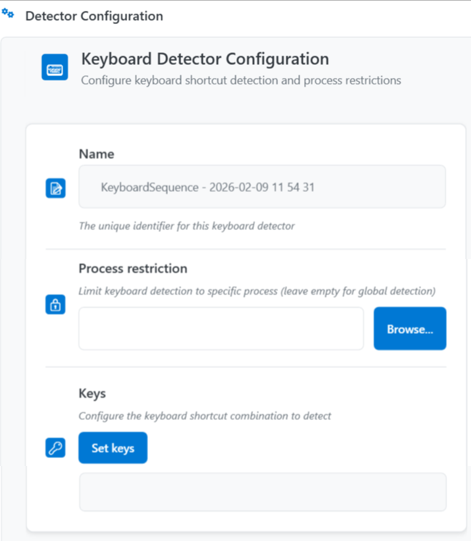
Keyboard Detector Plugin
Keyboard Detector Parameters
| Parameter | Description |
|---|---|
| Name | Name for the keyboard detector instance. |
| Process Restriction | Process restriction refers limit the keyboard detection to a specific process. Click Browse to select the process. Leave this field empty for global detection. |
| Keys | Click Set keys, provide the keyboard shortcut combination to detect, and then click Ok. These keys enable the Detector. |
JavaClick Detector
The JavaClick detector listens for a “click” inside a JavaElement. It is used to monitor for clicks on Java controls. You can configure Java application element detection and selection for Java Click detector.
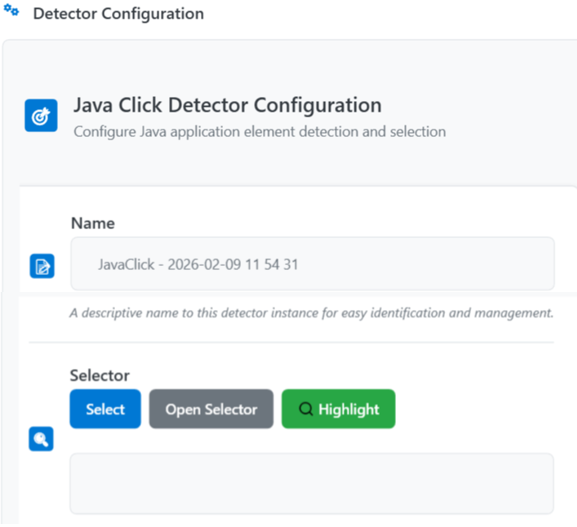
JavaClick Detector Plugin
JavaClick Detector Parameters
| Parameter | Description |
|---|---|
| Name | Name for the Java Click detector instance. |
| Selector | Select : Click to select or specify an element. Open Selector : Click to open a Selector window. Highlight : Click to check whether the JavaElement was successfully specified. |
MSSpeech Detector
MSSpeech Detector listen for voice commands or words to start the workflow execution. That is, you must provide the content in the Commands box and when a matching voice is heard, the workflow is executed.
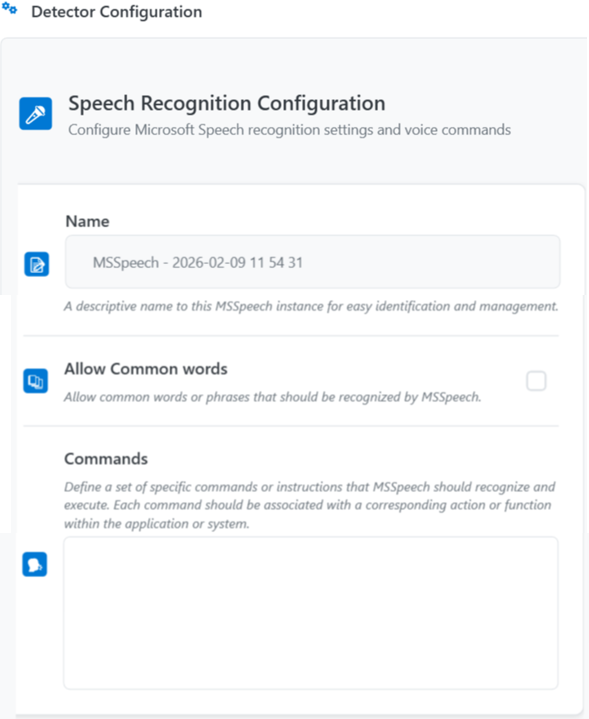
MSSpeech Detector Plugin
MSSpeech Detector Parameters
| Parameter | Description |
|---|---|
| Name | Name for the MS speech detector instance. |
| Allow Common Words | Select this to allow common words or phrases that should be recognized by the MS Speech detector. |
| Commands | Enter specific set of commands or instructions. Each command should be associated with a corresponding action or function within the application or system. MS Speech detector recognizes the voice that is matching with the command or instruction provided and then executes the workflow. |
WindowsClick Detector
The WindowsClick detector listens for a “click” inside a WindowsElement. It is used to monitor for clicks on Windows controls.
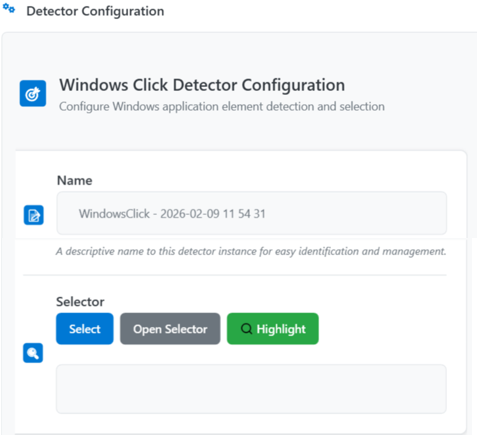
WindowsClick Detector Plugin
WindowsClick Detector Parameters
| Parameter | Description |
|---|---|
| Name | Name for the Windows click detector instance. |
| Selector | Select : Click to select or specify a Windows element. Open Selector : Click to open a Selector window. Highlight : Click to check whether the Windows element was successfully specified. |
WindowsElement Detector
The WindowsElement detector listens for the appearance of a WindowsElement. It is used to monitor for creation of new Windows controls. This works after an application has started, meaning you cannot select an element created doing the application start up. Use it to detect opening new windows, or alert/popups and other elements created after the initial start of the application.
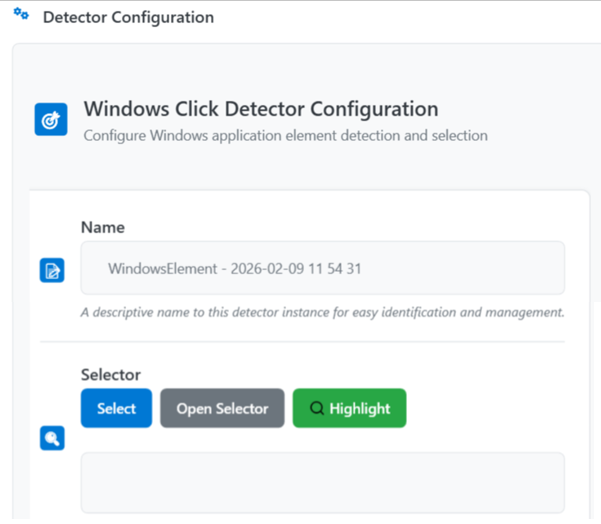
WindowsElement Detector Plugin
WindowsElement Detector Parameters
| Parameter | Description |
|---|---|
| Name | Name for the Windows element detector instance. |
| Selector | Select : Click to select or specify a Windows element. Open Selector : Click to open a Selector window. Highlight : Click to check whether the Windows element was successfully specified. |
Deleting Detectors
You can delete a detector by using the keyboard DEL key.
-
Open RPA Bot Studio and navigate to Settings > Detectors.
-
From the detector list, click and select the detector that you want to delete.
-
On the keyboard, press DEL. The detector gets deleted.