RPA Platform Bot
About Platform Bot
The Platform Lite version of RPA Bot Studio supports creation of unlimited number of bot workflows in the RPA Studio. You can create and test the workflows in your own machine for unlimited number of times.
If you want to execute the workflow via RPA Bot Agent or RPA Bot Assistant applications, the Lite version allows you to run 1 bot in 1 machine at a time.
The RPA Bot Studio has a chat window interface where you can chat with the platform chat bot and create RPA workflows based on your prompts.
You must create Bot configurations and then use the bot for chatting purpose. The configuration allows you to define AI configurations.
You must add AI configurations to enable the platform bot. Platform bot responds to you based on the configurations.
Open RPA Bot Studio and on the right-side panel, click the Platform Bot tab to view the chat bot window.
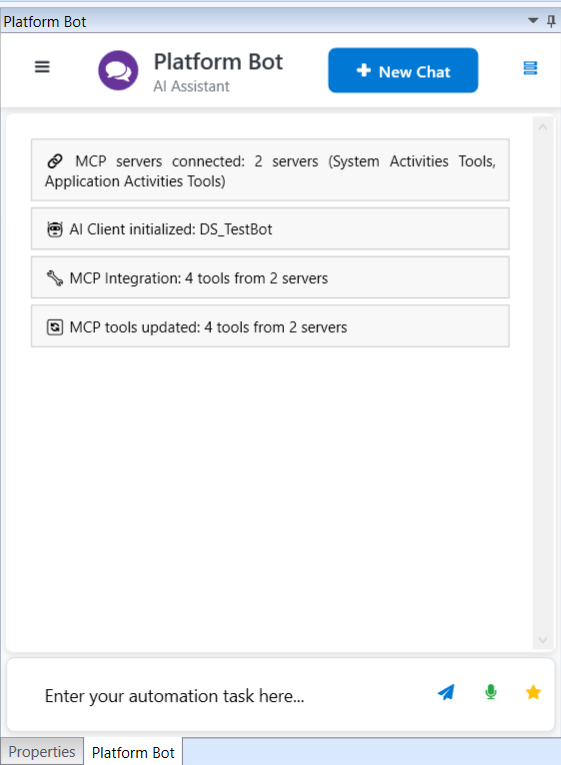
Initially, it displays the MCP server details. Refer to MCP Capabilities.
- Click New Chat to start a new conversation with the bot. The chat window is your interaction UI to the chat bot or the AI assistant.
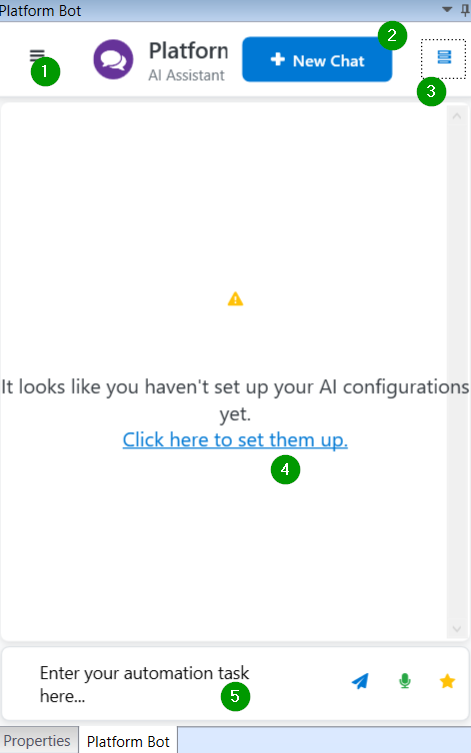
When you open chat window for the first time, it will display AI configuration message indicating that you can chat only after configuring the AI configurations for the Bot.
-
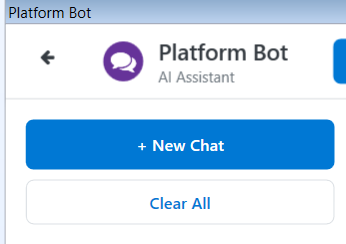
Short menu: The menu contains New Chat and Clear all buttons. Click New Chat to create a new chat and click Clear All to clear existing chat.
-
New Chat: Click New chat to open a new chat window.
-
MCP Configurations: Click to add MCP configuration tools to your bot so that the bot responds to your design by accessing the selected MCP tools.
-
Bot configuration: Click to access the Bot configuration. This is same Settings (ribbon) > Bot configuration. The chat bot becomes active only after AI bot configurations.
-
Chat box: Enter your query to the bot in the chat box.
Pre-requisites for Bot Configuration
The Bot configuration allows you to connect to a Gen AI service provider and select an available modal for chatting.
-
You must generate the API key of the Gen AI service provider that you choose. This is possible if you have registered account with the Gen AI service provider of your choice.
-
The API key must be provided to define the Bot configuration.
Access the bot configurations from the Settings tab or through the Platform Bot interface to configure the details for a bot.
Adding AI Configuration for a New Bot
-
Click the Platform Bot tab next to Properties on the right side. If you have not configured any bot yet, blank Bot interface appears
-
Click Settings > Bot Configuration or in the platform bot tab, click “click here to set them up”.
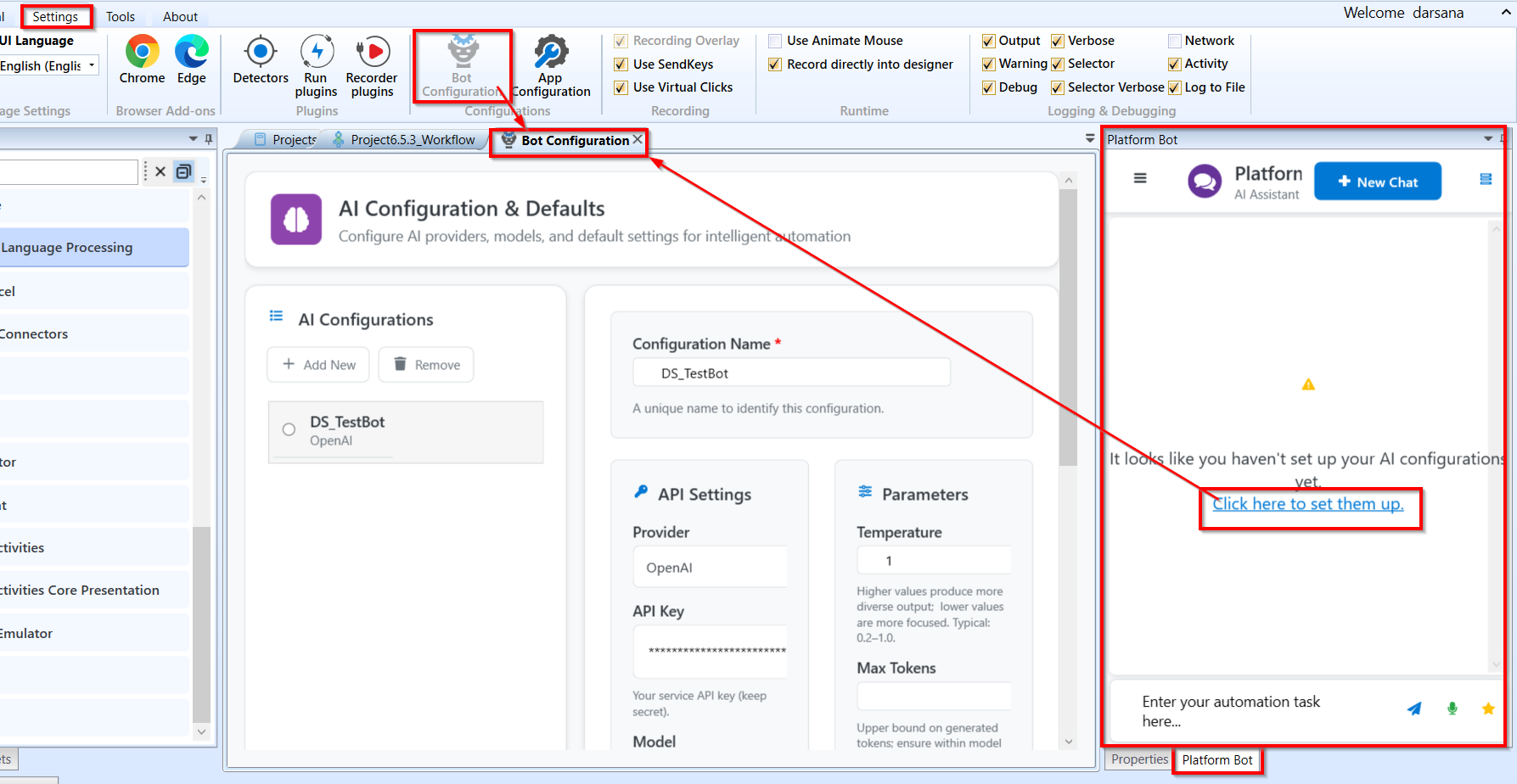
If you have not configured any bot, blank Bot interface appears.
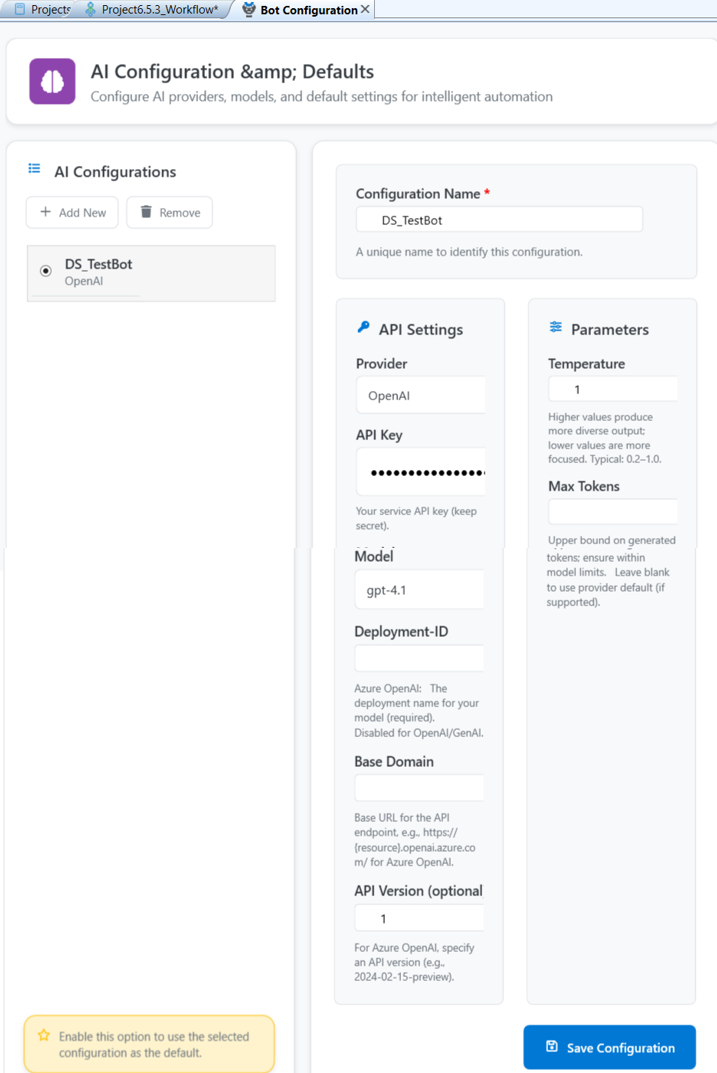
- Click Add New and provide Configurations details.
| Configuration | Description |
|---|---|
| Configuration Name | Enter a unique name for the AI bot configuration. |
| Provider | Select the AI model provider. When you select a model provider, you must have an account for the cloud model provider to get the API key and accessing their models. |
| API Key | Enter endpoint for the cloud model provider selected. |
| Model | After providing the key, the model names appear for selection. Select the required model name. |
| Deployment ID | This field is applicable for Azure configuration. This field becomes active when you select Azure as the model provider. Provide the Azure deployment ID (to be captured from your Azure account for the deployment.) |
| Base Domain | This field is applicable for the Azure configuration. This field becomes active when you select Azure as the model provider. Enter the base domain value. |
| API-Version (optional) | Enter version for the API settings. |
| Temperature | Enter value for temperature to control the creativity of your model. Typically, the value range is 0 to 1. Higher values provide more diverse output and lower values are more focused. Typical range provided is 0.2-1.0. |
| Max Tokens | Enter the max tokens allowed for the model. This will be the upper bound on generated tokens. Ensure this is within the limits of the selected model. Leave blank to use provider default (if supported). |
-
Click Save Configurations. The bot configuration is saved and will be added to the list on the left side on the Bot Configuration page.
-
To add multiple AI configuration or models, click +Add New. The configuration fields get refreshed for you to add new details.
-
Provide details and click Save Configurations.
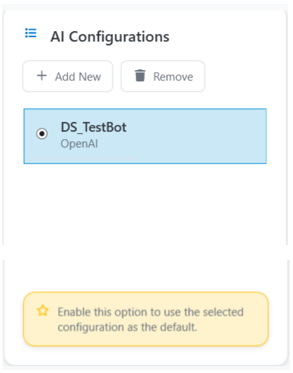
- Select a Bot from the left side to set bot it as default for chatting.
Now your bot is ready for chatting and creating workflows for you.
Removing an AI Configuration
-
On the Settings tab, click Bot Configuration.
-
Click and check the bot configuration name in the list that is to be removed.
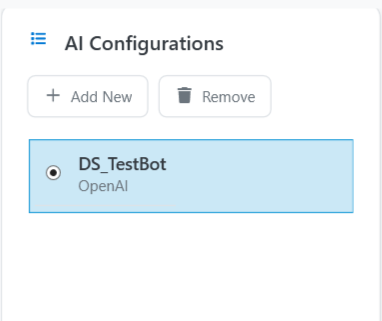
- Click Remove on the top of the bot configuration list. The selected configuration gets removed from the list.
MCP Capabilities
You can select the required MCP Server and tools to your bot and utilize the features of the MCP tools for creating a workflow in the RPA bot studio.
Application Activities and System Activities are connected to the respective MCP server and tools by default. You cannot deselect or remove this default configuration. However, You can add new MCP servers and tools for achieving your requirement.
MCP Client Manager
To access MCP server tools, on the Platform Bot panel, click the MCP Server icon on the top-right.
When you open the RPA Studio for the first time, the MCP servers may not initialized. At this point of time, if you click the MCP server icon, error message appears.
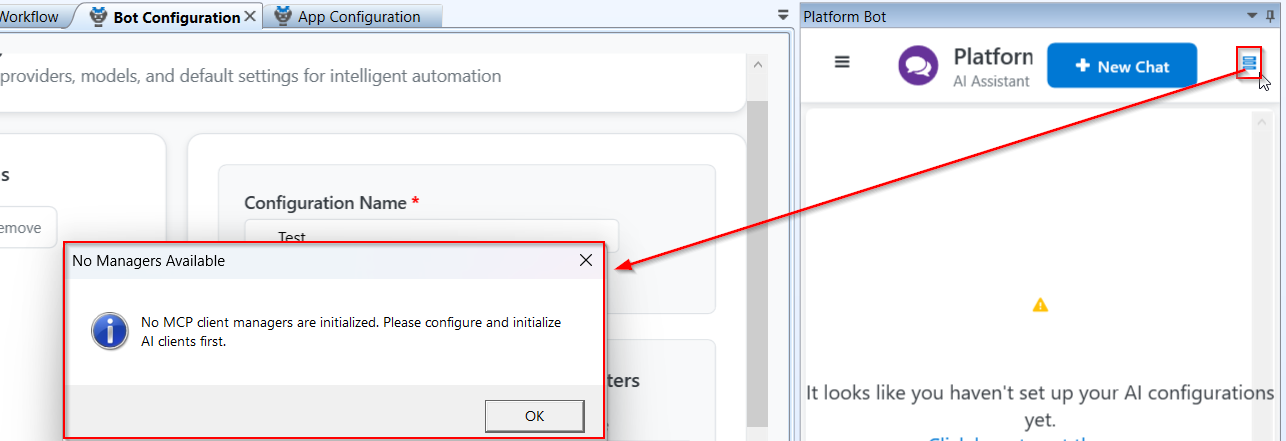
Once the RPA Bot Studio is completely loaded and MCP servers are initialized, you will get a display of current status and details of MCP servers that are connected to the bot.
The information gives you the details of default MCP servers connected to the RPA.
MCP Servers Connected: By default, your RPA connects to the MCP servers: Application Activity Tools and System Activity Tools.
-
AI client initialized: This is the default bot configuration selected for chatting.
-
MCP Integration: Displays the total number of tools integrated from the default servers.
-
MCP Tools updated: Displays the total number of tools from the default servers.
Selecting MCP Tools
It is mandatory to create at least one bot configuration and select it as default configuration for selecting MCP tools and chatting with the bot.
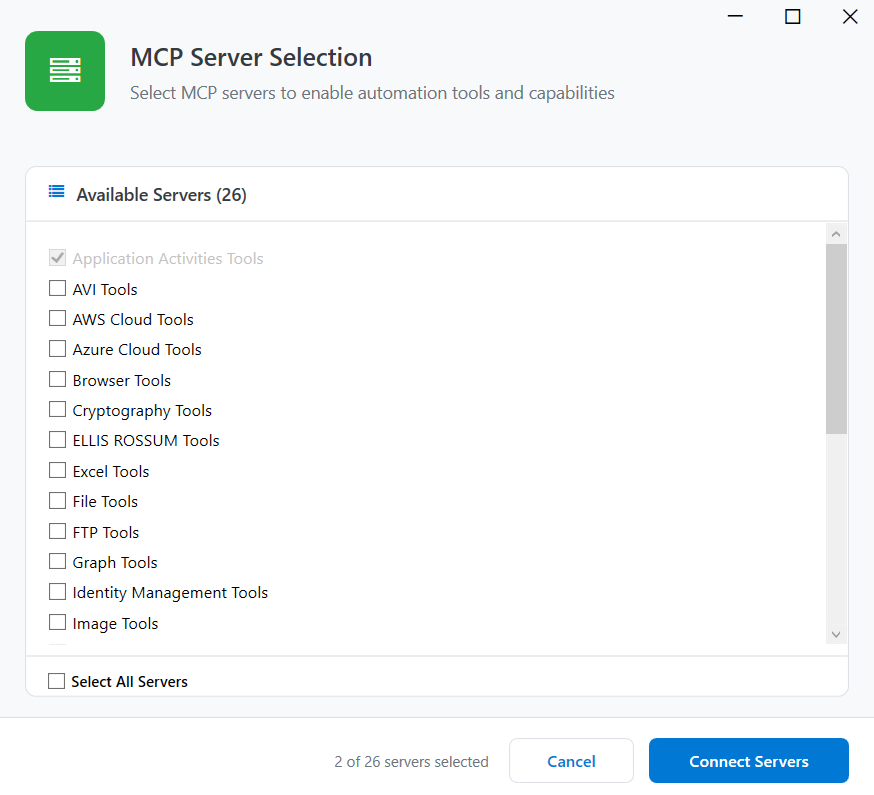
- To access more MCP servers and tools, click on the top-right MCP server icon. MCP Server Selection screen appears with the list of available servers.
-
Select the servers needed or select Select All Servers to select all the MCP servers.
-
Click Connect Servers. Now your bot recognizes the MCP tools that you selected.
Interacting with Platform Bot
The RPA Bot Studio chat bot is specifically utilized to generate workflows based on your prompts. You must provide the prompts as chats and the bot gives responses based on your requirement defined on the prompt.
The default AI configuration model chats with you in the bot interface.
-
In the Setting tab > Bot Configurations, select the required default AI configuration and save.
-
On the Platform Bot chat window, type the prompt for your workflow requirement and click the send arrow.
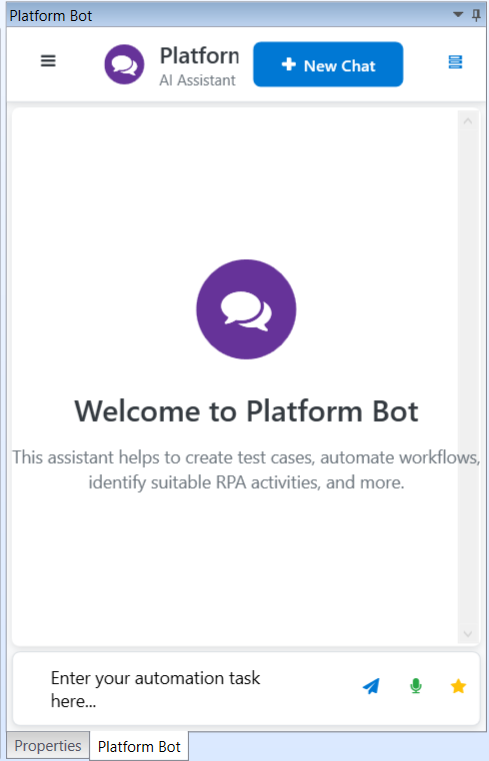
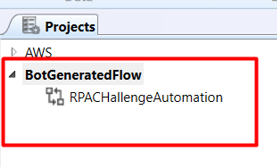
- Chat with the bot and refine your prompts until you get your required output. Note that each time you refine your chat prompt a new project and workflow is created and saved.
Designing RPA Workflows using Chat Bot
Design your workflow by just using custom prompts in the chat box.
You must define your design requirements in your chat box to get the desired results.
- Note that if the requirement is scope based or authentication based, then you must define the scope parameters and authentication keys in the prompt.
The chat bot will respond to you with a newly created project and workflow in the designer area.
You can manually edit the details of the workflow as per your design thoughts.
If you want the help of chat bot to improvise the workflow, provide your refinement in the prompt and it will create a new workflow with the details provided.
- Note that the chat bot cannot edit the already existing workflow. If you request for any edit, it will create another workflow with the provided details.
Designing a Simple Workflow
A simple workflow means creating a workflow based without adding any MCP tools other than the default ones. The Application Activities and System Activities are default MCP tools added to the prompts.
When you ask the bot to create a workflow without mentioning any activity names, but just by defining the workflow needed, the bot creates a workflow using the activities listed in the Application activities and System activities.
Designing Workflow with Featured MCP Tools
Consider that you need to generate a workflow using a specific activity category. Then you need to select that particular MCP tool (MCP Server selection) and provide the authentication details (if any) in the prompt along with your actual workflow requirement.
For example:
Creating workflow using Online Excel activities.
MCP Server selection: Click the MCP icon on the top-right of the platform bot screen and check “Online Excel Tools”.
Prompt: In the chat window, provide the following prompt.
Use online excel activities and create a workflow using “online excel scope” with values ClientSecret: zKx8Q~k9wdYAtg7uFDWx8KtI.vXWl3QJdLJPHcAt Client Id: 5994d84f-3fc5-4e37-8ded-648a1f649fe9 Tenant Id: 51a84581-31c7-43c1-a355-89f66e3bca8c and username: Nirupama.v@evoluteiq.com. Following are the activities to be used.
Online Excel scope
CreateWorkbook_Workflow
AddSheet_Workflow
RenameSheet_Workflow
WriteCell_Workflow
WriteRange_Workflow
ReadCell_Workflow
ReadRange_Workflow
ListSheets_Workflow
DeleteColumn_Workflow
DeleteRow_Workflow
DeleteRange_Workflow
DeleteSheet_Workflow
The bot creates a project and workflow in the designer area with the details provided. It uses the MCP tools and provides the authentication details as mentioned in the prompt to design and configure the requested workflow.