RPA AWS Cloud Activities
About RPA AWS Cloud Category Activities
AWS Cloud category activities allow you to automate the AWS Cloud actions.
The Access Key, Region, and Secret are used for authenticating your application with AWS, granting it an identity.
Pre-Requisites
To use AWS Cloud activities, you must have an active AWS subscription. You must have valid configuration details for authentication.
To get the necessary configuration details for the AWS Cloud activities, you must go to the AWS Management Console (https://aws.amazon.com/console/) and sign in using your root credentials or an Identity and Access Management (IAM) administrator account of your AWS account.
It is recommended to have a basic knowledge of AWS Cloud for using RPA AWS Cloud activities.
All the RPA AWS Cloud activities must me placed within the AWS Scope activity.
AWS Scope
AWS Scope activity allows you to connect to AWS cloud computing service instance and it provides a scope for other AWS activities. The AWS scope configuration is used for identifying and authenticating the user.
Refer to Getting AWS Access Key and Secret Access Key.
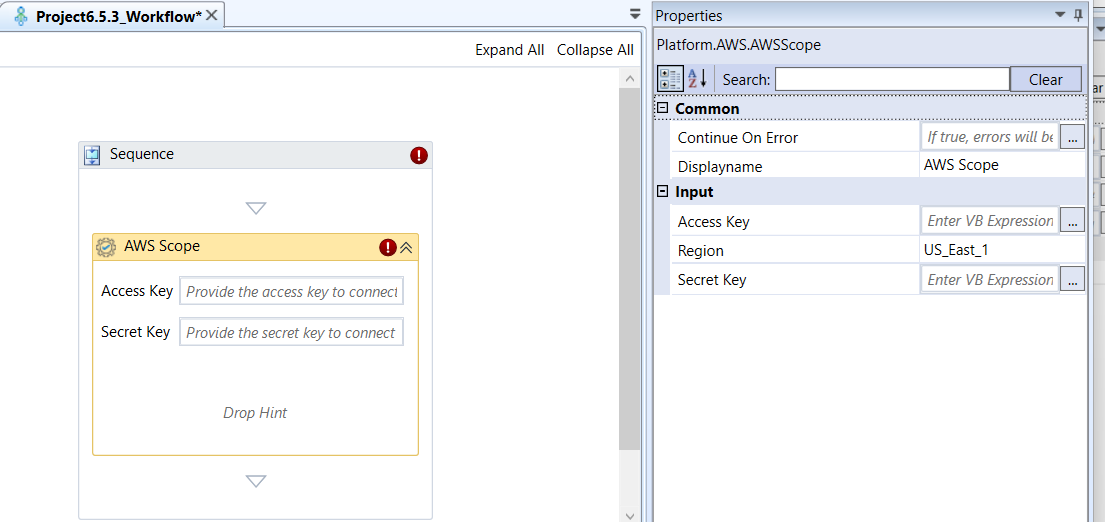
AWS Scope activity and properties
Properties of AWS Scope.
| Properties | Description |
|---|---|
| Continue On Error | Enter True if you need to ignore the errors and continue the workflow. Else enter False . This field accepts only Boolean values (True or False) |
| Display Name | Title of the activity inside the sequence. |
| Access Key | The public identifier of the key pair, similar to a username. It uniquely identifies the user or entity making the request. This is a string of 20 alphanumeric characters, typically starting with “AKIA…” Access Key is used to identify the user. |
| Region | Select a region for your AWS account based on your business location and requirements. This is the AWS geographic region where your resources are located (e.g., your S3 buckets, EC2 instances, etc.). This is used to specify the service endpoint based on your business location and requirements. |
| Secret Key | This is the private secret credential , similar to a password. It is used to cryptographically sign every programmatic request sent to AWS. This is a string of 40 alphanumeric characters. This private secret access key is used to authenticate the user. |
Add Role To Instance Profile
The Add Role To Instance Profile activity allows you to associate an existing IAM Role (which contains permissions) with an existing Instance Profile (a container that is attached to an EC2 instance). That is, it adds the specified role to the specified instance profile. This grants the EC2 instance the permissions defined for the Role.
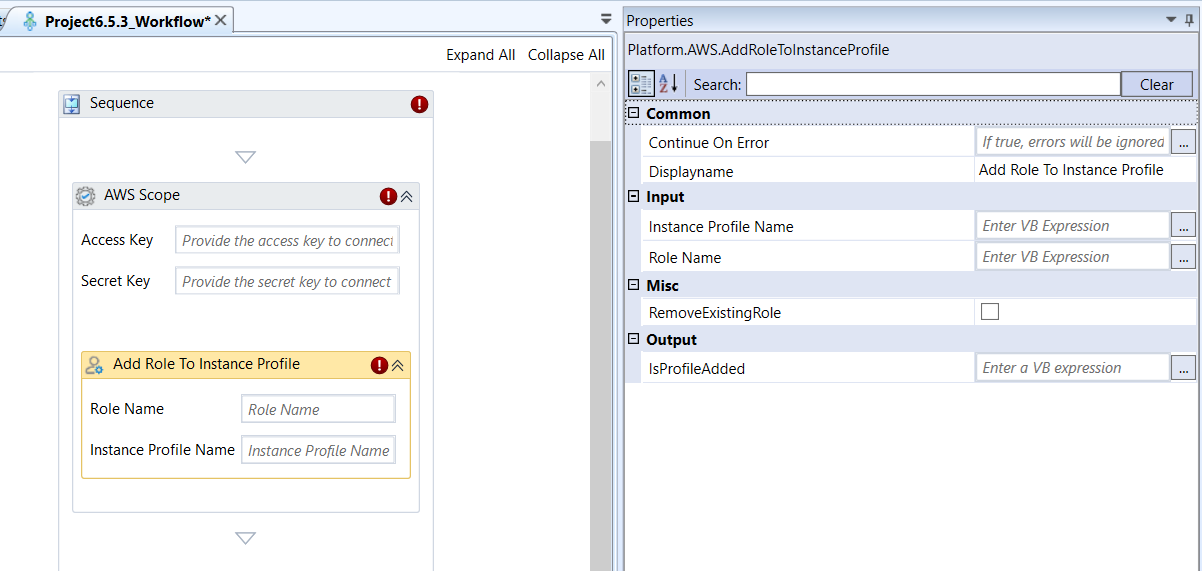
Add Role To Instance Profile activity and properties
Properties of Add Role To Instance Profile.
| Properties | Description |
|---|---|
| Continue On Error | Enter True if you need to ignore the errors and continue the workflow. Else enter False . This field accepts only Boolean values (True or False) |
| Display Name | Title of the activity inside the sequence. |
| Instance Profile Name | Enter the name of the target Instance Profile that receives the IAM Role. Instance Profiles are the container used when attaching an IAM Role to an Amazon EC2 instance. Refer to Obtaining IAM Instance Profile. |
| Role Name | Enter the name of the existing IAM Role that contains the permissions policy (e.g., S3 Read-Only access) you wish to grant to the EC2 instance. Refer to Viewing IAM Roles. |
| Remove Existing Role | Select checkbox to instruct the activity to remove any existing IAM Role from the Instance Profile before attempting to add the new Role specified in the Role Name field. This prevents the profile from being associated with multiple roles. Deselect checkbox to keep any existing roles. |
| Is Profile Added | Enter a VB Expression to declare a variable (e.g., roleAddedStatus) to capture the boolean result. Returns True if the role was successfully added to the instance profile, and False otherwise. |
Add User To Group
Add User To Group activity allows you to to add an existing IAM User to an existing IAM Group in AWS IAM. This is a foundational step in granting permissions, as the user will immediately inherit all access policies attached to the group.
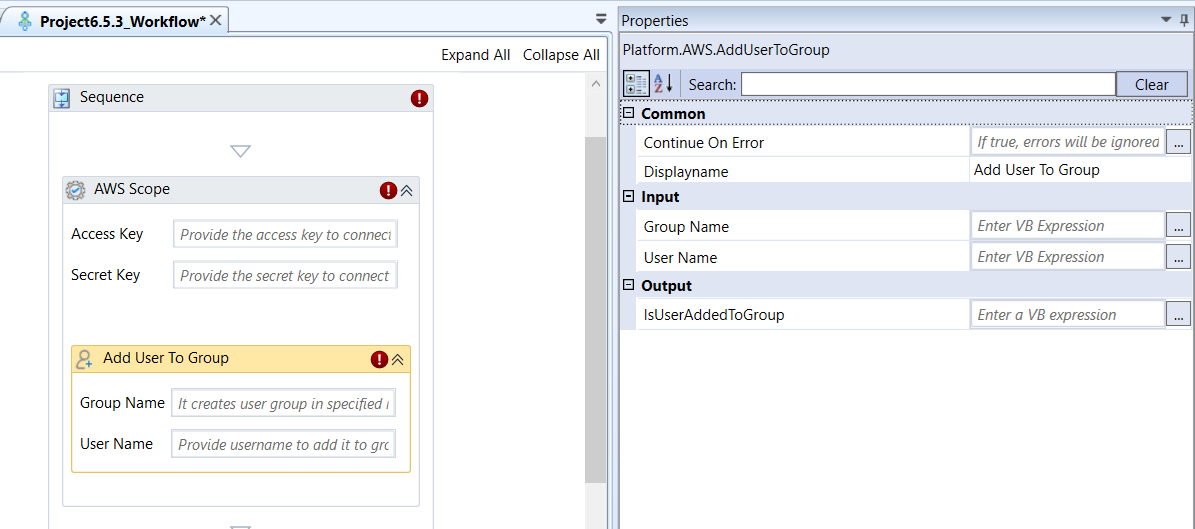
Add User To Group activity and properties
Properties of Add User To Group.
| Properties | Description |
|---|---|
| Continue On Error | Enter True if you need to ignore the errors and continue the workflow. Else enter False . This field accepts only Boolean values (True or False) |
| Display Name | Title of the activity inside the sequence. |
| Group Name | Enter name of the IAM Group to which the user will be added. Groups are containers for users and are used to assign permissions (policies) in bulk. Refer to Viewing IAM Groups. |
| User Name | Enter name of the IAM User who will be added to the specified group. Refer to Viewing IAM Users. |
| Is User Added to Group | Enter a VB Expression to declare a variable (e.g., userStatus) to capture the Boolean result. Returns True if the user was successfully added to the group, and False otherwise. |
Attach Volume To Instance
Attach Volume To Instance activity allows you to connect or attach an available EBS volume to a running EC2 instance. This makes the volume's storage space accessible to the operating system of the instance.
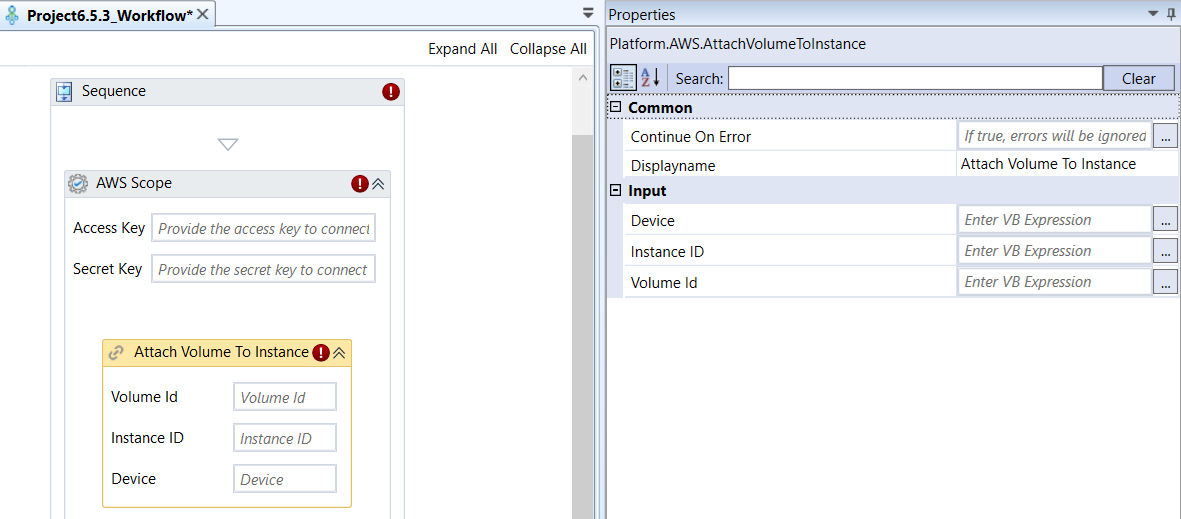
Attach Volume To Instance activity and properties
Properties of Attach Volume To Instance.
| Properties | Description |
|---|---|
| Continue On Error | Enter True if you need to ignore the errors and continue the workflow. Else enter False . This field accepts only Boolean values (True or False) |
| Display Name | Title of the activity inside the sequence. |
| Device | Enter the device name (path) to expose the volume to the instance's operating system (e.g., /dev/sdf for Linux or xvdf for Windows). The specific name may vary based on the instance's operating system. Refer to Determining the Device Name |
| Instance ID | Enter the Instance Id to which you wish to attach the EBS volume. Refer to Obtaining EC2 Instance ID. |
| Volume ID | Enter the EBS volume Id that you wish to attach. Refer to Obtaining EBS Volume ID. |
Change Password
Change Password activity allows you to change the console sign-in password for an existing IAM User. This activity updates the user's login profile for access to the AWS Management Console.
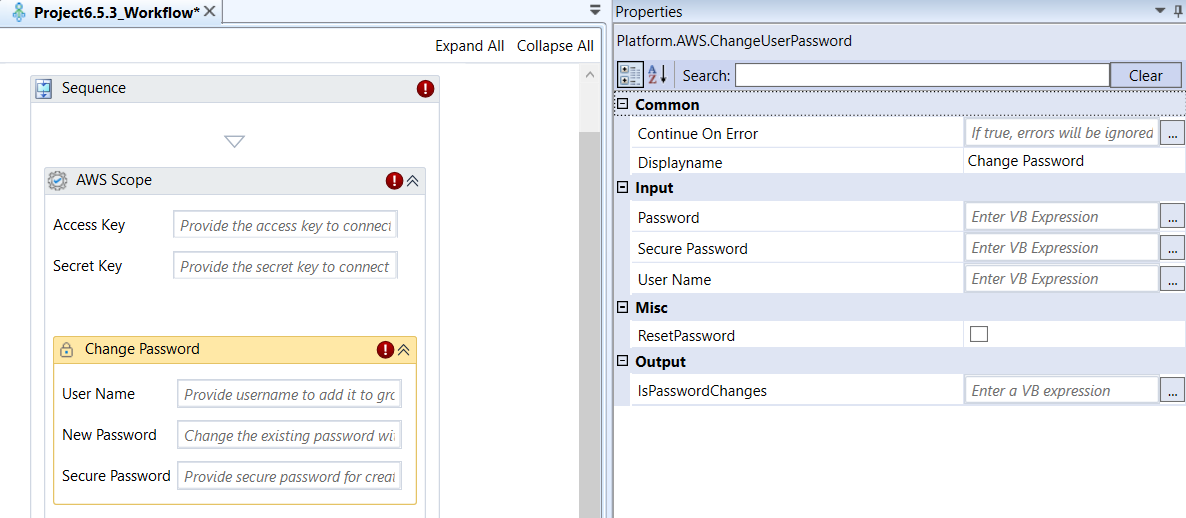
Change Password activity and properties
Properties of Change Password.
| Properties | Description |
|---|---|
| Continue On Error | Enter True if you need to ignore the errors and continue the workflow. Else enter False . This field accepts only Boolean values (True or False) |
| Display Name | Title of the activity inside the sequence. |
| Password | The new plain text password for the user, used for logging into the AWS Management Console. Only use if Secure Password is empty. |
| Secure Password | Enter new Secure String variable containing the password. Using a Secure String is the recommended best practice for handling sensitive credentials. |
| User Name | Enter the name of IAM User for whom the password must be changed. |
| Reset Password | If checked (True), the user will be forced to change their password the next time they sign in to the AWS Management Console. |
| Is Password Changes | Enter a string variable to store the output status of change password. Returns value as “True” if the password change is successful. Returns value as “False” if the password change is failed. |
Copy Object
Copy Object activity allows you to copy an existing object from a source Amazon S3 bucket to a target S3 bucket or to a new location within the same bucket. This activity performs the s3:CopyObject operation.
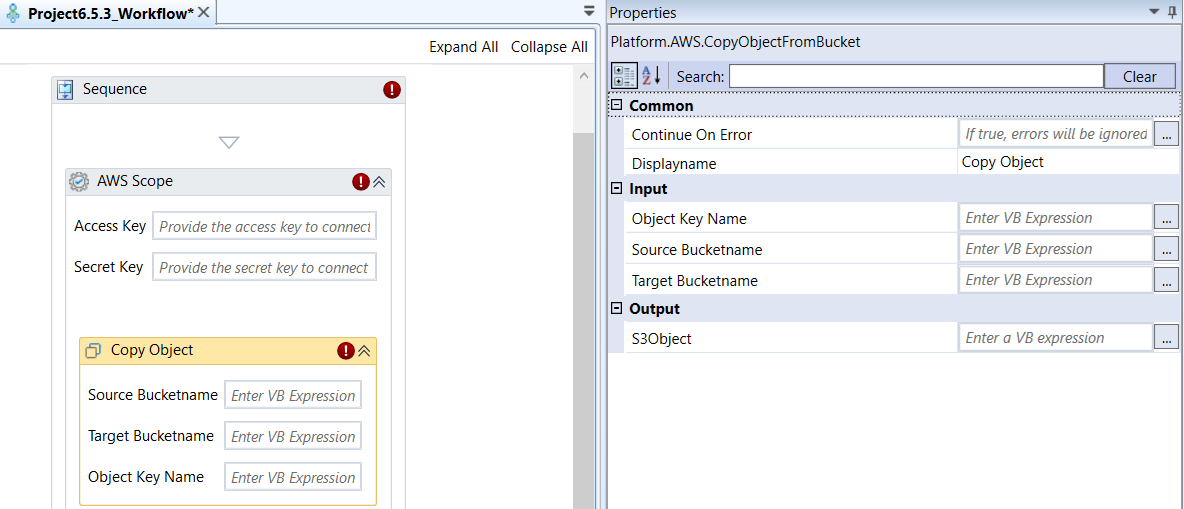
Copy Object activity and properties
Properties of Copy Object.
| Properties | Description |
|---|---|
| Continue On Error | Enter True if you need to ignore the errors and continue the workflow. Else enter False . This field accepts only Boolean values (True or False) |
| Display Name | Title of the activity inside the sequence. |
| Object Key Name | Enter the unique identifier Key (path/filename) for the copied object in the Target Bucket name. |
| Source Bucket Name | Enter the S3 bucket name from which the object must be copied. Refer to Obtaining S3 Bucket Name. |
| Target Bucket Name | Enter the S3 bucket name to which the copied object must be placed. Refer to Obtaining S3 Bucket Name. |
| S3 Object | Enter an object variable to store the metadata of the newly created object in the target bucket upon successful copy. |
Create Instance
Create Instance activity allows you to provision and launch a new Amazon EC2 virtual machine instance in the specified AWS Region. This activity requires multiple configuration inputs to define the size, security, and identity of the new instance.
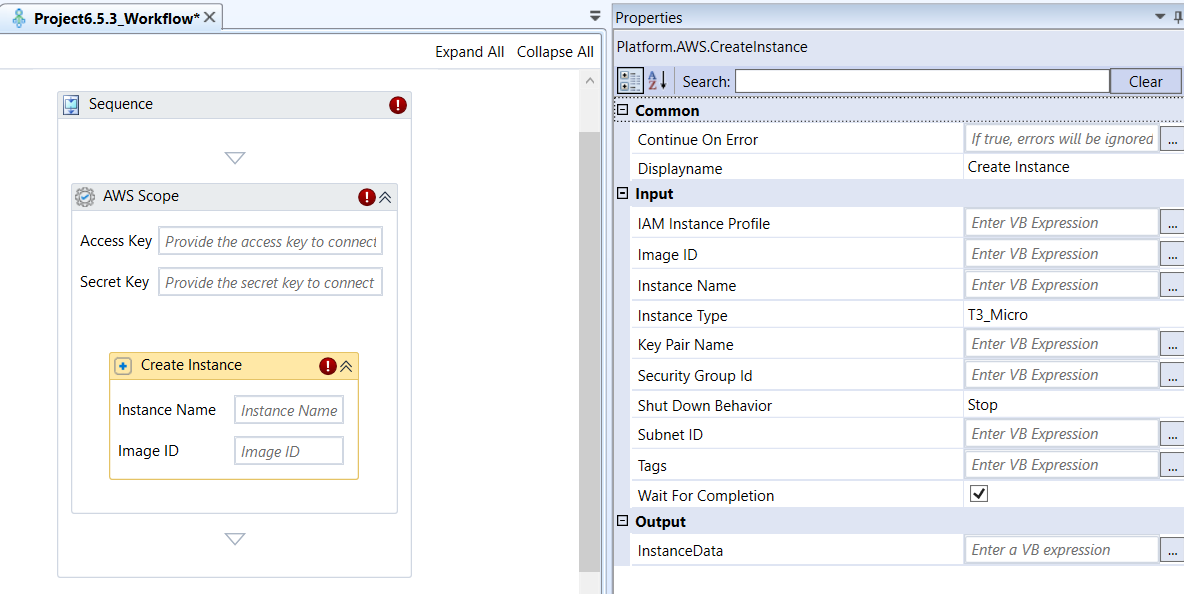
Create Instance activity and properties
Properties of Create Instance.
| Properties | Description |
|---|---|
| Continue On Error | Enter True if you need to ignore the errors and continue the workflow. Else enter False . This field accepts only Boolean values (True or False) |
| Display Name | Title of the activity inside the sequence. |
| IAM Instance Profile | Enter name of the IAM Instance Profile (which holds an IAM Role) to be associated with the new EC2 instance. This grants the instance permissions to access other AWS services. Refer to Obtaining IAM Instance Profile. |
| Image ID | Enter String value for the AMI ID. AMI ID is the unique identifier of the Amazon Machine Image (AMI) used for launching the instance. The AMI contains the necessary operating system, application server, and applications. |
| Instance Name | Enter name for your new EC2 instance. |
| Instance Type | Select the required instance type for your instance. Instance type is a specification that defines the memory, CPU, storage capacity, and usage cost for an instance. |
| Key Pair Type | Enter name of the existing EC2 Key Pair used to securely connect to the instance using SSH (for Linux) or RDP (for Windows). You must possess the corresponding private key file (.pem or .ppk). Refer to Creating / Obtaining EC2 Key Pair. |
| Security Group Id | Enter the ID of the Security Group (virtual firewall) that will govern inbound and outbound traffic for this instance. Refer to Obtaining EC2 Security Group ID. |
| Shutdown Behavior | Defines the action taken when the instance is stopped. Select the required shutdown behavior. Stop : The instance is stopped, but it can be restarted. Terminate : The instance is terminated and deleted permanently. |
| Subnet ID | Enter the unique identifier of the VPC Subnet in which the new instance is launched. This determines its network placement (e.g., public vs. private subnet). Refer to Obtaining VPC Subnet ID. |
| Tags | Enter a variable representing a dictionary to capture tags. Tags are additional key-value pairs used to organize, manage, and track AWS resources. |
| Wait for Completion | Select checkbox to pause the workflow until the EC2 instance has fully launched and reached the running state. |
| Instance Data | Enter a VB Expression to declare a (instance data) variable (e.g., newEC2Instance) to capture the object data. This variable stores all the metadata and status information about the newly created EC2 instance upon successful launch. |
Create Instance Snapshot
Create Instance Snapshot activity allows you to create snapshots (point-in-time backups) of the EBS volumes attached to a running EC2 instance. These snapshots are stored in Amazon S3 and can be used to restore volumes or create new instances later.
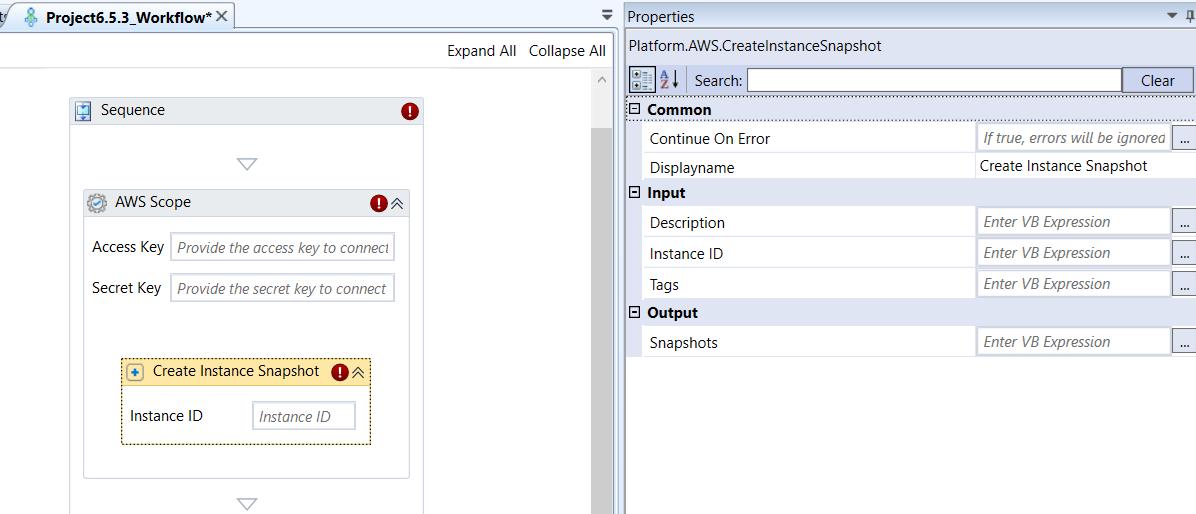
Create Instance Snapshot activity and properties
Properties of Create Instance Snapshot.
| Properties | Description |
|---|---|
| Continue On Error | Enter True if you need to ignore the errors and continue the workflow. Else enter False . This field accepts only Boolean values (True or False) |
| Display Name | Title of the activity inside the sequence. |
| Description | Enter description for the set of snapshots being created. |
| Instance ID | The unique identifier of the EC2 instance for which snapshots are taken. Snapshots are taken for the EBS volumes. All volumes attached to this instance will be included in the backup. Refer to Obtaining EC2 Instance ID. |
| Tags | Enter a variable representing a dictionary to capture tags. Tags are additional key-value pairs used to organize, manage, and track AWS resources. |
| Snapshot | Enter a list type variable to capture the list of object data for the snapshot. |
Create Policy
Create Policy activity allows you to define and upload a new, custom Managed Policy to AWS IAM. Managed Policies are reusable containers of permissions that can be attached to IAM Users, Groups, or Roles to grant them specific access to AWS resources.
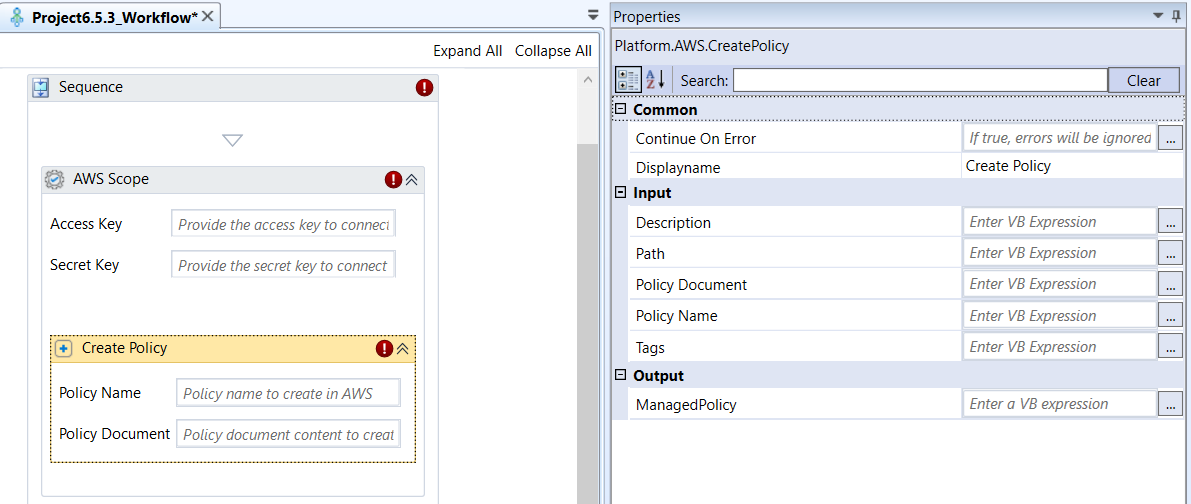
Create Policy activity and properties
Properties of Create Policy.
| Properties | Description |
|---|---|
| Continue On Error | Enter True if you need to ignore the errors and continue the workflow. Else enter False . This field accepts only Boolean values (True or False) |
| Display Name | Title of the activity inside the sequence. |
| Description | Enter description for your policy. |
| Path | Enter the path for the policy. If left empty, the default path / is used. Paths help organize IAM resources. |
| Policy Document | Provide the actual permissions structure of the policy in JSON format. This document defines the Actions (e.g., s3:GetObject) allowed or denied on specific Resources (e.g., a specific S3 bucket). Refer to Creating and Obtaining IAM Policy Document. |
| Policy Name | Enter name for your policy. |
| Tags | Enter a variable representing a dictionary to capture tags. Tags are additional key-value pairs used to organize, manage, and track AWS resources. |
| ManagedPolicy | Enter a variable (e.g., newIAMPolicy) to capture the object data. This stores all the metadata and the ARN (Amazon Resource Name) of the newly created IAM Managed Policy upon successful execution. |
Create Role
Create Role activity allows you to define and register a new Role in AWS IAM. An IAM Role is an identity that has permissions policies but is not associated with a specific user. It is typically assumed by entities like EC2 instances, AWS services, or external users to temporarily gain permissions.
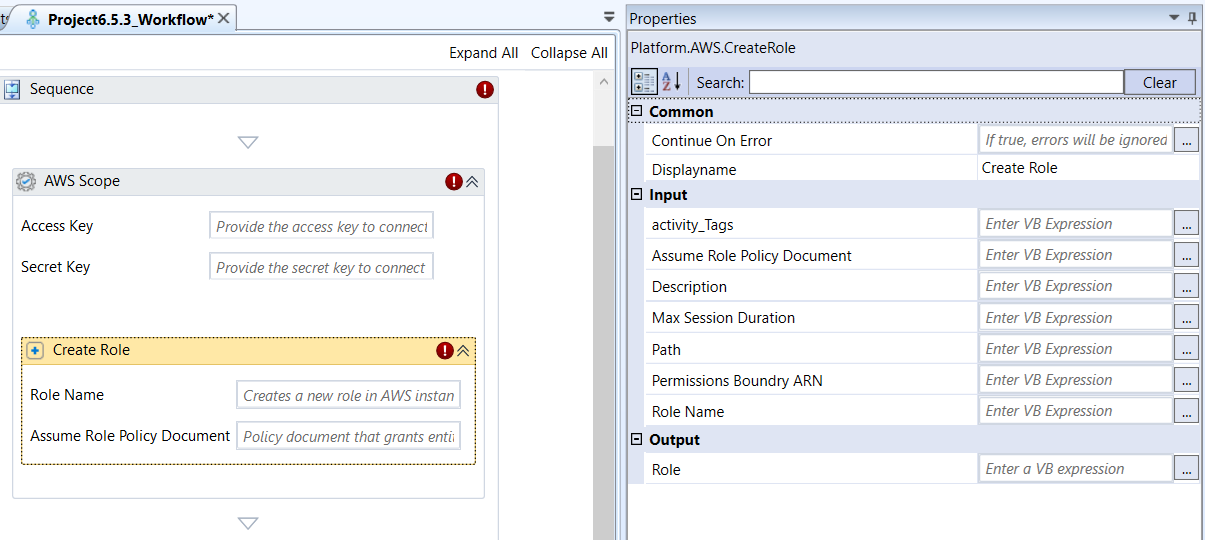
Create Role activity and properties
Properties of Create Role.
| Properties | Description |
|---|---|
| Continue On Error | Enter True if you need to ignore the errors and continue the workflow. Else enter False . This field accepts only Boolean values (True or False) |
| Display Name | Title of the activity inside the sequence. |
| Activity Tags | Enter a variable representing a dictionary to capture activity tags. These are optional key-value pairs used to organize, manage, and track AWS resources. |
| Assume Role Policy Document | Enter the policy document in JSON format . This policy grants entity permission. That is, it defines which entities (e.g., a specific EC2 service, another AWS account, or an external web identity) are allowed to assume or use this Role. Refer to Creating and Obtaining IAM Assume Role Policy Document. |
| Description | Enter description for the role. |
| Max Session Duration | Enter the maximum time (in seconds) that the created role session can be active when assumed by a principal (up to 43,200 seconds or 12 hours). If left empty, the default is 3600 seconds. |
| Path | Enter the path for the policy. If left empty, the default path / is used. Paths help organize IAM resources. |
| Permission Boundary ARN | Enter the Amazon Resource Name (ARN) of a Managed Policy that sets the maximum permissions the new Role can ever have. This is a security measure to limit the power of the role. Refer to Obtaining Managed Policy ARN. |
| Role Name | Enter name for the role. |
| Role | Enter a variable to capture object data. This object variable stores all the metadata, the ARN (Amazon Resource Name), and other status information about the newly created IAM Role upon successful execution. |
Create S3 Bucket
Create S3 Bucket activity allows you to to create a new storage container, known as an S3 Bucket, in the specified AWS Region. S3 Buckets are fundamental for storing objects (files, images, backups, etc.) in a scalable and highly available manner.
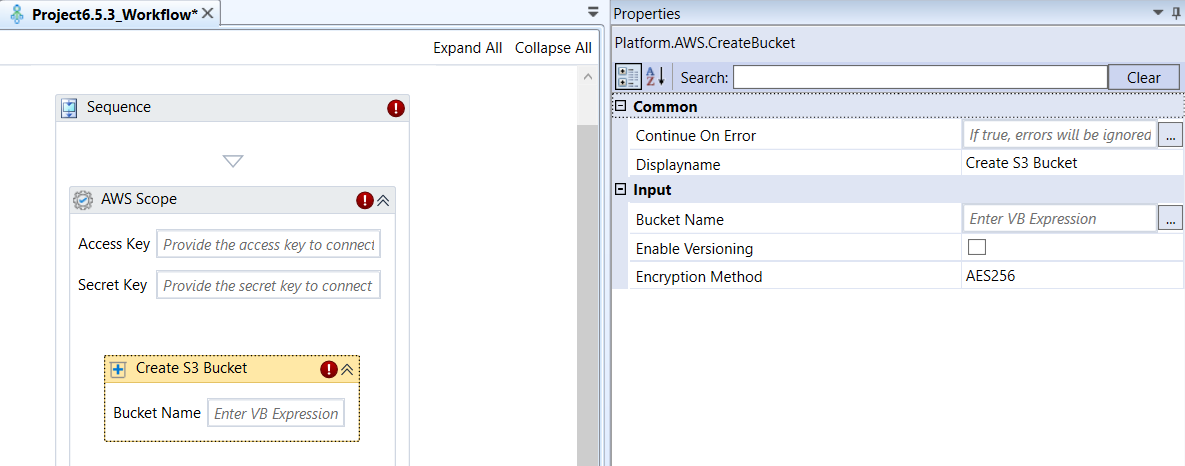
Create S3 Bucket activity and properties
Properties of Create S3 Bucket.
| Properties | Description |
|---|---|
| Continue On Error | Enter True if you need to ignore the errors and continue the workflow. Else enter False . This field accepts only Boolean values (True or False) |
| Display Name | Title of the activity inside the sequence. |
| Bucket Name | Enter a name for your S3 bucket. The name must be unique across all of AWS, adhere to DNS naming rules, and must not contain spaces or uppercase letters (e.g., my-unique-rpa-data-bucket-2025). |
| Enable Versioning | If checked (True), this feature preserves multiple versions of an object, protecting against accidental deletion or modification. If unchecked, single version is preserved. |
| Encryption Method | Select an encryption method as per your needs.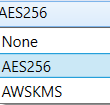 The server-side encryption method used to protect data at rest within the bucket. None : Data is unencrypted. AES256 : Keys are managed by AWS S3. AWSKMS : Keys are managed by AWS KMS (Key Management Service). |
Create User
Create User activity allows you to to create a new IAM User in AWS Identity and Access Management (IAM). An IAM User represents a person or application that interacts with AWS, and this activity creates their identity within the AWS account.
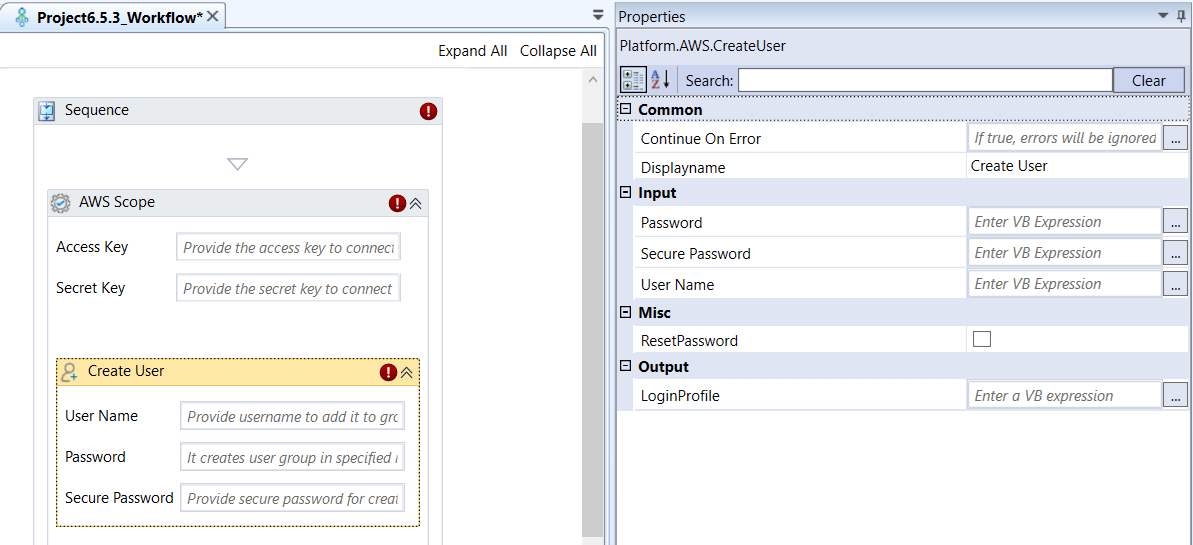
Create User activity and properties
Properties of Create User.
| Properties | Description |
|---|---|
| Continue On Error | Enter True if you need to ignore the errors and continue the workflow. Else enter False . This field accepts only Boolean values (True or False) |
| Display Name | Title of the activity inside the sequence. |
| Password | The plain text password for the new user, used for logging into the AWS Management Console. Only use if Secure Password is empty. |
| Secure Password | Enter Secure String variable containing the password. Using a Secure String is the recommended best practice for handling sensitive credentials. |
| User Name | Enter name to the new IAM User. This name must be unique within your AWS account. |
| Reset Password | If checked (True), the user will be forced to change their password the next time they sign in to the AWS Management Console. |
| Login Profile | Enter a variable (e.g., newUserLoginData) to capture the object data. An object variable stores the metadata of the newly created IAM User's Login Profile, including the user's ARN (Amazon Resource Name) and the user name, upon successful execution. |
Create User Group
Create User Group activity allows you to create a new IAM User Group in AWS IAM. Groups are used to collect IAM Users and attach permissions policies to them collectively, simplifying management and adhering to the principle of least privilege.
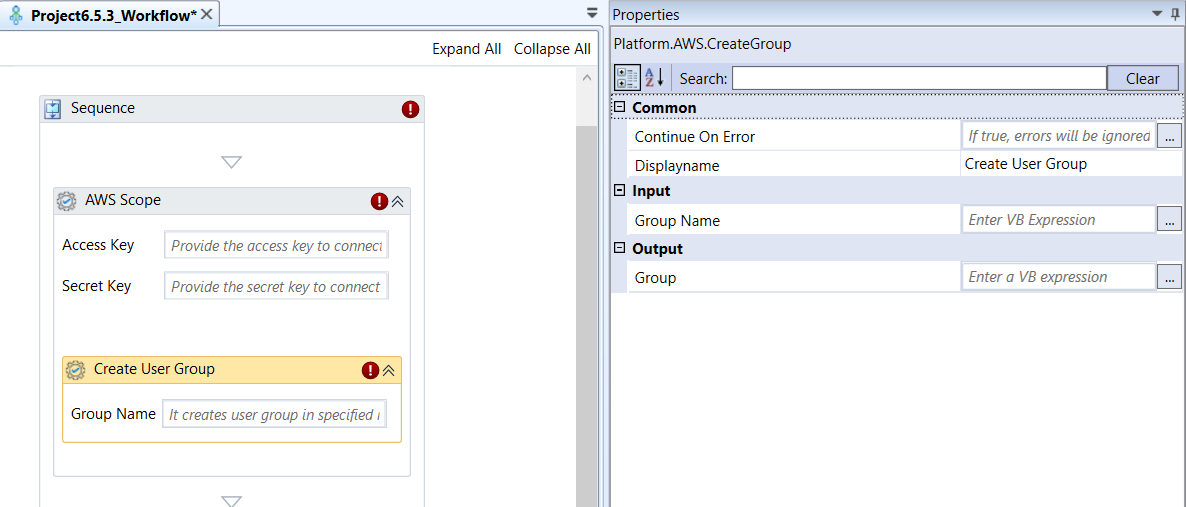
Create User Group activity and properties
Properties of Create User Group.
| Properties | Description |
|---|---|
| Continue On Error | Enter True if you need to ignore the errors and continue the workflow. Else enter False . This field accepts only Boolean values (True or False) |
| Display Name | Title of the activity inside the sequence. |
| Group Name | Enter name for your user group. |
| Group | Enter an object variable to capture group name. The variable stores all the metadata of the newly created IAM Group, including the group's ARN and the group name, upon successful execution. |
Create Volume
Create Volume activity allows you to create a new Amazon EBS (Elastic Block Store) volume. An EBS volume is a durable, block-level storage device that you can attach to a running EC2 instance for persistent storage.
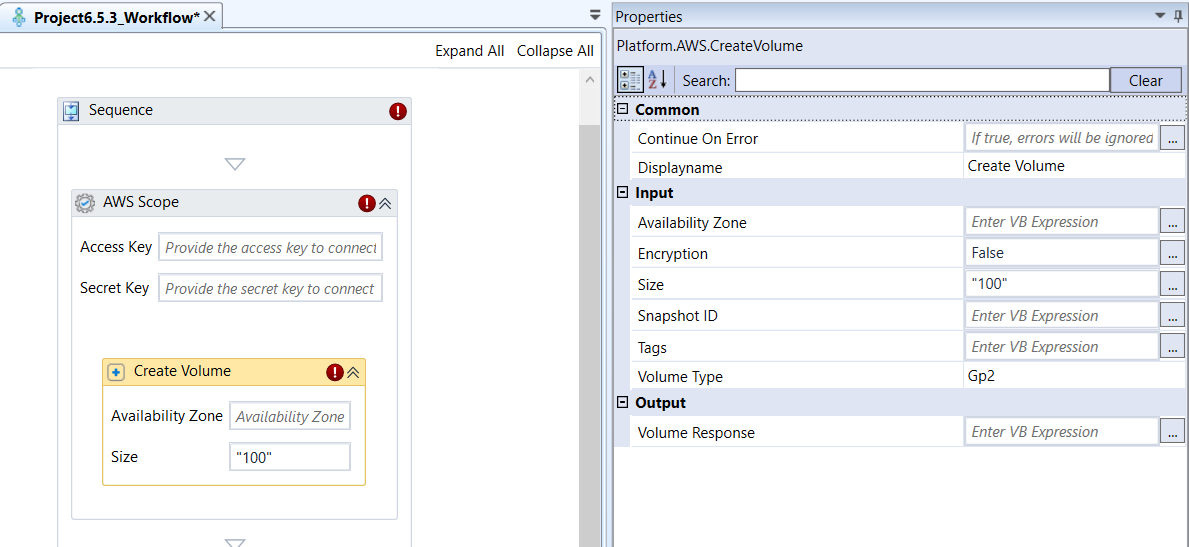
Create Volume activity and properties
Properties of Create Volume.
| Properties | Description |
|---|---|
| Continue On Error | Enter True if you need to ignore the errors and continue the workflow. Else enter False . This field accepts only Boolean values (True or False) |
| Display Name | Title of the activity inside the sequence. |
| Availability Zone | The specific Availability Zone (AZ) within the AWS Region where the volume will be created. The volume must be created in the same AZ as the EC2 instance you intend to attach it to. Refer to Obtaining Availability Zones. |
| Encryption | Enter True, and the volume will be encrypted using AWS default encryption or a specified KMS key. Enter False if you don’t need any encryption for the volume. |
| Size | Enter a string representing the size of the volume in GB. The size limits vary depending on the Volume Type . |
| Snapshot ID | Enter the snapshot ID. This is the unique identifier of an existing EBS snapshot. The new volume will be created and pre-populated with the data from this snapshot. Refer to Obtaining Snapshot ID. |
| Tags | Enter a variable representing a dictionary to capture tags. Tags are additional key-value pairs used to organize, manage, and track AWS resources. |
| Volume Type | Select a volume type. This is the type of underlying storage that determines performance characteristics (IOPS and throughput) and cost. |
| Volume Response | Enter a variable to capture the object data. This variable store all the metadata and status information about the newly created EBS volume upon successful creation. |
Create Volume Snapshot
Create Volume Snapshot activity allows you to create a backup (snapshot) of a single, specified EBS volume. The snapshot contains all the data on the volume at the moment the snapshot is created, and it is stored in Amazon S3 for durable, long-term retention.
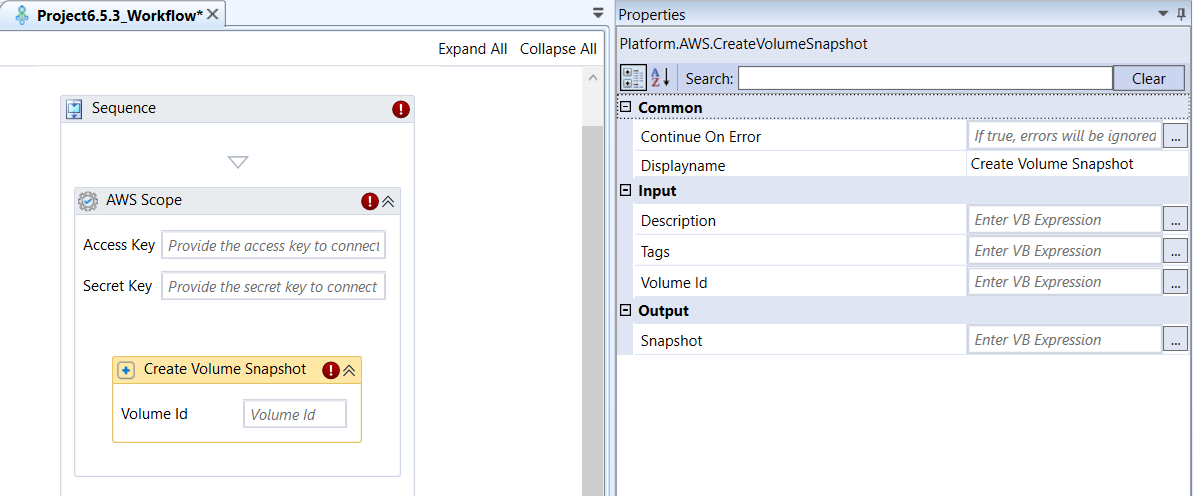
Create Volume Snapshot activity and properties
Properties of Create Volume Snapshot.
| Properties | Description |
|---|---|
| Continue On Error | Enter True if you need to ignore the errors and continue the workflow. Else enter False . This field accepts only Boolean values (True or False) |
| Display Name | Title of the activity inside the sequence. |
| Description | Enter description for the volume snapshot. |
| Tags | Enter a variable representing a dictionary to capture tags. Tags are additional key-value pairs used to organize, manage, and track AWS resources. |
| Volume Id | Enter a unique identifier of the specific EBS volume for which the snapshot will be created. This volume must be in the same region as the parent AWS Scope. Refer to Obtaining EBS Volume ID. |
| Snapshot | Enter a variable to capture the object data. This variable stores the metadata and status information about the newly created EBS snapshot upon successful creation. |
Delete Bucket
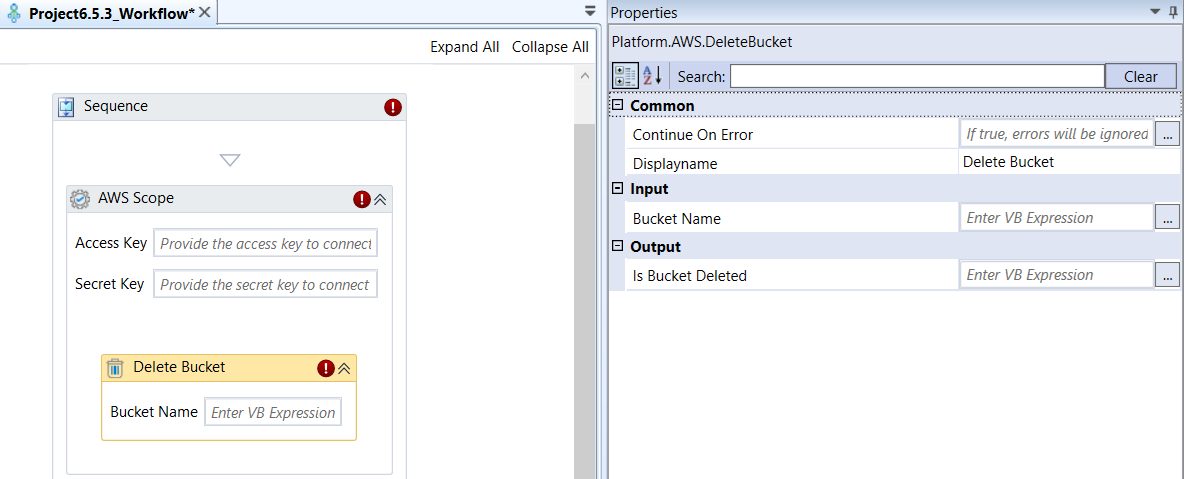
Delete Bucket activity allows you to permanently delete a specified Amazon S3 bucket from your AWS account. Crucially, an S3 bucket cannot be deleted unless it is empty, meaning all objects (including all object versions and delete markers) must be removed first.
Delete Bucket activity and properties
Properties of Delete Bucket.
| Properties | Description |
|---|---|
| Continue On Error | Enter True if you need to ignore the errors and continue the workflow. Else enter False . This field accepts only Boolean values (True or False) |
| Display Name | Title of the activity inside the sequence. |
| Bucket Name | Enter the name of the S3 bucket that you want to delete. Make sure the bucket is empty to prevent execution failure. If the bucket has versioning enabled, you must also delete all noncurrent object versions and delete markers. For automations, it is ideal to place this activity after an Empty Bucket activity. Refer to Obtaining S3 Bucket Name. |
| Is Bucket Deleted | Enter a string variable to hold a Boolean output value. If it returns “True”, the S3 bucket is successfully deleted. If it returns “False”, the S3 bucket deletion is not successful. |
Delete File
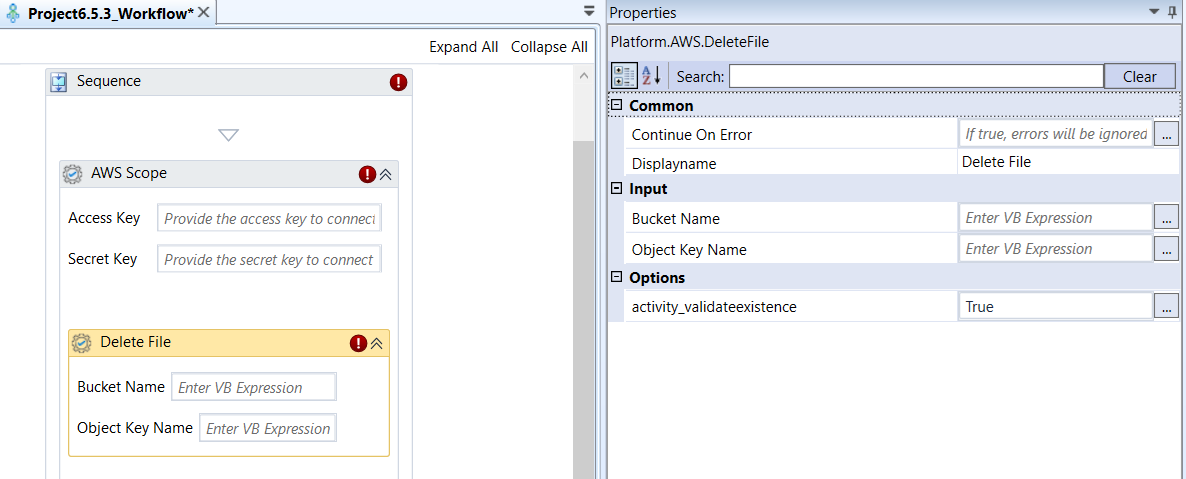
Delete File activity allows you to permanently delete a specific object (file) from the designated Amazon S3 bucket. This activity performs the s3:DeleteObject operation.
A successful execution confirms that the specified object has been permanently removed from the S3 bucket.
Delete File activity and properties
Properties of Delete File.
| Properties | Description |
|---|---|
| Continue On Error | Enter True if you need to ignore the errors and continue the workflow. Else enter False . This field accepts only Boolean values (True or False) |
| Display Name | Title of the activity inside the sequence. |
| Bucket Name | Enter the S3 bucket name in which the file you want to delete resides. Refer to Obtaining S3 Bucket Name. |
| Object Key Name | Enter the unique identifier Key name (path/filename) of the object within the bucket that you want to delete. This is often the full file path, including any virtual folders. Refer to Obtaining S3 Object Key Name. |
| Activity_validateexistance | If set to True , the activity will first check if the object exists before attempting to delete it. That is, it validates the existence of the file before deleting it. This is useful for error handling. If set to False , the activity attempts to delete the file without validating whether the file exists or not. |
Delete Group
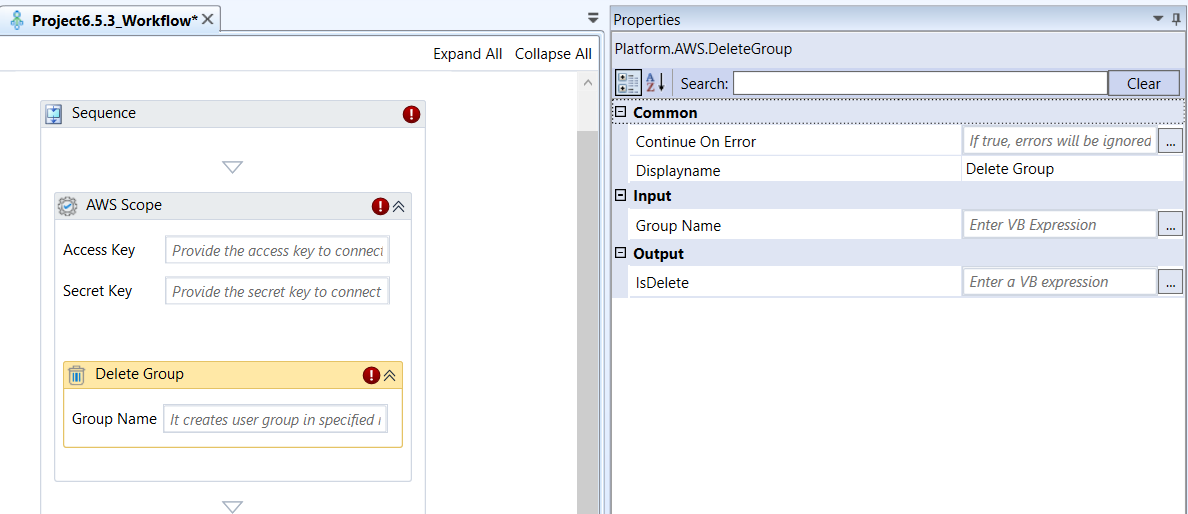
Delete Group activity allows you to permanently remove a specified IAM User Group from AWS IAM. When a group is deleted, the users who were members of the group are not deleted, but they lose any permissions that were granted solely through that group.
Important Prerequisites
For the IAM group deletion to succeed, the IAM Group must meet these conditions:
-
Policies Detachment: All Managed Policies must be detached from the Group.
-
Users Removal: All IAM Users must be removed from the Group. Although the activity deletes the group even if it contains users in the console, for programmatic execution in RPA, it is best practice to explicitly remove all users and detach policies beforehand to ensure a clean workflow.
Delete Group activity and properties
Properties of Delete Group.
| Properties | Description |
|---|---|
| Continue On Error | Enter True if you need to ignore the errors and continue the workflow. Else enter False . This field accepts only Boolean values (True or False) |
| Display Name | Title of the activity inside the sequence. |
| Group Name | Enter the IAM group name that you want to delete. Refer to Viewing IAM Groups. |
| Is Delete | Enter a variable to store the status of the execution. If the response is “True”, the group is deleted successfully. If the response is “False”, the group deletion failed. |
Delete Role
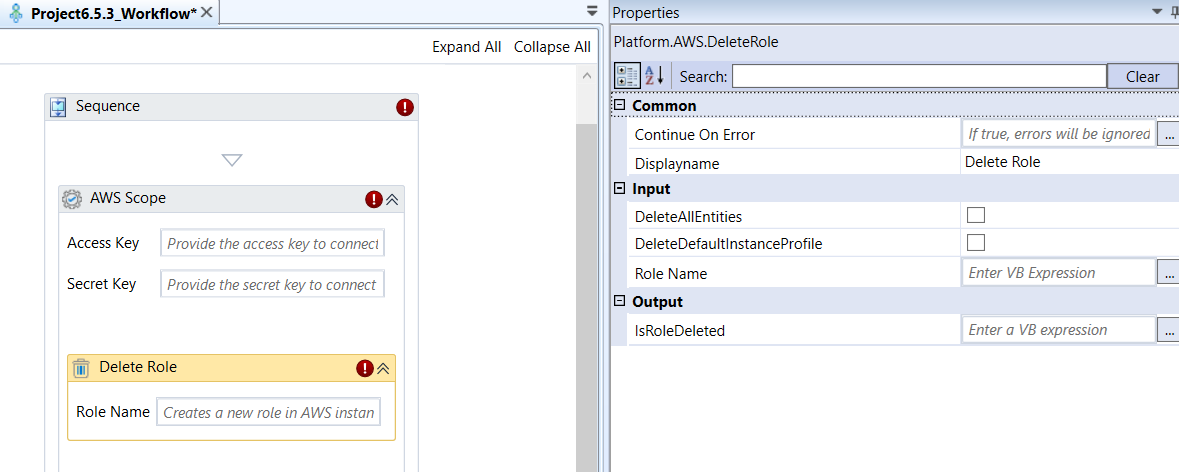
Delete Role activity allows you to permanently delete a specified IAM Role from AWS IAM.
Note that deleting a role that is still actively associated with a running resource (like an EC2 instance) or a service will break the application.
Delete Role activity and properties
Properties of Delete Role.
| Properties | Description |
|---|---|
| Continue On Error | Enter True if you need to ignore the errors and continue the workflow. Else enter False . This field accepts only Boolean values (True or False) |
| Display Name | Title of the activity inside the sequence. |
| Delete All Entities | Select this checkbox to delete all the entities associated with the role before deleting the role. Entities include managed policies and inline policies. If deselected, it can throw error if there any entity exists for the role. It is ideal to select this checkbox as you must manually clean up all attached entities beforehand, or the deletion will fail with a DeleteConflict error. |
| Delete Default Instance Profile | Select this checkbox to remove the default instance profile. It is recommended to execute “Remove Role From Instance Profile” before executing the “Delete Role” activity. |
| Role Name | Enter the IAM Role name that you wish to delete. Refer to Viewing IAM Roles. |
| Is Role Deleted | Enter a variable to store the status of the execution. If the response is “True”, the role is deleted successfully. If the response is “False”, the role deletion failed. |
Delete Snapshot
Delete Snapshot activity allows you to permanently remove a specified Amazon EBS snapshot from your AWS account. Deleting a snapshot only removes the data that is referenced exclusively by that snapshot; any data referenced by other, later snapshots is preserved, and its storage cost is re-allocated to the referencing snapshots.
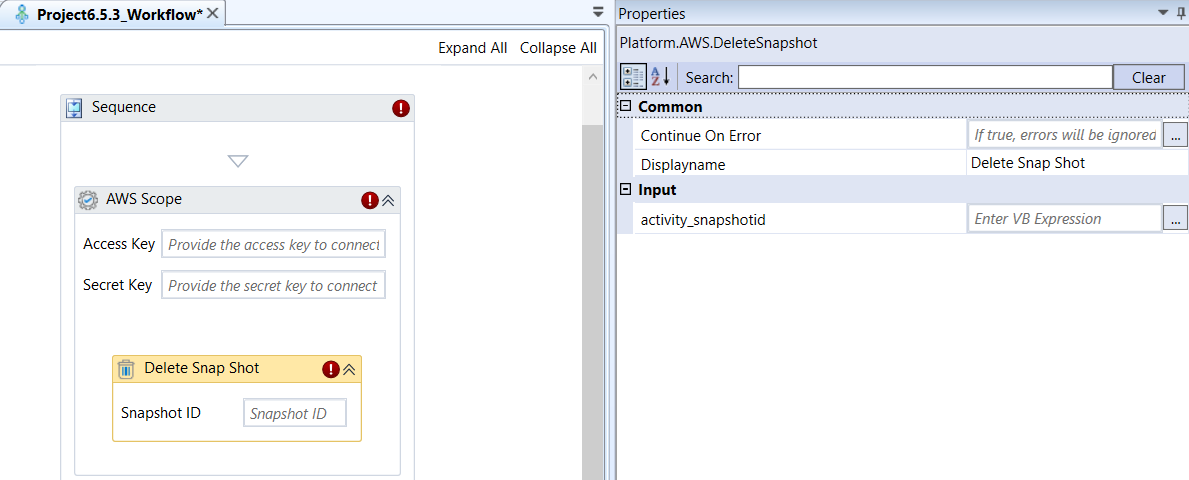
Delete Snapshot activity and properties
Properties of Delete Snapshot.
| Properties | Description |
|---|---|
| Continue On Error | Enter True if you need to ignore the errors and continue the workflow. Else enter False . This field accepts only Boolean values (True or False) |
| Display Name | Title of the activity inside the sequence. |
| Snapshot ID | Enter the unique EBS snapshot ID that you wish to delete. The Id field is in the activity node in the designer. Refer to Obtaining EBS Snapshot ID. |
| Activity_Snapshot Id | Enter a string variable to store the output. On successful deletion of the snapshot, the ID of the corresponding snapshot is stored in this variable. |
Delete User
Delete User activity allows you to permanently delete a specified AWS IAM User. This action permanently removes the user identity and all associated credentials and metadata from the AWS account.
Important Prerequisites
AWS requires that all artifacts and credentials associated with an IAM User be manually removed before the Delete User action can succeed programmatically.
Your RPA workflow must include the following cleanup steps using corresponding activities before calling the Delete User activity:
-
Remove from Groups: Remove the user from all associated IAM Groups.
-
Delete/Detach Policies: Detach all Managed Policies and delete all Inline Policies attached to the user.
-
Delete Credentials: Delete all associated Access Keys, Login Profiles (console passwords), MFA devices, and any other credentials (like Signing Certificates).
-
Note: The activity may fail with a DeleteConflict error if any of these dependent objects are still attached.
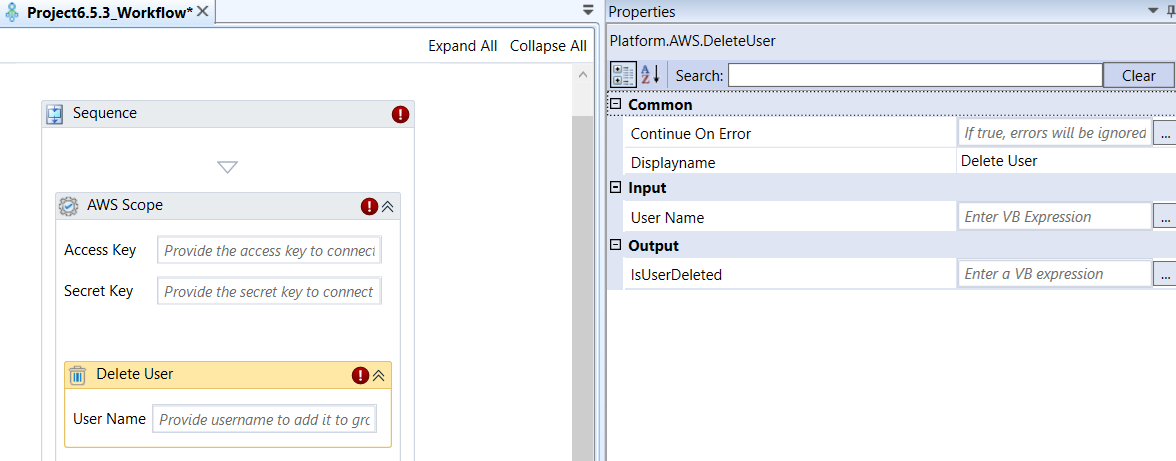
Delete User activity and properties
Properties of Delete User.
| Properties | Description |
|---|---|
| Continue On Error | Enter True if you need to ignore the errors and continue the workflow. Else enter False . This field accepts only Boolean values (True or False) |
| Display Name | Title of the activity inside the sequence. |
| User Name | Enter the AWS IAM username that you wish to delete. Refer to Viewing IAM Users. |
| Is User Deleted | Enter a variable to store the status of the execution. If the response is “True”, the user is deleted successfully. If the response is “False”, the user deletion failed. |
Delete User From Group
Delete User From Group activity allows you to remove an existing IAM User from a specified IAM Group within AWS Identity and Access Management (IAM). This action causes the user to immediately lose any permissions that were granted solely via their membership in that group.
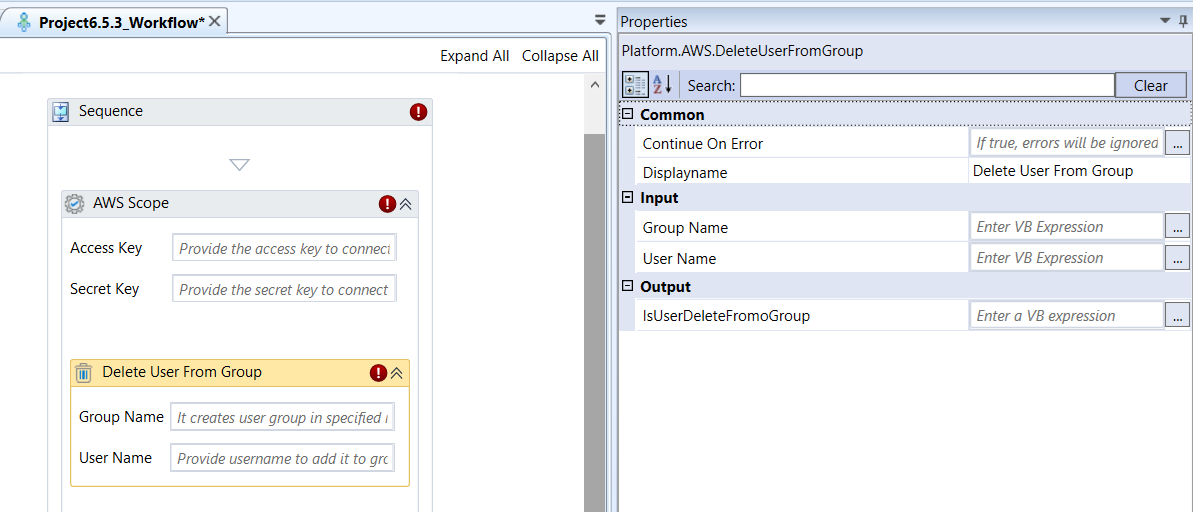
Delete User From Group activity and properties
Properties of Delete User From Group.
| Properties | Description |
|---|---|
| Continue On Error | Enter True if you need to ignore the errors and continue the workflow. Else enter False . This field accepts only Boolean values (True or False) |
| Display Name | Title of the activity inside the sequence. |
| Group Name | Enter the name of the IAM group from where the user must be deleted. Refer to Viewing IAM Groups. |
| User Name | Enter the IAM username that is to be deleted. Refer to Viewing IAM Users. |
| Is User Delete From Group | Enter a variable to store the status of the execution. If the response is “True”, the user is deleted from the group successfully. If the response is “False”, the user from the group deletion failed. |
Delete Volume
Delete Volume activity allows you to permanently remove a specified Amazon EBS volume from your AWS account. This frees up the storage space and terminates the billing for that volume.
Important Prerequisites
Detachment Required: An EBS volume cannot be deleted if it is currently attached to an EC2 instance. It is best practice to execute a Detach the Volume To Instance activity before this activity to ensure the volume is in the available state before attempting deletion.
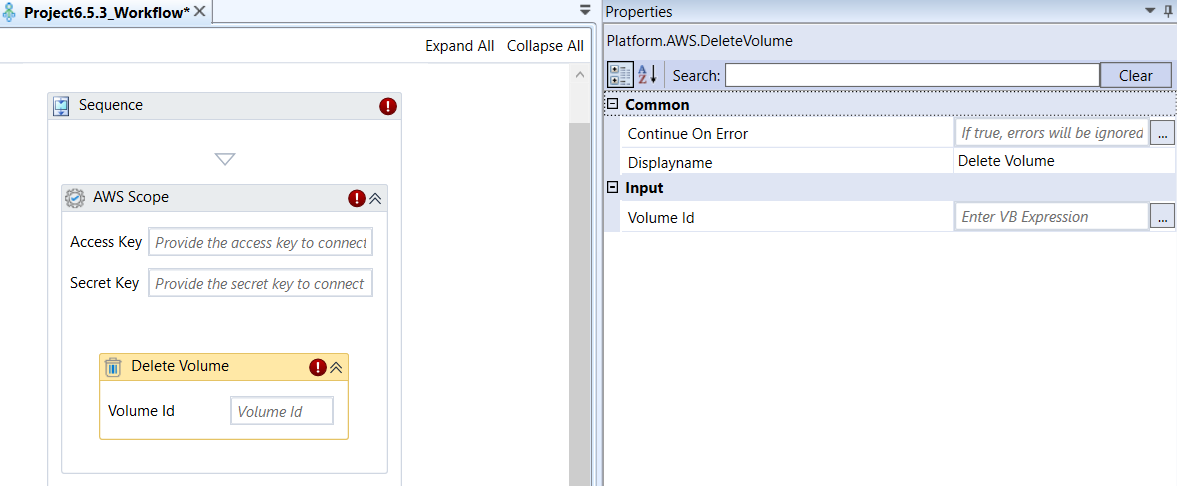
Delete Volume activity and properties
Properties of Delete Volume.
| Properties | Description |
|---|---|
| Continue On Error | Enter True if you need to ignore the errors and continue the workflow. Else enter False . This field accepts only Boolean values (True or False) |
| Display Name | Title of the activity inside the sequence. |
| Volume Id | Enter the EBS volume Id that you wish to delete. Refer to Obtaining Volume ID. |
Detach the Volume To Instance
Detach the Volume To Instance activity allows you to disconnect a specified EBS volume from a running EC2 instance. Once detached, the volume transitions to the available state and can be attached to another instance or deleted.
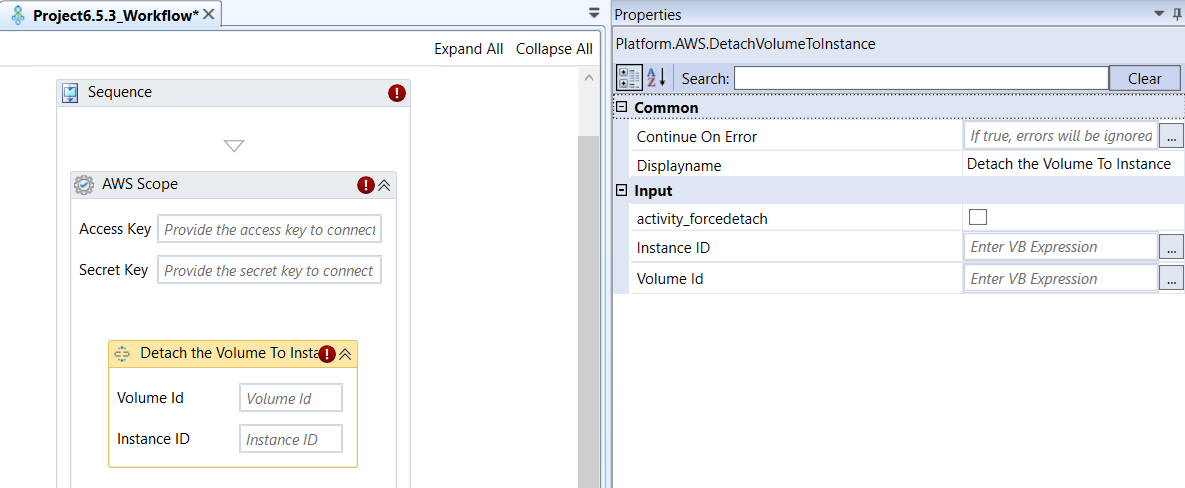
Detach the Volume To Instance activity and properties
Properties of Detach the Volume To Instance.
| Properties | Description |
|---|---|
| Continue On Error | Enter True if you need to ignore the errors and continue the workflow. Else enter False . This field accepts only Boolean values (True or False) |
| Display Name | Title of the activity inside the sequence. |
| Activity_ForceDetach | If checked (True), the volume can be detached forcibly, which means it will be detached without properly unmounting the file system from the instance. Warning: Forcing a detach can lead to file system corruption and data loss if the application or OS is actively writing to the volume. |
| Instance ID | Enter the Instance Id from which you wish to detach the EBS volume. Refer to Obtaining EC2 Instance ID. |
| Volume ID | Enter the EBS volume Id that you wish to detach. Refer to Obtaining Volume ID. |
Download File
Download File activity allows you to download a specific file from a designated Amazon S3 bucket to a local machine or server. This activity performs the s3:GetObject operation.
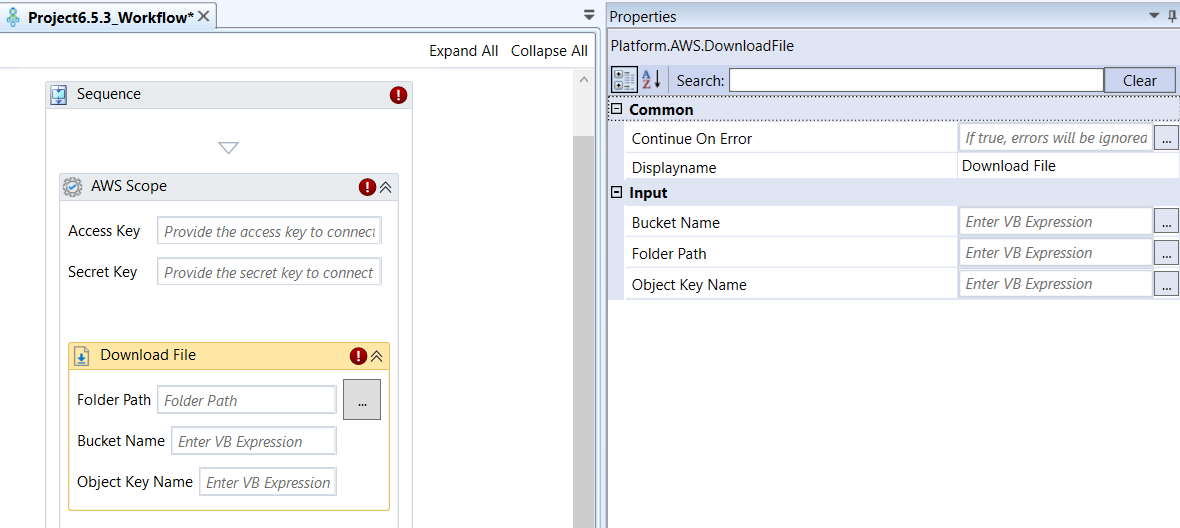
Download File activity and properties
Properties of Download File.
| Properties | Description |
|---|---|
| Continue On Error | Enter True if you need to ignore the errors and continue the workflow. Else enter False . This field accepts only Boolean values (True or False) |
| Display Name | Title of the activity inside the sequence. |
| Bucket Name | Enter the S3 bucket name from which the file must be downloaded. Refer to Obtaining S3 Bucket Name. |
| Folder Path | Enter the local folder path where the downloaded file must be saved. |
| Object Key Name | The unique identifier (path/filename) of the file within the bucket that you want to download. This is the full file path, including any virtual folders. Refer to Obtaining S3 Object Key Name. |
Empty Bucket
Empty Bucket activity allows you to delete all objects within a specified Amazon S3 bucket. This activity is typically a required prerequisite for the Delete Bucket activity, as S3 does not allow the deletion of non-empty buckets.
Important Considerations
Versioning: If the bucket has versioning enabled, this activity typically deletes both the current and noncurrent object versions, as well as any delete markers, to empty the bucket.
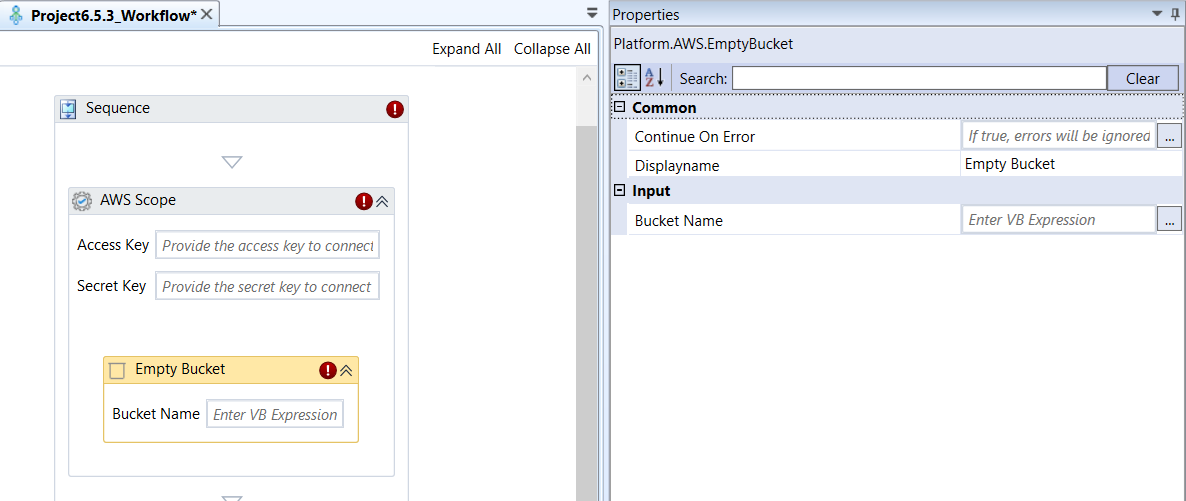
Empty Bucket activity and properties
Properties of Empty Bucket.
| Properties | Description |
|---|---|
| Continue On Error | Enter True if you need to ignore the errors and continue the workflow. Else enter False . This field accepts only Boolean values (True or False) |
| Display Name | Title of the activity inside the sequence. |
| Bucket Name | Enter the S3 bucket name from which the objects must be emptied. Refer to Obtaining S3 Bucket Name. |
Get Bucket
Get Bucket activity allows you to retrieve metadata and configuration information about a specified Amazon S3 bucket. This can be used to check if a bucket exists and to inspect its properties.
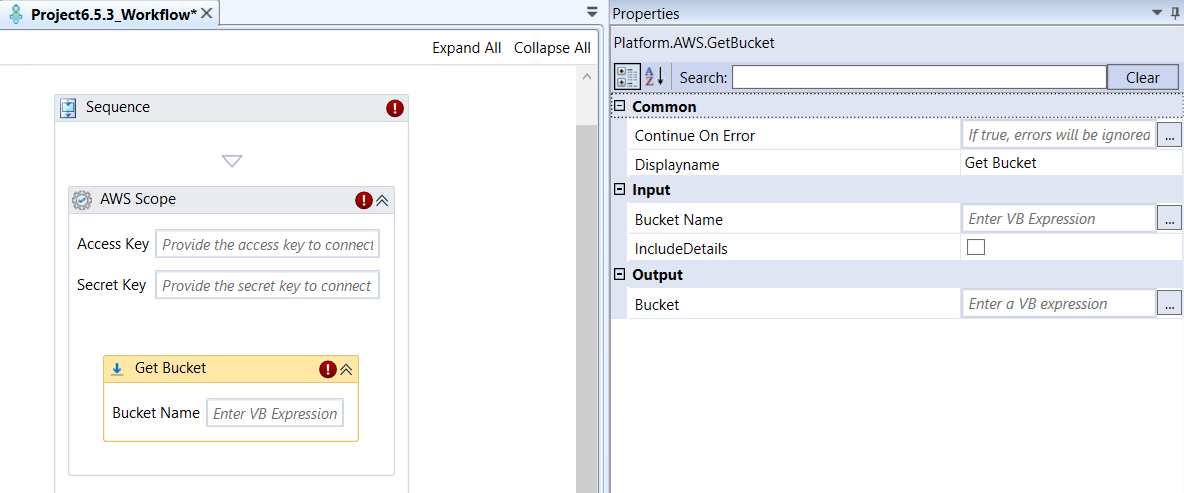
Get Bucket activity and properties
Properties of Get Bucket.
| Properties | Description |
|---|---|
| Continue On Error | Enter True if you need to ignore the errors and continue the workflow. Else enter False . This field accepts only Boolean values (True or False) |
| Display Name | Title of the activity inside the sequence. |
| Bucket Name | Enter the S3 bucket name from which the objects must be fetched. Refer to Obtaining S3 Bucket Name. |
| Include Details | This indicates whether to capture a detailed configuration (like versioning, logging, etc.) or just basic existence/metadata. Select the checkbox to capture and include all the bucket details. Deselect the checkbox to capture only basic bucket details. |
| Bucket | Enter an object variable to store the retrieved bucket data. |
Get Bucket List
Get Bucket List activity allows you to retrieve a list of all Amazon S3 buckets owned by the AWS account in the specified region.
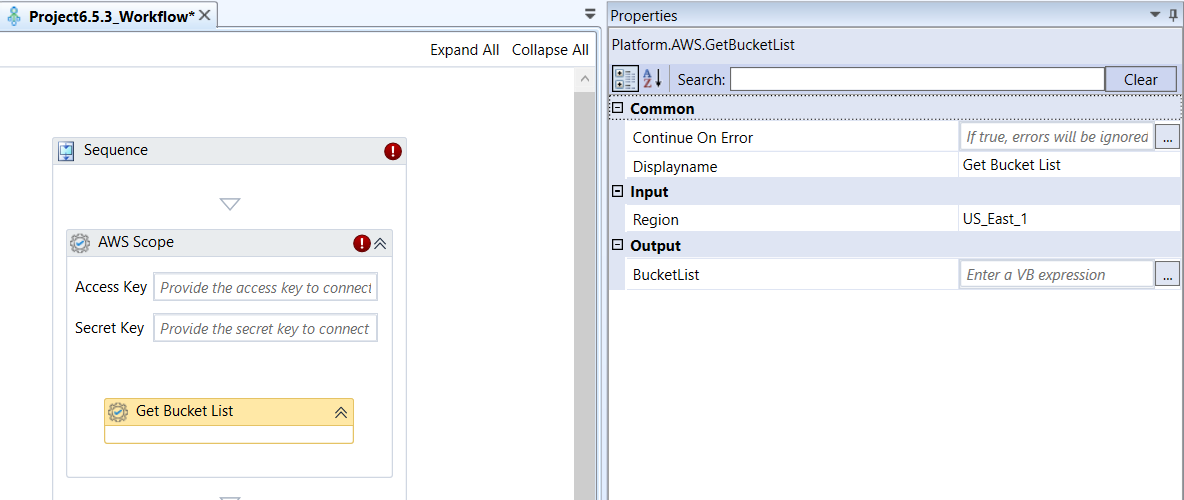
Get Bucket List activity and properties
Properties of Get Bucket List.
| Properties | Description |
|---|---|
| Continue On Error | Enter True if you need to ignore the errors and continue the workflow. Else enter False . This field accepts only Boolean values (True or False) |
| Display Name | Title of the activity inside the sequence. |
| Region | Select the AWS region name from where the Bucket list is to be retrieved. |
| Bucket List | Enter a list or array variable to store the retrieved names or metadata of the S3 buckets owned by the account in the specified region. |
Get Group
Get Group activity allows you to retrieve a detailed information and metadata for a specified IAM User Group in AWS IAM. This information typically includes the group's ARN, creation date, and a list of the IAM Users who are members of that group.
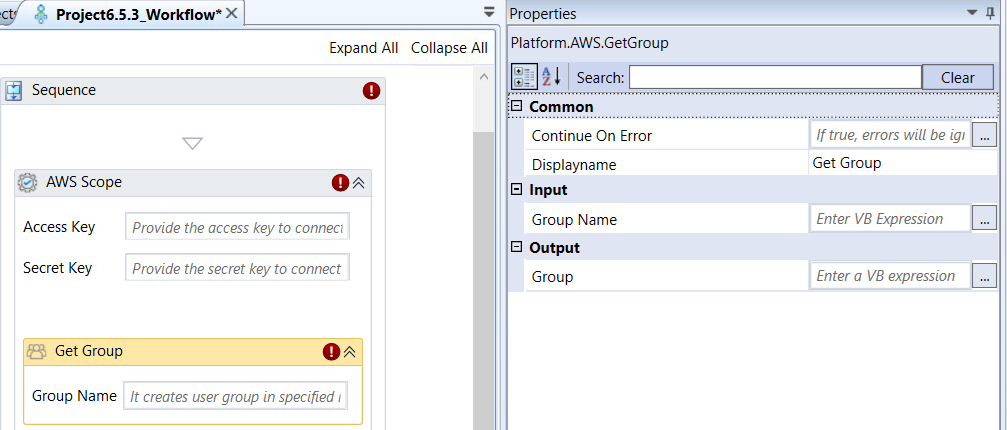
Get Group activity and properties
Properties of Get Group.
| Properties | Description |
|---|---|
| Continue On Error | Enter True if you need to ignore the errors and continue the workflow. Else enter False . This field accepts only Boolean values (True or False) |
| Display Name | Title of the activity inside the sequence. |
| Group Name | Enter the group name for which the details are to be retrieved. |
| Group | Enter a string variable to store the retrieved metadata and details about the IAM Group, including its members and ARN. |
Get Groups
Get Groups activity allows you to retrieve a list of all IAM User Groups configured in the AWS IAM service for the current account.
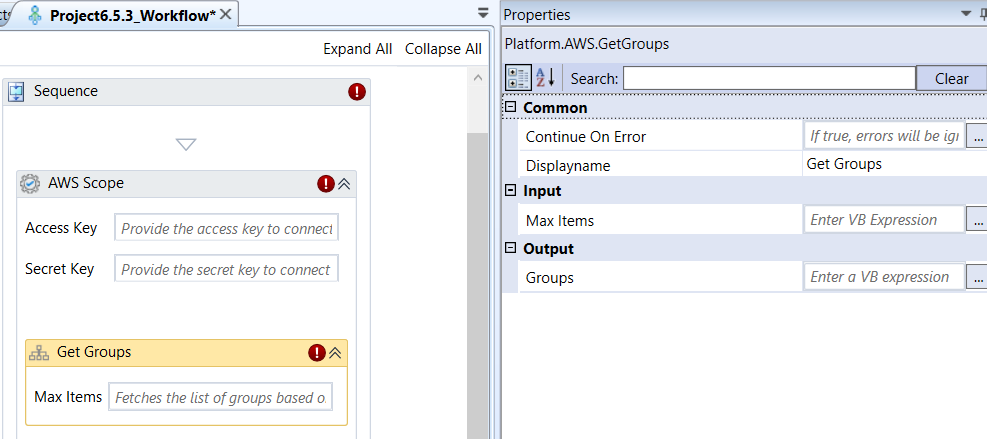
Get Groups activity and properties
Properties of Get Groups.
| Properties | Description |
|---|---|
| Continue On Error | Enter True if you need to ignore the errors and continue the workflow. Else enter False . This field accepts only Boolean values (True or False) |
| Display Name | Title of the activity inside the sequence. |
| Max Items | Enter the maximum number of groups to return. This is useful for pagination or limiting the data returned by the API. Leave blank for the API default or maximum. |
| Groups | Enter a list or array variable to store the metadata (names, ARNs, etc.) of the IAM User Groups retrieved from the account. |
Get Instance By ID
Get Instance By ID activity allows you to retrieve the detailed metadata, status, and configuration information for a single, specified EC2 instance. This activity typically performs the ec2:DescribeInstances operation filtered by instance ID.
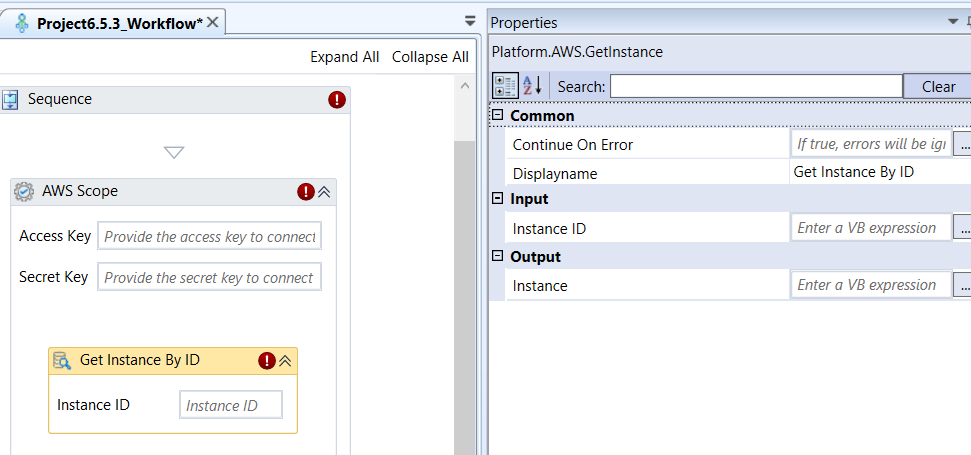
Get Instance By ID activity and properties
Properties of Get Instance By ID.
| Properties | Description |
|---|---|
| Continue On Error | Enter True if you need to ignore the errors and continue the workflow. Else enter False . This field accepts only Boolean values (True or False) |
| Display Name | Title of the activity inside the sequence. |
| Instance ID | Enter the unique identifier of the specific EC2 instance you wish to query. |
| Instance | Enter an object variable that stores the comprehensive metadata and status information about the retrieved EC2 instance upon successful execution. |
Get Instance List
Get Instance List activity allows you to retrieve a list of all EC2 instances in the configured AWS Region, optionally filtered by their current state. This performs the ec2:DescribeInstances operation.
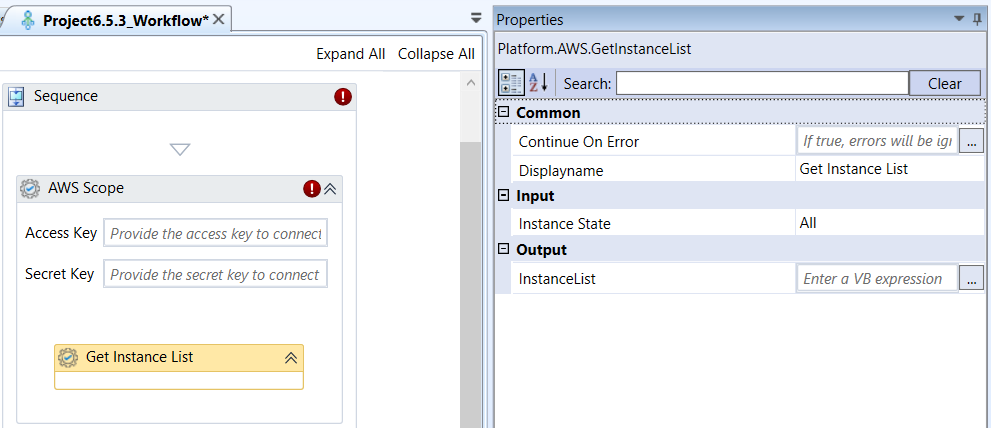
Get Instance List activity and properties
Properties of Get Instance List.
| Properties | Description |
|---|---|
| Continue On Error | Enter True if you need to ignore the errors and continue the workflow. Else enter False . This field accepts only Boolean values (True or False) |
| Display Name | Title of the activity inside the sequence. |
| Instance State | Select an instance state by which you need to filter the instances. The EC2 instances with the selected status are retrieved. The filter allows you to limit the returned list of instances to only those matching a specific state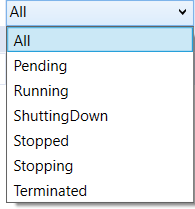 |
| Instance List | Enter a list or array variable to store the metadata and status information for the EC2 instances retrieved based on the filter. |
Get Instance Volume
Get Instance Volume activity allows you to to retrieve a list of all Amazon EBS volumes currently attached to a specified EC2 instance. This is useful for inventory, cleanup, or preceding a detach/delete operation.
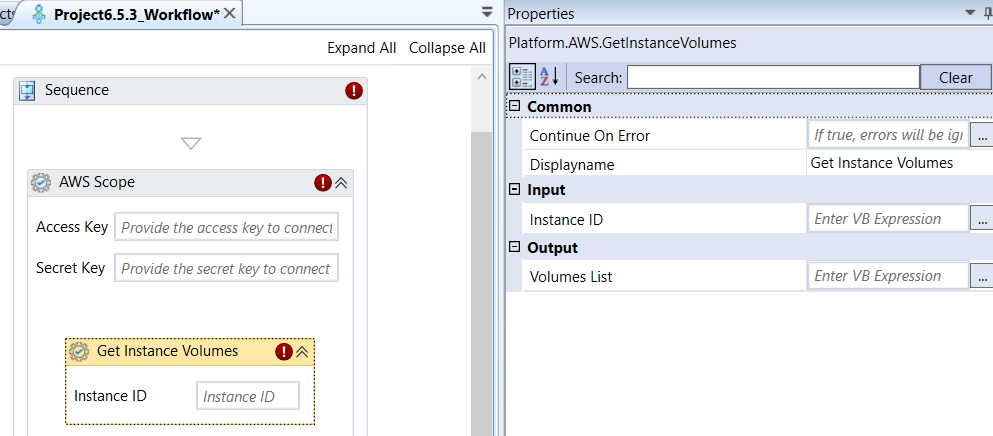
Get Instance Volume activity and properties
Properties of Get Instance Volume.
| Properties | Description |
|---|---|
| Continue On Error | Enter True if you need to ignore the errors and continue the workflow. Else enter False . This field accepts only Boolean values (True or False) |
| Display Name | Title of the activity inside the sequence. |
| Instance ID | Enter the unique identifier of the EC2 instance whose attached volumes you want to list. |
| Volumes List | Enter a list or array variable to store the details (ID, size, device name, etc.) of all EBS volumes currently attached to the specified instance. |
Get Object From Bucket
Get Object From Bucket activity allows you to retrieve an existing object (file) and its metadata from a specified Amazon S3 bucket. This activity performs the core S3 operation (s3:GetObject).
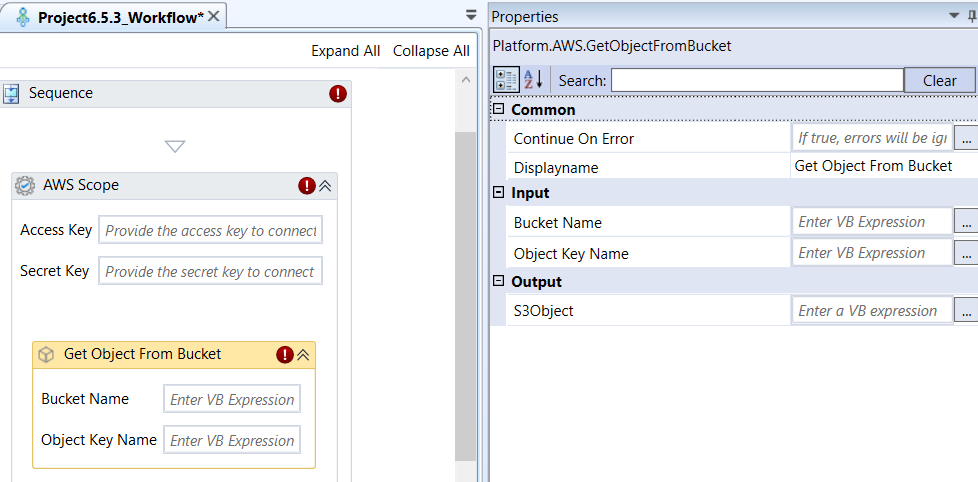
Get Object From Bucket activity and properties
Properties of Get Object From Bucket.
| Properties | Description |
|---|---|
| Continue On Error | Enter True if you need to ignore the errors and continue the workflow. Else enter False . This field accepts only Boolean values (True or False) |
| Display Name | Title of the activity inside the sequence. |
| Bucket Name | Enter the S3 bucket name from which you want to get the object. Refer to Obtaining S3 Bucket Name. |
| Object Key Name | Enter the unique identifier Key name (path/filename) of the object within the bucket. This is often the full file path, including any virtual folders. Refer to Obtaining S3 Object Key Name. |
| S3 Object | Enter an object variable to store the retrieved metadata and file content/stream reference for the S3 object upon successful execution. |
Get Objects From Bucket
Get Objects From Bucket activity allows you to retrieve a list of objects (files) and their metadata from a specified Amazon S3 bucket. This activity performs the s3:ListObjectsV2 operation.
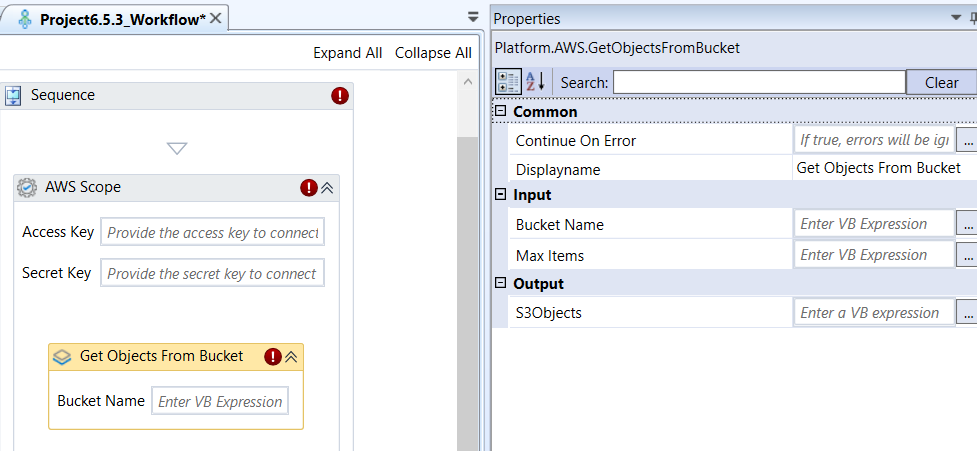
Get Objects From Bucket activity and properties
Properties of Get Objects From Bucket.
| Properties | Description |
|---|---|
| Continue On Error | Enter True if you need to ignore the errors and continue the workflow. Else enter False . This field accepts only Boolean values (True or False) |
| Display Name | Title of the activity inside the sequence. |
| Bucket Name | Enter the S3 bucket name from which you want to get the objects. Refer to Obtaining S3 Bucket Name. |
| Max Items | Enter the maximum number of objects to return in the list per API call. This is useful for pagination or limiting the data returned. |
| S3 Objects | Enter a list or array variable to store the objects retrieved from the bucket. |
Get Role
Get Role activity allows you to retrieve the detailed configuration and metadata for a single, specified IAM Role in AWS IAM. This activity typically performs the iam:GetRole operation and returns information such as the role's ARN, trust policy, and attached permissions.
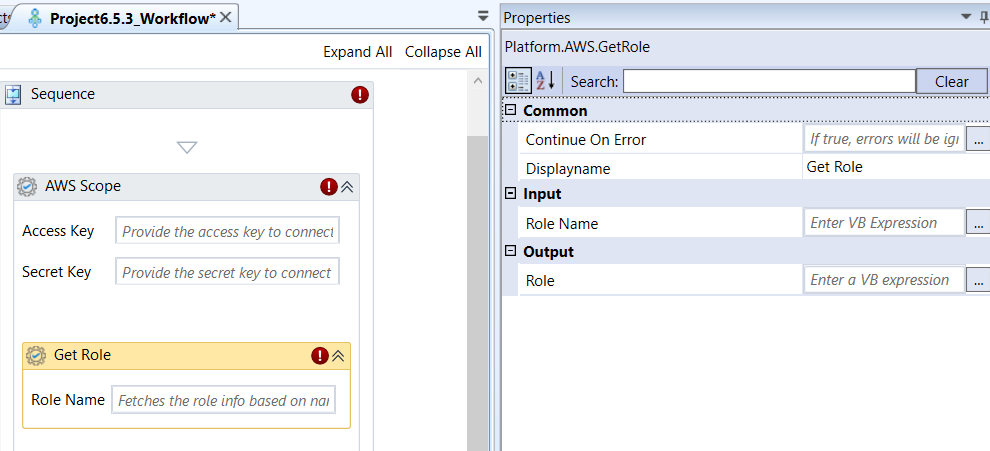
Get Role activity and properties
Properties of Get Role.
| Properties | Description |
|---|---|
| Continue On Error | Enter True if you need to ignore the errors and continue the workflow. Else enter False . This field accepts only Boolean values (True or False) |
| Display Name | Title of the activity inside the sequence. |
| Role Name | Enter the name of the existing IAM Role for which you need to get details. |
| Role | Enter an object variable to store the metadata and configuration details about the retrieved IAM Role upon successful execution. |
Get Roles
Get Roles activity allows you to retrieve a list of all IAM Roles configured in the AWS IAM service for the current account.
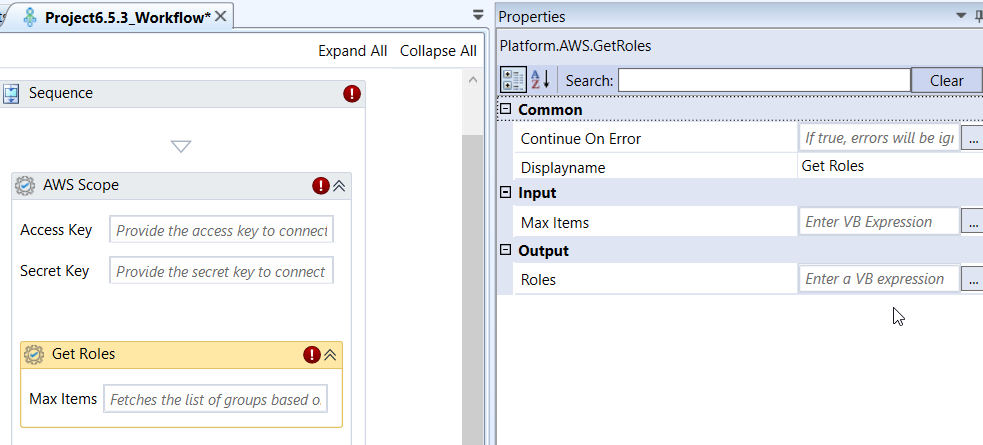
Get Roles activity and properties
Properties of Get Roles.
| Properties | Description |
|---|---|
| Continue On Error | Enter True if you need to ignore the errors and continue the workflow. Else enter False . This field accepts only Boolean values (True or False) |
| Display Name | Title of the activity inside the sequence. |
| Max Items | Enter the maximum number of roles to return. This is useful for pagination or limiting the data returned by the API. Leave blank for the API default or maximum. |
| Roles | Enter a list or array variable to store the metadata metadata (names, ARNs, trust policies, etc.) of the IAM Roles retrieved from the account. |
Get Snapshot
Get Snapshot activity allows you to retrieve detailed metadata and status information for a specific EBS Snapshot. This activity is typically used for checking a snapshot's status before proceeding with a restore or deletion.
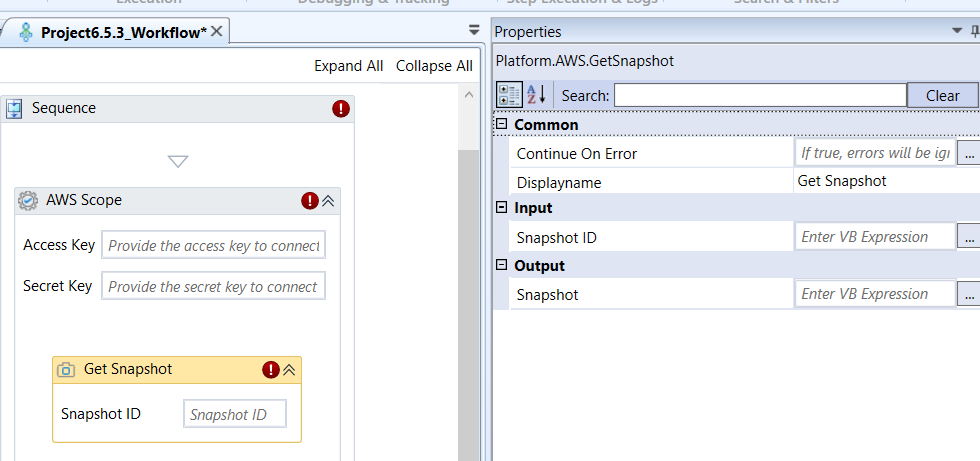
Get Snapshot activity and properties
Properties of Get Snapshot.
| Properties | Description |
|---|---|
| Continue On Error | Enter True if you need to ignore the errors and continue the workflow. Else enter False . This field accepts only Boolean values (True or False) |
| Display Name | Title of the activity inside the sequence. |
| Snapshot ID | Enter the unique snapshot ID of an existing EBS snapshot for which you need to get the details. Refer to Obtaining Snapshot ID. |
| Snapshot | Enter an object variable to store the metadata and status information about the retrieved EBS Snapshot upon successful execution. |
Get User
Get User activity allows you to retrieve detailed metadata and information about a specific IAM User in AWS IAM. This activity typically performs the iam:GetUser operation.
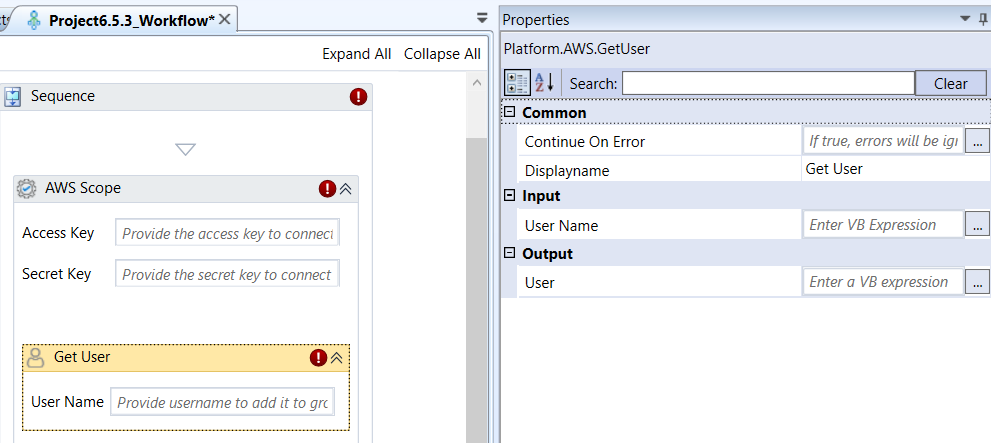
Get User activity and properties
Properties of Get User.
| Properties | Description |
|---|---|
| Continue On Error | Enter True if you need to ignore the errors and continue the workflow. Else enter False . This field accepts only Boolean values (True or False) |
| Display Name | Title of the activity inside the sequence. |
| User Name | Enter the name of the existing IAM User whose details you wish to retrieve. |
| User | Enter an object variable to store the metadata and configuration details about the retrieved IAM User upon successful execution. |
Get Users
Get Users activity allows you to retrieve a list of all IAM Users configured in the AWS IAM service for the current account.
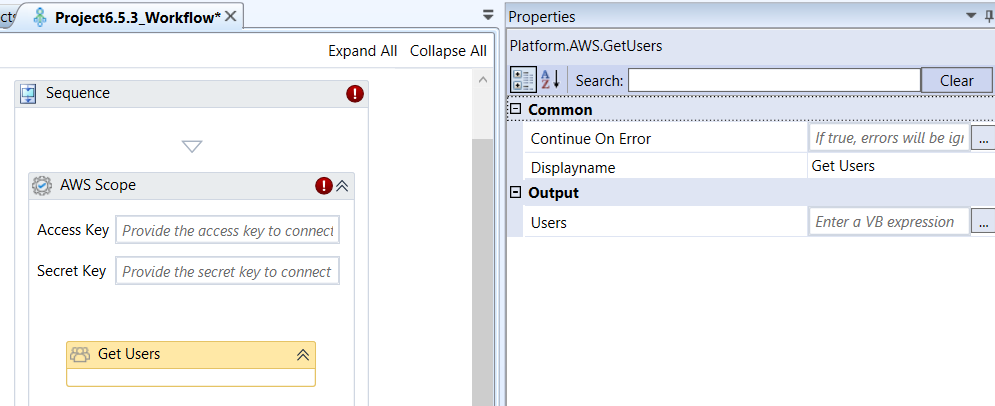
Get Users activity and properties
Properties of Get Users.
| Properties | Description |
|---|---|
| Continue On Error | Enter True if you need to ignore the errors and continue the workflow. Else enter False . This field accepts only Boolean values (True or False) |
| Display Name | Title of the activity inside the sequence. |
| Users | Enter a list or array variable to store the metadata (names, ARNs, creation date, etc.) of the IAM Users retrieved from the account. |
Get Volume
Get Volume activity allows you to retrieve detailed metadata and status information for a specific EBS volume. This activity is essential for checking a volume's size, status (available, in-use), and configuration before performing operations like attachment or modification.
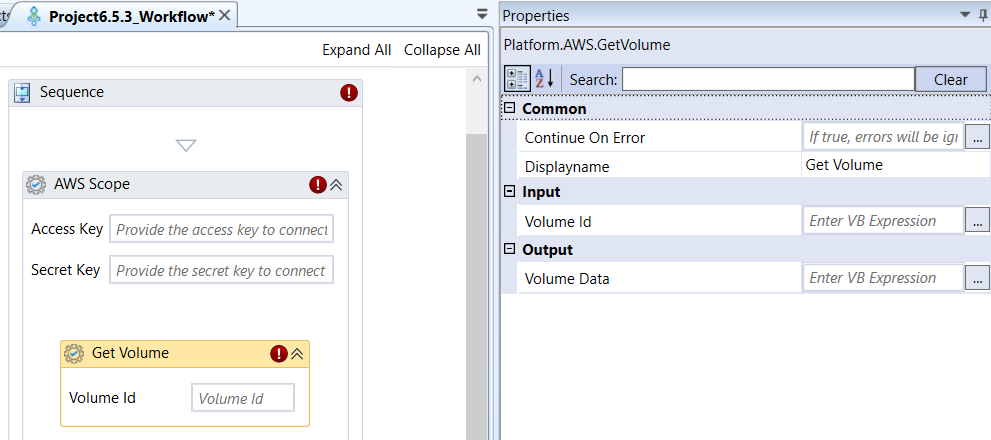
Get Volume activity and properties
Properties of Get Volume.
| Properties | Description |
|---|---|
| Continue On Error | Enter True if you need to ignore the errors and continue the workflow. Else enter False . This field accepts only Boolean values (True or False) |
| Display Name | Title of the activity inside the sequence. |
| Volume Id | Enter the unique identifier of the EBS Volume you wish to query for details. |
| Volume Data | Enter an object variable to store the metadata and status information about the retrieved EBS Volume upon successful execution. |
Get Volumes List
Get Volumes List activity allows you to retrieve a list of all EBS volumes in the configured AWS Region, optionally filtered by their Availability Zone. This activity performs the ec2:DescribeVolumes operation.
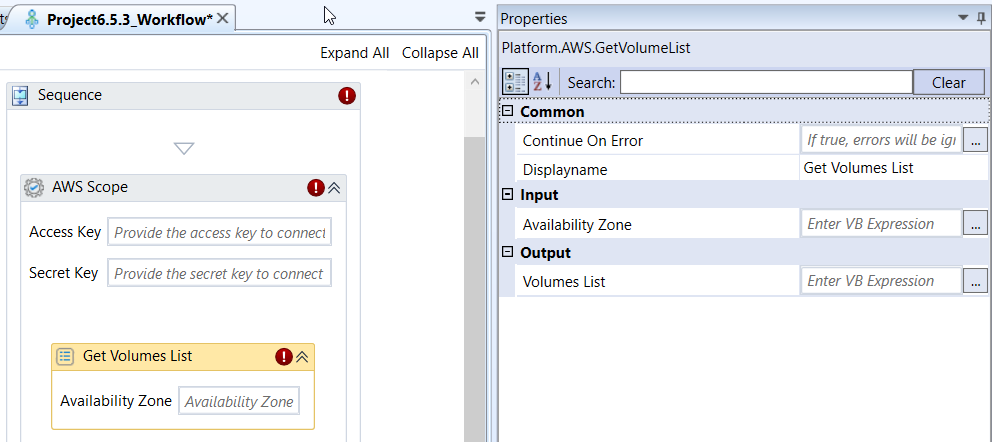
Get Volumes List activity and properties
Properties of Get Volumes List.
| Properties | Description |
|---|---|
| Continue On Error | Enter True if you need to ignore the errors and continue the workflow. Else enter False . This field accepts only Boolean values (True or False) |
| Display Name | Title of the activity inside the sequence. |
| Availability Zone | Enter the name of the region name. This is a filter to limit the returned list of volumes to only those within a specific Availability Zone. Refer to Obtaining Availability Zones. |
| Volumes List | Enter a list or array variable to store the EBS volumes retrieved, based on the filter. |
List User Group
List User Group activity allows you to retrieve a list of all IAM User Groups to which a specified IAM user belongs. This activity typically performs the iam:ListGroupsForUser operation.
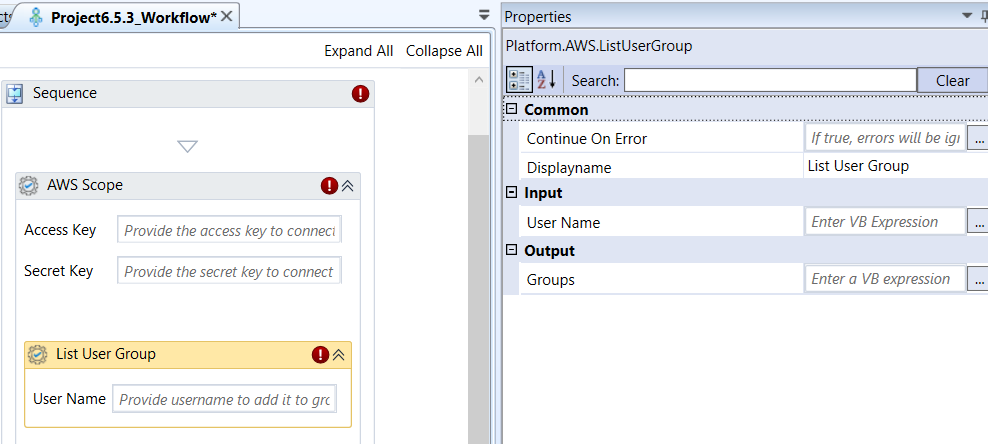
List User Group activity and properties
Properties of List User Group.
| Properties | Description |
|---|---|
| Continue On Error | Enter True if you need to ignore the errors and continue the workflow. Else enter False . This field accepts only Boolean values (True or False) |
| Display Name | Title of the activity inside the sequence. |
| User Name | Enter name of the IAM User whose groups you want to retrieve. |
| Groups | Enter a list or array variable to store the metadata (names, ARNs, etc.) of all IAM User Groups that the specified user is a member of. |
List User in Group
List User in Group activity allows you to retrieve a list of all IAM Users who are members of a specified IAM User Group. This activity typically performs the iam:GetGroup operation and extracts the user list.
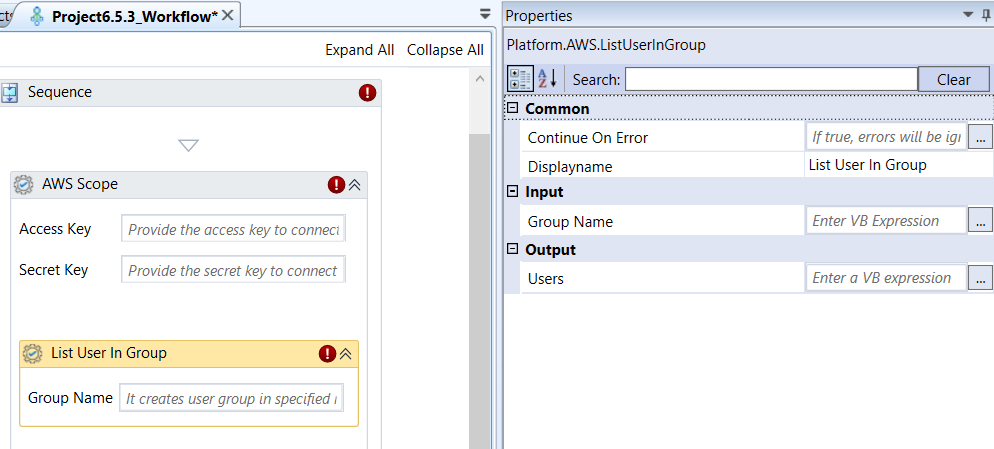
List User in Group activity and properties
Properties of List User in Group.
| Properties | Description |
|---|---|
| Continue On Error | Enter True if you need to ignore the errors and continue the workflow. Else enter False . This field accepts only Boolean values (True or False) |
| Display Name | Title of the activity inside the sequence. |
| Group Name | Enter the IAM Group whose members you want to list. |
| Users | Enter a list or array variable to store the metadata (names, ARNs, etc.) of all IAM Users who are currently members of the specified group. |
Move Object
Move Object activity allows you to copy an existing object (file) from a source Amazon S3 location to a target location and then delete the original object.
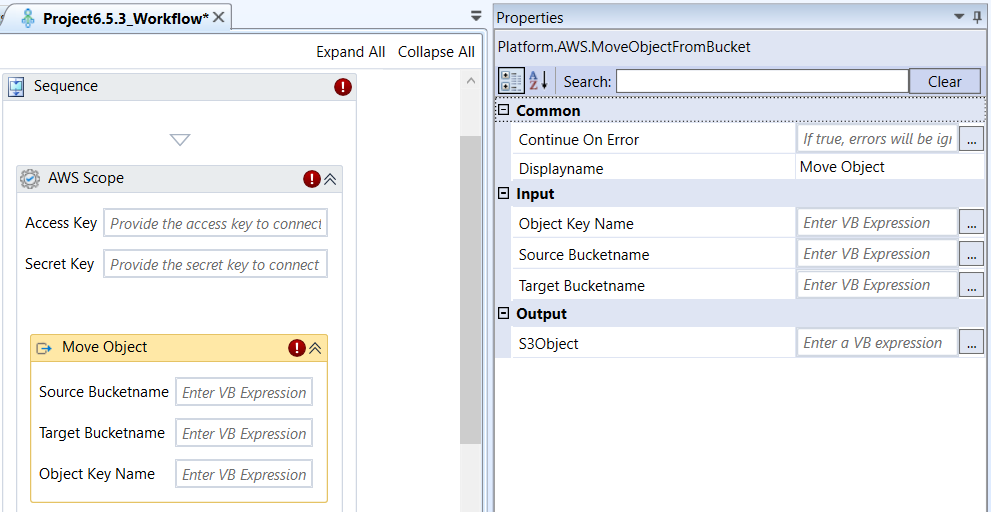
Move Object activity and properties
Properties of Move Object.
| Properties | Description |
|---|---|
| Continue On Error | Enter True if you need to ignore the errors and continue the workflow. Else enter False . This field accepts only Boolean values (True or False) |
| Display Name | Title of the activity inside the sequence. |
| Object Key Name | Enter the unique identifier Key (path/filename) for the object in the Target Bucket name. |
| Source Bucket Name | Enter the S3 bucket name from which the object must be moved or transferred. After moving the object, the object in the source bucket is deleted. Refer to Obtaining S3 Bucket Name. |
| Target Bucket Name | Enter the S3 bucket name to which the moved object must be placed. Refer to Obtaining S3 Bucket Name. |
| S3 Object | Enter an object variable to store the metadata of the newly created object in the target bucket upon successful transfer of object. |
Reboot Instance
Reboot Instance activity allows you to perform a hardware reboot on a specified EC2 instance. This is equivalent to selecting Reboot from the operating system's menu or pressing the reset button on a physical server. This action performs the ec2:RebootInstances operation.
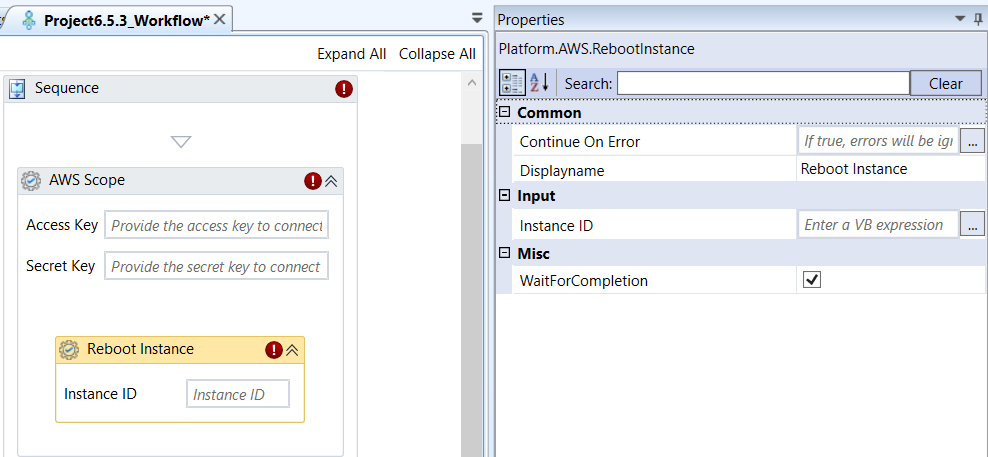
Reboot Instance activity and properties
Properties of Reboot Instance.
| Properties | Description |
|---|---|
| Continue On Error | Enter True if you need to ignore the errors and continue the workflow. Else enter False . This field accepts only Boolean values (True or False) |
| Display Name | Title of the activity inside the sequence. |
| Instance ID | Enter the unique identifier of the EC2 instance you wish to reboot. |
| Wait For Completion | If checked (True), the workflow execution will pause at this step until the EC2 instance is fully back in the running state after the reboot is complete. It moves to the next activity only after it is in running state. |
Remove Role From Instance Profile
Remove Role From Instance Profile activity allows you to remove the role association from the Instance Profile. It is ideal to execute this activity before executing the “Delete Role” activity to get a confirmation status for the removal of the role association from the instance profile.
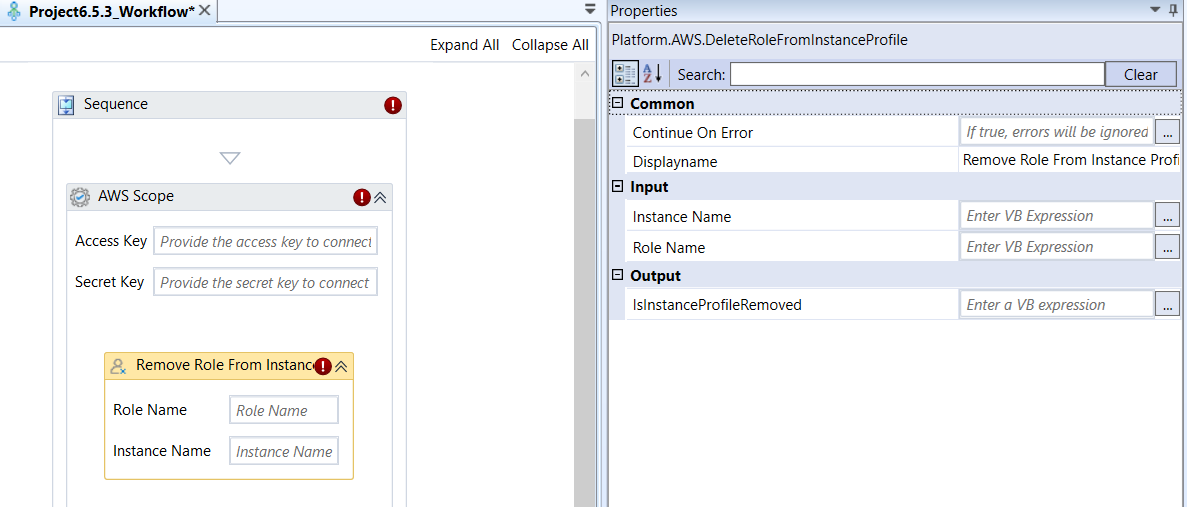
Remove Role From Instance Profile activity and properties
Properties of Remove Role From Instance Profile.
| Properties | Description |
|---|---|
| Continue On Error | Enter True if you need to ignore the errors and continue the workflow. Else enter False . This field accepts only Boolean values (True or False) |
| Display Name | Title of the activity inside the sequence. |
| Instance Name | Enter the name of the instance to which the Role is associated with. |
| Role Name | Enter the role name for which the instance profile association is be removed. |
| Is Instance Profile Removed | Enter a variable to store the status of the execution. If the response is “True”, the role association is removed from instance profile successfully. If the response is “False”, the action failed and association of role is not removed from instance profile. |
Start Instance
Start Instance activity allows you to change the state of an EC2 instance from stopped to running. This activity is used to initiate a specified Amazon EC2 instance that is currently in a stopped state. This action charges you for the compute time and performs the ec2:StartInstances operation.
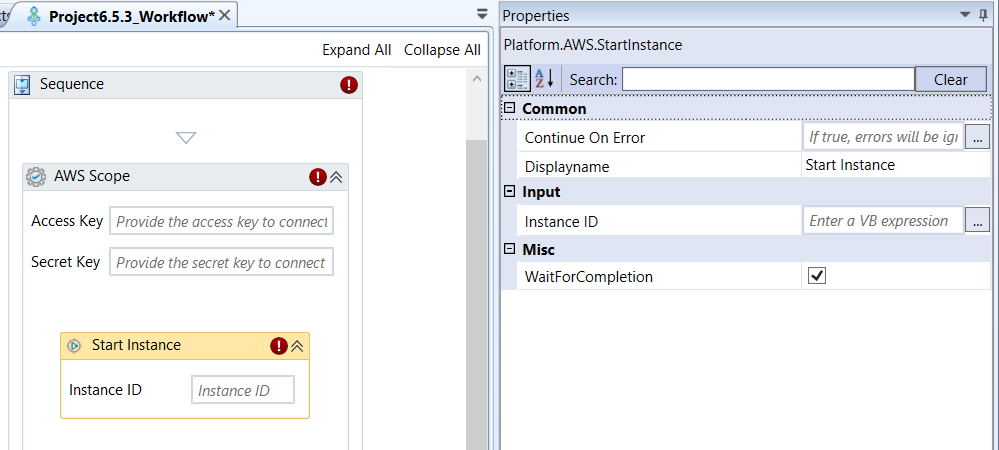
Start Instance activity and properties
Properties of Start Instance.
| Properties | Description |
|---|---|
| Continue On Error | Enter True if you need to ignore the errors and continue the workflow. Else enter False . This field accepts only Boolean values (True or False) |
| Display Name | Title of the activity inside the sequence. |
| Instance ID | Enter the unique identifier of the EC2 instance you wish to start. |
| Wait For Completion | If checked (True), the workflow execution will pause at this step until the EC2 instance fully transitions to the running state before proceeding to the next activity. |
Stop Instance
Stop Instance activity allows you to change the state of a specified EC2 instance from running to stopped. It shuts down a running EC2 instance. This action stops the compute charges and performs the ec2:StopInstances operation.
Note that the stopped instance can be restarted.
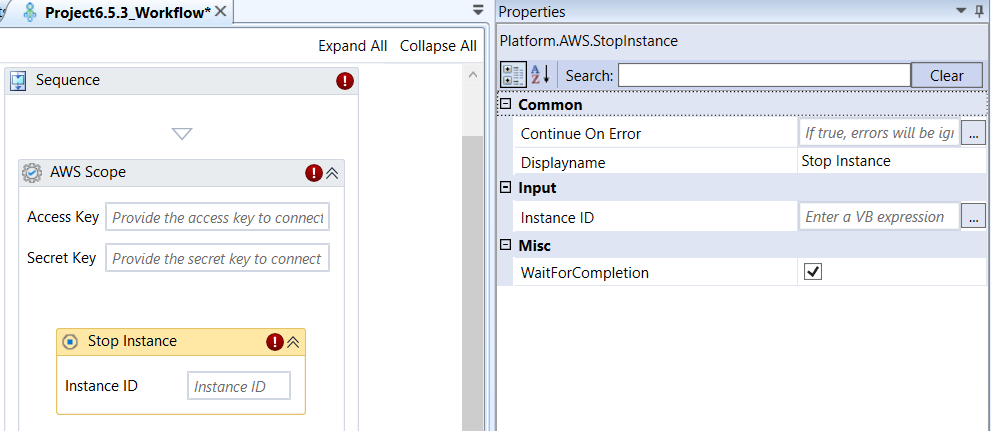
Stop Instance activity and properties
Properties of Stop Instance.
| Properties | Description |
|---|---|
| Continue On Error | Enter True if you need to ignore the errors and continue the workflow. Else enter False . This field accepts only Boolean values (True or False) |
| Display Name | Title of the activity inside the sequence. |
| Instance ID | Enter the unique identifier of the EC2 instance you wish to stop. |
| Wait For Completion | If checked (True), the workflow execution will pause at this step until the EC2 instance fully transitions to the stopped state before proceeding to the next activity. |
Terminate Instance
Terminate Instance activity allows you to shut down and permanently delete a specified EC2 instance. Once an instance is terminated, it cannot be recovered or restarted. This performs the ec2:TerminateInstances operation.
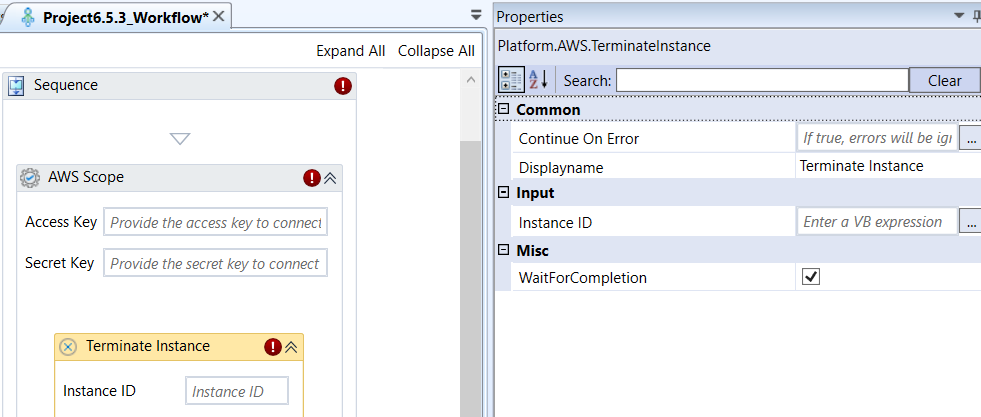
Terminate Instance activity and properties
Properties of Terminate Instance.
| Properties | Description |
|---|---|
| Continue On Error | Enter True if you need to ignore the errors and continue the workflow. Else enter False . This field accepts only Boolean values (True or False) |
| Display Name | Title of the activity inside the sequence. |
| Instance ID | Enter the unique identifier of the EC2 instance you wish to terminate. |
| Wait For Completion | If checked (True), the workflow execution will pause at this step until the EC2 instance fully transitions to the terminate state before proceeding to the next activity. |
Update Group Name
Update Group Name activity allows you to rename a specified IAM User Group in AWS IAM. This performs the iam:UpdateGroup operation.
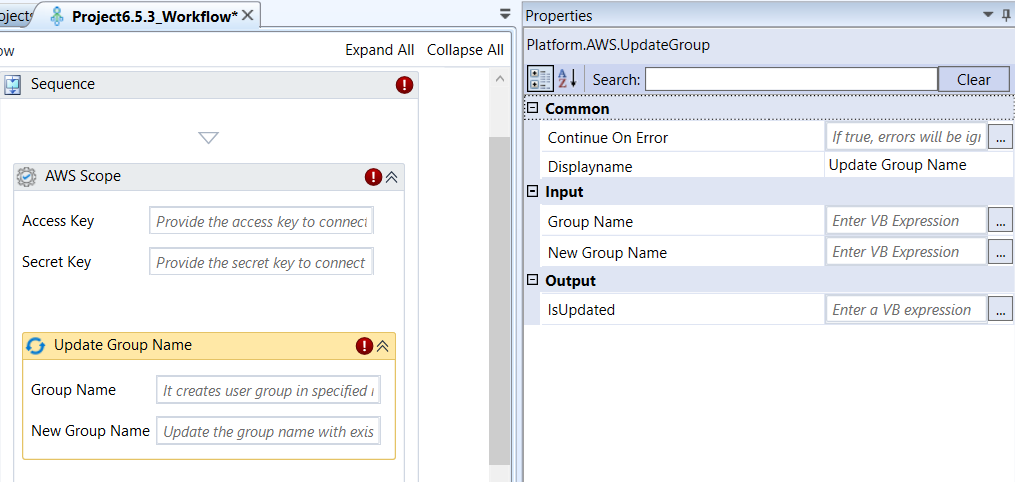
Update Group Name activity and properties
Properties of Update Group Name.
| Properties | Description |
|---|---|
| Continue On Error | Enter True if you need to ignore the errors and continue the workflow. Else enter False . This field accepts only Boolean values (True or False) |
| Display Name | Title of the activity inside the sequence. |
| Group Name | Enter the current, existing name of the IAM Group you wish to rename. |
| New Group Name | Enter the desired name that the IAM Group will be renamed to. |
| Is Updated | Enter a variable to hold the result in Boolean expression. The variable returns “True” if the group name is successfully updated, and “False” otherwise. |
Update Role
Update Role activity allows you to modify the configuration of an existing IAM Role in AWS IAM. This activity performs the iam:UpdateRole operation.
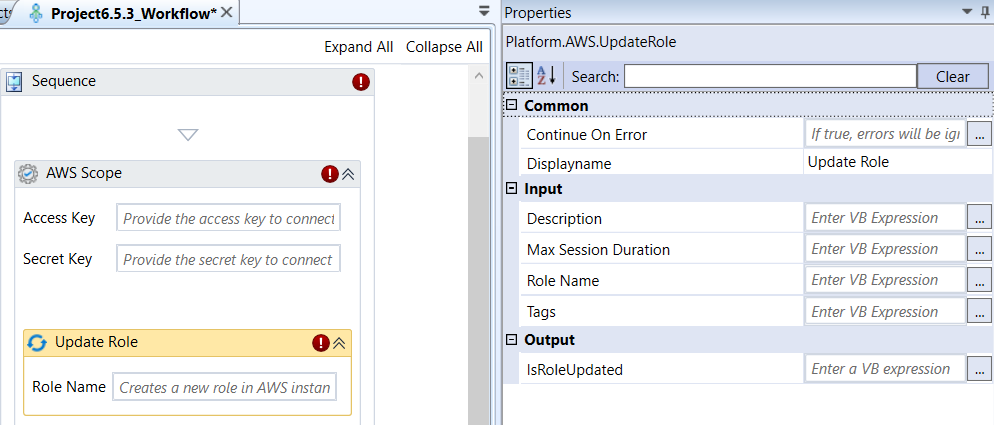
Update Role activity and properties
Properties of Update Role.
| Properties | Description |
|---|---|
| Continue On Error | Enter True if you need to ignore the errors and continue the workflow. Else enter False . This field accepts only Boolean values (True or False) |
| Display Name | Title of the activity inside the sequence. |
| Description | Enter description for the update role activity. |
| Max Session Duration | Enter an integer value to represent the maximum duration (in seconds) that an IAM user or role session can remain active after assuming this role. This overrides the default settings. |
| Role Name | Enter the role name in the AWS for which you want to update the details. |
| Tags | Enter a variable representing a dictionary to capture tags. Tags are additional key-value pairs used to organize, manage, and track AWS resources. |
| Is Role Updated | Enter a variable to hold the result in Boolean expression. The variable returns “True” if the role details are successfully updated, and “False” otherwise. |
Update User
Update User activity allows you to rename a specified IAM User in AWS IAM. This activity performs the iam:UpdateUser operation.
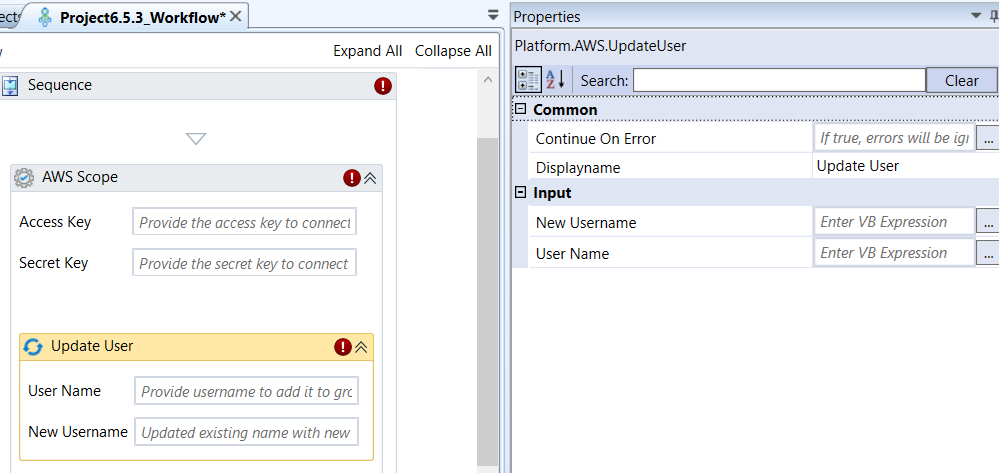
Update User activity and properties
Properties of Update User.
| Properties | Description |
|---|---|
| Continue On Error | Enter True if you need to ignore the errors and continue the workflow. Else enter False . This field accepts only Boolean values (True or False) |
| Display Name | Title of the activity inside the sequence. |
| New User Name | Enter the current, existing name of the IAM user you wish to rename. |
| User Name | Enter the desired name that the IAM user will be renamed to. |
Upload File To Bucket
Upload File To Bucket activity allows you to transfer a file from a local or accessible file system to an Amazon S3 bucket. This activity typically performs the s3:PutObject operation.
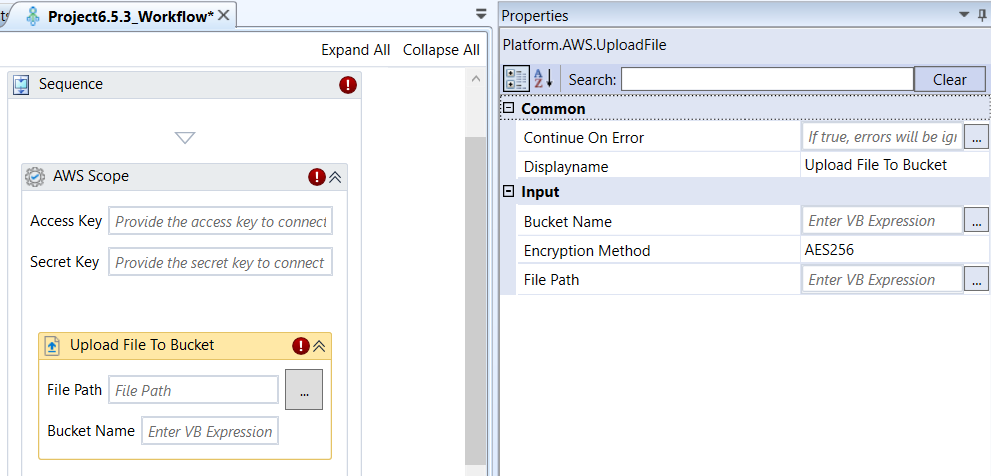
Upload File To Bucket activity and properties
Properties of Upload File To Bucket.
| Properties | Description |
|---|---|
| Continue On Error | Enter True if you need to ignore the errors and continue the workflow. Else enter False . This field accepts only Boolean values (True or False) |
| Display Name | Title of the activity inside the sequence. |
| Bucket Name | Enter the S3 bucket name to which you want to upload the file. Refer to Obtaining S3 Bucket Name. |
| Encryption Method | Select an encryption method as per your needs. The server-side encryption method used to protect data at rest within the bucket. None : Data is unencrypted. AES256 : Keys are managed by AWS S3. AWSKMS : Keys are managed by AWS KMS (Key Management Service). |
| File Path | Enter the full, local file system path of the file along with the filename that needs to be uploaded to the specified S3 Bucket. |
Upload Folder To Bucket
Upload Folder To Bucket activity allows you to transfer an entire local directory, including all sub-files and sub-folders, to a specified Amazon S3 bucket. This activity abstracts the s3:PutObject operation for multiple objects.
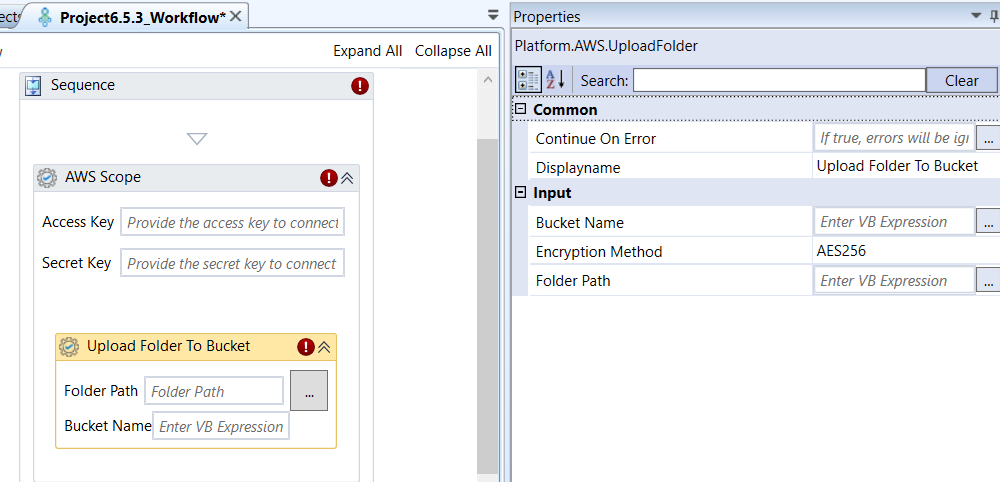
Upload Folder To Bucket activity and properties
Properties of Upload Folder To Bucket.
| Properties | Description |
|---|---|
| Continue On Error | Enter True if you need to ignore the errors and continue the workflow. Else enter False . This field accepts only Boolean values (True or False) |
| Display Name | Title of the activity inside the sequence. |
| Bucket Name | Enter the S3 bucket name to which you want to upload the folder. Refer to Obtaining S3 Bucket Name. |
| Encryption Method | Select an encryption method as per your needs. The server-side encryption method used to protect data at rest within the bucket. None : Data is unencrypted. AES256 : Keys are managed by AWS S3. AWSKMS : Keys are managed by AWS KMS (Key Management Service). |
| Folder Path | Enter the full, local file system path of the folder that needs to be uploaded to the specified S3 Bucket. |
Appendix
Getting AWS Cloud Portal Details
To use AWS Cloud activities, you must have an active AWS subscription. You must have valid configuration details for authentication.
Getting AWS Access Key and Secret Key
-
Sign In and Navigate to IAM: Go to AWS Management Console (https://aws.amazon.com/console/) and sign in using your root credentials or an Identity and Access Management (IAM) administrator account of your AWS account.
-
Select/Create User: Go to AWS Management Console > IAM > User > Select an existing user or click Create User to create a user.
For a new user, provide username and click Next. The user is created and listed in the user page. -
Grant Permissions to the user: Select the username > click Permissions tab > click Add permissions.
Attach the policy directly (this selection of policy for granting permission is based on your requirement) > select a Policy > Next > Add permissions. -
Create Key: Now for the same user, click Security Credentials tab > Access Key section > Click Create Access Key > Select the required Use case name (Select the appropriate one. e.g., “Other”) > Give description or tag value for the key > Click Create Access Key.
-
Retrieve and Store: Retrieve Access Key page appears with a new Access Key and Secret Access Key.
Copy and paste the Access Key and Secret Access Key safely for your further use. It will be displayed only once and you cannot get this secret access key again.
Note: This user which you created within the root user can be used for accessing or managing the AWS activities.
Obtaining Availability Zones
For activities related to running servers (Networking; VPC):
-
Sign in to the AWS Management Console and go to the EC2 service.
-
Check the subnets under VPC or the details of a running instance to find the precise Availability Zone identifier (e.g., us-west-2a).
For activities related to Volumes (EBS Volumes):
-
Sign in to the AWS Management Console and go to the EC2 service.
-
In the navigation pane, under Elastic Block Store, choose Volumes.
-
The console displays the Availability Zone column, showing the exact zone names (e.g., us-west-2a, eu-central-1b) that you can use as a filter.
Obtaining IAM Instance Profile
-
Sign in to the AWS Management Console and go to the IAM service.
-
In the AWS Console, the Instance Profile usually has the same name as the Role when created for an EC2 use case. Copy the profile name associated with your Role for your use.
Viewing IAM Users
-
Sign in to your root AWS Management Console and go to the IAM.
-
In the navigation pane, click Users.
-
Locate and copy the exact username from the list for your use.
Viewing IAM Roles
-
Sign in to your root AWS Management Console and go to the IAM.
-
In the navigation pane, click Roles.
-
Locate and copy the exact role name from the list for your use.
Viewing IAM Groups
-
Sign in to your root AWS Management Console and go to the IAM.
-
In the navigation pane, click User groups.
-
Locate and copy the exact group name from the list for your use.
Obtaining AMI ID
-
Sign in to your root AWS Management Console and go to the EC2.
-
In the navigation pane, under Images, click AMIs.
-
Locate the desired operating system image (e.g., Amazon Linux, Ubuntu) and copy the AMI ID displayed in the list for your use.
Creating / Obtaining EC2 Key Pair
The Key pair consists of public key and private key. When you create a key pair, a public key which is associated with EC2 instance and a private key which will be accessible for you are generated.
-
Sign in to your root AWS Management Console and go to the EC2 > Instances.
-
If you are launching new EC2 instance, you need to create a key pair.
-
Click Launch instance > Key pairs > click Create Key pair.
-
Enter the key pair Name and click Create key pair. As soon as you create a key pair, a new file is downloaded with the private key. This private key is used to SSH to the particular instance.
-
For existing instances, click Instances > Instances (running) > click the required instance ID to view the details (in the Details tab, click Key Pairs assigned at launch)
Or under Network & Security, click Key Pairs. -
Copy the private key for your use.
Obtaining EC2 Security Group ID
-
Sign in to your AWS Management Console and go to the EC2.
-
In the navigation pane, under Network & Security, click Security Groups.
-
Locate the group with the correct inbound/outbound rules and copy the security group ID (e.g., sg-xxxxxxxx) for your use.
Obtaining VPC Subnet ID
-
Sign in to your AWS Management Console and go to the VPC.
-
In the navigation pane, click Visual private cloud > Subnets.
-
Locate the desired subnet (Public or Private) and copy the subnet ID (e.g., subnet-xxxxxxxx) for your use.
Obtaining EC2 Instance ID
-
Sign in to your AWS Management Console and go to the EC2.
-
Go to Instances > Click Instances (running).
-
Locate the instance and copy its instance ID (e.g., i-xxxxxxxx) for your use.
Creating and Obtaining IAM Policy Document
-
Sign in to your AWS Management Console and go to the IAM.
-
In the navigation pane, choose Access Management > Policies, and then click Create policy.
-
Use the Visual editor to select the AWS Service (e.g., S3), Actions (e.g., ReadOnlyAccess), and Resources (e.g., arn:aws:s3:::bucketname/*). When you select a policy from the list available in the AWS, the policy statement is defined for your policy by AWS.
-
Once the permissions are defined, switch to the JSON tab to view the final policy document. This is the exact JSON string you must provide as the input for the Policy Document property in the RPA activity.
A common example format for a Policy Document looks like this:
JSON
{
"Version": "2012-10-17",
"Statement": [
{
"Effect": "Allow",
"Action": "s3:GetObject",
"Resource": "arn:aws:s3:::my-bucket-name/*"
}
]
}
Creating and Obtaining IAM Assume Role Policy Document
This policy defines the Principal (who) is allowed to assume the role.
-
Sign in to your AWS Management Console and go to the IAM.
-
Go to Roles and click Create role. Select the Trusted entity type (e.g., AWS service, Another AWS account).
-
After selecting the entity, you can view the Trust relationship JSON document. This is the exact JSON string you provide as the input for the Assume Role Policy Document.
A common example for an EC2 service role looks like this:
JSON
{
"Version": "2012-10-17",
"Statement": [
{
"Effect": "Allow",
"Principal": {
"Service": "ec2.amazonaws.com"
},
"Action": "sts:AssumeRole"
}
]
}
Obtaining Managed Policy ARN
-
Sign in to your AWS Management Console and go to the IAM.
-
Go to Policies and select the policy you want to use as the boundary.
The ARN is located at the top of Details section in the policy summary page. -
Copy the ARN for your use.
Obtaining Snapshot ID
-
Sign in to your AWS Management Console and go to the EC2.
-
In the navigation pane, under Elastic Block Store > Snapshots.
-
Locate the desired snapshot and copy its Snapshot ID (e.g., snap-xxxxxxxx) for your use.
Obtaining EBS Volume ID
-
Sign in to your AWS Management Console and go to the EC2.
-
In the navigation pane, under Elastic Block Store > Volumes.
-
Locate the volume you want to snapshot and copy its unique Volume ID (e.g., vol-xxxxxxxx) for your use.
Obtaining S3 Bucket Name
-
Sign in to your AWS Management Console and go to the S3.
The S3 console will list all buckets owned by your account. -
Search or identify your bucket name from the list.
Use the exact Name displayed in the list for the bucket related activities.
Obtaining S3 Object Key Name
The Object Key is the full path of the file listed in the bucket (e.g., if you navigate through folders in the console, the full path is the key).
-
Sign in to your AWS Management Console and go to the S3.
The S3 console will list all buckets owned by your account. -
Click the Bucket Name for which you wish to view contents and copy the object key name.
Obtaining EBS Snapshot ID
-
Sign in to your AWS Management Console and go to the EC2.
-
In the navigation pane, under Elastic Block Store > Snapshots.
-
Locate the snapshot you want and copy its unique Snapshot ID (e.g., snap-xxxxxxxx) for your use.
SSH Into EC2 Instance
-
Sign in to your AWS Management Console and go to the EC2 > Instance > Instance (running) > click instance ID > Connect. Connect to instance page appears.
-
EC2 Instance connect tab >Connect using EC2 instance connect.
-
SSH tab > follow in instructions details > change the permissions as needed to SSH into your EC2 instance.
Glossary
IAM
AWS Identity and Access Management is a web service that AWS customers can use to manage users and user permissions within AWS.
IAM Group
A collection of IAM users. You can use IAM groups to simplify specifying and managing permissions for multiple users.
Instance
A copy of an Amazon Machine Image (AMI) running as a virtual server in the AWS Cloud.
Instance Profile
A container that passes IAM role information to an EC2 instance at launch.
Instance store volumes
Storage volumes for temporary data that is deleted when you stop, hibernate, or terminate your instance.
Instance types
A specification that defines the memory, CPU, storage capacity, and usage cost for an instance.
Key pairs
A set of security credentials that you use to prove your identity electronically. A key pair consists of a private key and a public key.
Amazon Machine Images (AMIs)
Preconfigured templates for your instances that package the components you need for your server (including the operating system and additional software).
IAM Role
A tool for giving temporary access to AWS resources in your AWS account.
IAM User
A person or application under an account that makes API calls to AWS products. Each user has a unique name within the AWS account, and a set of security credentials that aren't shared with other users. These credentials are separate from the security credentials for the AWS account. Each user is associated with one and only one AWS account.
Security Groups
A virtual firewall that allows you to specify the protocols, ports, and source IP ranges that can reach your instances, and the destination IP ranges to which your instances can connect.
Volume
A fixed amount of storage on an instance. You can share volume data between more than one container and persist the data on the container instance when the containers are no longer running.
Amazon EBS volumes
Persistent storage volumes for your data using Amazon Elastic Block Store (Amazon EBS).