Mapping Entities to Activity
Mapping a Business Entity
Business entities are created and managed in the App Studio.
Local entities are created within a particular flow module as applicable and organization entities are created at the organization level (accessible to all the applications in the organization).
The business entities are listed in the drop-down for selection in the Property panel as applicable for the activities.
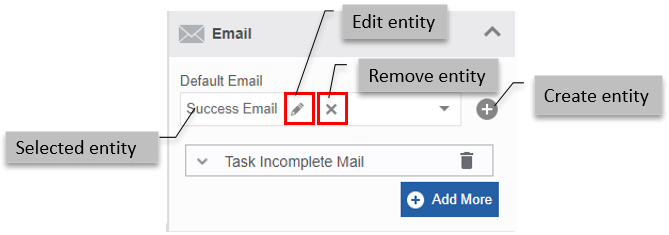
- Click an activity (say e.g., Email). Email template is a business entity and hence it displays a drop-down list for the selection of email templates.
When you select the entity, edit (🖉) and remove () icons appear.
-
Click 🖉 to edit the entity.
-
Click to remove the selected entity.
-
The +Add More button allows adding more conditional entities
-
If the mapping entity drop-down does not list any entity name, it means there are no entities of that type configured for that application. If entities are not defined follow either of the below steps.
-
Click +(add symbol) next to the entity drop-down for creating an entity. You are navigated to the Business entity creation page of that entity. After creating the entity, it is selected.
Or
-
Navigate to the specific Business entity creation page and create the entity by providing the required details. The created entity will be available in the drop-down list.
-
Refer to the Business entities user manual for creating and managing entities. The entities created appear in the Search drop-down for that particular entity.
Mapping a Configuration Entity
Configuration elements are created and managed in the Manage > Configuration Management module.
Configurations are like API. However, the Platform allows the user to create and manage the configurations in a GUI environment by providing the required details.
The configuration elements are listed in the drop-down for selection in the Property panel as applicable for the activities.
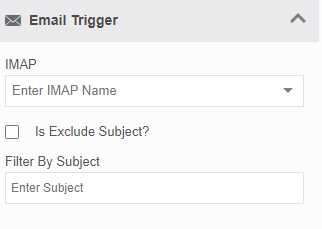
- Click an activity (say e.g., Start). IMAP is a configuration element within the Email Trigger section and hence it displays a drop-down list for the selection of IMAPs.
Mapping Participants
Participants are the users who act on the UI. Participants can be mapped to an activity while configuring (static configuration) or during run time (dynamic configuration).
Participants can be mapped to the activities Task and Approve Reject activity during the activity configuration. This participant gets the assigned activity for initiation.
Mapping Static Participant
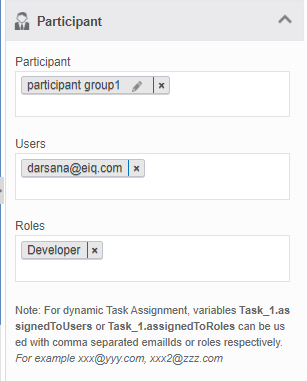
You can map a business entity “Participant” or directly map a user (user email id) or map a role to the Task/Approve Reject activity.
When you map a business entity Participant, all the users and roles associated with the participant will be able to act on the Task/Approve Reject. You can add multiple participants also.
When you map a username (user email id) as a participant, that user will be able to act on the Task/Approve Reject. You can add multiple user ids.
When you map a role as a participant, all the users associated with that role will be able to act on the Task/Approve Reject. You can add multiple roles.
-
Click Participant accordion.
-
Click the Select Participant drop-down and select the participant.
Mapping participant
Configuring Dynamic Participant
You can provide a variable in the fields, Participant, Users and Roles and resolve these variables during the runtime so that the participant is assigned dynamically during the runtime.
Note: For dynamic Task Assignment, variables Task_1.assignedToUsers or Task_1.assignedToRoles can be used with comma-separated email Ids or roles respectively; where Task_1 is the activity name.
For example xxx@yyy.com, xxx2@zzz.com
- Refer to Entity – Participants user manual for more details on dynamic participant assignment.
Mapping Forms
Forms are mapped for user-oriented activities. Task and Accept Reject activities should have a Form mapped to them for the user to act. For an activity, you can map a default form or/and map conditional Forms based on rules.
- Refer to the Forms user manual for creating and managing forms.
Mapping Default Form/Form Variable
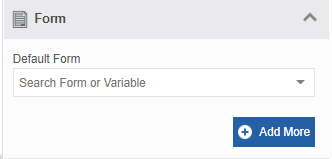
- Click Form accordion.
Searching for Default Form
- Click the Search Form drop-down and select the required form or variable. If you type a letter(s), the matching form names and variable names starting with that letter(s) get listed.
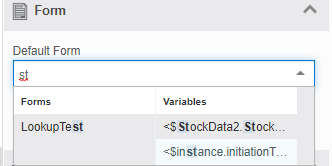
Forms and Variables displayed as drop-down list
- Select the required form or the variable. Refer to Dynamic Form Assignment – Variable Mapping for more details on Variable mapping.
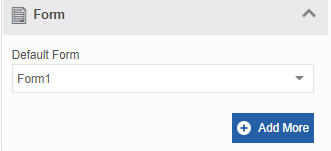
Mapping Default form
Mapping Conditional Forms/Form Variables
The Add More button in the Form configuration allows the user to configure a conditional form based on a rule. Multiple conditional forms can be mapped to an activity.
-
In the Info Actions, click Form accordion (for the activities for which Form property is applicable).
-
Map a default form or variable as explained above.
-
Click Add More.
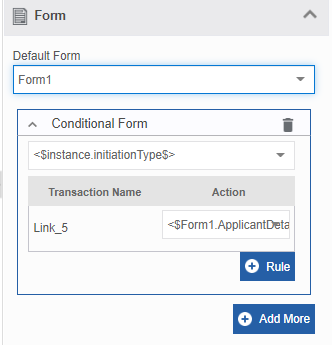
Selecting Conditional Form
- Click Search Form and select a Conditional Form/variable. The Delete icon on the right side allows you to remove the selected conditional form.
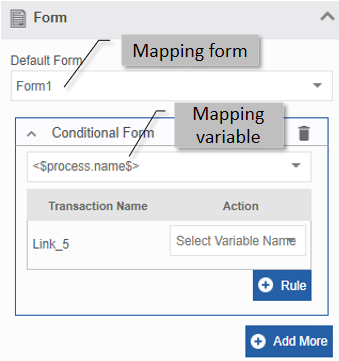
Mapping conditional form
- Click Rule to add a rule for the conditional form/variable. The Delete Rule button appears.
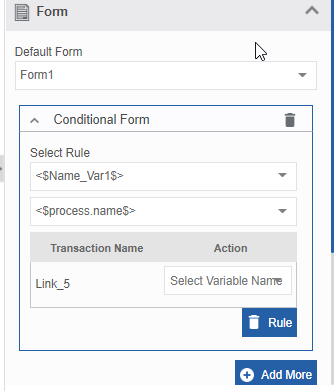
Mapping rule for the conditional form
-
Click the Delete Rule to remove a rule for the conditional form.
-
Click Add More again for creating more conditional forms.
Dynamic Form Assignment - Mapping Variables
You can assign a form to a task/ Accept Reject activity during runtime by mapping a variable name in the form mapping.
- In the Info Actions, click Form accordion (for the activities for which Form property is applicable).
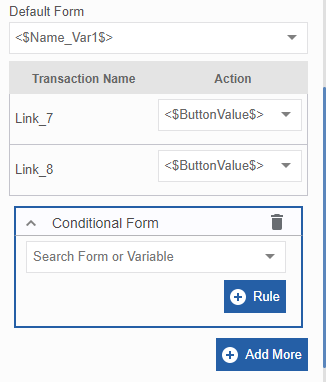
Mapping variable as a form
-
Below Default Form, type a variable name and select the required variable name from the list displayed (During runtime, this variable takes the form property as the value, and the corresponding Form is passed). When you provide a variable name in the Default Form, Transaction Name and Action appear with the list of all transitions (from the corresponding Task/Accept Reject activity) and an option to select the variable name below Actions.
-
The variable mapping to the transaction is allowed only if a variable is mapped in the Dynamic Form section of the Task/Approve Reject activity.
-
Below the Actions, Select the Variable name (this should be an alphanumeric variable) from the drop-down corresponding to each transition. This indicates which transition to follow during runtime in the dynamically mapped form.
-
Transition-Variable mapping is applicable only when the dynamic form (that is passed through the Default Form variable) has Form Submit buttons (not necessary for system buttons). You need to map only alphanumeric variables for the Transitions (selection of variables under Actions).
During the runtime, you can pass the property name of the form submit button as the value for this variable. In that case, the action defined for that submit button is executed during that transition. -
Click Add More to add more conditional forms. In this section also. You can map a variable for the conditional form so that form is dynamically assigned during runtime.