Platform Instances and Organizations
Introduction to Platform Instance and Organization
In the Hyperautomation Enablement Platform, you can add, manage, and configure different organizations.
A newly created organization becomes a new instance in the Platform. By default, the user who created the organization will be the organization admin for that organization. The organization admin who created the new organization can log in to the organization using the Organization Friendly URL created for the new organization and the credentials with which the organization is created.
Each organization created through the platform becomes a site in the portal.
Intended Users
Only the organization admin is authorized to create and manage the organizations.
If an organization admin creates another organization, then using the same logged-in credentials he/she can manage the newly created organization.
Viewing Platform Instances (Organizations) in the Portal
The organizations created in the platform are listed in the Manage > Organization Management section for the user who created it.
However, you can view the organization details as Sites on the portal page. Each organization in the Platform is a site in the portal. You can navigate to the portal from the platform itself.
-
Login to the Platform using the credentials with which you created the organization.
-
On the Platform title bar, click the Administration icon.
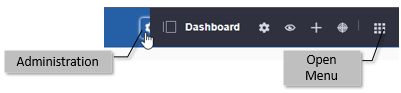

Figure 1: SITES section displaying the organizations (sites)The Organizations that are created by the current user get listed under the SITES.
Currently, the active organization or the organization URL to which the user has currently logged in will have a “Current” stamp beside that.
Users and Organizations for the Platform Instance
- Login to the Platform using the credentials with which you created the organization.
-
On the Platform title bar, click the Administration icon.
-
In the Administration menu, click the Open Menu icon (9 dots).
-
Click the Control Panel tab. The USERS section displays the user-related pages.
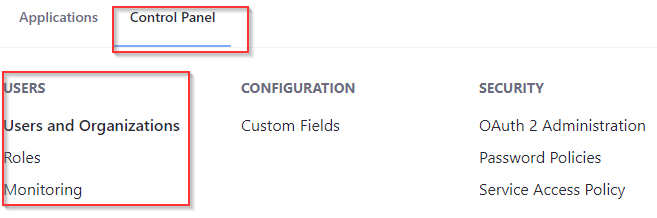
Figure 2: User configuration section -
In the USERS section click Users and Organizations.
-
The Users tab in the Users and Organization displays all the users of the platform.
-
The Organizations tab in the Users and Organization displays all the organizations for the logged-in user.
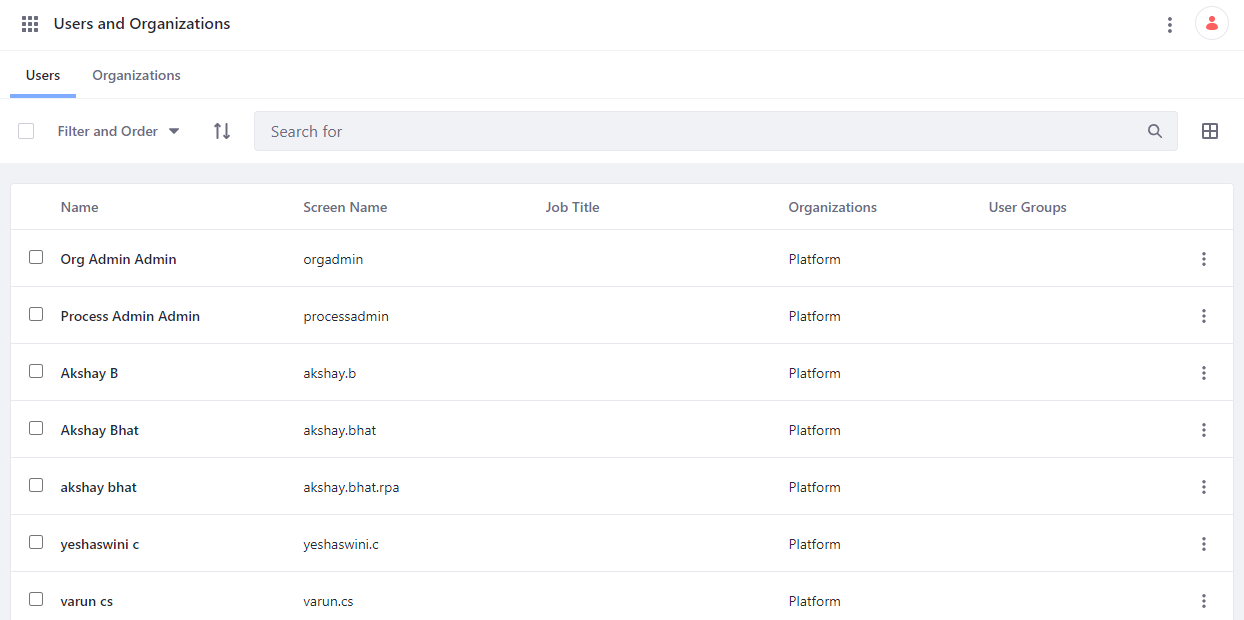
Figure 3: The Users tab details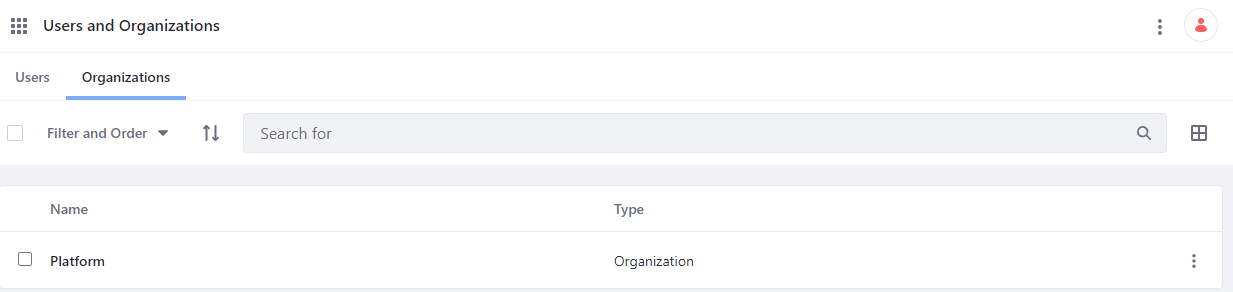
Figure 4: The Organizations tab -
Platform Instance Security Configurations
- Login to the Platform using the credentials with which you created the organization.
-
On the Platform title bar, click the Administration icon.
-
In the Administration menu, click the Open Menu icon (9 dots).
-
Click the Control Panel tab. The SECURITY section displays the security configurations.
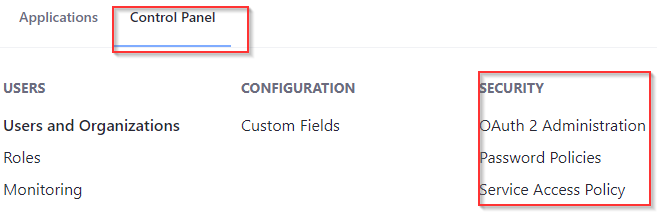
Figure 5: The Security configuration sections
Viewing and Editing OAuth 2 Administration Details
- On the Platform title bar, click the Administration icon.
- In the Administration menu, click the Open Menu icon (9 dots).
- Click the Control Panel tab.
- Click Password Policies.
-
Click three dots on the right side of the policy name to manage the password policies.
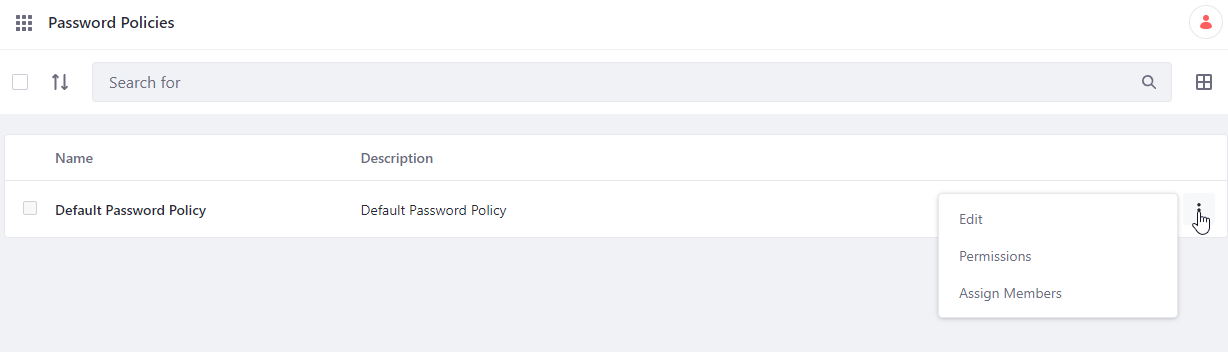
Figure 6: The list of Password Policies
Viewing and Editing Password Policies for the Platform Instance
- On the Platform title bar, click the Administration icon.
- In the Administration menu, click the Open Menu icon (9 dots).
- Click the Control Panel tab.
- Click OAuth 2 Administration.
-
Click three dots on the right side of the policy name to manage the OAuth 2 details. You can select the required items, edit the details, define permissions, or delete the records.
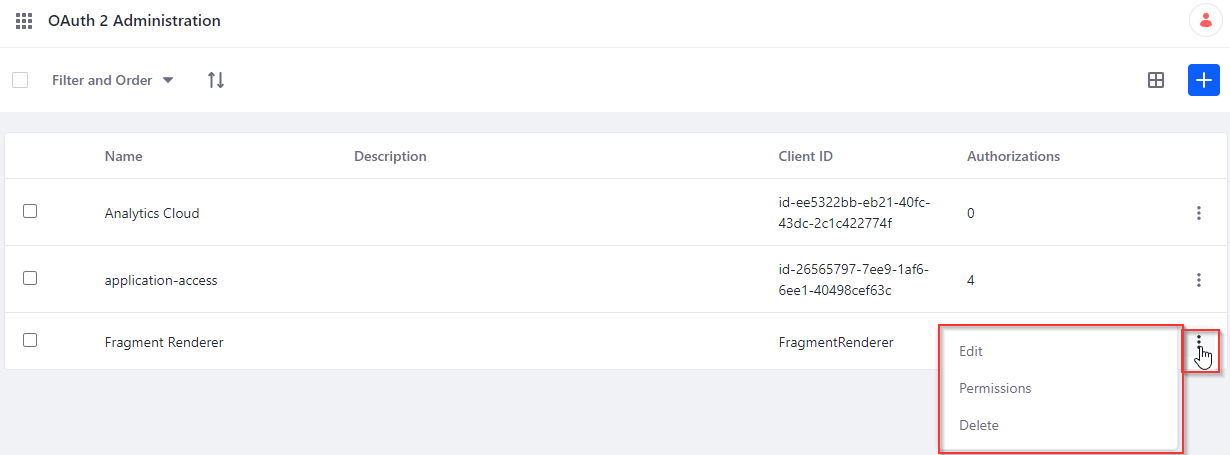
Figure 7: OAuth 2 Administration page details
Viewing and Editing Service Access Policies
- On the Platform title bar, click the Administration icon.
- In the Administration menu, click the Open Menu icon (9 dots).
- Click the Control Panel tab.
- Click Service Access Policy.
-
Click three dots on the right side of the policy name to manage the service access policies.

Figure 8: Service Access Policies