Administrator Onboarding eiq360 via GCP Market Place
This administrator onboarding for eiq360 documentation explains the end-to-end process of subscribing to, provisioning, and accessing the eiq360 platform via the Google Cloud Marketplace.
Prerequisites
The user or organization must have their own active Google Cloud Console account and active credit card associated with the account.
Trial Period
- When you subscribe for eiq360 platform for the first time, you will avail a 90-day trial period.
- Trial period apply for monthly and yearly subscription.
The trial lets you try out this solution without paying for solution provider fees up to USD 4,500.00, or for a maximum of 90 days, whichever comes earlier. During the trial, you will be billed for solution provider fees and then credited at the same time for those solution provider fees up to USD 4,500.00.
Additionally, you will still be billed for any applicable infrastructure usage charges during the trial.
When your trial use exceeds USD 4,500.00 in solution provider fees or 90 days, whichever comes earlier, you will be charged solution provider fees unless you stop or terminate the subscription.
Adding a Subscription
The Subscription process begins within your own Google Cloud Console.
Deducts subscription amount from your Google Cloud console associated credit card
All the subscriptions amounts are deducted from the credit card that is associated with your Google Cloud Console account.
- Navigate to Google Cloud Console and sign in with your registered account.
- After logging navigate to Market Place.
-
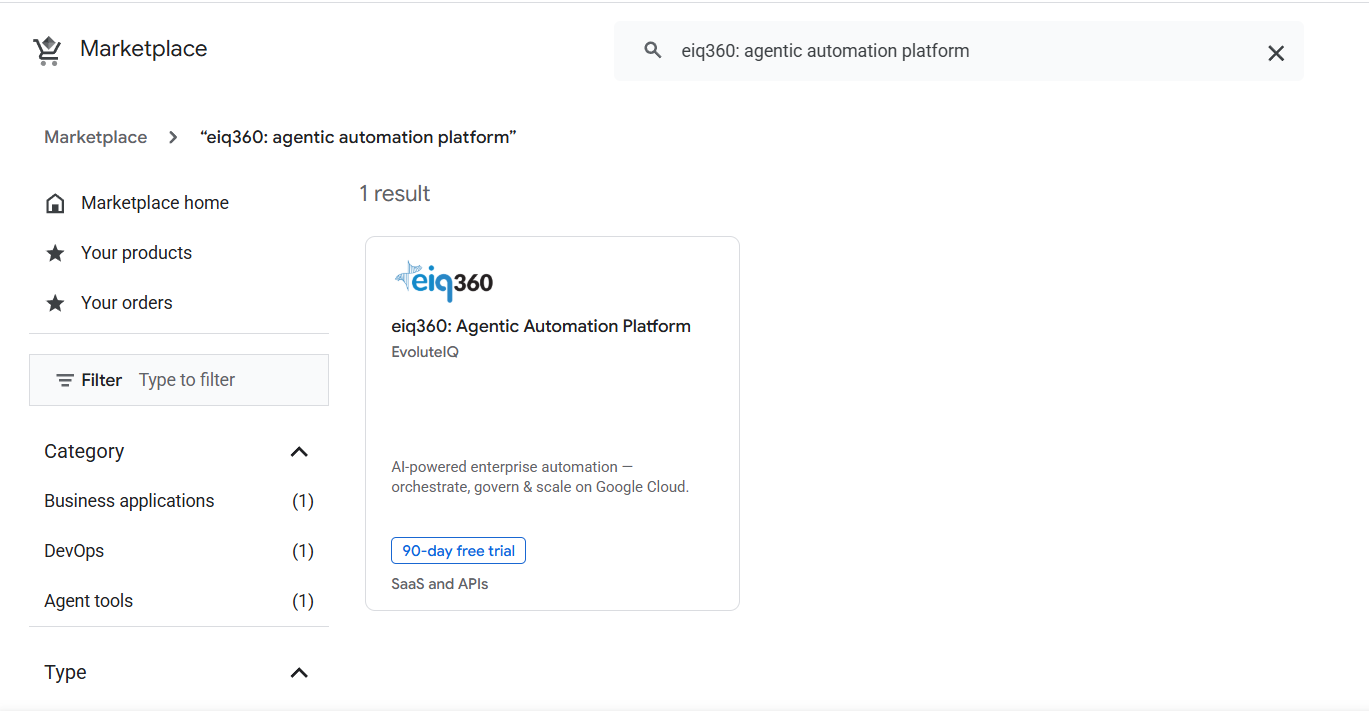
Search for eiq360.
-
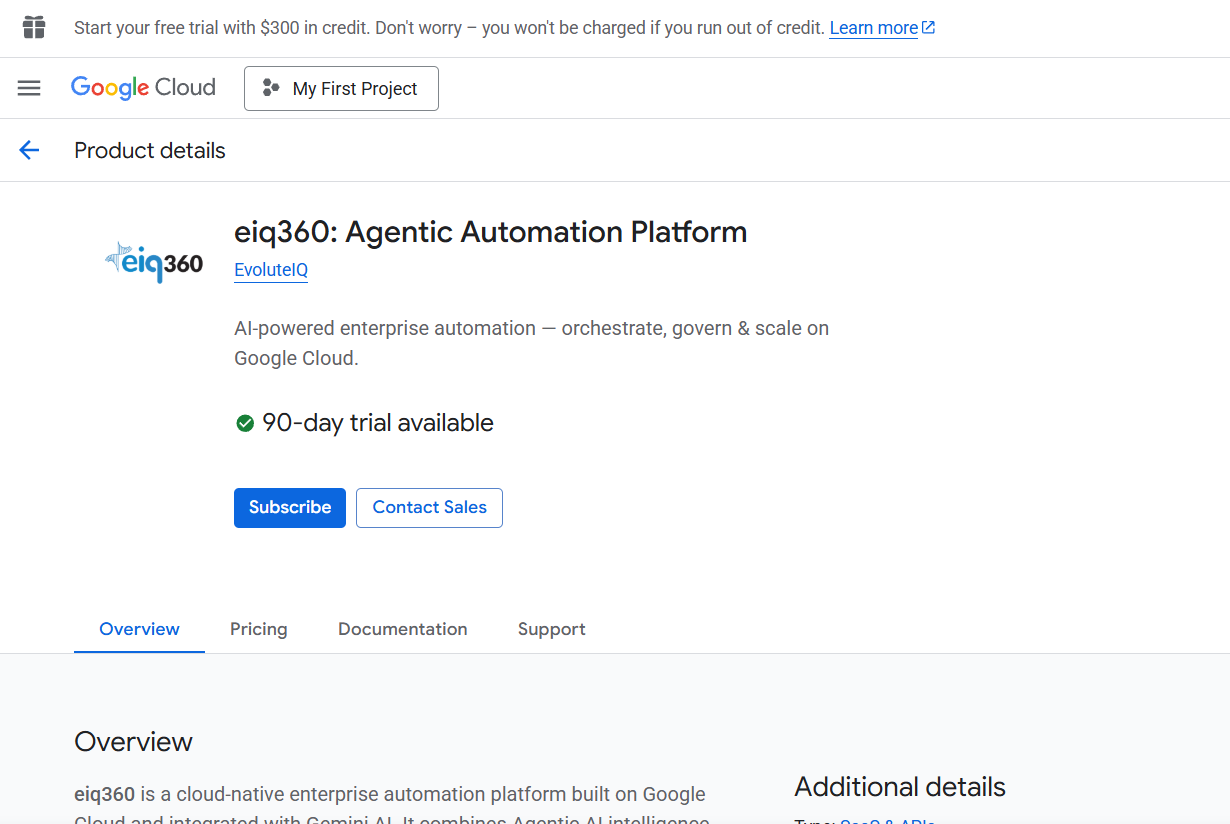
Click product name. Product details appear.
-
Review the details and specification mentioned.
-
Click Subscribe. Plan details appear.
-
Select your Plan (Standard) and Subscription Period as per your need.
Plan Info
Currently the eiq360 supports Plan = Standard (eiq360Lite version) with different subscription periods.
- Features:
RPA, Process Automation, AI Workbench, Business Rules, Intelligent Document Processing, Multichannel Apps, Data Fabric, Connectors. - Pricing: 1,500.00 USD/Month
- Billing:
- Billed via your GCP Billing Account.
- Your subscription will be renewed automatically at the end of subscription cycle.
- Best For: Short-term projects or POCs (Proof of Concepts).
- Cancellation:
- Cancel your subscription at the end of any 30-day cycle.
- Cancel your subscription by disabling auto-renewal.
- Others:
- Standard SLA.
- Basic support.
- 100.00 credits/month
- Upto 5 product modules.
- Features:
RPA, Process Automation, AI Workbench, Business Rules, Intelligent Document Processing, Multichannel Apps, Data Fabric, Connectors. - Pricing: 18,000.00 USD/Year.
- Billing: Billed monthly via your GCP Billing Account.
- Best For: Production environments requiring stable long-term access.
- Benefit: Discounted compared to monthly rates.
- Cancelation:
- Cancel your subscription by disabling auto-renewal.
- Others:
- Advanced Analytics
- Enhanced SLA.
- Priority support.
- 200.00 credits/month
- Upto 7 product modules.
- Features:
-
In the Purchase details, select your billing account.
-
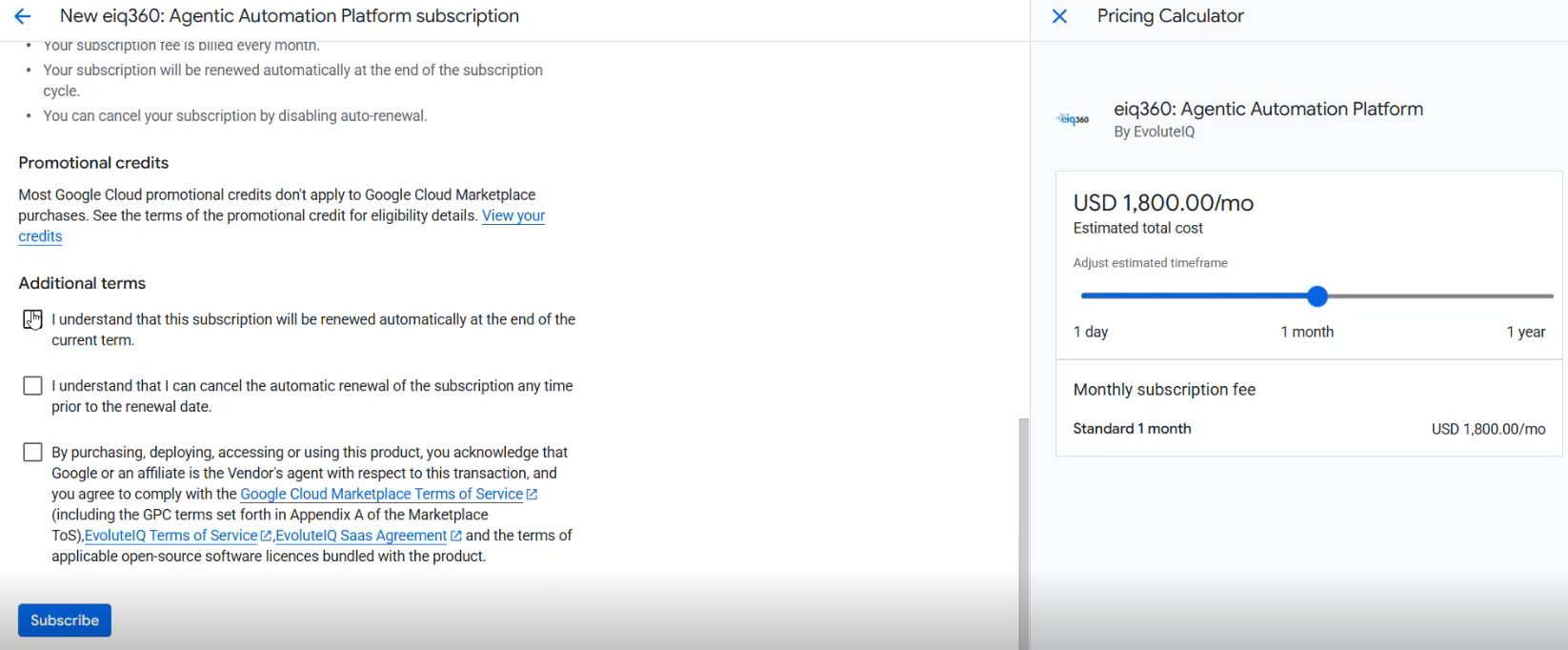
In the Additional terms, check the three checkboxes to accept terms and conditions. Make sure to read all the terms and conditions before you check the additional terms.
-
Click Subscribe. An order request is now sent to EvoluteIQ for approval.
DO NOT click Sign up with EvoluteIQ again - Refresh Page - Wait for approval
You must wait for approval from EvoluteIQ to make your subscription active. Do NOT click the Sign up with EvoluteIQ again. Refresh your page to view the current status as: Purchace pending provider approval. Refresh status appears within 0-2 minutes.
You will receive an email with the information that your account is created and entitlement approval is in progress. Once entitlement is approved, your subscription will be activated and you will receive a confirmation email with the next steps.
Background Time checks
Time taken for entitlement approval: 15-20 minutes.
Time taken for VM provisioning: 0-1 hour
Note
If you do not receive the activation confirmation within 30 minutes, contact the support team by raising a Support Ticket to EvoluteIQ.
Registering Account and Configuring Instance
Once EvoluteIQ approves your subscription request, a Registration pop-up appears for you to sign up with EvoluteIQ.
<br>
-
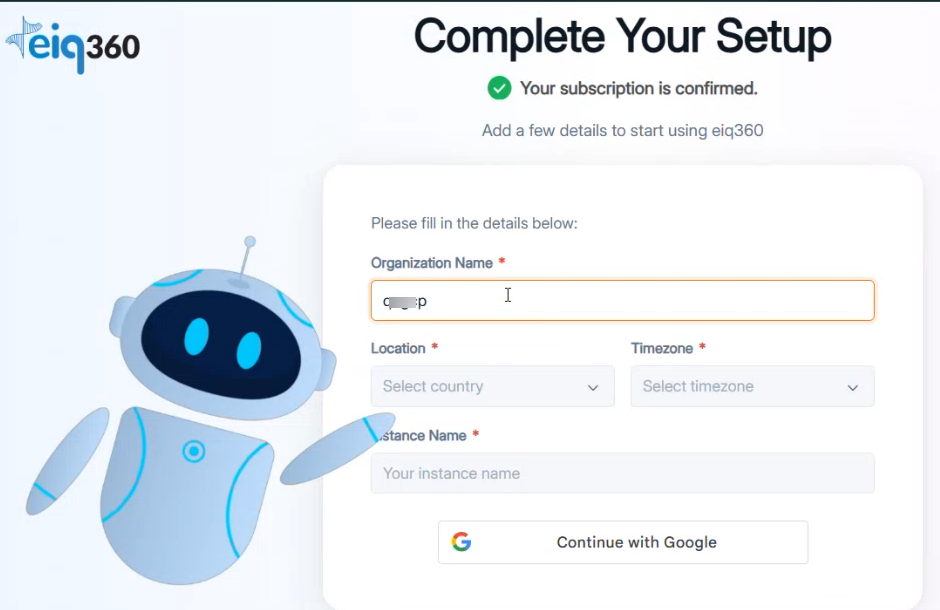
Click Sign up with EvoluteIQ. This opens a eiq360 Complete Your Setup form. to capture basic and mandatory details.
-
Enter the instance configuration details (organization's metadata).
Field Description Organization Name* Enter the legal name of your company or department.
Charecters allowed: alphanumeric
Charater limit: Min 3 to max 50 charsLocation* Select your location. This should be your organization's primary region of operation. Timezone* Select your timezone. Instance Name* Enter name for your eiq360 instance.
This must be an unique identifier which will form part of your access URL.
Character limit: Min 8 to Max 30 characters.
Instance name requirements: Start with lowercase letter. Allowed characters: lowercase letters, numbers, hyphens -
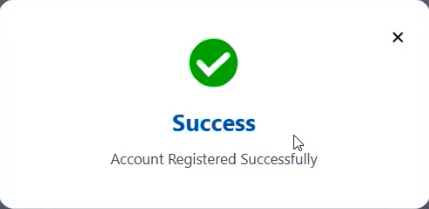
Click Continue with Google > and choose your account. Google authenticates the provided details and on successful authentication, success message appears for your registration. Your registration is now completed.
Note
If user is already logged in, it will seamlessly navigate to Product details after the authentication is completed.
-
Close the Success dialog.
- Navigate to Product details to view your registration status.
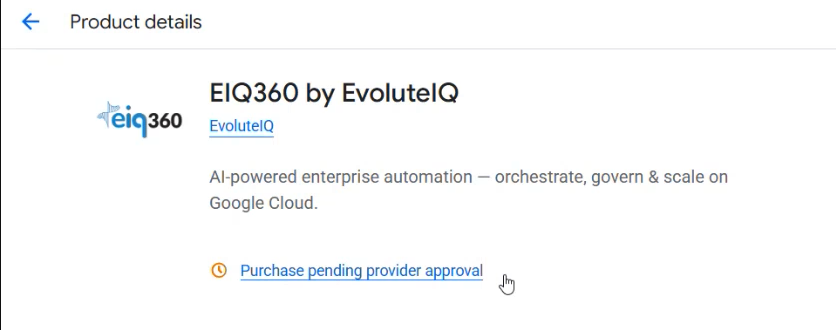
DO NOT click any details
You MUST NOT click status links on this page as background provisioning process is in progress . You must wait for 0-1 hour for the background provisioning process to get completed.
Wait for Email notification
When the provisioning is completed, you will get a notification email indicating that your instance is ready and your status in GCP > Product details page changes from Purchase pending provider approval to Manage on provider.
Provisioning (Background)
Once your subscription and registration is completed, provisioning happens in the background. The setup and provisioning background process include:
- Entitlement Validation: The system communicates with the Google Service Control API to verify your active subscription and selected plan.
- Resource Allocation: The system automatically provisions relevant cloud resources within GCP environment.
- Tenant Isolation: Your "Instance Name" is assigned a unique security token, ensuring your data remains strictly separated and encrypted.
The provisioning status details are displayed on the GCP Marketplace > Product details page. Refresh this page to view updated details.
Status:
Purchase pending provider approval: This status indicates that your subscription is in progress and the registration is waiting the Google entitlement validation. Wait for 0-1 hour to view the change in status. You will receive an email notification when the status is changed.
Manage on Provider: This status indicates that the Google entitlement validation is completed, a VM is deployed for your registration and the subscription is approved by EvoluteIQ. Now you have an active subscription for eiq360.
Accessing eiq360
If you are a Tenant administrator, by default, you are also an instance administrator.
Navigate to your email account (Instance Administrator Email id). You will get the login details for the platform instance that you created.
To access your instance,
-
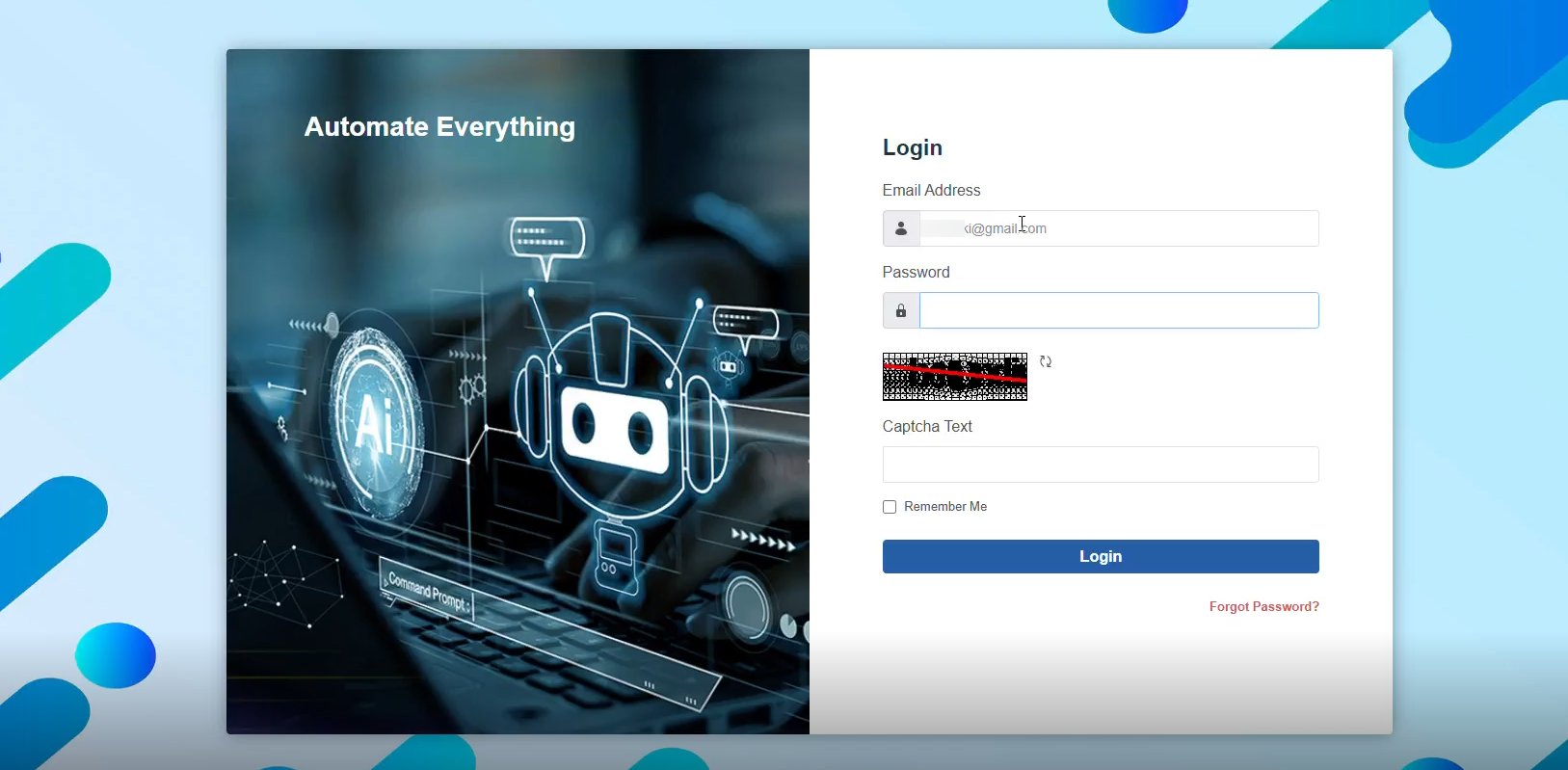
Open your notification email from eiq360 and navigate to the instance URL provided. The system navigates you to the eiq360.ai Login page for your instance.
-
Enter the following Login details.
Field Description Email Address* Enter your email id. This should be the same email id in which you received the notification. Password* Enter your password. This is the default password provided in the notification email. Check your credentials
The instance credentials may be different from that of your subscription account.
-
Enter the captcha in the Captcha Text.
-
Click Login. During the first-time login, Change Password screen appears. It is mandatory to change password when the screen propts for Change Password.
Change Password
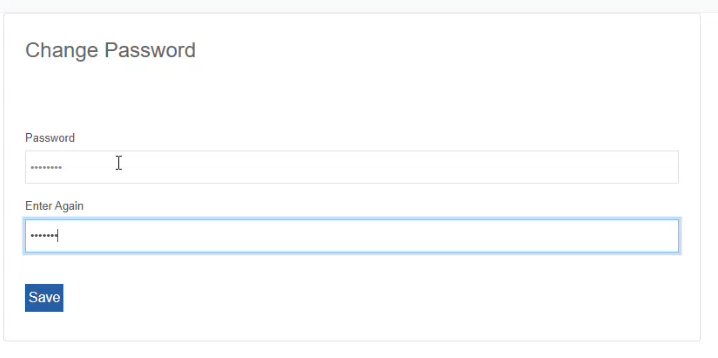
Field Description Password Enter a new password.
Refer to Password Requirements.Enter Again Enter the password again. - Click Save. The new password is saved. Now you can login with the registered email address and new password.
On successful login after changing the password, platform onboarding for workspace setup details appear.
Refer to Workspace Setup.
Logging Out from eiq360
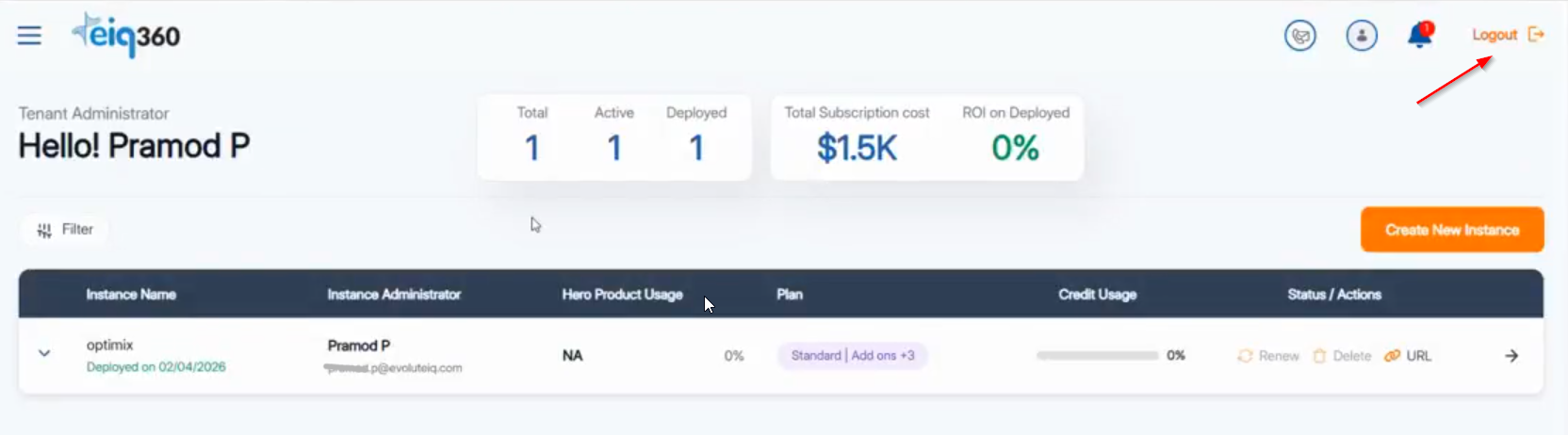
On the eiq360 dashboard page, on the top-right, click Logout.
Managing Orders
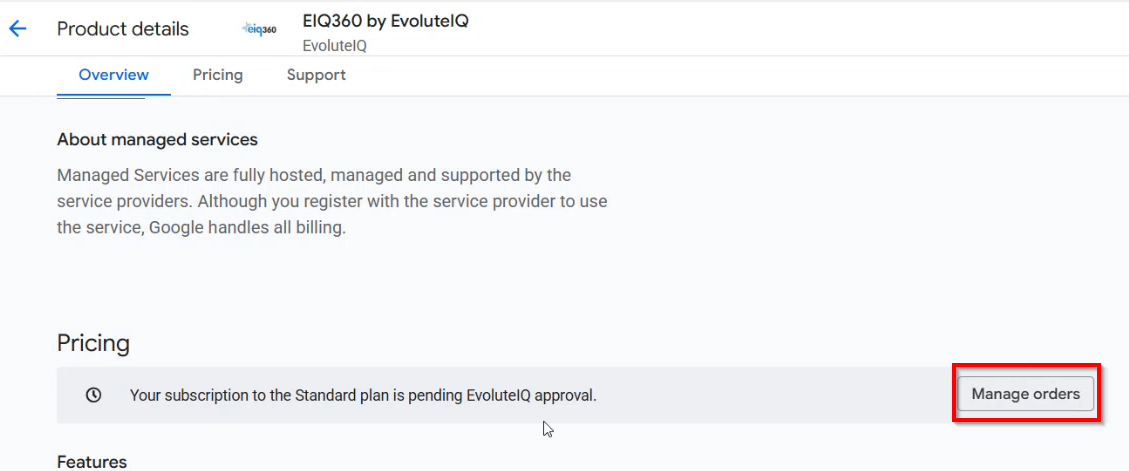
On the GCP Marketplace > Product details > Overview > Pricing, click Manage orders.
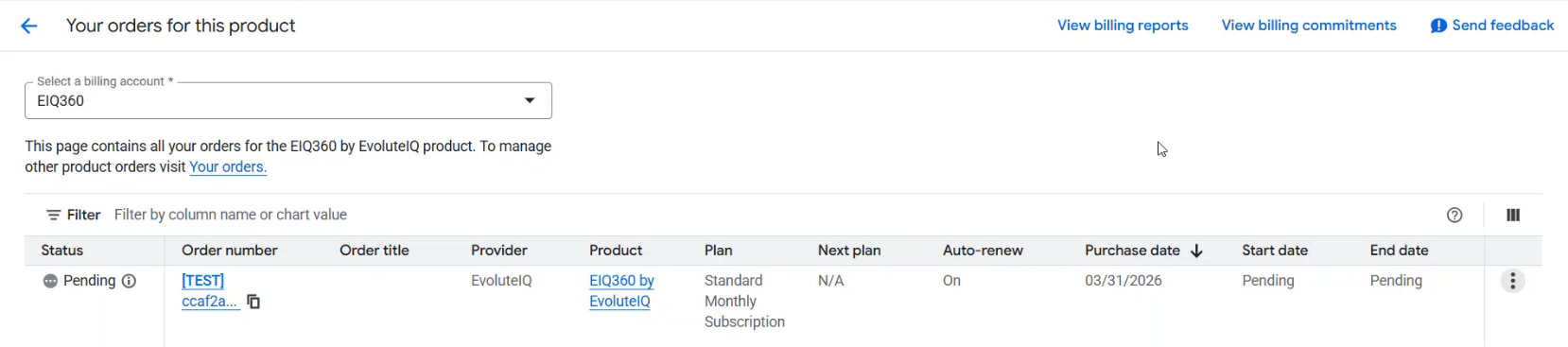
Order details appear in which you can view your current order and status for eiq360.
Troubleshooting
| Issue | Likely Cause | Solution |
|---|---|---|
| Entitlement not found | Sync delay between Google and our portal. | Wait 0-1 hour and refresh the Provider Portal page. |
| Access Denied | Using a different Google account. | Ensure you are logged into Google account with the same email Id used for the Marketplace subscription purchase. |
| Billing not visible | Permission issues in GCP. | Ensure you have the Billing Account Administrator role in your GCP Console. |
| Unable to reach the login screen | System issues | Clear your browser cache. Check if your company VPN is blocking GCP endpoints. |
Raising Support Ticket
- On the GCP > Product Details > click Support tab > Scroll to Support > click Learn More

- In the Support Request page, provide the support request details.
| Field | Description |
|---|---|
| Full Name* | Enter your full name. |
| Email Id* | Enter your email id. |
| Organization Name | Enter your organization name. |
| Issue Category | Select an issue category from the list. |
| Issue Title* | Enter a title for your issue and support request |
| Detailed Description* | Describe your issue in detail. |
| Attachments (optional) | Drop your files in the area or click Browse and select your files related to the issue for attaching. |
- Click Submit. Success message appears.

The issue is now submitted to the support team.
Cancellation Policy
Cancellation and change policy
- Your subscription fee is billed every month.
- Your subscription will be renewed automatically at the end of the subscription cycle.
- You can cancel your subscription by disabling auto-renewal.
- You may cancel the trial at any time by cancelling your plan prior to the end of the trial.
We're currently using USD to calculate costs, which can be changed in the billing setup. Final prices in your bill will be set in accordance with your billing setup, and might be subject to exchange rates.