RPA Bot Studio Features
RPA Project and Bot Workflow
RPA Projects and workflows are designed, configured, and created in the RPA Bot Studio application.
To create an RPA bot workflow, you must create an RPA project and then create a bot workflow within that project. You can create multiple workflows within a project. However, each workflow will be independent of each other.
When you log in to the RPA Studio, Load Projects screen appears where you can create or load existing projects.
- Refer to RPA Project and Bot Workflow documentation.
The Ribbon Features
The ribbon on the RPA Studio page allows you to perform actions that are applicable to RPA projects and bot workflows.
The RPA Bot Studio ribbon has a Quick Menu that allows the user to view settings and sign-out features. The ribbon has three tabs, viz., General, Settings, Tools, and About. Each of these tabs provides the user with a set of features that are used in the automation.
Quick Menu
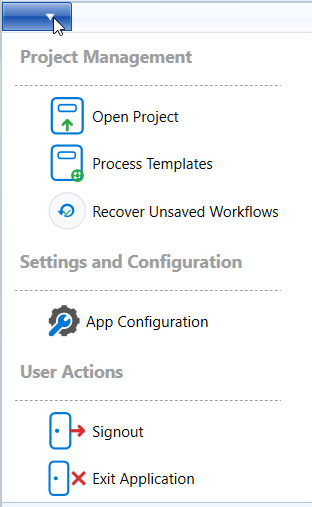
The Shortcut Menu or the Quick Menu has the following menu items.
-
Open Project: Click Open Project and Load Project screen appears. This allows you to load existing projects from the server.
-
Process Template: Click Process Template to view the templates from which you can select the required template for your project.
-
Recover Unsaved Workflows: Click Recover Unsaved workflows to add or load the autorecoverd unsaved workflows (that are saved in the system) as a new workflow to your project. Refer to Workflow Recovery.
-
App Configuration: Click App Configuration to access display the app configurations.
Refer to App Configuragtions for details. -
Signout: Click Signout to signout the user from the RPA Bot Studio.
-
Exit Application: Click Exit Application to exit the application. The user is not signed off and hence when the same user opens the Bot studio next time, they will be logged in to the Studio automatically with the old credentials.
General

General tab
The General tab features.
| Icons/Options | Descriptions |
|---|---|
| New Project | Creates a New Project. |
| New Workflow | Creates a New Workflow. |
| Copy Workflow | Copies or duplicates a workflow with all its structure, settings and configurations. |
| Delete | Deletes the selected project/workflow. |
| Save Draft | Saves the bot workflow in the draft mode. (CTRL+S) |
| Publish | To publish the workflow to the platform for utilization. |
| Share | Grants project ownership or permission-based access to other users. |
| Import | Imports the project/workflow. |
| Export | Exports the project/workflow. |
| Docs | Click Docs to access the docs related to automation design and solution design.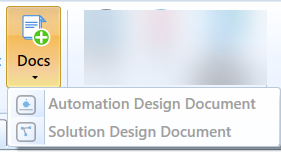 |
| Play | Plays the workflow. |
| Stop | Stops the recording of a workflow. |
| Open Recorder | Opens the recorder pop-up for recording options. |
| Visual Tracking | If checked, execution blocks will be enabled during the runtime. |
| Slow Motion | This is active within the workflow. The mouse movement/keyboard activities will be in slow-motion when you run the bot. |
| Minimize | This parameter defines whether RPA Bot Studio UI should minimize when playing the workflow or not. If checked it minimizes the Bot Studio while playing the workflow. |
| Breakpoints | Adds break point on a specific activity within your workflow. |
| Step-over (Key F10) |
Click Step over to execute the current line, skipping over any method calls and moves to next statement. Click F10 to step over again. It executes the current activity and then pauses at the next activity in the workflow, without going into the internal details of any invoked workflows or complex activities. |
| Step-into (Key F11) |
Click to execute the current line and steps into any called functions or methods to debug them. Click F11 to step into again. Step Into executes the current activity. If that activity is an "Invoke Workflow File," a custom activity, or a container activity, it will pause execution at the very first activity inside that invoked workflow or container. |
| Open Logs | Opens and display detailed execution logs for debugging and analysis. In the Settings tab enable “Activity” and “Log to File” for displaying the log file.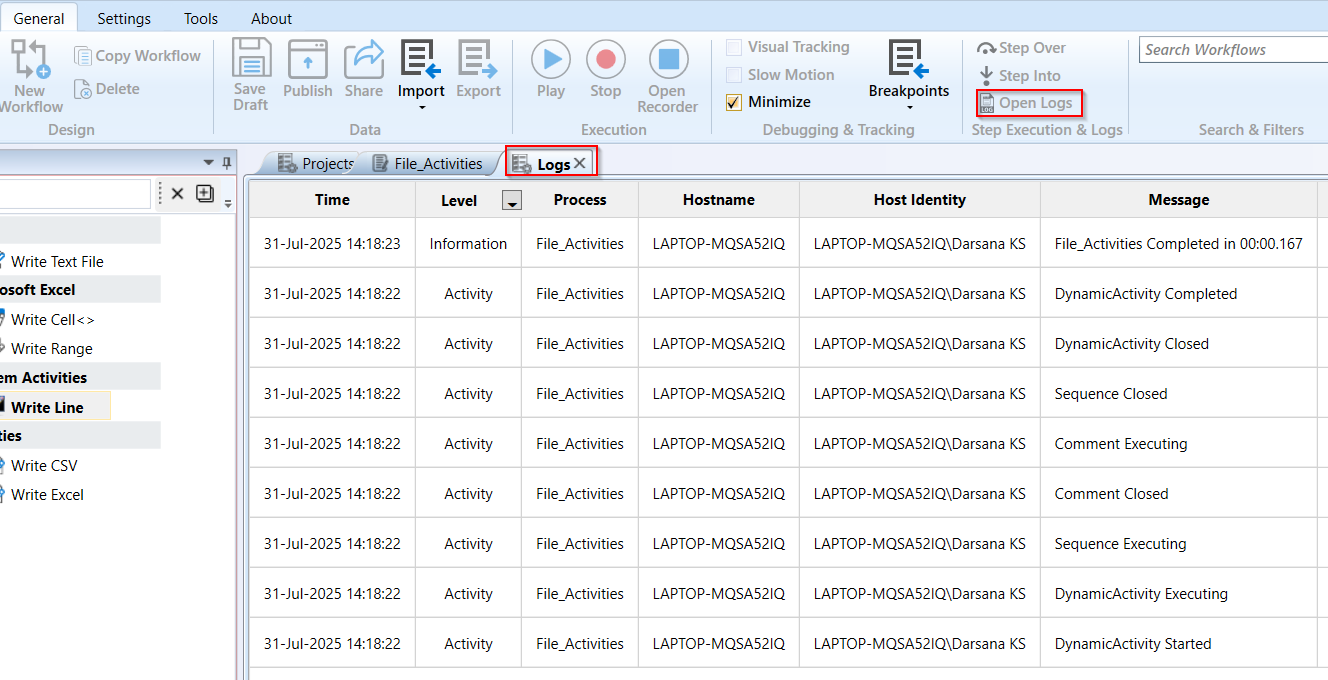 The log file displays only the activity execution-based logs. Enabling “Log to file” pushes all the activity execution-based logs to the server and creates log.txt file in the system. And from that file, log details are captured and displayed in the open logs. |
| Search Workflows | Filters the workflows based on the search text. |
RPA Studio Tour
The RPA Studio Tour allows you to get familiar with the key features of the RPA Studio interface.
-
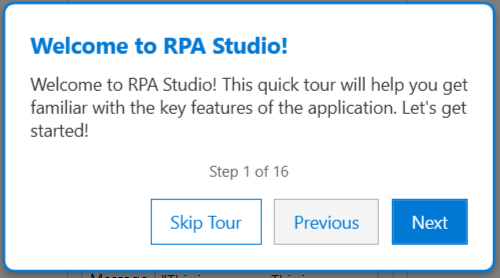
Open the RPA studio. The “Welcome to RPA Studio” pop-up appears.
-
Click Next to start the tour. (Click Skip Tour to skip and close the tour).
Features in RPA Studio UI gets highlighted with a description. This tour is a continued for 16 steps that highlights the key features. -
Click Next again to continue the tour.
Click Previous to view the just previous feature and description.
At the end of the tour, Finish appears. -
Click Finish and the tour ends.
Settings
The Settings tab features with Browser addons, Plugins, Runtime and Logging features.
In the “Runtime” section of the tab, you can set or edit the settings file parameters (few of them) available as checkboxes. The changes (check=True, uncheck=false) will be updated in the settings file.

Settings tab
The Settings tab features are tabulated below.
| Icons/Options | Descriptions |
|---|---|
| Cancel Key | Indicate which key is responsible for stopping the execution inside the RPA Bot Studio. To assign a new cancel key, - Click Cancel Key box. “Press New Cancel Key” textbox pops up. - Press the new cancel key. This is an app configuration parameter. |
| UI Language | This parameter defines the language used in most elements (tooltips, buttons, etc.) in the RPA Bot Studio GUI. |
| Browser Addons | Browser extensions allow you to add browser-based automation to record actions in your browser. Chrome : Click to add Chrome Plugin. Edge : Click to add Edge Plugin. It opens the Chrome browser in Edge. Refer to Browser Add Ons. |
| Detectors | Detector is the main Event Listener inside RPA Bot Studio. It is an activity that waits for something to happen before the Workflow continues processing and executing its activities. Refer to Detectors for more details. |
| Run Plugins | Refer to Plugins. |
| Recorder Plugins | Allows users to configure recorder plugins. Refer to Recorder and Selectors. |
| Bot Configuration | Click to open the AI model configurations for Bot. - Refer to Platform Bot documentation. |
| App Configurations | Click to open the app configurations details. Refer to App Configurations. |
| Recording Overlay | Select Recording Overlay to highlight the Elements while recording as they are moused over. Be aware that CPU performance may be affected when this parameter is set to true, hence it is recommended to keep it to false and change it only during debugging/presentation purposes. |
| Use SendKeys | When set to true while recording, this parameter mimics a user gradually typing one key at a time. When set to false, the Recorder will try to directly change the control on the selected application and apply the whole text at once. Each application/control may react differently, hence the reason why this parameter might be useful. This is an app configuration parameter. |
| Use Virtual Clicks | It tries to do a virtual click instead of clicking with the mouse. This is an app configuration parameter. Enables the virtual click = True. |
| Use Animate Mouse | When playing a recorded Sequence, the cursor will appear changing its position throughout execution. It becomes easier to visualize the actions that were recorded. It also is a way to produce material for RPA presentations. This is an app configuration parameter. Enables Animate Mouse = True. |
| Record directly into designer | The Record directly into designer checkbox is used when the user wants to see the activities being inserted into the designer as they are recording it. Having this parameter enabled is advised during development or while debugging, but be aware that it might cause some input delay. If disabled, the Recorder will memorize the activities and only insert them after the recording is over. By default, the value is true. This is an app configuration parameter. |
| Output | If checked, the output is displayed in the Logging section, if there is any output. This is an app configuration parameter. |
| Warning | It adds warning messages to the log file, that is, issues that affected the platform or RPA workflow but did not prevent it from playing. By default, the value is true. This is an app configuration parameter. |
| Debug | If checked, Debug details are displayed in the Logging section, if there are any errors. This is an app configuration parameter. |
| Verbose | If checked, Verbose logging is displayed in the Logging section. This parameter habilitates the verbose mode, that is, more words are added to the log file to make it more readable to humans. |
| Selector | If checked, Selector-related logging details if any are displayed in the Logging section. |
| Selector Verbose | This parameter facilitates verbose mode for selector logs (more details are added). By default, the value is false. This is an app configuration parameter. |
| Network | If checked, Network related details are displayed in the Logging section, if there are any network errors or messages. This is an app configuration parameter. |
| Activity | When set to true, this parameter adds logs of the activities during the playing of the workflow. When you run the bot after enabling the activity, it captures the log details for each activity trace. This is an app configuration parameter. |
| Log to File | Enabling “Log to file” pushes all the activity execution-based logs to the server and creates log.txt file in the system. And from that file, log details are captured and displayed in the open logs. |
Browser Add Ons
Chrome plugins are necessary to record activities in the Chrome browser. Without that, the Recorder cannot recognize the Activities performed there. All the functionalities of the Browser Automation activities depend on the installation of the plugins.
Chrome Browser
-
Open RPA Bot Studio.
-
On the ribbon > Settings tab, click Chrome browser. A new tab opens with the Chrome Web Store page.
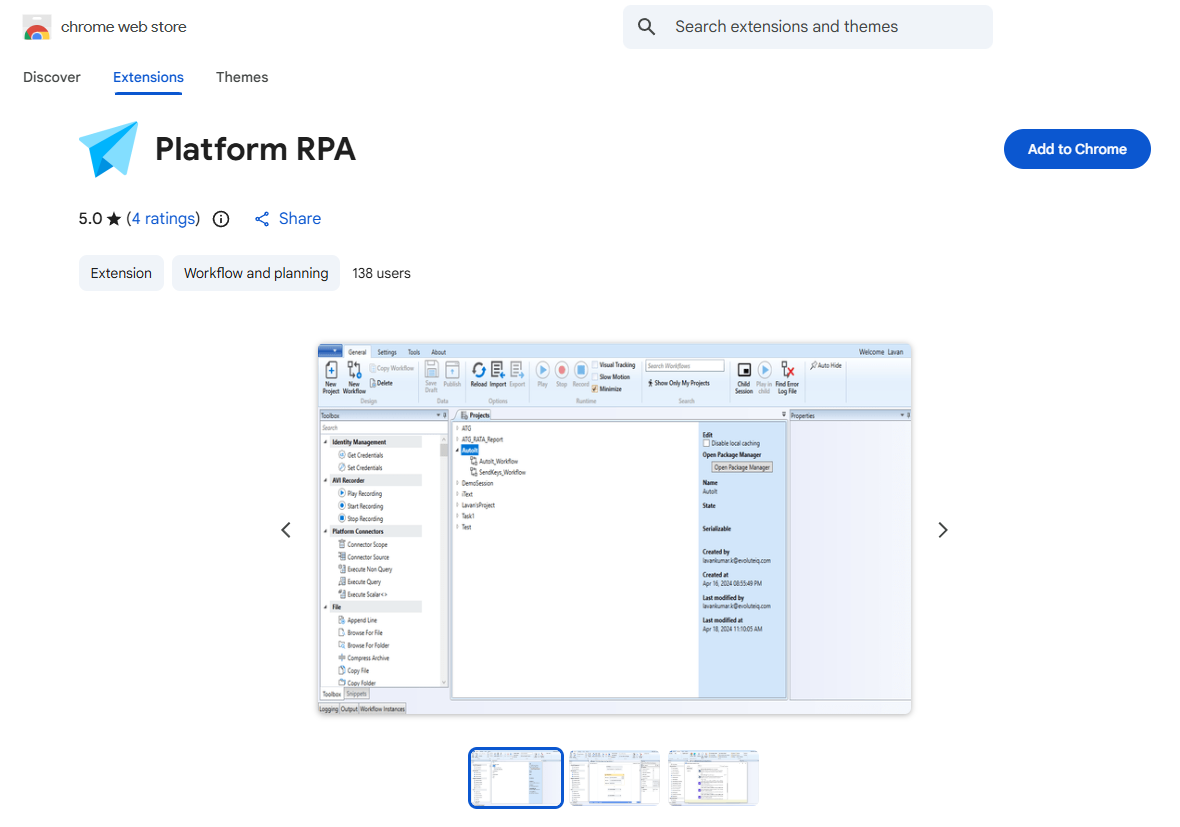
Chrome web store -
Click Add to Chrome. A pop-up message will be shown so that the user may confirm the installation.
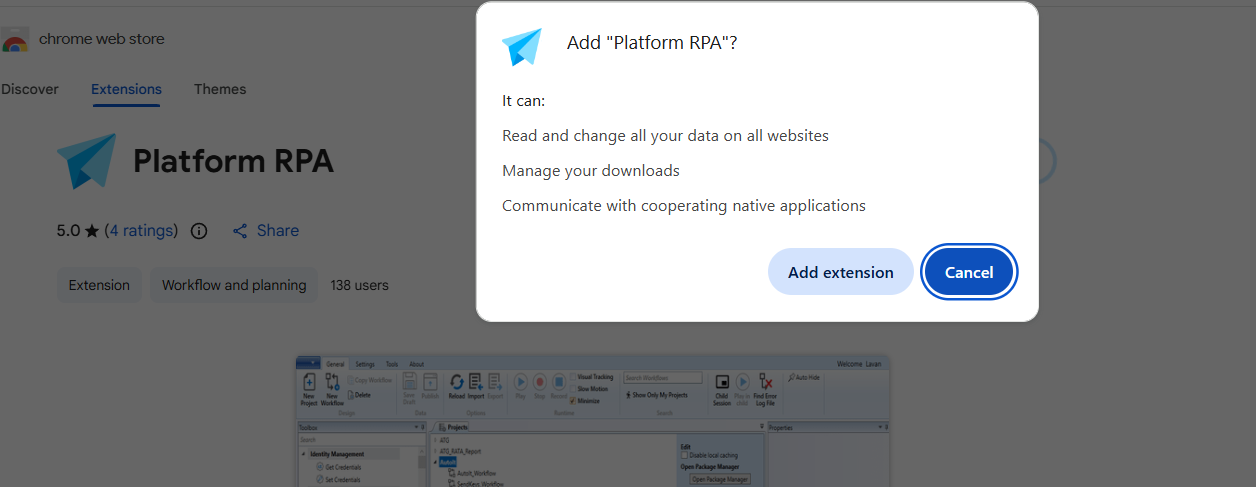
Adding PlatformRPA to Chrome as extension -
Click Add Extension. The application gets added as a Chrome extension and a success message appears.
At the bottom of the RPA Bot Studio, NM: Online appears (if the extension is not added it will be offline).
<br>
-
These plugins must be installed directly from their respective web store. Installation CANNOT be done offline by transferring the files manually.
-
Please keep in mind that these plugins exist so that the RPA Bot Studio may access information in that web browser. It is not responsible for capturing the data itself. Besides that, these plugins may be removed at any time without any loss to RPA Bot Studio normal functioning.
-
To operate RPA automation using Chrome, this plugin is necessary, and it mandates the presence of an EIQ RPA engine instance. The extension necessitates a broad range of permissions to record and replay sequences, but it does not collect or transmit any data. However, in certain circumstances, it can collect information from web pages utilizing the EIQ RPA functionality.
Edge Browser
The Chrome Browser settings open up in the Edge browser.
-
Click Edge browser icon. Chrome Web store page opens up in the Edge.
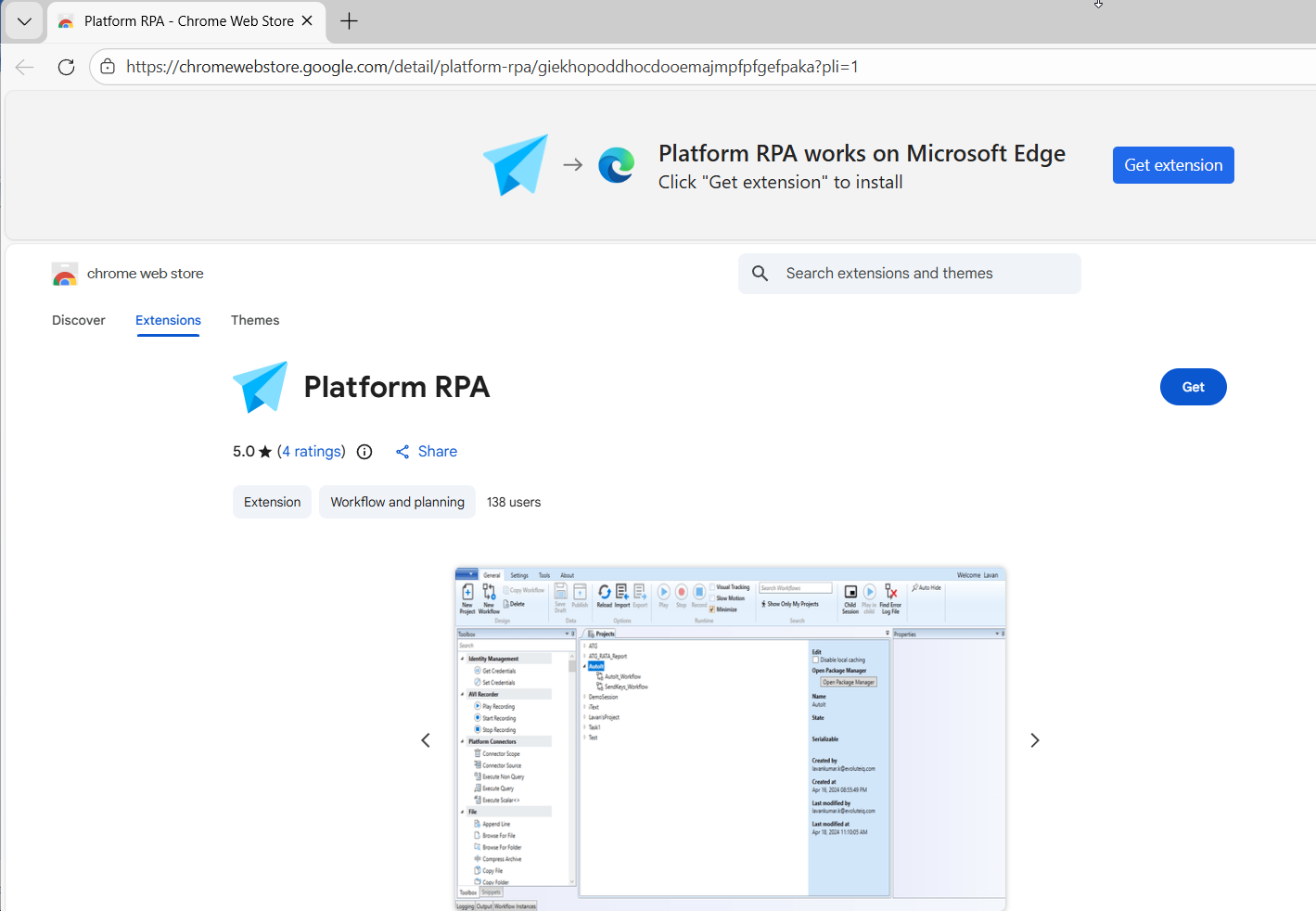
Chrome web store in Edge -
Sign up with Google Account credentials and then refer to Browse Add Ons - follow Step 3 onwards.
App Configurations
RPAPlatformStuido settings and configurations are saved in the App Configurations.
Editing the details while RPAPlatformStudio is running will have no effect and, when the application is closed, any value changed will be lost/overwritten. Hence, if you desire to edit any detail, always make sure to close and login to RPAPlatformStudio to make the changes reflect.
-
Login to the RPA Bot Studio using your credentials.
-
Navigate to Settings tab > App Configuration.

Alternatively, click the Quick menu (top-left) > App Configuration.
The configurations appear on the page. The configuration contains the complete configuration details of the RPA Bot Studio.
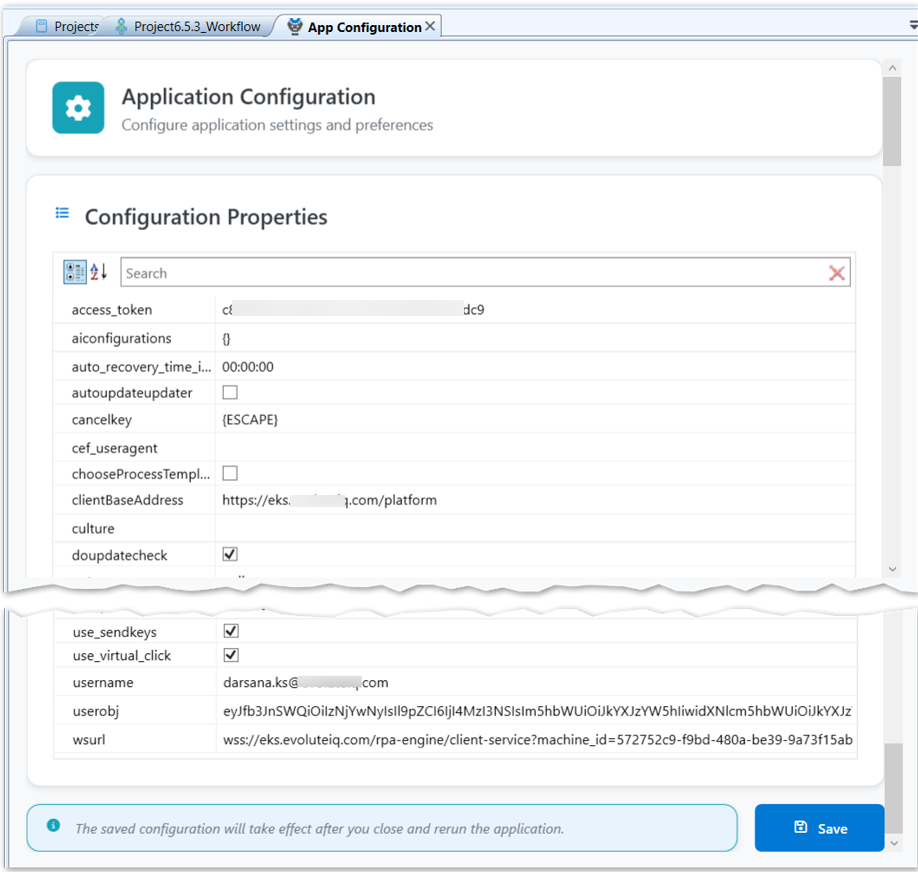
App Configuration details -
Edit the details as per your configuration requirements.
-
Click Save. The saved configurations will reflect after you close the RPA Studio and log in again.
Tools
The tools tab in the ribbon displays three Input mode and actions. The icons become active when you are within a workflow tab, that is, you should open a workflow.
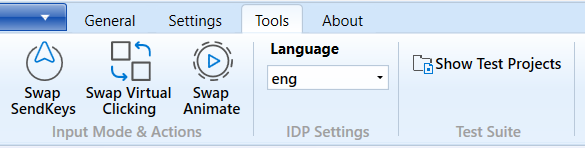
Tools tab
Swap SendKeys
Swap SendKeys is used to swap the “value” to “swapkeys” within a selected activity. This applies to all the child activities within the selected activity. The Swap option affects how the text is entered during the recording. When Swap send keys is set or selected, it simulates gradual typing resembling human input. Else if it is not selected it inputs the entire text instantly without delays.
If you click Swap SendKeys by selecting the main Sequence, it applies to all the workflow activities wherever applicable.
More precisely, if you have “item.value” property within an activity (say e.g., Assign activity > “To” property), and then you click Swap SendKeys, the property gets changed to “item.sendkeys”.
-
Item.value: Prints the value directly when you play a workflow.
-
Item.sendkeys: Prints the value letter by letter, by simulating the way of typing.
Swap Virtual Clicking
Swap Virtual Clicking is used to swap the property of Virtual click to true. The swap option affects how clicks are simulated during recording.
This applies to all the child activities within the selected activity. If you click Swap Virtual Clicking by selecting the main Sequence, it applies to all the workflow activities wherever applicable.
More precisely, if an activity (e.g., Click Element) has a property Virtual Click =False, and then you click Swap Virtual Clicking, the property gets changed to Virtual Click = True.
When the Swap virtual click is set to true, RPA Studio attempts to perform a virtual click instead of a physical mouse click.
Swap Animate
Swap Animate is used to swap the property of Animate to true. The Swap animate option affects how the cursor changing positions as the actions are executed during recording.
This applies to all the child activities within the selected activity. If you click Swap Animate by selecting the main Sequence, it applies to all the workflow activities wherever applicable.
More precisely, if an activity (e.g., Click Element) has a property Animate = False, and then you click Swap Animate, the property gets changed to Animate = True.
This makes it easier to visualize the recorded steps and is also useful for creating RPA presentations.
Language
Sets the language that the Intelligent Document Processing (IDP) will use to interpret text on images.
This is an app configuration file parameter.
Test Suite
Test Suite section allows you to create and view the test projects. A test project can have single or multiple test cases within.
Test Suite section can be utilized by testing teams in software development to test a wide range of software applications. In Test Suite, you can create new test cases and then upload them.
You can select test cases from different sources and create a new workflow.
- To access Test Suite options, click Tools > Show Test Projects. Test Suite tab appears on the ribbon.
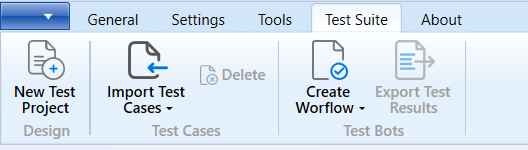
Viewing Test Projects
Test projects appear for the logged in user.
-
Click Tools > Show Test Projects to display the Test Projects. If there are no test projects created yet, it displays a blank page. The Test Suite tab becomes active in the ribbon.
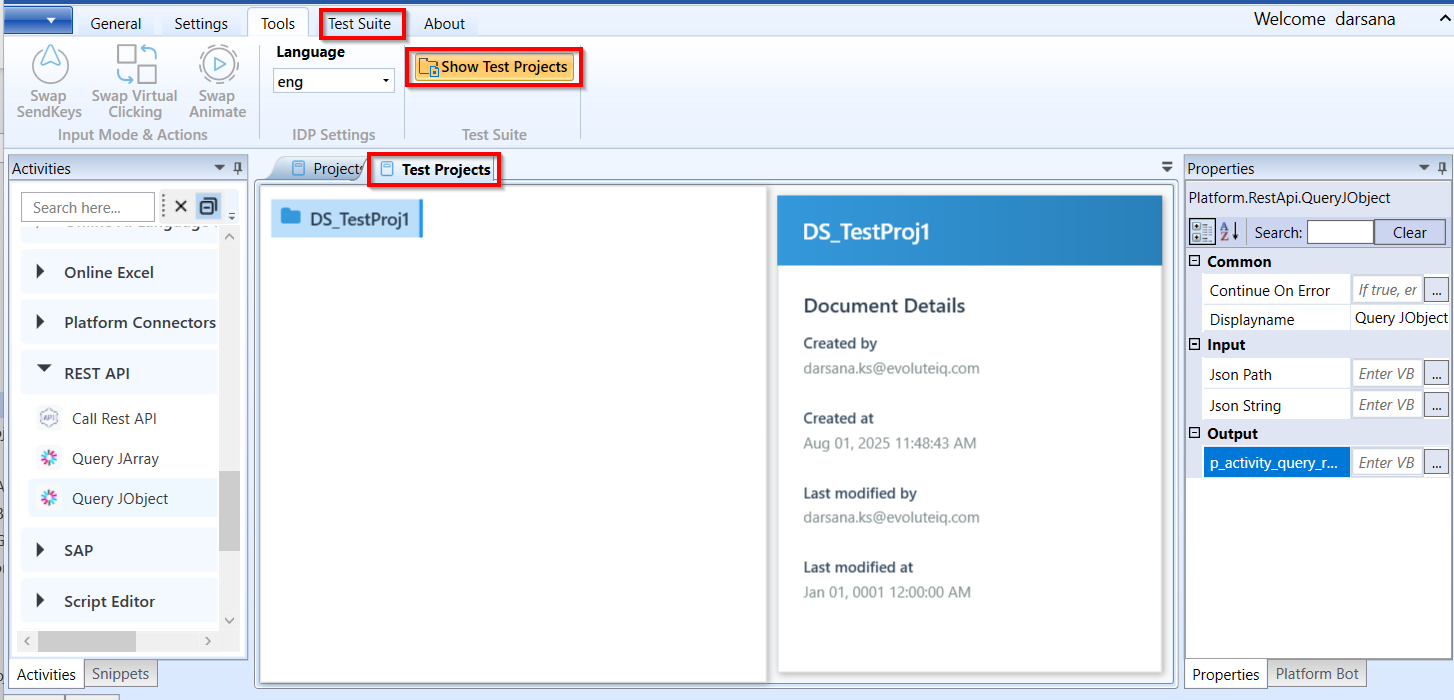
-
Click the Test Suite tab to view more options.
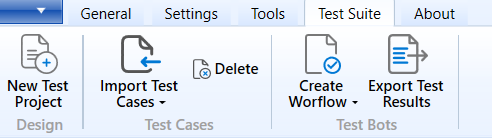
-
New Test Project: To create a new test project.
-
Import Test Cases: to import test cases from different sources.
-
Delete: To delete a test case or a project.
-
Create Workflow: To create a workflow from a test case.
-
Export Test Results: To export result of test project or workflow that has completed the test run.
-
-
Click an action in Test Suite as per your requirement. Details explained in the following sub-sections.
-
Click Tools > Show Test project again to close the Test project page and Test suite tab.
Creating a New Test Project
This feature allows you to create a new test project to organize and manage your test pages and test cases effectively.
-
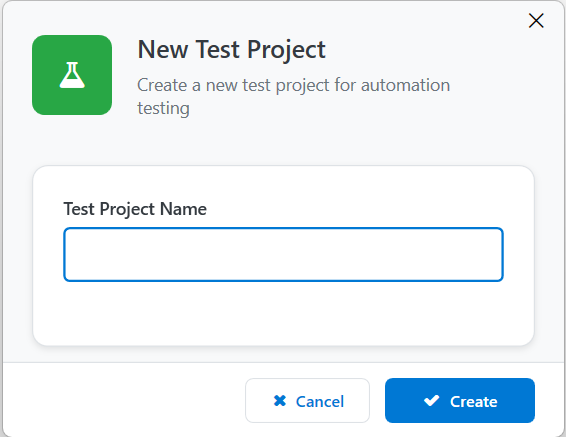
Click Tools > Show Test Cases > Test Suite > New Test Project.
-
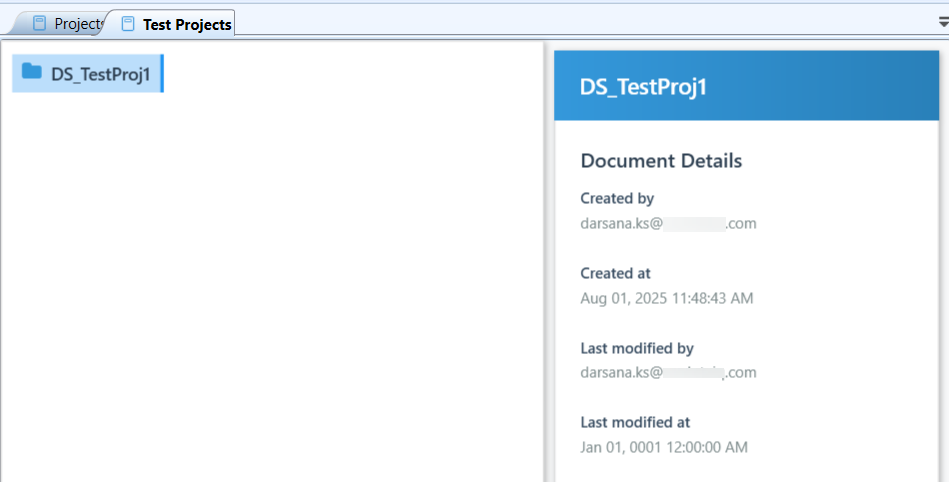
Enter the project name and click Create. A new test project appears on the page.
-
Click the project name to view the details. A test project is created and now you can import test cases into this Test project.
Importing Test Cases
The import test case feature allows you to import test cases from different sources like Azure DevOps, Bitbucket, or GitHub into the selected test page for streamlined test management.
-
Click Tools > Show Test Cases > Test Suite.
-
Select the project name to which you need to import the test cases. If you don’t have a project, create a project and proceed.
-
Click Import Test Cases.
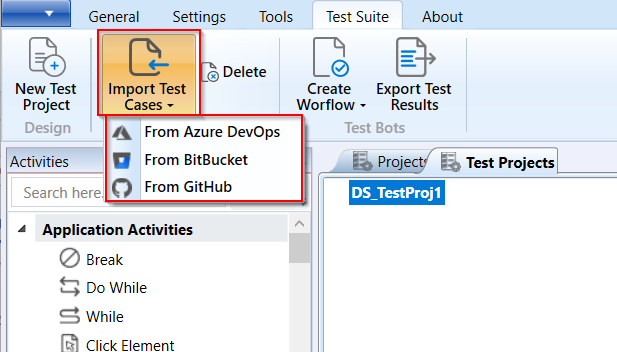
Alternatively, right-click the project name and select import to import the test cases.
<br>
-
Select the source from which you want to import the test cases.
-
Configure and save the source details.
Importing From Azure DevOps
-
Click Tools > Show Test Cases > Test Suite> Import Test Cases > From Azure DevOps.
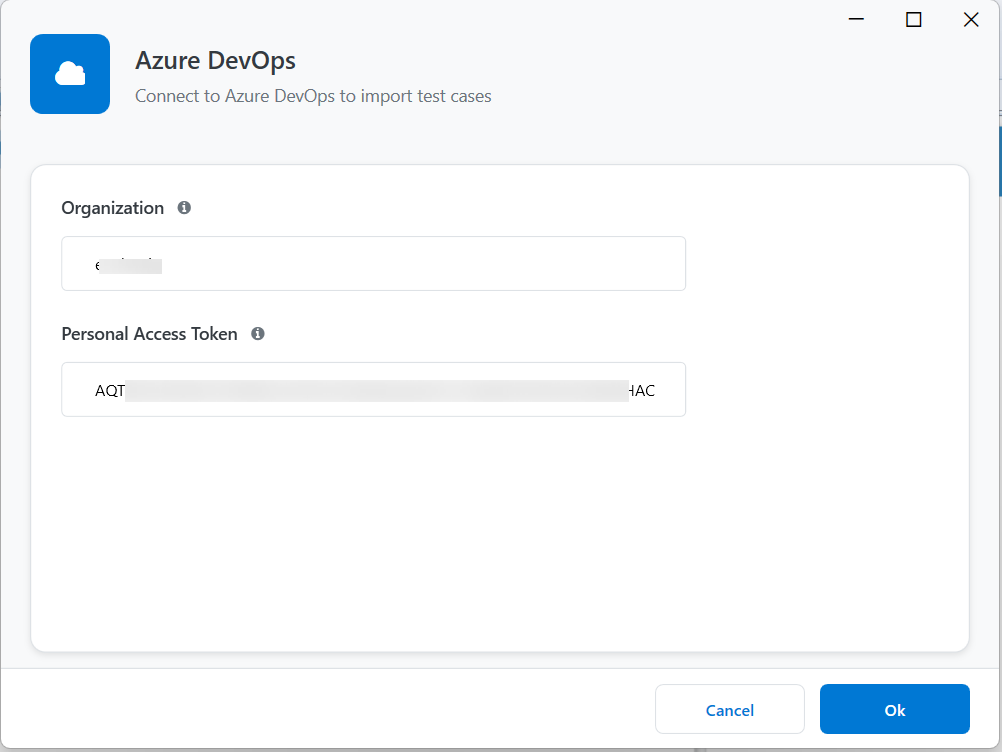
Configuration Description Organization Enter the organization name. The organization for “https://dev.azure.com/fabrikam-fiber-inc” is fabrikam-fiber-inc. Personal Access Token Enter the access token generated in Azure DevOps for authentication. To create an access token, navigate to Azure User Settings > Personal access token. -
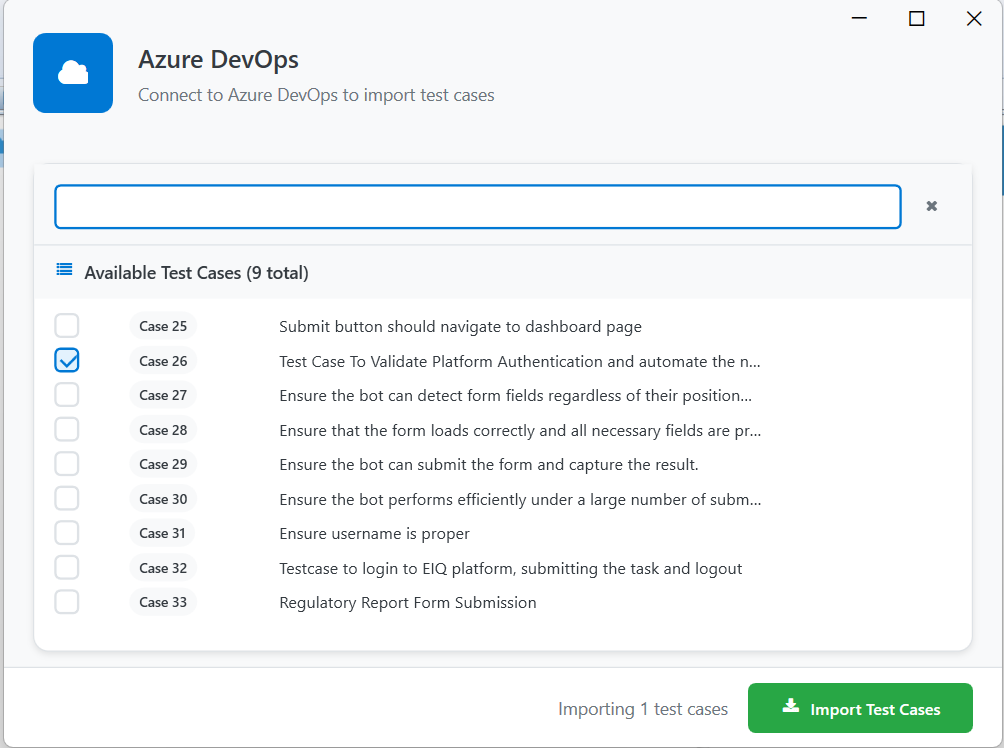
Click Ok to save the configuration details. Azure DevOps Test cases get listed.
-
Select test case(s).
-
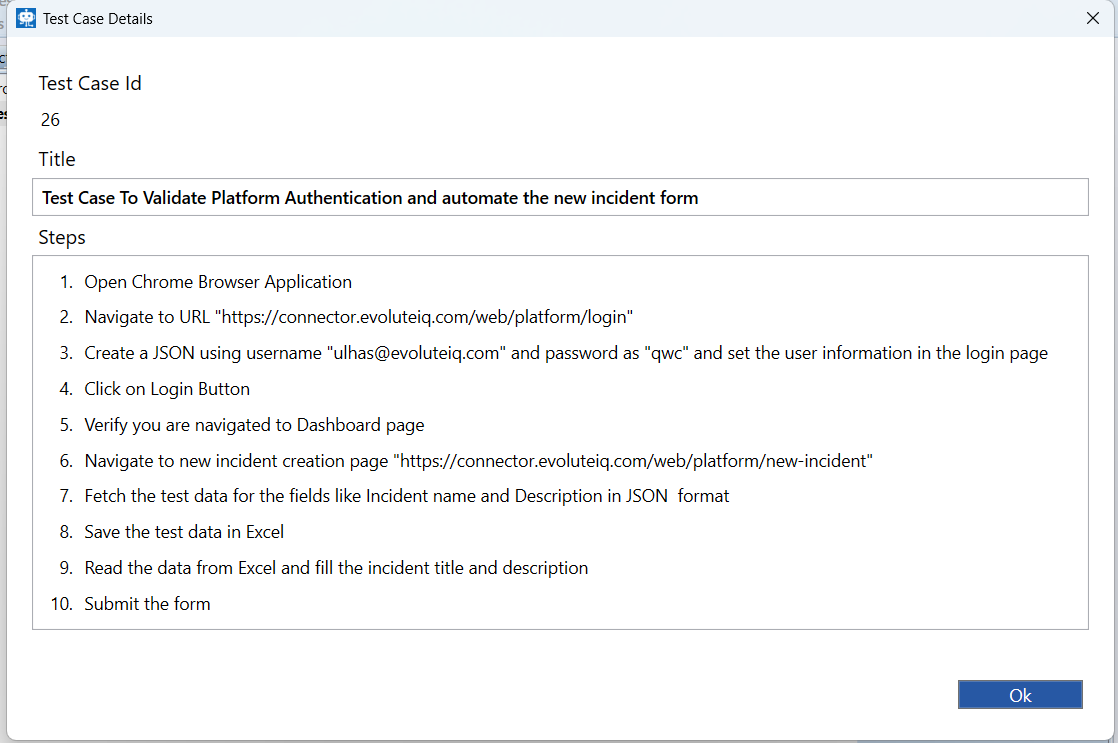
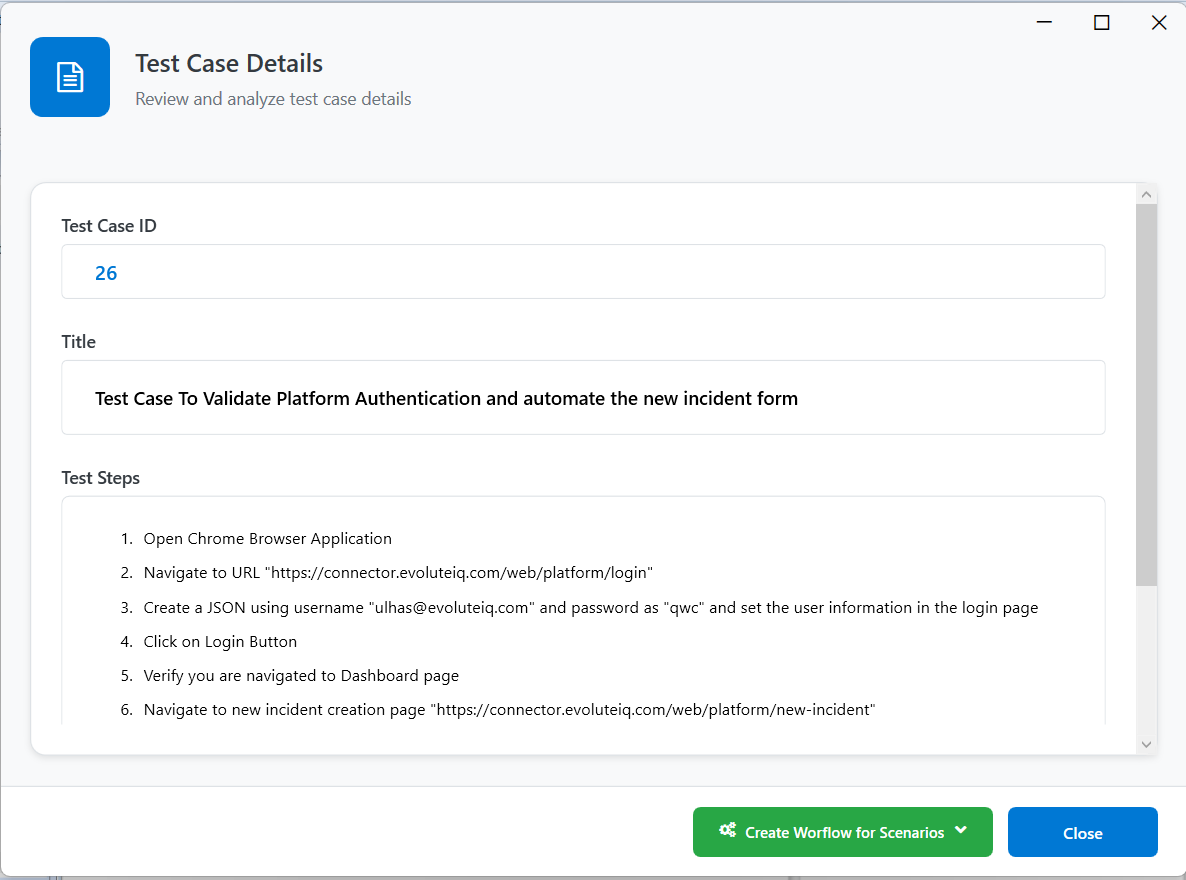
Click Import Test Cases. Test case details appear for the selected test case(s). The details include the test case id, test case title and the test case steps for the selected test case.
-
Click OK. The test case(s) is added under the selected project.
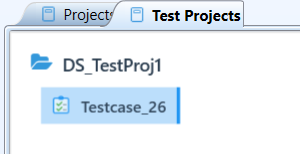
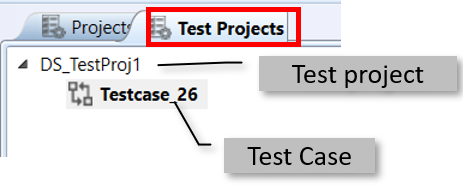
Double-click the test case name to view the test case details.
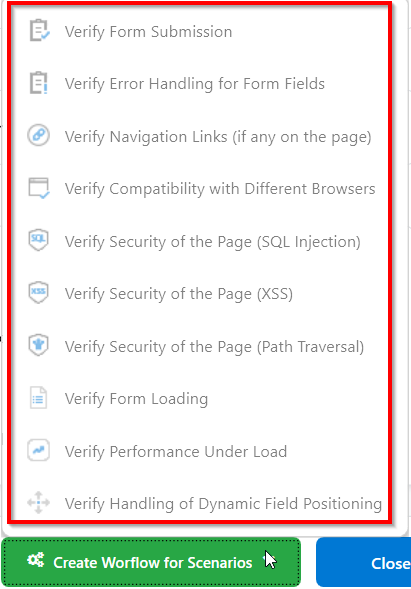
Click Create Workflow for Scenarios to list the scenarios.
Importing From Bit Bucket
-
Click Tools > Show Test Cases > Test Suite> Import Test Cases > From Bit Bucket.
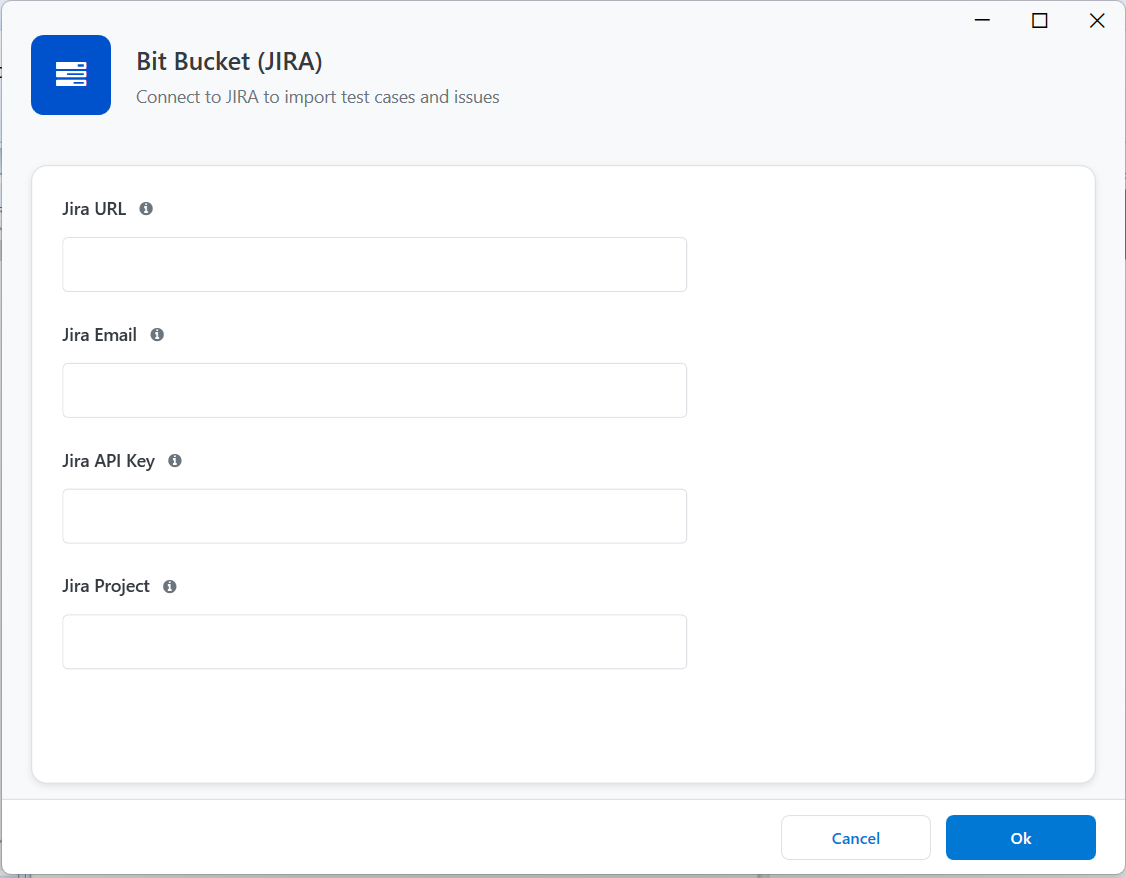
Configuration Description Jira URL Enter the Web URL where your Jira project is hosted. Jira Email Enter the email address associated with your account. Jira API Key Enter the Jira API key. This is a secure credential used to authenticate and access Jira. Jira Project Enter the name or key of the Jira project in which you have the test cases. -
Click Ok to save the configuration details. Test cases get listed.
-
Select the test case(s).
-
Click Import Test Cases. The imported test cases appear below the selected test project.
Importing From GitHub
-
Click Tools > Show Test Cases > Test Suite> Import Test Cases > From GitHub.
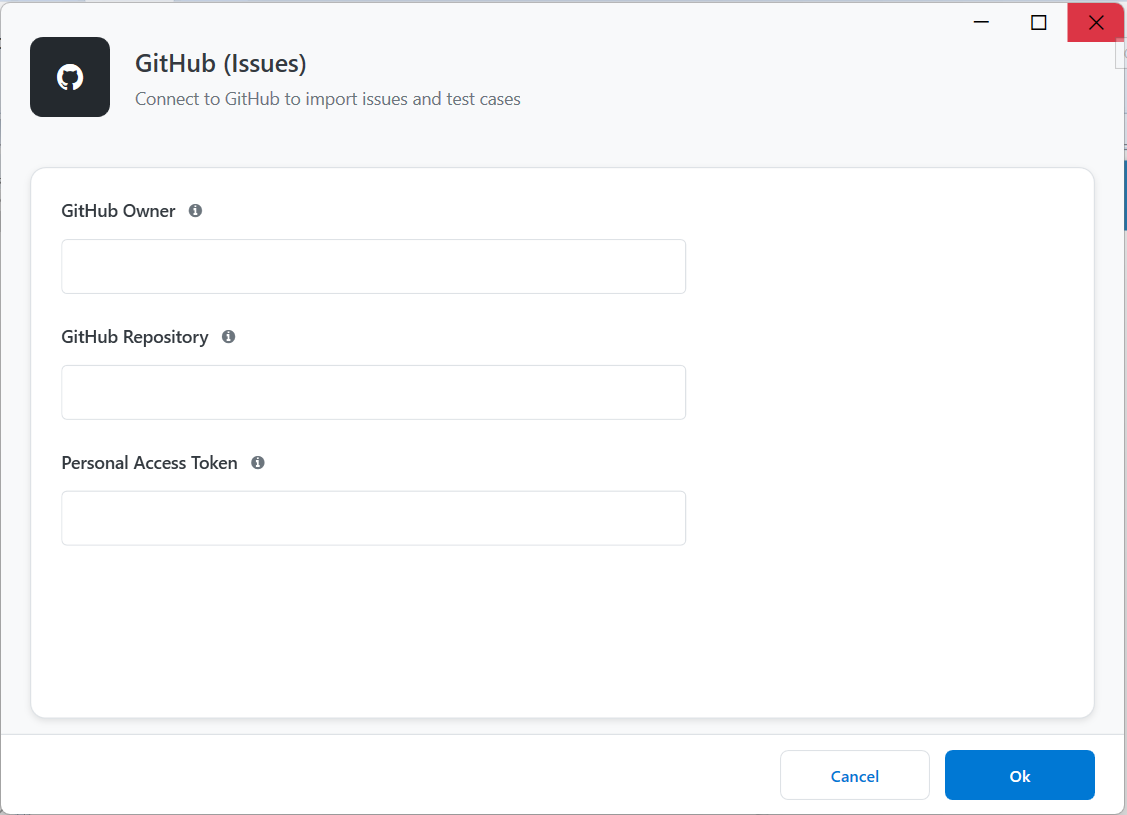
Configuration Description GitHub Owner GitHub owner name. GitHub Repository GitHub Repository name. Personal Access Token GitHub personal access token. -
Click Ok to save the configuration details. Test cases get listed.
-
Select the test case(s).
-
Click Import Test Cases. The imported test cases appear below the selected test project.
Creating Workflow from Test Cases
The Create Workflow feature allows you to create a workflow from the selected test case to automate testing processes.
-
Select a Test case from the Test Project.
-
Click Tools > Show Test Cases > Test Suite > Create Workflow.
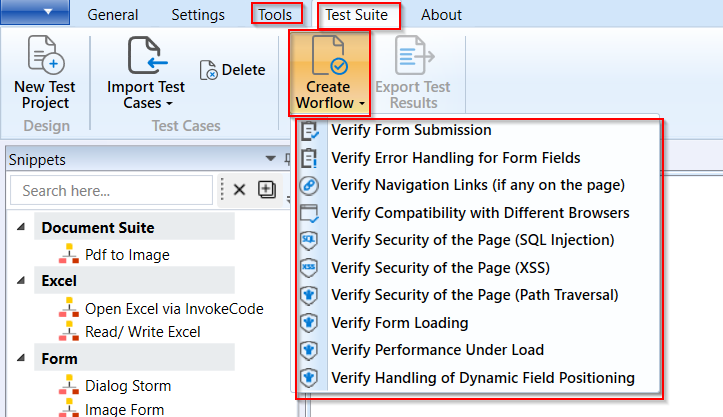
-
Alternatively, right-click the Test case name and click Create Workflow for Scenarios.
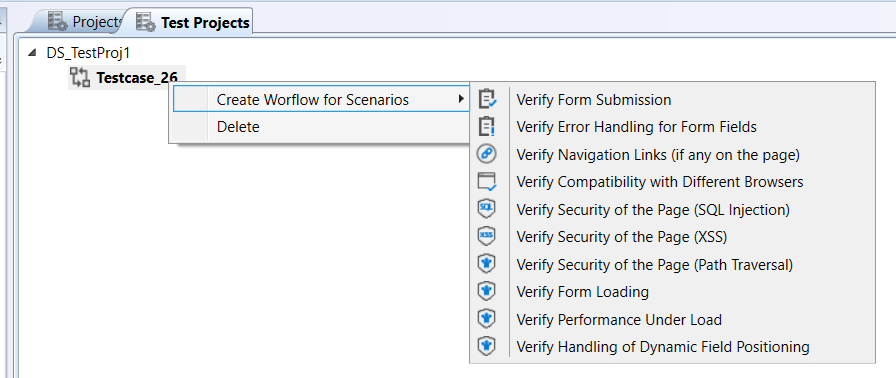
-
Click the required type of workflow scenario from the list. If you are creating workflow from the test project for the first time, a new project gets created with the same Test Project name in the Projects tab. Also, a new workflow with the selected scenario is added under this project with workflow name as {test_case_name}_{scenario_name}_Workflow.
For a particular test case, you can create workflow using different scenarios.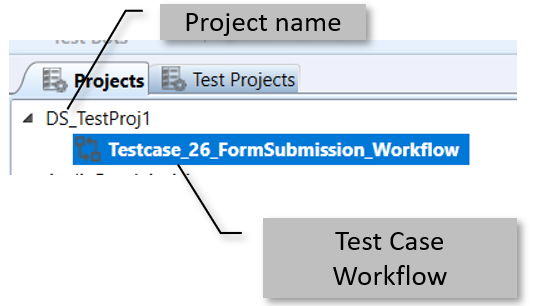
-
Double-click the workflow name to view the automatically created workflow.
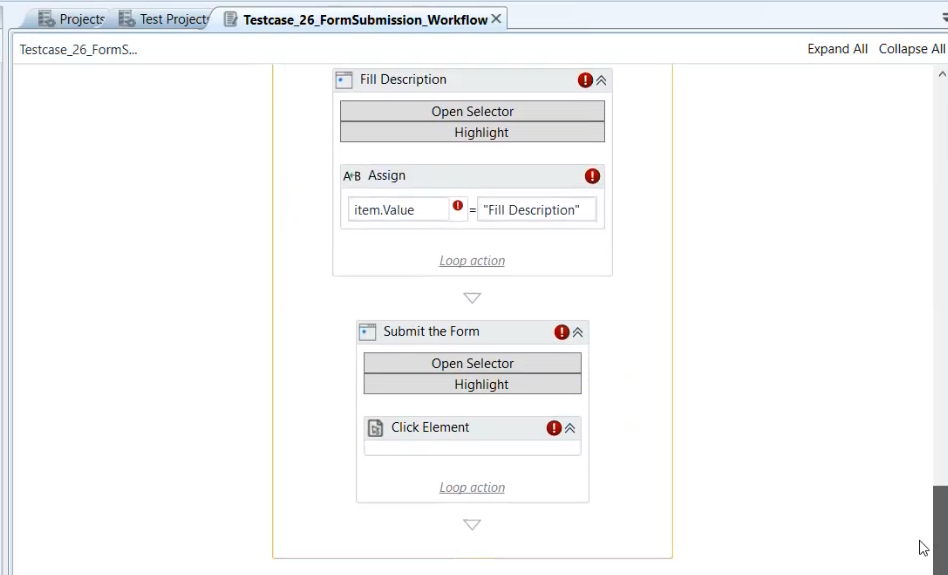
-
Configure or modify the configuration as needed and execute this workflow.
Executing Test Run
Execute test run feature allows you to run all the workflow scenarios under a test project in one go.
-
In the RPA Studio, import a Test case to a test project and create a workflow.
-
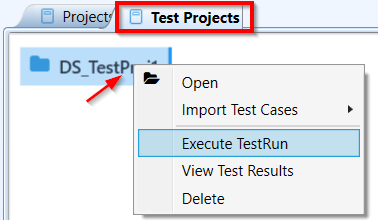
On the Test Projects tab, right-click test project name and click Execute TestRun. All the workflows in the Projects tab that are associated with the Test project gets executed.
-
Refine the workflow (or not) and click execute test run to execute the test case-based workflow multiple times. Details of each test run is captured in the background. The first test run is named as “Run 1”, second test run is “Run 2”. This is like version of the test runs.
Viewing Test Results
View Test Results allow you to view all the details that are captured during each of the test run.
-
In the RPA Studio, import a Test case to a test project and create a workflow.
-
On the Test Projects tab, right-click test project name and click Execute TestRun.
-
On the Test Projects tab, right-click test project name and click View Test Results.
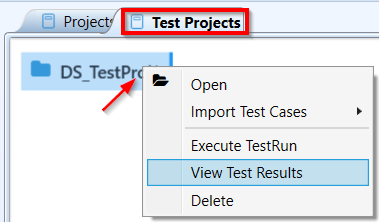
The Test Results appear. The Summary selection is active and it displays summary of all runs.
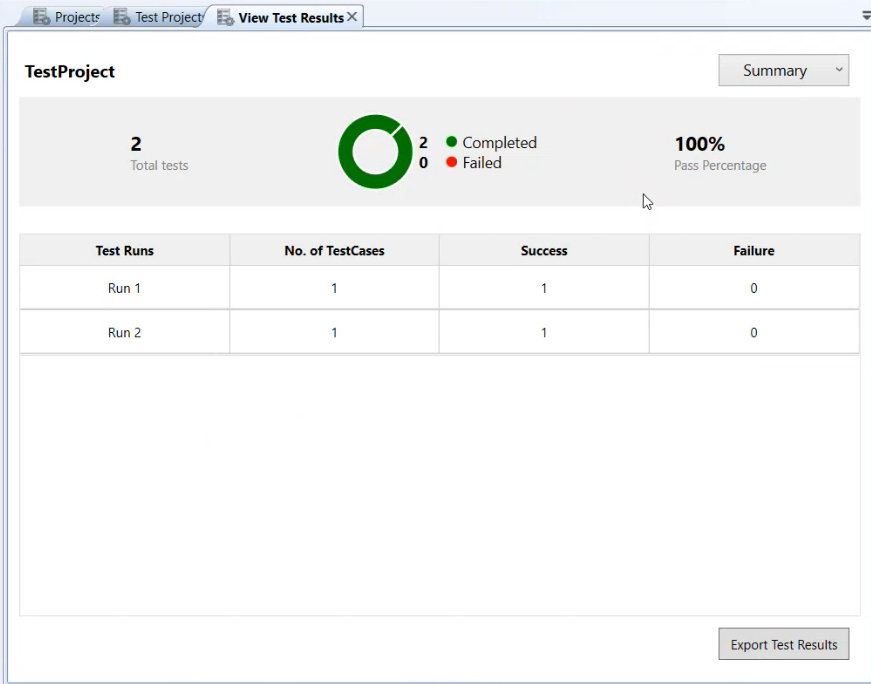
The Results Summary displays the total number of runs, completed runs, failed runs and pass percentage of runs.
The grid displays the test run name, number of test cases in a run, success and failure.
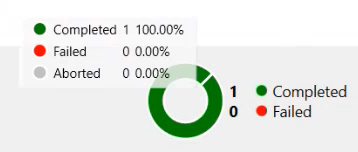
Hover over the doughnut chart to view the details:
-
To view the results of a particular run, click Summary > select a run., say Run2.
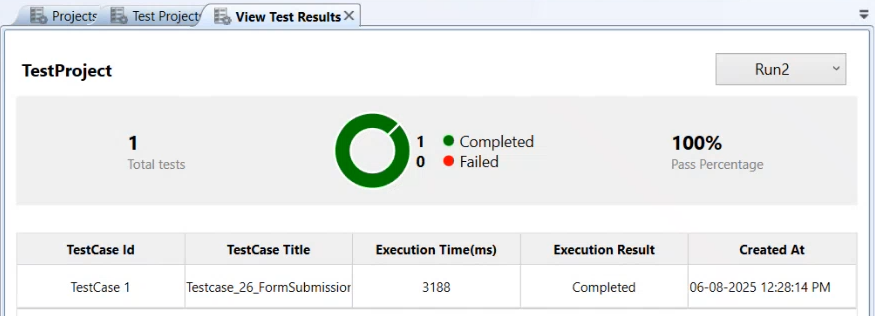
All the test cases that are executed in the selected Run appears with corresponding details.
Exporting Test Results
The Export feature in the test suite allows you to export the detailed results of the executed test cases to excel format for reporting and analysis.
-
In the RPA Studio, import a Test case to a test project and create a workflow.
-
On the Test Projects tab, right-click test project name and click Execute TestRun.
-
Click Tools > Show Test Cases > Test Suite > Export Test Results.
-
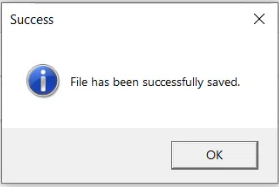
Select the Download path and click ok. The success message appears.
-
Click Ok. The details are exported to your local system in excel format.
-
This exports all the results of the Test Case. All the run results are captured in the export file. Each Run details appear on different sheets.
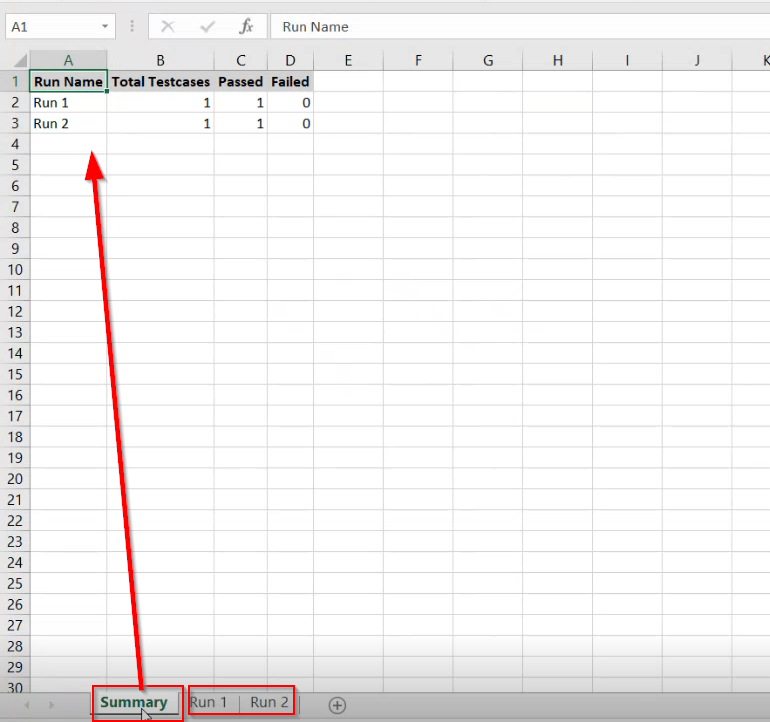
Run Sheet Details:

- To export a particular run result, right-click Test project name > View Test Results > Summary > select Run number that is to be exported > Click Export Test Results button on the bottom of the screen.
Deleting Test Case Project or Test Case
Delete allows you to remove the selected test case or project. When you delete a test project, all its associated test cases are deleted.
-
Click Tools > Show Test Cases > Test Suite.
-
Select a Test Project or a Test case from the Test Project tab.
-
Click Delete on the Test Suite tab. The project/test case is removed.
Alternatively, right-click the test project name or test case name and click Delete to delete the corresponding test project or test case.
Best Practices for Test Cases
Test cases should be independent of each other. One test case should not depend on another test case’s run.
A test case should have one specific purpose only. Each test workflow should contain only one verification.
Every feature should have a test. If exceptions are allowed, create a separate test, and exception, for each test case.
In a Given-When-Then test case structure, if the Given part is getting too extensive and unmanageable, try to redefine the test case. It could need more granularity or refactoring.
Activity names should reflect the action taken.
About
The About tab has the user guide redirect link and the product version details.
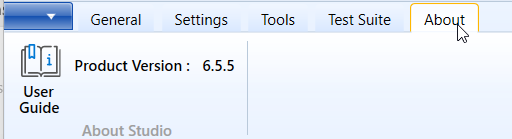
The About tab details
- Click User Guide to redirect to RPA user guides.