RPA Folders
Introduction to RPA Folders
The Folders section in the RPA Management enables you to organize and manage RPA projects into logical groups.
-
Folders help in structuring projects efficiently for easier navigation and management.
-
Projects from RPA Studio are published within a specific folder.
-
Duplicate folder names at the same level are not allowed.
-
Once a folder is created, it cannot be deleted.
-
Note that you can create Folders through RPA Management > Folder and RPA Studio while publishing a project or workflow.
Viewing RPA Folders
-
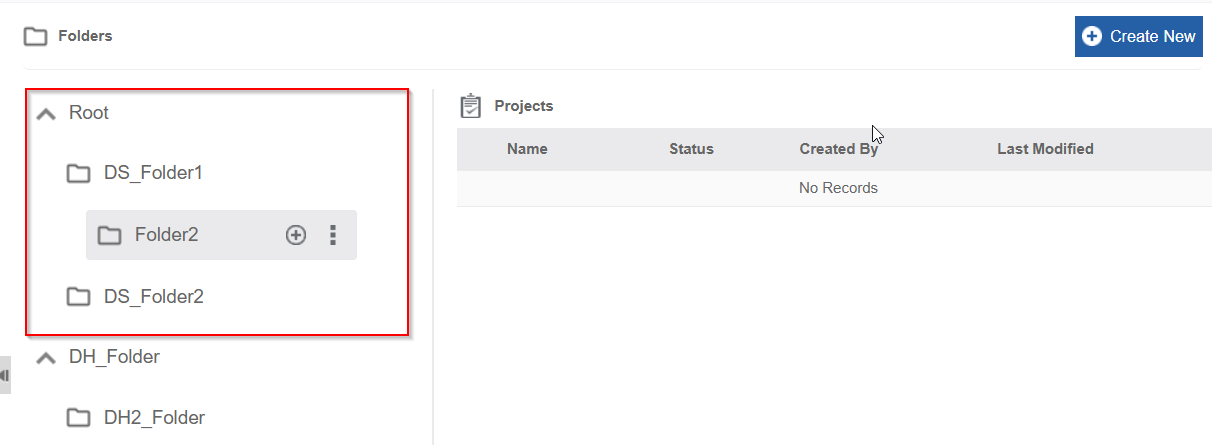
Navigate to Main Menu > Manage > RPA Management > Folders. The Folders page displays root folders and subfolders in a tree format.
-
Click a root folder accordion to view the sub-folders. Selected folder details appear on the right-side project detail grid.
Viewing Project Details
-
Navigate to Main Menu > Manage > RPA Management > Folders.
-
Click the root folder to view the projects within that folder and details associated with the project.
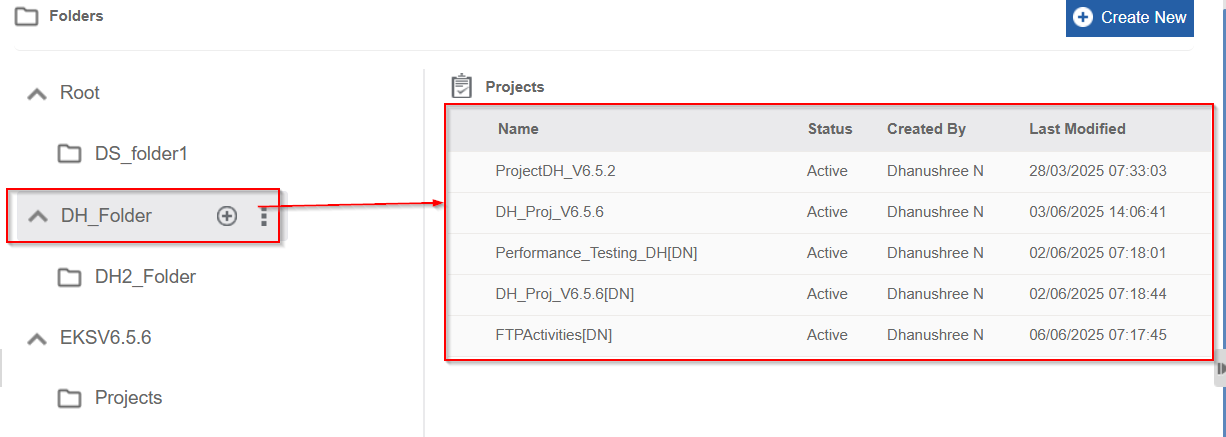
Project Details displayed in the grid are:
-
Name: Name of the project that is published. Name uniquely identifies the project within the selected folder and helps you to distinguish it from other projects in the system.
-
Status: Current status or operational status of the project.
Status options: -
Active: Indicates the workflows under this project are active and executable.
-
Inactive: Indicates the workflows under this project are deactivated and non-executable. These workflows can be executed after reactivation.
-
Created By: Name of the user who created the project. This helps to track project ownership and responsibility.
-
Last Modified: Last modified date indicates the most recent date and time when the project was updated or changed. This provides insight into the latest activity performed on the project, such as workflow updates or configuration changes.
-
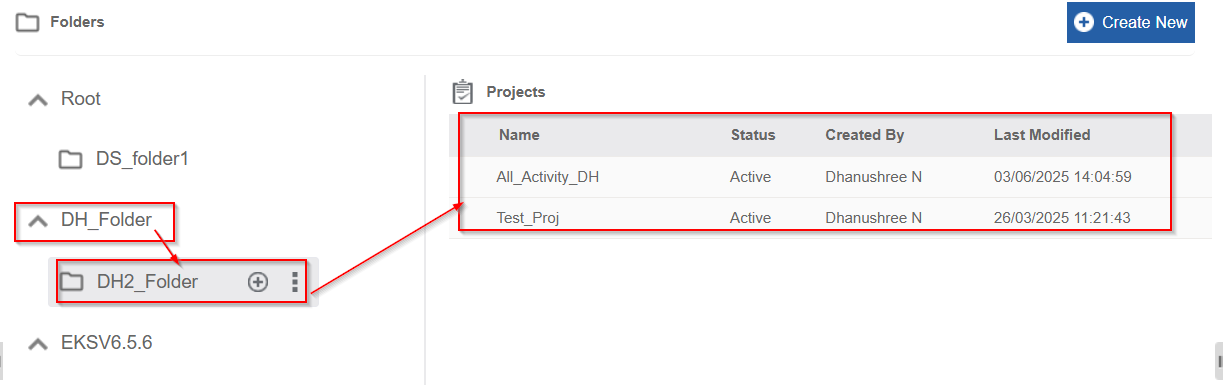
Click the sub-folder to view the details within the sub folder.
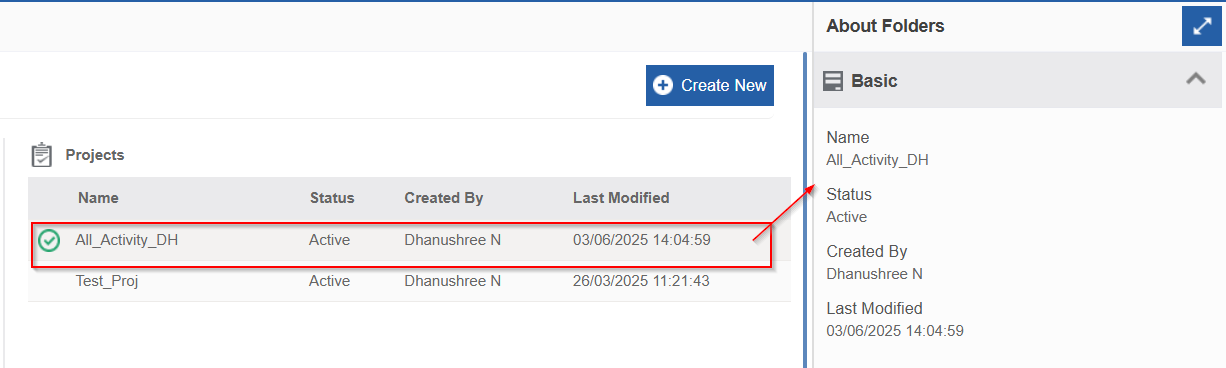
- Click a project name on the grid and the details appear on About Projects on the right side.
Creating RPA Folders and Subfolders
You can create folders and subfolders in this section that can be accessed to publish projects and workflows in the RPA Bot Studio. There is no limit on the number of folders or subfolders. You can create unlimited levels of nested folders as per your business need. Keep your folder structure clean and organized to avoid navigation complexity.
To create a root folder:
-
Navigate to Main Menu > Manage > RPA Management > Folders.
-
Click Create New. This allows you to create a new root folder.
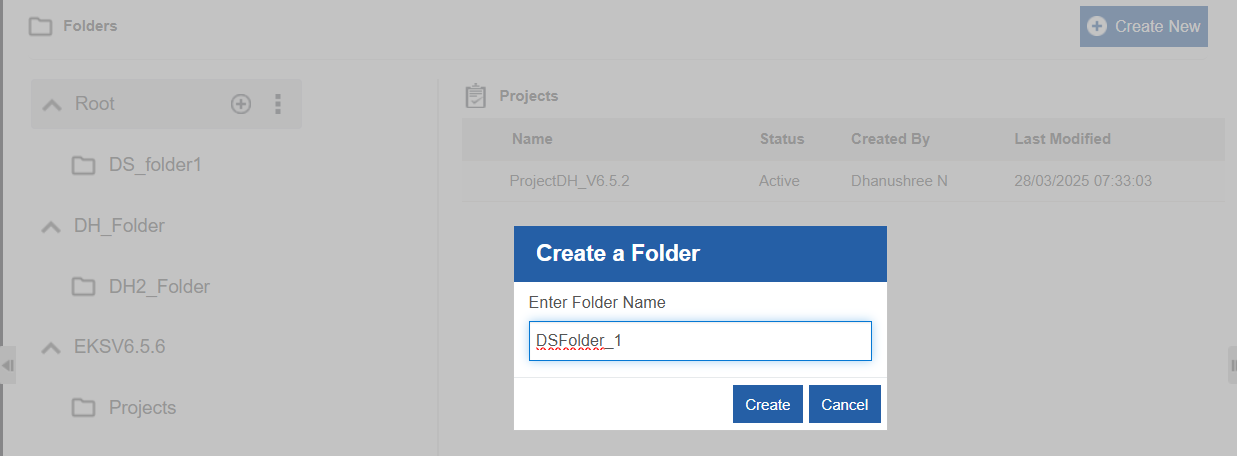
-
Enter folder name. Folder name should be unique for the root folders. Within any particular folder, the sub-folder names should be unique.
-
Click Create. A folder is created on the folders page.
-
If you select a root folder and click create new, a new folder is created as a root folder.
-
If you select a sub-folder and click Create New, a new sub-folder is created in the same level. That is under the selected main folder.
To create sub folder for a folder:
- Hover over the root folder name and click “+” to create a subfolder under root folder.
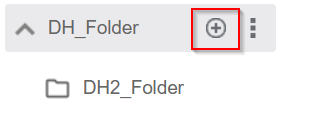
Or
Hover over the sub-folder name and click “+” to create a subfolder under sub-folder.
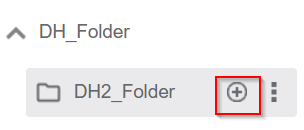
- In the Create a Folder pop-up, enter unique name for your sub folder.
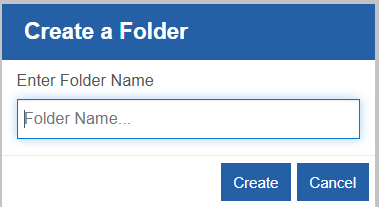
-
Click Create to create the sub folder.
-
If a user attempts to create a folder or subfolder with a duplicate name under the same parent folder, the system prevents it and displays an error popup.
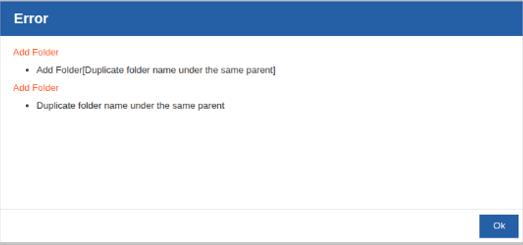
Click ok and provide a unique name for the folder.
This is applicable for renaming folders also.
Editing RPA Folders
You can edit and update the folder names. Renaming a folder name does not affect the projects inside the folder or their functionality.
-
Navigate to Main Menu > Manage > RPA Management > Folders.
-
Hover over the folder or subfolder that you want to edit. More actions (three dots) appear.
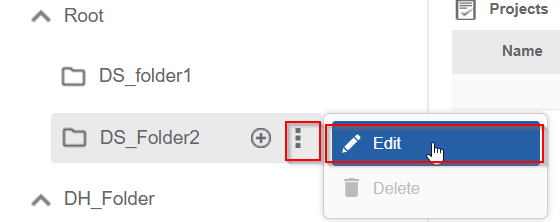
- Click More Actions > Edit. Update Folder Name popup appears.
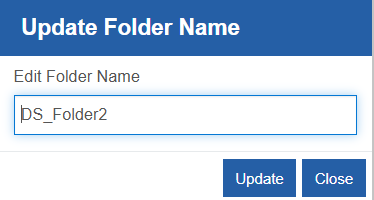
- Edit the folder name and click Update. On successful update of the folder name, success message appears.

Deactivating RPA Project
You can deactivate a project within a folder. When you deactivate a project all the workflows within that project becomes deactivated.
- You will not be able to trigger or execute any of the workflows within the project that is deactivated.
To deactivate an RPA project:
-
Navigate to Main Menu > Manage > RPA Management > Folders.
-
Click and select the Folder in which your project is published. The project details within the selected appear. Active projects display status as “Active”.
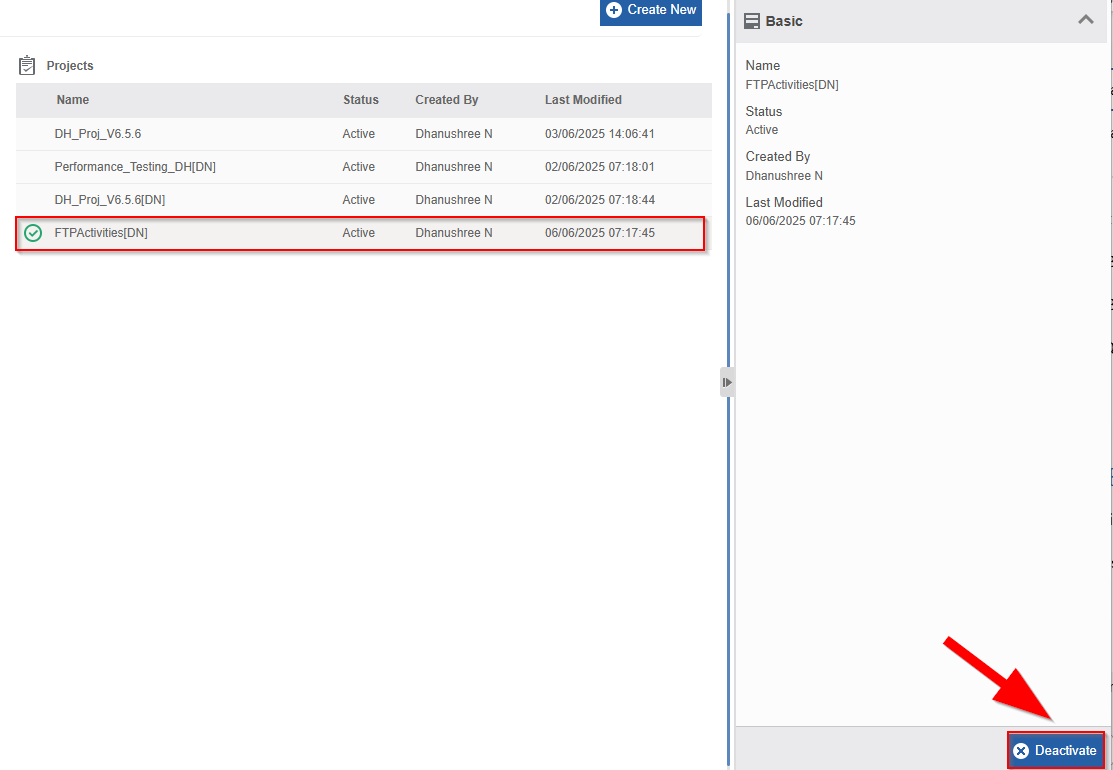
- Select a project and click Deactivate on the bottom right side.
Alternatively, hover over the project name on the project grid > click More Actions (three dots) > Deactivate.

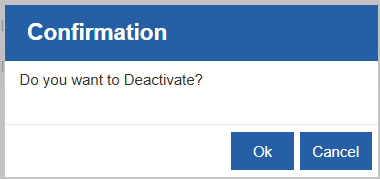
Confirmation message appears.
-
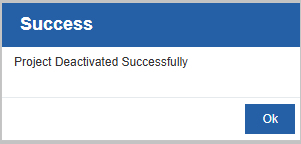
Click Ok to deactivate or Cancel to discard the action. Success message appears on successful deactivation.
-
Click Ok
The selected Project with all the workflows within that becomes deactivated.
Activating RPA Project
You can reactivate the projects that you have deactivated.
Once activated, you can trigger the project’s workflows again.
-
Navigate to Main Menu > Manage > RPA Management > Folders.
-
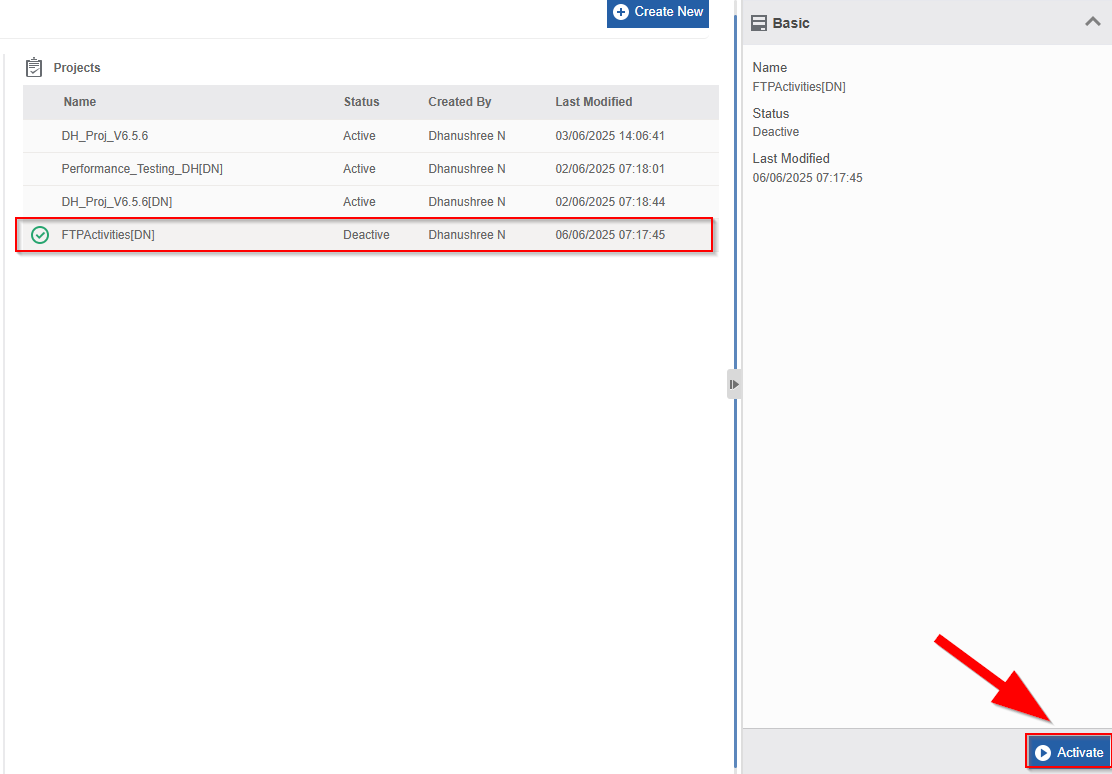
Click and select the Folder in which your project is published. The project details within the selected appear. Deactivate projects display status as “Deactive”.
-
Click the project that is deactivated. The bottom right-side displays “Activate” button for the deactivated projects.
-
Click Activate on the bottom right side.
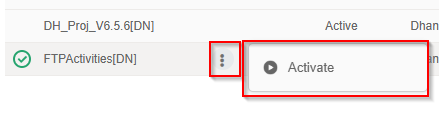
Alternatively, hover over the project name on the project grid > click More Actions (three dots) > Activate.
-
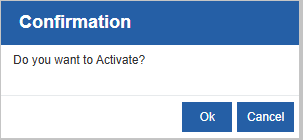
Click Ok to activate or Cancel to discard the action. Confirmation pop-up appears.
-
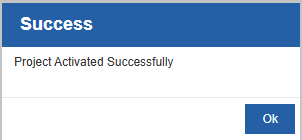
Click Ok to activate or Cancel to discard the action. Success message appears on successful activation.
-
Click Ok.
The selected Project with all the workflows within that becomes activated.
Deleting RPA Folders
You cannot delete any of the folders created via RPA Management or RPA Bot Studio.