Decision Table
A decision table is used when you need to do some calculations based on conditions or rules and display the result. You can define multiple conditions and calculations in the decision table. Inputs from the process flow variables through user-interactive forms or database tables are taken as inputs by the decision table attributes as per the configurations.
The business entity, Decision table is a structural representation of conditional logic used to define business rules. Decision tables are best suited for business rules that have multiple conditions and require calculations based on the input values. A decision table is in a table format that consists of conditions, represented in the row and column headings. You can create Decision tables that apply to the entire organization or specific flows.
DMN, BRMS, and Decision Tables
The Decision Table uses Decision Model and Notation (DMN), an international standard modeling language and notation for business decisions and business rules. DMN works on the principle of defining business decisions where a decision answers a specific business question. The answer (output) of the decision is based on the values of pre-defined input variables to the decision logic in an Inputs → Decision Logic → Answers (output) style. DMN configurations are done using the Friendly Enough Expression Language (FEEL), a simple but powerful way to provide logical, textual, mathematical, list processing, interval, date/time, and other functions business people need to make decisions.
Business Rules Management System (BRMS) decision tables are structured, spreadsheet-like tools. Decision tables in a BRMS (or within DMN) are used to represent complex decision logic in a tabular format.
Each row in the table represents a specific business rule: if input conditions are met, a corresponding action is taken.
The Platform uses BRMS decisions tables that has conditions, actions, and rules. Rules are written in FEEL to get the desired output. Decisions are made and calculations are done to derive the output of the decision or rule which directs the progress of the workflow.
Imp
It is mandatory to understand FEEL before configuring the decision table.
Organization and Local Level Decision Tables
The organization-level decision table or the local decision table has the same configurations and properties except that organization-level decision tables apply to the whole organization and local decision tables are created within a flow module.
- Navigate to the App Studio > Decision Table for managing the organization-level decision tables.
- Navigate to the decision table entity in a flow module inside the application for managing the local level decision tables.
Viewing Organization-Level Decision Tables
-
Navigate to App Studio.> Decision Table.
The page displays all the decision tables that can be used at the organization level.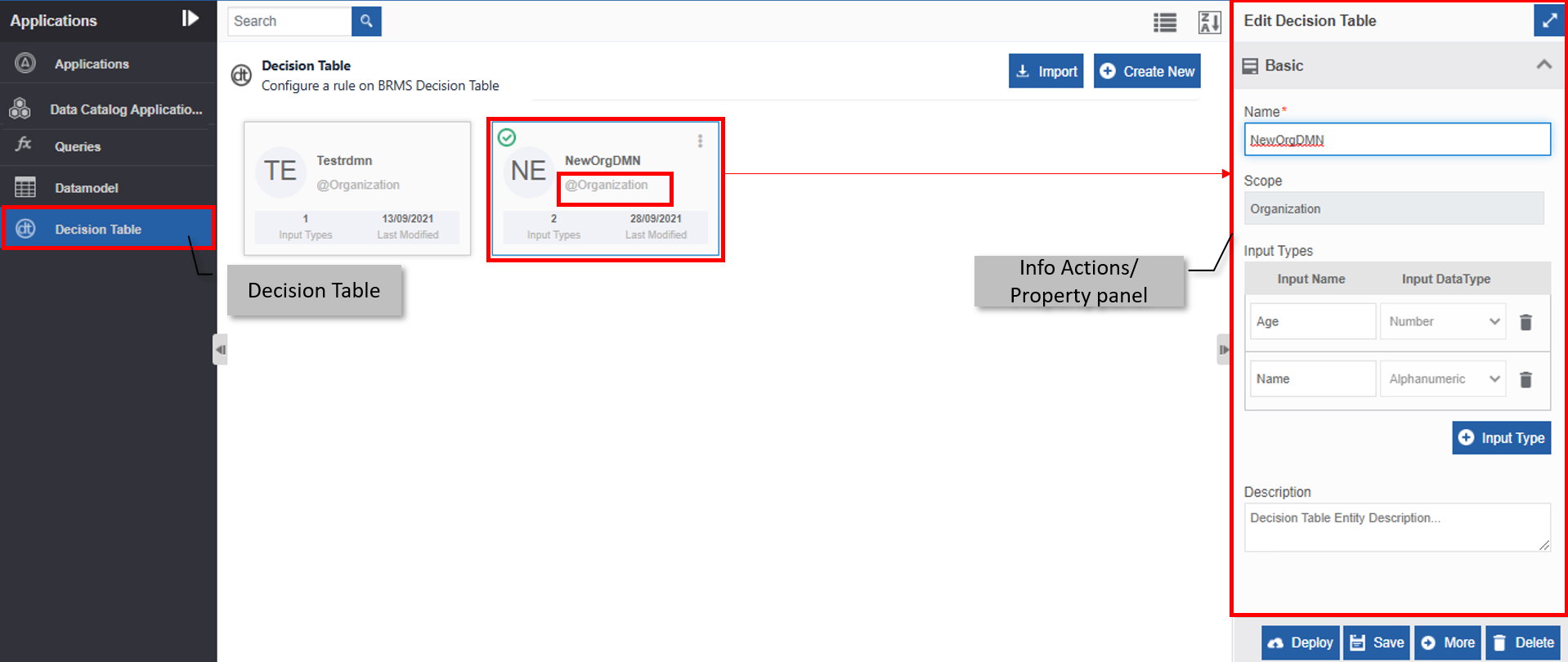
Viewing Local Decision Tables
Local entities are those entities associated with any of the flow module. The Decision tables associated with each flow will appear within that flow.
Note
Decision table entity is applicable to Process Flows and Data Flows
- Navigate to App Studio > Applications - open application name.
- Click Process Flow or Data Flow module as needed and then double-click a flow name to open the flow.
-
Click Decision Table on the left side panel for viewing the local decision tables for the flow module.
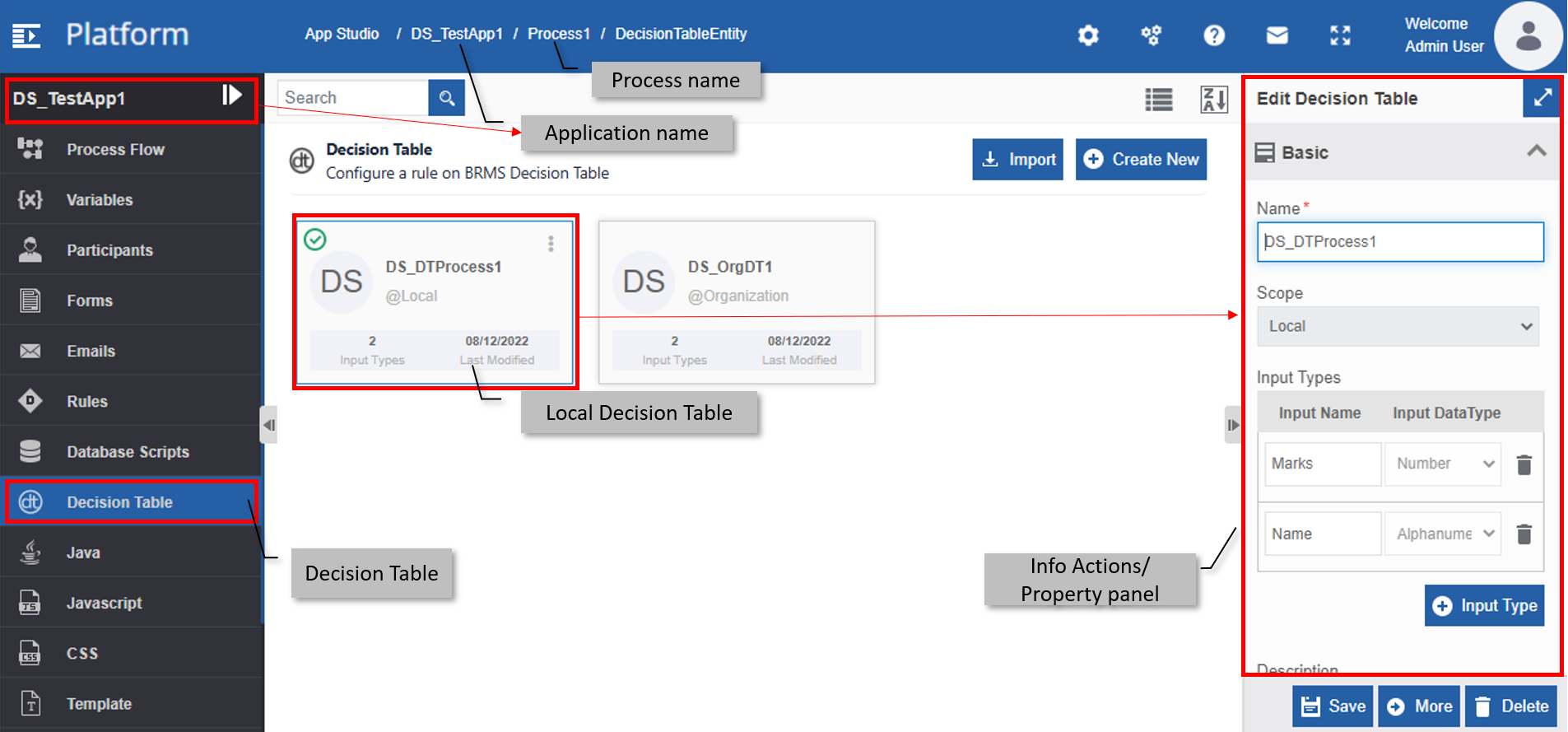
Creating New Decision Table
You can create a decision table of specified data types as per the requirement.
-
Navigate to App Studio >Application – open your application > Process Flow / Data Flow – open your flow > Decision Table
or
Navigate to the App Studio > Decision Table
The list of Decision Table appears.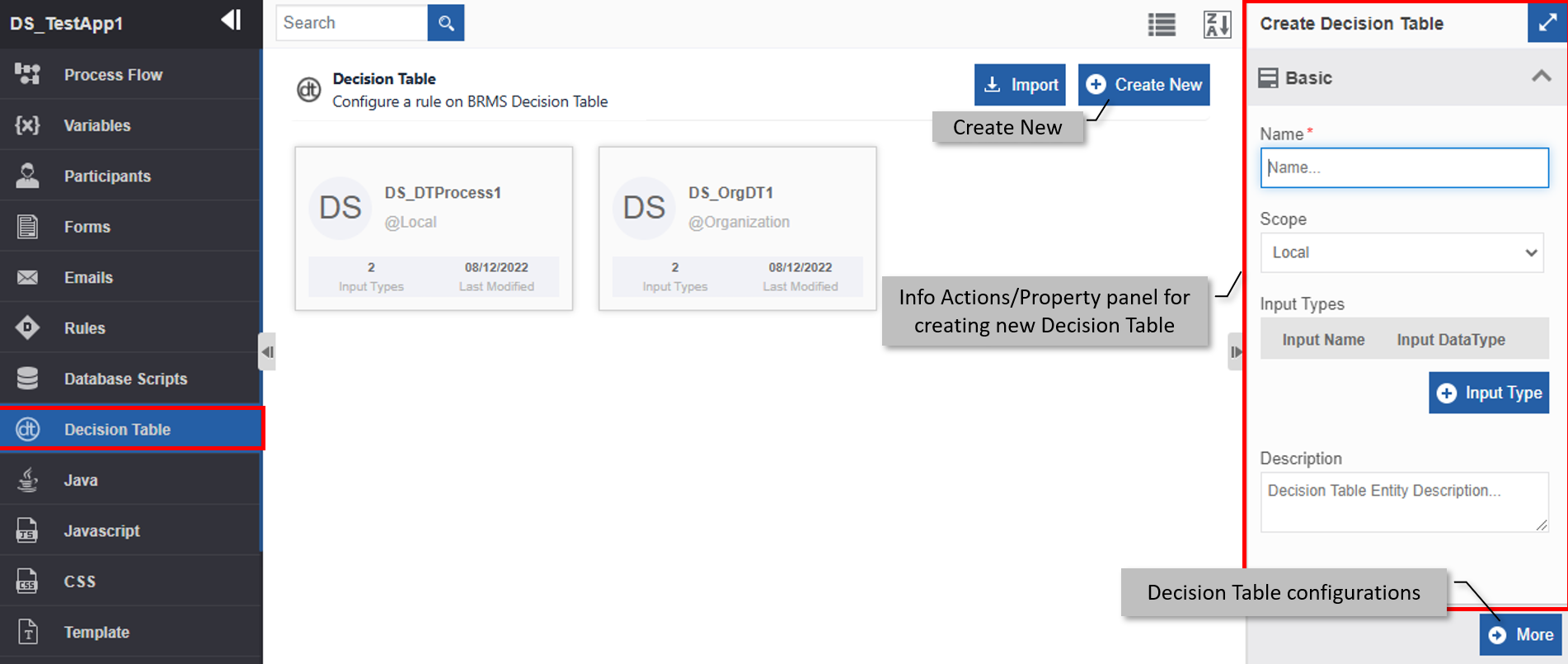
-
Click Create New. The Info Actions panel appears as Create Decision Table.
-
Enter the Basic details in the Create Decision Table panel as explained below.
Field Description Name* Enter the name of the decision table.
Character limit: 50.
Data type: Alphanumeric and underscore. Whitespace is not allowed.Scope* Select the required scope – Local or Organization .
- If you create the decision table within a flow module, you can select Local or Organization scope.
- If you create the decision table at the organization level, you can select only Organization scope.
You cannot edit the scope of an entity.Input Type Input Type is the input attributes and its data type for the decision table.
- Click Input Type.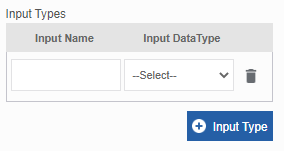
- Enter Input Name – the attribute or column header name for the decision table.
- Select the Input Data Type for the attribute entered.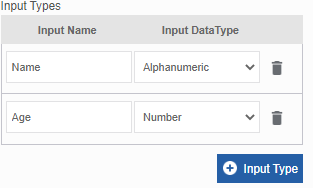
- Click the delete icon for deleting an entry.Description Enter a description for the decision table. -
Click More. Configuration details of the decision table appear.
Note
Make sure that you have provided all the column headers for the decision table in the Input Type before clicking More.
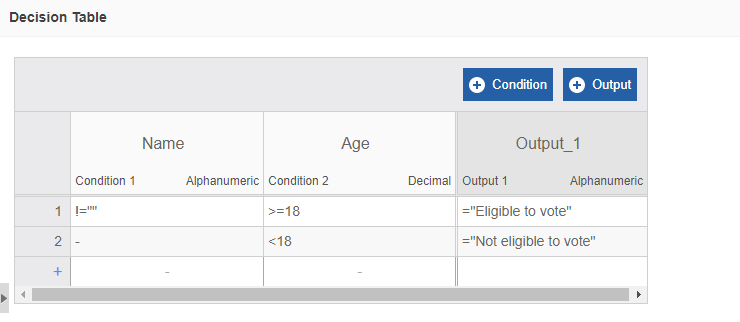
The Decision Table configuration details appear in the table format. Each Input Type appears as a column header in the Input area. The output area displays the required output.
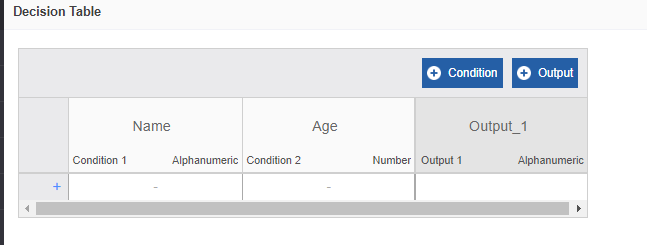
-
Click +Condition for adding an input column (or condition column) and click +Output for adding an Output column.
Refer to Adding Condition Columns and Managing Condition Columns for more details. - Click “+” (Add Rule) for adding rules for the condition.
Refer to Adding Rules for the Conditions and Managing Rules for the Conditions. - Click Create. A decision Table with the provided details is created.
Adding Condition Columns
- Navigate to App Studio >Application – open your application > Process Flow / Data Flow – open your flow > Decision Table
or
Navigate to the App Studio > Decision Table
The list of Decision Table appears. -
Click your decision table name and provide the required details in the Basic section.
-
Click More for displaying the Decision Table configuration and rule details (BRMS).
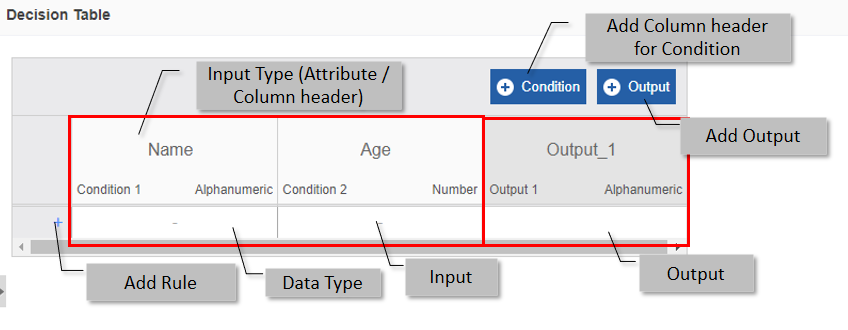
-
Click +Condition. A new condition column is added as the last column of the input columns.
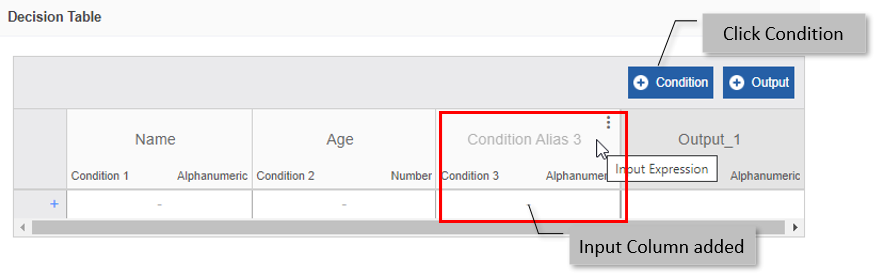
-
Click +Output for adding an Output column.
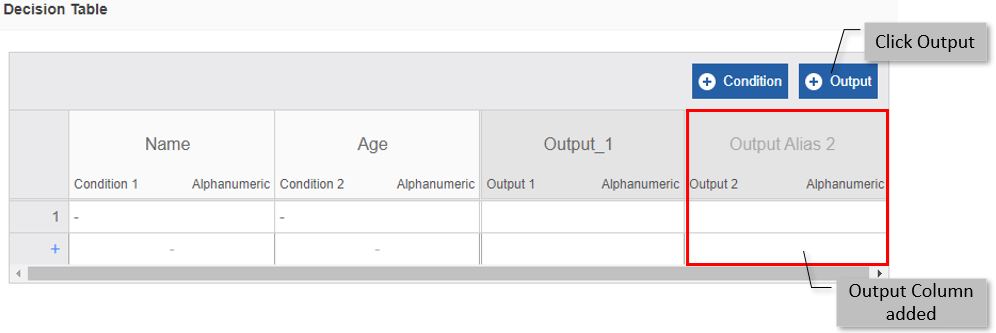
-
For adding columns in a specific order, hover over a column and three dots appear. You can select the Input column (with while column headers) for adding input columns or Output columns (with greyed column headers) for adding output columns.
-
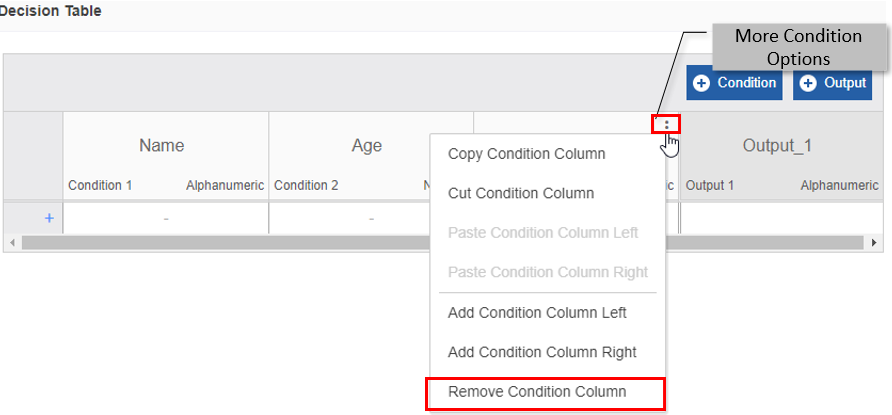
Hover over a column and click the three dots for viewing More Condition Options. The More condition options are the same for the Input and Output columns.
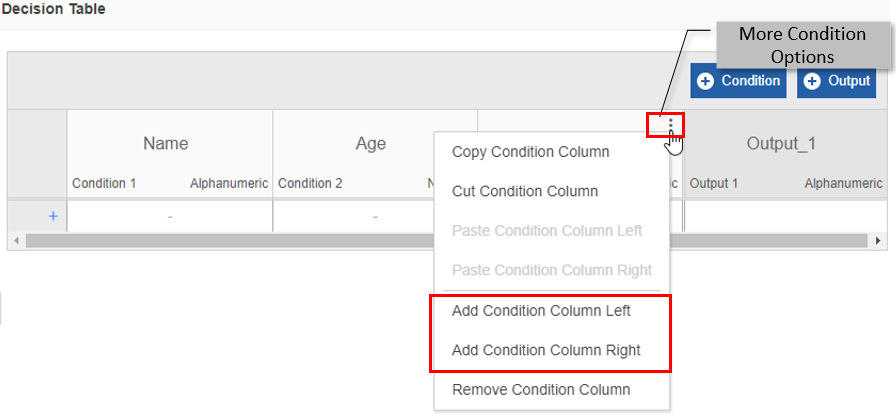
-
In the More Condition Options, click Add Condition Column Right for adding a new Condition Column to the right of the current column.
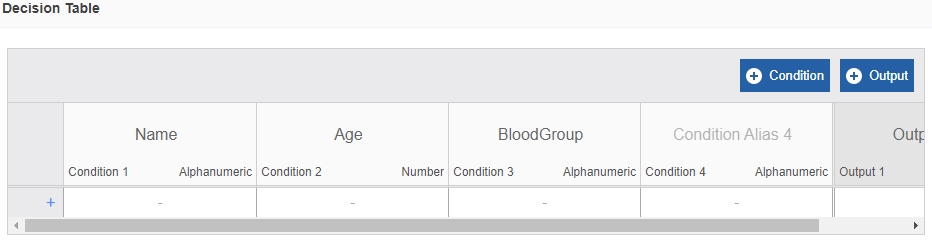
-
In the More Condition Options, click Add Condition Column Left for adding a new Condition Column to the left of the current column.
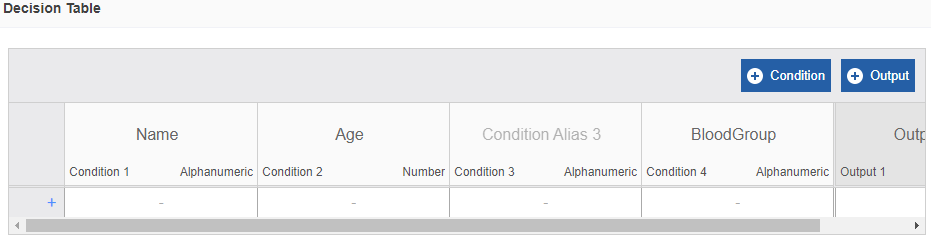
Managing Condition Columns
You can edit the labels in the condition columns. Cut/copy-paste features are also available for conditions columns by which you can cut/copy a column and paste in the desired order.
- Navigate to App Studio >Application – open your application > Process Flow / Data Flow – open your flow > Decision Table
or
Navigate to the App Studio > Decision Table
The list of Decision Table appears. - Click your decision table name and provide the required details in the Basic section.
- Click More to display the Decision Table configuration and rule details.
- Hover over a column and click the three dots for viewing More Condition Options. The More condition options are the same for the Input and Output columns.
- In the More Condition Options, click Copy Condition Column for copying a condition column.
-
In the More Condition Options, click Cut Condition Column to cut the current column from the position.
Once you copy or cut a condition column and click More Condition Options, the Paste options are enabled.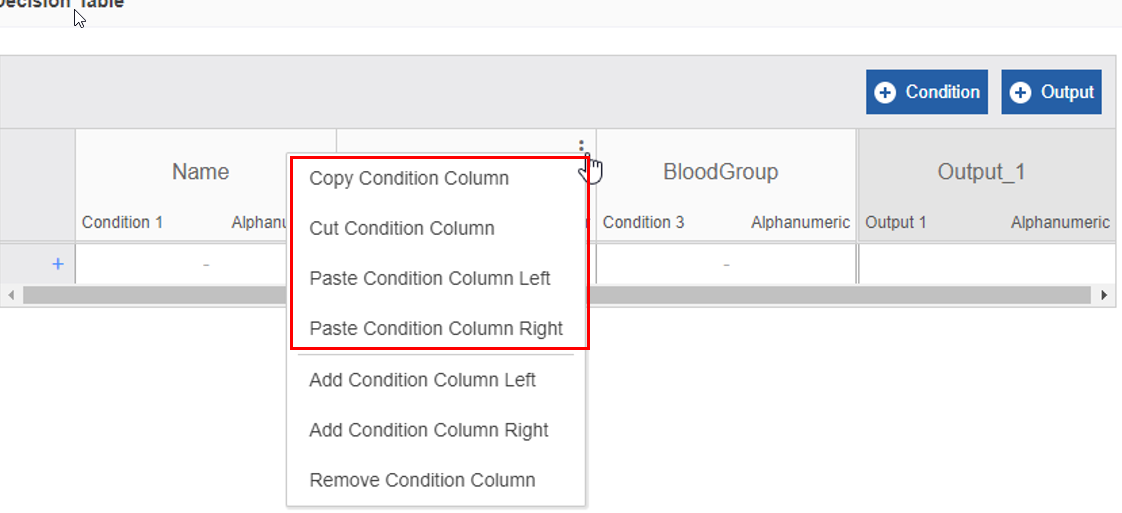
-
In the More Condition Options, click Paste Condition Column Left for pasting the copied (or cut) condition to the left of the current column.
-
In the More Condition Options, click Paste Condition Column Right to paste the copied (or cut) condition to the right of the current column.
You can paste the copied or cut column only one time. If you want more copies, you need to copy them again. -
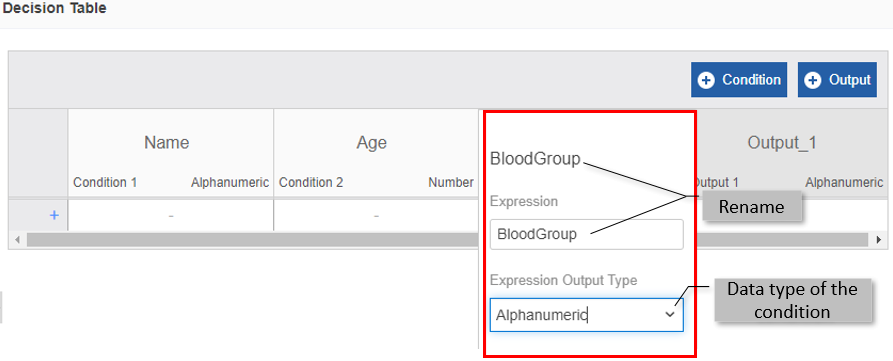
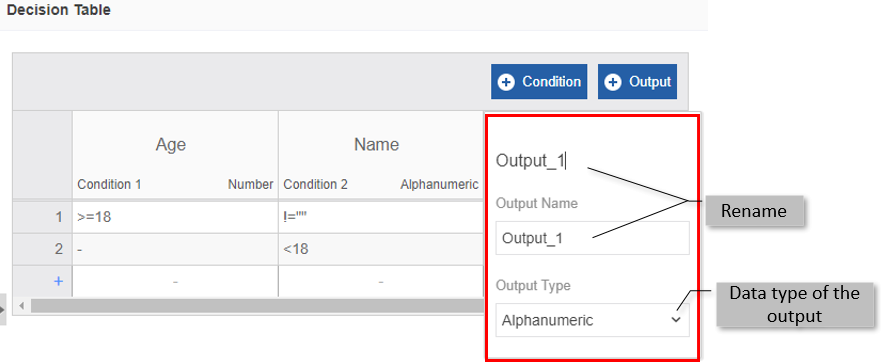
For changing the column header name, double-click the column name (default column name is Condition Alias n when you add a new input column header or Output Alias n when you add a new output header, where n is the number of the column as per appearance in the UI).
-
Click the header and type the new header name or enter the column header name below Expression (for input column) /Output Name (for output column)
- Select the required data type from Expression Output Type (for input column)/Output Type (for output column).
-
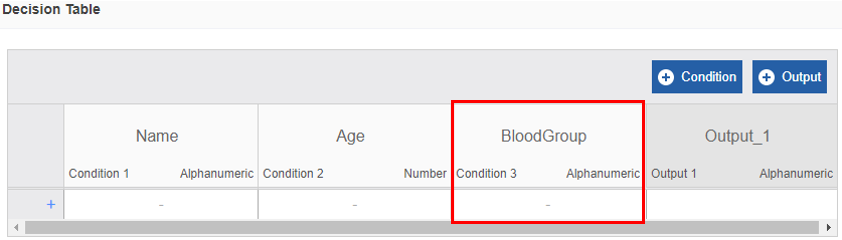
Click outside Rename panel for viewing the updated details.
Removing Condition Column
- Navigate to App Studio >Application – open your application > Process Flow / Data Flow – open your flow > Decision Table
or
Navigate to the App Studio > Decision Table
The list of Decision Table appears. - Click your decision table name and provide the required details in the Basic section.
- Click More for displaying the Decision Table configuration and rule details.
-
Hover over a column and click the three dots for viewing More Condition Options. The More condition options are the same for the Input and Output columns.
-
In the More Condition Options, click Remove Condition Column for removing the selected condition column.
Adding Rules for the Conditions
The rules for the conditions or input/output columns are written in FEEL. FEEL is a part of the DMN specification. It is designed to write expressions for decision tables and literal expressions in a simple way that is easily understood by business professionals and developers.
Tip
Understanding of FEEL rquired before configuring the rules for the decision table.
- Navigate to App Studio >Application – open your application > Process Flow / Data Flow – open your flow > Decision Table
or
Navigate to the App Studio > Decision Table
The list of Decision Table appears. - Click your decision table name and provide the required details in the Basic section.
- Click More to display the Decision Table configuration and rule details.
-
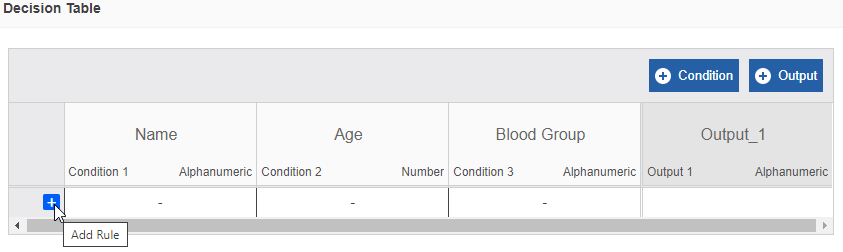
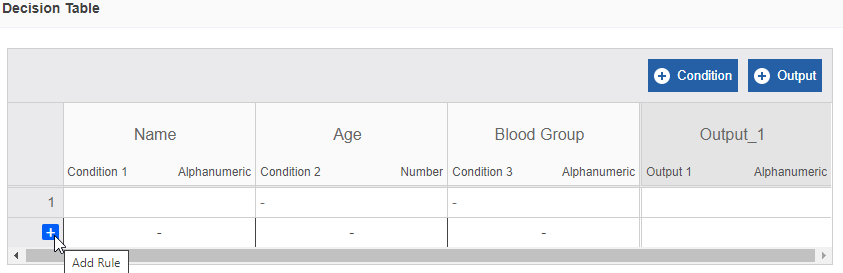
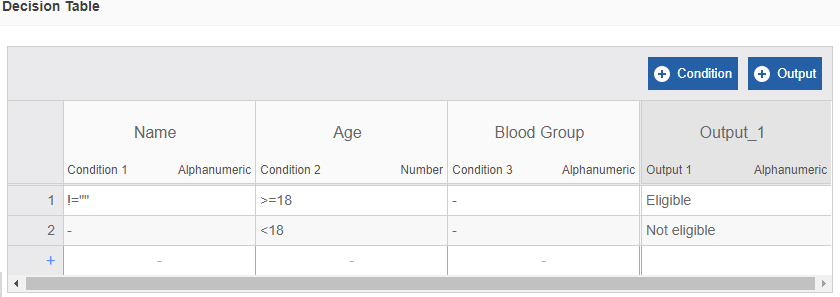
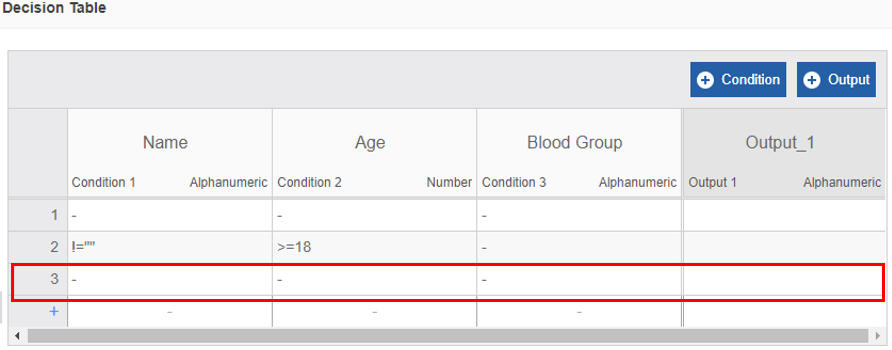
Click “+” to add a rule. A new rule row appears with the number “1”.
-
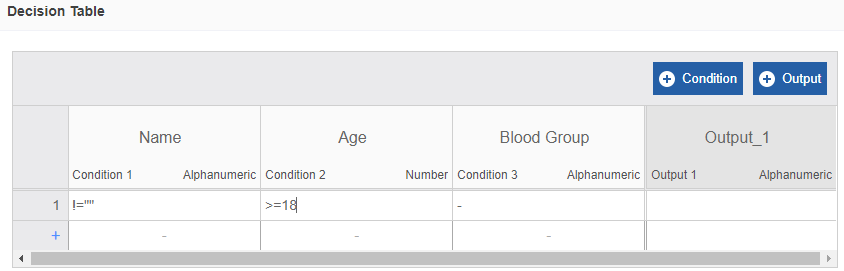
Enter the rule expression as per your requirement in the BRMS view. Rules are written in FEEL.
Example
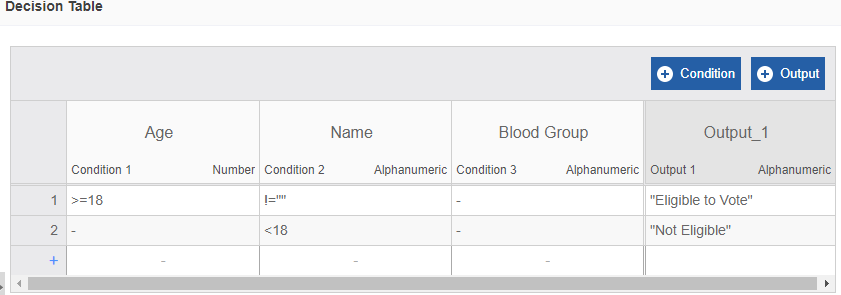
The rule for the “Name” column should be written below the “Name” column (E.g., Name not equal to blank) and that will be condition 1. The rule for the “Age” column should be written below the “Age” column (E.g., Age greater than or equal to 18) and that will be condition 2. And so on. If you do not want to define a rule for a column, enter a hyphen (-) in that column or delete that condition. By default, columns that do not have any rule display hyphen.
-
Enter the output value below the relevant output column. That is, the output for specified columns is to be written below the specific output columns.
-
For adding columns in a specific order, hover over the numeral column on the left, three dots appear.
-
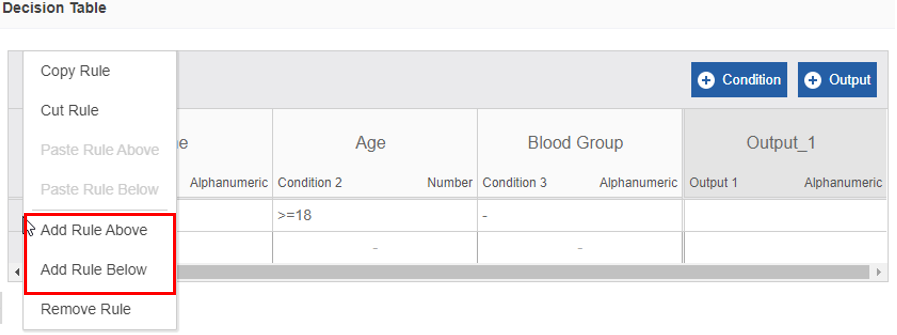
Click three dots. More Rule Options appear.
-
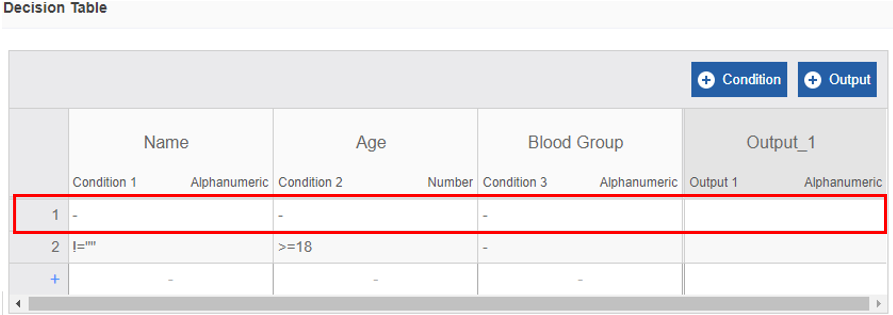
In the More Rule Options, click Add Rule Above for adding a new Rule above the current rule.
-
In the More Rule Options, click Add Rule Below for adding a new Rule below the current rule.
Managing Rules for the Conditions
- Navigate to App Studio >Application – open your application > Process Flow / Data Flow – open your flow > Decision Table
or
Navigate to the App Studio > Decision Table
The list of Decision Table appears. - Click your decision table name and provide the required details in the Basic section.
- Click More for displaying the Decision Table configuration and rule details.
- Hover over the numeral column on the left, and three dots appear.
- Click three dots. More Rule Options appear.
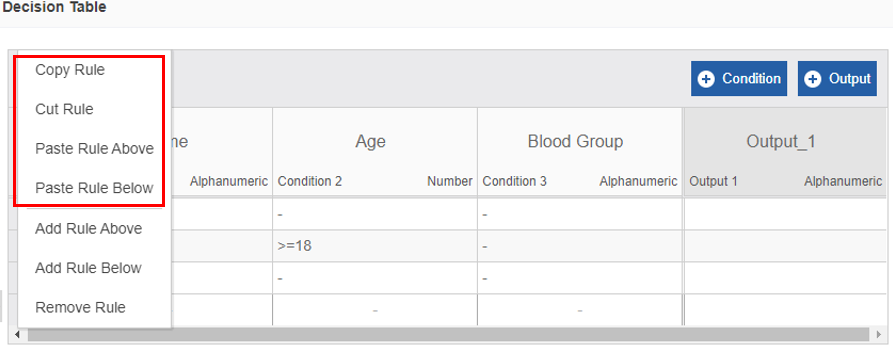
- In the More Rule Options, click Copy Rule to copy a rule.
-
In the More Rule Options, click Cut Rule for cutting the current rule from the position.
Tip
Once you copy or cut a rule and click More Rule Options, the Paste options are enabled.
-
In the More Rule Options, click Paste Rule Above to paste the copied (or cut) rule above the current rule.
-
In the More Rule Options, click Paste Rule Below to paste the copied (or cut) rule below the current rule.
Note
You can paste the copied or cut rule only one time. If you want more copies, you need to copy them again.
Removing Rules
- Navigate to App Studio >Application – open your application > Process Flow / Data Flow – open your flow > Decision Table
or
Navigate to the App Studio > Decision Table
The list of Decision Table appears. - Click your decision table name and provide the required details in the Basic section.
- Click More for displaying the Decision Table configuration and rule details.
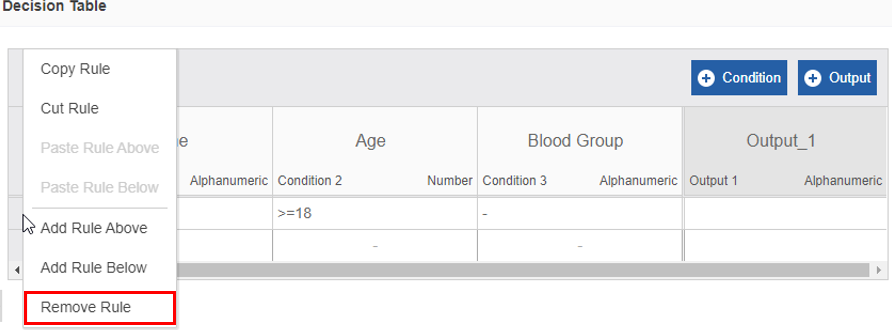
- Hover over the numeral column on the left, and three dots appear.
-
Click three dots. More Rule Options appear.
-
In the More Rule Options, click Remove Rule for removing the selected rule.
Viewing and Editing Decision Tables
Make sure to unlock the application before editing if you want to edit the details of an entity that is not created by you.
- Navigate to App Studio >Application – open your application > Process Flow / Data Flow – open your flow > Decision Table
or
Navigate to the App Studio > Decision Table
The list of Decision Table appears. -
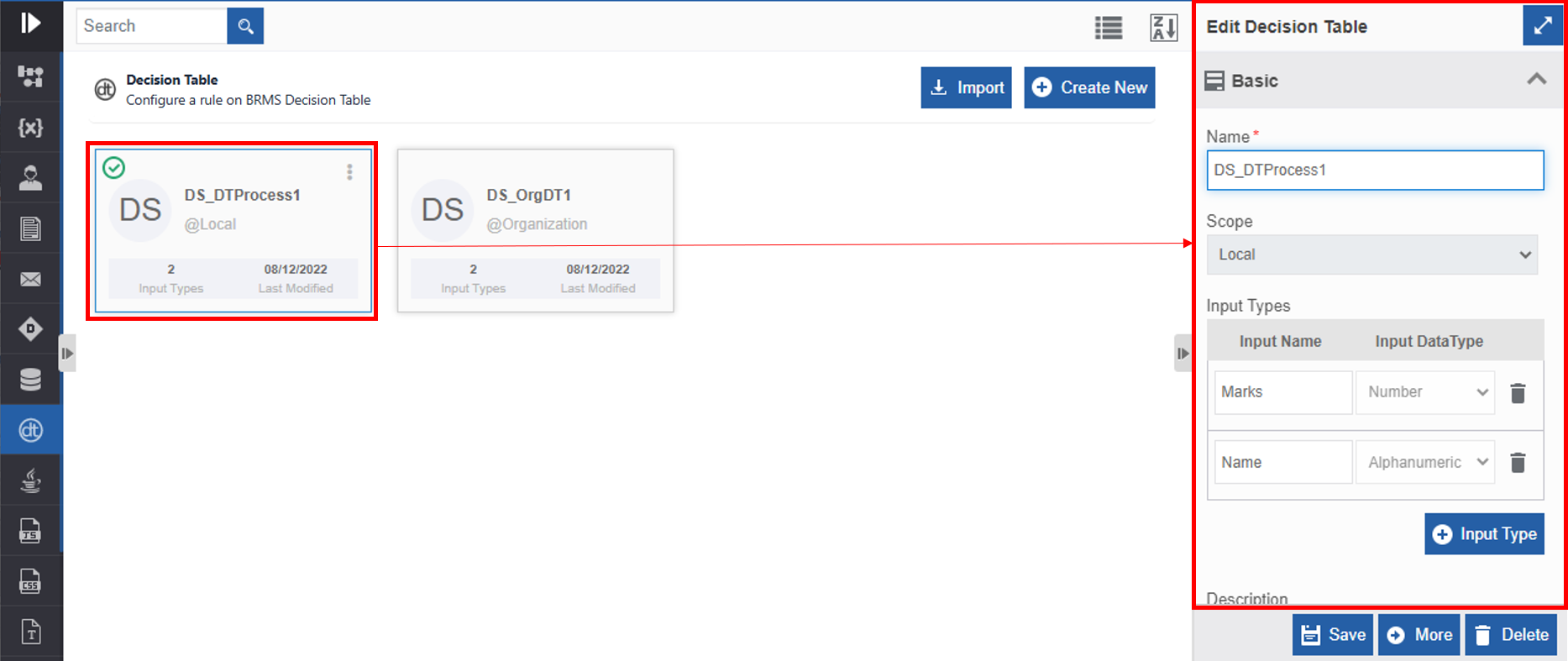
Click the Decision Table card for viewing the details of the selected decision table. The details of the decision table appear in the Info Actions panel (Edit Decision Table).
-
Click More for viewing configuration details for the decision table.
-
Edit the decision table details as needed.
- Click Save.
Viewing Decision Table Associations
- Navigate to App Studio >Application – open your application > Process Flow / Data Flow – open your flow > Decision Table
or
Navigate to the App Studio > Decision Table
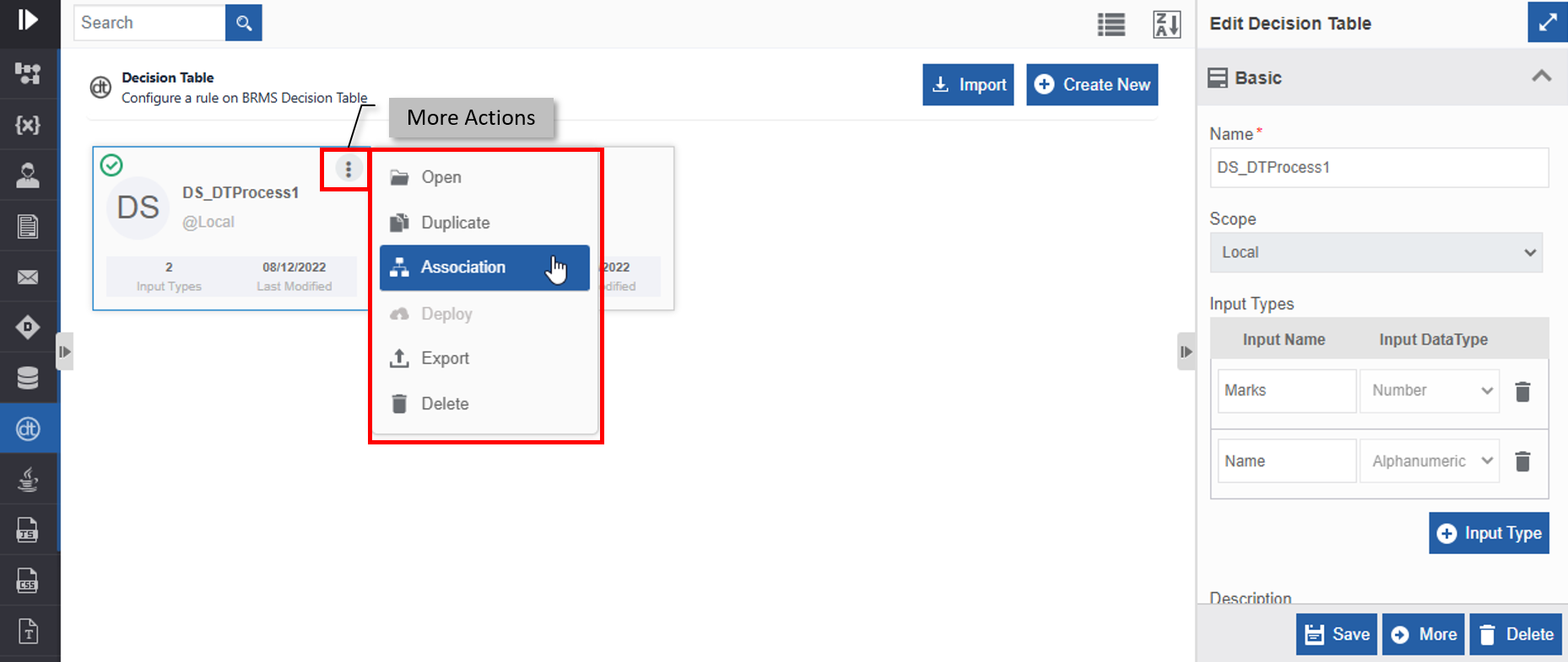
The list of Decision Table appears. - Hover over any decision table card. Three dots appear on the upper right side of the card.
-
Click the three dots. More Actions appear.
-
Click Associations. The association of the decision table with the application, flow modules, and activities are displayed in a pop-up.
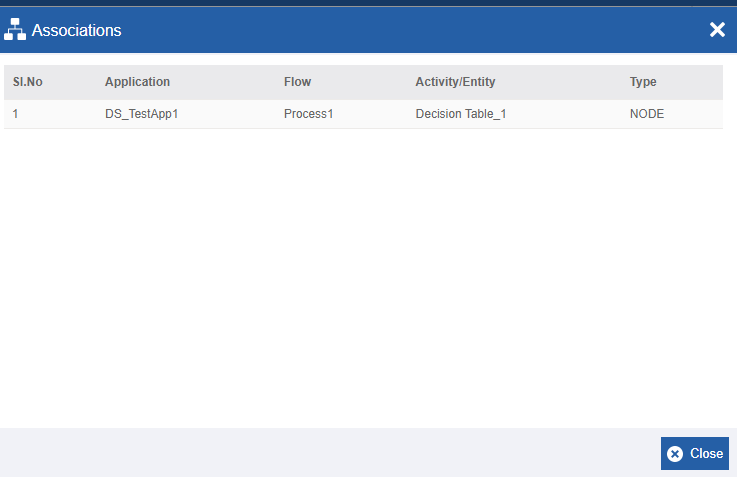
- Application – The application in which the decision table is utilized.
- Flow - The flow in which the decision table is utilized.
- Activity/Entity - The entity or activity name in which the decision table is utilized.
- Type - The type of entity or activity.
Duplicating Decision Table
Make sure to unlock the application before duplicating an entity that is not created by you. When you duplicate a decision table, the associations are not duplicated.
- Navigate to App Studio >Application – open your application > Process Flow / Data Flow – open your flow > Decision Table
or
Navigate to the App Studio > Decision Table
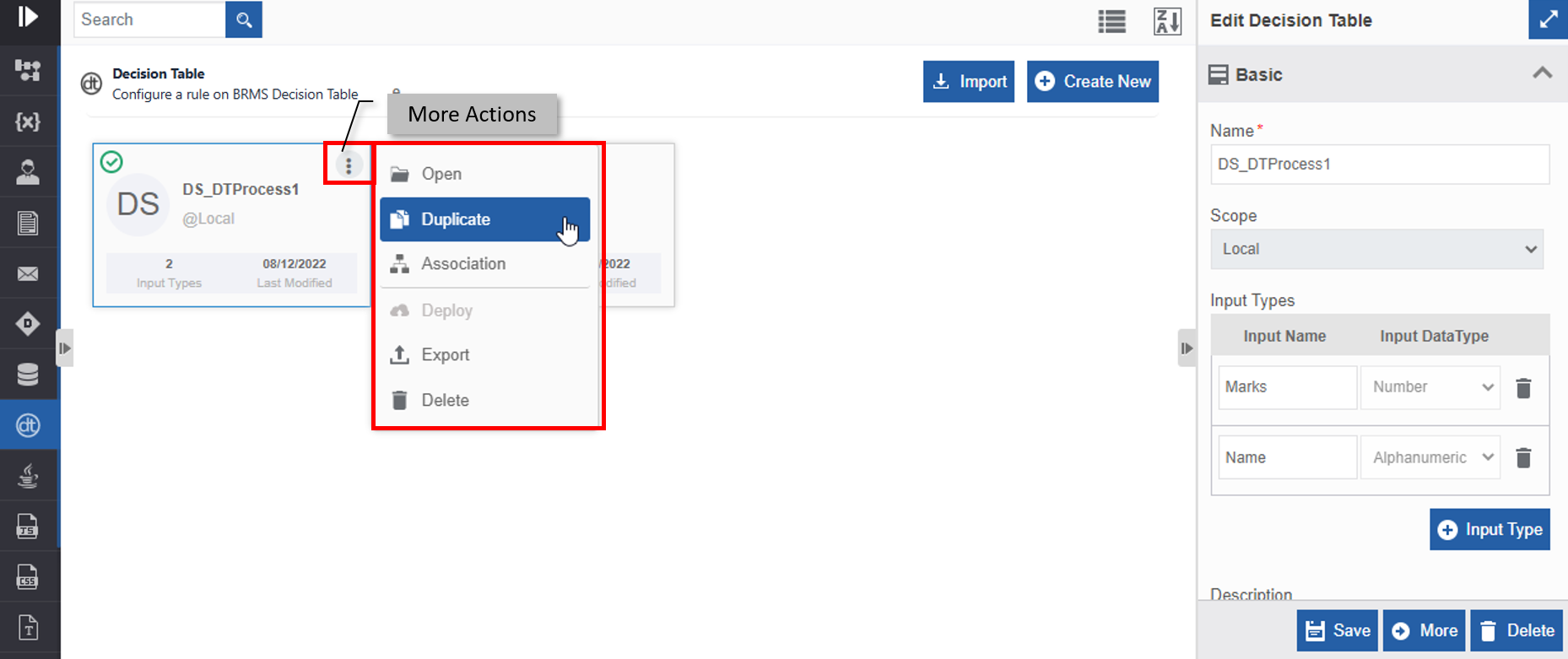
The list of Decision Table appears. - Hover over the decision table card that you want to duplicate. Three dots appear on the upper right side of the card.
-
Click the three dots. More Actions appear.
-
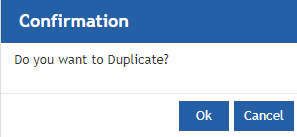
Click Duplicate. A confirmation pop-up appears.
-
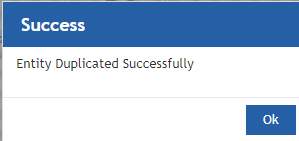
Click Ok for duplicating the decision table (or you can click Cancel to cancel the duplicate action). A Success message appears on the successful duplication of the decision table.
-
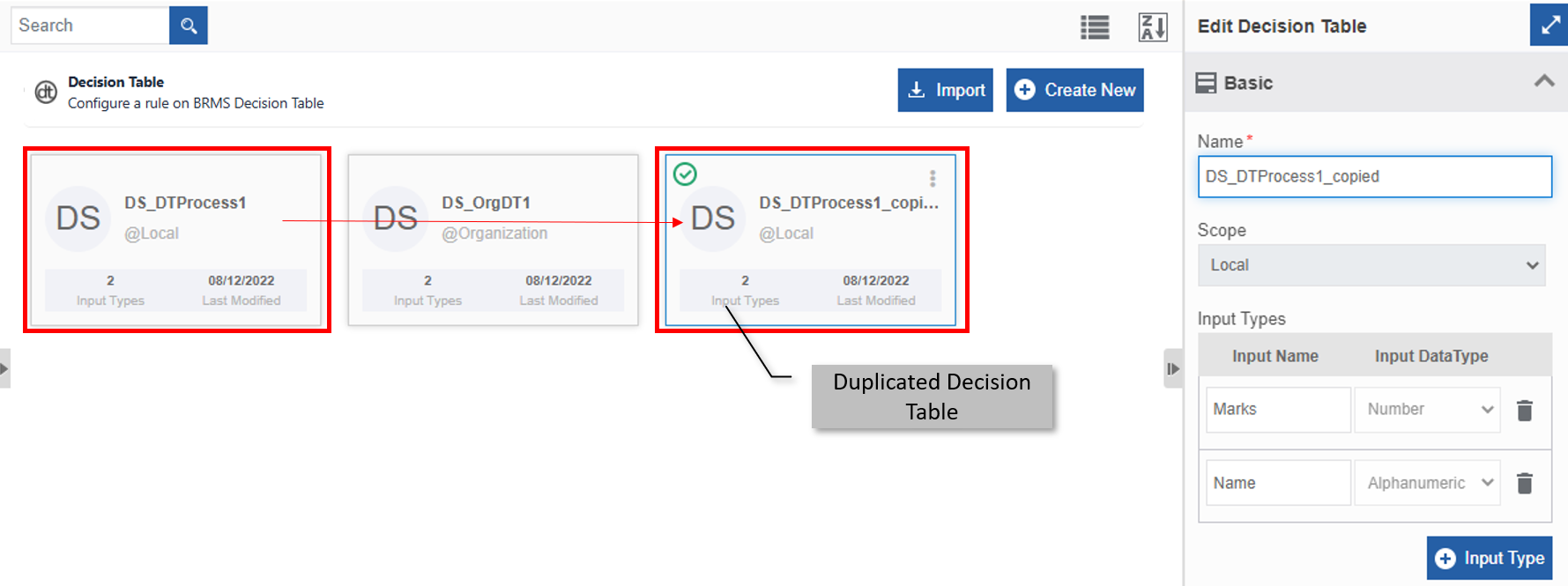
Click Ok. A duplicate copy of the decision table appears on the Decision Table page with the same name suffixed with “_copied”.
Deploying Decision Table
Organization level
If you deploy a decision table at the organization level, the modifications done in these decision tables reflect in the already deployed latest version of the flow. It means that you need not deploy the flow again to update the decision table changes in the flow.
Flow level
At the local level decision tables are deployed when you deploy the corresponding process flow or the data flow.
Note
When you modify a decision table associated with an already deployed flow, you must:
deploy the entire flow to get the latest decision table updates.
To deploy organization level decision table:
-
Navigate to the App Studio > Decision Table
The list of Decision Table appears.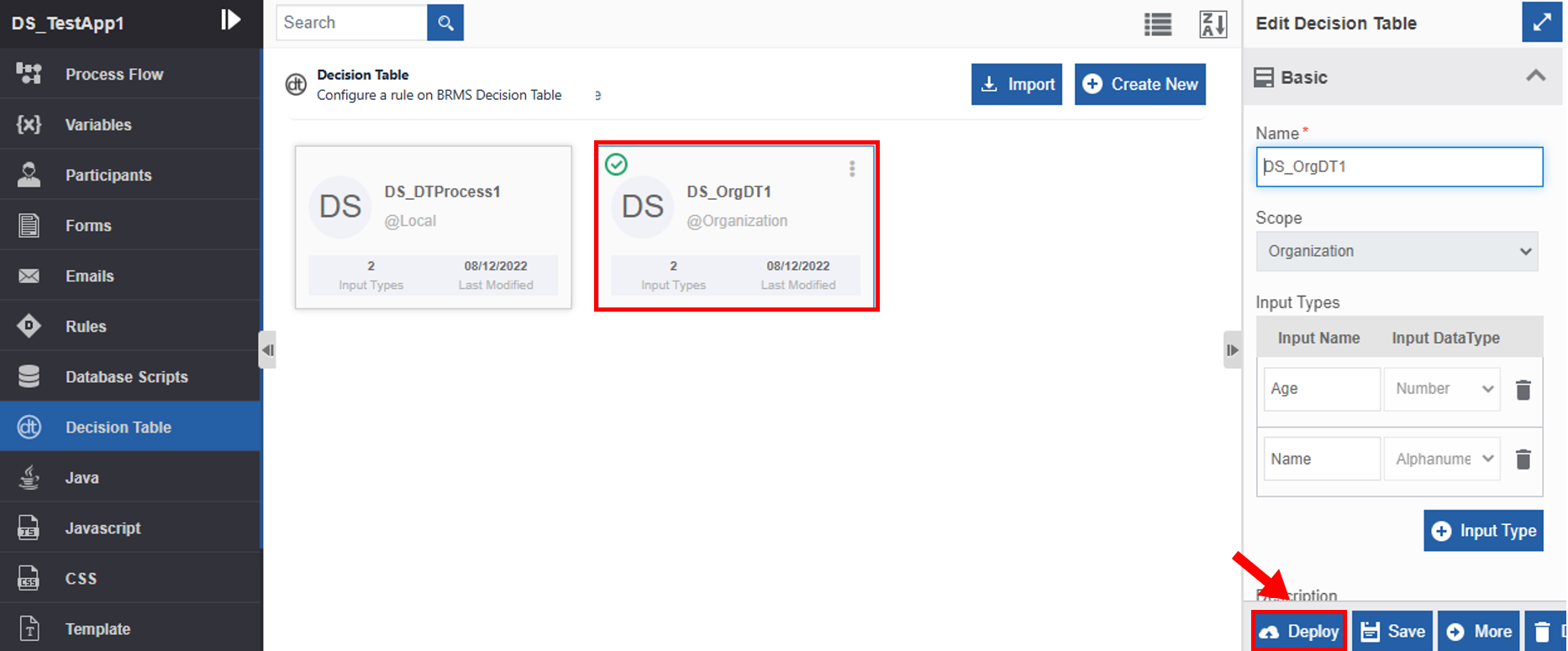
-
Click the Decision Table card that you want to deploy. The deploy button appears on the bottom-right of the screen.
-
Click Deploy. A Confirmation pop-up for delete appears.
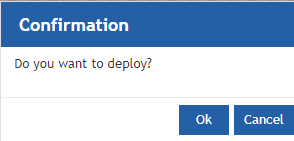
-
Click Ok for deploying the decision table (Or Click Cancel to cancel the action). A success message appears on the successful deployment of the decision table.
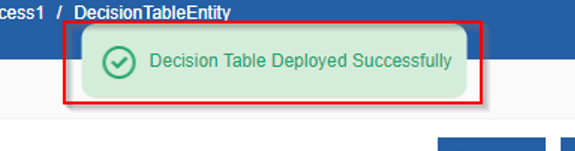
Into
The modifications in the decision table reflect on the next instance of the flow.
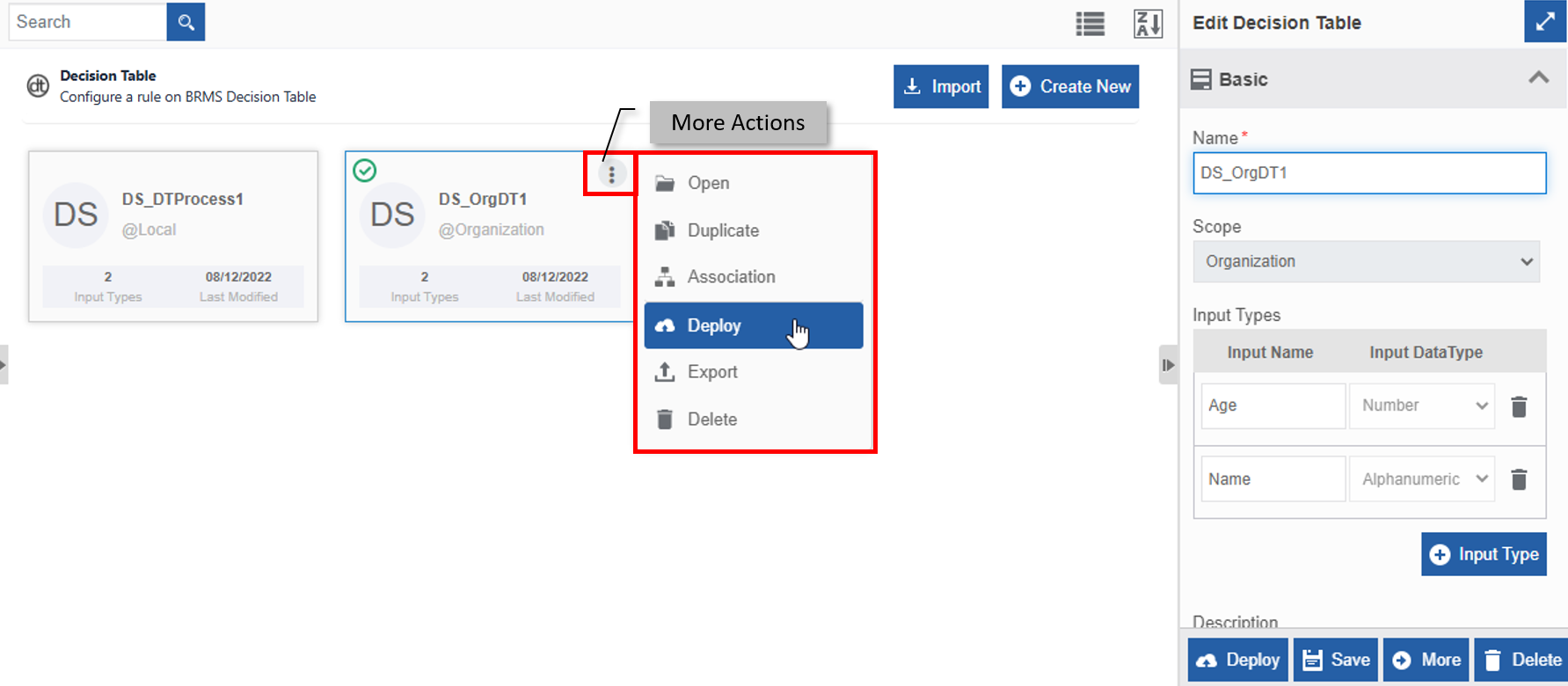
Alternatively, you can follow the below steps to deploy the decision table:
- Navigate to App Studio > Decision Table.
- Hover over the decision table card. Three dots appear on the upper right side of the card.
- Click the three dots. More Actions appear.
-
Click Deploy and follow step 4 in the above procedure.
Exporting Decision Table
A decision table can be exported as a package file (with .pkg extension) to the local system.
- Navigate to App Studio >Application – open your application > Process Flow / Data Flow – open your flow > Decision Table
or
Navigate to the App Studio > Decision Table
The list of Decision Table appears. - Hover over the decision table card that you want to export. Three dots appear on the upper right side of the card.
-
Click the three dots. More Actions appear.
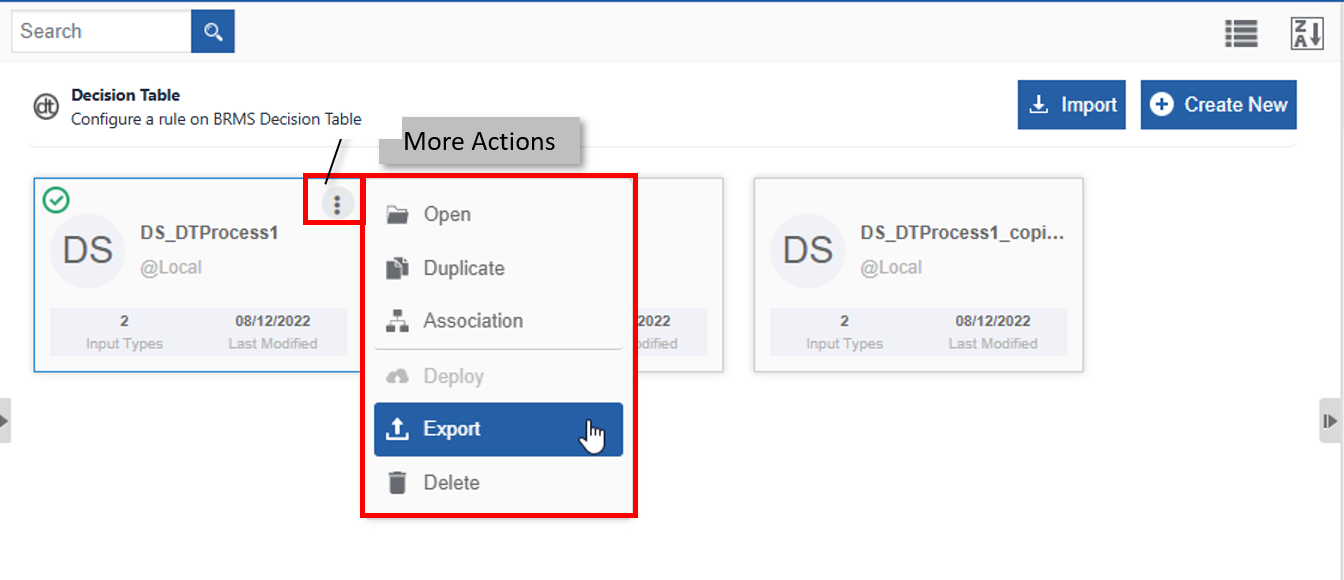
-
Click More Actions and then click Export. The decision table exports (downloads) to the local system. The exported file format is .pkg (package file format).
Importing Decision Table
A package file with extension .pkg can be imported to the desired location (organization / local level). After importing the decision table, it gets listed along with existing decision tables.
- Navigate to App Studio.
- Navigate to the organization level or local level decision table list as per where you need to import the decision table.
-
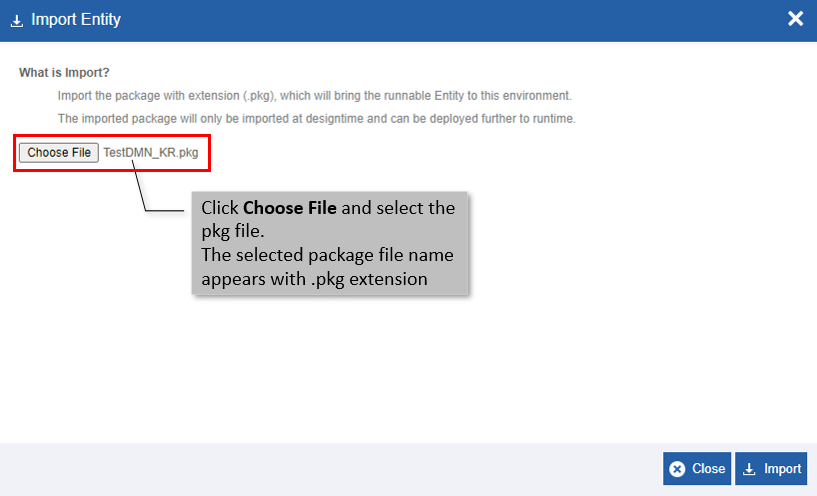
Click Import. The Import Flow pop-up displays.
-
Click Choose File and select a package file (with extension .pkg).
- Click Import.
-
A success message is displayed if the import is successful.
Or
If the package file name selected is matching with any of the already existing decision table file names, an error message is displayed.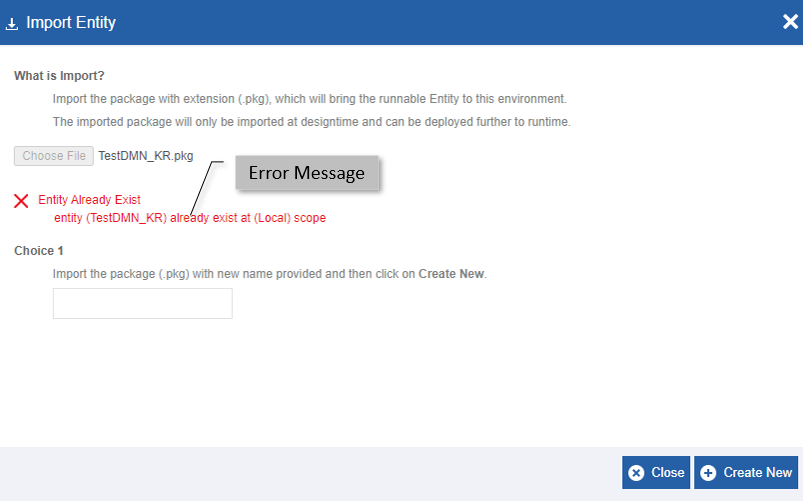
-
Follow the below steps if error message displays.
-
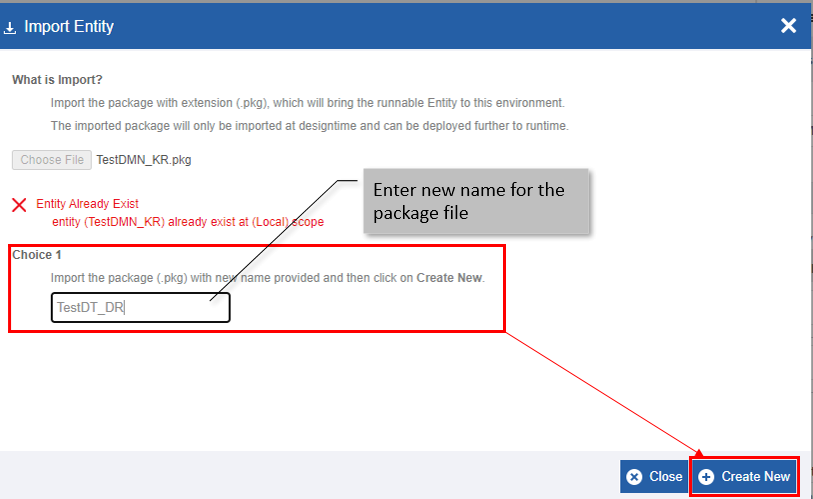
Choice 1: Enter a new name for the selected package file.
-
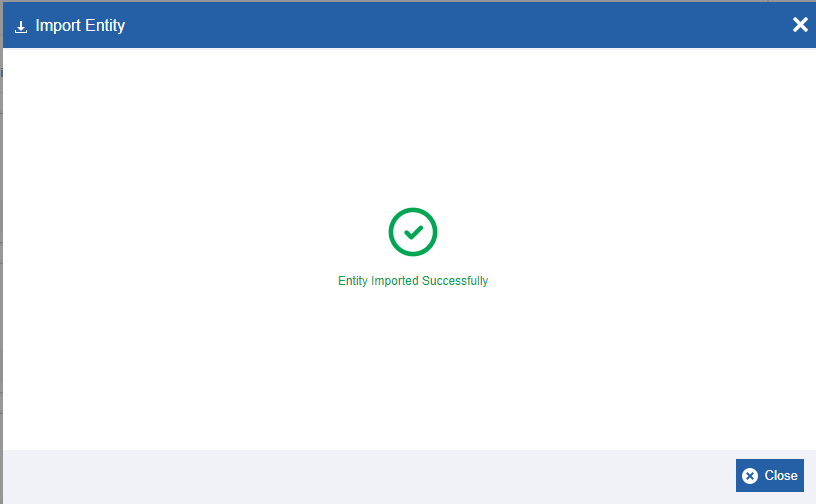
Click Create New. A success message appears on the successful import of the file.
-
-
Click Close.
Deleting Decision Table
Make sure to unlock the application before deleting an entity that is not created by you. Also, you cannot delete the entity if it is associated with any activity or entity.
- Navigate to App Studio >Application – open your application > Process Flow / Data Flow – open your flow > Decision Table
or
Navigate to the App Studio > Decision Table
The list of Decision Table appears. -
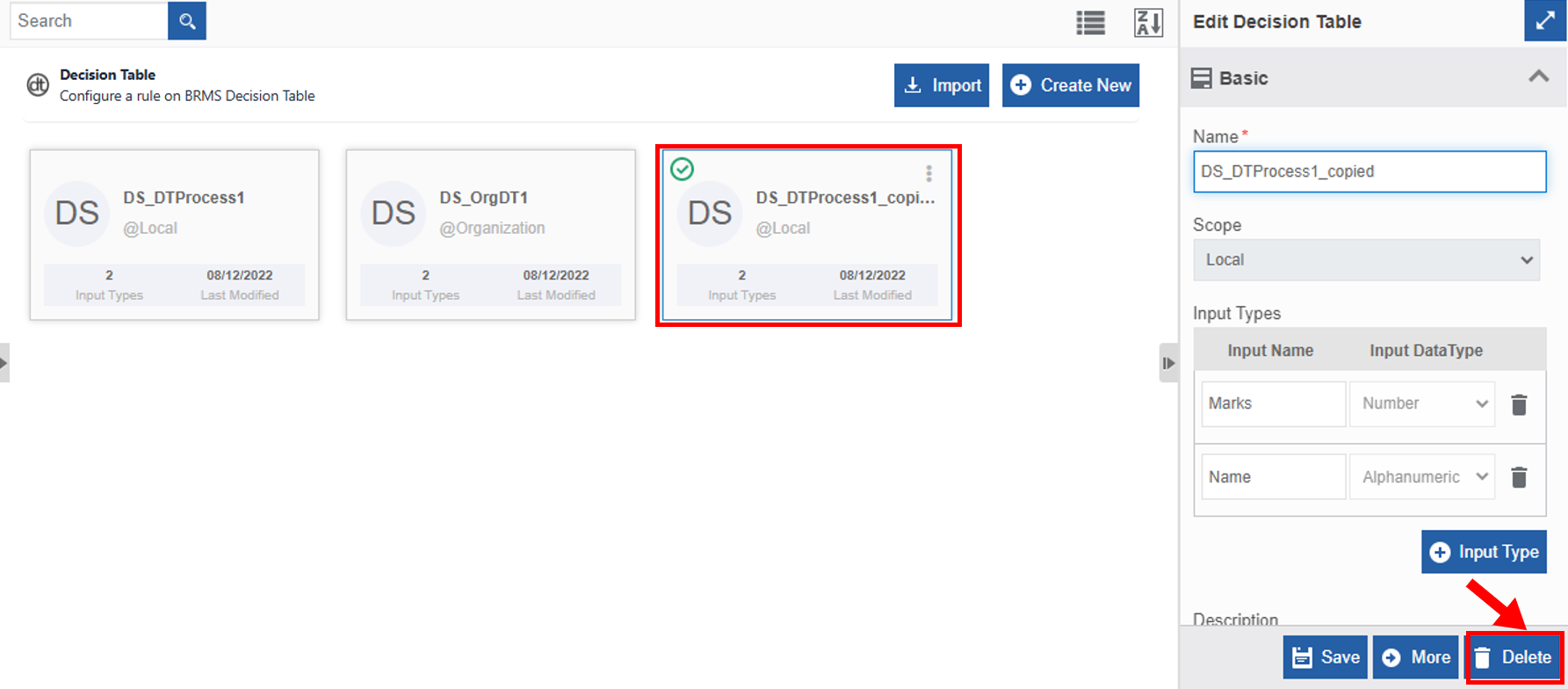
Click the decision table name card that is to be deleted. The lower-right of the page displays Delete.
-
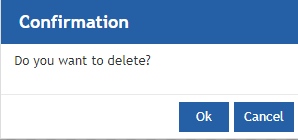
Click Delete. A Confirmation pop-up for delete appears.
-
Click Ok for deleting the decision table.
Or
Click Cancel to cancel the action.
Alternatively, you can follow the below steps to delete the decision table:
- Click the Burger menu and navigate to App Studio > Application > {Flow module} > Decision Table.
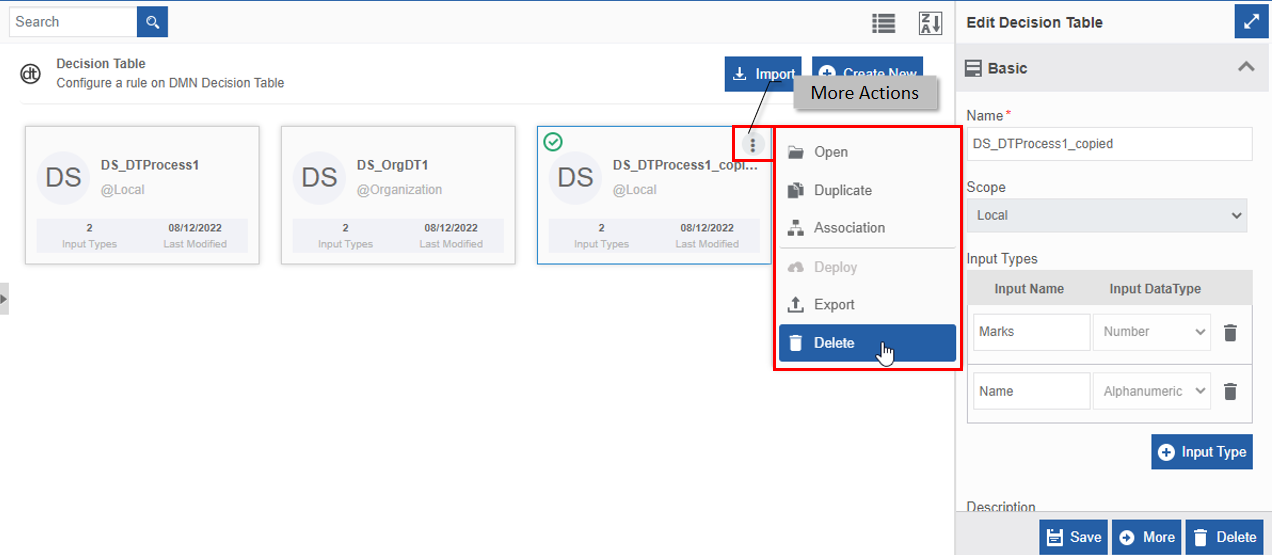
- Hover over the decision table card. Three dots appear on the upper right side of the card.
- Click the three dots. More Actions appear.
-
Click Delete and follow step 6 in the above procedure.
Utilizing Decision Tables
Accessing Decision Tables through Activity
You can map decision tables to the activity “decision table” in the flows.
- Navigate to App Studio > Applications > open Process Flow or Data Flow.
- Create a process flow/data flow with Decision Table activity in the flow.
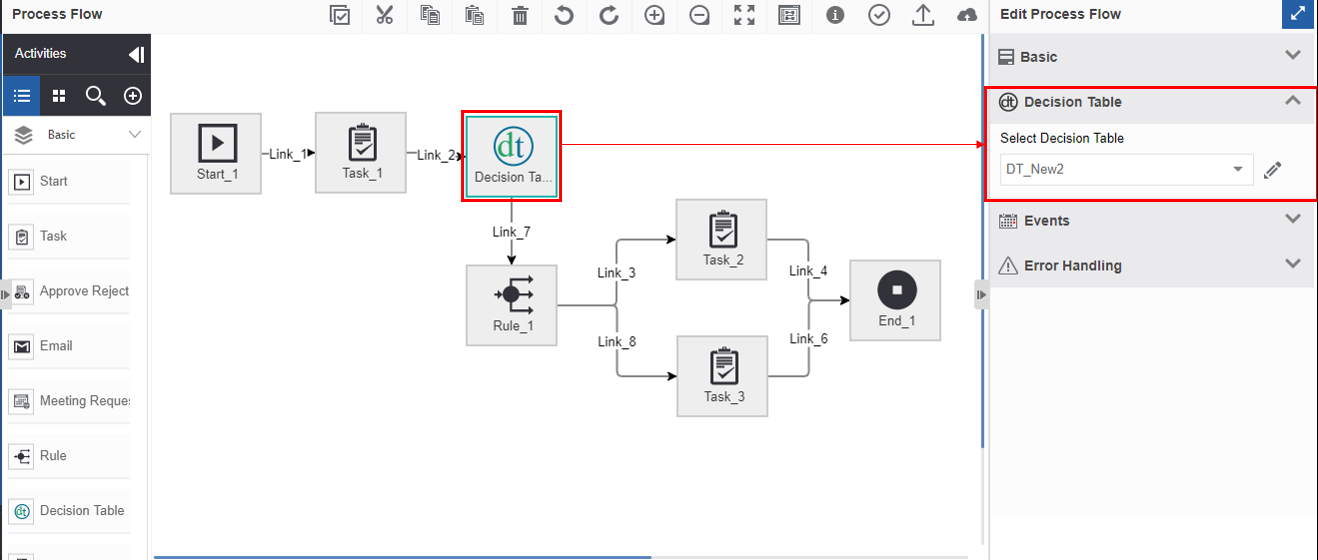
- Click the Decision Table activity and the Info Actions panel displays the configuration and properties.
-
Click Decision Table accordion. Decision table mapping details appear.
-
Click the Select Decision Table box to view the list of local and organization-level decision tables.
- Select a decision table.
-
Click the pencil icon (Input / Output variable mapping) adjacent to the selected decision table for configuring the decision table activity details.
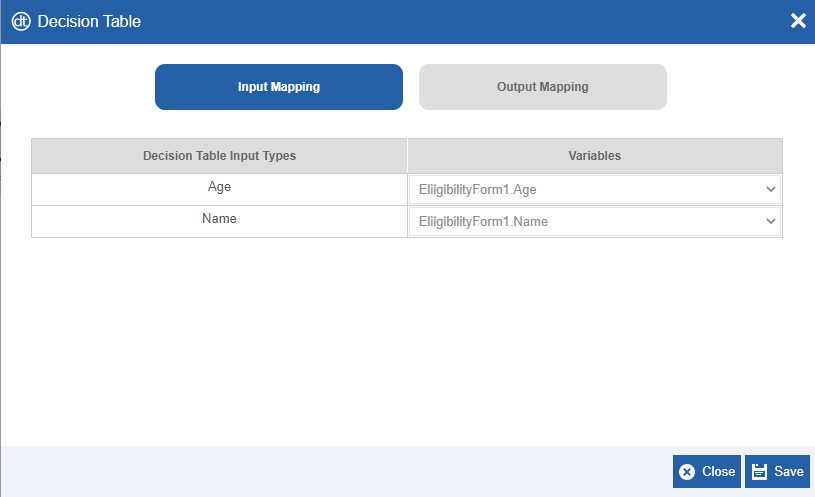
-
Configure the details as required.
-
Click Save.
Note
At the runtime, based on the decision table rules the details are rendered for the user.