Configuration Management - Overview
Introduction to Configuration Management
The Configuration Management module allows the user to manage the entities and configurations in the Platform. All the entities in the Configuration are at the organization level. That is, the configurations are utilized across the applications in the organization. Any changes made to Configuration Management affect the entire organization.
Management is accessible to the intended users only. General users cannot access the Management sections.
Viewing Configuration Management and Components
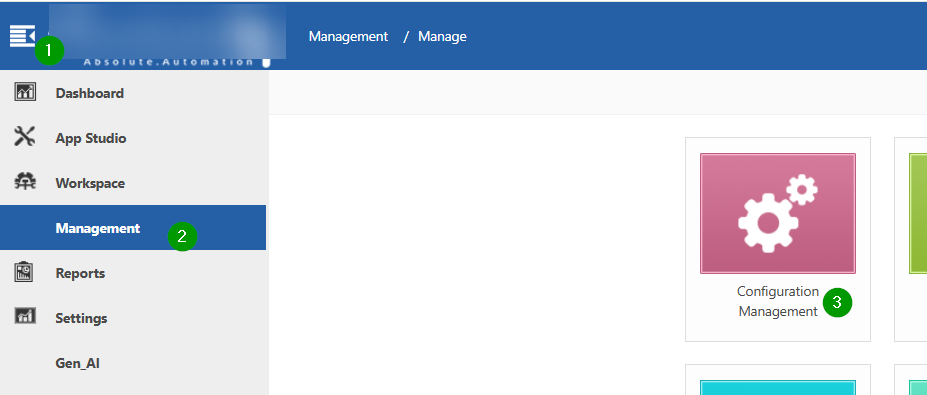
- Click the Burger Menu on the left of the logo on the upper-left of the Platform.
-
Click Management. The list of all management sections is displayed.
-
Click Configuration Management.
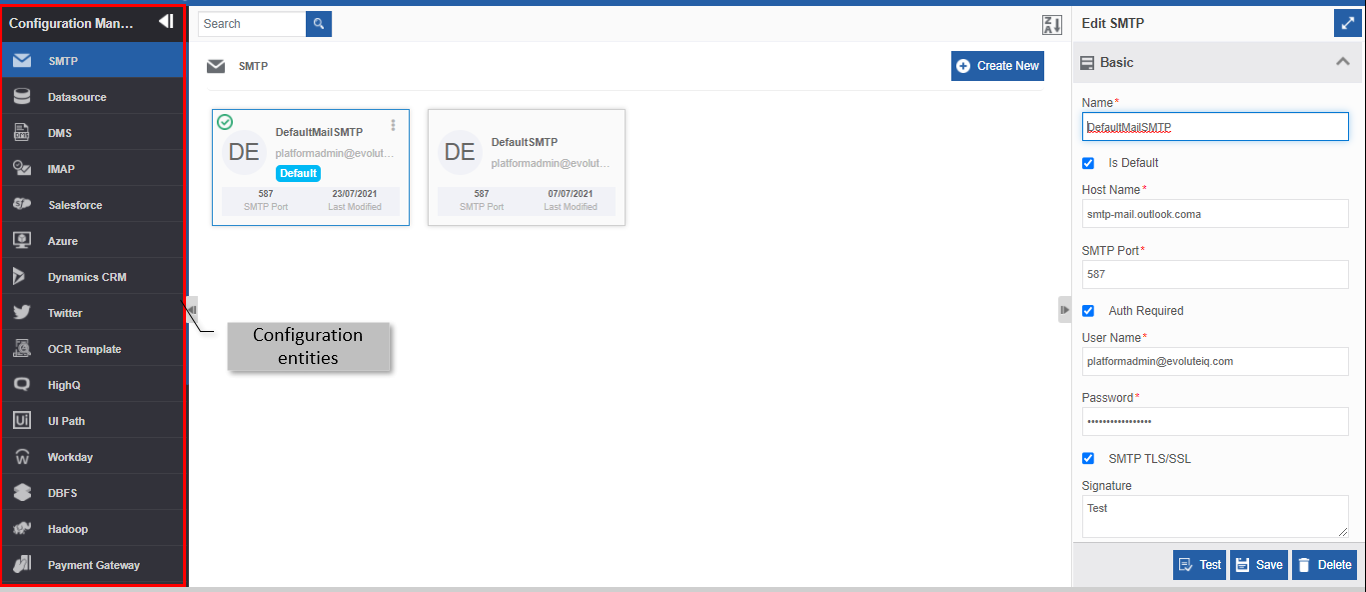
The SMTP submodule is selected by default and the SMTP page appears with SMTPs created for the organization.
-
Click the expand arrow in the left side panel for viewing the components in the Configuration Management module.
Understanding the Configuration Management Layout
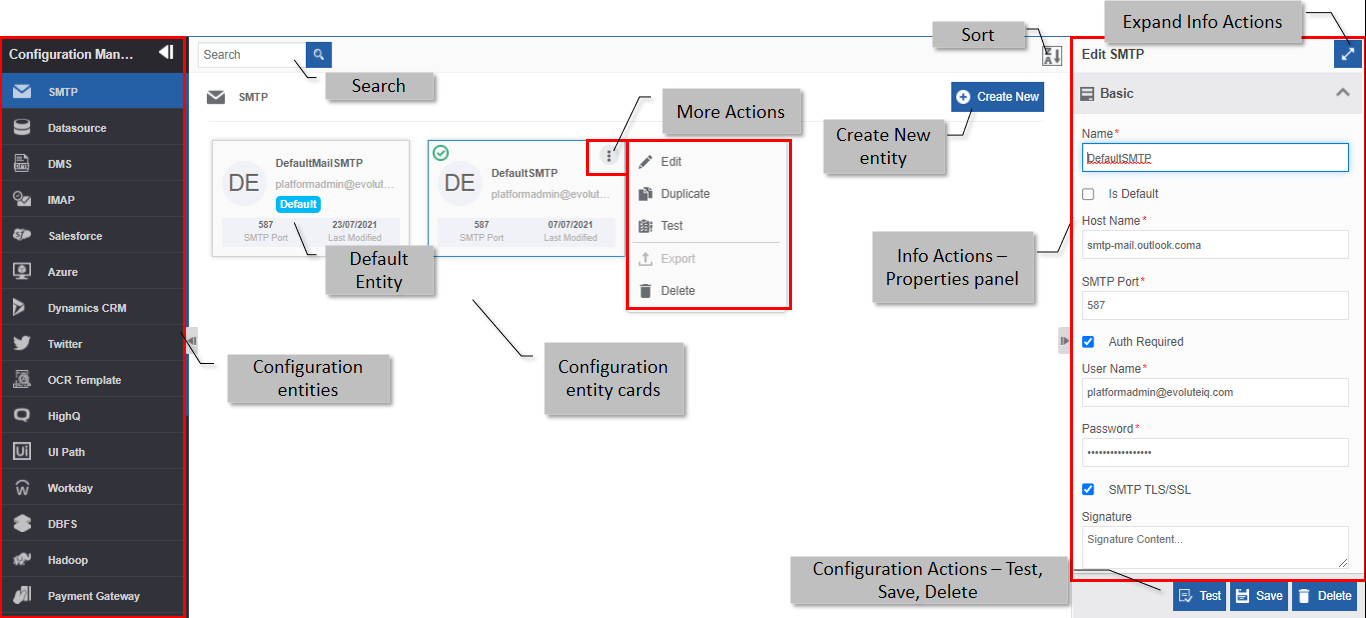
The Configuration entities are listed on the left side of the page. You can expand the left side panel to view the configuration entities list.
| Components | Description |
|---|---|
| Configuration Entities | The left side panel displays the list of all configuration entities. |
| Search | The search field allows you to search and filter the configuration cards as per the search text. |
| Sort | Sorting the entities in alphabetically ascending or descending order. |
| Default Entity | The default entity is marked as Default. If you do not select a configuration entity in the process flow, the system considers the default entity to that configuration. |
| More Actions | Click the three dots in the configuration cards to view more actions applicable to the configuration entity. |
| Create New | Click Create New and the Info Actions appear with the Create Entity panel for creating a new entity. |
| Info Actions | Info Actions or the property panel displays the properties, configurations, and mapping for the selected entity. |
| Expand Info Actions | Click on the expand icon opens up the Info Actions in a pop-up as shown below.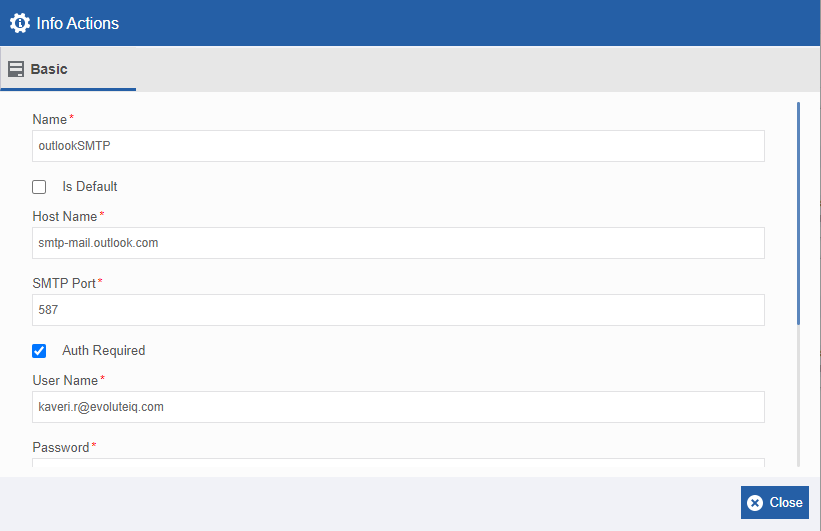 |
| Configuration Actions | The actions are applicable for the selected configuration entity. |
Searching for a Configuration Entity
- Click the Burger menu, navigate to Management > Configuration Management > click a configuration from the left side panel. The selected configuration entity page appears.
-
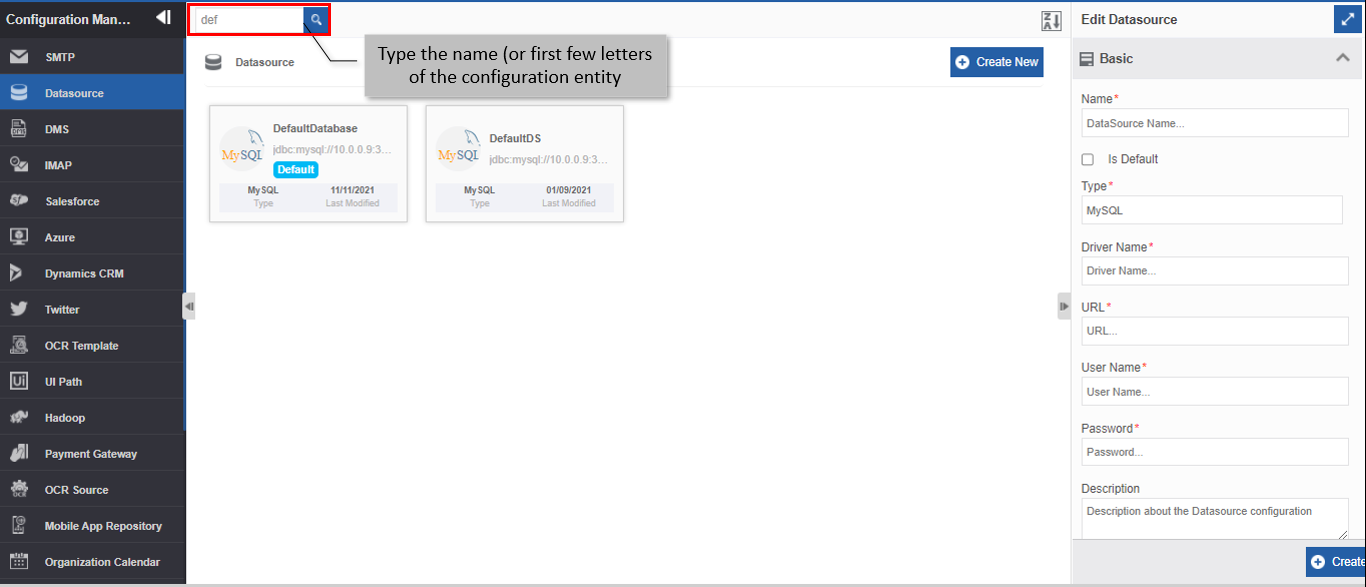
Type the name (or first few letters) of the configuration entity name in the search box on the upper-left of the page. The filtered results are displayed.
Sorting Configuration Entities
- Click the Burger menu, and navigate to Management > Configuration Management.
-
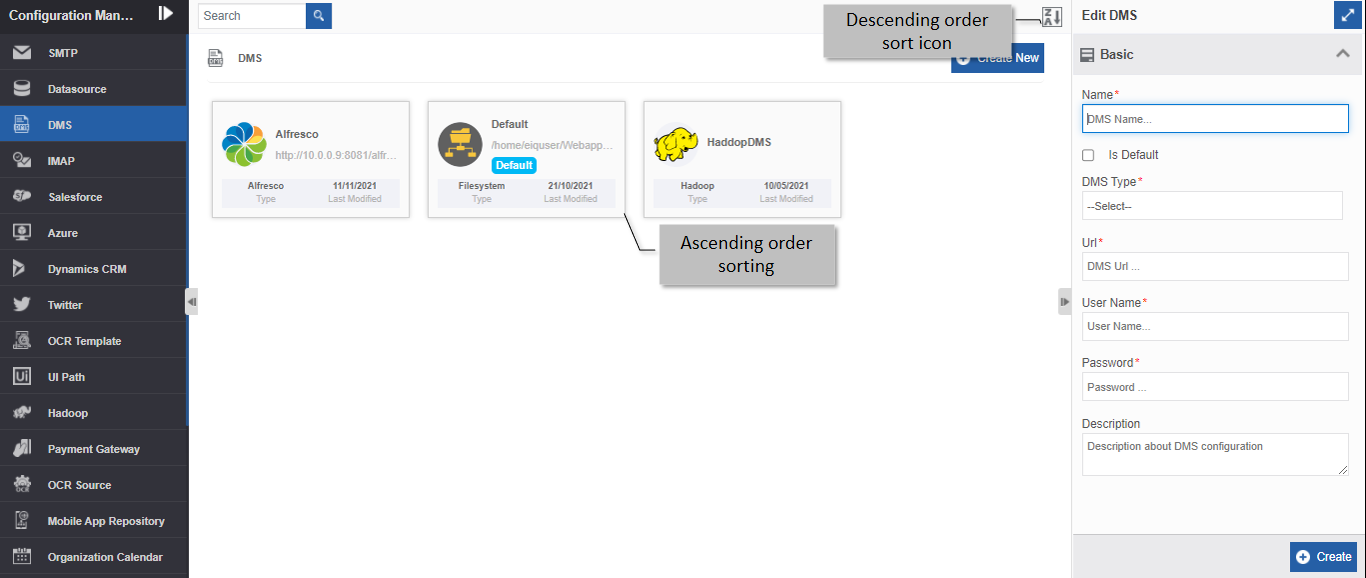
Click any configuration entity from the Configuration entity list displayed on the left side (say, DMS). Configuration entity name cards are displayed in ascending order by default and the sort icon is descending (Z🡪A).
-
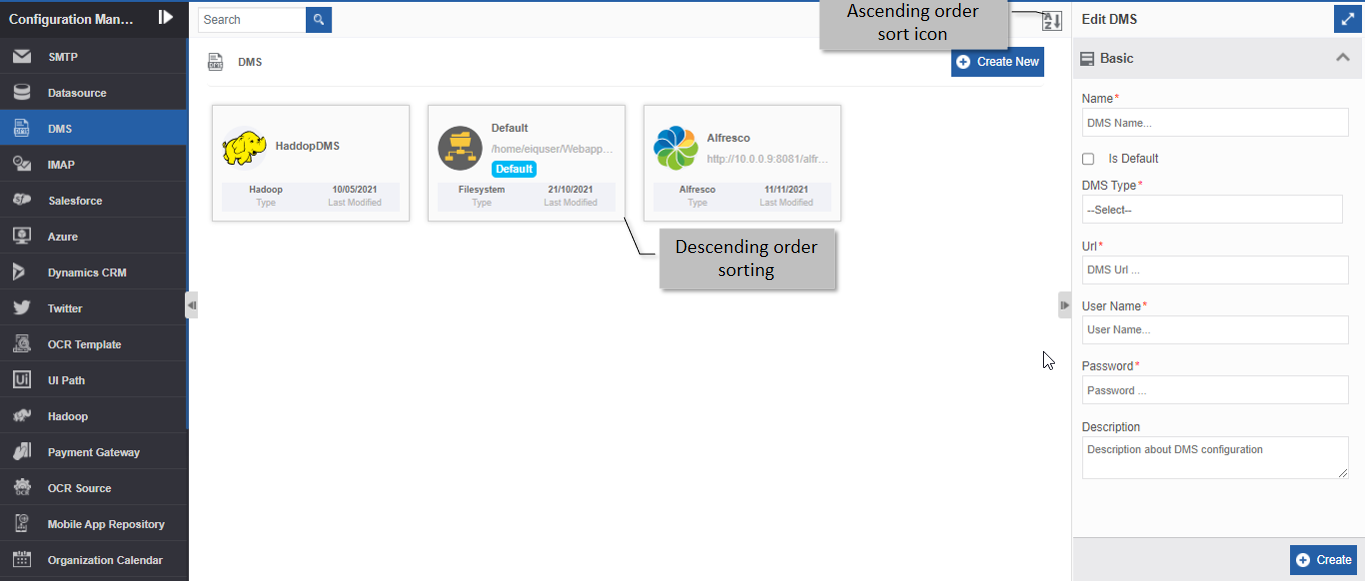
Click the Descending order sort icon (Z🡪A). The configuration entity cards get sorted in descending order (A🡪Z) of the names. The Sort icon is now changed to ascending order (A🡪Z).
-
Click the Ascending order sort icon (A🡪Z) for sorting in the ascending order (A🡪Z). The sort icon changes to descending order (Z🡪A).