Intelligent Document Processing
IDP Source
Introduction to IDP Source
IDP Source is configured to utilize the IDP Template that is used for manipulating text data that is in image format.
Google Vision and Azure Form Recognizer are based on the provisioned license, the IDP Source configuration entity will not appear on the Platform Management > Configuration Management.
IDP Source uses Google Vision or Form Recognizer to manipulate the image format of structured data.
IDP recognizes text from the image using Google Vision or Form Recognizer as per your configuration. IDP Source is mapped in the Google Vision / Form Recognizer activity in the process flows.
Creating and Configuring IDP Source
-
If you are going to use the Google Vision feature in the IDP Source, you should create the input JSON file in your Google Vision account. This JSON file is uploaded in the Google Vision configuration in the Platform.
-
If you are going to use the Azure Form Recognizer feature in the IDP Source, you should create a project in the Azure Form Recognizer, from which you can generate the Endpoint URL and Secret Key. These details are used in the Azure Form Recognizer configuration in the Platform.
Follow the below steps for creating a new IDP Source.
- Click the Burger menu and navigate to Management > Configuration Management.
-
Click IDP Source in the configuration entity panel.
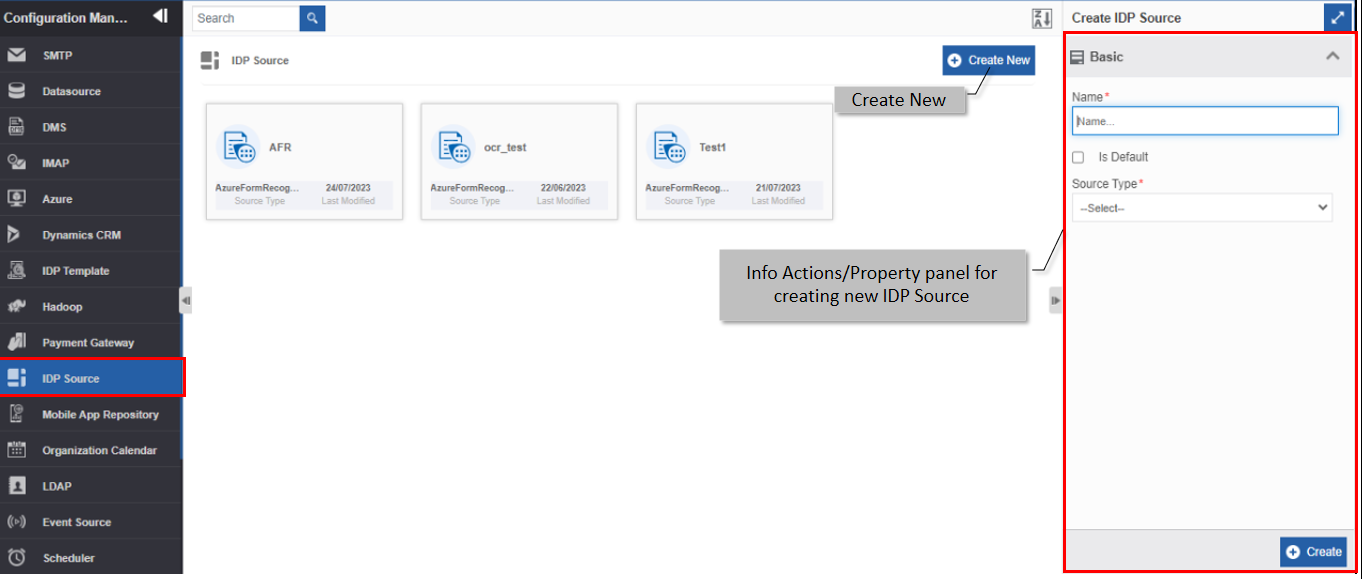
Figure 1: Creating new IDP Source -
Click +Create New.
-
Enter the Basic details in the Create IDP Source panel as explained below.
Field Description Name* Enter the name of the IDP Source.
Character limit: 50.
Data type: Alphanumeric and underscore.Is Default Check the checkbox adjacent to Is Default, if you need
to set the IDP Source as a Default IDP Source. If there is
any other default IDP Source it will be set back as non-default.
- You can configure only one IDP Source as the default IDP Source.
- If you set an IDP Source as default, the previously existing default
IDP Source will change to non-default automatically.
- Uncheck the checkbox if you do not need the IDP Source as default.Source Type* Select the required source type from the drop-down.
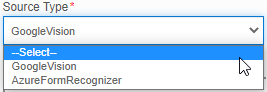
- Google Vision: Allows you to read the input image file using the
Google Vision features.
- To utilize Google Vision feature, you should create a Google Vision
account and then generate a JSON key in that account. You need to
download the key of type JSON generated for uploading on the IDP source.
Refer to Creating JSON File in Google Vision for creating JSON key.
- When you select Google Vision, Upload Key File (JSON) appears.
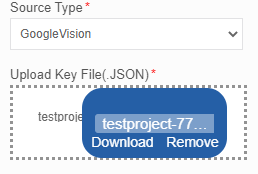
- Upload the JSON key File of type JSON that you generated from
your Google Vision account.
Once you upload the JSON, Google vision account connection is
established in the platform.
- AzureFormRecognizer: Allows you to read the input image file using the
Azure Form Recognizer features.
- For utilizing Azure Form Recognizer feature, you should create a project in
the Azure account and then create an Endpoint URL and Security Key using
that project name.
Refer to Generating Endpoint URL and Secret Key in Azure for details on
creating the Endpoint URL.
- When you select AzureFormRecognizer, EndPoint, and Secret Key fields appear
in the configuration section.
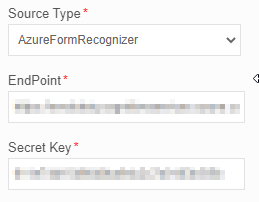
- Enter the Endpoint URL and the Secret Key in the respective fields.Description Write a brief description of the IDP Source.
Character limit: 1000 characters
Data type: Alphanumeric and symbols. -
Click Create on the bottom right of the page and the IDP Source gets created with the details entered.
Viewing and Editing IDP source
- Click the Burger menu and navigate to Management > Configuration Management > IDP Source.
-
Click the IDP Source card to view the details of the selected IDP Source. The details of the IDP Source appear in the Info Actions panel (Edit IDP Source).
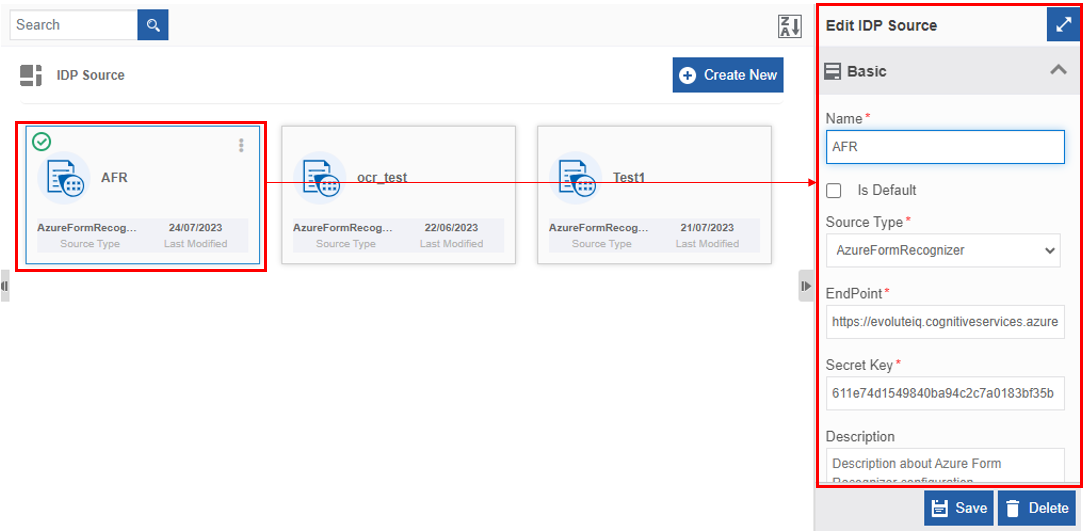
Figure 2: Editing IDP Source details -
Edit the IDP Source details as needed.
-
Click Save.
Duplicating IDP Source
Follow the below steps for duplicating an existing IDP Source.
- Click the Burger menu and navigate to Management > Configuration Management.
-
Click IDP Source. The list of all IDP Sources is displayed.
-
Hover over any IDP Source card. Three dots appear on the upper right side of the card.
-
Click the three dots. More Actions appear.
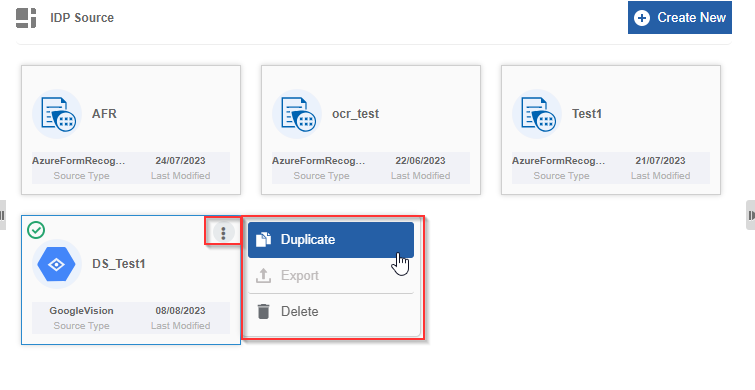
Figure 3: Duplicating the IDP Source -
Click Duplicate. A confirmation pop-up appears.
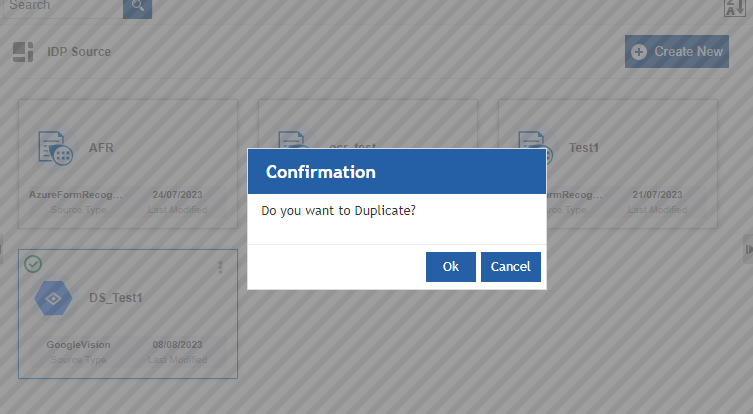
Figure 4: Duplicate confirmation -
Click Ok for duplicating the IDP Source (or you can click Cancel to cancel the duplicate action). A Success message appears on the successful duplication of the IDP Source.
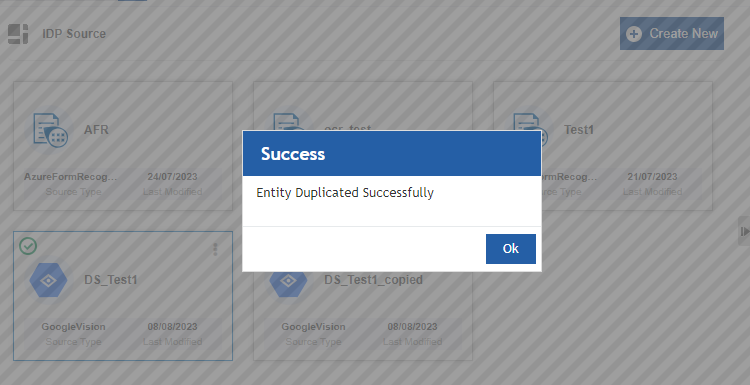
Figure 5: Duplicate success message -
Click Ok. A duplicate copy of the IDP Source appears on the IDP Source page with the same IDP Source name suffixed with “_copied”.
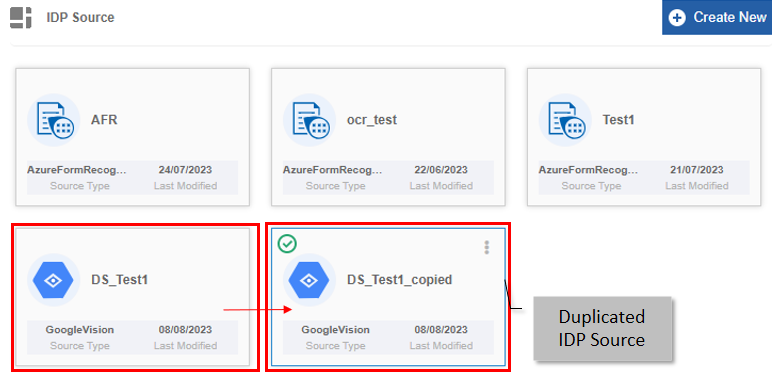
Figure 6: Duplicated IDP Source
Deleting IDP Source
- Click the Burger menu and navigate to Management > Configuration Management.
-
Click IDP Source. The list of all IDP Sources is displayed.
-
Click the IDP Source name card that is to be deleted. The lower-right of the page displays the Delete button.
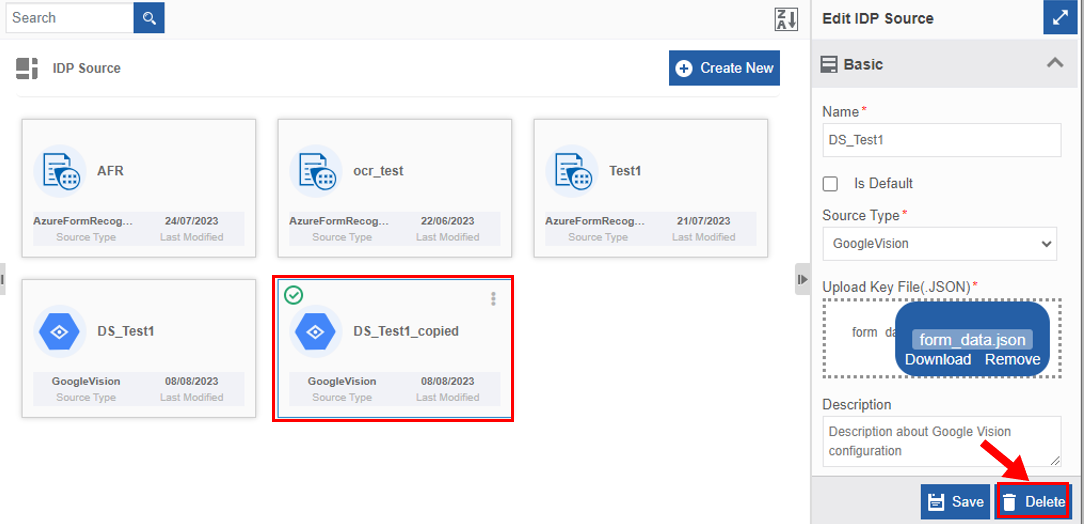
Figure 7: Deleting IDP Source -
Click Delete. A Confirmation pop-up for delete appears.
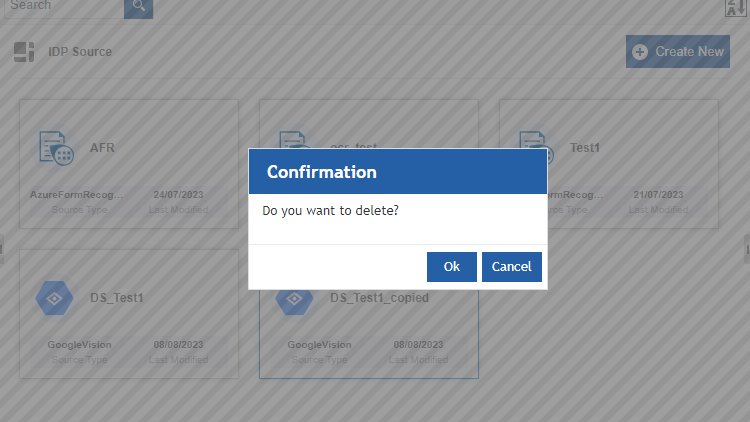
Figure 8: IDP Source Delete confirmation -
Click Ok for deleting the IDP Source.
Or
Click Cancel to cancel the action.
Alternatively, you can follow the below steps to delete the IDP Source:
- Click the Burger menu and navigate to Management > Configuration Management > IDP Source.
-
Hover over the IDP Source card. Three dots appear on the upper right side of the card.
-
Click the three dots. More Actions appear.
-
Click Delete and follow step 5 in the above procedure.
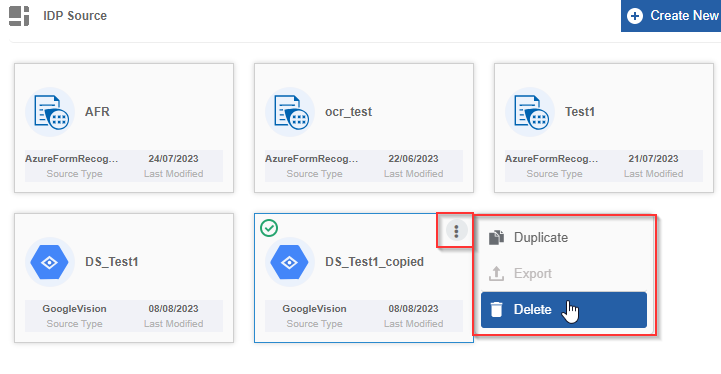
Figure 9: Delete action in More Actions
IDP Template
Introduction to IDP Template
IDP Template is used to upload a template file. During process execution, the activity associated with the IDP Template extracts text from the input file as per the annotations done during the creation of the IDP template. In the input file, the details or fields that is to be extracted should be positioned correctly in those coordinates where you have annotated in the template as the details are extracted from the exact coordinates of the input file.
IDP Template is mapped in the IDP (Tesseract), Google Vision (licensed separately), and Form Recognizer (licensed separately) activities in the process flows.
You can view the IDP Template configurations in Management > Configuration Management > IDP Template section.
Creating and Configuring IDP Template
The required annotations need to be configured in the IDP template with proper identifiers. Follow the below steps to create an IDP template.
- Click the Burger menu and navigate to Management > Configuration Management.
-
Click IDP Template in the configuration entity panel.
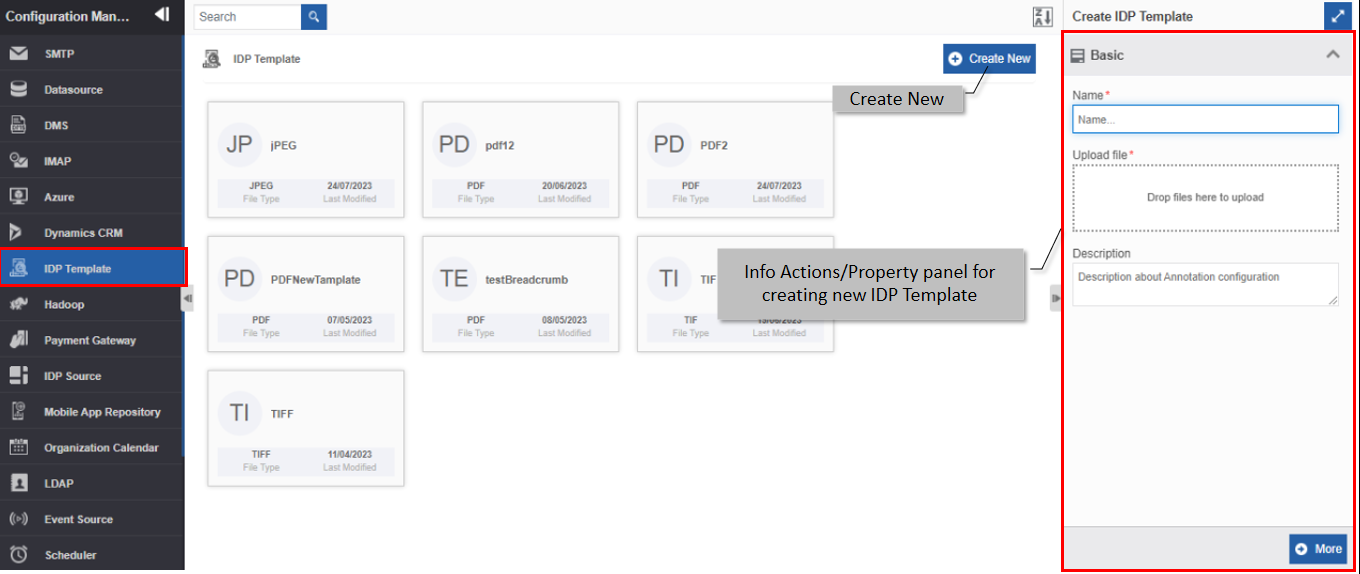
Figure 10: Creating a new IDP Template -
Click + Create New.
-
Enter the Basic details in the Create IDP Template panel as explained below.
Field Description Name Enter the name of the IDP Template.
Character limit: 50.
Data type: Alphanumeric and underscore.
Upload File Click and select (or drag) the sample template for IDP.
The File format can be PDF, JPEG, or TIFF.
The file format selected here should be uploaded in the
template.Description Write a brief description of the IDP Template.
Character limit: 1000 characters
Data type: Alphanumeric and symbols.
-
Click More. The uploaded file appears. You can upload multiple pages.
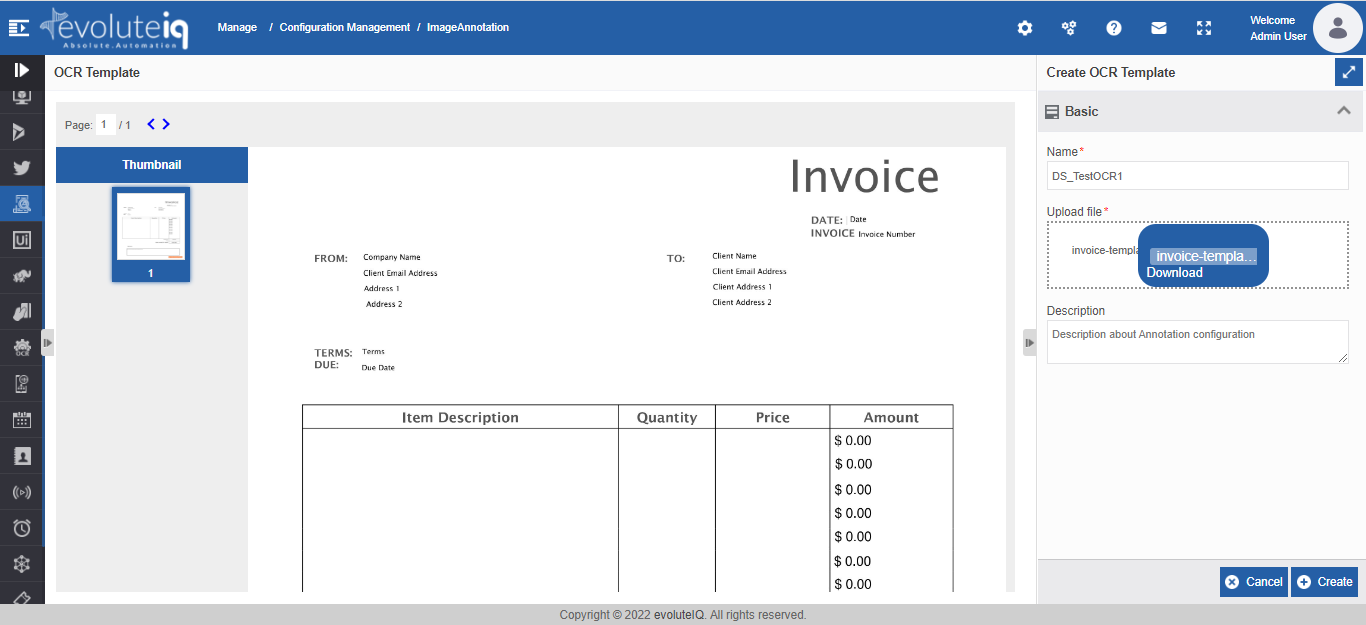
Figure 11: Uploaded file displayed for the annotation -
Annotate the required details. The Thumbnail on the left side allows you to navigate to pages and annotate as needed. Without annotating the file, you cannot save the template. That is, at least one annotation should be done.
Follow the below steps for annotating the uploaded file. -
Click and drag to select a particular area in the file where the input data is supposed to appear. Drag the box to a length of how much you expect the maximum data length to appear. An annotation box appears prompting you to enter the Identifier Name.
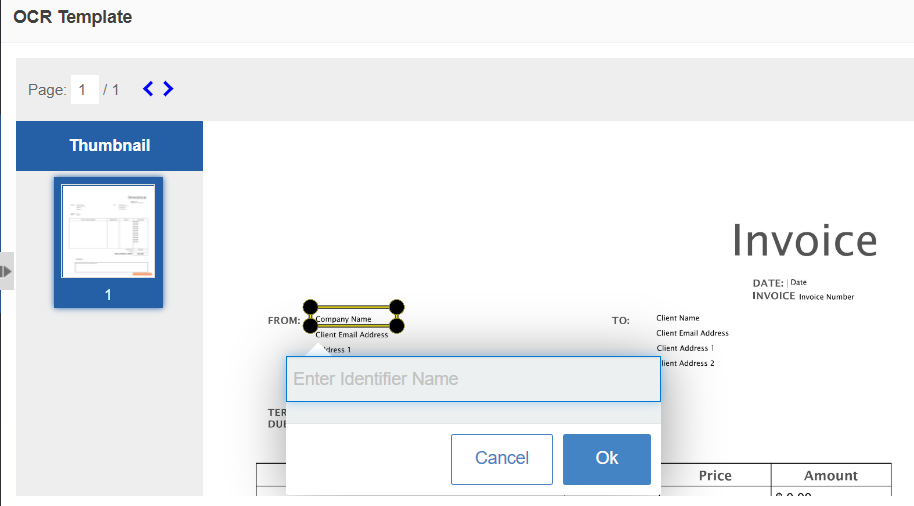
Figure 12: Annotating the input file -
Enter the identifier name for the selected area and click OK. You can drag and move around the annotation box.
-
Click the annotation box again for editing the annotation. After annotating the content, a delete icon appears and you can click the delete icon for deleting the annotation.
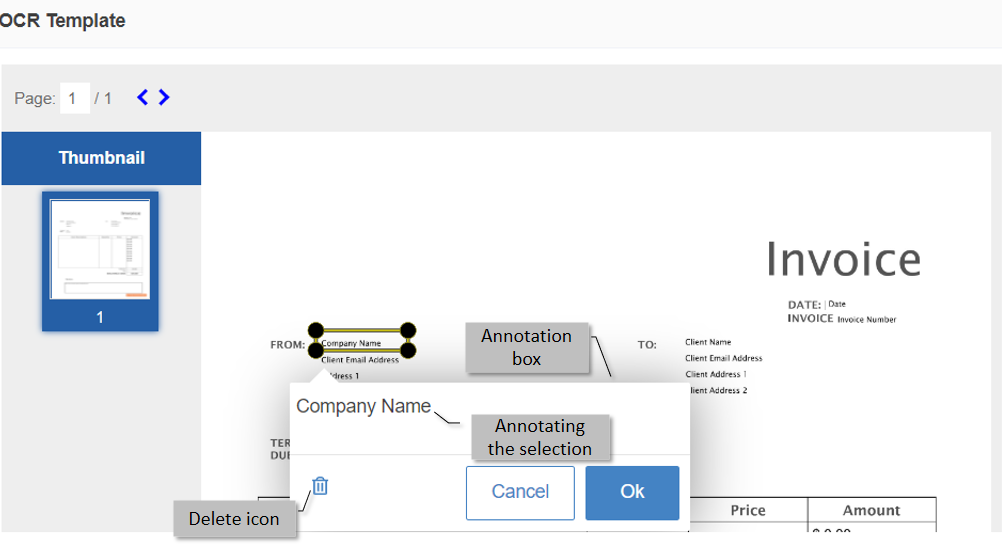
Figure 13: Details in the annotated file -
Click Create on the bottom right of the page and the IDP Template gets created.
During the runtime, content is extracted or read from the input file from those positions marked or annotated in this template. The coordinates in the template are mapped with the input file and this extracted data is stored in the variable.
Viewing and Editing IDP Template
- Click the Burger menu and navigate to Management > Configuration Management > IDP Template.
-
Click the IDP Template card to view the details of the selected IDP Template. The details of the IDP Template appear in the Info Actions panel (Edit IDP Template).
-
Click More to view the annotated details.
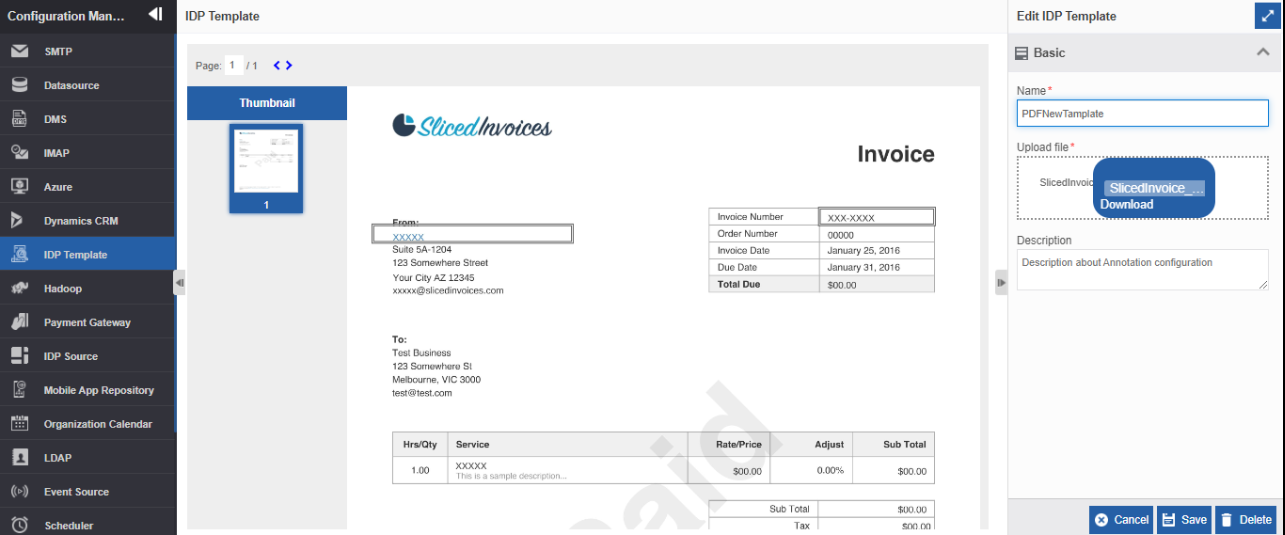
Figure 14: Editing IDP Template details -
Edit the IDP Template details as needed.
-
Click Save.
Duplicating IDP Template
Follow the below steps for duplicating an existing IDP Template.
- Click the Burger menu and navigate to Management > Configuration Management.
-
Click IDP Template. The list of all IDP Templates is displayed.
-
Hover over any IDP Template card. Three dots appear on the upper right side of the card.
-
Click the three dots. More Actions appear.
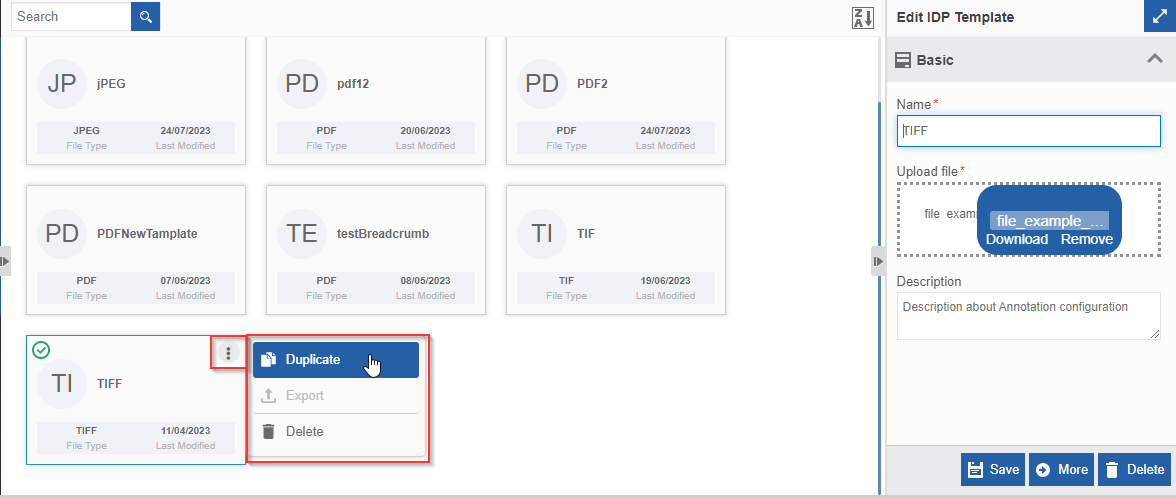
Figure 15: Duplicating the IDP Template -
Click Duplicate. A confirmation pop-up appears.
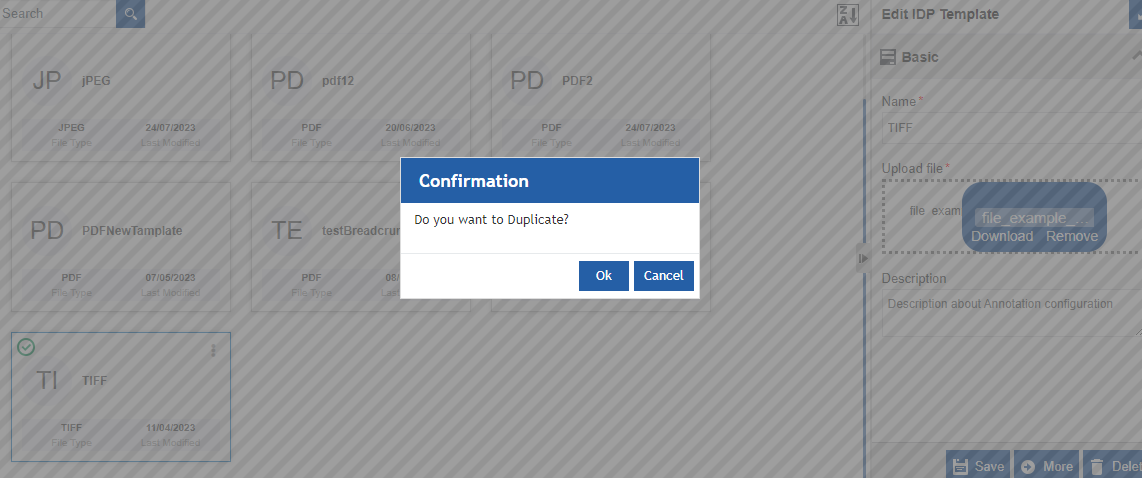
Figure 16: Duplicate confirmation -
Click Ok for duplicating the IDP Template (or you can click Cancel to cancel the duplicate action). A Success message appears on the successful duplication of the IDP Template.
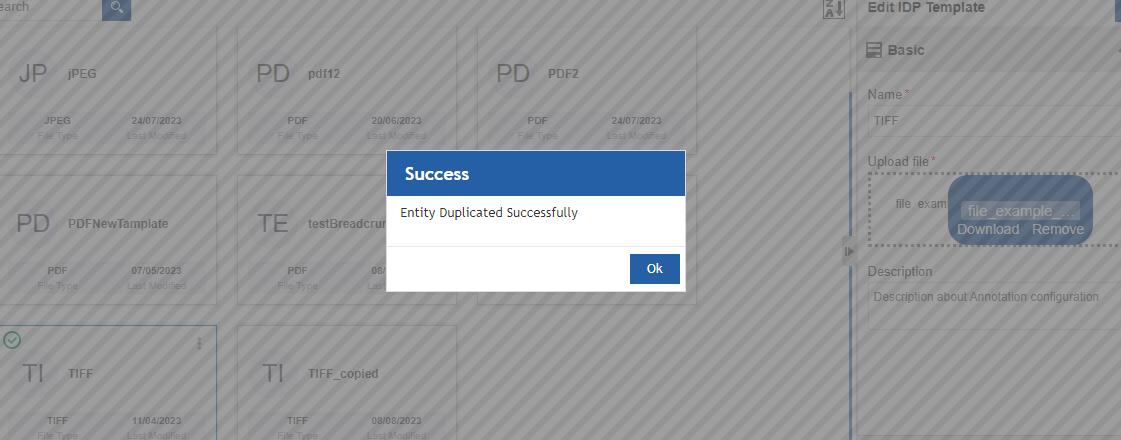
Figure 17: Duplicate success message -
Click Ok. A duplicate copy of the IDP Template appears on the IDP Template page with the same IDP Template name suffixed with “_copied”.
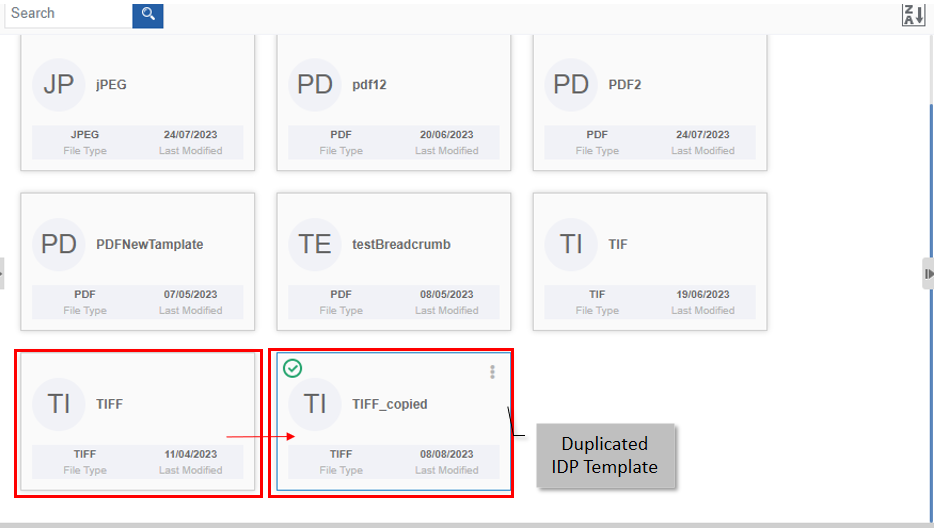
Figure 18: Duplicated IDP Template
Deleting IDP Template
- Click the Burger menu and navigate to Management > Configuration Management.
-
Click IDP Template. The list of all IDP Templates is displayed.
-
Click the IDP Templates name card that is to be deleted. The lower-right of the page displays the Delete button.
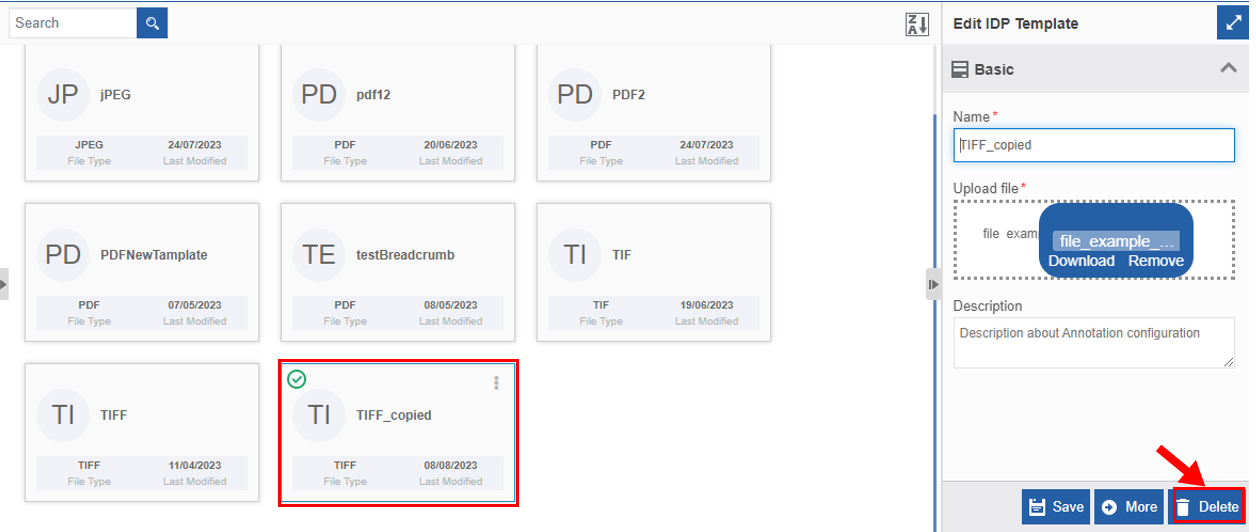
Figure 19: Deleting IDP Template -
Click Delete. A Confirmation pop-up for delete appears.
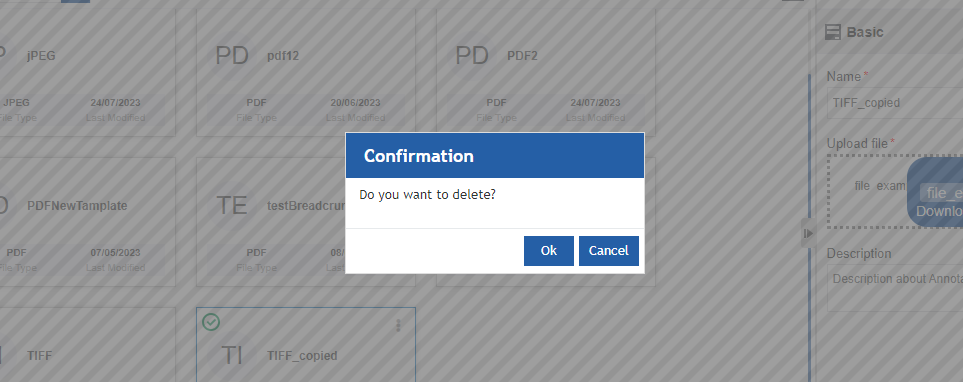
Figure 20: IDP Template Delete confirmation -
Click Ok for deleting the IDP Template.
Or
Click Cancel to cancel the action.
Alternatively, you can follow the below steps to delete the IDP Template:
- Click the Burger menu and navigate to Management > Configuration Management > IDP Template.
-
Hover over the IDP Template card. Three dots appear on the upper right side of the card.
-
Click the three dots. More Actions appear.
-
Click Delete and follow step 5 in the above procedure.
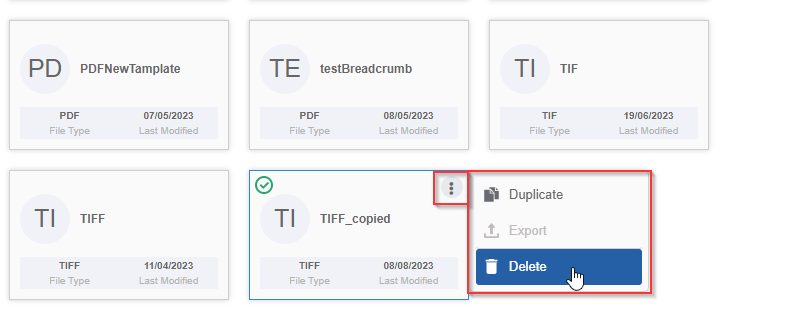
Figure 21: Delete action in More Actions
Platform IDP Process Flow Activities
The IDP activities in the process flow module are used to extract the required information from a non-text-based file. The IDP activities extract the text images and convert them into an editable format.
Platform IDP
IDP is an inbuilt IDP activity that is available in the Platform. For configuring an IDP activity in a process flow you need to configure the IDP Template and the document variable to which the file will be uploaded.
Refer to Platform IDP for details.
Google Vision
Google Vision activity is an advanced activity available as per your organization's license.
Before configuring the Google Vision activity in the process flows, you should create an IDP Source with Google Vision as the Source Type and an IDP Template.
Configuring Google Vision Activity
For using the Google Vision activity, you need to add the activity to the activities list and then configure the same in the process flow.
The Google Vision activity allows you to extract characters from a non-text-based file using the Google Vision features.

Properties: Basic, Google Vision, Error Handling
Dependent entities: Variables.
Dependent configuration(s): IDP Source, IDP Template.
-
Navigate through App Studio > Process Flows.
-
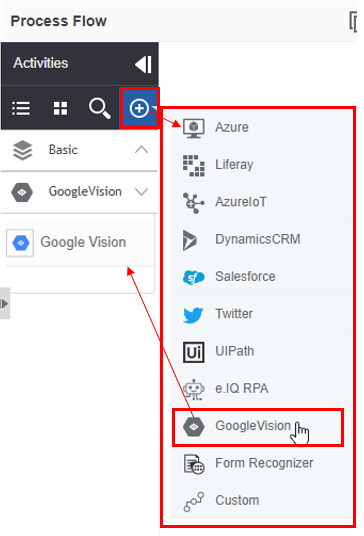
In the Process Design > Activities panel click “+” to view the advanced connectors.
-
Click Google Vision activity. The activity gets added to the Activities panel.
-
Drag the Google Vision activity into the design canvas. The properties panel displays the configuration details of the activity.
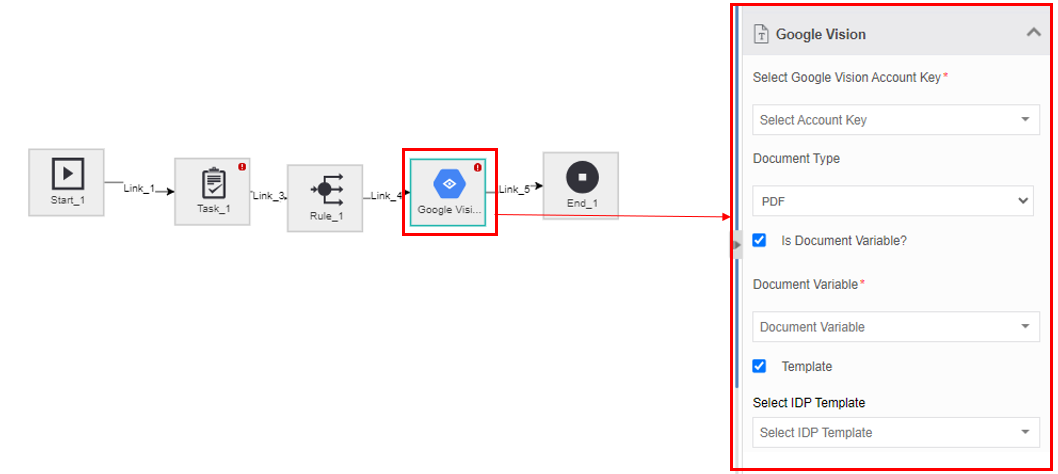
Figure 22: Google Vision property -
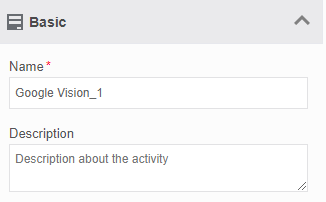
Click Basic accordion.
-
Provide a Name and Description for the activity.
-
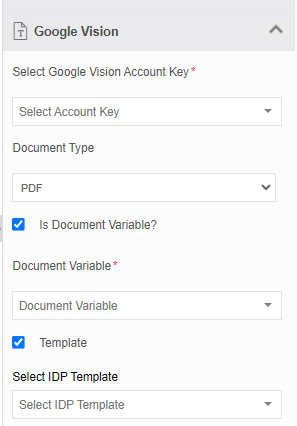
Click Google Vision accordion.
-
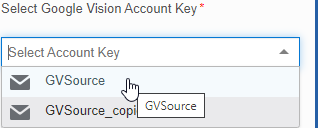
Click Select Google Vision Account Key and select the IDP Source from the drop-down. The IDP Sources (that is configured in the Management > Configuration Management > IDP Source) with source type as Google Vision are displayed for selection.
-
Select the Document Type from the drop-down. IDP accepts PDF, JPG, JPEG, and TIFF file formats. The input file is converted into a JPEG file.
-
If the input document file is stored in a document variable,
-
Check Is Document Variable = True.
-
Select the Document variable from the Document Variable drop-down list.
Else If the input document file is stored in your local disk or directory,
-
Uncheck Is Document Variable = False
-
In the Local Directory field, enter the local path and file name of the document file where it is residing in the server.
- If the input is structured data, that is structure is configured in the IDP template, check Template= True. Go to step 13.
Else If the input file is stored in a document variable, uncheck Template = False. Go to step 15.
-
-
Select the matching template for the input file from the Select IDP Template drop-down. This template is created in the Management > Configuration Management section.
-
Select Attribute Variables for each of the Input Attributes displayed as per the template selected. The attributes are based on how you configure the IDP template.
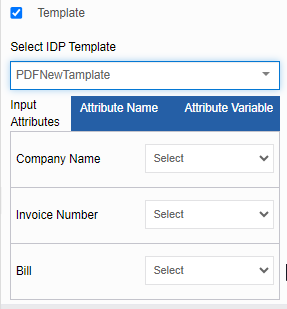
Figure 23: Input attributes and variable mapping -
If the input file is stored in the document variable, select an alphanumeric variable from the Output Variable drop-down. The output variable is of the JSON format. This is used to extract the complete content of a file with multiple pages.
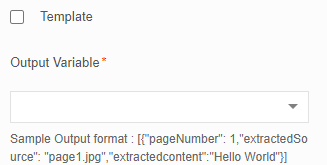
Sample JSON Output format: [{"pageNumber": 1,"extractedSource": page1.jpg","extractedcontent":"Hello World"}]. Extracted Source indicates the path of the input file that is been converted into JPEG format.
-
Click Error Handling accordion.
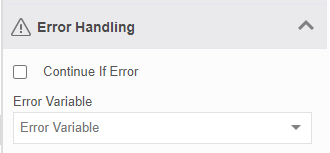
Figure 24: Error Handling -
Check the Continue If Error check box if you want to continue the workflow even if the error occurs.
Else uncheck the checkbox to break or stop the workflow execution when an error occurs.
-
Select a variable from the Error Variable drop-down. The variable should be of data type, alphanumeric. Error variable stores the first line of the error.
Form Recognizer
Azure Form Recognizer activity is an advanced activity available as per your organization license.
Before configuring the Form Recognizer activity in the process flows, you should create an IDP Source with Form Recognizer as the Source Type and an IDP Template.
Configuring Form Recognizer Activity
For using the Form Recognizer activity, you need to add the activity to the activities list and then configure the same in the process flow.
The Form Recognizer activity allows you to extract characters from a non-text-based file using the Azure Form Recognizer features.

Properties: Basic, Form Recognizser, Error Handling
Dependent entities: Variables.
Dependent configuration(s): IDP Source, IDP Template.
-
Navigate through App Studio > Process Flows.
-
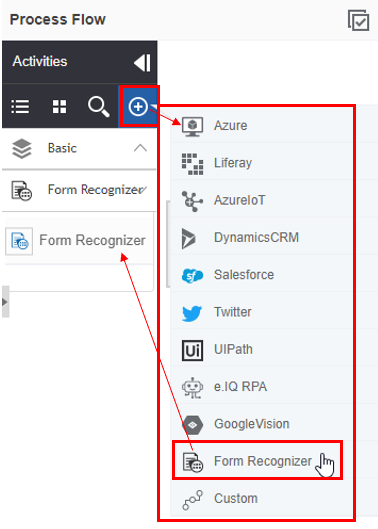
In the Process Design > Activities panel click “+” to view the advanced connectors.
-
Click Form Recognizer activity. The activity gets added to the Activities panel.
-
Drag the Form Recognizer activity into the design canvas. The properties panel displays the configuration details of the activity.
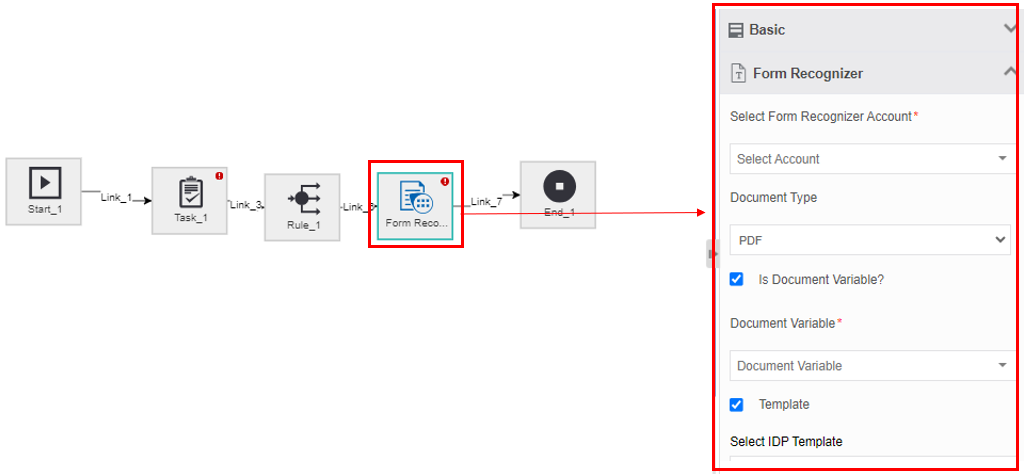
Figure 25: Form Recognizer Properties -
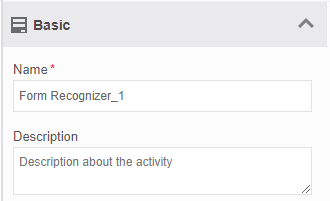
Click Basic accordion.
-
Provide a Name and Description for the activity.
-
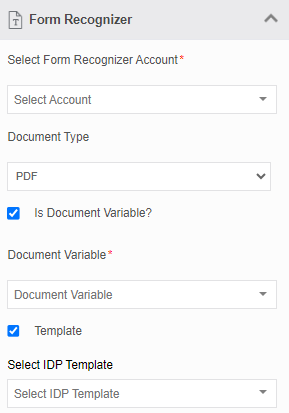
Click IDP accordion.
-
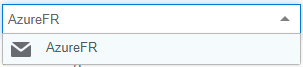
Click Select Form Recognizer Account and select the IDP Source from the drop-down. The IDP Sources (that is configured in the Management > Configuration Management > IDP Source) with source type as Form Recognizer are displayed for selection.
-
Select the Document Type from the drop-down. IDP accepts PDF, JPG, JPEG, and TIFF file formats. The input file is converted into JPEG file.
-
If the input document file is stored in a document variable,
- Check Is Document Variable = True.
-
Select the Document variable from the Document Variable drop-down list.
Else If the input document file is stored in your local disk or directory,
-
Uncheck Is Document Variable = False
- In the Local Directory field, enter the local path and file name of the document file where it is residing in the server.
- If the input is structured data, that is structure is configured in the IDP template, check Template= True. Go to step 13.
Else If the input file is stored in a document variable, uncheck Template = False. Go to step 15.
-
Select the matching template for the input file from the Select IDP Template drop-down. This template is created in the Management > Configuration Management section.
-
Select Attribute Variables for each of the Input Attributes displayed as per the template selected. The attributes are based on how you configure the IDP template.
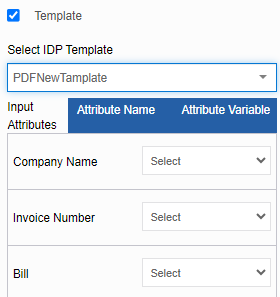
Figure 26: Input attributes and variable mapping -
If the input file is stored in the document variable, select an alphanumeric variable from the Output Variable drop-down. The output variable is of the JSON format. This is used to extract the complete content of a file with multiple pages.
Sample JSON Output format: [{"pageNumber": 1,"extractedSource": page1.jpg","extractedcontent":"Hello World"}]. Extracted Source indicates the path of the input file that is been converted into JPEG format.
-
Click Error Handling accordion.
Figure 27: Error Handling -
Check the Continue If Error check box if you want to continue the workflow even if the error occurs.
Else uncheck the checkbox to break or stop the workflow execution when an error occurs.
-
Select a variable from the Error Variable drop-down. The variable should be of data type, alphanumeric. Error variable stores the first line of the error.
IDP Activities and Confidence Score
The confidence score for the IDP extracted content is the percentage of correctness that the system considers after converting the extracted content to editable text format.
If you want to display the confidence score for extracted content, create another field in your Form UI and provide the same variable name (Property name of the Text Field component in the Form UI) as the extracted content Text Field suffixed with underscore confidence. That is, if FormA.TotalAmount is the property name of the extracted content, then the property name for the confidence score field should be FormA.TotalAmount_confidence. After the execution of the corresponding IDP activity, the confidence score is displayed in the respective text field of the form.