Workspace
Introduction to Workspace
Workspace is one of the key modules in Platform where the user accesses the runtime features. Process workflow is designed and deployed in the App Studio module. The deployed processes are available in the Workspace for execution for the assigned user or participant. You can initiate the process from the Workspace and then continue with the execution of the flow. That is, once you initiate the flow, the further tasks (if any) can be viewed and executed in the Workspace.
The workspace page details appear for the logged-in user.
The components in the workspace module are:
-
My Tasks
-
My Process
-
My Instance
-
Custom Task
Viewing Workspace
-
Click the Burger Menu on the left of the logo on the upper-left of the Platform.
-
Click Workspace. The workspace components are displayed on the left side panel.
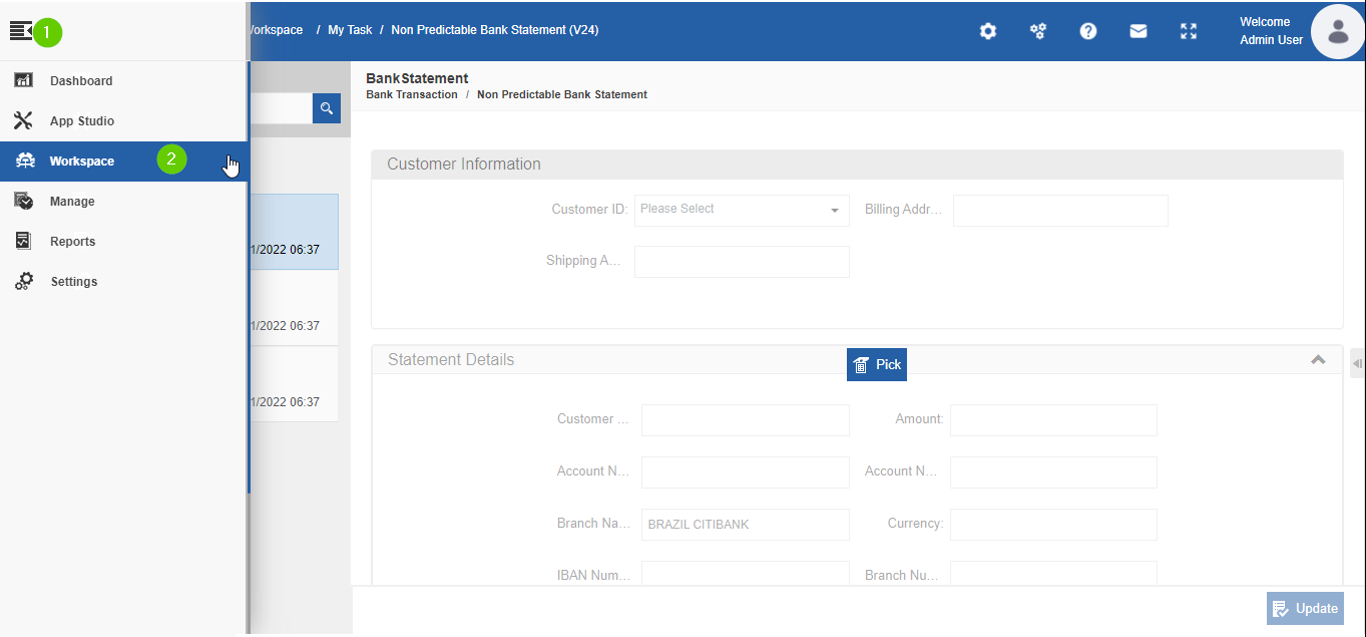
Figure 1: Steps for viewing workspace
Understanding Workspace Layout
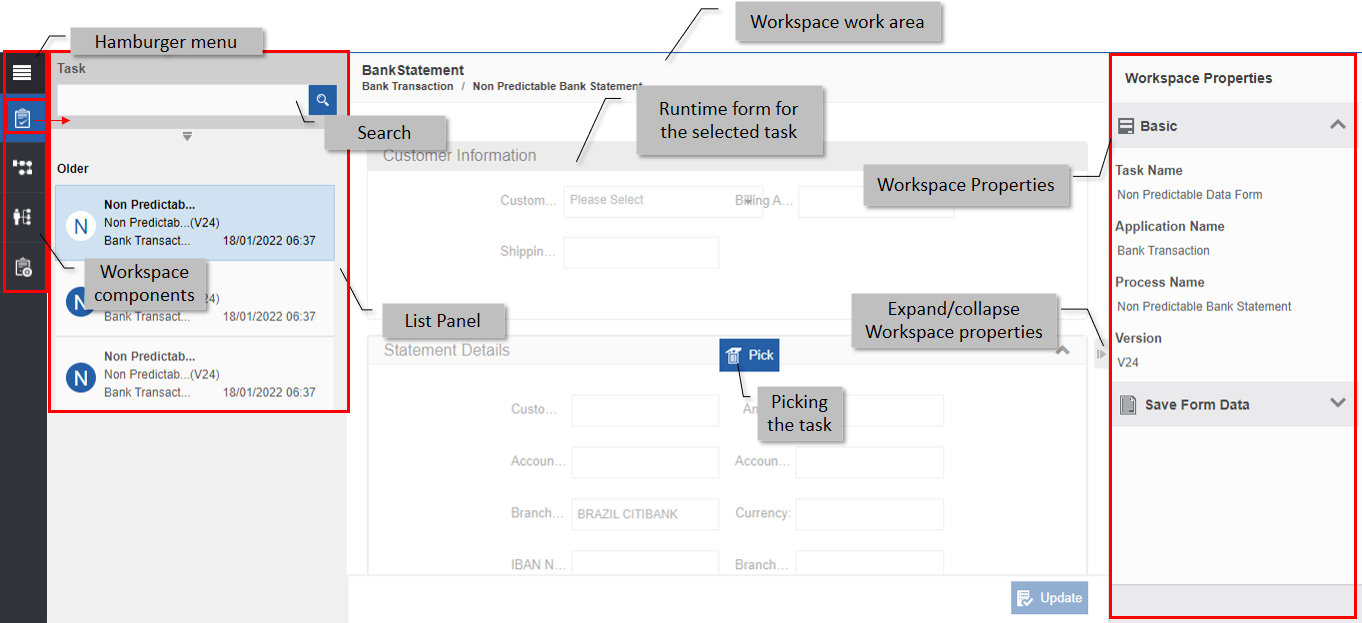
Figure 2: Workspace layout
| Component | Description |
|---|---|
| Workspace components | My Tasks, My Process, My Instance, and Custom Task are the workspace components. |
| Hamburger menu | Click the hamburger menu for expanding or collapsing the menu details. |
| Search | For searching the items. |
| List panel | The selected menu item details are displayed (say if the task is selected, Task details are displayed) |
| Workspace work area | The runtime form for the selected task is displayed in the workspace work area. |
| Pick | The user needs to click Pick task for selecting a task and initiating the form. |
| Expand/Collapse Workspace Properties |
Click Expand/Collapse for viewing or hiding the Workspace properties. |
| Workspace Properties | The basic details of the runtime task and the Save Form Data are displayed in the Workspace properties. |
Managing My Tasks
Introduction to My Task
My Task lists the active tasks assigned for the logged-in user or the roles to which the logged-in user is mapped. After the process initiation, all the tasks are displayed in My Tasks. Each task in the process is displayed (for the specific user/role) one after another when the preceding task is completed. That is, only active tasks are displayed.
Viewing a Task
The tasks in the task list appear under Today’s and Older sections within the task list. Tasks that became active on that day appear under Today’s section and Tasks that become active before the current date appears under Older.
- Click Burger menu and then click Workspace.
-
Click My Task icon on the left side. My Task is selected by default. My Task list panel is displayed on the right side of the icon panel with the list of all tasks assigned to the logged-in user.
-
Click the Task to be viewed. The workspace work area displays the details of the selected task.
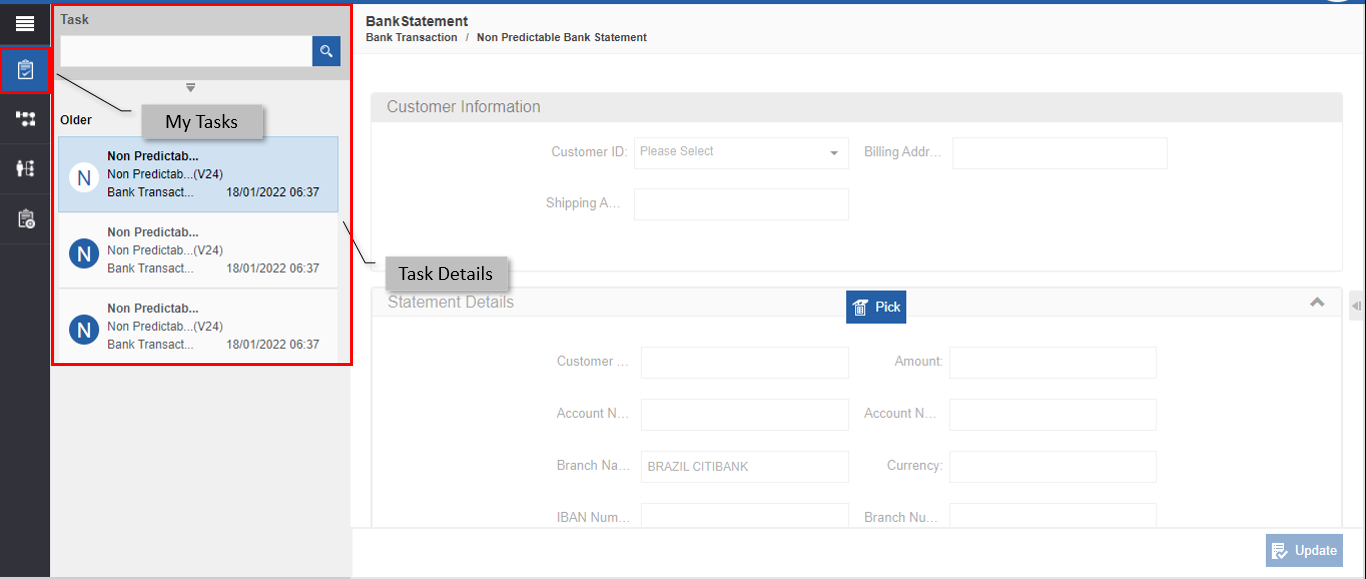
Figure 3: Viewing task details
The date and time indicate when the task got created and assigned to the logged-in user.
Searching for a Task
You can search for a task in the task list by using the filter and search option in the My Task. You can search by Task or by Process or by Application or a combination of any of these.
-
Click the Burger menu and then navigate to Workspace > My Tasks. My Tasks list appears on the right side with a search option on the top of the task list.
-
Click the expand icon in the task list. The search panel is displayed in an expanded view.
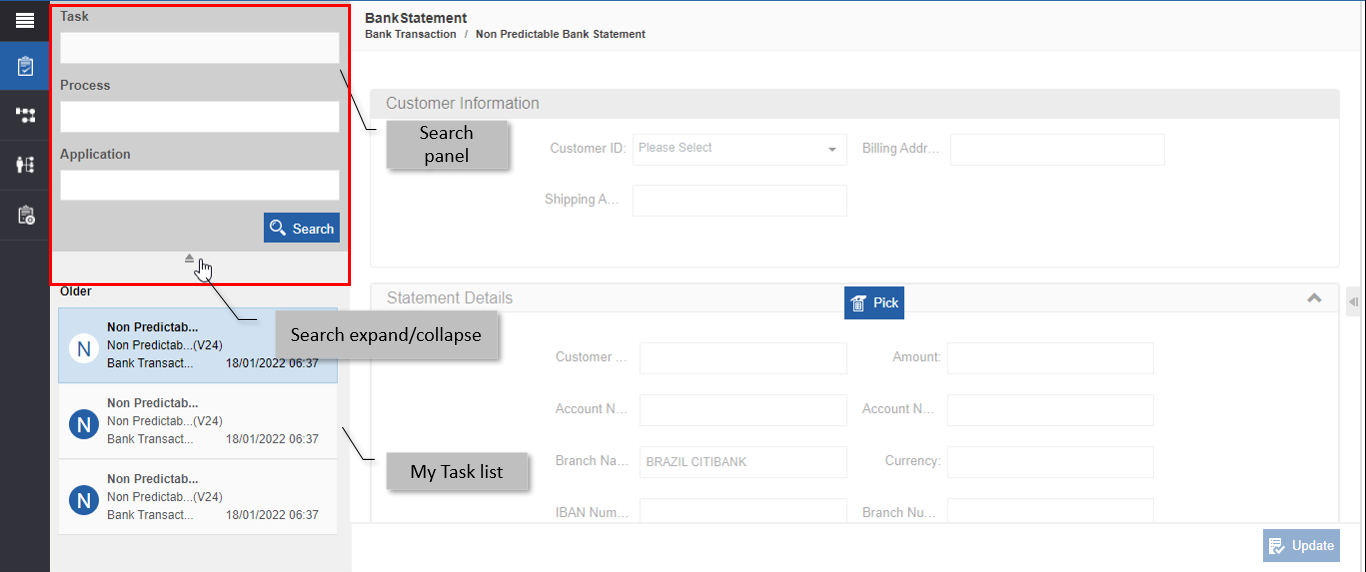
Figure 4: Searching for a task -
Enter the search item in the respective fields. You can use any of the below filters or a combination of any.
-
Task – allows you to search by task name.
-
Process – allows you to search by process name
-
Application – allows you to search by application name.
-
-
Click Search. Filtered results are displayed in the My Task list panel.
Picking the Task
My Tasks list appears with the tasks that are assigned for the logged-in user. However, if the task is assigned to multiple users or role(s), all the corresponding users will receive the task. The Pick feature allows the user to pick the task for initiation. When a user picks a task, the task gets removed for other users.
- Click Burger menu and then click Workspace.
-
Click My Task icon on the left side. My Task is selected by default. My Task list panel is displayed on the right side of the icon panel with the list of all tasks assigned to the logged-in user.
-
Click the Task name in the list. The workspace work area displays the details of the selected task with a Pick button.
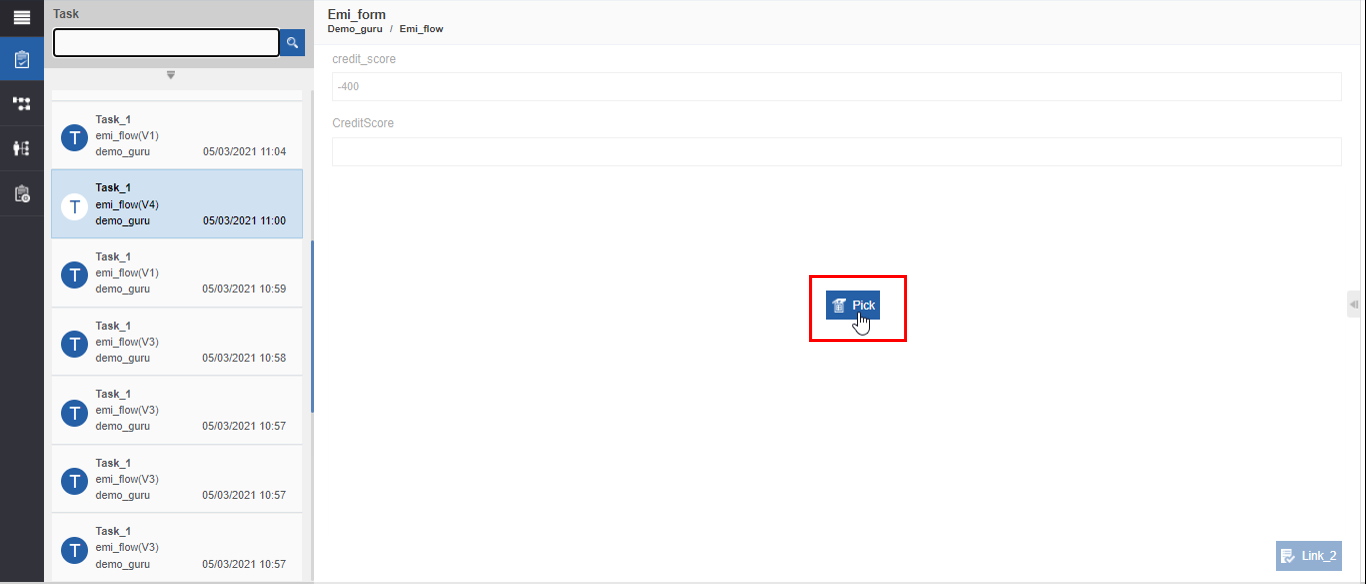
Figure 5: Picking the task -
Click Pick. The form is enabled. The Release Task button appears in the form.
-
Enter appropriate details in the form and submit the form.
Releasing a Task
If you pick a task, you are supposed to complete the task and submit the form However, if you do not wish to act on the task, you can release the task so that it is available for the other users.
- Click Burger menu and then click Workspace.
-
Click My Task icon on the left side. My Task is selected by default. My Task list panel is displayed on the right side of the icon panel with the list of all tasks assigned to the logged-in user.
-
Click the Task to be viewed. The workspace work area displays the details of the selected task with a Pick button.
-
Click Pick. The Release Task button appears.
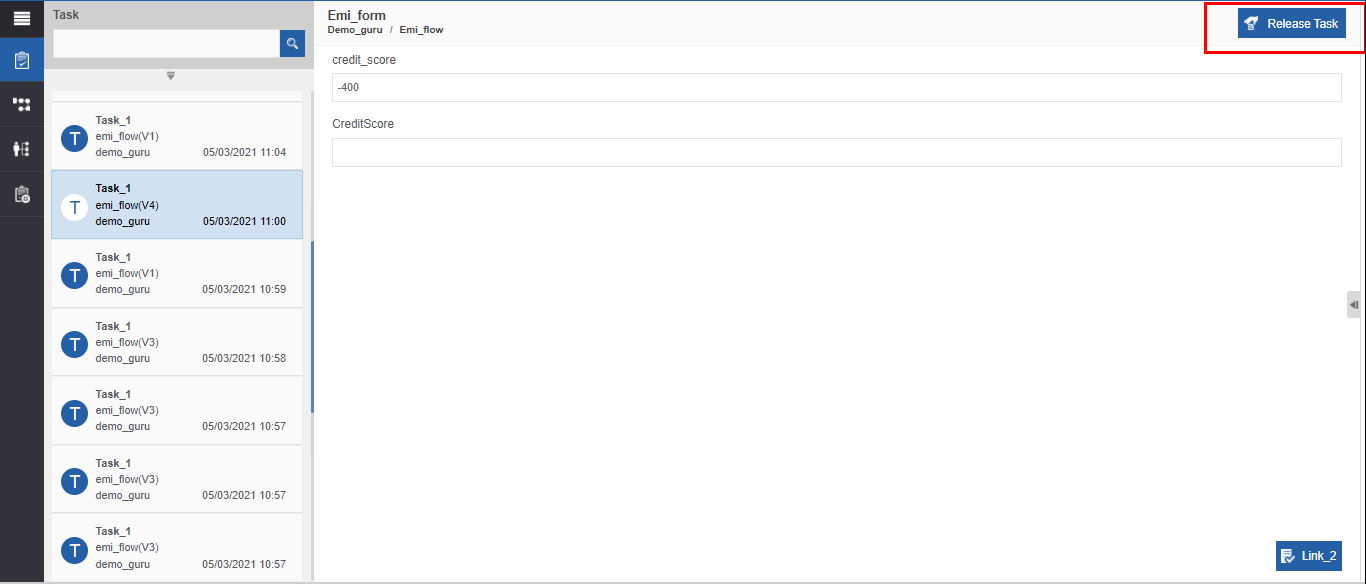
Figure 6: Release Task -
Click Release Task. The form is disabled and the Pick button appears in the form. You can pick the released task again.
Initiating Task (Submitting Runtime Form)
Initiating a task or completing a task indicates that the user has acted (submitted) on the runtime form associated with that task. For initiating the task, the participant needs to pick the task, enter the details and submit the form.
- Click Burger menu and then click Workspace.
-
Click My Task icon on the left side. My Task is selected by default. My Tasks list panel is displayed on the right side of the icon panel with the list of all tasks assigned to the logged-in user.
-
Click the Task. The workspace work area displays the details of the selected task with a Pick button.
-
Click Pick. The form is enabled.
-
Enter the details in the form and submit the form.
The task is initiated and the form gets submitted. The participants for the next task in the workflow get the next task in the My Tasks list.
Managing Datasets in My Tasks
You can create a dataset for saving the runtime Form input details and load the details back to the form as needed. This feature can be used when the form details are large and you need to save the input details at that point of time without submitting the form.
Creating a Dataset
For creating data set, you need to pick the form and provide the input details in the form.
- Navigate through Burger Menu > Workspace > My Tasks.
-
Click and select a task from the Task List. The runtime form for that task appears in the workspace work area.
-
Click Pick. The Form is enabled.
-
Enter the details in the form.
-
Click Expand icon on the right side of the workspace work area. Workspace Properties panel appears.
-
In the Workspace Properties, click Save Form Data accordion.
-
Click +Form Data. Data set details appear.
-
Enter Data set name and click Save. The data set is created with the details entered in the form.
Loading Dataset
You can load a predefined dataset to the form. If you save the details entered in the Forms fields as a data set, you can load the details back to the respective form fields.
- Navigate through Burger Menu > Workspace > My Tasks.
-
Click and select a task from the Task List. The runtime form for that task appears in the workspace work area.
-
Click Pick. The Form is enabled. Make sure you have selected the task and form for which you have already defined a dataset.
-
Click Expand icon on the right side of the workspace work area. Workspace Properties panel appears.
-
In the Workspace Properties, click Save Form Data accordion.
-
Enter the name of the dataset below the Name field.
Deleting Dataset
You can delete a dataset if you no longer require the form field values stored in the dataset.
Managing My Process
Introduction to My Process
My Process lists the processes which are assigned to the logged-in user. The process listed in the process list panel displays the name of the process along with the version of the process in parenthesis. The date and time of when the process was deployed are displayed adjacent to the process name.
You can initiate the process via My Process unless the process initiation is done via email trigger. The first task of the process flow is executed in My Process. That is, the form associated with the first task in the workflow is displayed in My Process for initiation. The subsequent tasks of the workflow will be available in My Tasks.
Viewing My Process
The processes deployed on that day appear under Today’s section and the processes deployed before the current date will be listed under the Older section.
- Click Burger menu and then click Workspace.
-
Click My Process icon on the left side. My Process list panel appears on the right side of the icon panel with the list of all processes assigned to the logged-in user.
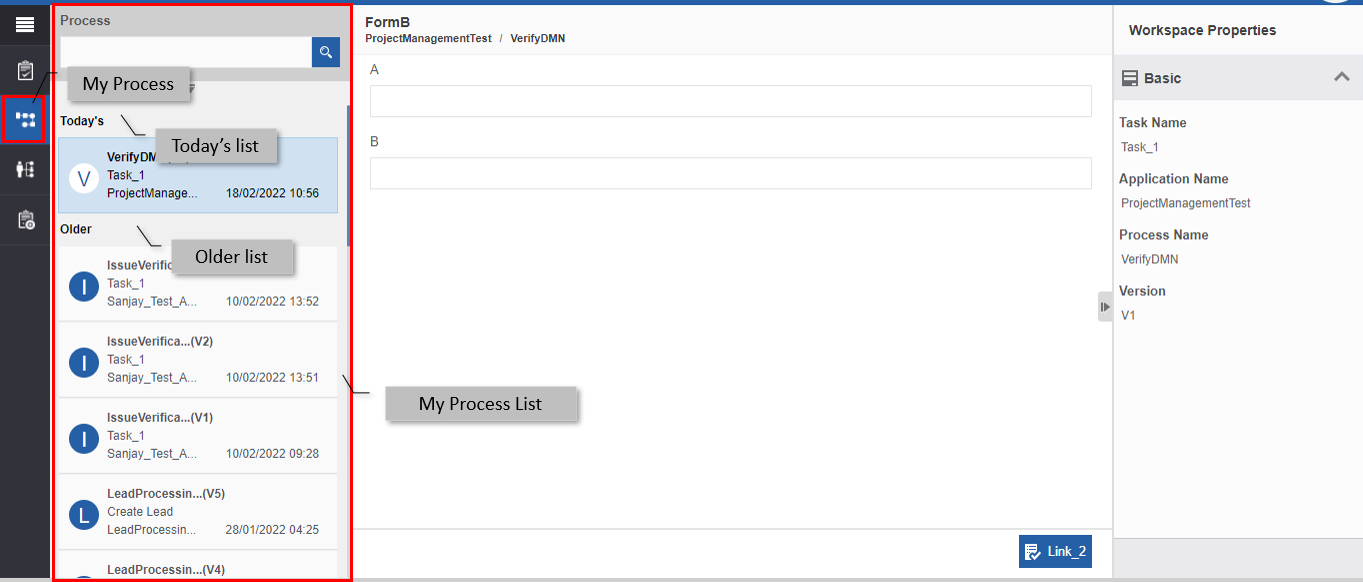
Figure 7: Viewing My Process -
Click a process from the list. The workspace work area displays the first form associated with the first task in the selected process.
Searching for a Process
You can search for a process in the process list by using the filter and search option in the My Process. You can search by Process or by Application or a combination of any of these.
- Click the Burger menu and then navigate to Workspace > My Process. My Process list appears on the right side with a search option on the top of the process list.
-
Click the expand icon in the process list. The search panel is displayed in an expanded view.
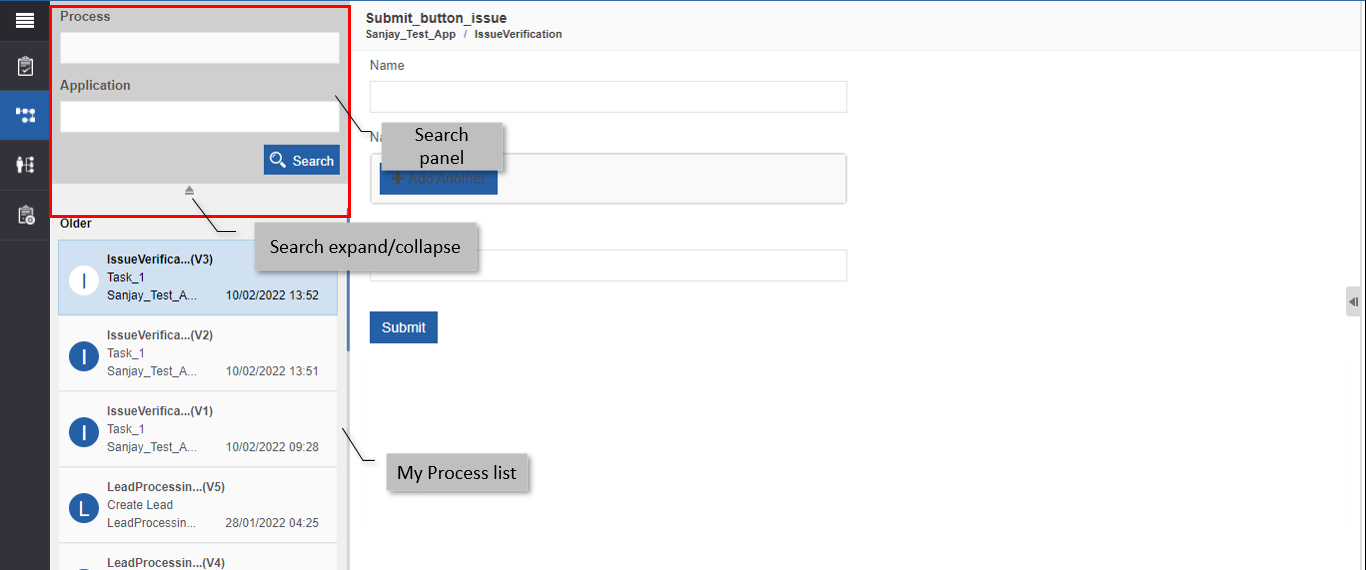
Figure 8: Searching for a process -
Enter the search item in the respective fields. You can use any of the below filters or a combination of any.
-
Process – allows you to search by process name
-
Application – allows you to search by application name.
-
-
Click Search. Filtered results are displayed in the My Process list panel.
Initiating a Process
You can initiate a task in the process through My Process.
- Click Burger menu and then click Workspace.
-
Click My Process icon on the left side. My Process list panel appears on the right side of the icon panel with the list of all processes assigned to the logged-in user.
-
Click a process from the list. Workspace work area displays the first form associated with the first task in the selected process for the logged-in user.
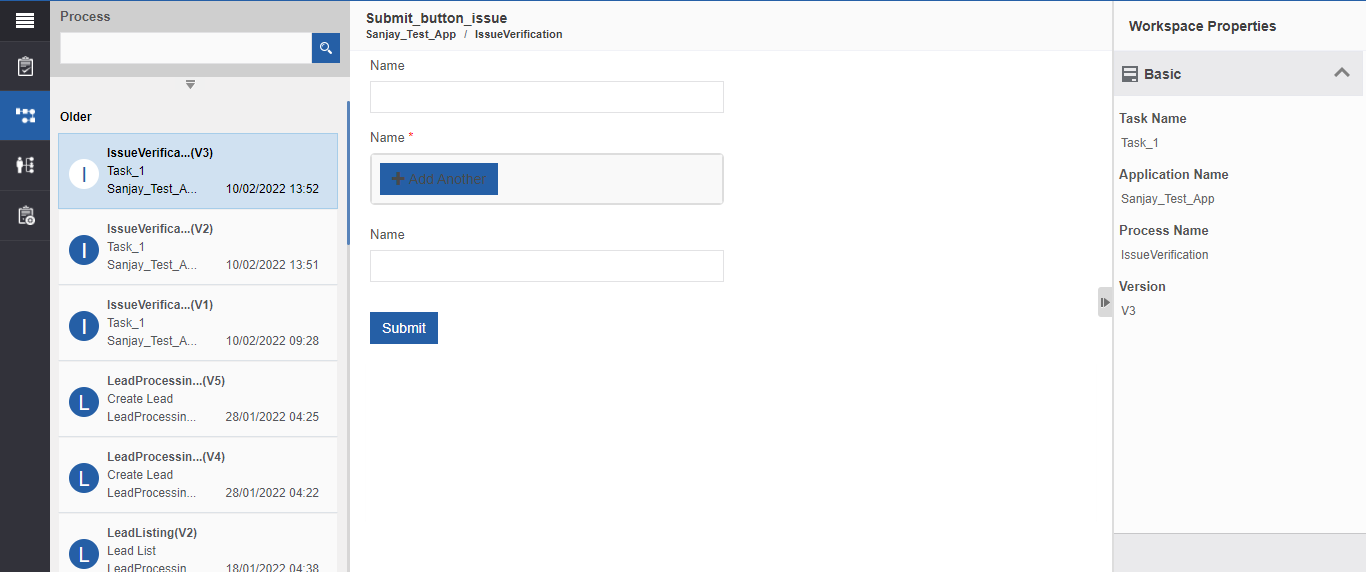
Figure 9: My Process List with the selected process -
Enter the Form details and submit the form. The process is initiated and the next active task associated with the process gets added to your My Tasks list.
Managing My Instance
Introduction to My Instance
My Instance lists the instances which are under execution. You can view the status of the process instance which are assigned to the logged-in user. An instance of a process is displayed only when the process gets initiated. The instances are listed in the Instance list panel. The instance name appears along with the version of the instance in parenthesis. The date and time of process deployment are displayed adjacent to the instance.
Viewing My Instance
The instances are displayed only after the initiation of the process. The instances are displayed in the “Process I Started” and “Process I Participated” tabs.
- Click Burger menu and then click Workspace.
-
Click My Instance icon on the left side. My Instances list panel appears on the right side of the icon panel with “Process I Started” and “Process I Participated” tabs.
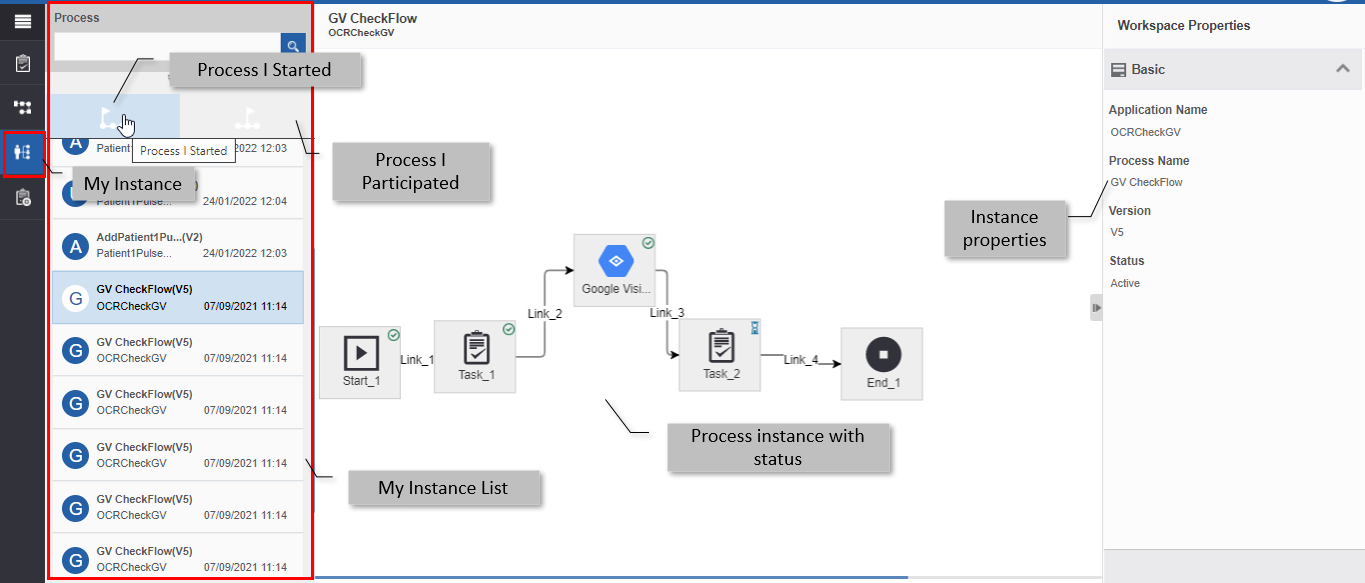
Figure 10: Viewing My Instance -
Click Process I Started tab for viewing the instances of the process that you started.
Or
Click Process I Participated tab for viewing the instances of the process that you participated.
-
Process I Started: Displays the instances of those processes that the logged-in user has initiated or started. That is, the first task is initiated by the logged-in user.
-
Process I Participated: Displays the instances that the logged-in user has participated. That is, the logged-in user has acted in at least one of the tasks for that process.
-
-
Click an instance from My Instance list. The instance flow appears in the Workspace work area.
-
Click the expand/collapse arrow on the right side of the workspace work area. The instance properties appear on the Workspace Properties panel.
-
Click an activity in the instance flow. The details and status of the activity appear in the Workspace Properties panel. The symbol on the top-right of the activity indicates the status of the activity.
 -
Tick - Indicates the activity is completed.
-
Tick - Indicates the activity is completed. -
Hourglass - Indicates the activity is active.
-
Hourglass - Indicates the activity is active. -
Cross - Indicates the activity encountered an error. Click the cross
mark and the error details appear.
-
Cross - Indicates the activity encountered an error. Click the cross
mark and the error details appear. -
No symbol - indicates the activity is not yet initiated.
-
No symbol - indicates the activity is not yet initiated.
-
Searching for an Instance
You can search for an instance in the My Instance list by using the filter and search option in the My Instance. You can search by Process or by Application or a combination of any of these.
- Click the Burger menu and navigate to Workspace > My Instance. My Instance list appears on the right side with a search option appearing at the top of the instance list.
-
Click the expand icon on the instance list. The search panel is displayed in an expanded view.
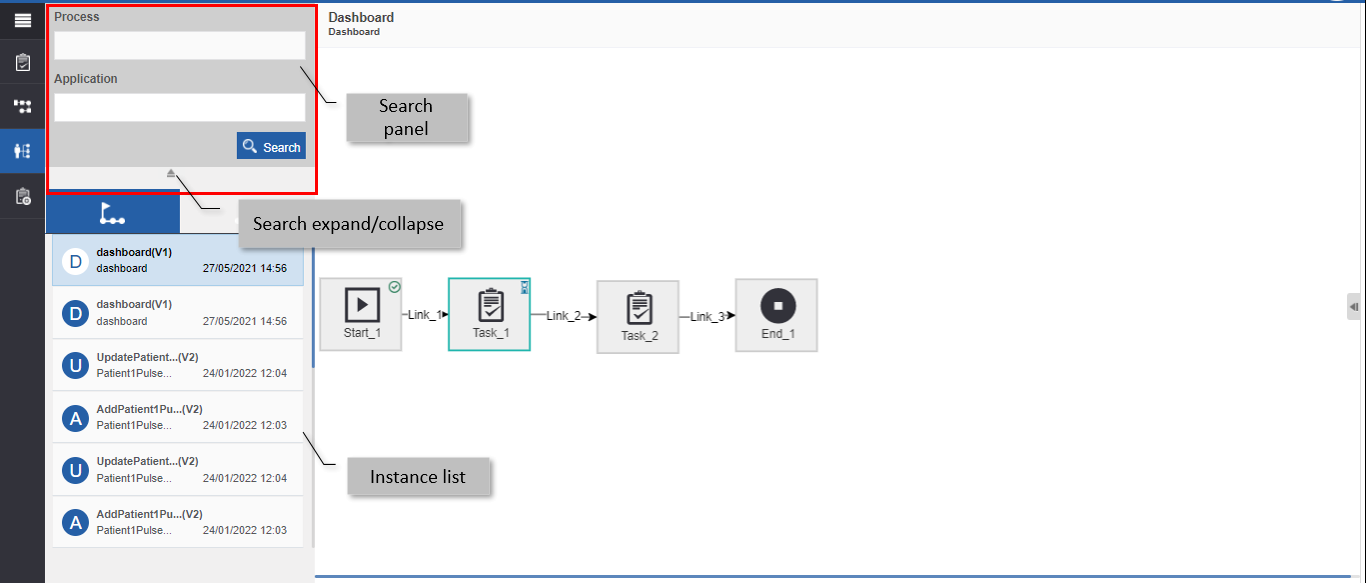
Figure 11: Searching for a task -
Enter the search item in the respective fields. You can use any of the below filters or a combination of any.
-
Process – allows you to search by process name
-
Application – allows you to search by application name.
-
-
Click Search. Filtered results are displayed in the list panel.
Managing Custom Task
Introduction to Custom Task
Custom Task list displays the custom tasks defined in the organization. The process name of the custom task also is displayed along with the version number in the parenthesis adjacent to the custom task name in the custom task list. Only the custom task assigned user can view the custom task list.
A grid view of data with the required fields of the particular instance which is active is displayed as per the custom task created. If a custom task is assigned to a participant, then the details of that custom task is visible only when the task is active for the participant. That is, you can view the custom task details only after the initiation of the process. The participant can view all the instances of the active custom task.
Viewing Custom Task
- Click Burger menu and then click Workspace.
-
Click the Custom Task icon on the left side. Custom Task list panel appears on the right side of the icon panel with the list of all custom tasks assigned to the logged-in user.
-
From the Custom Task list, click a custom task.
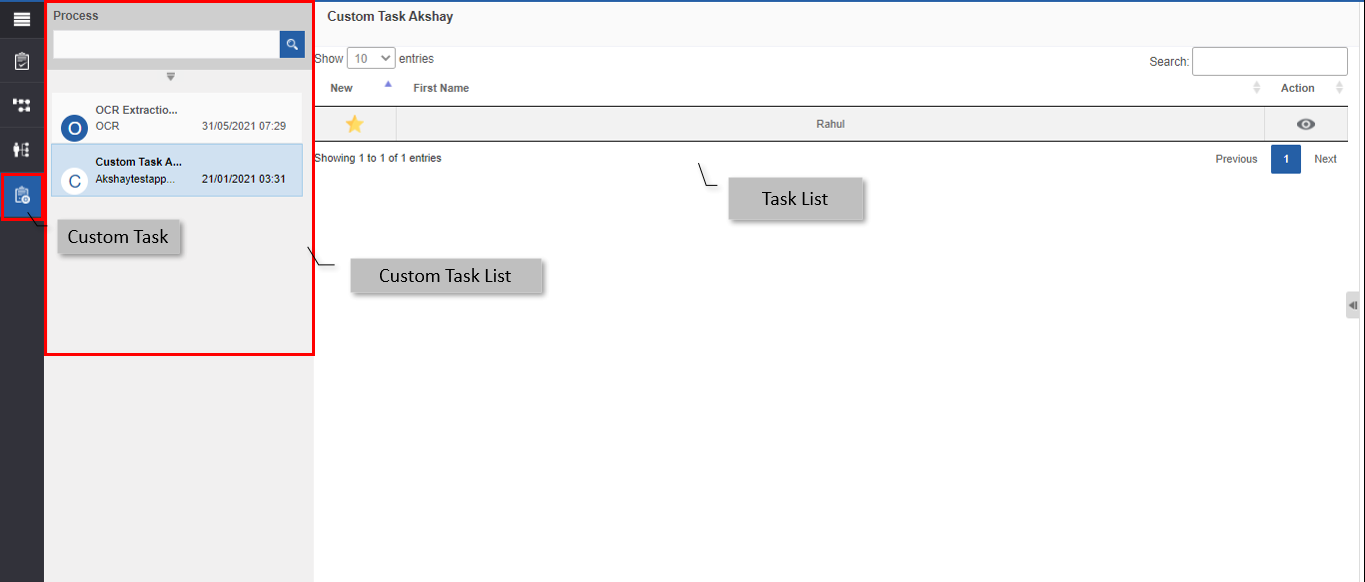
Figure 12: Custom task list
Searching for a Custom Task
You can search for a custom task in the custom task list by using the filter and search option in the custom task. You can search by Process or by Application or a combination of any of these.
- Click Burger menu and then navigate to Workspace > Custom Task. Custom Task list appears on the right side with a search option appearing on the top of the task list.
-
Click the expand icon from the left side list. The search panel is displayed in an expanded view.
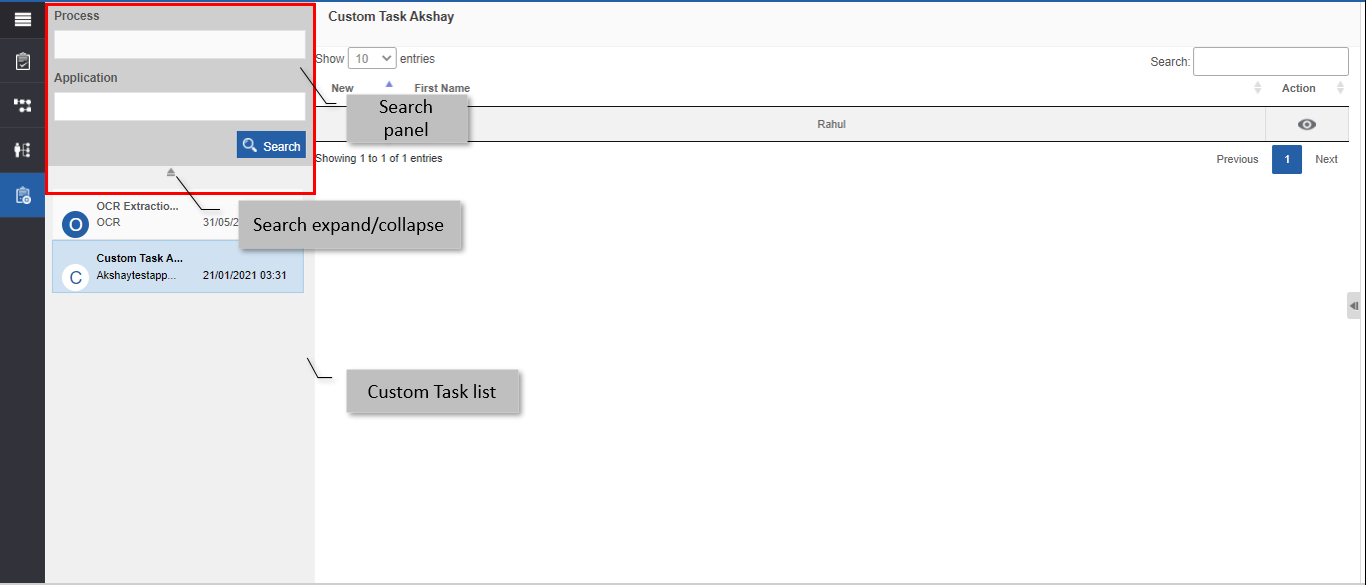
Figure 13: Searching for a task -
Enter the search item in the respective fields. You can use any of the below filters or a combination of any.
-
Process – allows you to search by process name
-
Application – allows you to search by application name.
-
-
Click Search. Filtered results are displayed in the My Task list panel.
Completing the Custom Task
The Custom Task list displays the list of tasks of different instances and versions. The columns in the custom task list view are configured and defined in Manage > Application Management > Custom Task. Multiple records are displayed based on the number of active deployed versions running as instances. After the initiation of the process, if you have an assigned task, it is listed in the custom task list grid.
You can view and act on the assigned custom task in the Custom Task list. When you submit the custom task, the custom task for that instance is removed from the custom task list.
- Click Burger menu and then click Workspace.
-
Click the Custom Task icon on the left side. Custom Task list panel appears on the right side of the icon panel with the list of all custom tasks assigned to the logged-in user.
-
Click a custom task from the list. Workspace work area displays the form associated with the custom task in the selected process for the logged-in user.
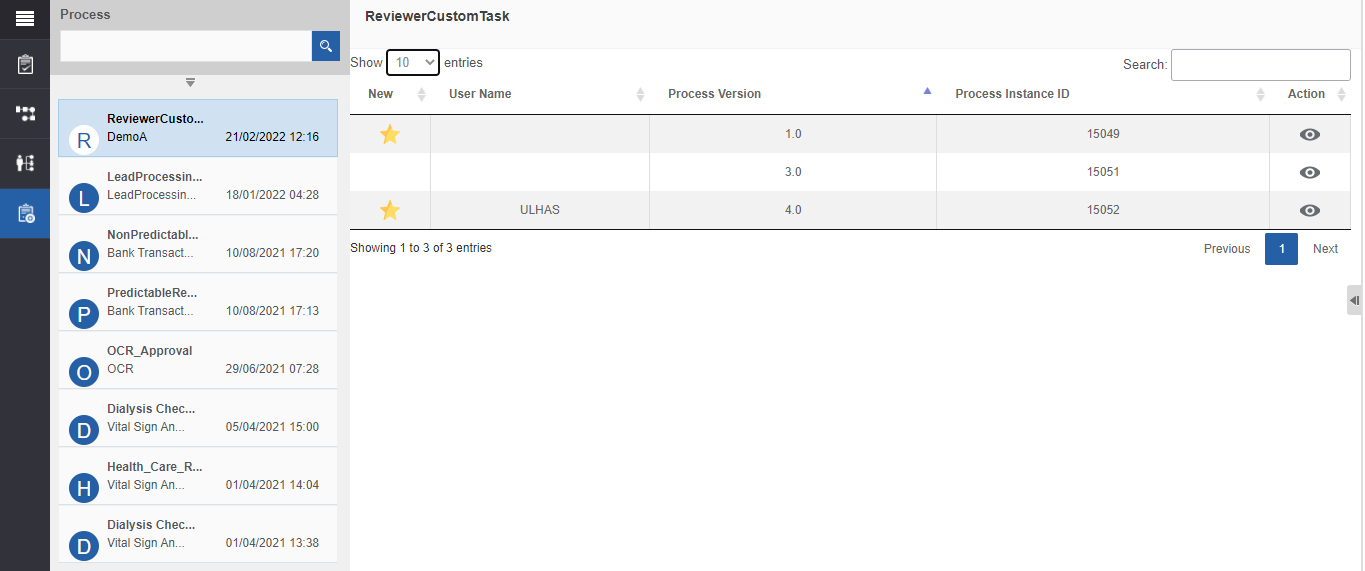
A grid view of the custom tasks appears in the workspace work area.
The New and the Actions columns are the default columns and the other columns of the grid can be defiend as per your requirement.
-
The Star symbol under the “New” column indicates that the task is new and it is not yet viewed.
-
Each column name appears with a sorting arrow adjacent to it. Click the arrow for sorting the columns in ascending (upward arrow) or descending (downward arrow) order.
-
Enter the search text for filtering the grid details as per the search criteria.
-
Click Show “n” entries for selecting the number of list items to be displayed per page where n is the number displayed in th drop-down list.
-
Click pagination the bottom-right of the grid for navigating through the pages.
-
-
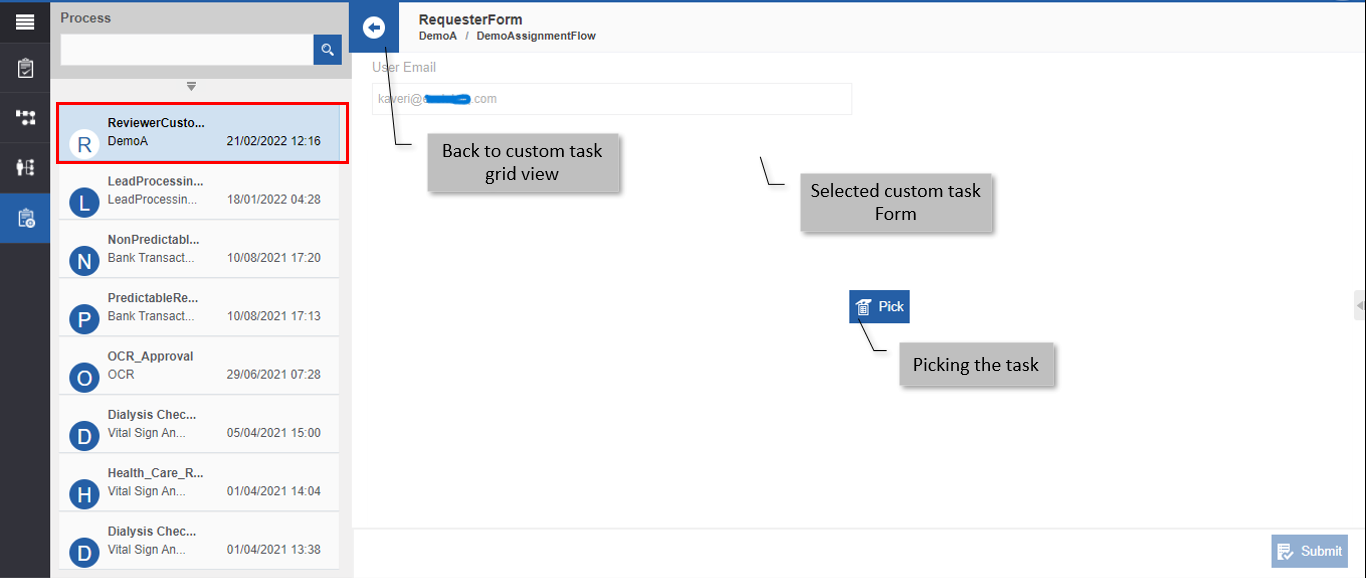
In the Actions column of the custom task grid, click the view icon. The active task of the corresponding instance is displayed.
-
Pick the Custom Task, enter the form details, and then submit the form for completing the custom task.