NuGet Packet Manager
NuGet Packages
NuGet packages are featured libraries that you can add to your RPA project for achieving specific requirements.
The Platform Pro version of RPA Bot Studio supports you to add featured libraries as NuGet packets as activities to the activities list. Using these activities, you can create RPA workflows based on your customized requirements.
NuGet Package Manager
The package manager allows you to install additional library packages to the selected project. If you do not find any activities related to your requirement in the Activities list, search for the activity in the NuGets (Open Packet Manager feature in the Project) and install the same. The installed NuGet appear as activities in the Activities list that can be utilized in your workflow.
Also, when you add a package to a project, the DLLs associated with that package is also installed and it will apply to that project. Hence, you can utilize the methods available in that DLL through the workflow activities like Write Line, Invoke Code, etc.
Some of the NuGet packages support activities, some of them support methods, some of them support both – and this behavior is dependent on the feature of the NuGet that you select.
Installing NuGet to a Project
When you install a NuGet package, all the DLL dependent on that package gets installed automatically.
-
Open RPA Bot Studio.
-
In the Projects tab, click the project name for which you need to install an additional package. Project details appear on the right side.
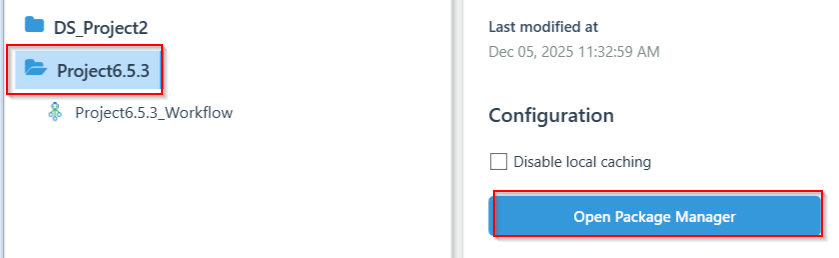
Figure 1.1: Open Package Manager
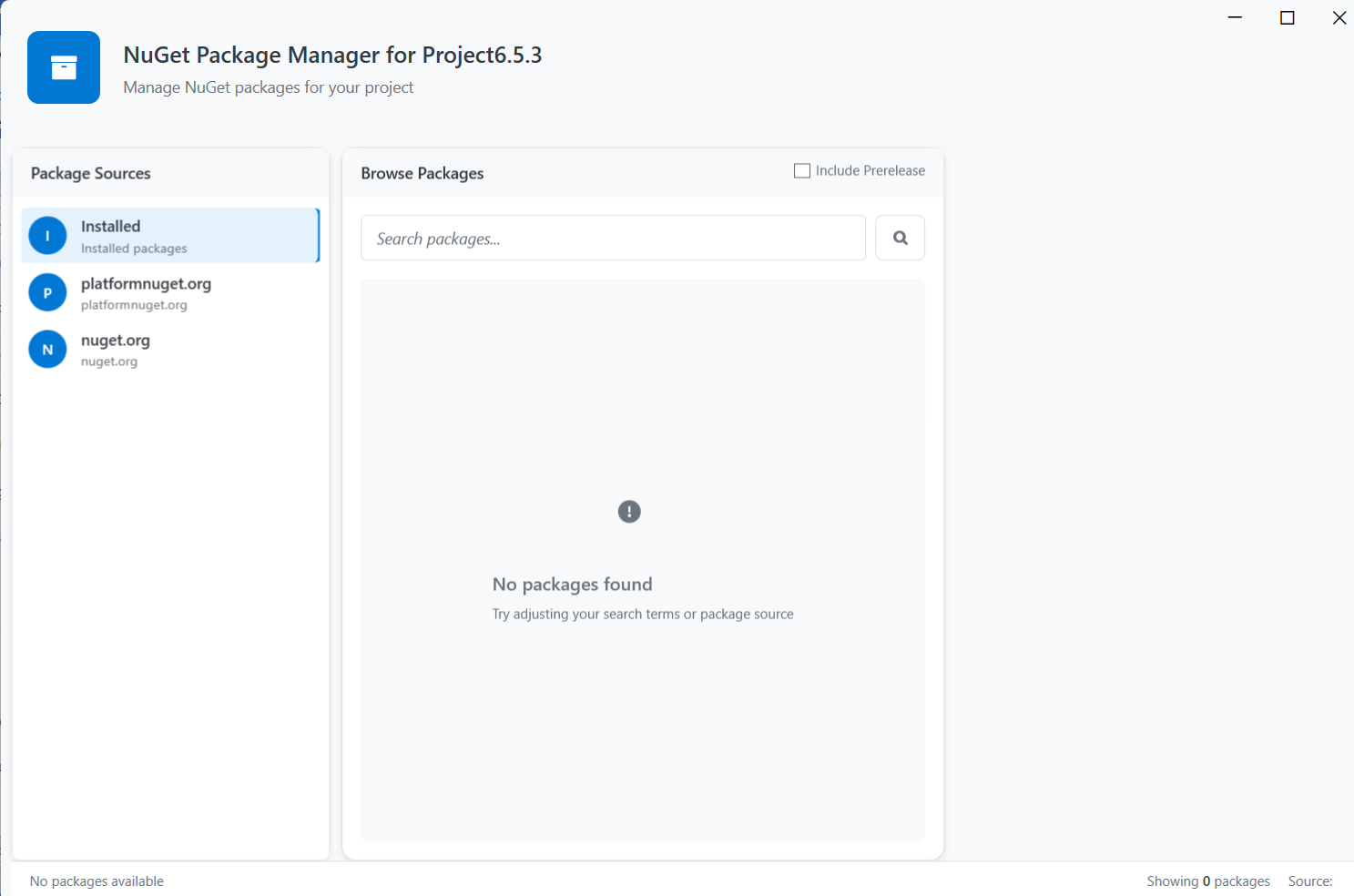
- In the Project details section on the right-side, click Open Package Manager. NuGet Packet Manager for the selected Project appears.
-
Installed: Displays already installed packages.
-
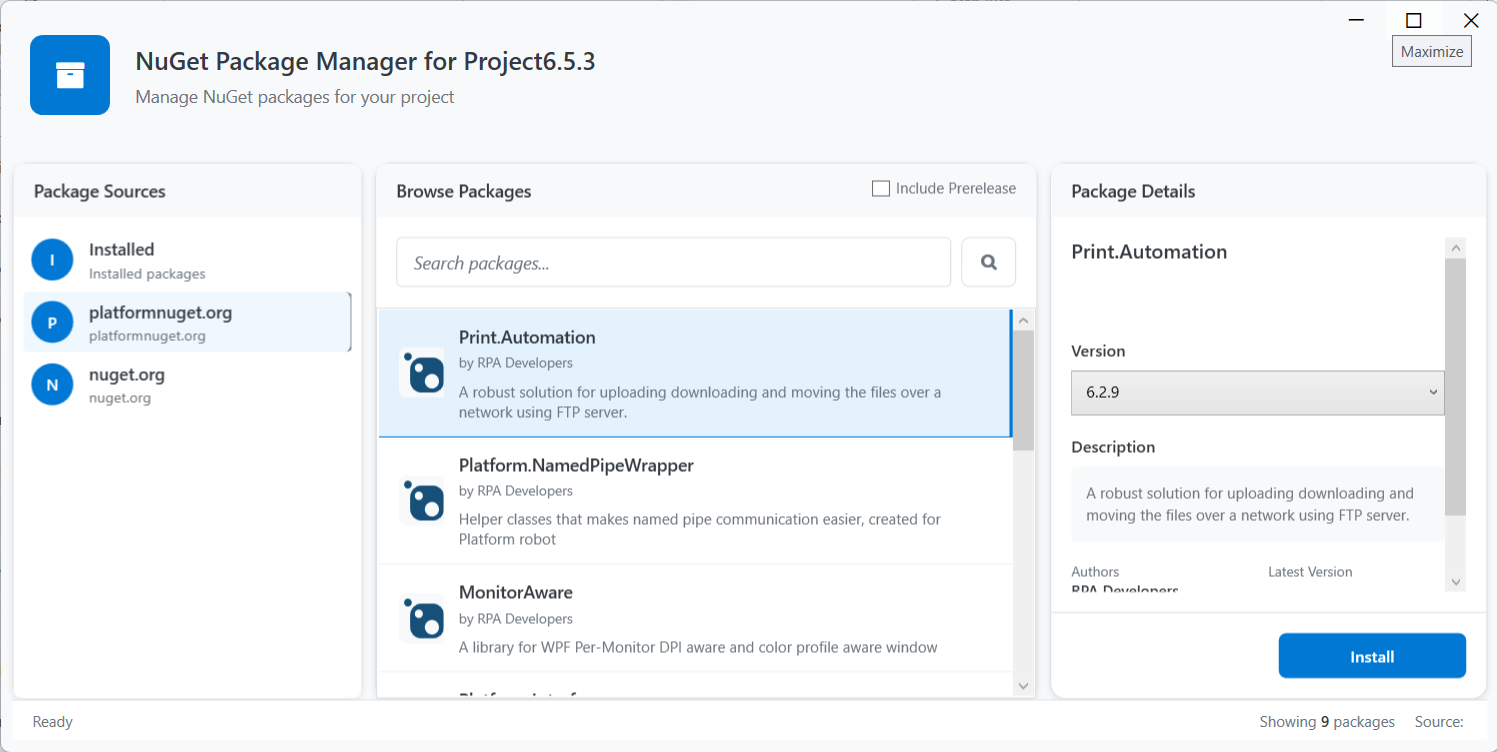
platformnuget.org: Displays the list of platform-based packages that are ready for installation and use.
-
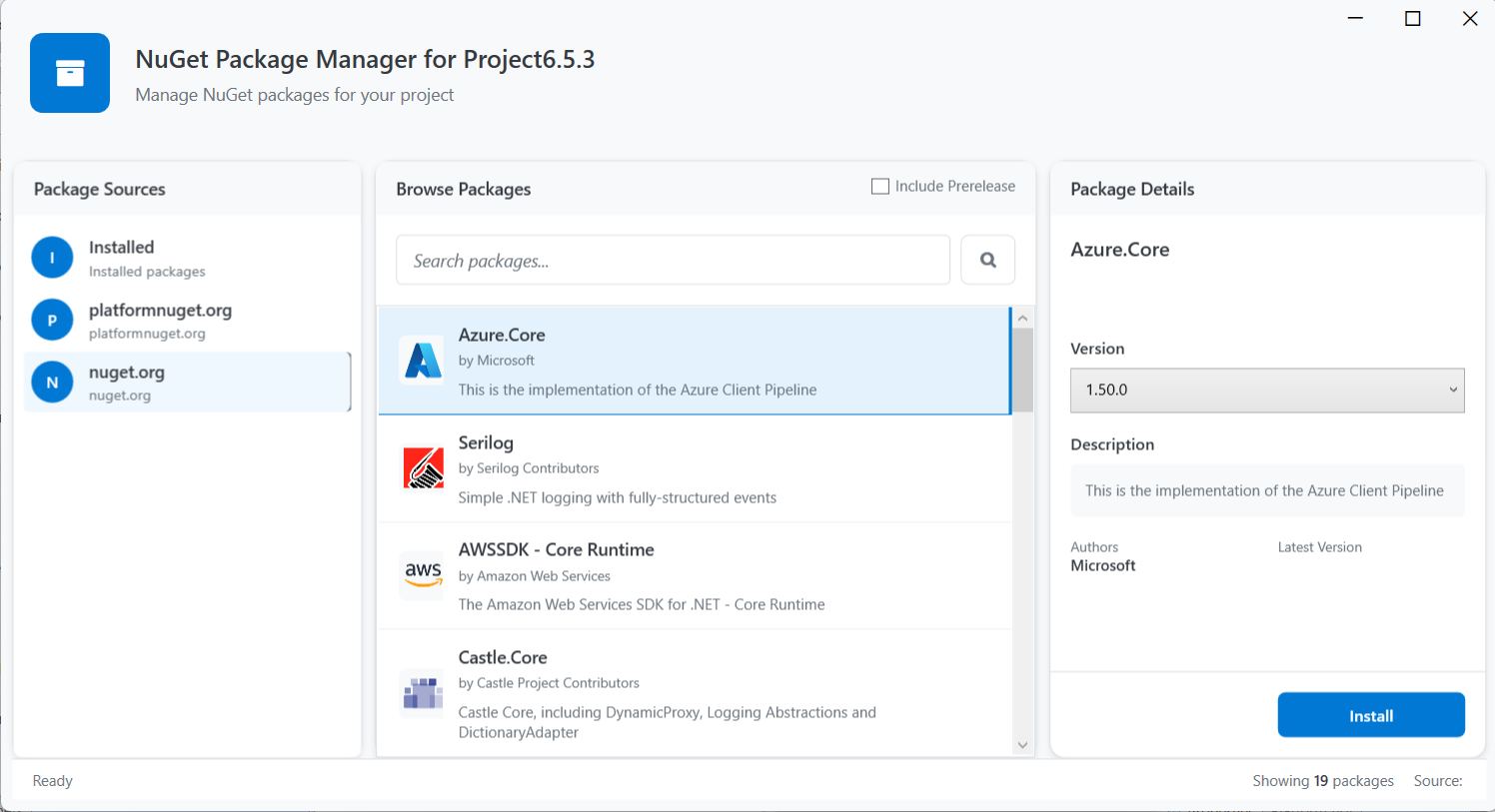
nuget.org: Displays external NuGet packages that are available for installation and use.
-
Click installed to view the already installed packages.
-
Click platformnuget.org to view the platformnugets and then click a package name to view its details.
- Click nuget.org to view the available NuGet packages and click a package name to view its details.
- After selecting the platformnuget.org or nuget.org as per your workflow requirement, on the search box type the search text for finding a packages that you need. The matching packages are listed.
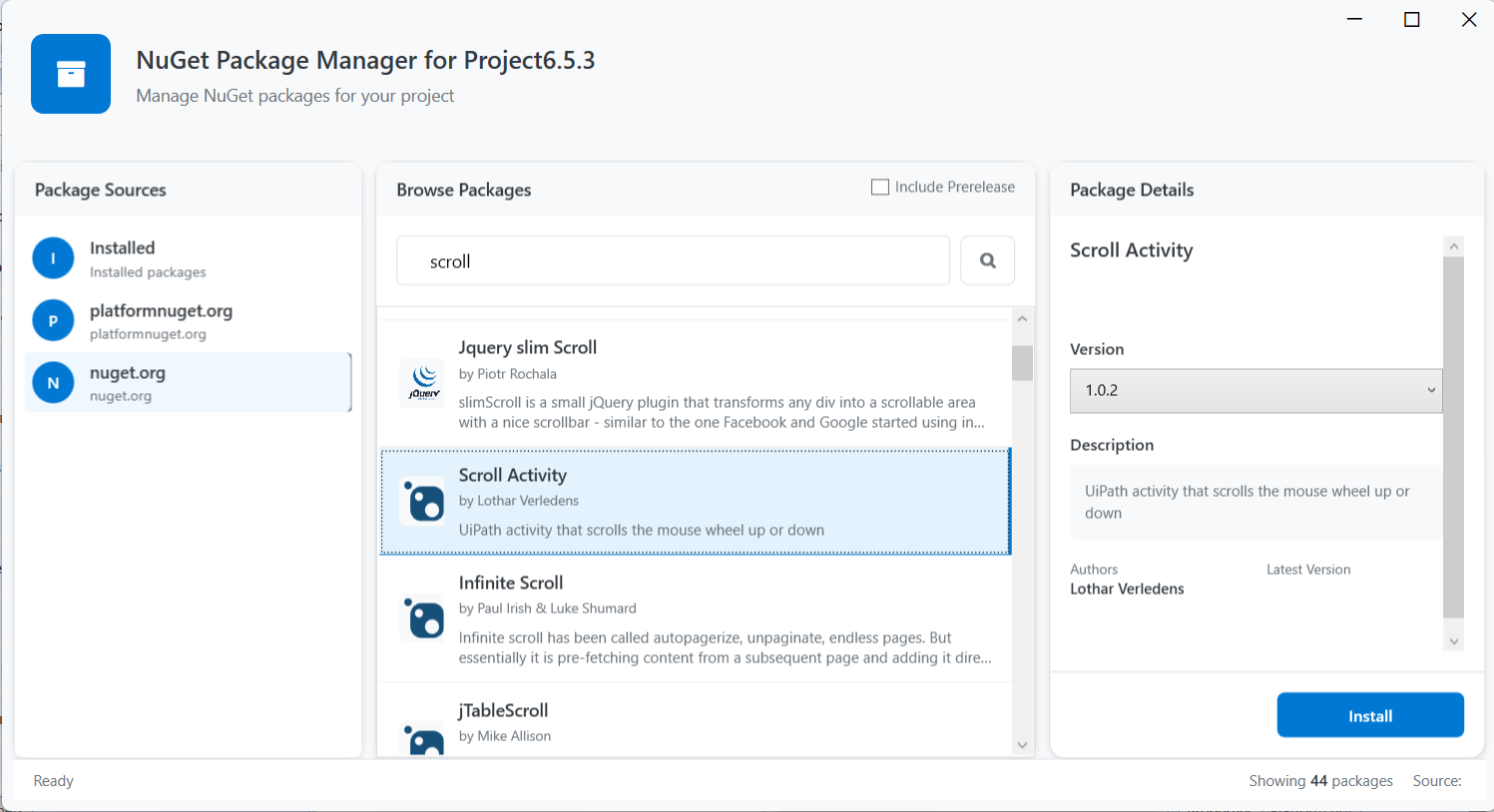
Figure 1.2: Searching for a NuGet/package
- Click the required package name from the list. Details are displayed on the right side.
Select the Version that you need and click Install.
The installing process starts.
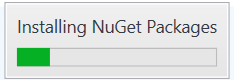
The selected package is installed. Now Uninstall and Update buttons appear on the screen.
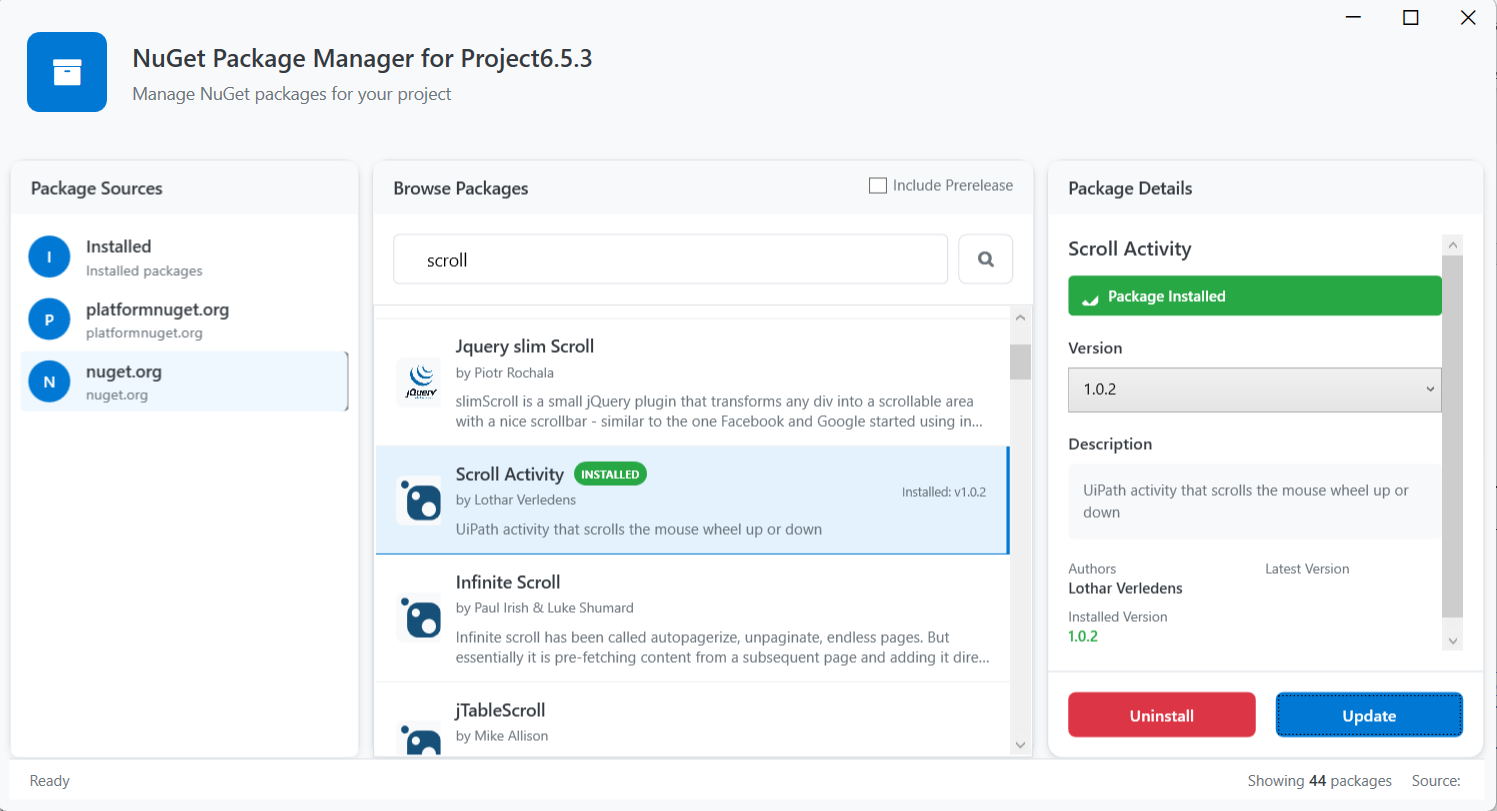
Figure 1.3: NuGet after installation
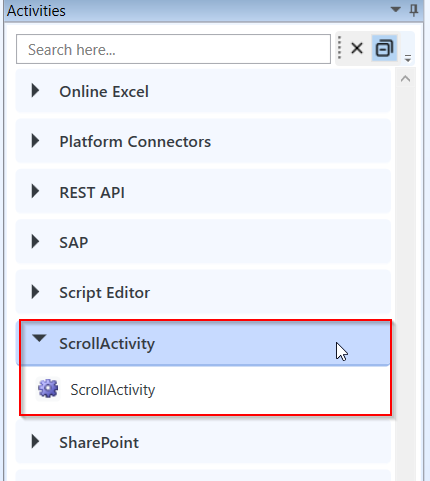
The installed Scroll activity in the activity list.
-
When you install a NuGet packet, its depended entities and libraries (DLL) are also installed.
-
Make sure to install any additional dependent DLLs for your requirement in order to avoid any errors.
Viewing Installed NuGets
-
Open RPA Bot Studio.
-
In the Projects, click the project name.
-
In the Project details section on the right-side, click Open Package Manager. NuGet Packet Manager for the selected Project appears.
-
Click Installed on the left side. All the installed packages appear.
-
When you install a package, all the dependent DLLs also get installed along with that.
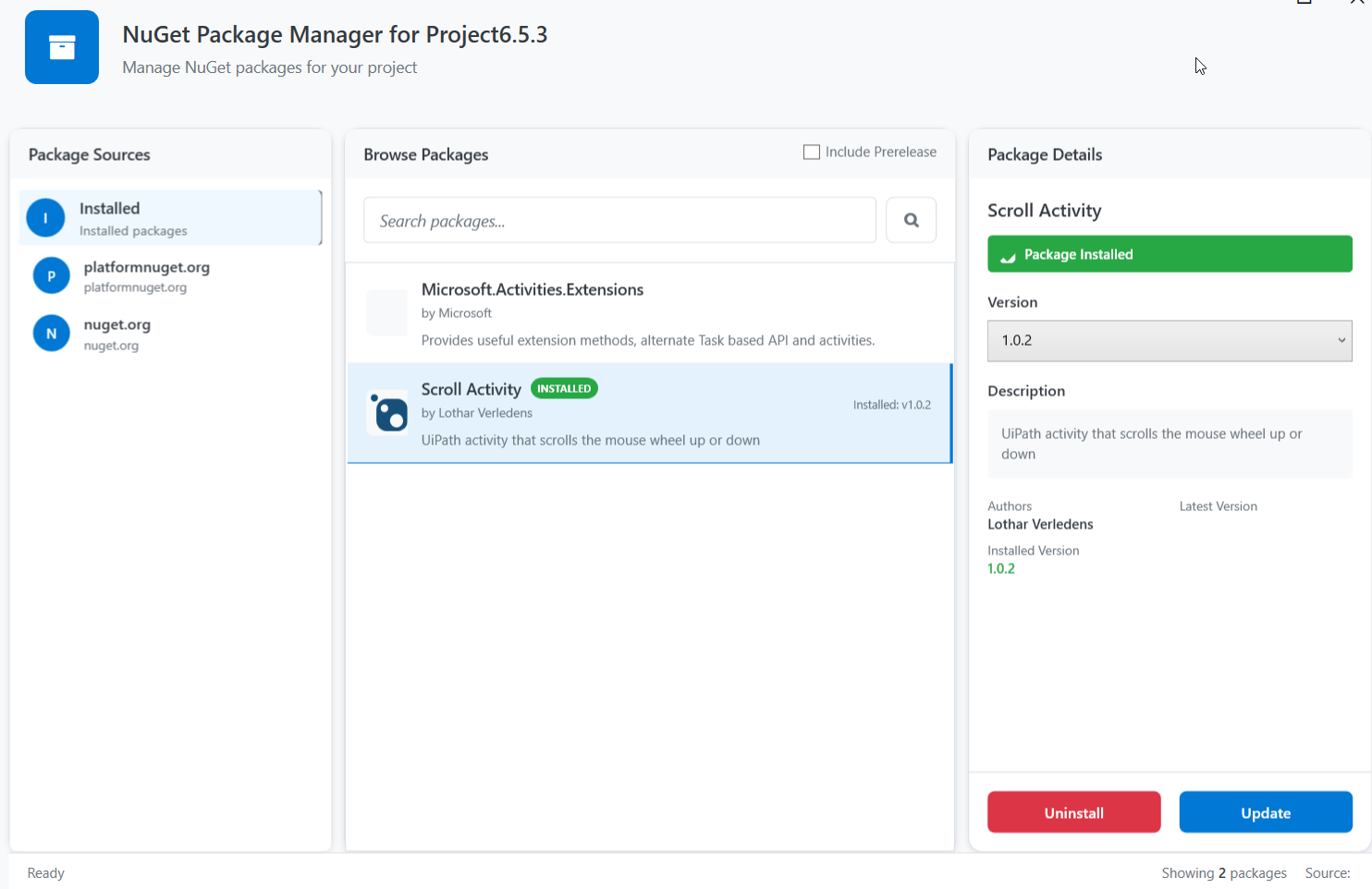
Figure 1.5: Installed NuGets
- Click a package name to view the details on the right side.
Viewing Entities of the Installed Packages
If the installed package has activities, the activities are listed in the Activity list under a specified category.
To view the methods within an installed package, follow the procedure mentioned below:
-
Create a workflow using a Write Line (or any other relevant) activity.
-
In the activity text box, enter a few letters of the newly installed package name. The methods, name spaces, etc., are listed.
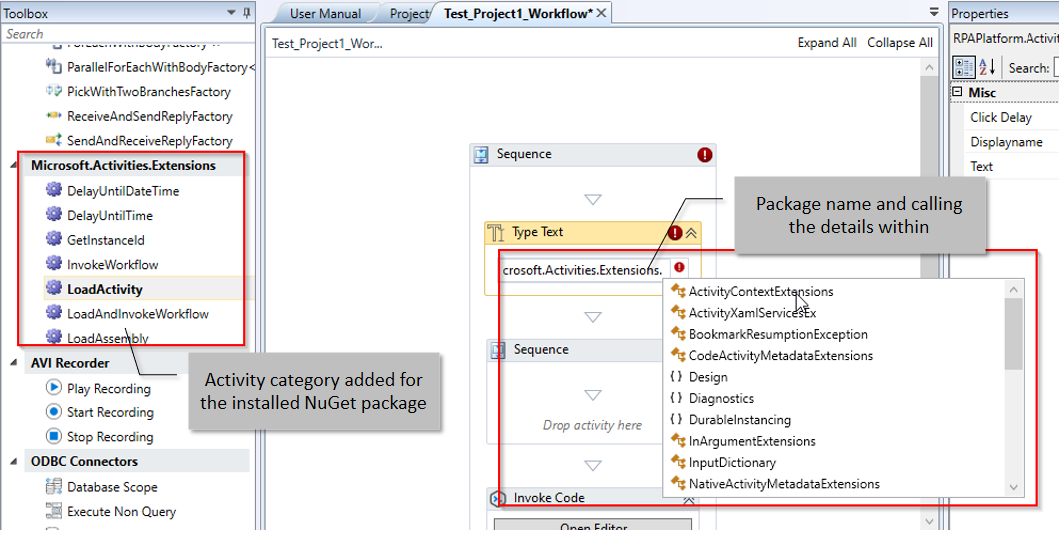
Figure 1.4: NuGet methods, name spaces, Class, Structure etc.
Updating NuGet Packages
You can Update the NuGet package that you have installed in a Project. You should reload the application to reflect the updates for the package.
When you update a NuGet package, any newly updated methods also will get reflected in the list of methods.
-
Open RPA Bot Studio.
-
In the Projects, click the project name.
-
In the Project details section on the right-side, click Open Package Manager. NuGet Packet Manager for the selected Project appears.
-
Click Installed on the left side. All the installed packages appear. On the right side, the details including the version are displayed.
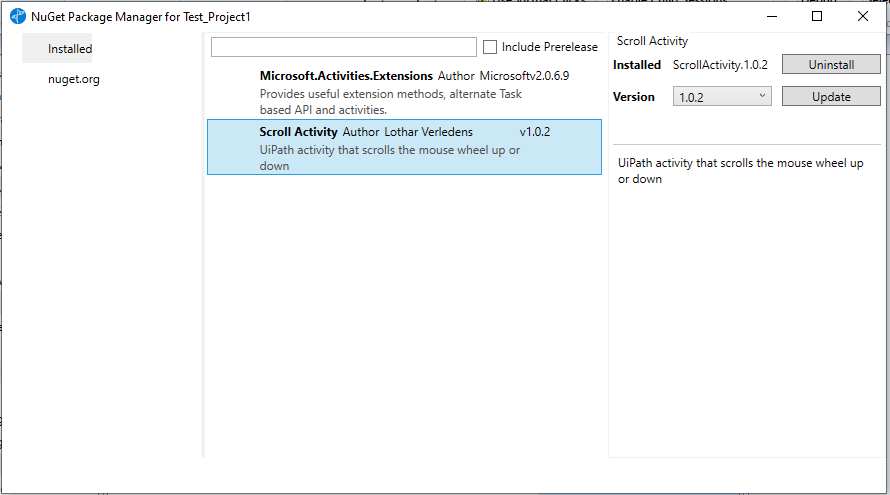
Figure 1.6: Installed NuGets
-
Select the required version to be updated.
-
Click Update. The updated version is installed. Reload the application to reflect the changes. Update button appears only when the updated version is available.
Uninstalling NuGet Packages
You can Uninstall the NuGet package that you have installed in Project. You should reload the application to reflect the complete uninstallation.
Once you uninstall the NuGet, you will not get the methods in that DLL in your activities.
-
Open RPA Bot Studio.
-
In the Projects, click the project name.
-
In the Project details section on the right-side, click Open Package Manager. NuGet Packet Manager for the selected Project appears.
-
Click Installed on the left side. All the installed packages appear.

-
Select the required version to be uninstalled.
-
Click Uninstall. The NuGet get uninstalled. Reload the application for reflecting the complete changes.