RPA Management Overview
Introduction to RPA Management
The RPA management section applies only to the Platform RPA users. The user should have proper platform permission for accessing the Platform RPA Management. The users who have the access to the Manage module will have the access to the RPA Management. General users do not have access to the Management section.
RPA Management section allows you to manage and orchestrate RPA workflow execution-based activities.
- Note: The term workflow execution or trigger execution refers to the Playing of the workflow in the RPA Bot Agent.
Viewing RPA Management Categories
The RPA Management section has multiple sub sections that allows you to manage, monitor, and track the RPA activities and workflows.
-
Click the Main menu on the top-left of the Platform.
-
Click Manage.
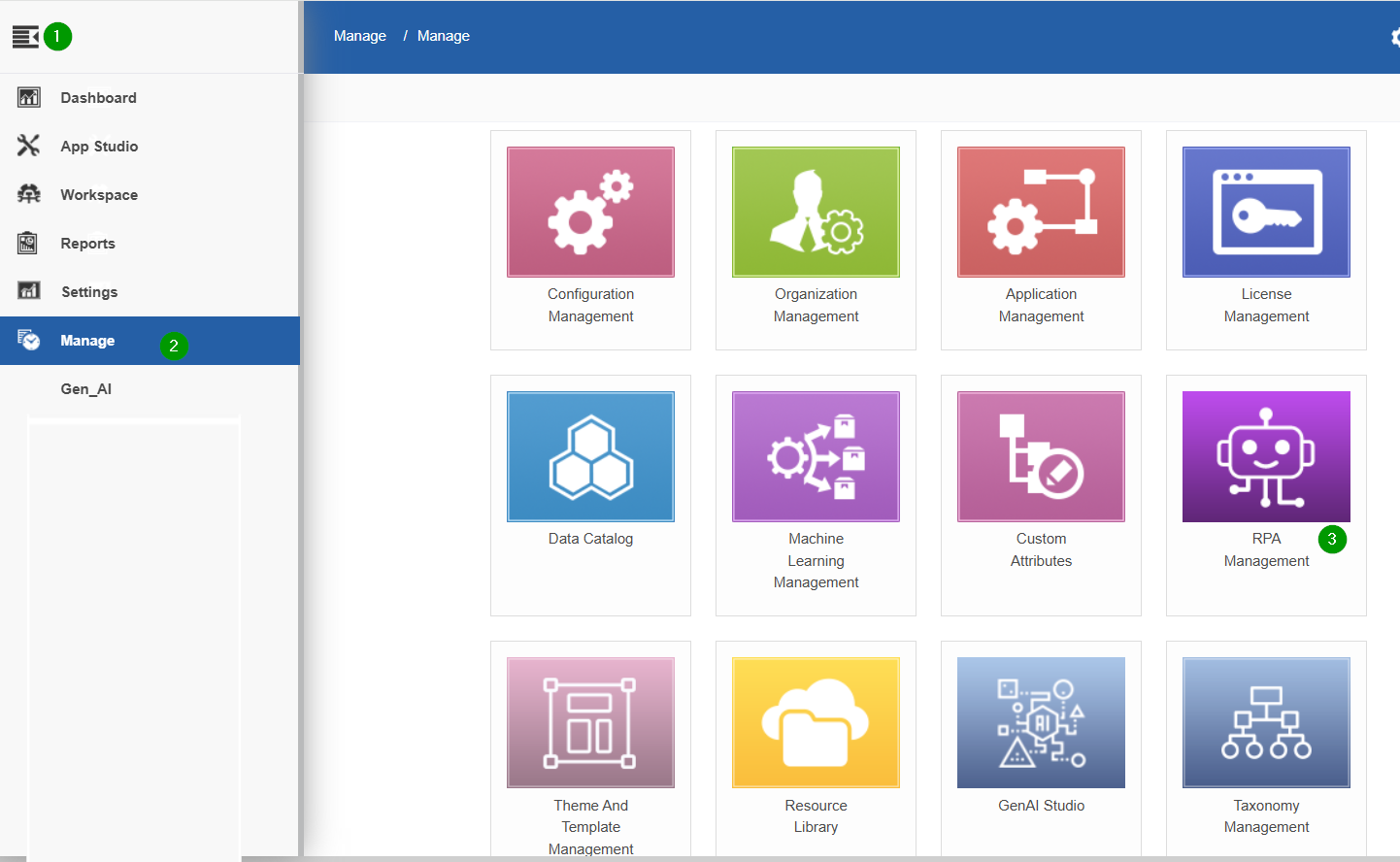
Platform Manage page
- Click RPA Management and then click the expand arrow of the left side menu for expanding left menu panel.
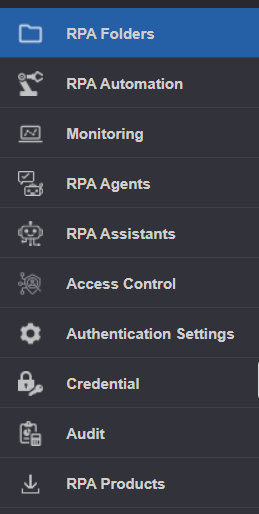
RPA Management Categories
Synchronization with RPA Applications
The RPA Management is synchronized with the RPA Bot Studio, RPA Bot Agent, and RPA Bot Assistant applications. All the bot executions and workflow functionalities and features are synced between the RPA Management modules and the RPA client applications.
The folder structure is synchronized between Platform RPA Management and RPA Studio. Any new folders created in either the RPA Management > Folder or RPA Bot Studio will reflect in both places. You must select a folder while publishing a project from the RPA Bot Studio.
Publish details from RPA Bot Studio and execution details from RPA Bot Agent and RPA Bot Assistant applications are synced to the relevant submodules in the RPA Management section.
Searching for Workflows
The “Search by Workflows” feature is displayed in pages where workflow list appears on the grid. It makes it easier to fetch specific workflows.
-
Navigate to Main Menu > Manage > RPA Management > RPA Access Control.
-
Click the “Search by Workflow” textbox at the top-left and enter the bot workflow name. As you type the name, the filtered result dynamically appears on the grid.