Getting Started with RPA Bot Studio
About RPA
Robotic Process Automation (RPA) is used to automate repetitive tasks previously performed by humans as an effective way to cut costs, eliminate keying errors, speed up processes, and easily link applications together. These tasks can be successfully modeled and converted into a business process and then automated using a combination of UI interactions, connectors to client servers, mainframes, databases, the web, and others.
Introduction to RPA Bot Studio
RPA Bot Studio is the interface where RPA projects and workflows are created and configured.
A project is a collection of RPA workflows. An RPA workflow is an automation flow. Design your workflows as sequences or flows, and then configure the workflow using activities.
RPA Bot Studio is a designer interface where you create and test the RPA workflows. It allows you to create workflows and deploy them.
As per the License Agreement, the number of connections that are allowed for the Studio is mentioned in the License module of the Platform. The connections indicate the number of users who can connect to the Studio at a time.
Launching RPA
After installation of the RPA Bot Studio application, RPA Bot Studio appears on the Start menu of your computer.
Access RPA Studio in Start menu > RPA Bot Studio.
Pre-Launch WebSocket Diagnostics
When you log in to the RPA Bot Studio application for the first time (Start menu > RPA Bot Studio), the WebSocket Diagnostics screen appears.
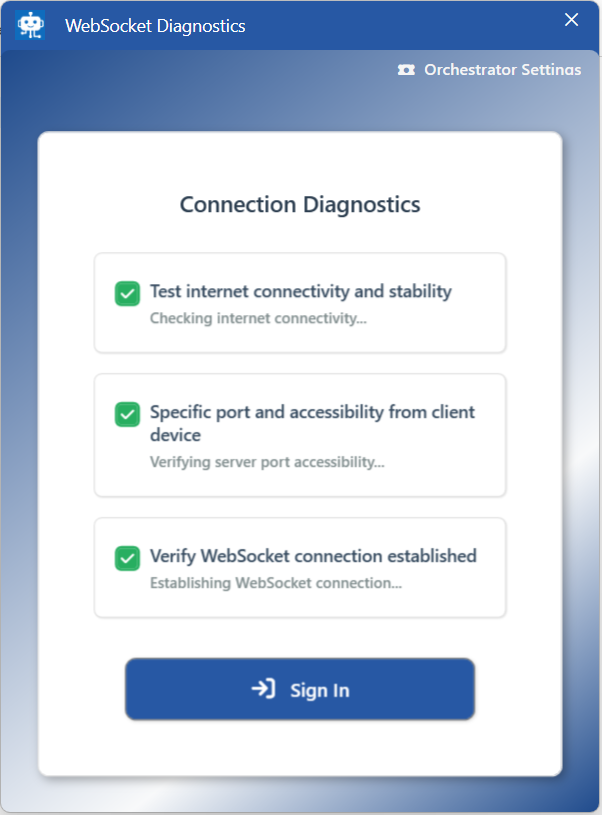
The WebSocket Diagnostics screen displays the Connection Diagnostics status or report regarding the internet connectivity, client port accessibility, and WebSocket connection.
Connection Diagnostic checklist includes:
-
Test Internet connectivity
-
Specific port and accessibility from client device.
-
Verify Websocket connection established.
All three points mentioned in the diagnostic screen should have a green color tick mark to proceed with the Sign in.
If any of the points are marked in red, you will not be able to sign in to the RPA Bot Studio application.
-
You need to resolve the diagnostic issue (if any) to log in to the RPA Bot Studio application.
-
On the Web Diagnostics screen, click Orchestrator Settings on the top-right to view or edit the server settings. Before logging into the RPA Bot Studio, you can view or edit the server settings for Websocket URL or organization name. Refer to Pre-Launch Orchestrator Settings.
-
Click Sign In to navigate to the Login screen.
When you access RPA Studio (Start menu > RPA Bot Studio) for the second time or further, the RPA Login page appears directly.
Running diagonostics
If you want to run the diagnostic screen for some testing or checking purpose after the first login, then you must delete the settings.json file in the location:
C:\Users\\user-name}\AppData\Roaming\RPAPlatformStudio
Orchestrator Settings
When you access the RPA Bot Studio application for the first time (Start menu > RPA Bot Studio), the web diagnostics appear.
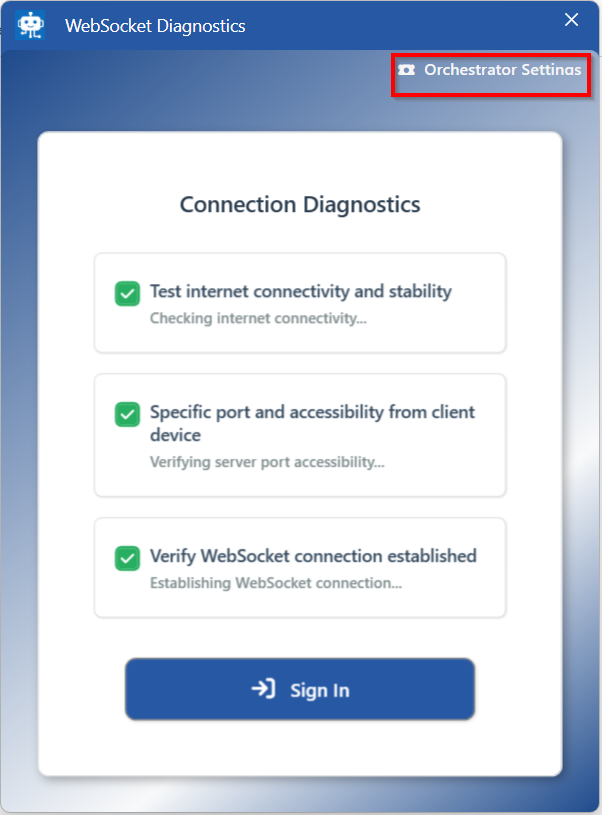
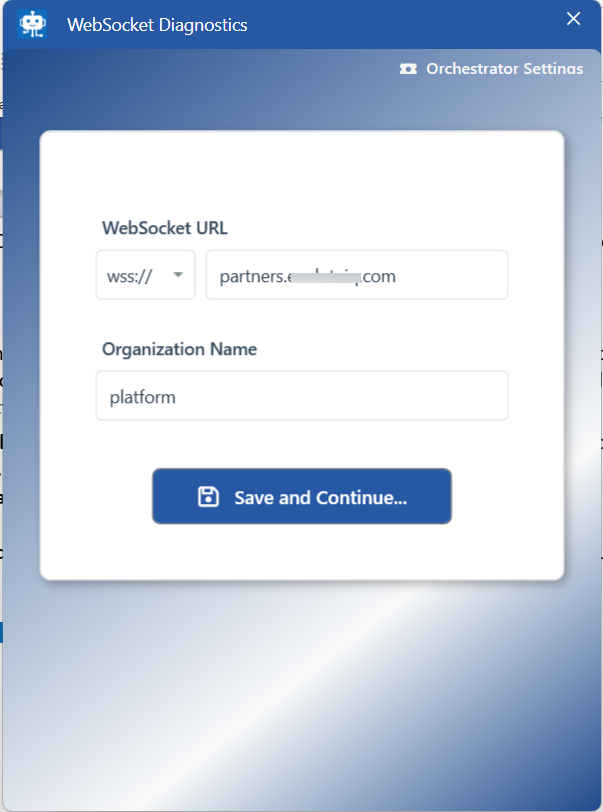
- On the Web Diagnostics screen, click Orchestrator Settings on the top-right to view or edit the settings. The Orchestrator Settings screen appears.
-
WebSocket Url: The WebSocket URL is the server detail (host name) to which you need to connect.
Select the required protocol and provide the URL.
The wss protocol establishes a WebSocket over an encrypted TLS connection, while the ws protocol uses an unencrypted connection. To establish the connection, the browser and server perform a WebSocket handshake over HTTP. -
Organization Name: The organization name indicates to which organization the user has to log in.
-
Save and Continue: Click Save and Continue to save the settings and continue. Connection Diagnostics screen appears from where you can sign in to RPA Bot Studio.
When you access RPA (Start menu > RPA Bot Studio) second time or further, Login screen appears. The Orchestrator Settings can be accessed by clicking Orchestrator Settings on top-right of the Login screen.
Logging in to RPA Bot Studio
For first-time login after the installation of the RPA Studio application, WebSocket Diagnostics screen appear with Connection diagnostic report and a navigation option to Orchestrator Settings.
Second and subsequent login onwards, when you access RPA Bot Studio, the Login screen appears.
You an choose to login through platform email or SSO login as per your organization needs.
Sign In with SSO
Single Sign On (SSO) allows you to login in to the platform using the authentication of Azure /Google accounts. Currently, the platform supports SSO for Azure SSO and Google SSO.
That is, if you have already logged in to your Azure / Google accounts, then the system allows you to log in to RPA application with the same credentials with just a click (no need to provide credentials again).
Azure SSO login pre-requisite: To configure Azure SSO Configuration, in the Platform Manage > RPA Management > Authentication Settings section, you must configure Directory (Azure AD) Integration for SSO.
Google SSO login pre-requisite: To configure Google SSO Configuration, in the Platform Manage > RPA Management > Authentication Settings section, you must configure Directory (Gmail AD) Integration for SSO.
-
Click Start menu > RPA Bot Studio.
For the first time login, WebSocket Diagnostics screen with tests run and the reports appear. Go to Step 2.
For second and subsequent logins, Login screen appears. Go to Step 3.
-
(First-time login) On the Connection Diagnostics screen, click Sign In. RPA Bot Studio Login screen appears.
-
Click an SSO sign in method as per your choice. Currently, the platform supports SSO for Azure SSO and Google SSO.
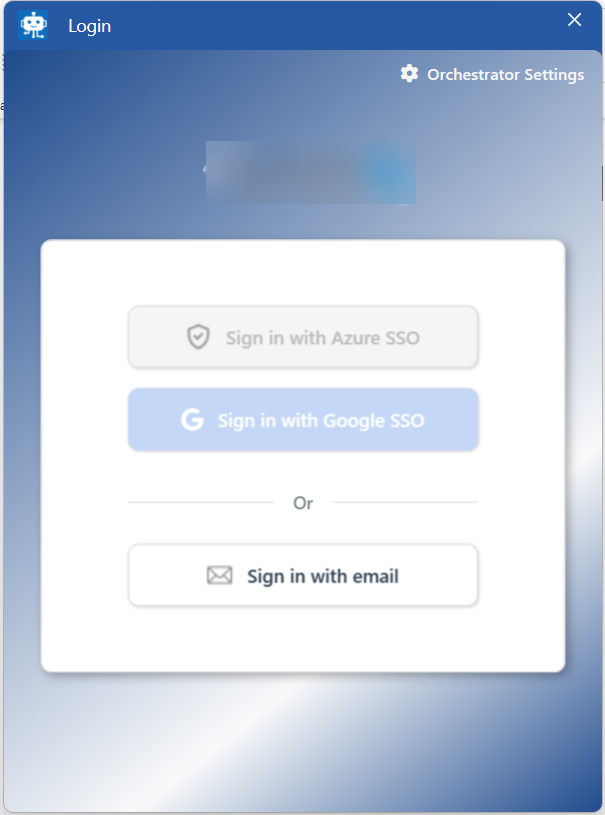
RPA Bot Studio login-
Click Sign in with Azure SSO.
-
If you have already logged in to Azure portal, based on SSO configurations you will get automatically logged in to the RPA Bot Studio.
-
If you have not logged into Azure portal, login with Azure credentials. This allows you to access Azure portal without further login process.
-
Click Sign in with Google SSO.
-
If you have already logged in to Google portal, based on SSO configurations you will get automatically logged in to the RPA Bot Studio.
-
If you have not logged into Google portal, login with Google credentials. This allows you to access Google portal without further login process.
-
(optional)
-
(For Email login) Click Sign in with email to login with platform email id. Refer to Sign in with Email.
-
To navigate to the Orchestrator Settings, click Orchestrator Settings on the top-right of the screen.
-
-
After successful Sign in, Load Project screen appears. Select project(s) from the already shared or existing projects.
-
Click the Load selected projects to navigate to RPA Bot Studio. The RPA Bot Studio opens with the selected projects.
Sign In with Email
-
Click Start menu > RPA Bot Studio > Click Sign In > Sign in with Email.
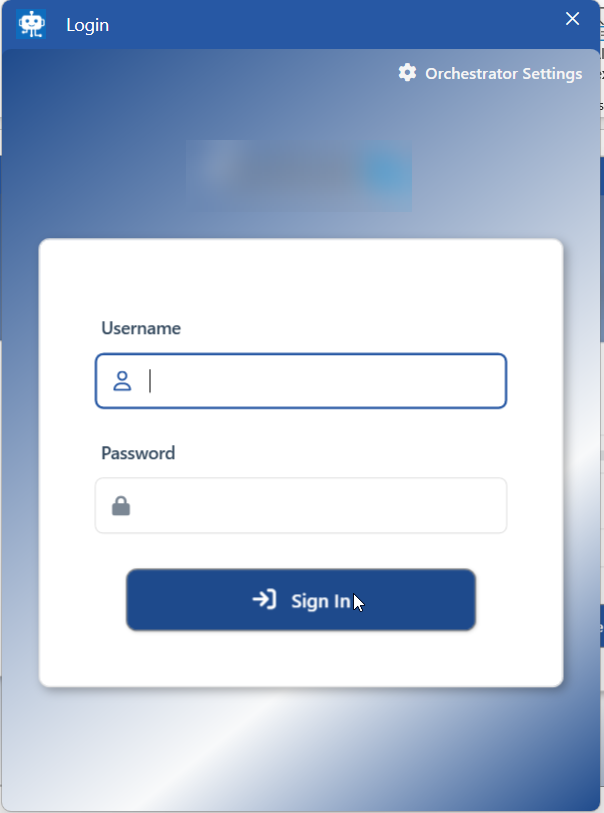
-
Enter the Username (email id) and Password. The username and password are the same as for the platform.
-
Click Sign In.
Notification appears on the bottom right of the screen.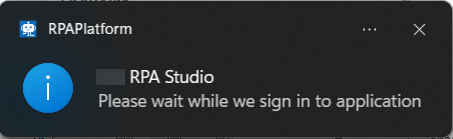
-
After successful Sign in, Load Project screen appears. Select project(s) from the already shared or existing projects.
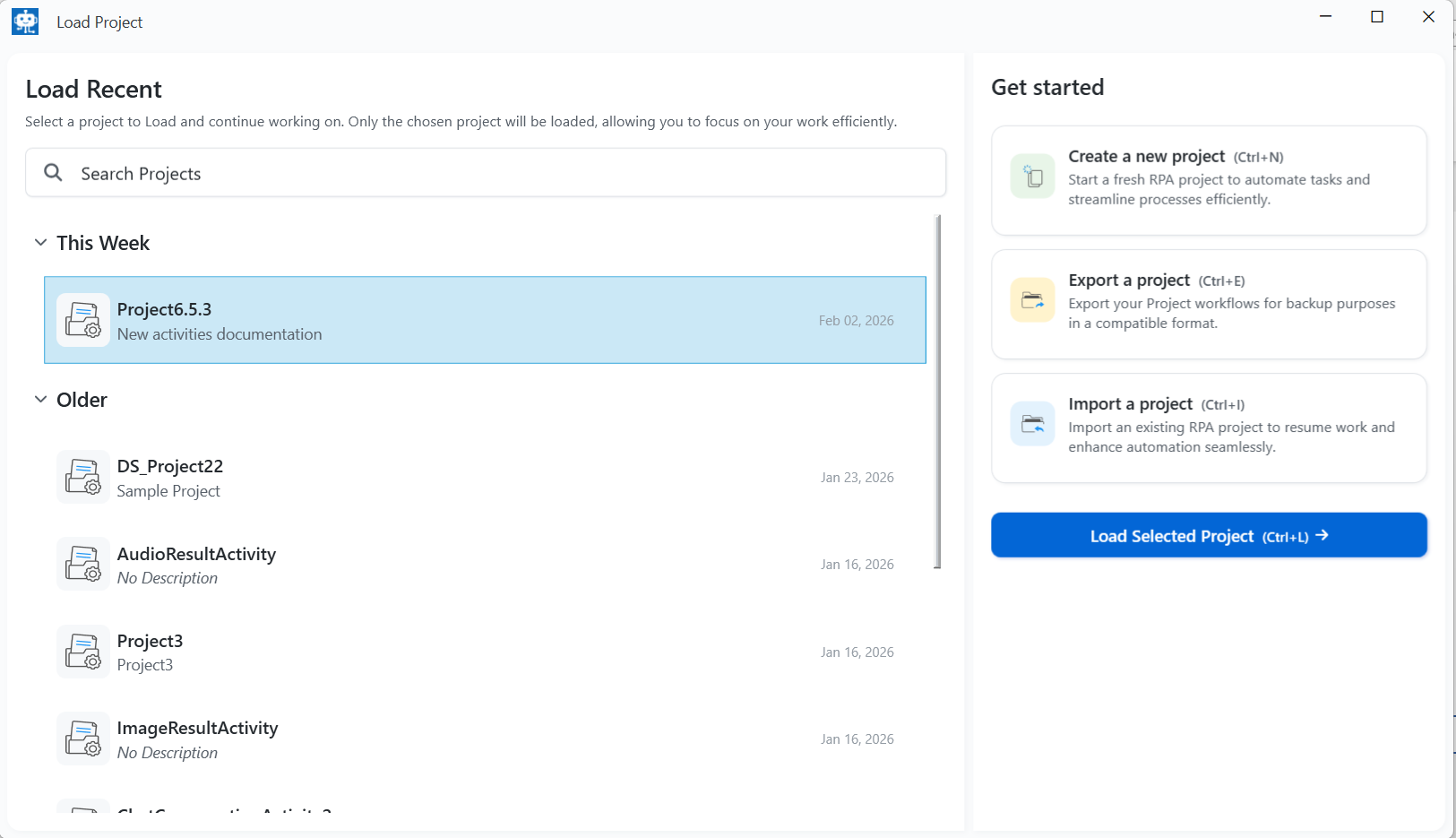
-
Click the Load selected projects to navigate to RPA Bot Studio. The RPA Bot Studio opens with the selected projects.
For subsequent logins: If you have unexpectedly closed the application without saving workflows, Workflow Recovery screen appears. Refer to Workflow Recovery.
Workflow Recovery
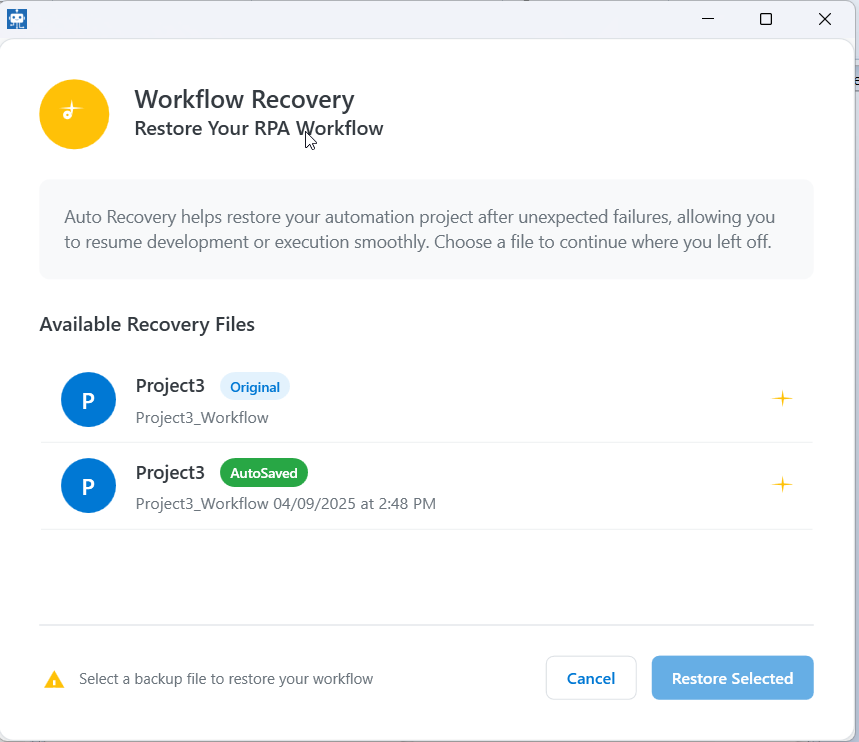
Workflow Auto recovery helps restore your automation project after unexpected failures, allowing you to resume development or execution smoothly.
-
Login to RPA Bot studio. The following screen appears if there are any files recovered.
-
Click the file you need to restore (Original and Autosaved).
-
Click Restore Selected. The selected files get restored.
Click Cancel to discard auto-recovery option. This restores the original file.
Understanding the RPA Bot Studio Interface
The RPA Bot Studio has different panels in the Studio interface for achieving specific requirements.
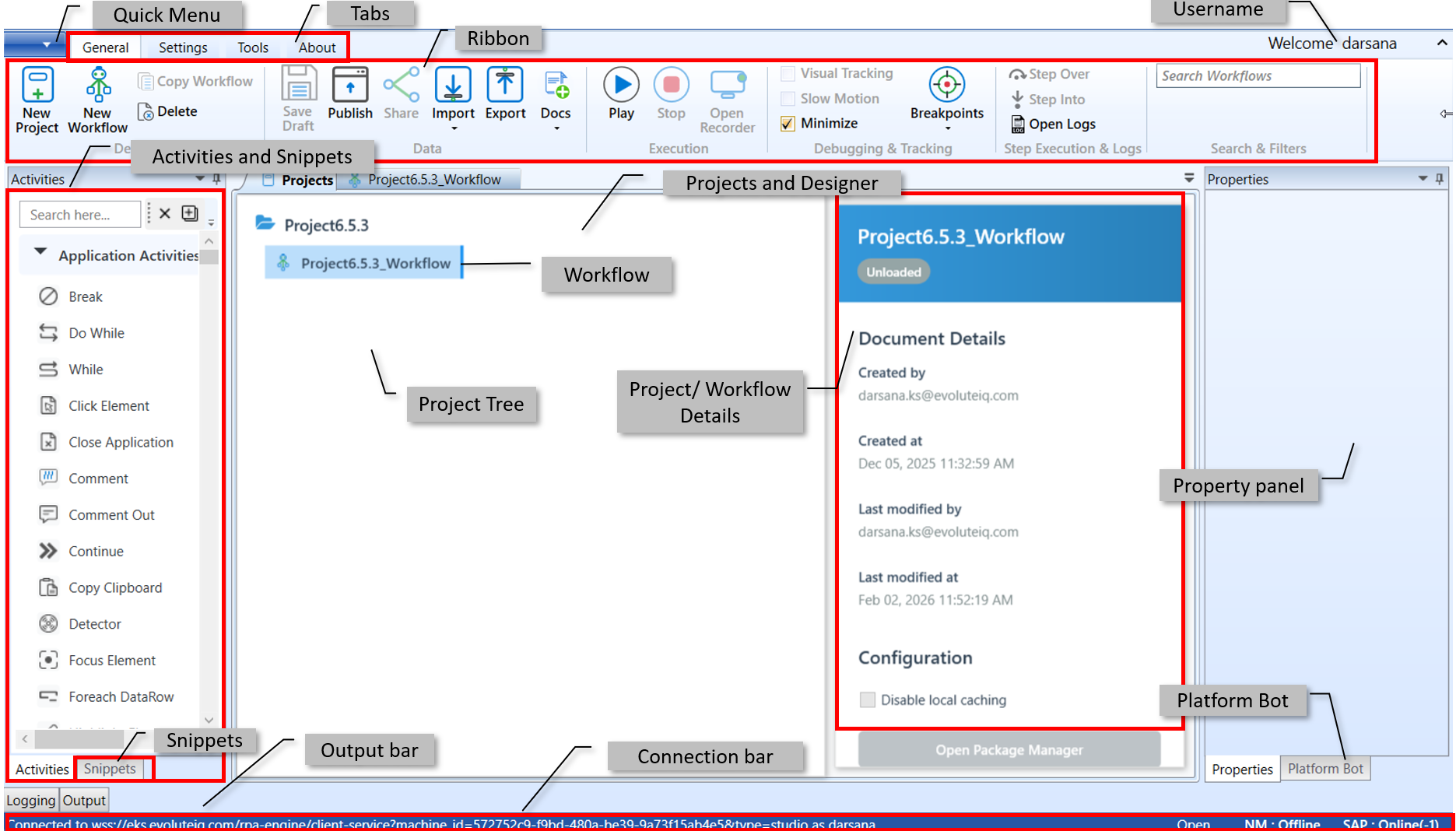
| UI Element | Description |
|---|---|
| Quick Menu, Tabs, and Ribbon | Quick Menu provides quick access to project management, settings and user actions. The ribbon has three tabs – General, Settings, Tools, About. The features and functions for the execution of the flow are provided in these tabs. Refer to RPA Bot Studio Ribbon. |
| Username | Username of the Platform user who logged into the RPA Bot Studio. Username appears as how it is set in the Platform (Settings > First Name). |
| Activities and Snippets | Activities : The Activity list contains all the activities needed to create a workflow. Snippets : Code snippets teach the user how to use the tool for various purposes. Refer to Activities and Snippets. |
| Projects and Designer | The project tab displays the Project tree with all the projects and workflows within that project. When you select a workflow, the workflow designer tab opens and displays the workflow. Designer is the workspace that displays the workflow and properties of the selected workflow. To use an activity, simply drag it into the sequence activity of a workflow. |
| Project Tree | Displays the projects and workflows within the project in a tree model. |
| Project/Workflow details | Displays the details regarding the selected project or workflow. |
| Property Panel | The property panel or Properties box displays the properties of the selected activity in the workflow. Refer to Properties Panel. |
| Platform Bot | Chatbot to create automations. Refer to Platform Bot documentation. |
| Output bar | Output bar contains the Logs, workflow instances, and output. Refer to Output Bar. |
| Connection bar | The connection bar contains information related to the connection status of the platform web service set in the RPA Bot Studio section as well as the status of both NM (Browser Automation) and SAP plugins. |
Exiting RPA Bot Studio
You can exit the RPA Bot Studio by closing the platform interface (by clicking the close button on the top-right).
You can sign out from the RPA Bot Studio by following the below steps.
-
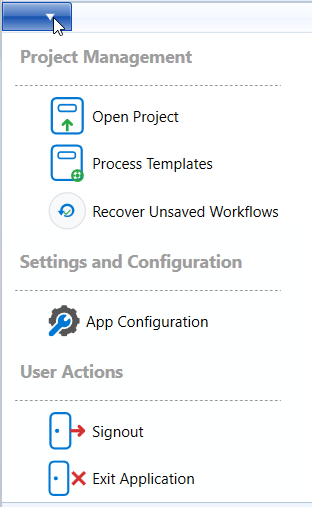
Click the Quick menu.
-
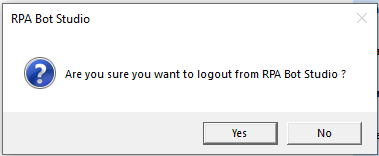
Click Signout for signing out of the RPA Bot Studio. A confirmation pop-up appears.
-
Click Yes. You are now logged out of the RPA Bot Studio.
-
In the Quick Menu, click Exit Application to exit the RPA Bot Studio application without actually logging off.
When you re-open the RPA Bot Studio after exiting application, you will be logged in automatically without prompting with the login screen.