GenAI Inference
The GenAI inference page displays the GenIQ dashboard with a summary of artifacts that are configured in the GenAI workbench.
In the Platform menu, navigate to Gen AI > AI Inference page. GenIQ Dashboard appears.
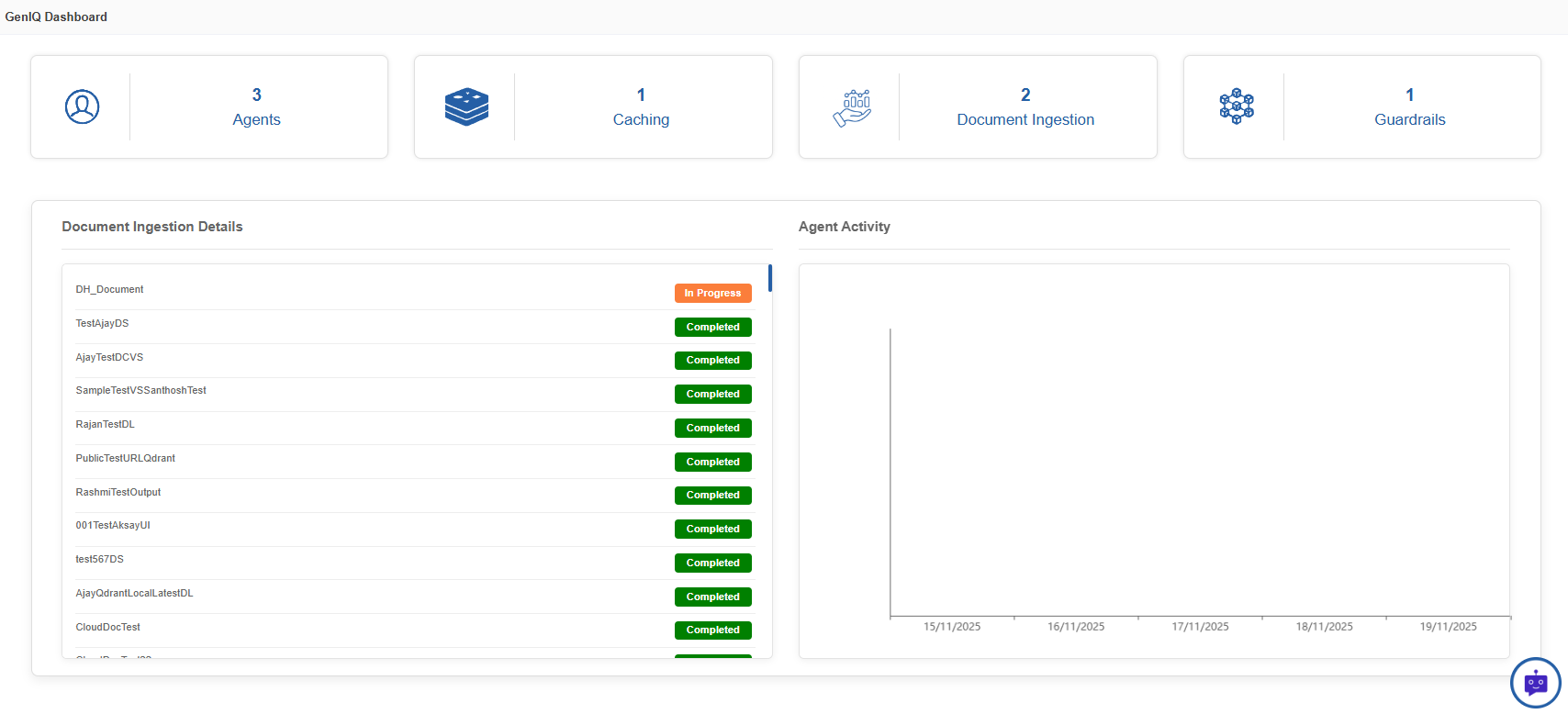
The Dashboard displays the GenAI configuration details for the logged-in user only. All the displayed details are generated as part of the agent creation in the AI Workbench.
- Agents: Number of agents created by the logged in user.
- Caching: Number of Cache configuration created by the logged in user.
- Document ingestions: Number of document ingestions created by the logged in user.
- Guardrails: Number of guardrails created by the logged in user
- Document Ingestion Details: Current status of all document ingestions.
- Agent Activity: Agent activity graph for the logged in user
Chatting with GenAI Bot
Accessing the Chatbot in Inference Page
-
In the Platform menu, navigate to Gen AI > AI Inference page. Bot icon appears at the bottom-right of the page and click the GenIQ Bot icon.
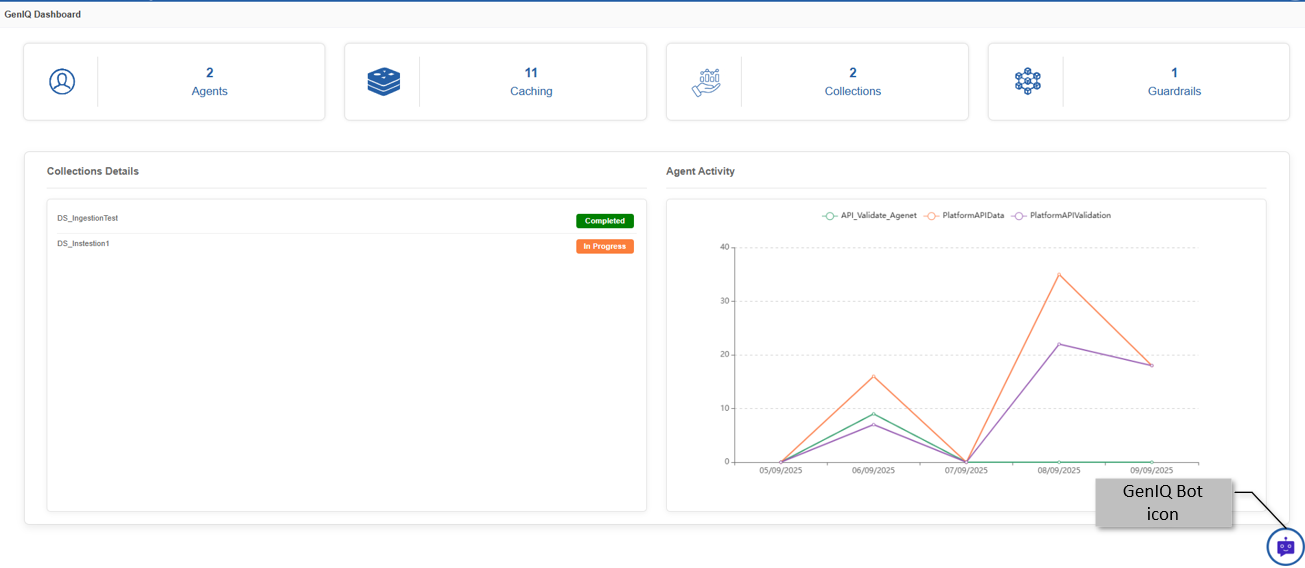
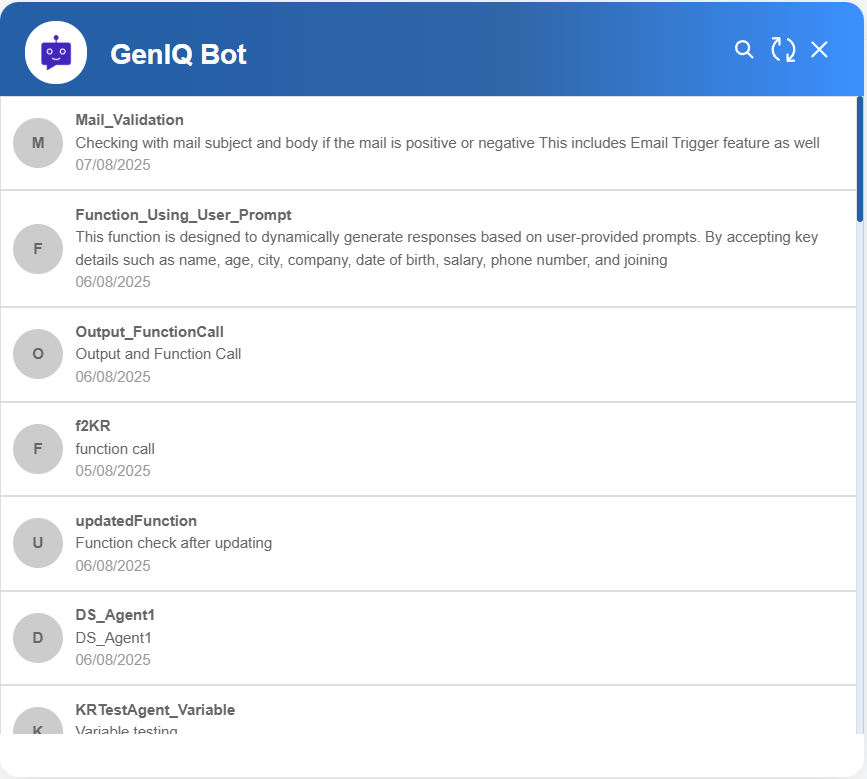
GenIQ bot chat window opens with the list of agents.
-
Click an agent name of your choice and chat with the selected agent.
The agent’s name appears as the chatbot's name.
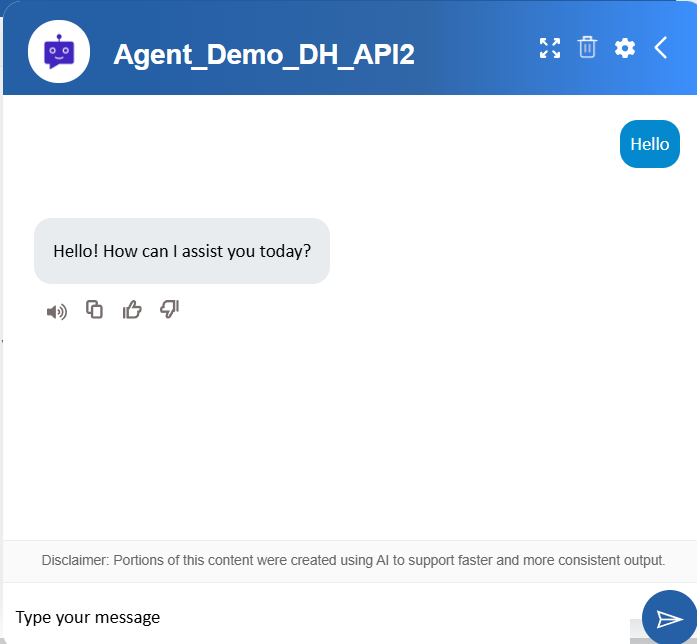
- Type your message and click the send arrow. The selected agent will respond to you.
- Click Close icon to close the chatbot.
GenIQ Chat Window Properties
The chat window appears with custom features on the title bar.
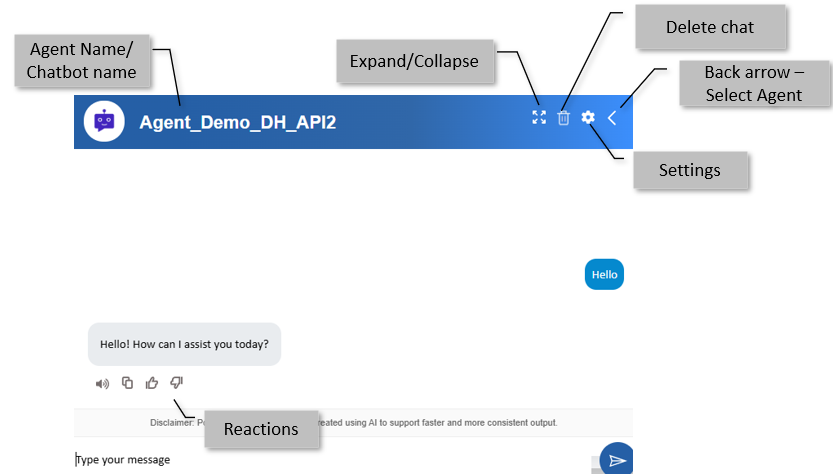
Agent Name: The agent’s name appears as the chatbot name on the title bar of the chat window.
Expand / Collapse: Click the icon to expand or collapse the chat window.
Delete chat: Click the delete icon to delete the chat history. Refer to Deleting Chat History.
Settings: Click the Settings icons to set environment variables to hold configuration details. Refer to Settings.
Back arrow: Click the arrow, and the agent list appears for selection. Refer to Selecting Agent for Chatting.
Reactions: Click a reaction to respond to the response of an agent. Refer to Chat Reactions.
Selecting an Agent for Chatting
-
In the Platform menu, navigate to Inference page > click GenIQ Bot icon. The agent name list appears.
-
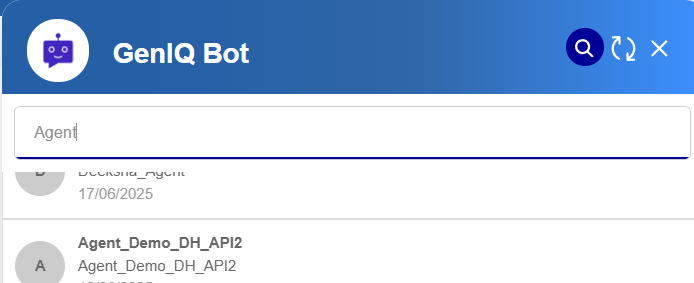
Click Refresh icon to refresh the list of agents displayed.
- Click the Search icon on the bot title bar, type your agent’s
name. As you type the agent name, the filtered results appear.
-
Select an agent to chat. Chat window appears with agent name on the title bar.
-
Enter your request or question in the chat window (in the Type your message input box) and click send arrow.
The bot responds to you as per default agent and configurations. Make sure to follow the prompt engineering techniques while chatting to your AI agent for better responses. - Click the Expand/Collapse arrows to expand/collapse the chat window.
- Click the back arrow on the chat title bar to go back to agent list.
- Select a new agent for chatting. The chat window will not display the previous chats with different agent when you select a new agent for chatting. If you select the old agent again, the previous chats for that agent appears.
- Click Delete icon to delete the chat history.
Chat Reactions
React to the responses that an agent provides you using the chat reaction options.
The chat reaction icons appear at the bottom of each chat response.
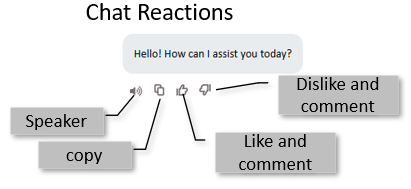
Speaker: Click the speaker icon to hear the response.
Copy: Click the copy icon to copy the complete response.
Like and Comment:
-
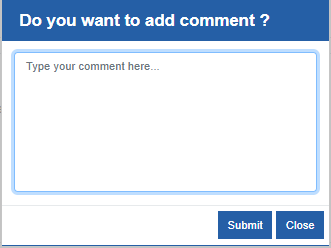
Click the thumbs-up icon to like a comment. You must provide comments to submit “Like” for the good response.
-
Type your comments in the comment box and click Submit.
Dislike and Comment:
-
Click the thumbs down icon to dislike a comment. You must provide comments to submit “Dislike” for the bad response.
-
Type your comments in the comment box and click Submit.
Settings
Settings allow you to set variables and functions. Variables can hold configuration details like API keys, model settings, or resource limits. They allow the system to run AI tasks consistently across different environments without hardcoding values into the application, ensuring flexibility and security.
Functions are not applicable for the platform Lite version.
Variable - Value Persistancy
Variable and Value entered at runtime are temporary. This will not alter the configured values. However, the agent will use temporary values until you choose another agent or if the session expires.
-
In the chat window, click the configuration icon. The Variables and Functions pop-up appears with the already configured variables and functions in JSON structure.
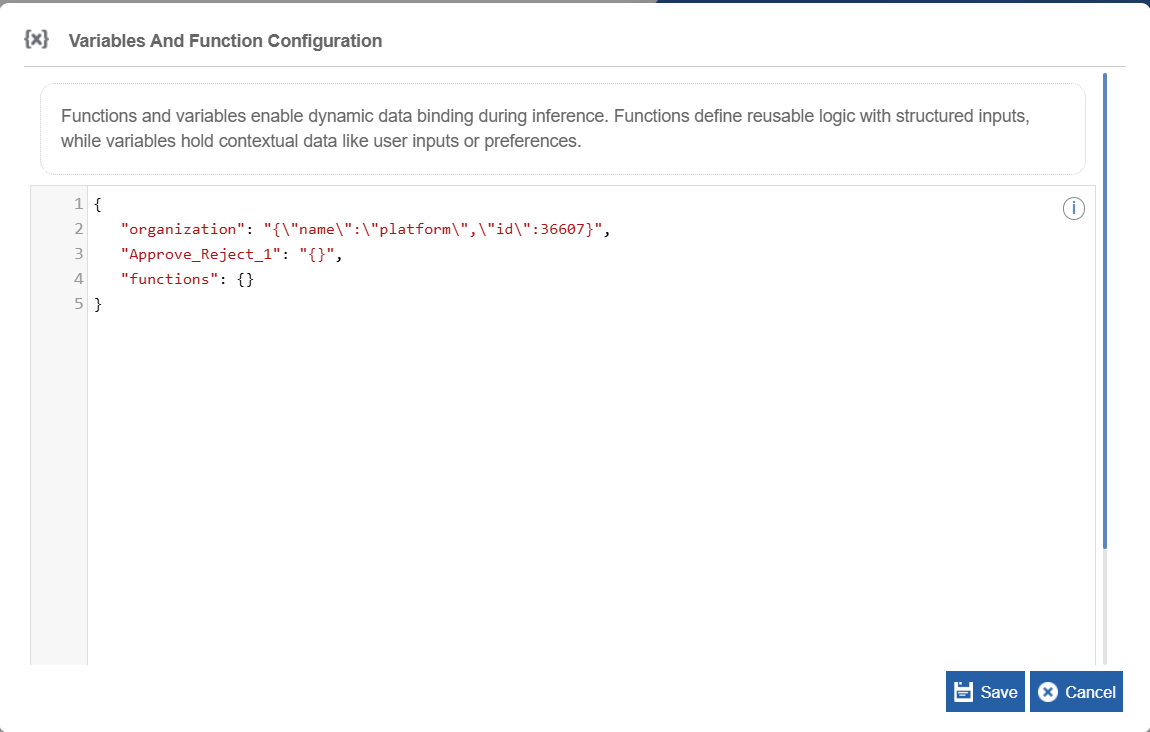
Functions and variables enable dynamic data binding during inference.
-
To temporarily alter the value of a variable, edit the variable details.
Note
If you add a Variable “user” and provide Value “user@email.com”, this value is captured in the AI Audit page “User” column.
Audit page is applicable for Enterprise customers. -
Provide temporary arguments to the functions as applicable to view customized results.
-
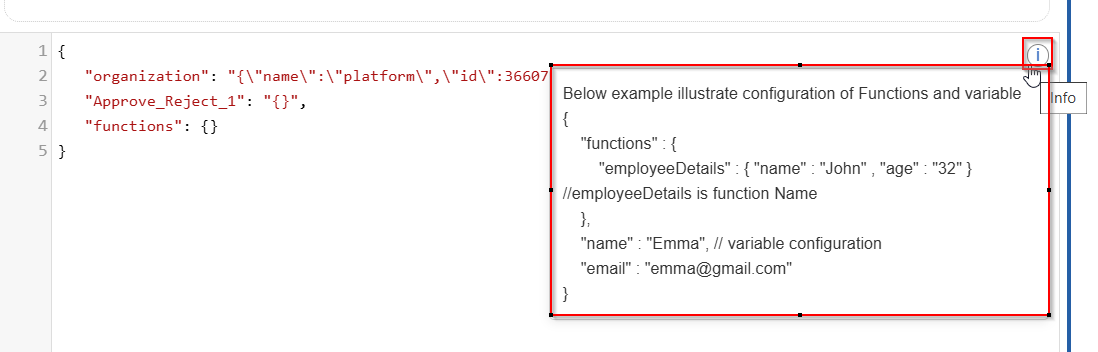
To view sample code for variables and functions click the info icon on the right side.
-
Click Save.
Or click Cancel to cancel the action.
Deleting Chat History
-
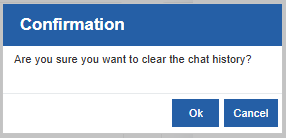
In the chat window, click the delete icon. Delete confirmation appears.
-
Click Ok to delete the chat history.
Or click Cancel to discard the action.