Datasource Configurations
Introduction to Datasource
The entity, Datasource is a connection between an entity and the database server. A data source configuration entity points to a particular database server and the connection information is used by the system for establishing a connection to that database. Operations such as fetching the data from the database table or inserting information into the database table etc. are done via the data source.
The organization-specific data sources that can be accessed by all the users in the organization are created in the Management section.
User-specific data sources are created in the Settings section of the user. User-specific datasources are visible in the Settings section and it is accessible to the user who created it. The creation and management of both types of datasources are the same.
You can connect to different types of data sources by configuring the same in the platform.
Creating New Datasource Configuration
Follow the below steps for creating a new Datasource configuration.
-
Click the Burger menu and navigate to Management > Configuration Management.
In case you want to create a user-specific datasource, click the burger menu and navigate to Settings.
-
Click Datasource in the configuration entity panel.
-
Click +Create New. Create New Datasource pop-up appears.
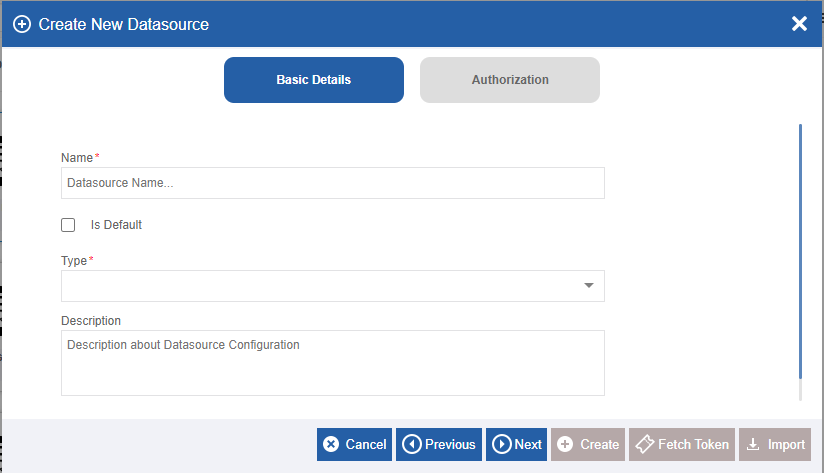
Figure 1: Datasource configuration details -
Click Basic Details. (This button is active by default)
-
Enter the configuration details in the Basic Details panel as explained below.
Field Description Name* Enter the name of the Datasource.
Character limit: 50.
Data type: Alphanumeric and underscore.
Is Default Check the checkbox adjacent to Is Default, if you need
to set the Datasource as a Default Datasource. If there is any other default
Datasource it will be set back as non-default.You can configure only one datasource as the default Datasource.
If you set a Datasource as default, the previously existing default
Datasource will change to non-default automatically.Uncheck the checkbox if you do not need the Datasource as
default.Type Select the Type of database server as per your need from the
drop-down.By default, three datasources are displayed. Type the name of the
datasource to display the matching three items from which you can choose
to select your type of datasource.
Select, say for example, Type = MS Teams.Description Write a brief description of the datasource.
Character limit: 1000 characters
Data type: Alphanumeric and symbols.
-
Click Next and enter the configuration details in the Authorization section. The authorization details appear based on the datasource type selected. As an example, Authorization for MS Teams are explained below:
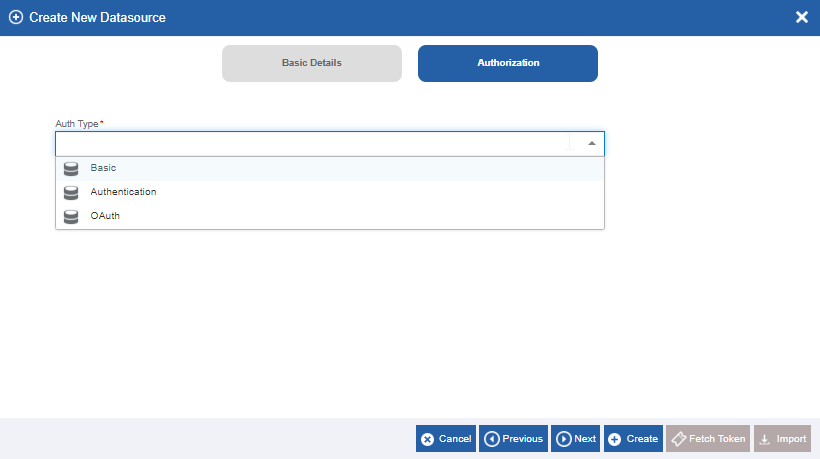
Figure 2: Authentication types- Click Auth Type. The drop-down lists the authentications based on the selected datasource. (In this case, as we have selected MS Teams as the Type, the Auth Type displays authentication details applicable for MS Teams.)
- Select an Auth Type. The attribute details appear for the selected authentication. Attribute details or properties for each Auth Type is explained below, however, note that it is not common for all connectors and the details explained here are for the “MS Teams” application as an example.
Basic
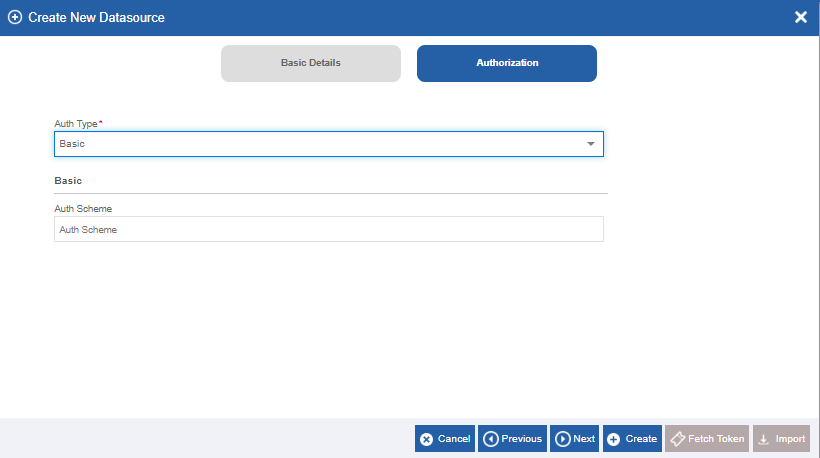
Figure 3: Example for Basic Auth Type details (e.g., MS Teams )Property Description AuthScheme The type of authentication to use when connecting
to Microsoft Teams.OAuth
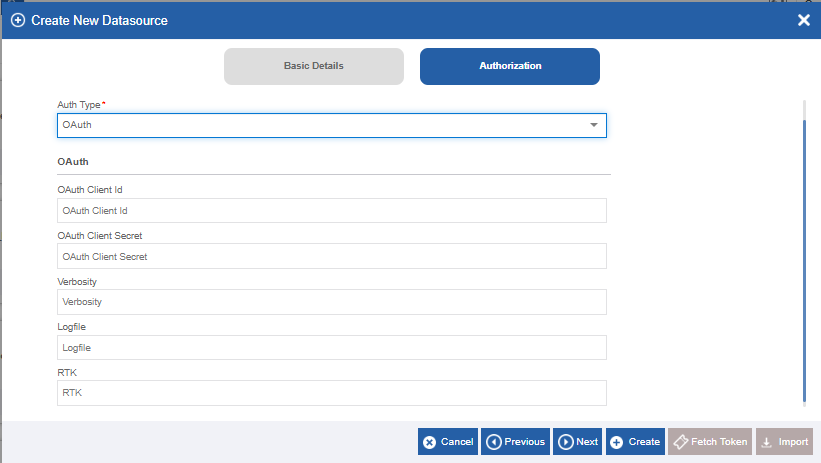
Figure 4: Example of OAuth Auth Type details (e.g., MS Teams)Property Description OAuthClientId The client Id assigned when you register your application
with an OAuth authorization server.OAuthClientSecret The client secret assigned when you register your
application with an OAuth authorization server.Verbosity The verbosity level that determines the amount of detail
included in the log file.Logfile A filepath which designates the name and location of
the log file.RTK The runtime key used for licensing. Azure Authentication
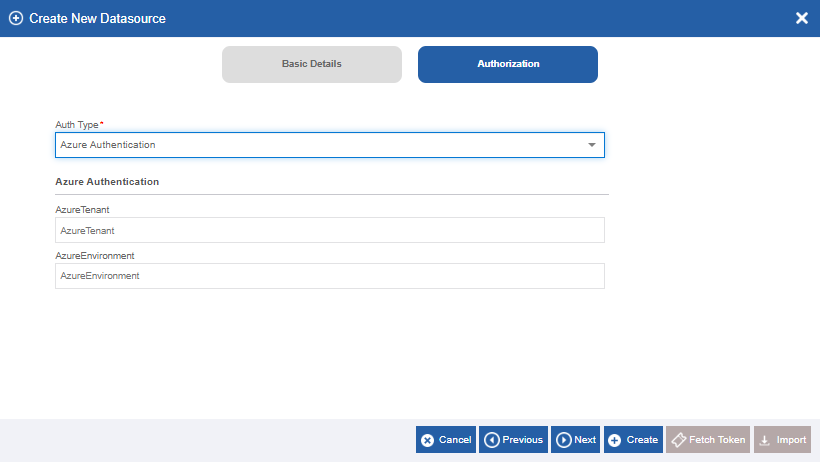
Figure 5: Azure Authentication details (applicable for MS Teams)Property Description AzureTenant The Microsoft Online tenant is being used to access data.
If not specified, your default tenant is used.AzureEnvironment The Azure Environment to use when establishing a
connection.Refer to Types of Platform Datasources and Configurations. For external connector-based datasources refer to Connector-Based Datasource Configurations.
-
Click Create on the bottom right of the page and the Datasource gets created with the details entered.
For each external connector, the authentication details are different based on the authentication mechanism provided by the enterprise application. The creation and configuration of external connector-based datasources are documented separately. Refer to connector-specific configuration document for more details.
Types of Platform Datasources and Configurations
Cassandra: Apache Cassandra
Apache Cassandra is an open-source NoSQL distributed database for scalability and high availability without compromising performance. Linear scalability and proven fault-tolerance on commodity hardware or cloud infrastructure make it the perfect platform for mission-critical data.
Reference links:
https://cassandra.apache.org/_/index.html
https://en.wikipedia.org/wiki/Apache_Cassandra
- Select Type as Cassandra. The authorization section displays corresponding configuration details.
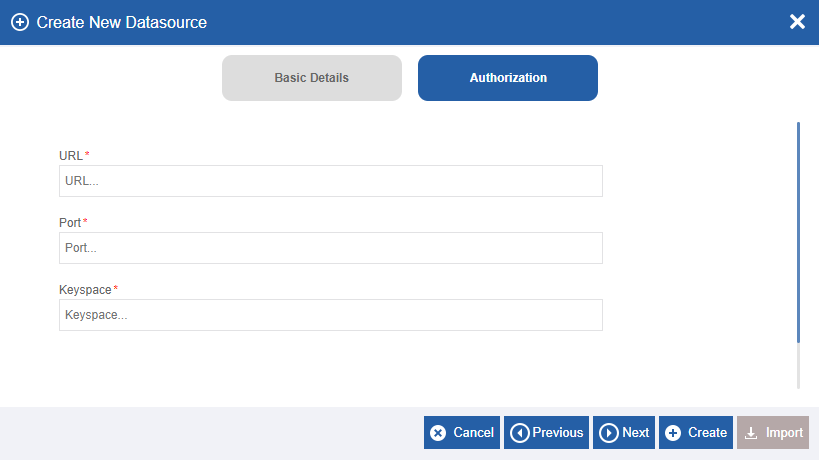
Figure 6: Cassandra configurations
| Field | Description |
|---|---|
| URL* | Enter a valid URL reference for the datasource. |
| Port* | Enter the port number. By default, Cassandra uses 7000 for cluster communication (7001 if |
| Keyspace* | Enter the value for the Keyspace. A keyspace is an outermost object in a Cassandra cluster that |
DB2: IBM DB2
DB2 is a database product from IBM. It is a Relational Database Management System (RDBMS). DB2 is designed to store, analyze, and retrieve the data efficiently. DB2 product is extended with the support of Object-Oriented features and non-relational structures with XML.
Reference links:
https://www.ibm.com/analytics/db2
https://en.wikipedia.org/wiki/IBM_Db2_Family
- Select Type as DB2. The authorization section displays corresponding configuration details.
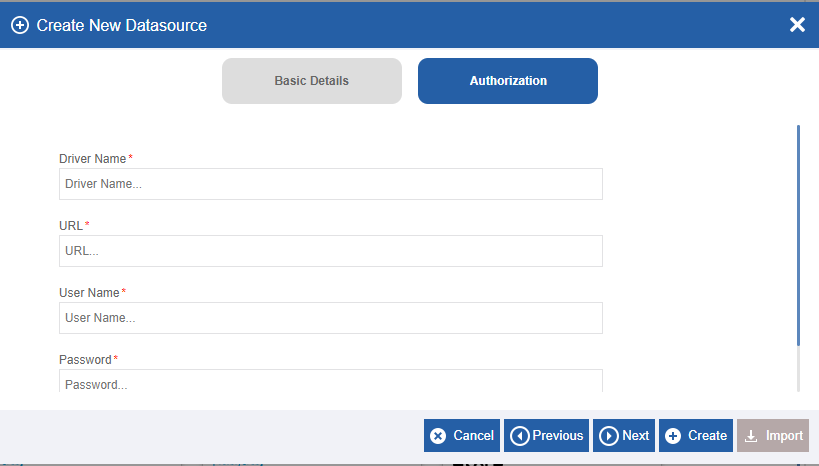
Figure 7: DB2 Configurations
| Field | Description |
|---|---|
| Driver Name* | Enter the driver class name for the datasource for the selected Driver name is dependent on the Driver Type of the database server |
| URL* | Enter a valid URL reference for the datasource. |
| Username* | Enter username. This is the authentication user name to connect Character limit: 1000 characters Data type: Alphanumeric and symbols. |
| Password* | Enter the password. This is the password to connect to the host Character limit: 1000 characters Data type: Alphanumeric and symbols. |
Directory
A directory database contains user accounts and security information for the domain.
- Select Type as Directory. The authorization section displays corresponding configuration details.
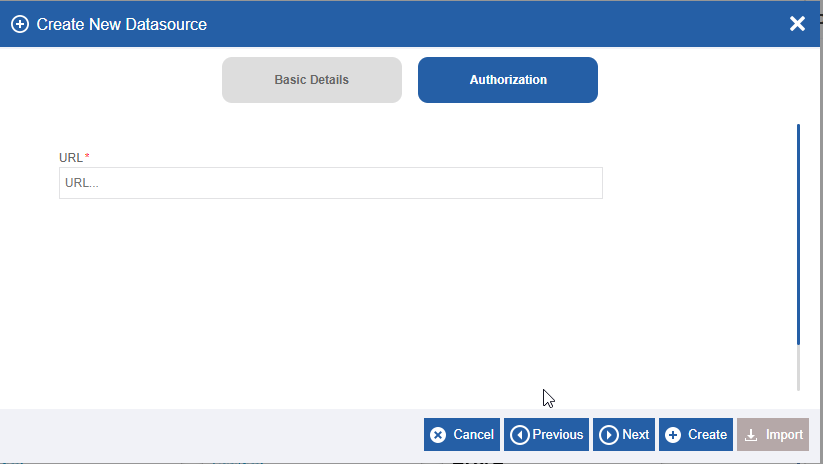
Figure 8: Directory configurations
| Field | Description |
|---|---|
| URL* | Enter a valid URL reference for the datasource. |
Kafka: Apache Kafka
Apache Kafka is a distributed data store optimized for ingesting and processing streaming data in real time. Kafka is used for building real-time streaming data pipelines and real-time streaming applications. A data pipeline reliably processes and moves data from one system to another, and a streaming application is an application that consumes streams of data.
Reference Links:
https://en.wikipedia.org/wiki/Apache_Kafka
- Select Type as Kafka. The authorization section displays corresponding configuration details.
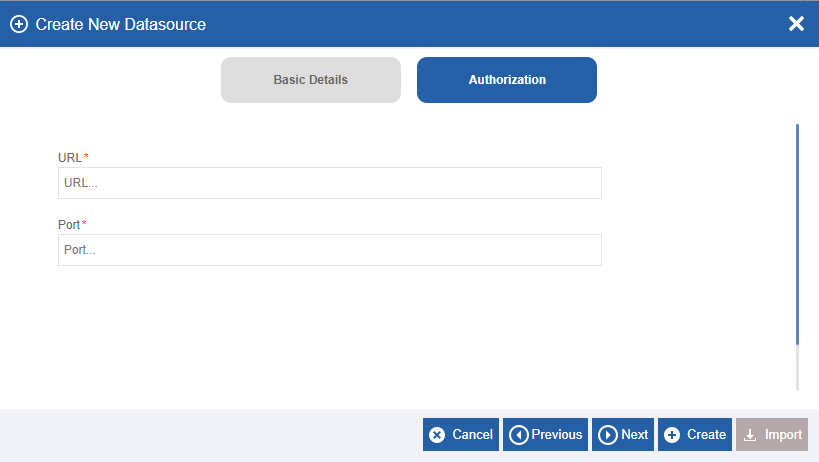
Figure 9: Kafka Configurations
| Field | Description |
|---|---|
| URL* | Enter a valid URL reference for the datasource. |
| Port* | Enter the port number. By default, the Kafka server starts on port 9092. |
MS SQL
Microsoft SQL Server is a relational database management system. As a database server, it is a software product with the primary function of storing and retrieving data as requested by other software applications—which may run either on the same computer or on another computer across a network (including the Internet).
Reference Links:
https://www.microsoft.com/en-us/sql-server
https://en.wikipedia.org/wiki/Microsoft_SQL_Server
- Select Type as MS SQL. The authorization section displays corresponding configuration details.
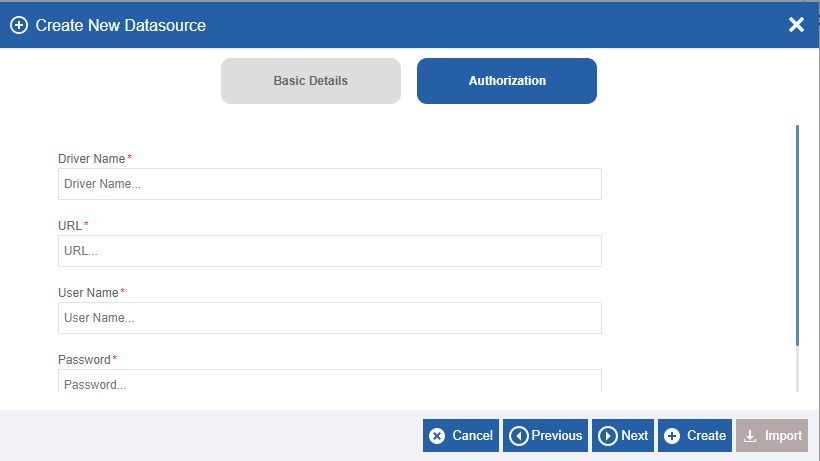
Figure 10: MS SQL configuration
| Field | Description |
|---|---|
| Driver Name* | Enter the driver class name for the datasource for the selected Driver name is dependent on the Driver Type of the database server |
| URL* | Enter a valid URL reference for the datasource. databaseName=<#db_name#>;useUnicode=true;characterEncoding=UTF-8; |
| Username* | Enter username. This is the authentication user name to connect Character limit: 1000 characters Data type: Alphanumeric and symbols. |
| Password* | Enter the password. This is the password to connect to the host Character limit: 1000 characters Data type: Alphanumeric and symbols. |
My SQL
MySQL is a relational database management system based on SQL – Structured Query Language. The application is used for a wide range of purposes, including data warehousing, e-commerce, and logging applications. MySQL Database Service is a fully managed database service to deploy cloud-native applications.
Reference Links:
https://en.wikipedia.org/wiki/MySQL
- Select Type as My SQL. Authorization section displays corresponding configuration details.
Figure 11: My SQL configurations
| Field | Description |
|---|---|
| Driver Name* | Enter the driver class name for the datasource for the selected Driver name is dependent on the Driver Type of the database server E.g.: com.mysql.cj.jdbc.Driver is the driver name for the server |
| URL* | Enter a valid URL reference for the datasource. E.g.: jdbc:mysql:[Host_server_name]:3306/[{database_name}] is the URL for My SQL. The database name should be given the same as the name of the database you have created in the Host Server. |
| Username* | Enter username. This is the authentication user name to connect Character limit: 1000 characters Data type: Alphanumeric and symbols. |
| Password* | Enter the password. This is the password to connect to the host Character limit: 1000 characters Data type: Alphanumeric and symbols. |
Neo4j
Neo4j facilitates personal data storage and management: it allows you to track where private information is stored and which systems, applications, and users access it. The graph data model helps visualize personal data and allows for data analysis and pattern detection.
Reference Links:
https://en.wikipedia.org/wiki/Neo4j
- Select Type as Neo4j. Authorization section displays corresponding configuration details.
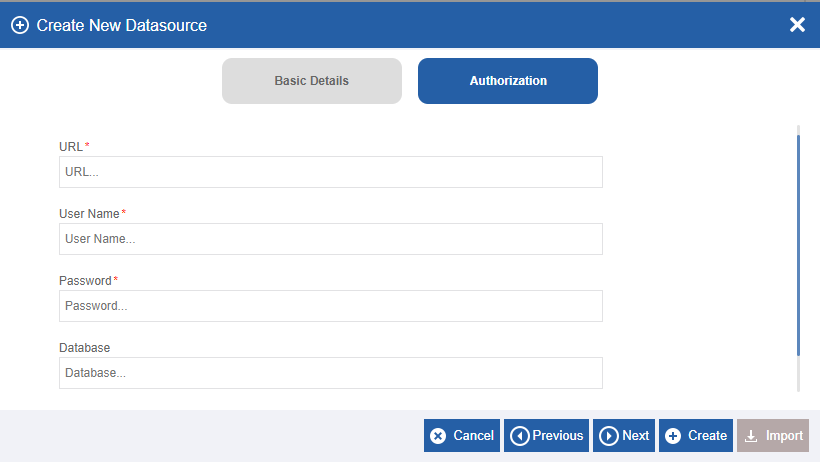
Figure 12: Neo4j configurations
| Field | Description |
|---|---|
| URL* | Enter a valid URL reference for the datasource. The database name should be given the same as the name of database you have created in the Host Server. |
| Username* | Enter username. This is the authentication user name to connect Character limit: 1000 characters Data type: Alphanumeric and symbols. |
| Password* | Enter the password. This is the password to connect to the host Character limit: 1000 characters Data type: Alphanumeric and symbols. |
| Database | The database name should be given the same as the name of the database you have created in the Host Server. |
Oracle: Oracle DB
An Oracle Database (aka Oracle RDBMS) is a collection of data organized by type with relationships being maintained between the different types. The primary purpose of a database is to store and retrieve related information.
Reference Links:
https://www.oracle.com/in/database/
https://en.wikipedia.org/wiki/Oracle_Database
- Select Type as Oracle. Authorization section displays corresponding configuration details.
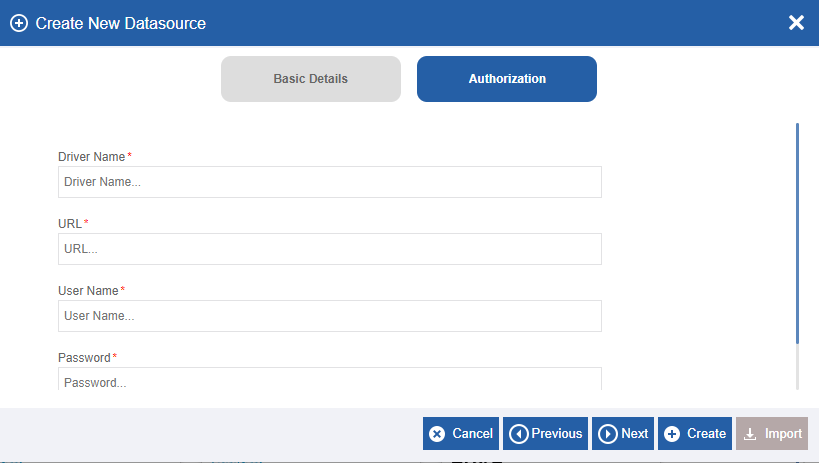
Figure 13: Oracle configurations
| Field | Description |
|---|---|
| Driver Name* | Enter the driver class name for the datasource for the selected Driver name is dependent on the Driver Type of the database server |
| URL* | Enter a valid URL reference for the datasource. The database name should be given the same as the name of the database you have created in the Host Server. |
| Username* | Enter username. This is the authentication user name to connect Character limit: 1000 characters Data type: Alphanumeric and symbols. |
| Password* | Enter the password. This is the password to connect to the host Character limit: 1000 characters Data type: Alphanumeric and symbols. |
RDBMS
RDBMS in the Platform refers to any RDBMS supported by JDBC/ODBC driver.
- Select Type as RDBMS. The authorization section displays corresponding configuration details.
Figure 14: RDBMS configurations
| Field | Description |
|---|---|
| Driver Name* | Enter the driver class name for the datasource for the selected Driver name is dependent on the Driver Type of the database server |
| URL* | Enter a valid URL reference for the datasource. The database name should be given the same as the name of the database you have created in the Host Server. |
| Username* | Enter username. This is the authentication user name to connect Character limit: 1000 characters Data type: Alphanumeric and symbols. |
| Password* | Enter the password. This is the password to connect to the host Character limit: 1000 characters Data type: Alphanumeric and symbols. |
Connector-Based Datasource Configurations
Connector-based datasources are configured to utilize the connector-based features through the process flow activities. When you create a connector datasource, a JDBC connection is created. You can do manipulations in the datasource details through the corresponding activities in the process flow.
You can add the connector activities to the process flow activity list and then utilize those activities in the process flows.
For each external connector, the authorization details are different. The Creation and configuration of external connector-based datasources are documented separately. Refer to connector-specific documentation for more details.
Viewing and Editing Datasource
-
Click the Burger menu and navigate to Management > Configuration Management > Datasource.
For viewing user-specific datasources, click burger menu and navigate to Settings.
-
Click the Datasource card for viewing the details of the selected Datasource. The details of the Datasource appear in the Info Actions panel (Edit Datasource).
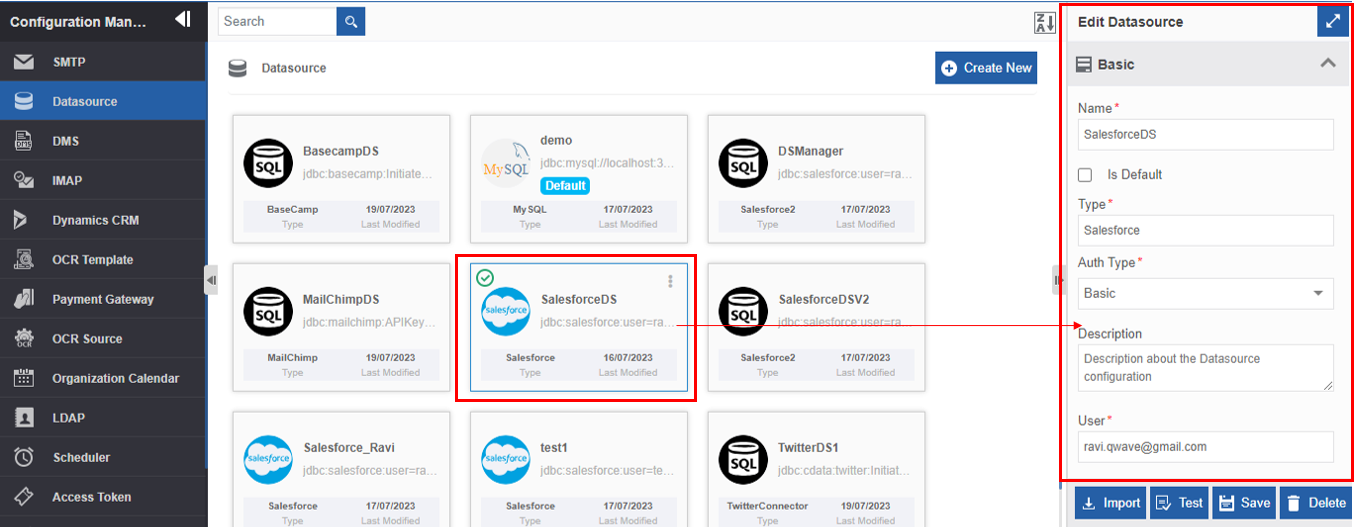
Figure 15: Editing Datasource details -
Edit the Datasource details as needed.
-
Click Save.
Testing Datasource
You can test the Datasource created using the Test feature. Test functionality validates the configuration details of the datasource.
- Click the Burger menu and navigate to Management > Configuration Management (or Settings for user-specific data source).
-
Click Datasource. The list of all datasources is displayed.
-
Click the datasource to be tested.
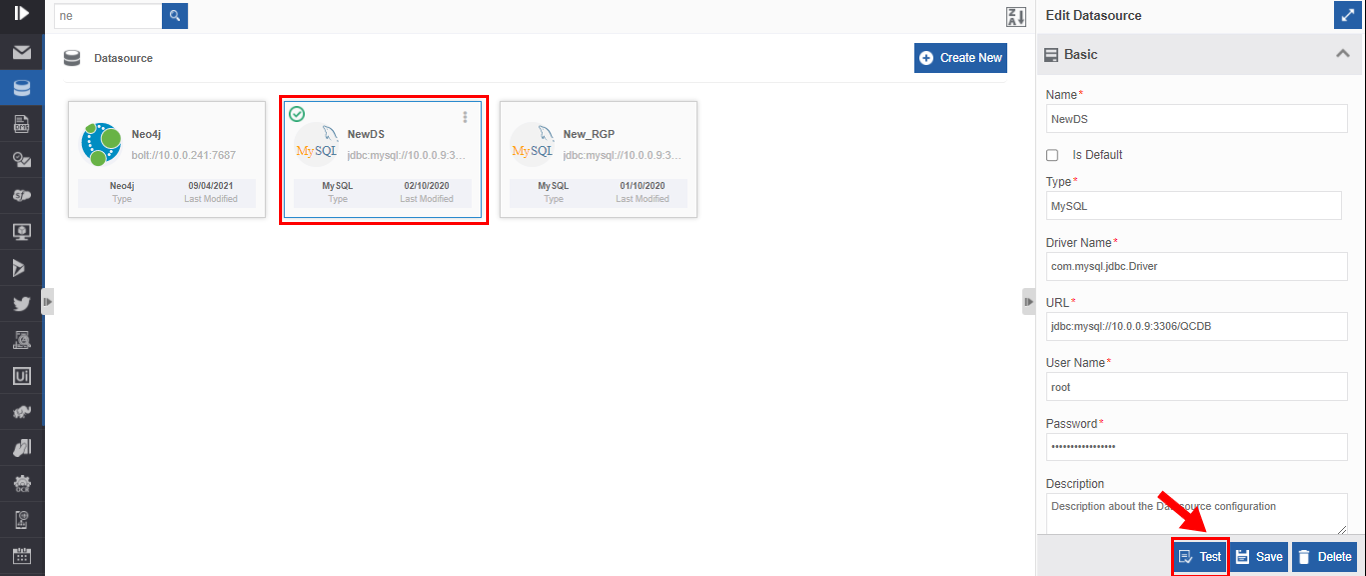
Figure 16: Testing datasource -
Click Test on the lower-right of the page. A success message is displayed on the successful validation of the datasource.
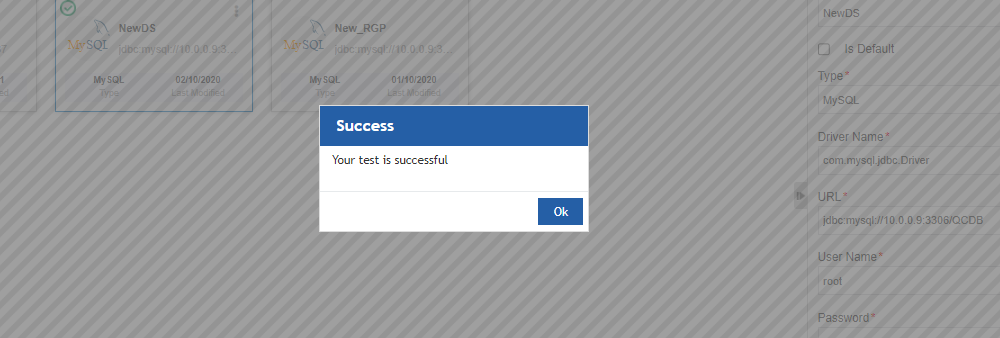
Figure 17: Test Success message -
Click Ok.
Alternatively, you can follow the below steps to test the Datasource:
-
Click the Burger menu and navigate to Management > Configuration Management > Datasource.
-
Hover over the Datasource card. Three dots appear on the upper right side of the card.
-
Click the three dots. More Actions appear.
-
Click Test. A success message is displayed on the successful validation of the datasource.
-
Click Ok.
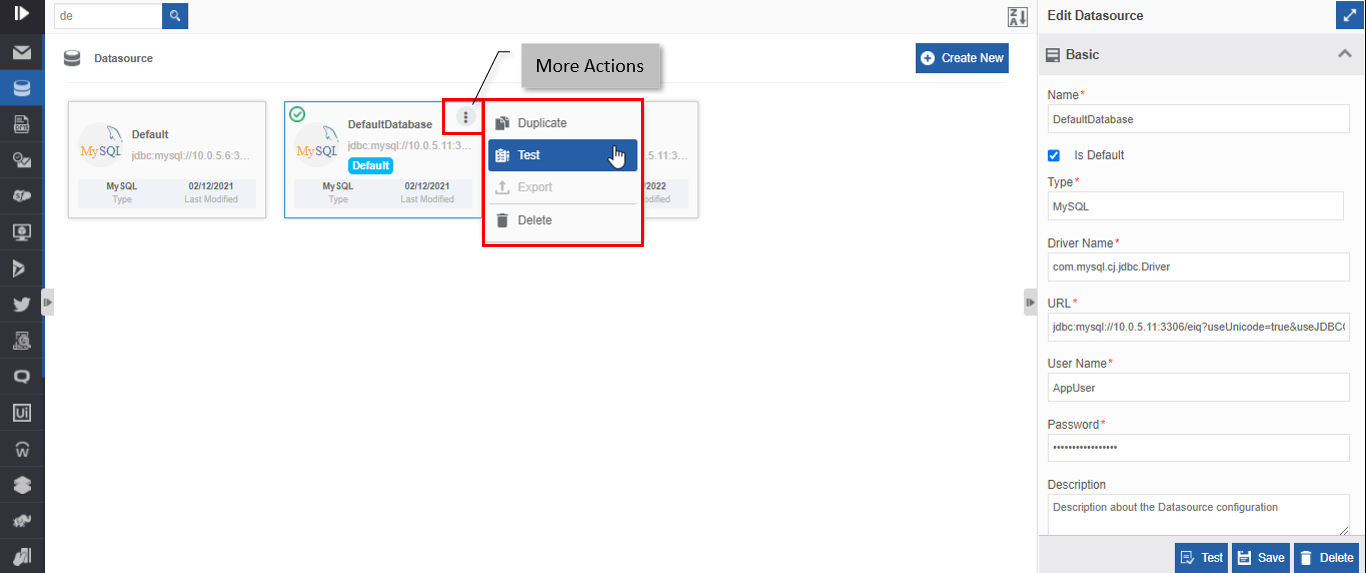
Figure 18: Test Datasource in More Actions
Fetching Access Tokens
For those datasources for which access tokens are applicable, the UI displays the Fetch Access Token button on the selection of that datasource. You can fetch the access token of a particular datasource.
- Click the Burger menu and navigate to Management > Configuration Management (or Settings for user-specific datasoure).
-
Click Datasource. The list of all datasources is displayed.
-
Click the datasource for which the access token is to be fetched. Fetch Access Token appears on the bottom-right of the screen.
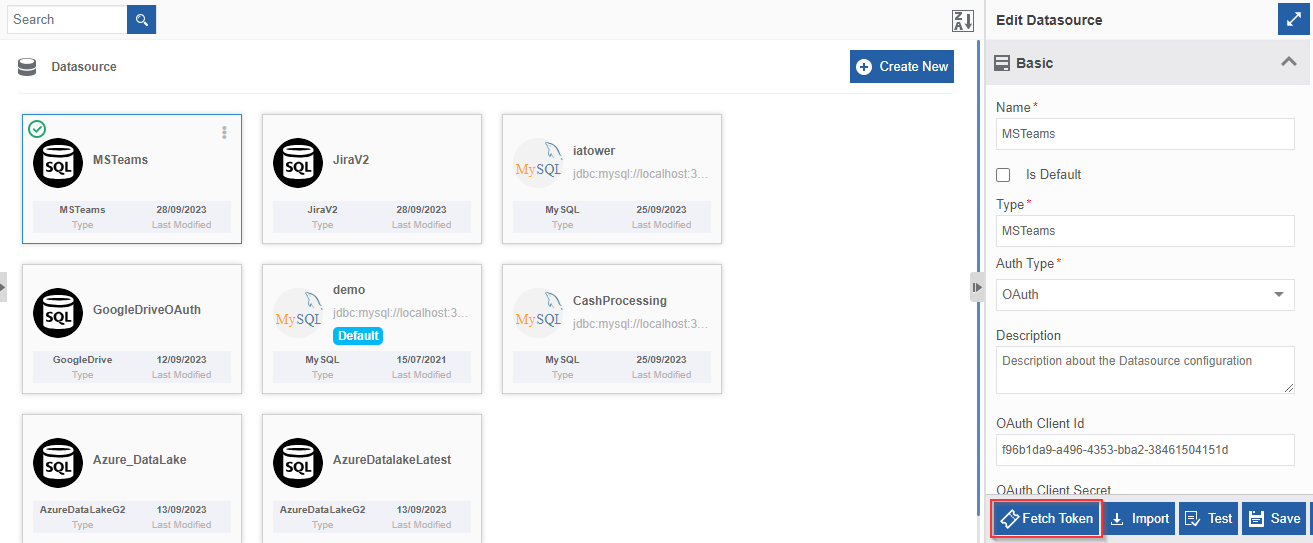
Figure 19: Fetching access token -
Click Access Token. You will be redirected to the respective application for signing in to that application.
For example, for MS Teams datasource, you will be redirected to the login.microsoftonline.com.
-
Log in to your application account using your credentials.
The application account used for fetching access tokens for the connector-based datasource (e.g., in the case of MS Teams) needs appropriate permission to be granted from the application administrator to access the APP and the APP should have the appropriate permissions to specify the action required to be performed using the connectors.
Upon successful login to the user account with the required permissions, an access token gets generated and a success message appears.
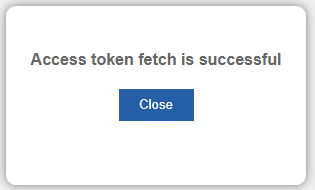
-
Click Close.
Every time you fetch the access token, a fresh access token is generated and a new configuration for the access token is created in the Management > Configuration Management > Access Token with the access token details. This access token configuration is either used by the datasource or you can utilize it as a web service.
Duplicating Datasource
When a data source is duplicated all the properties of the data source get copied except the “Password”. Hence while duplicating the datasource, the user is prompted to enter the password for the duplicate datasource. Unless the user enters the password value, the data source cannot be duplicated.
- Click the Burger menu and navigate to Manage > Configuration Management.
-
Click Datasource. The list of all Datasource is displayed.
-
Hover over any Datasource card. Three dots appear on the upper right side of the card.
-
Click the three dots. More Actions appear.
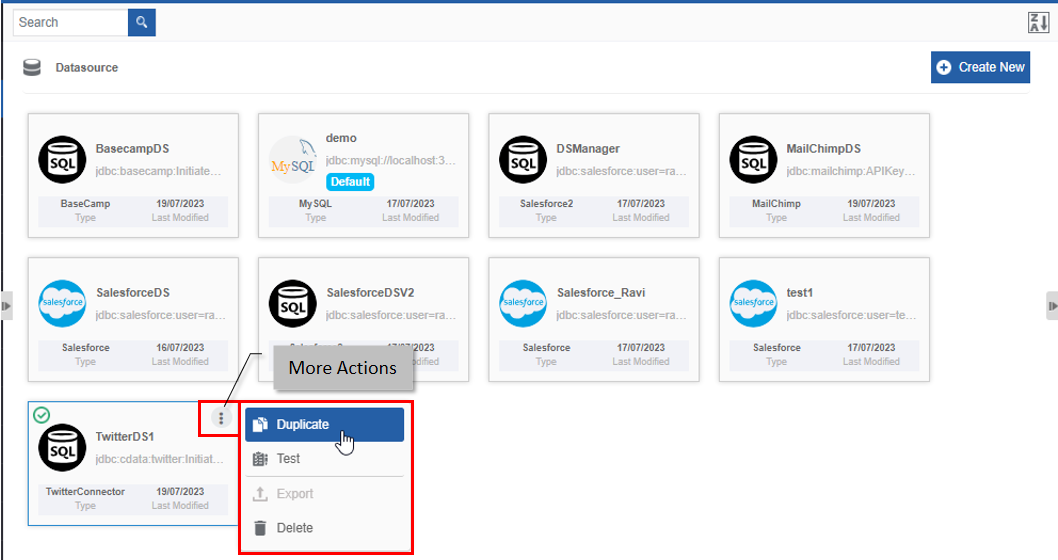
Figure 20: Duplicating the Datasource -
Click Duplicate. A confirmation pop-up appears with an option to enter the new password.
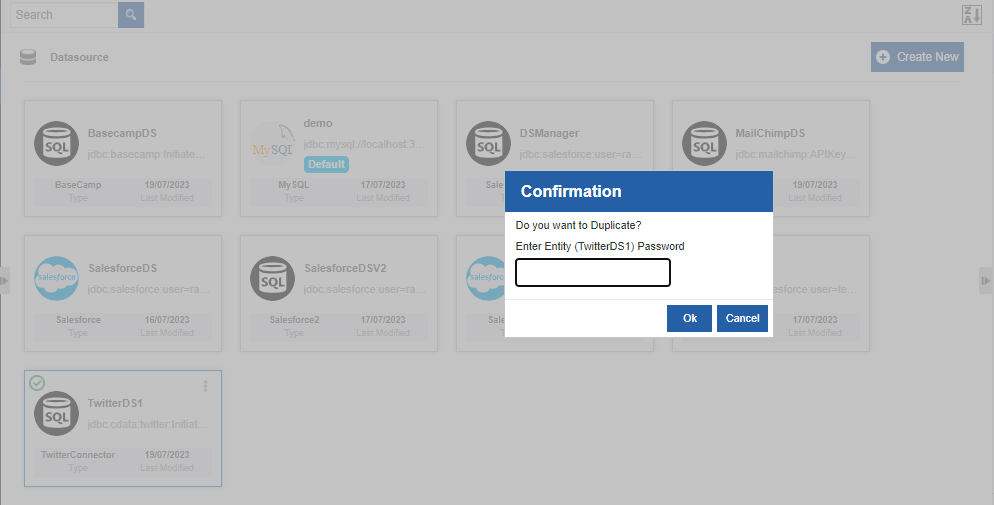
Figure 21: Duplicate confirmation and entering password -
Enter the password. When you duplicate a datasource, password will not be duplicated, hence it will prompt you to enter password for the duplicated entity.
-
Click Ok to duplicate the Datasource (or you can click Cancel to cancel the duplicate action). A Success message appears on the successful duplication of the Datasource.
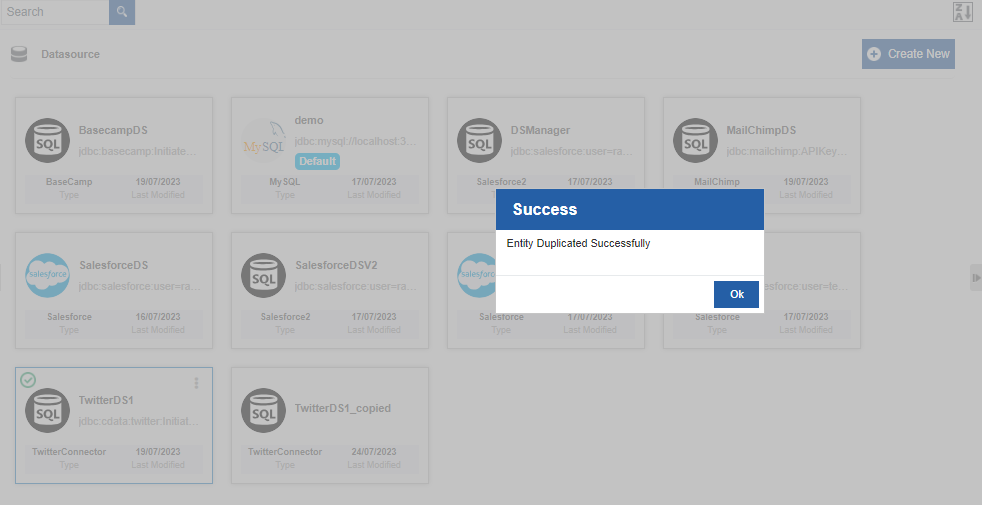
Figure 22: Duplicate success message -
Click Ok. A duplicate copy of the Datasource appears on the Datasource page with the same Datasource name suffixed with “_copied”.
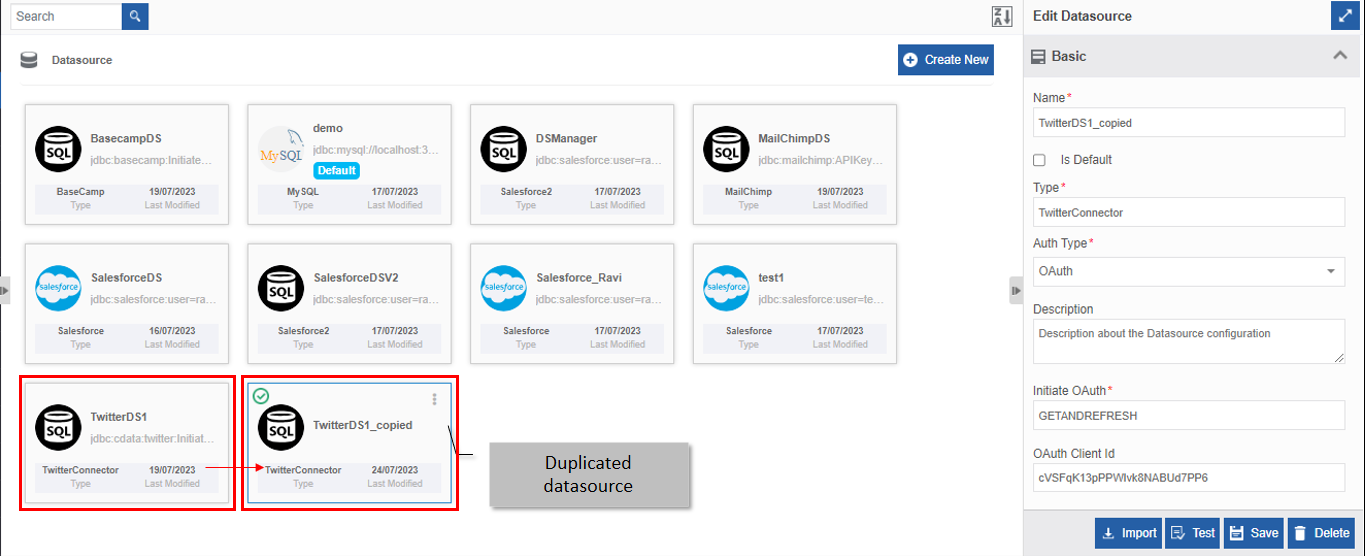
Figure 23: Duplicated Datasource
Importing Objects From the Datasource
You can import the objects (tables) from the data source. The imported objects are saved in the background and it will be part of the datasource created. When you import objects, the objects and the attributes is imported as data entity in the Manage > Data Catalog > Data Entities section.
- Click the Burger menu and navigate to Manage > Configuration Management (or Settings for user-specific datasoure).
-
Click Datasource. The list of all Datasource is displayed.
-
Select the datasource from which you need to import objects.
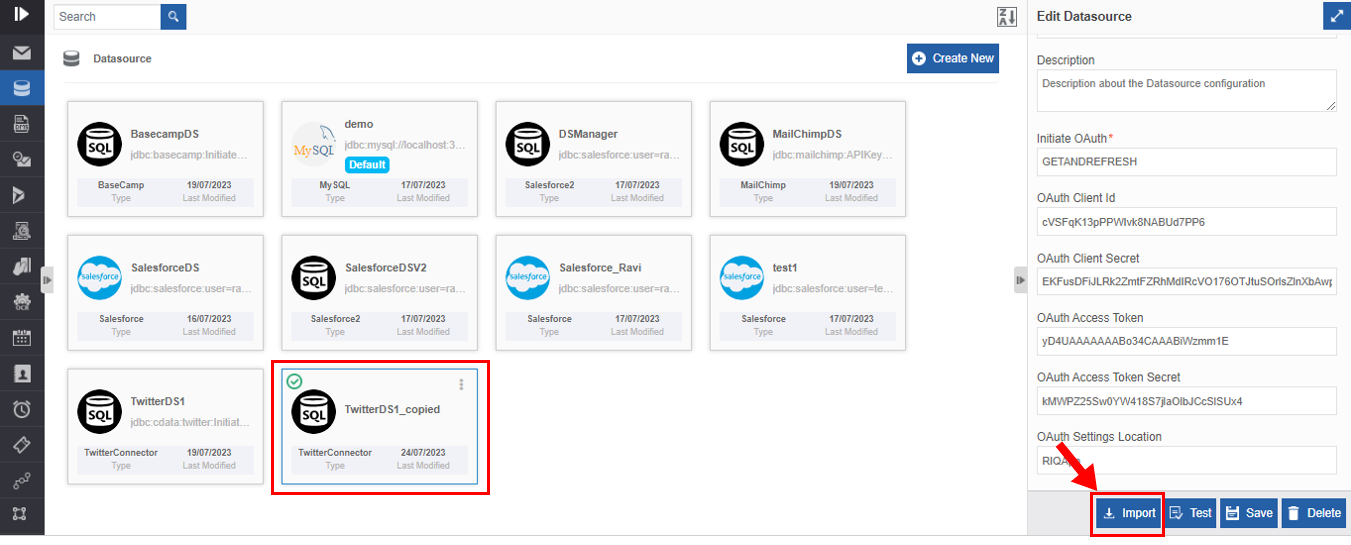
Figure 24: Importing objects to the datasource -
Click Import on the bottom-right. The schemas available in that datasource appear.
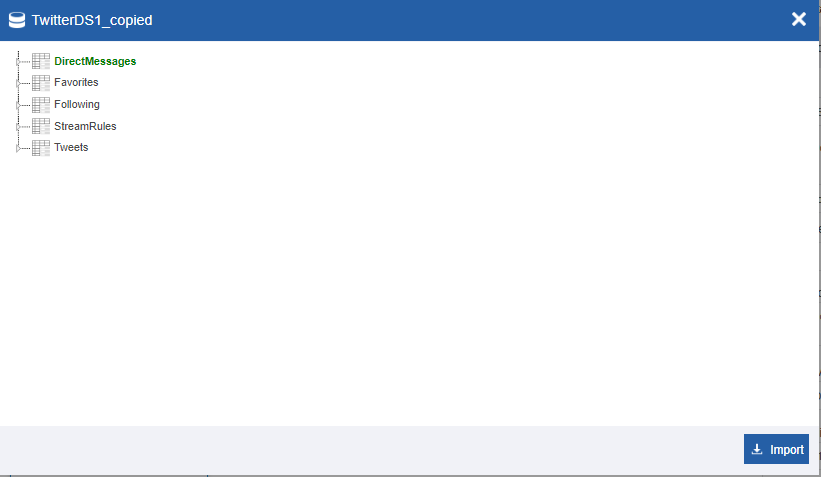
Figure 25: Objects or tables in the import -
Click an object name to view the details (attributes of the table) within that.
When you import a connector-based datasource, a data entity is created in the Manage > Data Catalog section (these details are non-editable in the Data Catalog section).
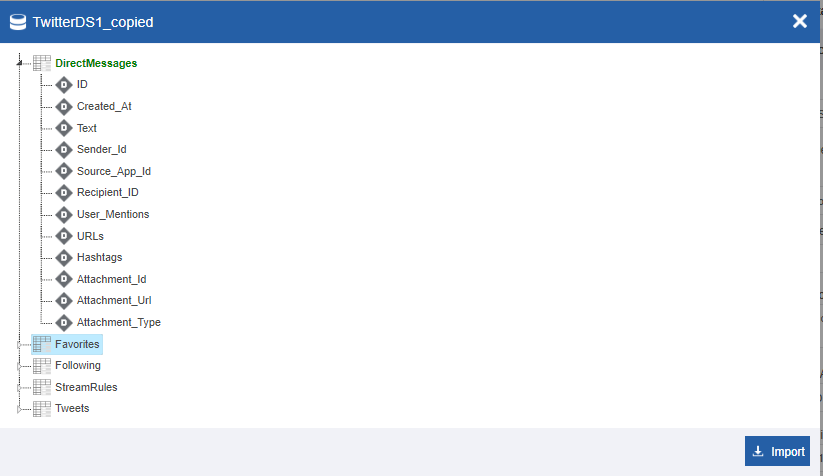
Figure 26: Attributes within the object -
Click Import. The details get imported as background details for the selected datasource.
Deleting Datasource
You can delete the default Datasource and other Datasources. When you delete a default Datasource, you need to configure another Datasource as the default Datasource. You cannot retrieve the deleted Datasource.
- Click the Burger menu and navigate to Manage > Configuration Management (or Settings for user-specific datasoure).
-
Click Datasource. The list of all Datasource is displayed.
-
Click the Datasource name card that is to be deleted. The lower-right of the page displays the Delete button.
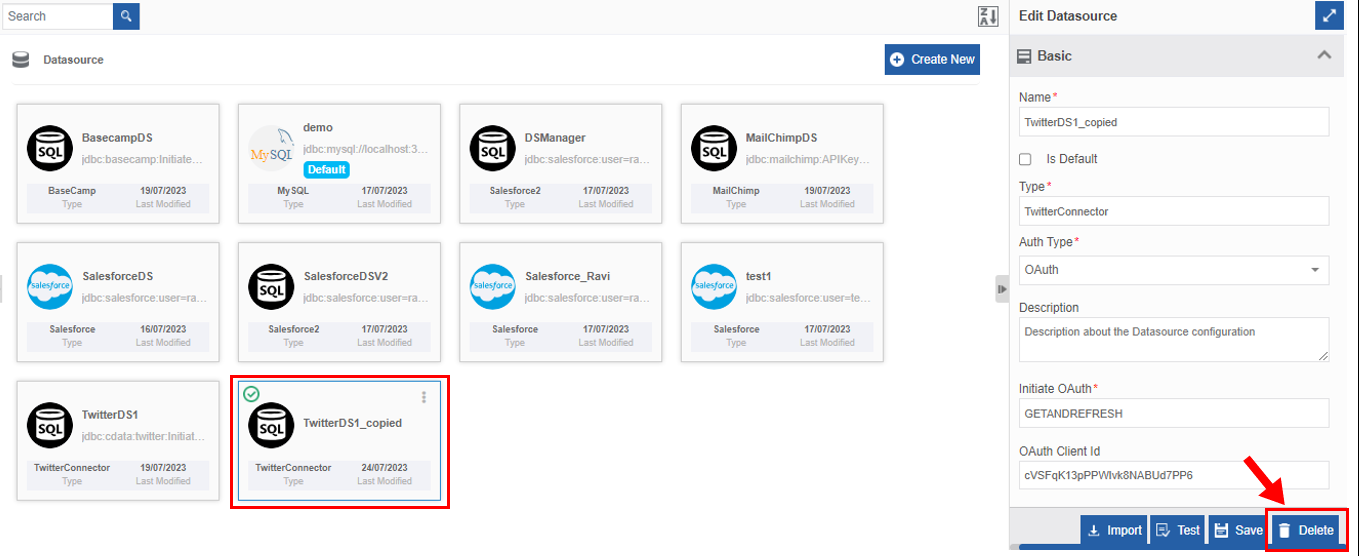
Figure 27: Deleting Datasource -
Click Delete. A Confirmation pop-up for delete appears.
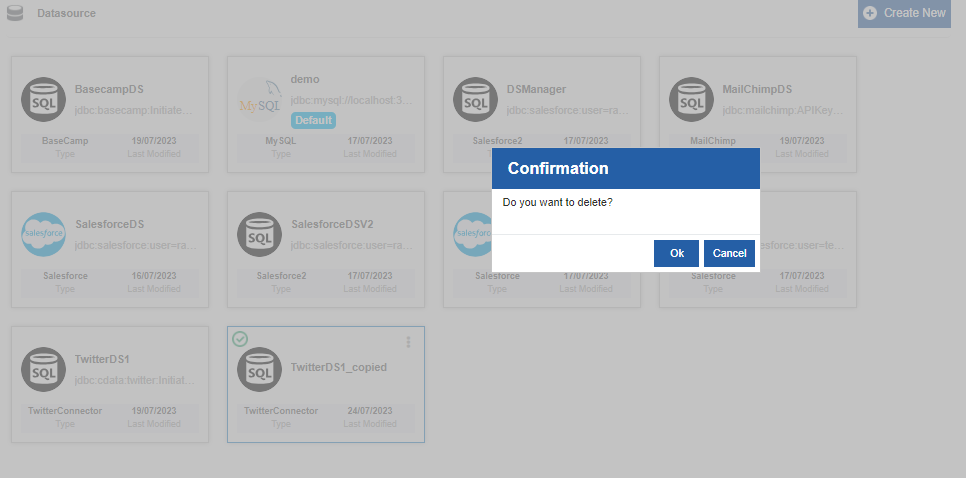
Figure 28: Datasource Delete confirmation -
Click Ok for deleting the Datasource.
Or
Click Cancel to cancel the action.
Alternatively, you can follow the below steps to delete the Datasource:
-
Click the Burger menu and navigate to Manage > Configuration Management > Datasource
-
Hover over the Datasource card. Three dots appear on the upper right side of the card.
-
Click the three dots. More Actions appear.
-
Click Delete and follow step 5 in the above procedure.
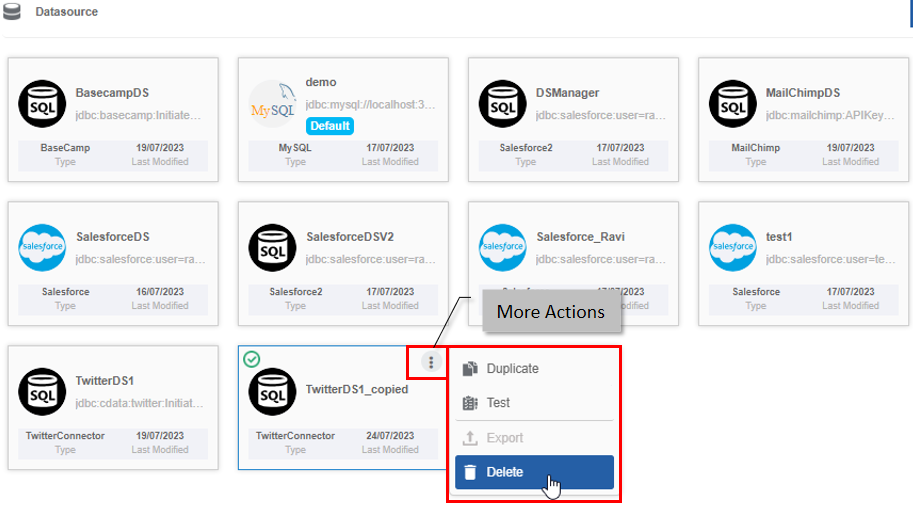
Figure 29: Delete action in More Actions
Utilizing Datasource
Datasource in Process Flows
You can utilize the datasource (non user-specific datasources) in the processflows by mapping the data source to the required activities. The activities in the process flows that need data source configuration are:
-
BIRT Executor
-
DB
-
Insert Data Entity
-
External connector-based activities
Hence it is mandatory to configure the required datasource before configuring these activities.
Datasources in Data Flows
For all the data processing activities in the data flows, you need a datamodel mapping and datamodel intern needs a data source configuration. Hence it is mandatory to configure the required datasource if you are working on the data flows.
Datasources in Event Flows
You can utilize the datasource in the event flows by mapping the data source to the required activities. The activities in the process flow that need data source configuration are:
-
Data Lookup
-
Event Publisher
-
Persister
Hence it is mandatory to configure the required datasource before configuring these activities.
User Specific Datasources
You can create user-specific datasource configurations. That is, the datasource can be manipulated only by a specific user. Other users will have only the view of that datasource.
User-specific datasources are configured in the Burger menu > Settings > Datasource section.